
Create your missing basic shape and learn how to use OpenSCAD in 7 minutes (scad)
Obliczymy ostateczną cenę na podstawie wybranego pliku. Sprawdzisz ją i zaakceptujesz przed płatnością.
Zapisane na tym urządzeniu.
Informacje o modelu
- Źródło
- Printables
- Kategoria
- Puzzles & Brain-teasers
- Licencja
- Creative Commons — Attribution
You know how it goes – pieces from every Montessori toy start disappearing after a while. You haven't modeled anything yet, but you're looking to see if you can find the exact STL with the dimensions you need? Consider this a huge opportunity to learn the amazing OpenSCAD and generate the shape with the exact dimensions you require :)
Beginner's guide to using OpenSCAD with a simple function to create a cylinder
This guide will walk you through the process of using OpenSCAD to create a 3D model of a cylinder (circle in 3D space) using a simple custom function. OpenSCAD is a free, script-based 3D modelling software that allows you to define 3D shapes using code.
- Download and Install OpenSCAD:
- Go to the official OpenSCAD download page
- Select the version appropriate for your operating system (Windows, macOS, Linux).
- Download the installer and follow the installation instructions specific to your operating system.
- Launch OpenSCAD
- Open the software from your desktop or application folder.
- You’ll see two main sections:
- The code editor on the left, where you’ll write the code to define your 3D objects.
- The preview window on the right, where the 3D model will be displayed.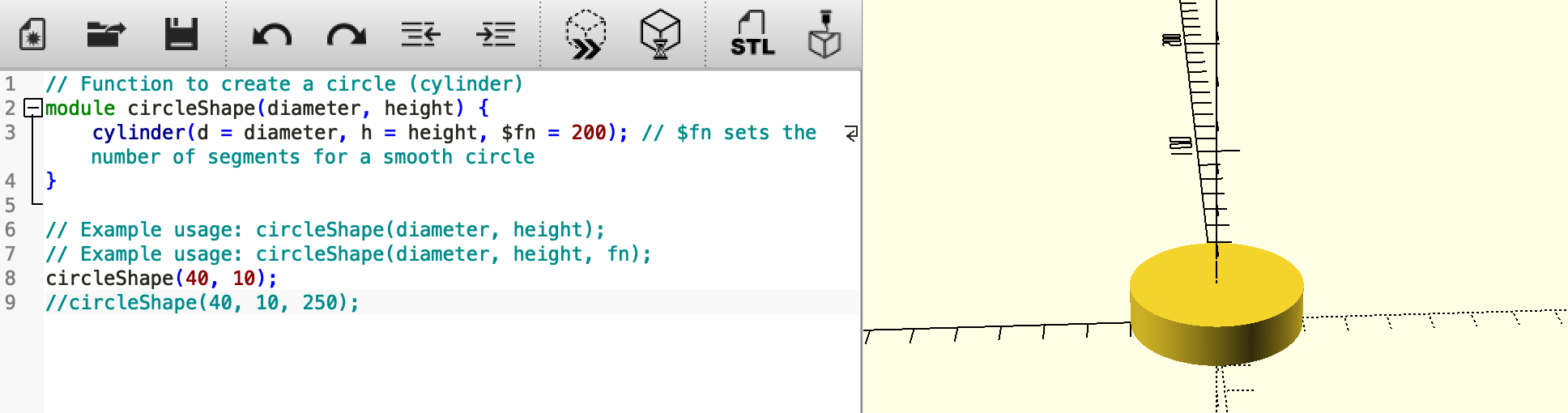
- Open the code to create a cylinder (circle) cylinder.scad or copy this one:
// Function to create a cylindermodule circleShape(diameter, height) {cylinder(d = diameter, h = height, $fn = 200); // $fn sets the number of segments for a smooth circle}// Example usage:circleShape(40, 10); // Creates a cylinder with a diameter of 40 units and a height of 10 units
- Once you’ve entered/opened the code, previewing the 3D Model:
- Press the **F5** key or click on the **Preview** button located at the top of the OpenSCAD window.
- You’ll see a 3D preview of your cylinder appear in the right-hand window.
- You can click and drag to rotate the view, or use the scroll wheel to zoom in and out.
- You can also pan the view by holding down the middle mouse button (or holding Shift while clicking and dragging).
- After previewing, the next step is to render the model for export or 3D printing.
- Press the **F6** key or click the **Render** button to fully render the model.
- Rendering takes a few seconds, depending on the complexity of the model.
- To export the model for 3D printing or further use:
- After rendering, go to **File > Export** and select **Export as STL**.
- Choose a location on your computer and save the file as an **STL** file, which is a common format used for 3D printing.
Explanation of the code:
module circleShape(diameter, height): This function is namedcircleShapeand it takes two parameters –diameterfor the circle’s width, andheightfor the cylinder’s height.cylinder(d = diameter, h = height, $fn = 200): This is the built-in OpenSCAD function to create a cylinder. The parameter$fn = 200controls how smooth the circle is by defining the number of segments. The higher the number, the smoother the cylinder will appear.circleShape(40, 10): This line of code calls thecircleShapefunction, creating a cylinder with a 40-unit diameter and a 10-unit height.
You’ve now successfully learned how to use OpenSCAD to create a simple 3D model of a cylinder, preview it, render it, and export it for 3D printing. This basic introduction can be expanded upon by experimenting with different shapes and learning more about the OpenSCAD language. You can also download here different .scad files for creating different shapes.
---
If you have any further questions or need another shapes or clarification, feel free to ask :)