
Igloo Pencil sharpener
Obliczymy ostateczną cenę na podstawie wybranego pliku. Sprawdzisz ją i zaakceptujesz przed płatnością.
Zapisane na tym urządzeniu.
Informacje o modelu
- Źródło
- Printables
- Kategoria
- Accessories
- Licencja
- Creative Commons — Public Domain
This project was made in collaboration with @Vyrus_Vlad
Lesson Plan and Constraints:
We have been tasked to create a 3D-printed object that would be useful in classrooms to make things easier or just decorate.
Summary / How to:
If you are trying to make an igloo yourself you probably should not use any automatic 3D textures because they are challenging to work with.
Assembly/Construction Instructions:
Making the body:
- Select the Front Plane
Begin by selecting the front plane in your 3D modeling software. - Create a Semicircle
Draw a semicircle with dimensions that suit your design preferences. - Connect Top and Bottom Vertices
Draw a line connecting the top vertex to the bottom vertex of the semicircle. - Revolve the Figure to Form a Sphere
Revolve the figure around its central axis to create a full sphere. - Extrude and Cut Half of the Sphere
Extrude the shape and then use the cutting tool to remove half of the sphere, leaving the bottom portion intact. - Choose the Front Side of the Igloo
Decide which side of the shape will serve as the front of your igloo. - Create the Door Opening
On the selected front side, draw an oval shape where the door should be located. - Extrude the Oval to Form the Door
Extrude the oval shape inward to create the door opening. - Offset the Oval and Create a Smaller Version
Offset the oval to create a smaller version, then extrude cut this smaller oval into the igloo to form the doorway. - Shell the Main Body of the Igloo
Shell the main body of the igloo to hollow out the interior. - Add Square-Shaped Holes
On the original shape, add 3 to 4 square-shaped holes where necessary for functionality. - Fillet the Corners of the Holes
Once the holes are placed, apply a fillet to the corners. This step helps prevent plastic breakage when the cap is attached.
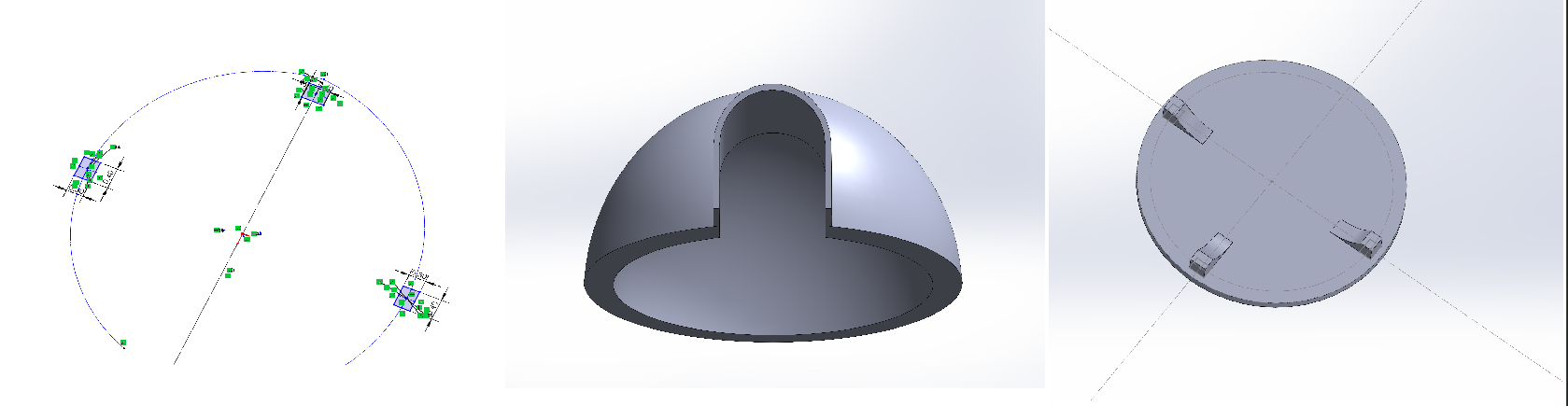
Making the base:
- Create a New Part
It’s important to start a new file to ensure the parts are kept separate. - Draw a Circle
Create a circle with the same dimensions as the circle used in the previous part. - Boss-Extrude the Circle
Perform a Boss-Extrude on the circle, but limit the extrusion to just 1 centimeter in height. - Position at the Top of the Cylinder
Move to the top surface of the newly extruded cylinder. - Add Square Extrusions
Add 3 to 4 square-shaped extrusions, depending on how many were placed on the body in the previous part. - Extrude the Boxes
Extrude the square boxes no more than 1 centimeter to ensure they are sturdy and not prone to easy breakage. - Fillet the Sides
Apply a fillet to the edges of the extrusions so that the cap will fit properly with the body.
Add textures (optional):
- Go into the appearances tap in solid works
- Start by adding an appearance
- Then go into “3D textures”
- Find a texture that suits your igloo (I recommend dimple bump 28)
- Apply it and change the values to find the exact pattern desired
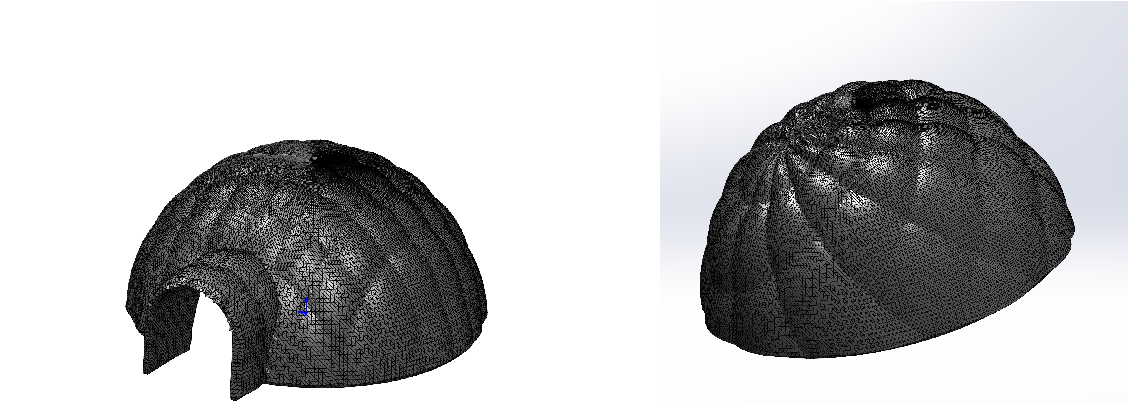
Design Choices / Changes:
While making the igloo, I encountered a handful of problems and issues due to printing sizes, incorrect values, and the most annoying textures.
Igloo V.1.0:
1. Overview of V.1.0 Design and Outcome:
The first iteration of the pencil sharpener igloo was nearly successful, but there were a few issues that prevented it from being fully functional.
2. Issue 1: Off-center Base
One of the primary issues with V.1.0 was that the base of the igloo was misaligned with the main body. This misalignment caused the base to look off-center when attached, making the overall appearance of the design unbalanced and out of place. This issue was due to the size of the base being too small compared to the main body.
3. Issue 2: Texture Mapping Problem
The most significant problem with the V.1.0 model was related to the texture application. The holes used to connect the main body to the cover were unintentionally sealed up due to the way textures were applied to the model.
- Cause of the Issue: When textures were applied, they covered the entire surface of the shape, extending into areas where they weren’t intended, including the interior of the holes. This was caused by a problem in the texture mapping, where the textures wrapped around the shape but did not leave the inside areas untextured.
- Impact on Functionality: This issue caused the bottom of the igloo, which was intended to be smooth, to be treated as fully textured by the printer. As a result, the printer misinterpreted these areas, preventing the holes from being functional, thus impeding the ability to properly connect the main body to the cover.
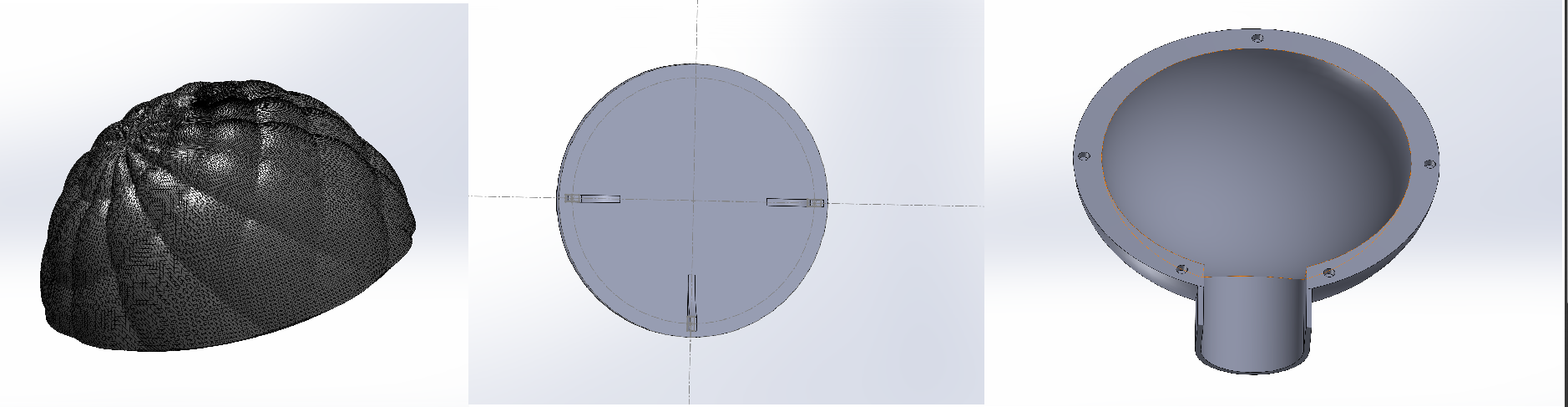
Igloo V.2.0:
1. Overview of V.2.0 Design Improvements
The second version of the pencil sharpener igloo was significantly more refined than the first. Through careful revisions and addressing key issues from V.1.0, we were able to improve the overall design and functionality, although a few challenges persisted.
2. Issue 1: Base and Main Body Alignment
In V.1.0, the base was misaligned with the main body, which led to a disjointed appearance. For V.2.0, we made sure that the base and the main body were precisely the same size (5.90 x 4.45 cm). This ensured a better fit and eliminated any alignment problems, creating a more cohesive and visually appealing design.
3. Issue 2: Enlarging the Connection Holes
In the first version, the holes that connected the main body to the cover were too small and prone to getting sealed up by the texture application. To resolve this, we made the holes significantly larger and deeper in V.2.0. This change was intended to prevent the textures from overlapping and covering the holes, ensuring that the functional openings remained accessible for assembly.
4. Issue 3: Strengthening the Base Locks
Another issue in the first model was the fragility of the locks on the base. The locks were too thin, making them easy to break under pressure. In the second version, we addressed this by increasing the thickness of the locks and reducing their height. This made the locks sturdier and less prone to damage, improving the overall durability of the igloo.
5. Issue 4: Texturing Challenges
Once again, we faced difficulties with the texture application. Despite multiple attempts by my partner, our teacher, and myself to find a solution, the textures continued to be a pain. We tried several different methods to keep the textures from affecting these areas, but none proved to work.
6. Final Decision: Removing Textures
Given the persistent issues with the textures and only a day left on the project, we ultimately decided to remove them entirely from the design. While this was not the ideal solution, it was the most practical option to ensure the model functioned properly. With the textures removed, we were able to focus on the structural and functional aspects of the igloo.
7. Conclusion
Although V.2.0 addressed many of the design flaws from version V.1.0, the texture issue remained unresolved. Moving forward, it will be important to explore alternative texturing methods or possibly rethink how the textures are applied to prevent interference. Despite the setback with the textures, the overall design is significantly improved and more durable than the previous version.
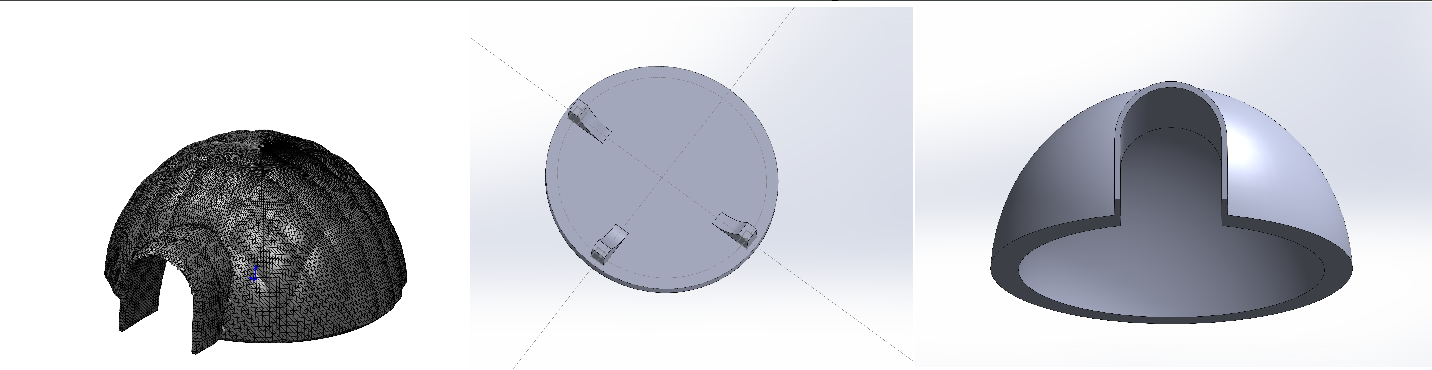
Additional Issues:
ISSUE:
10/16: whenever an attempt was made to revolve the figure the software would be unable to.
SOLUTION:
10/16: Make sure that all points are connected to avoid problems with extruding
ISSUE:
10/17: The original size for the igloo “15cm x 15cm,” was over the size limit
SOLUTION:
10/17: decreased the size from “15cm x 15cm” to “5.90cm x 4.45cm ” This makes it so it fits around small sharpeners as well
ISSUE:
1/6/25: Textures would either crash the computer or not be visible at all.
SOLUTION:
Before applying textures make sure not to apply 20 textures at the same time accidentally, and use texture dimple bump 28 instead of 29 to avoid any crashes