Overengineered Pet Feeder
Obliczymy ostateczną cenę na podstawie wybranego pliku. Sprawdzisz ją i zaakceptujesz przed płatnością.
Zapisane na tym urządzeniu.
Informacje o modelu
- Źródło
- Printables
- Kategoria
- Pets
- Licencja
- Creative Commons — Attribution — Share Alike
Once I saw the contest, I instantly knew I wouldn’t touch grass for the next month, which is why this overcomplicated pet feeder became the ultimate beast in providing nutrients to your pet.
It uses an Arduino Nano, a NEMA 17 stepper motor, a Raspberry Pi, OLED display, and four load cells. My goal was to customize every aspect of feeding my cat.
It features:
- Food storage amount control (buzzes when LOW).
- Magnetic closing lid with status detection.
- Pet scale.
- Display output (Bongo cat animation/realtime scale value).
- Automatic dispense of food based on app settings.
- Local hosted web application with visualized data from the scale.
- Web application has action buttons for setting “feed times” and their ammounts.
- Slick wiring and electrical housing.
The four load cells are used to weigh your pet and then, from the measurements, it calculates your pet’s BMI based on the data you enter and the data it measures.
Basically, there's a web application where you can adjust the output and view visualized data. This web app is hosted on the Raspberry Pi, which communicates with the Arduino. The Arduino handles the hardware side of the feeder, including the stepper motor, load cells, buzzer, microswitch, and an OLED display.
The whole system is powered by a single 12V 5A power supply with a 5.5x2.5mm barrel connector.
Code
Code is uploaded on GitHub, both the Raspberry and Arduino side. If you need help setting up the Raspberry, there is a README on the GitHub that explains everything.
I'm pretty proud of the logic — I kinda surfed on the edge of what an Arduino can handle.
The Arduino code handles three key states:
- Idle: waiting for commands and watching the scale.
- Feeding: triggered by the Raspberry Pi to rotate the motor and dispense food
FEED:x. - Refilling: when the lid is opened, the Arduino measures the weight change to detect how much food was added. If the food amount is above 100g than arduino sends
FOOD:OK; if its below that threshold, it sendsFOOD:LOW; which is then displayed on the web.
When the cat steps on the feeder, the Arduino waits for the scale to stabilize, subtracts the known food weight, and calculates the cat's body weight. It then sends this to the Raspberry Pi in the form WEIGHT:xxxx. After the cat leaves, the Arduino recalculates the amount of food there is based on the measurement before the cat came.
The OLED displays either an animation or real-time weight from the scale depending on the selected mode. The Raspberry Pi sends commands like MODE:weight, MODE:bongo, or BUZZ over serial. The Arduino listens for them and responds with an ACK.
Common issues:
- Setting the correct communication speed to 9600 bauds.
- Setting up the serial COM port correctly.
- Setting up the local DNS on raspberry. If you set it up correctly its: [NameOfDevice].local:[port]
If you have any other issues please let me know.
UART TCP Communication
To make communication between Raspberry Pi and Arduino more stable, I implemented a simple TCP-like protocol over UART using TX/RX pins.
Each message is prefixed like CMD:WEIGHT:4321 or CMD:BUZZ. When the Arduino receives a command, it processes it and replies with an acknowledgment like ACK:CMD:BUZZ.
The Pi doesn’t send the next command until it gets an ACK. If no acknowledgment comes back in time, it resends. This helps avoid lost messages, especially when things get noisy or the Arduino is busy with sensors.
The Web
The entire web backend is hosted directly on the Raspberry Pi 5, using Flask as the web framework. It runs as a local server and starts automatically on boot. The Raspberry Pi is connected to my home Wi-Fi, and I’ve set up mDNS (Bonjour) so I can access the interface by simply going to http://petfeeder.local:5000 from any browser on the same network — no IP address needed.
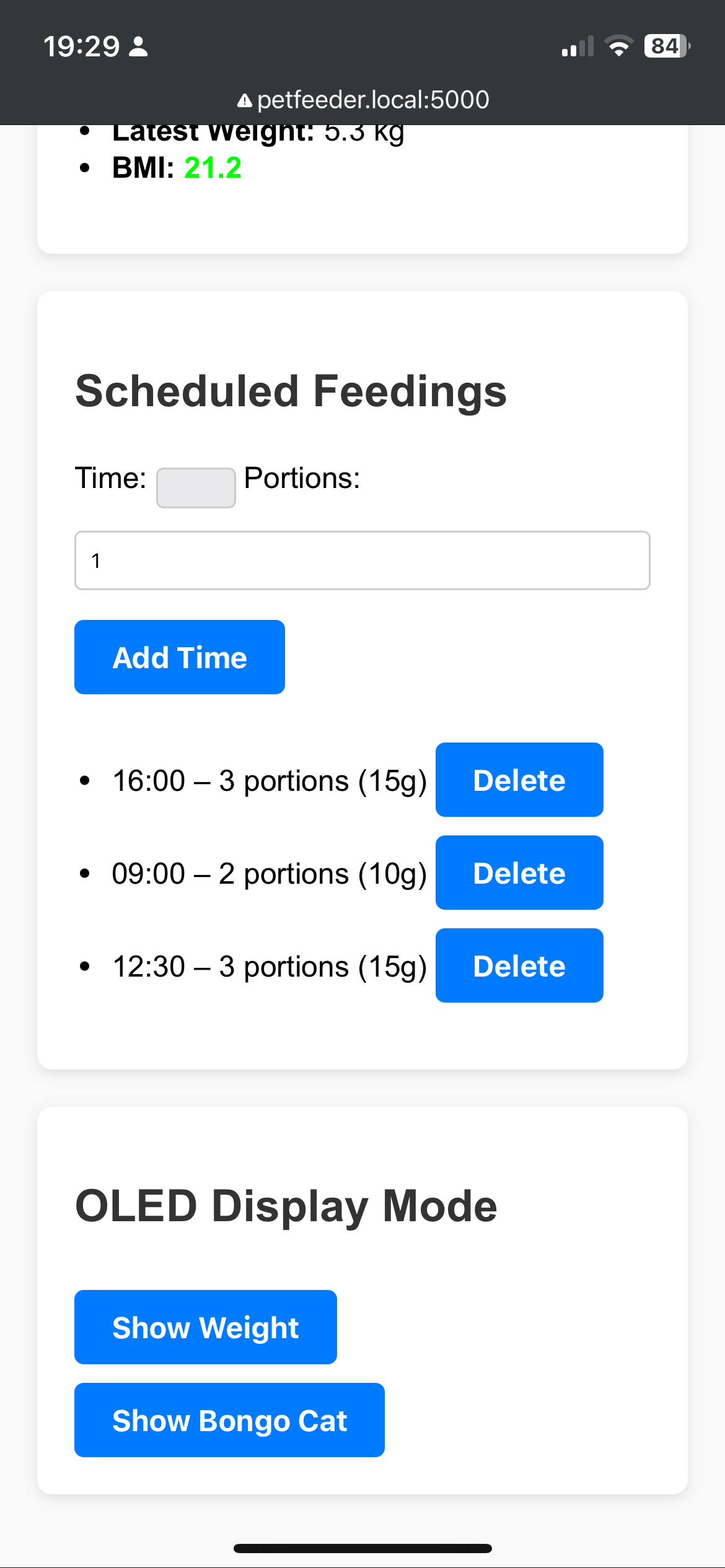
Once you're in, the interface shows a clean dashboard with all the key info:
- The cat’s current weight and calculated BMI
- A color-coded food status (OK or LOW)
- Buttons to change the OLED screen mode (either Bongo Cat animation or real-time weight)
- An instant feed button to manually feed the cat with one click
- A short log of the latest weight entries
There is also a Feeding Schedule section where you can set exact feeding times and how many grams of food should be dispensed at each. The system calculates how many portions that equals, converts it to motor steps, and sends the right command to the Arduino at the right time.
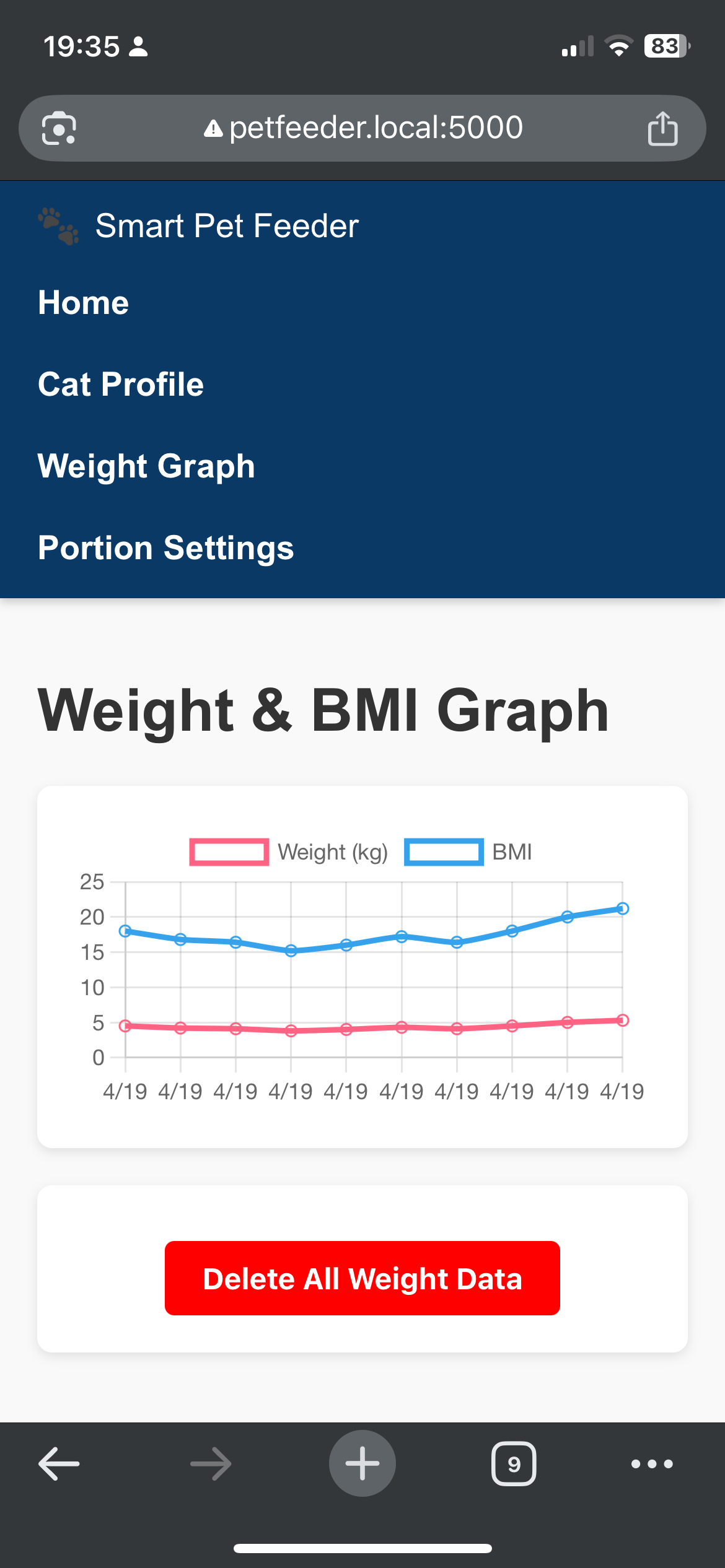
In the Cat Profile section, you can input your cat’s name, birth date, gender, and length. This information is used to calculate BMI based on the measured weight. The profile shows the cat’s age in years, weight in kilograms, and updates automatically.
Finally, there is a Graphs page with a full visual history of your cat’s BMI and weight over time. All data is stored locally in SQLite, and everything — from feeding to data logging — is handled in the background.
Wiring
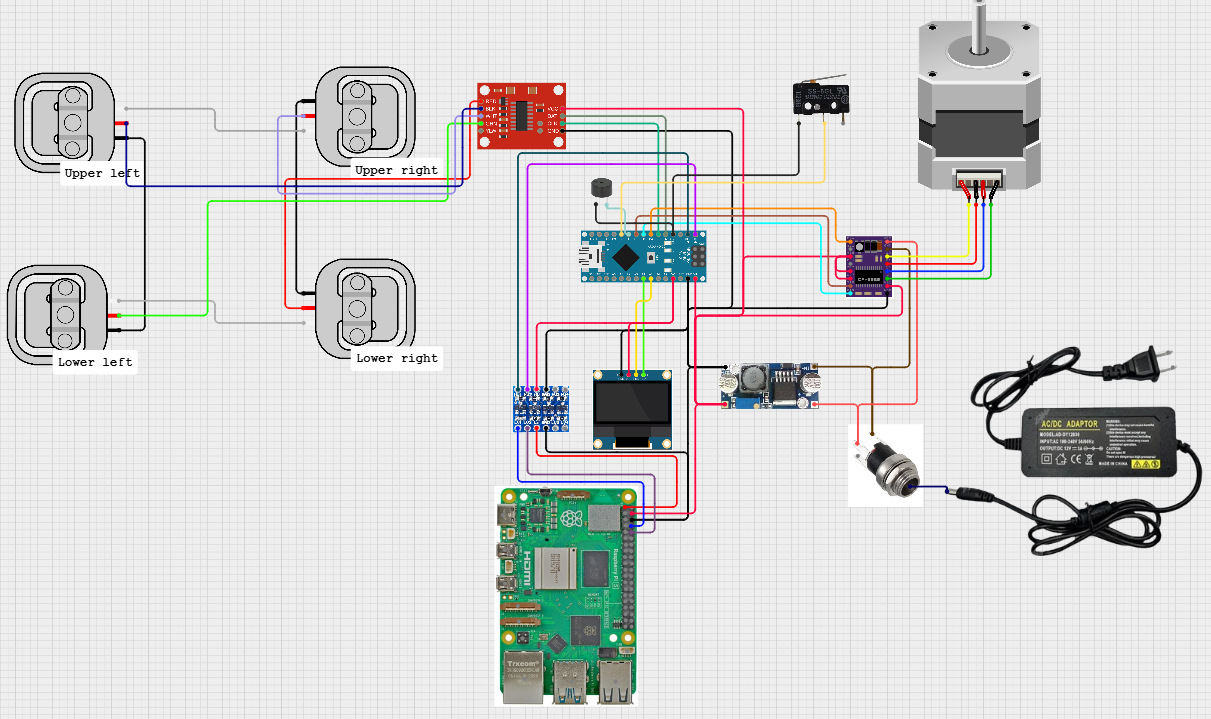
If you are using a Raspberry like I am please be cautious when setting up the step down module and logic shifter. Remember that Raspberry boards run on 3.3 V logic but arduino uses 5 V. If you want to power it with 5 V you need to connect the (-) and (+) to 5V(+) and 5V(-) pins on Raspberry. But here is the catch, even though this is totally valid to do, it bypasses the spike protection that the USB-C has. So when you are setting the step down module from 12V to 5V be careful to set it to about 5.05V. Raspberry does know the difference between 4.9V and 5.2V:
- 4.9V = might crash randomly or not boot at all
- 5.2V = it's possible to fry you Raspberry Pi
Common issues:
- Wiring the microswitch the other way. It should be normaly open.
- Setting the DRV8825 driver microsteps and output current.
- Wiring the load cells. Its kinda complicated so just be careful and double check.
- Wire the Raspberry precisely as it is in the diagram. Else you will have to change the pins in the arduino code.
- DONT FORGET TO SET THE STEP DOWN MODULE TO CORRECT VOLTAGE
With that in mind lets wire it!
Brains:
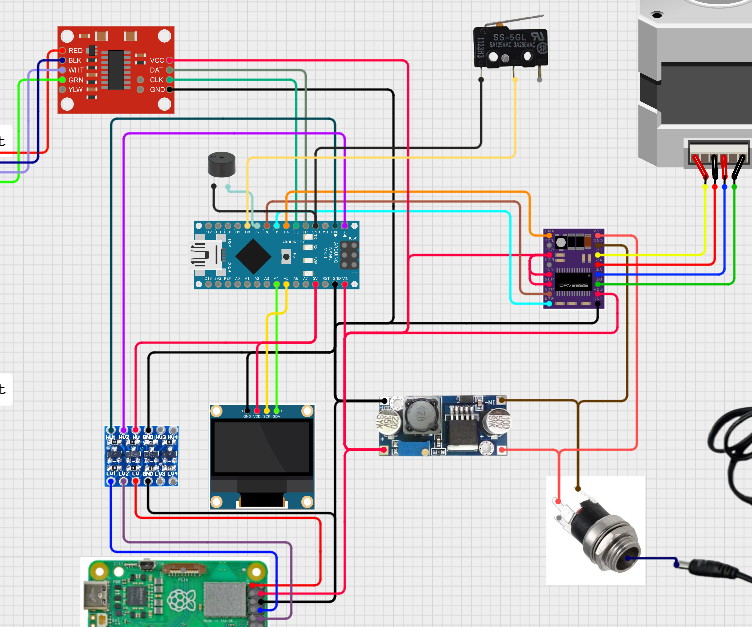
Load Cells
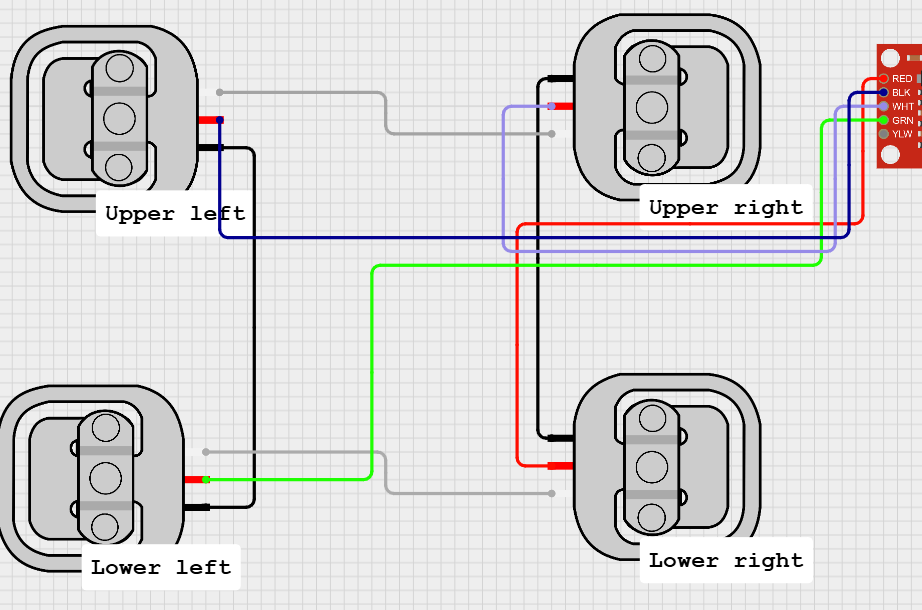
You can view the diagram on cirkitdesigner.com here. You can see each pin and see it properly.
If you have any issues please let me know.
3D Model
I have printed everything with 0.4 mm nozzle on Prusa MK3S+. I used PLA and I recommend you do the same so its safer for your pet. The three main big pieces are printed with 0.3mm layer height. Than there is food_stop_ 1 and food_stop_2 where the first layer is really important so I printed it with 0.2mm layer. Everyting else is up to you but for larger pieces 0.3mm is preferable.
I am currently working on hiding the load cell wiring.
summary:
| Model | Layer Height | Infill | Perimeters |
|---|---|---|---|
| Large pieces | 0.3 mm | 20% | 3 |
| Food_stop 1 and 2 | 0.2 mm | 20% | 3 |
| else (Its up to you) | 0.3 mm | 20% | 3 |
Note: It was really cold when i printed the parts and I dont have an enclosure so I managed to warp PLA. The digital 3D models are fine.
Very Important:
- lid-with_magnet and hopper have a space intended for 8x1mm magnet, so when printing you have to set a pause and insert it.
- food_carousel needs five M3 nuts inserted during printing.
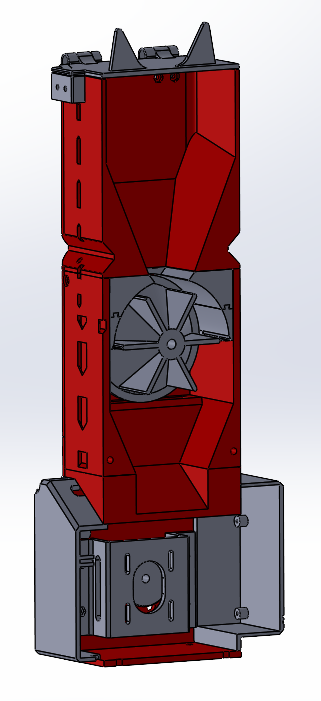
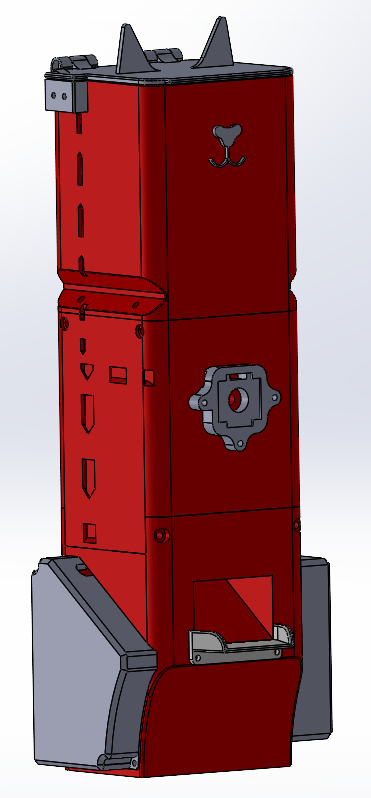
Whole assembly is made out of three main big pieces:
All files are available in three formats
- .sldprt
- .3mf
- .stl
Here is how to put it together → assembly_guide.pdf (see in files)
- I also uploaded soliworks assembly in SLDPRT folder
File Name | Pieces |
|---|---|
| bottom_base (big piece) | 1 |
| top_base (big piece) | 1 |
hopper (big piece) - Insert magnet when printing! | 1 |
| carusel_pulley (timing belt pulley) | 1 |
| stepper_pulley (timing belt pulley) | 1 |
food_carousel - Insert five M3 nuts when printing! | 1 |
| hopper_attachment | 1 |
| food_stop_1 | 1 |
| food_stop_2 | 1 |
| stepper_attachment | 1 |
electrical_lid (I included blank one for people that want to use different setup) electrical_lid-BLANK | 1 |
| electrical_lid_raspberry_closed/open (lid made for raspberry Pi 5, i will be adding more, such as RP zero and RP4) | 1 |
| load_cell_attachment (for loadcells to be screwed on your desk) | 4 |
| lid_hinge | 2 |
lid-with_magnet / decoration-lid-with_magnet + decoration-cat_nose - Insert magnet when printing! | 1 |
| microswitch_attachment | 1 |
| oled_attachment | 1 |
| oled_attachment-cover | 1 |
BOM
Electrical BOM:
Name | Pieces | Global Purchase Link | CZ purchase Link |
|---|---|---|---|
| OLED display 0.96'' I2C 128x64 | 1 | here | here |
| Stepper Motor NEMA 17 17HS4401 | 1 | here | here |
| Load Cell 50kg | 4 | here | here |
| AD converter HX711 (usually comes w the load cells) | 1 | here | here |
| Arduino Nano | 1 | here | here |
| DRV8825 stepper motor driver | 1 | here | here |
| Raspberry Pi 5 – 8GB RAM(or any other) | 1 | here | ← |
| Power Supply 12V 5A (used 5,5/2,5mm connector) | 1 | here | here |
Connector female DC 5.5x2.5mm (depends on what power supply you use) | 1 | here | here |
| Universal circuit board | 1 | here | here |
| Dupont cables | x | here | here |
| Step-down module LM2596 | 1 | here | here |
| Logic shifter 5V to 3.3V (for raspberry) | 1 | here | here |
| Mikroswitch SS0501A | 1 | here | here |
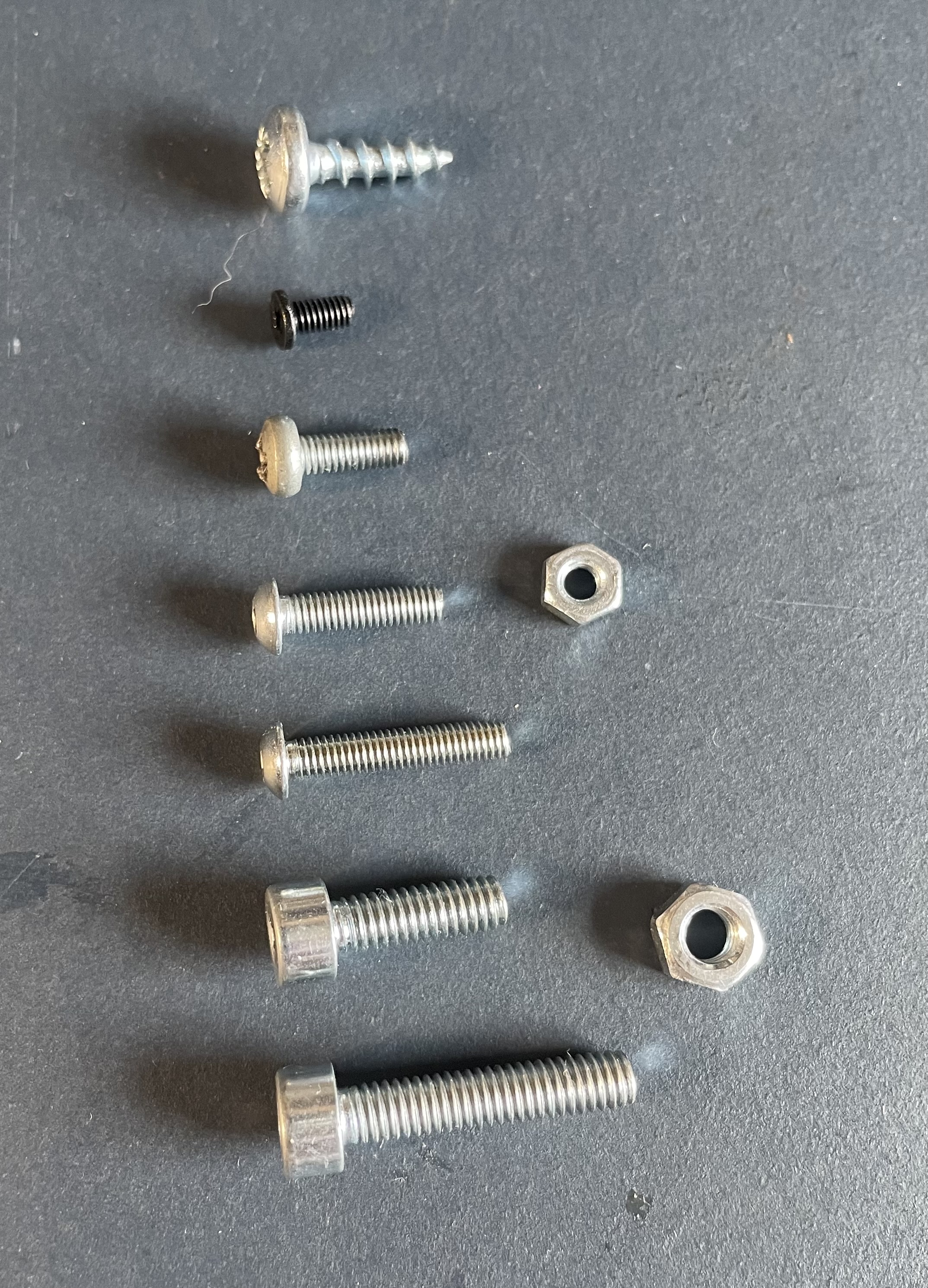
Screws and stuff BOM:
Name | Pieces |
|---|---|
| M2.5x5 (for the raspberry 5 mount) | 4 |
| M3x8 (for the stepper motor mount and securing the pulley) | 5 |
| M3x12 | 16 |
| M3x16 | 8 |
| M4x12 | 4 |
| M4x20 | 14 |
M6x110 - for the food carousel (I used M6x110mm threded rod with 2 nylon nuts temporarily) | 1 |
| M3 hex nut | 16 |
| M4 hex nut | 18 |
| M6 nylon nut | 1 |
| 8x1mm round magnet | 2 |
| 13x6x5mm Bearing | 2 |
| 450mm GT2 belt 6mm | 1 |
Board of your choosing for the digital scale (I used plexiglass from an old monitor) | 1 |
| Wood screw of your choosing (for the loadcell attachment) | 12 |
| Super glue (optional) | 1 |