
PacMan Fidget
Obliczymy ostateczną cenę na podstawie wybranego pliku. Sprawdzisz ją i zaakceptujesz przed płatnością.
Zapisane na tym urządzeniu.
Informacje o modelu
- Źródło
- Printables
- Kategoria
- Other Toys & Games
- Licencja
- Creative Commons — Attribution — Noncommercial
This PacMan Fidget is great for playing and fidgeting with. It makes a great decoration and looks good with other items that can fit on a desk! This fidget is smooth and has alot of layers which make it more satisfying than others. It is also very strong so it will not break unless you smash it with a hammer. The fidget fits in a 8cm by 8cm box and is 1.5 cm tall. I worked with Paul and this is the link that shows his printables page:
Lesson Plan and Constraints -
Using sketch offsets and drafted extrusions cuts, you have to create a telescoping fidget device. Then you and your partner will give feedback on each others work to see what you can improve. You need to do this so you can have identical designs.
- The sketch must begin with a constraint box,
- Your outermost outline must fit within an 8cm x 8cm box
- Dimensions/Relations should be efficient.
- It is not needed to fully define your entire sketch, but it will help.
- The sketch must have zero error messages.
Use the “Offset Entities” command to make more layers.
Overview -
The fidget is a simple pac man outline that we offset 29 times to make 10 layers of our fidget. The offset entities tool plays a big role in this project to create the outline for all the layers.

This was the original image we sketched around.
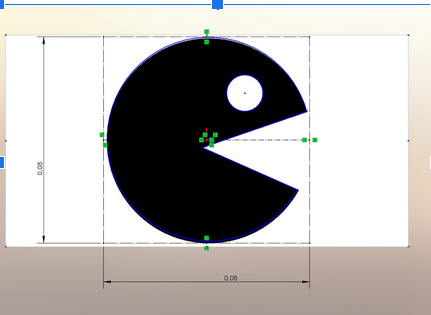
We scaled the pacman to fit in an 8x8 cm constraint box we made.
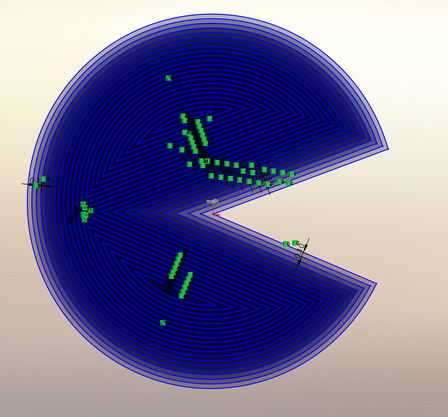
We then offset the outer sketch 29 times inward to create each layer.
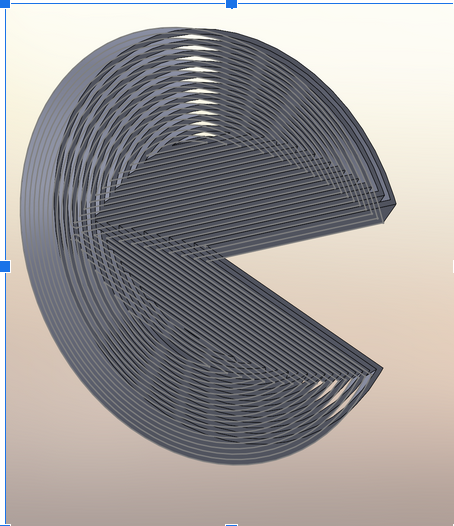
Then we used the series tool and picked extruding and cutting to get the hoirzontal half of the pacman.
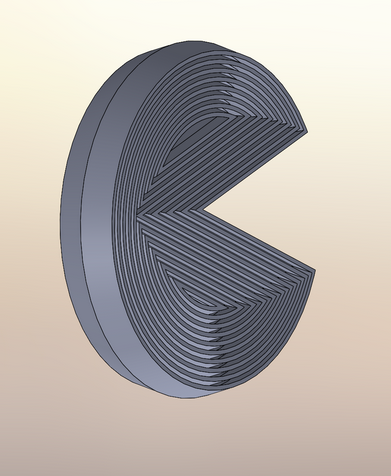
We then used the mirror command to mirror our horizontal half over the front plane, completing the fidget.
Design Choices:
We made a few changes to the original design because of problems that happened along the way.
Design Change 1 -
Before After
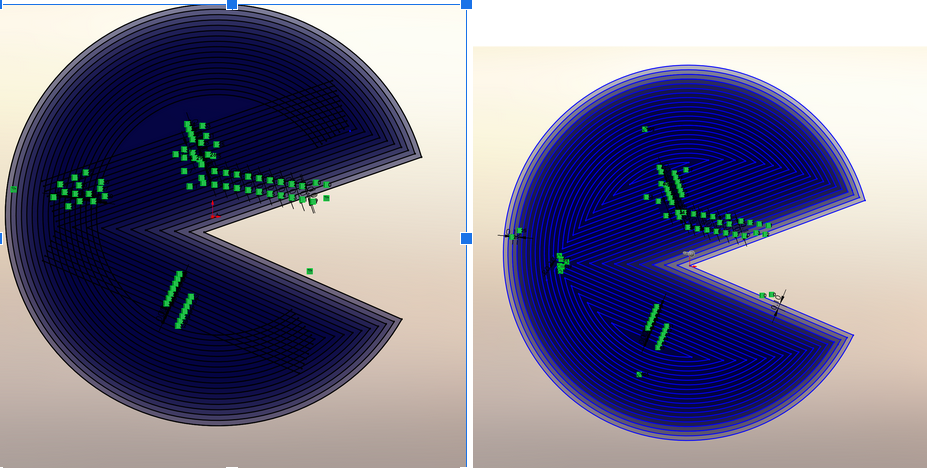
The first image is when the sketch had overlapping lines when we kept offsetting the outer shape. This was a problem because we couldn’t extrude and cut over the intersecting lines. We solved this problem by using the trim entities tool to cut the line off at the first overlapping point and continue using offset entities for each of the two smaller sections.
Design Change 2 -
Before: After:
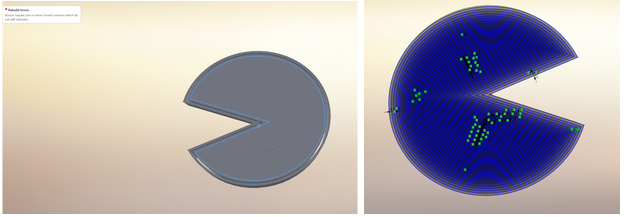
We saw an intriguing issue during the cutting and extruding process. We got an error message saying that the section we were trying to cut didn’t have closed contours. We discovered that there was a small line intersecting at the contour that we were trying to cut. Because of this. Soldiworks wouldn’t let us cut it because the shape was not closed. We fixed this by deleting the intersecting line which fixed the extruded cut.