
Hamster Tracker Wheel
Obliczymy ostateczną cenę na podstawie wybranego pliku. Sprawdzisz ją i zaakceptujesz przed płatnością.
Zapisane na tym urządzeniu.
Informacje o modelu
- Źródło
- Printables
- Kategoria
- Pets
- Licencja
- Creative Commons — Attribution — Noncommercial — Share Alike
Ever wondered how far your furry friend runs while you sleep?
Hi, I'm Loek, 14 years old, and proud owner of the world's cutest hamster! I've always been curious about how active my hamster really is, especially during those night hours when I'm asleep and she is most active.
This curiosity led me to create the Hamster Tracker Wheel. A project that perfectly combines my love for my pet with my passion for electronics and the 3D printer I bought last year. Over the past weeks, I've designed, programmed, printed, and tested this device that measures how far my hamster runs each day, and night.
How It Works
The tracking system utilizes two magnets embedded in the wheel itself. A Hall effect sensor mounted on the stand detects each time a magnet passes by, sending a signal to an Arduino Uno microcontroller. After every two detection's (representing one complete rotation), the Arduino calculates the distance traveled based on the wheel's diameter and updates the display, complete with a tiny running hamster animation!
Safety First
I've designed this with my hamster's safety in mind. All wires are carefully positioned so they remain approximately two centimeters outside the cage's ribs, completely out of reach for hamster paws or teeth.
I hope other people will enjoy using or even expanding upon my Hamster Tracker Wheel project to monitor their own hamsters or other small pets. If you have any questions or reaction, I love to hear them!
Tools Used:
- 3D Modeling: Tinkercad was used to design all the 3D printable parts.
- Programming: The Arduino code was written using the Arduino IDE, with some assistance from AI for specific functions.
Printing Instructions:
- PRINT USING PLA! PLA is generally considered the safest and non-toxic filament option for items potentially chewed by pets like hamsters.
- Print with a layer height of 0.20mm or lower for best results.
- All parts are designed to be printed without support material.
Assembly instructions
- Insert the 2 magnets into the designated slots on the
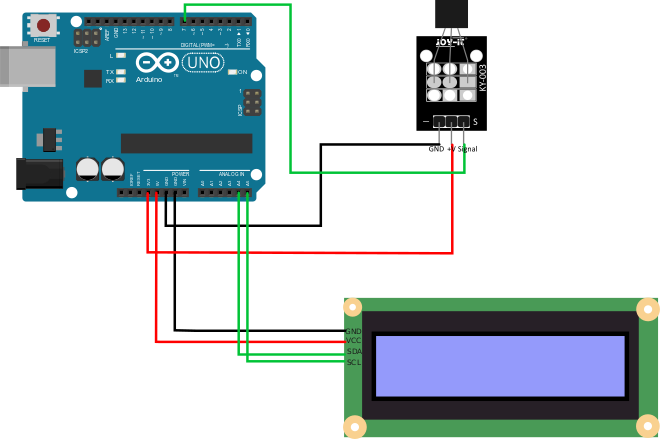
wheel. Use a small amount of glue (like superglue) to secure them firmly. - Connect the Arduino Uno and the I2C LCD screen according to the wiring diagram, but do not connect the Hall effect sensor wires to the sensor itself yet.
- Place the connected Arduino Uno and LCD screen inside the
Arduino_Uno_case. Carefully feed the wires intended for the Hall effect sensor through the designated hole in the case. - Place the lid (
Arduino_Uno_case_lid) onto the Arduino case. - Mount the printed
wheelonto thewheel_stand. Ensure it spins freely. - Slide the
hall_effect_sensor_boxonto the top mounting point of thewheel_stand. - Feed the Hall effect sensor wires (coming from the Arduino case) through the hole in the
hall_effect_sensor_box. - Connect these wires to the Hall effect sensor pins.
- Carefully place the Hall effect sensor inside its box, ensuring it's positioned correctly to detect the magnets as the wheel spins. Secure the lid (
hall_effect_sensor_box_lid). - Slide the
hookinto the slot on theArduino_Uno_case. - Connect the Arduino to your computer via USB and upload the provided code using the Arduino IDE.
- Hang the assembled tracker onto your hamster's cage using the hook.
- Power the Arduino (via USB or a separate power supply). Assembly is complete!
Wiring diagram
Printed parts you need
Arduino_Uno_case_lidhookArduino_Uno_casewheel_standhall_effect_sensor_box_lidhall_effect_sensor_boxwheel
None printed parts you need
| Part | Quantity | Specification (Example) |
|---|---|---|
| Arduino Uno | 1 | R3 |
| I2C LCD Screen | 1 | 1602 (16 chars, 2 lines) |
| Magnetic hall effect sensor | 1 | KY-003 module or similar |
| Magnets | 2 | Neodymium, e.g., 5x5x5 mm |
| Glue | Small | Suitable for PLA and magnets |
| USB Cable | 1 | Type A to B (for programming) |
| Power Supply (Optional) | 1 | e.g., 9V adapter or battery pack |
Code
#include <Wire.h>
#include <LiquidCrystal_I2C.h>LiquidCrystal_I2C lcd(0x27, 16, 2);
// --- Function Declarations ---
void updateDisplay(); // Declare the update function
// Define the custom hamster character frames (indices 0-3)
byte hamsterFrame0[8] = { B01010, B01110, B10101, B11111, B11111, B11111, B01110, B01010 }; // Feet 1
byte hamsterFrame1[8] = { B01010, B01110, B10101, B11111, B11111, B11111, B01110, B00010 }; // Feet 2
byte hamsterFrame2[8] = { B01010, B01110, B10101, B11111, B11111, B11111, B01110, B01010 }; // Feet 3 (same as 1)
byte hamsterFrame3[8] = { B01010, B01110, B10101, B11111, B11111, B11111, B01110, B01000 }; // Feet 4
const int hallSensorPin = 7;
const float wheelDiameterCM = 11.1; // <<< Adjust wheel diameter here (in cm)
float counter = -0.5; // Use float for half rotations
bool magnetDetected = false;
unsigned long lastDebugTime = 0;
float distanceCM = 0.0; // Variable to store distance in cm
// Animation variables
int currentHamsterFrame = 0;
unsigned long lastHamsterFrameTime = 0;
const int hamsterFrameDelay = 250; // Milliseconds between frames
// Helper function to count digits in the integer part
int countIntDigits(long n) {
if (n == 0) return 1;
int count = 0;
unsigned long long num = (n < 0) ? -n : n; // Handle potential negative, though not expected here
while (num > 0) {
num /= 10;
count++;
}
return count;
}
void setup() {
Serial.begin(9600);
lcd.init();
lcd.backlight();
pinMode(hallSensorPin, INPUT_PULLUP);
// Load the custom character frames into LCD memory slots 0-3
lcd.createChar(0, hamsterFrame0);
lcd.createChar(1, hamsterFrame1);
lcd.createChar(2, hamsterFrame2);
lcd.createChar(3, hamsterFrame3);
// Initial display setup
updateDisplay(); // Call the update function to draw initial screen
Serial.println("System initialized. Enter a number to set rotations.");
}
void loop() {
unsigned long currentTime = millis(); // Get current time once per loop
// --- Serial Input Handling ---
if (Serial.available() > 0) {
String input = Serial.readStringUntil('\n');
input.trim(); // Remove leading/trailing whitespace
// Attempt to convert string to integer (then potentially float)
long newCountInput = input.toInt(); // Read as long first for validation
// Check if the input was likely a valid number (non-negative)
if (input.length() > 0 && newCountInput >= 0) {
counter = (float)newCountInput; // Update counter, cast to float
distanceCM = counter * wheelDiameterCM * PI; // Recalculate distance
updateDisplay(); // Update the LCD immediately
Serial.print("Counter set to: ");
Serial.println(counter, 1); // Print float with 1 decimal place
} else {
Serial.println("Invalid input. Please enter a non-negative whole number.");
}
// Clear any remaining serial buffer data
while(Serial.available() > 0) {
Serial.read();
}
}
// --- Hamster Animation ---
if (currentTime - lastHamsterFrameTime >= hamsterFrameDelay) {
lastHamsterFrameTime = currentTime;
currentHamsterFrame = (currentHamsterFrame + 1) % 4; // Cycle through frames 0, 1, 2, 3
lcd.setCursor(15, 0); // Position cursor for hamster
lcd.write((byte)currentHamsterFrame); // Display the current frame
}
// --- Sensor Reading and Logic ---
int sensorState = digitalRead(hallSensorPin);
// Debug output every second
if (currentTime - lastDebugTime >= 1000) {
Serial.print("Sensor State: ");
Serial.println(sensorState);
lastDebugTime = currentTime; // Use currentTime already obtained
}
// Als magneet gedetecteerd wordt (LOW) en we waren niet al een magneet aan het detecteren
if (sensorState == LOW && !magnetDetected) {
counter += 0.5; // Increment by 0.5 for half rotations
magnetDetected = true;
// Calculate distance
distanceCM = counter * wheelDiameterCM * PI; // Use float counter directly
Serial.print("Rotation detected! Count: ");
Serial.print(counter, 1); // Print float with 1 decimal place
Serial.print(", Dist (cm): ");
Serial.println(distanceCM);
// Update the display using the function
updateDisplay();
}
// Als geen magneet meer gedetecteerd wordt, reset de detectie status
else if (sensorState == HIGH) {
magnetDetected = false;
}
}
// --- Function Definitions ---
// Function to update both lines of the LCD
void updateDisplay() {
// Update LCD Line 1: Rotations (Hamster is updated separately by animation logic)
lcd.setCursor(0, 0);
lcd.print("Rotations: "); // Clear previous number
lcd.setCursor(11, 0);
lcd.print(counter, 1); // Print float counter with 1 decimal place
// Hamster position (15, 0) is handled by the animation logic in loop()
lcd.setCursor(15, 0);
lcd.write((byte)currentHamsterFrame);
// Update LCD Line 2: Distance with dynamic unit switching and precision
lcd.setCursor(0, 1);
lcd.print("Dist: "); // Clear row
lcd.setCursor(6, 1); // Position cursor after "Dist: "
int maxNumChars = 8; // Max chars available for the number part (value + '.' + decimals)
if (distanceCM < 10000.0) { // Display in cm (< 100m)
lcd.print(distanceCM, 2);
lcd.print(" cm");
} else if (distanceCM < 10000000.0) { // Display in m (< 100km)
float distanceM = distanceCM / 100.0;
long intPartM = (long)distanceM;
int intDigitsM = countIntDigits(intPartM);
int decimalPlacesM = max(0, maxNumChars - intDigitsM - 1);
lcd.print(distanceM, decimalPlacesM);
lcd.print(" m");
} else { // Display in km (>= 100km)
float distanceKM = distanceCM / 100000.0;
long intPartKM = (long)distanceKM;
int intDigitsKM = countIntDigits(intPartKM);
int decimalPlacesKM = max(0, maxNumChars - intDigitsKM - 1);
lcd.print(distanceKM, decimalPlacesKM);
lcd.print(" km");
}
}
Code Explanation
- Library: Use the
LiquidCrystal_I2Clibrary by Frank de Brabander. Install it via the Arduino IDE Library Manager (Sketch > Include Library > Manage Libraries...). - Functionality: The code displays the following on the LCD:
- Line 1: The total number of full rotations (with one decimal place) and an animated running hamster character.
- Line 2: The total distance run, automatically switching units between centimeters (cm), meters (m), and kilometers (km) for better readability based on the distance.
- Customization:
- You can customize the running hamster animation!
- Lines 10-13 in the code (
byte hamsterFrame0[8]tobyte hamsterFrame3[8]) define the four animation frames. - Each
bytearray represents one custom character, displayed as a 5x8 pixel grid on the LCD. - Inside the
{}for each frame, theBxxxxxvalues define the pixel rows (5 pixels wide).1means the pixel is ON,0means it's OFF. - Tip: You can easily design your own 5x8 pixel characters using online 'LCD Custom Character Generator' tools (for example: https://chareditor.com). Then, simply copy the generated byte arrays and replace the existing
hamsterFramedata in the code
- Lines 10-13 in the code (
- Verify the I2C address of your LCD screen (set in the
LiquidCrystal_I2C lcd(...)line). Common addresses are0x27or0x3F. You can use an "I2C Scanner" sketch (easily found online) to find your screen's address if it doesn't work initially.
- You can customize the running hamster animation!
- Counting Logic:
- The code increments the
countervariable by0.5each time a magnet is detected (which corresponds to a half-rotation). Therefore, after one full rotation (two magnet detections), thecounterincreases by1.0. This means the counter variable directly stores the total number offull rotations. The distance is calculated correctly using this full rotations counter multiplied by the full wheel circumference (distanceCM = counter * wheelDiameterCM * PI). The number of rotations shown on the LCD (Rotations: …) is the value ofcounterprinted directly, representing the total full rotations.
- The code increments the
Credits Arduino Uno case: Vafi