
Parametric Vase Mode Organizer
Obliczymy ostateczną cenę na podstawie wybranego pliku. Sprawdzisz ją i zaakceptujesz przed płatnością.
Zapisane na tym urządzeniu.
Informacje o modelu
- Źródło
- Printables
- Kategoria
- Organizers
- Licencja
- Creative Commons — Attribution — Noncommercial — Share Alike
I have always disliked having pens and markers stored as a jumbled mess in a cup. Thanks to this parametric organizer, I can now quickly identify and grab the pen or marker that I am looking for. It is also great for organizing paint bottles, really, it's great for organizing anything with a circular profile.
The best thing about this design however is that it is optimized to be printed using vase mode. As a result, this organizer prints fast, and uses significantly less filament than a similar non-vase mode organizer. Plus, because of the vase mode optimized design, each slot can expand slightly, so you don't have to worry too much about getting precise diameter readings for whatever you want to customize the design for.
I strongly recommend printing this organizer with a large nozzle at a tall layer height. For example I use a 0.8mm nozzle and print at a layer height of 0.4mm. Since you are printing in vase mode, the print will only have a single perimeter. A larger nozzle diameter allows you to print thicker perimeters. And a taller layer height improves the overall strength of the print. If you only have a 0.4mm nozzle, you can potentially increase the extrusion width, however I don't have much experience with that.
⚠ Important
The default height of the base is 1.2mm. You must make sure that you specify enough bottom layers to reach 1.2mm. For example, with a base layer height of 0.4mm, I'd need 3 bottom layers to reach 1.2mm (0.4*3 = 1.2). Similarly, with a base layer height of 0.2mm, I'd need 6 bottom layers to reach 1.2mm (0.2*6 = 1.2). This is necessary so that you don't end up with empty layers.
How To Customize This Design
- You will need to have Fusion 360 to customize this design. It's a CAD software free for hobbyist use, and the customizing part itself is pretty straightforward (as you will see). However if you are unable to install Fusion 360, feel free to message me the parameters and I'll upload the STL file for you.
- Once you have Fusion 360 installed and ready, download and open the
parametric-vase-mode-organizer_v1.f3dfile.
- Next, go to
MODIFY→Change Parameters. See the following screenshot for reference: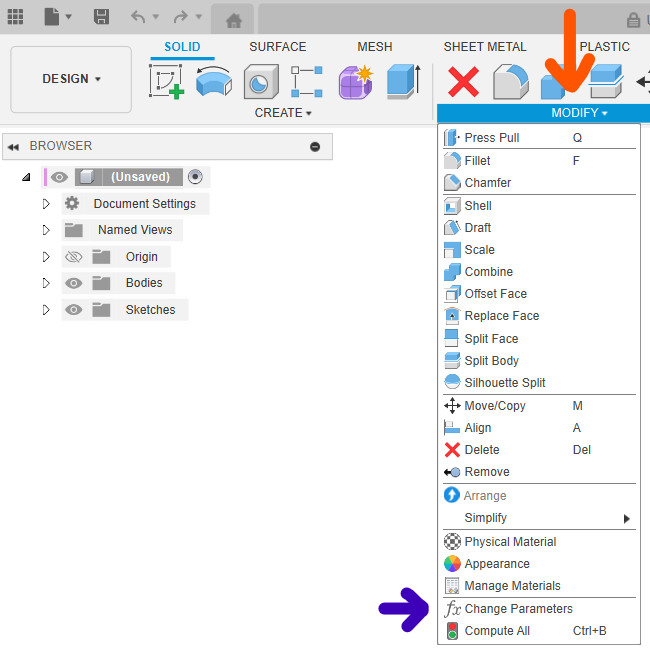
- The following dialog box should open up:
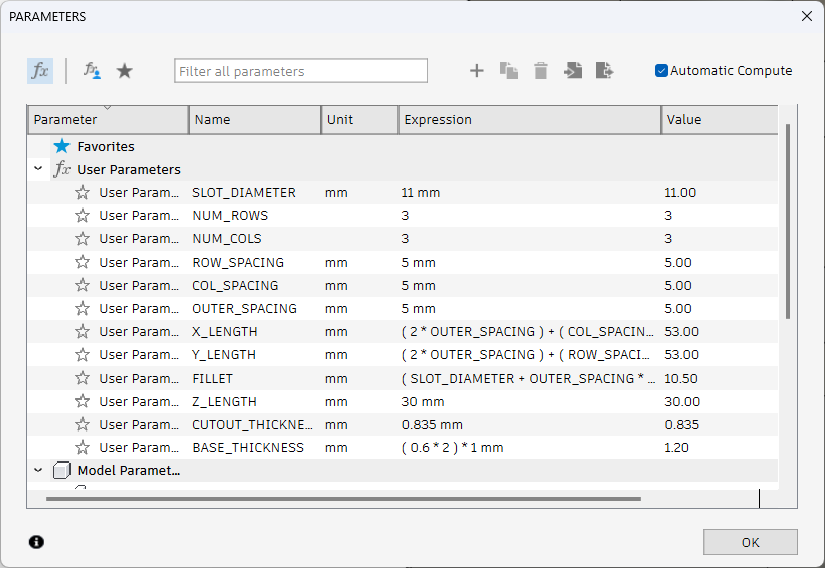
The key parameters are explained below:- SLOT_DIAMETER - This is the diameter of the object you want to customize the organizer for.
- NUM_ROWS - This is the number of rows you want in your organizer.
- NUM_COLS - This is the number of columns you want in your organizer.
- ROW_SPACING - This is the gap between each row in your organizer. You might want to adjust this to account for pens that have a thin profile but huge caps.
- COL_SPACING - This is the gap between each column in your organizer. Again, you might want to adjust this to account for pens that have a thin profile but huge caps.
- Z_LENGTH - This is the height of your organizer
- SLOT_DIAMETER - This is the diameter of the object you want to customize the organizer for.
- If you have
Automatic Computechecked, the changes to the parameters should propagate to the design immediately. ClickOKto confirm your changes.
- Next, in the browser on the left side, go to
Bodiesand right-click onOrganizer→Save As Mesh. You can reference the screenshot below: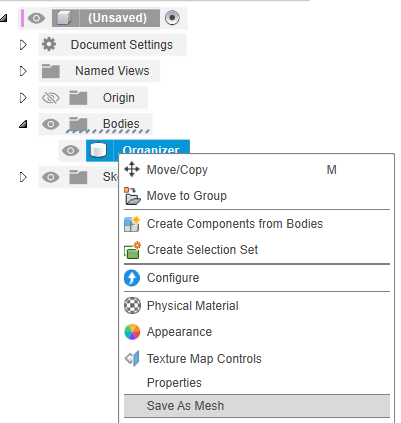
- The following
Save As Meshmenu will open on the right-side of the window: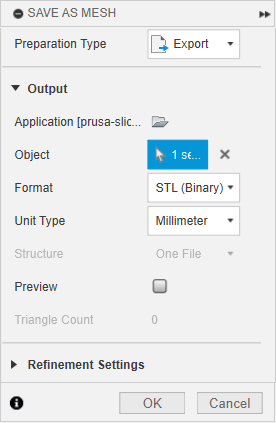
- With
Preparation Typeset toExport, clickOKand you will be prompted to select where you want to save the exported STL file.
- Open the exported STL file in your slicer of choice, and search for
vase modeorspiral vase. For example, in PrusaSlicer, the checkbox is located atPrint Settings→Layers and perimeters→Vertical shells→Spiral vase. You can reference the screenshot below: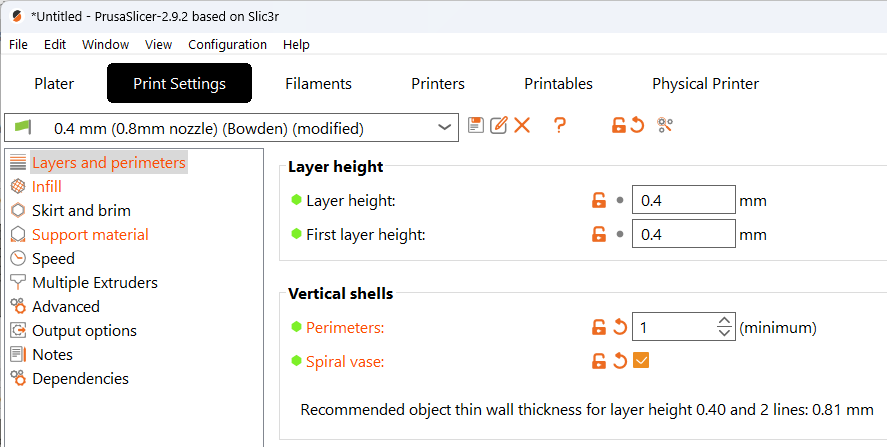
- Print and enjoy! :)