
MMU3 printing with TPU/Flexibles - Parts and Settings
Obliczymy ostateczną cenę na podstawie wybranego pliku. Sprawdzisz ją i zaakceptujesz przed płatnością.
Zapisane na tym urządzeniu.
Informacje o modelu
- Źródło
- Printables
- Kategoria
- Prusa Parts & Upgrades
- Licencja
- GNU General Public License v2.0
Disclaimer: Please don't expect this to be a “download-and-drop-in” modification that immediately works. Getting TPU/Flexibles to work reliably during a true multi-material print is tricky and will required understanding of your machine! I will provide all parts and settings that worked for me, as well as help with how you can tune your machine until it works.
If there are questions / you would like some help with your machine, you can leave a comment, and I will help as soon as I have the time.
Disclaimer 2: This mod is designed for the Nextruder, so this works for the MK4(S) and the Core ONE. But since I don't have a Core ONE, I can't provide any first-hand information specific to this machine.
Disclaimer 3: I only tested TPU with a shore hardness of 95A so far because it is the only TPU I have on hand. I can't say what the limits regarding softer materials are. If you tested softer materials, feel free to leave a comment on your experience with it and this mod.
Hardware setup
MMU3 unit - UltiMulti
The top MMU3 unit I use is not the stock one, but the UltiMulti made by David. I never tested the standard MMU3 unit, so I can't say how well it handles flexible materials. If you already have a working standard MMU3 unit, I would recommend just modifying the extruder and seeing how it works.
If you have an UltiMulti or you are thinking about building one, here are the mods I used for it:
MMU3 Ultimulti fixed ELECOVER_BOTTOM_C13 (just for visual improvements)
Ultimulti - Idler Remix - no rattle/quiet (just for audio improvements)
Instead of using the part SELECTOR_B18 provided in the UltiMulti parts folder, I used the part SELECTOR_B19_EXPERIMENTAL in the same folder. Officially, this is to help load more curled-up filaments, but I can imagine it helps with flexibles, too. But again, I never tried the original part, so I can't say if it made a difference, only that the part SELECTOR_B19_EXPERIMENTAL worked 100% reliably for me so far.
I have to give credit where credit is due and say that I'm very happy with the UltiMulti. It looks good, worked absolutely reliably for me so far, and the fact that the idler-body can be opened in seconds without the need for any tools came in handy many times.
I printed all parts for the UltiMulti from PCCF with a layer height of 0.15 mm, but this is probably overkill. PETG or ASA should probably both do just fine here.
Required extruder modifications
Hint: When disassembling the extruder, make sure not to lose the thin spacer sitting on the motor shaft behind the drive gear. It easy to oversee and you will likely (diss-)assemble the extruder multiple times.
I based my design on the mod MK4S Bogie Idler & Main Plate by KentO.
I copied his geometry on the main plate and fitted it on top of the main plate designed for the MMU3 to allow the modified filament sensor of the MMU to work. Additionally, I elongated the lever and redesigned the tensioner-spring assembly (and did some other small adjustments to improve clearances). This helps achieve two things:
Since the lever is now longer, it moves the tensioner-spring assembly further when activated by filament in the extruder. This is to help detect the loading of flexible materials, which moves the lever significantly less than stiff Materials when loaded.
The screws that run through the top of the extruder and connect to the springs are now pulled straight instead of at an angle through their holes in the metal part of the heatsink. This helps remove some resistance.
I kept everything else that directly interacts with the filament mostly the same. Since KentO claimed that he printed TPU up to a shore hardness of 60A with it, I didn't see any need to improve this part.
You can find all the required parts for the extruder in the file Extruder parts.3mf. I printed them also from PCCF, with a layer height of 0.15 mm (except for the Idler inserts, which are printed in ASA, because I feared PCCF on PCCF might not slip as well). Again, this is probably overkill, and PETG or ASA will do fine. One exception is the main plate, where I had someone report that he printed it from PETG and it broke down after 3000-4000 filament swaps.
Make sure that the surface quality and dimensional accuracy of the parts are very good. Otherwise, the mechanism might not work out as intended, or the filament might get stuck.
You might need to sand some parts if they don't rotate as smoothly as expected, or the filament can't pass through them.
If you printed the parts in a fiber-reinforced material, like PCCF, it might be a good idea to set the xy_size_compensation in PrusaSlicer to something like -0.1 mm. I personally, and some other people in the comments, run into the issue that parts printed from this material, due to their slightly rougher surface, sometimes create too much friction or distance critical parts ever so slightly too far apart from each other.
For assembly instructions, have a look at the Prusa assembly manual for the MMU3 and the Printables description of the mod MK4S Bogie Idler & Main Plate.
To install the lever and the main plate, you will have to remove the nozzle that is currently installed in the printer.
The part Straightened idler nut requires you to insert a magnet. The magnet is the only hardware component that can't be uninstalled from the original parts without damaging them. If you build your printer with a kit, you should have a spare magnet. Use this one instead of destroying the original part, so that at any point in time, you can rebuild your printer to a state in which you know it will work properly. If you don't have the spare magnet, I would recommend printing a spare part before destroying it. The part is called idler-nut-fs-R2 and can be found in the MMU3 printable parts.
How to tune the tensioner
Hint: Have the MMU activated in the printers settings during the following steps. This is to keep the printer from activating the extruder everytime the filament sensor switches from OFF to ON.
Install the modified components and make sure they can all move smoothly. If not, sand them down in small intervals until they do.
On the printer's screen, go to ‘Settings → User interface → Footer’ and add the option ‘FSensor’ to one of your five slots. (This change can be undone once everything works as intended.)
Make sure there is no filament in the extruder and close the lever and hook in the tensioner assembly.
The springs should be under only slight tension in this state. Adjust this with the screws if this isn't the case.
In this state, the reading for the filament sensor we just added in the Footer should say ‘OFF’. If it doesn't, uninstall the lever and sand down its hook at the top, which interacts with the tensioner. Only remove small increments of the hook before testing again if it says ‘OFF’. If you remove too much, the filament sensor won't trigger at all when inserting the flexible filament.Unscrew the PTFE coupler from the extruder to get direct access from the top.
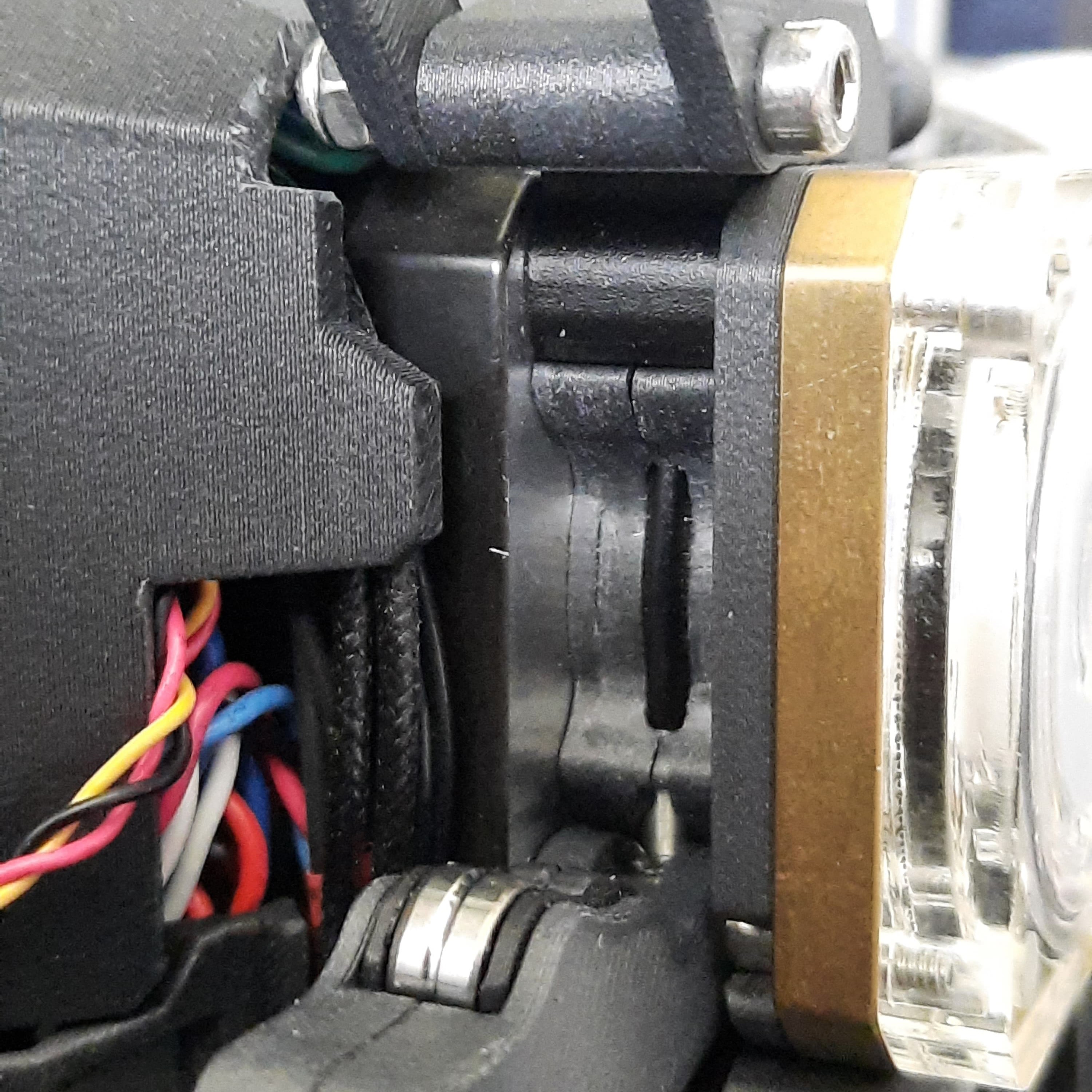
Open the lever and insert a piece of your flexible material by hand from the top, and make sure it passes through the hole on the bottom. You can use an Allen key to push the filament into the hole on the bottom. See the picture for reference:
'
Close the lever and hook in the tensioner assembly. The filament sensor should read ‘ON’ now.
If it doesn't, you can try to slightly loosen the tension of the springs with the help of the screws, but make sure that the extruder still has enough grip on the filament.
To test the grip, you can try to pull the filament out from the top while the lever is closed. Only use a reasonable amount of force and don't pull with all your power! You shouldn't be able to get the filament out, and if you did, the drive gear should have turned with it. (The result depends on whether your extruder motor is currently on or not.)
If adjusting the tension doesn't get the sensor to read ‘ON’, the hook of the lever might not require sanding, but instead adding some thickness to it. You can do this by sticking a piece of thin adhesive tape to the inside of it. Add one layer after the other until the sensor reads ‘ON’.
If you don't like the tape as a permanent solution, I added the .stp files of all parts I modified, so you can adjust your lever to stick out further and reprint it.Open the lever again and remove the filament. Close the lever. The sensor should now read ‘OFF’ again. If not, go back to step 3.
On the printer's screen, go to ‘Control → Calibrations & Tests → Gear calibration’. Select it and follow the printer's instructions.
Turn the MMU off via the printer's screen. This will enable direct autoloading of filament. You can now push on the tensioning springs until the extruder starts turning to load filament. Insert your flexible material and make sure it can be properly loaded into the nozzle. If this was successful, you can unload it again.
Turn the MMU on again and screw the PTFE tube back into the extruder. You should be good to go now ^^.
TPU/Flexibles storage
Thanks to the design of the MMU3, you are able to connect its filament inputs to basically anything you want. Regarding the printing with flexible filaments, this is pretty useful since you should keep your filament dry, so I recommend to directly print it out of a drybox.
Make sure that there is as little resistance as possible when pulling the material out of the drybox, so it can reliably be loaded into the extruder.
Slicer settings
Disclaimer 4: In general, the MMU3 works well with the high-flow nozzle and the standard nozzle, with the high-flow nozzle just requiring a little more purge volume. But when printing with flexible filaments, one of the main challenges is the tip tuning process. To make this easier, I exclusively used the standard nozzle when printing with flexible filaments. The following settings will likely not work with the high-flow nozzle, and tuning them for the standard nozzle is hard enough, so I won't do it for another nozzle too.
Note: From here on out I will reffer to all flexible materials as just 'TPU', but this should also apply to other types of materials.
All settings I found to be relevant are part of the ‘Filaments’ settings, so to start, you should check if your TPU already has a profile provided by Prusa. To do this, click on ‘Configuration → Configuration wizard’ in Prusa Slicer and go through it until you are at the ‘Filaments’ section.
I printed with ‘Overture High Speed TPU’, but I don't expect there to be anything special about this material, which differentiates it from other materials.
These are the settings I found to be most relevant to achieve reliable filament changes:
Printing temperature: I'm printing with temperatures in the middle of the recommended range (which results in 220°C in my case). One of the main problems is that we want to avoid is the TPU forming a long, thin strand at the tip when retracted. Too low temperatures seem to worsen the problem with the thin strands at the tip. Too high temperatures seem to make the tip thicker.
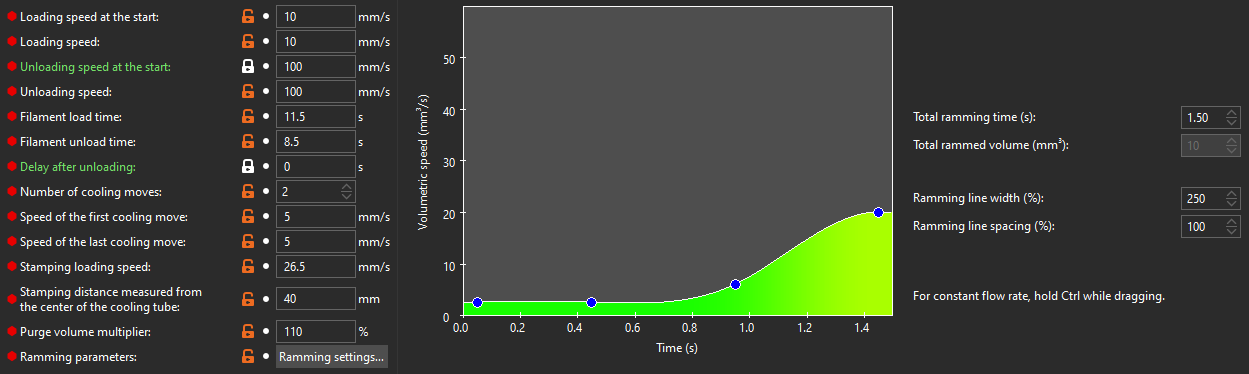
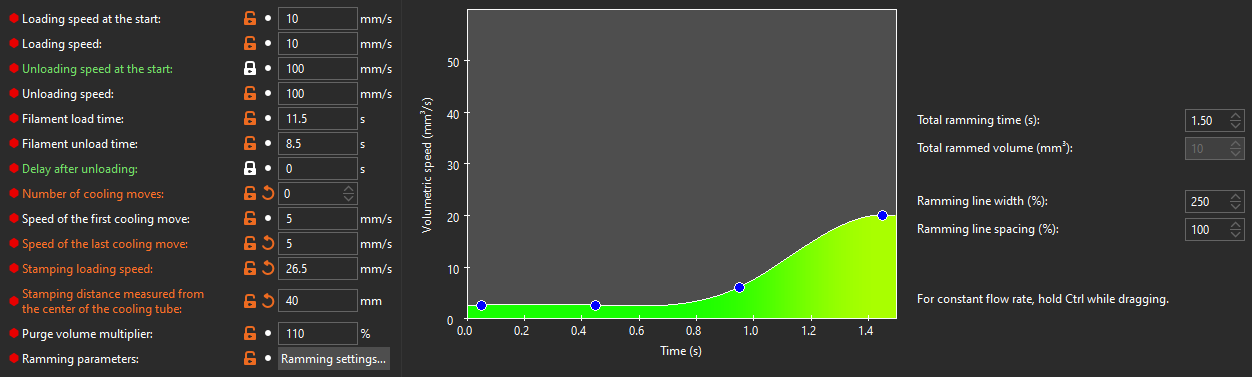
Tool change parameters: Now this is where the magic happens, in the screenshot you can see all relevant settings, but I'm gonna go over which made the biggest difference:
Unloading speeds: These should be high because high unloading speeds reduce the thin strands of filament at the tip.
Delay after unloading: If the TPU is still too warm while unloading from the extruder, it will get pressed into the drive gear and stick to it. This will cause it to not leave the extruder through the hole on top, but be pulled to the side by the turning drive gear and be squished between the gear and the top of the main plate, where it will solidify and get stuck. This keeps the MMU from onloading or reloading it and may require the extruder to be disassembled to remove it.
As you can see in the picture below, in the current settings, I don't use this. This is because the two cooling moves take long enough to allow the TPU to cool down. But some other sets of settings I previously used (which can be found at the end of this page) require this delay.Number of cooling moves: I use two cooling moves to allow for one “stamping” move, which helps eliminate the thin strand of TPU at the tip.
Stamping distance […]: As you can see below, this is set to 40 mm. The original value would be 45 mm, which is the distance of the cooling spot from the tip of the nozzle. By setting the value lower, the TPU isn't loaded all the way back into the tip. I did this because, in my experience, loading it all the way just causes too thick tips and doesn't really help with the thin strands. By loading it back just partially, we mostly just remelt the thin strand, which then detaches, leaving a clean tip.
Ramming parameters:
From my experience, this is the most important setting when balancing how thick the tip of the filament is and how likely it is to form a strand at the tip. High volumetric speed is good at eliminating the strand, but creates thick tips. Low volumetric speed keeps the tip slim but tends to create strands. I set the curve such that it stays at roughly 3 mm^3/s for a second, so that hopefully the state of the TPU in the nozzle just before the ramming is equalized for all filament unloads. When tuning the settings for your filament, this is the one I would start with.
Start G-code: I added the following line to the end of the ‘Start G-code’ in the filaments ‘Custom G-code’ section. This will cause the TPU to be loaded a bit further into the nozzle. The if-statement ensures that this line is only added when the filament is loaded on the wipe tower and not directly after the initial purge line. In theory, you could achieve something similar by increasing the ‘Purge volume modifier’, but the custom gcode solution leaves fewer gaps in the wipe tower and also decreases its footprint.
{if layer_num>0 or initial_extruder!=current_extruder}G1 E5 F{filament_loading_speed_start[current_extruder]*60} ; preload the extruder
G92 E0 ; reset extruder position{endif}
Max volumetric speed: In case you haven't found a profile for your TPU and are creating one from scratch, don't forget to set this, since TPU has to be printed significantly slower than other materials. Mine is set at 6 mm^3/s.
Pressure advance: Check if a fitting pressure advance value is set in the ‘Start G-code’ with the command ‘M572 S…’. Mine is set at 0.2, but this heavily depends on the exact filament.
Purge volume modifier: You need to set the purge volume of all OTHER filaments, that are loaded AFTER the TPU was in the nozzle, high enough to fully flush the TPU out. Even a small amount of TPU mixed into another material like PLA can screw with its properties. If you have one big object and the mixed material is just flushed into infill, this isn't a big problem, but I primarily use PLA as a support material for TPU, and the supports will start to fail if they are printed with too much TPU still mixed in. I use a purge volume modifier of 120% for PLA.
Debugging / what to look out for
Debugging tool - Filament flow watcher
To help with debugging, I created the part Filament flow watcher. I recommend printing this with a 0.25 mm nozzle and 0.1 mm layer height, but with a 0.4 nozzle it should work too if your settings are well tuned. It doesn't require supports if printed in the given orientation, but adding a brim is not a bad idea.
When screwing this in between the PTFE tube and the extruder, it allows you to see how your filament moves, and it helped me a lot during debugging to figure out at which point during the loading phase the filament got stuck, and how the tip looked directly after unloading.
It also helps you to see when to abort a print, since the TPU will often get stuck after triggering the filament sensor, so the printer won't notice it and will continue to print.
It might be that this part won't work with very soft TPU, but as I said, I can't test this.
Failure scenarios
Due to the mods we introduced, the filament can only take one path during loading. Possible problems left are now:
The TPU gets stuck along that path because the tip is too wide:
The narrowest part the filament has to pass through during loading is the steel tube of the nozzle itself. All other holes/paths are either wider or are inside a printed part and can be slightly widened by sanding the respective surfaces.
On one hand, this is good since it gives an easy point of reference that is the same among all printers. This also allows you to test if the tip of your filament is too wide/malformed without having to actually load it into the extruder. Just take a loose Nextruder nozzle and push the filament into it. You should be able to do this without the need for force. If it fits into the nozzle, it will also fit through all other holes in the extruder (assuming you sanded them sufficiently).
On the other hand, this is pretty annoying since this means if the TPU gets stuck in the steel tube, it will already have triggered the filament sensor in the extruder, and the printer won't notice it's stuck. This will lead to it resuming the print without actually printing. If you catch this problem while the printer is still printing on the wipe tower, you can pause the print and fix the problem (remove the filament, cut off the tip, and reinsert it. Push the filament far enough until it comes out of the nozzle.). If you didn't catch it in time, it will ruin your print.Your filament sensor doesn't trigger reliably:
This would be indicated by Blobs of TPU forming at the nozzle each / some times when the TPU is loaded onto the wipe tower. This happens because the MMU loads the TPU to the extruder, but it will only stop feeding once the filament sensor in the extruder recognizes that filament is present. If your idler lever is tensioned just a bit to much, it can be that the TPU feeds into the extruder and the nozzle, but the extruder doesn't realize this / realizes this too late, when already a signification amount of TPU is loaded into the nozzle. But because it will asume that the filament just arived at the extruder the moment the switch triggers, the amount of filament loaded before that isn't accounted for, and will be deposited at the wipetower as a blob.
If you completed the previous steps to tune the filament sensor, it should be enough to loosed the springs by about 3/4 of a turn to solve this problem.After switching from TPU to another material, the first line on the purge tower is unusually thick and protrudes upwards:
Try setting temperature and print speed of the other material as similar to the one from the TPU as possible. Since after a filament swap, there is still TPU left in the nozzle, this TPU will be printed on the wipetower with the settings of the other material. If these settings are too disimilar, this can lead to problems when there is a mixture of both materials in the nozzle.Any loaded filament gets stuck while loading or unloading because the unloading of the TPU creates thin strands that clog up the filament path:
These strands can cause quite a headache since they can cause problems everywhere, both in the extruder and in the MMU unit. Here are the different scenarios I had to discover:The strand of TPU is left in the PTFE tube, keeping the other material from reaching the extruder. It clogs up right after the PTFE coupler on the extruder.
Similar to before, a strand of TPU is left in the system, but this time, the other material is somehow successfully loaded, but during unloading, it gets stuck in the same position.
The strand of TPU still sticks to some part of the extruder, while the actual tip of the TPU is unloaded into the MMU. As soon as the idler lets go of the TPU to switch to the other filament, the tension in the strand of TPU pulls the filament partially back into the path to the extruder. This will cause the extruder to fail to load the next material in a variety of ways, sometimes the filament makes it to the extruder but gets stuck there due to the rest of the TPU blocking it (this may be the strand of TPU left or the whole tip of the TPU that was cut of as soon as the MMU moved with the TPU partially in the selector) and sometimes it get's stuck before triggering the FINDA sensor in the MMU, resulting in it trying to reset itself to fix the issue. This often only causes more issues, as there is currently one or more filaments sticking out into the path of the selector.
I recommend the following to test if your tips are good:
Start a test print in which you combine TPU and one other material, like PLA.
(I uploaded the file 'TPU Test Object.3mf', which contains a prepared test with some simple features, so you can make sure that the settings you use will still allow you to print TPU well. The file is set up with extra perimeters and infill so that the printing process minics the printing of a larger object with different features. You can also use this file to copy my settings without having to manually enter them.)
During the print, directly after the printer performs a tool switch where it switches from TPU to the other material, push on the TPU from wherever it feeds into the MMU to push the tip out of the front of the MMU. (See the picture for reference.)
You can now inspect it if it looks good, and if you have a spare nozzle, you can try pushing it into it to test if it should load successfully. (This is not a perfect comparison, since the extruder has significantly more grip than you and also a more constricted path, but if you can get it into the nozzle somewhat easily, the extruder can do so too.)
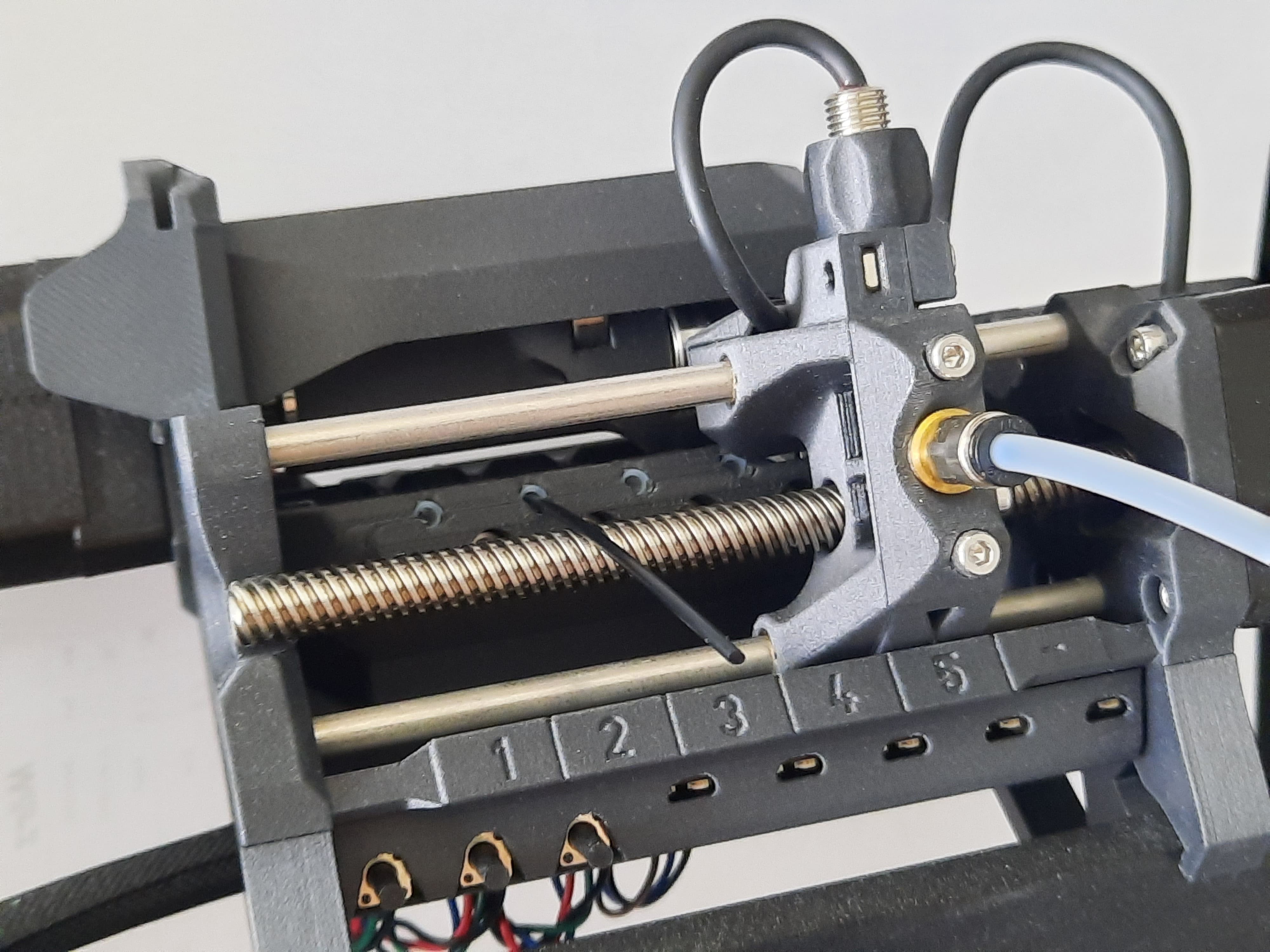
Don't forget to push/pull it back into position before the MMU switches back to TPU.
Do this for the first couple of unloads of the TPU to confirm that your settings work well.
Also, note that the tip may look drastically different depending on how much TPU was extruded while printing between two tool/filament changes. (Long print time will result in thicker and slightly more stringy tips.)
If you had done many tool changes and you observed some thin strands forming sometimes, even if they didn't cause any problems, I recommend opening up the extruder gearbox and clearing out the TPU, which can accumulate in the air pocket around the drive gear.
Examples
Below are some examples of how the tip of your filament should or shouldn't look after being unloaded by the MMU.
(With that, I refer to an unloading done during an MMU print, not unloading by selecting so on the printer's screen, since the default unloading of the printer isn't affected by the settings we set earlier.)
Example | Quality | Remarks |
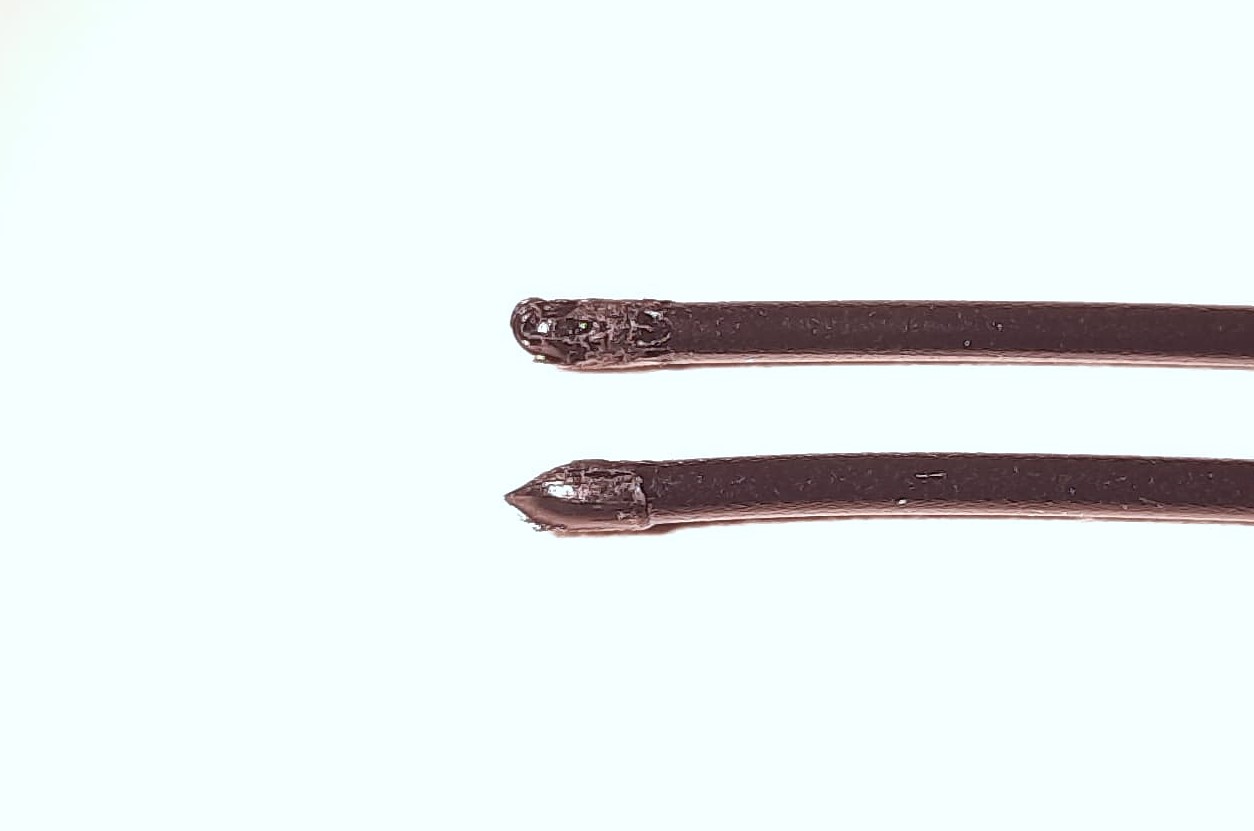 | Perfect | Both slightly pointy and round tips are fine since they both will find their way through the system. |
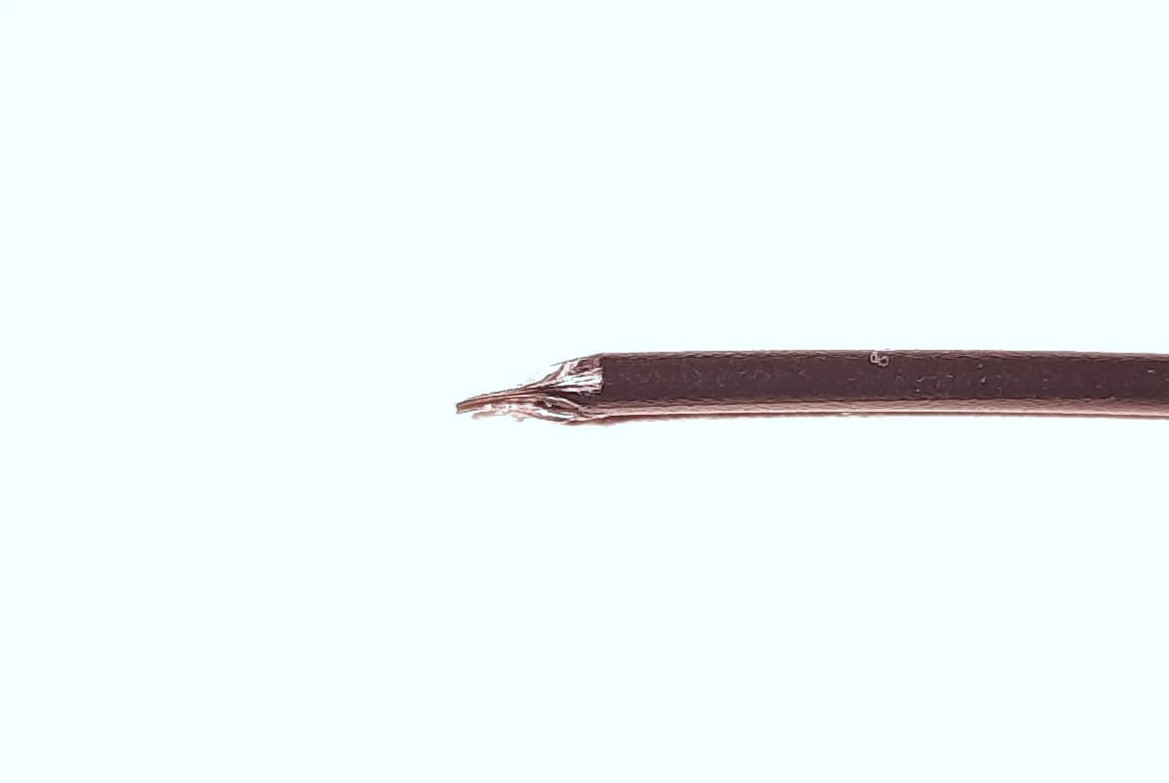 | Good | A very short thin strand won't get the filament stuck, but if it get's too long it will cause problems, so idealy aim for results like the ones above. This type of tip my also indicate that the strand of filament was originally longer but ripped and is now somewhere else in the system. |
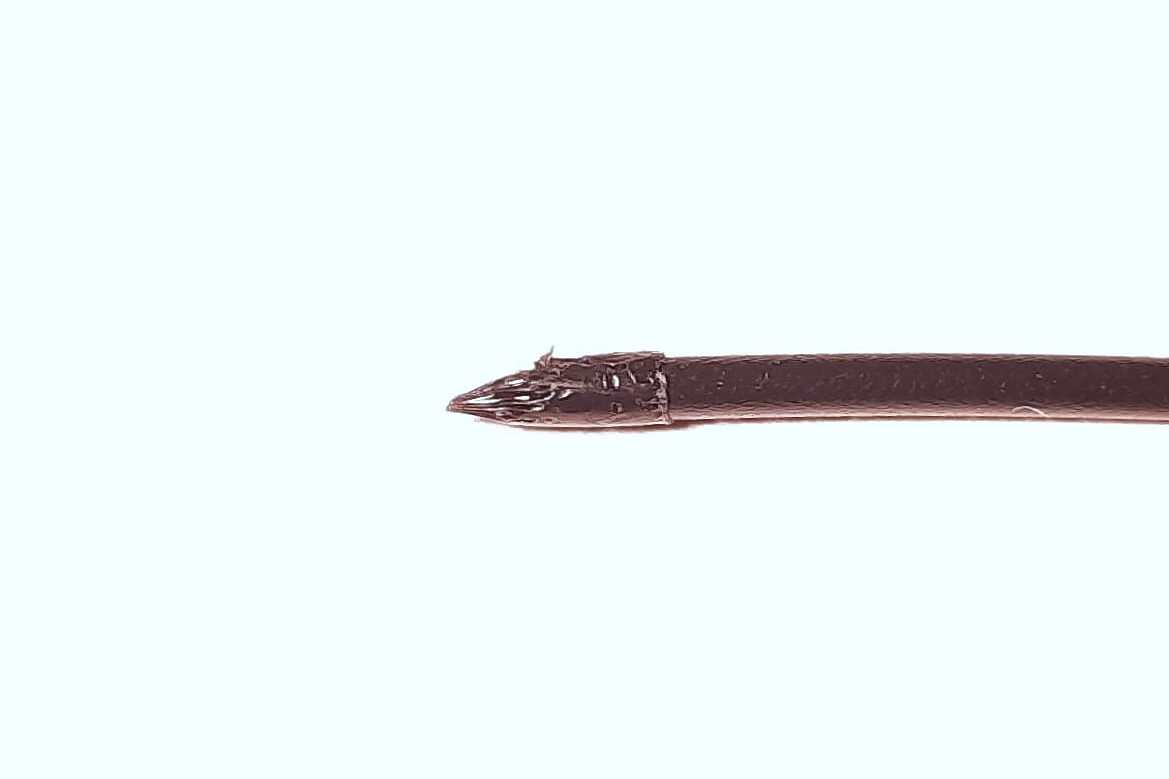 | Bad | If the tip of the filament is too thick, it will get stuck when being loaded into the nozzle. It may have the exact diameter of the steel tube of the nozzle, since this formed this tip, but while it's being pushed in, it will further expand, causing it to get stuck. |
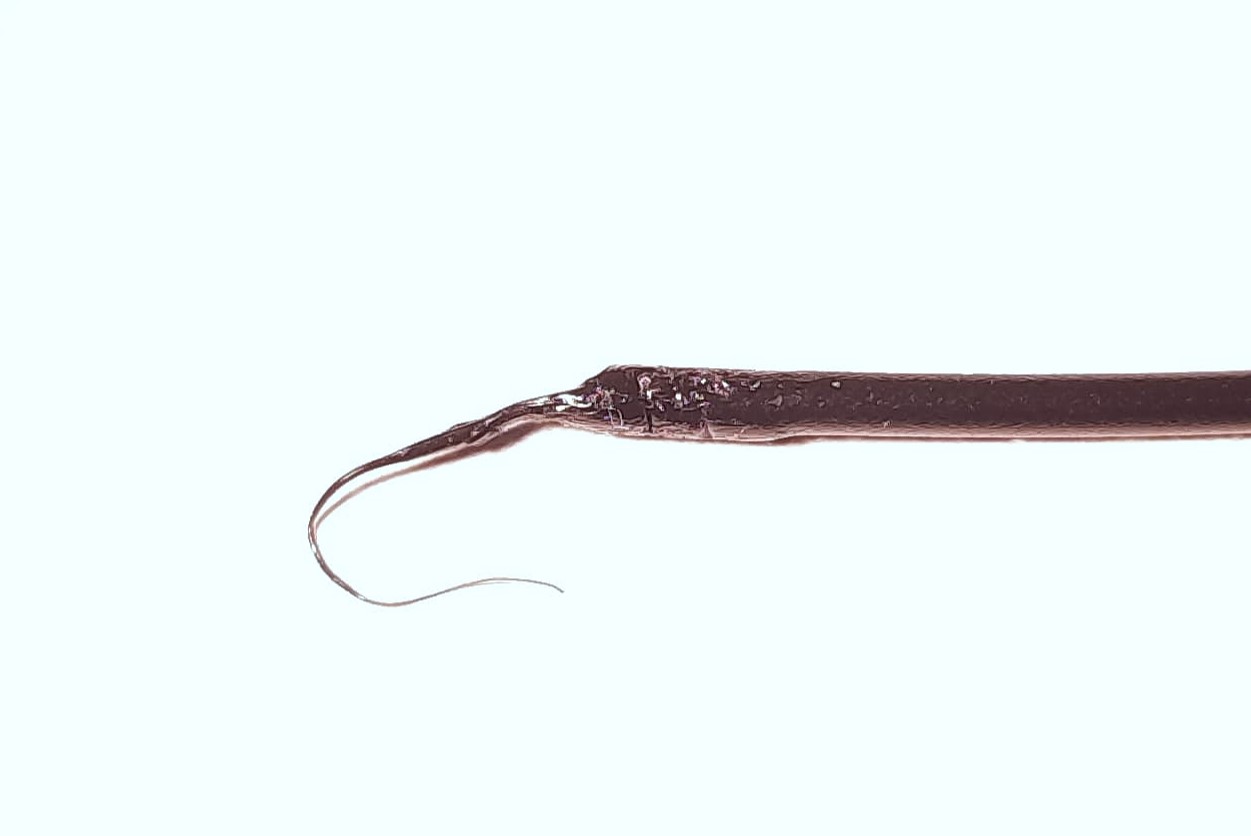 | Bad | Long strands will wedge themself to the side of the filament and it will also get stuck when loaded into the nozzle (similar to the too thick tips) or maybe even somewhere before that. |
Settings for different TPU brands/types
This is a collection of different brands/types of TPU and the settings that worked with them, collected from other users. If you tested with a brand/type that isn't listed here and got it to work, I would be happy if you sent me a message with your settings so I can add them here.
Brand/Type of TPU | Settings |
Overture High Speed TPU 95A | (See the screenshot above in the section ‘Slicer settings’) |
|  |
Creating the parts and the settings of this model took a lot of extensive testing and many iterations. So if you like this tutorial and want to give something back, you could buy me a coffee. Thank you ^^.
Updates / Log
22.07.2025:
After some longer prints, it seems the success rate of the tips being formed well enough to be loaded into the nozzle is around 99%, so 1 in 100 attempts fail. I tried around with a lot of settings, finally just slightly changing the ramming parameters (from a constant 40 mm^3/s to ramping it up from 30 to 40 mm^3/s). This doesn't increase the success rate, but it improves the average result.25.07.2025:
I edited the following settings after testing them on a print with 300 filament swaps, which finished successfully. These settings significantly decrease the chance of getting too thick tips, but slightly increase the chance of too long strands of filament at the tip.
Unloading speed: | 100 mm/s → 120 mm/s |
Delay after unloading: | 6 s → 5 s |
Speed of the first/last cooling move: | 10 mm/s → 5 mm/s |
Ramming parameters: | Ramping up from 30 to 40 mm^3/s → Ramping up from 6 to 35 mm^3/s |
29.07.2025:
Currently testing two cooling moves, so actually using the stamping functionality (Kind of, not as intended due to the 5 mm offset) to get rid of strands at the tip, looks good so far, but I have to do more testing.13.08.2025:
Changed the unloading strategy to include a stamping move, also reduced the unloading speed from 120 mm/s back to 100 mm/s, as I didn't observe the extruder actually moving faster, probably due to some hardware limit (I increased the max value in the slicer, that didn't help).
These were the previous settings (which created more thin strands of TPU than the updated ones, which resulted in the TPU getting stuck more often):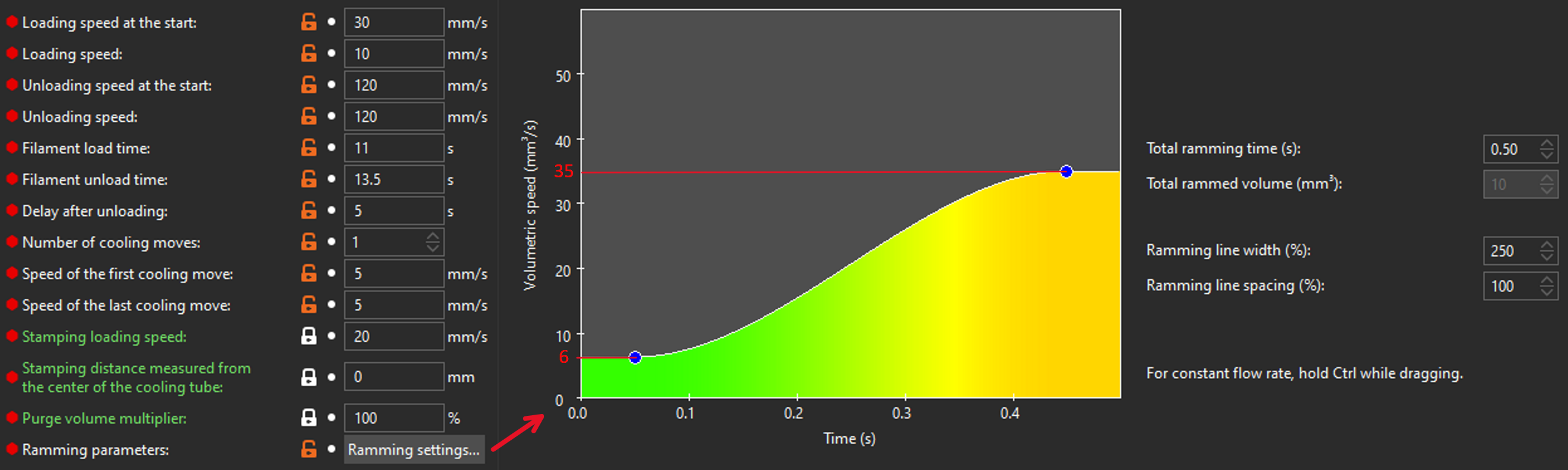
29.10.2025:
Updated the stls and stp files based on KentOs newest changes.