
USB MIDI Fader controller
Obliczymy ostateczną cenę na podstawie wybranego pliku. Sprawdzisz ją i zaakceptujesz przed płatnością.
Zapisane na tym urządzeniu.
Informacje o modelu
- Źródło
- Printables
- Kategoria
- Audio
- Licencja
- Creative Commons — Attribution — Noncommercial — Share Alike
USB MIDI Fader controller
A super-simple MIDI controller that lets you control two parameters at the same time. By pressing buttons, you can program up to 4 levels, each allowing for different combinations of the faders.
The LEDs help you keep track of everything at all times.
Button Layout
Button | Function |
|---|---|
Left (press) | Switch mode |
Right (press) | Switch layer |
Left (hold 3 sec.) | Edit left Fader |
Right (hold 3 sec.) | Edit right Fader |
Default MIDI CC Mapping
Mode | LED | Layer | Fader L | Fader R |
|---|---|---|---|---|
Mode 1 (Orchestra Tools) | Blue | 1 | CC01 Modulation | CC03 Performance Articulations |
2 | CC01 Modulation | CC11 Expression | ||
Mode 2 (Spitfire Audio) | Green | 1 | CC01 Modulation | CC21 Vibrato |
2 | CC01 Modulation | CC11 Expression |
Custom MIDI CC Mapping
You can change the CC value of each fader directly on the controller.
Configuration mode
Press and hold the button above the fader you want to change for at least 3 seconds until the LEDs turn purple.
Before you set your desired value, the device will display the current one. The LEDs will flash.
The left LED counts the tens place (0, 10, 20, 30... 120).
The right LED counts the ones digit (0, 1, 2, 3... 9)
The number of flashes indicates the current CC value.Now add the numbers by pressing the left and right buttons until you reach your desired value.
After setting the value, the device will display the current CC value again so you can check it and, if necessary, add new values until it’s correct.
When you’re finished, wait 8 seconds without pressing any buttons.
The device will automatically exit configuration mode.
Example: You want to change the right fader on the first level in Mode 2. Currently, CC21 is set there.
Press the left button. One of the two LEDs will light green.
Now hold down the button above the right fader until the LEDs light up purple.
The LEDs will turn off temporarily. Now pay close attention.
The left LED flashes 2 x = 2–
The right LED flashes once = –1
Combined, this means: 21You now want to set the fader to CC07.
To do this, press the left button 11 x and the right button 6 x.After a short delay, the LEDs will display the new value.
The left values cycle from 0 to 120. If the value exceeds 120, the LEDs flash white to indicate that the cycle has returned to 0. The right values cycle from 0 to 9 and then start over at 0.
Changelog
⚠ Code release | |
|---|---|
2026-07-03 V2.0 |
|
2025-12-18 V1.1 |
|
2025-12-15 V1.0 |
|
Installation
Required parts
1 x Raspberry Pi Pico, RP2040
1 x NeoPixel Stick with 8 RGB LED
2 x ALPS linear slide 10 kΩ potentiometer (travel range: 100 mm)
2 x Capacitor 100 nF (recommended)
1 x 330 Ω resistor (recommended)
2 x 150 Ω resistor (recommended)
1 x 5.1 kΩ resistor (recommended)
2 x fader knob
4 x Countersunk screws – 5 mm (preferably in black)
4 x Countersunk screws – 8 mm
2 x Tactile push button (6 x 6 x 9 mm)
1 x USB Type C Plug jack with 6 Pins
some 10 mm wide rubber strip for a non-slip grip
Hardware
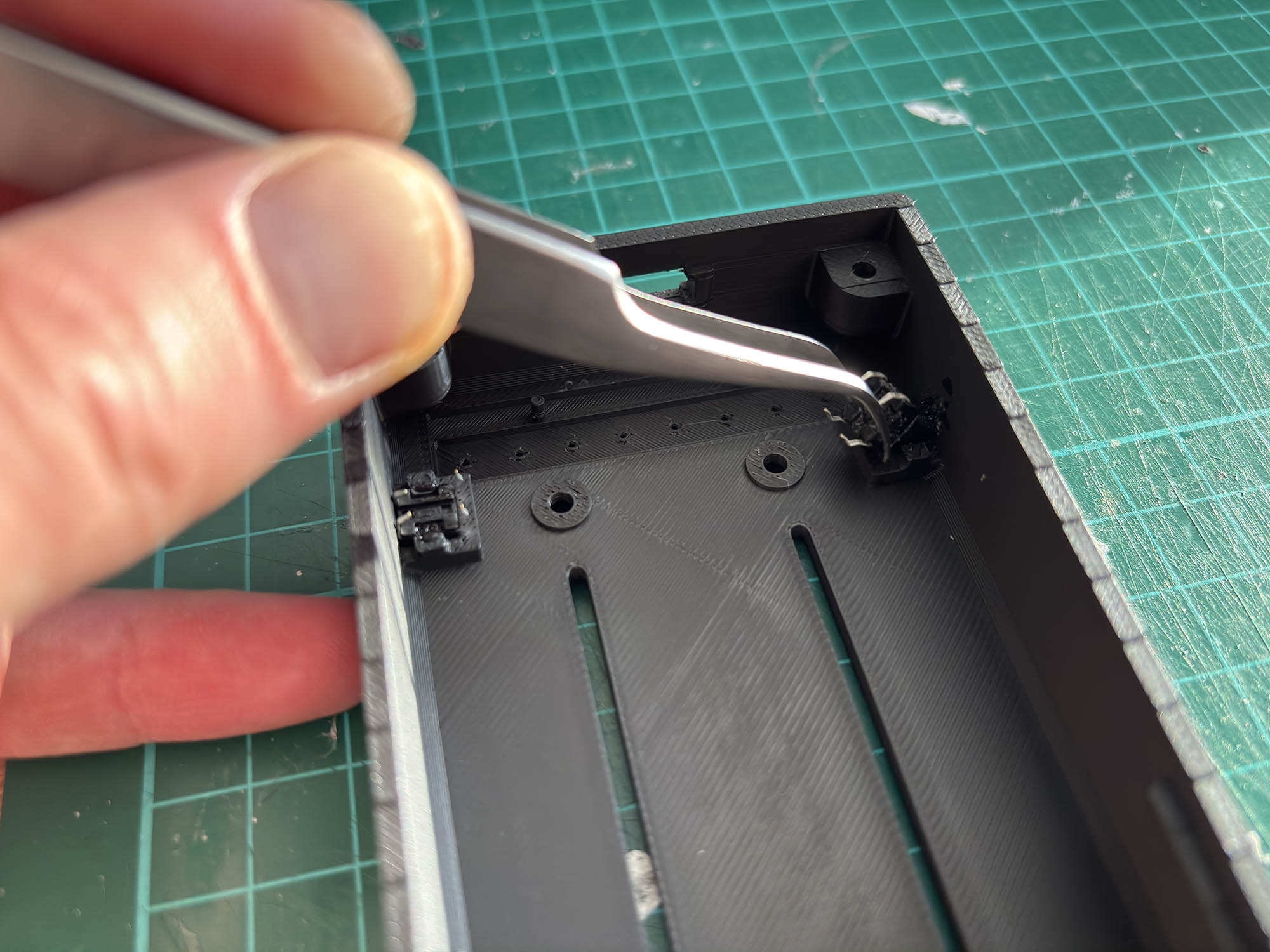
Insert the buttons and fix them in place with a small amount of glue.
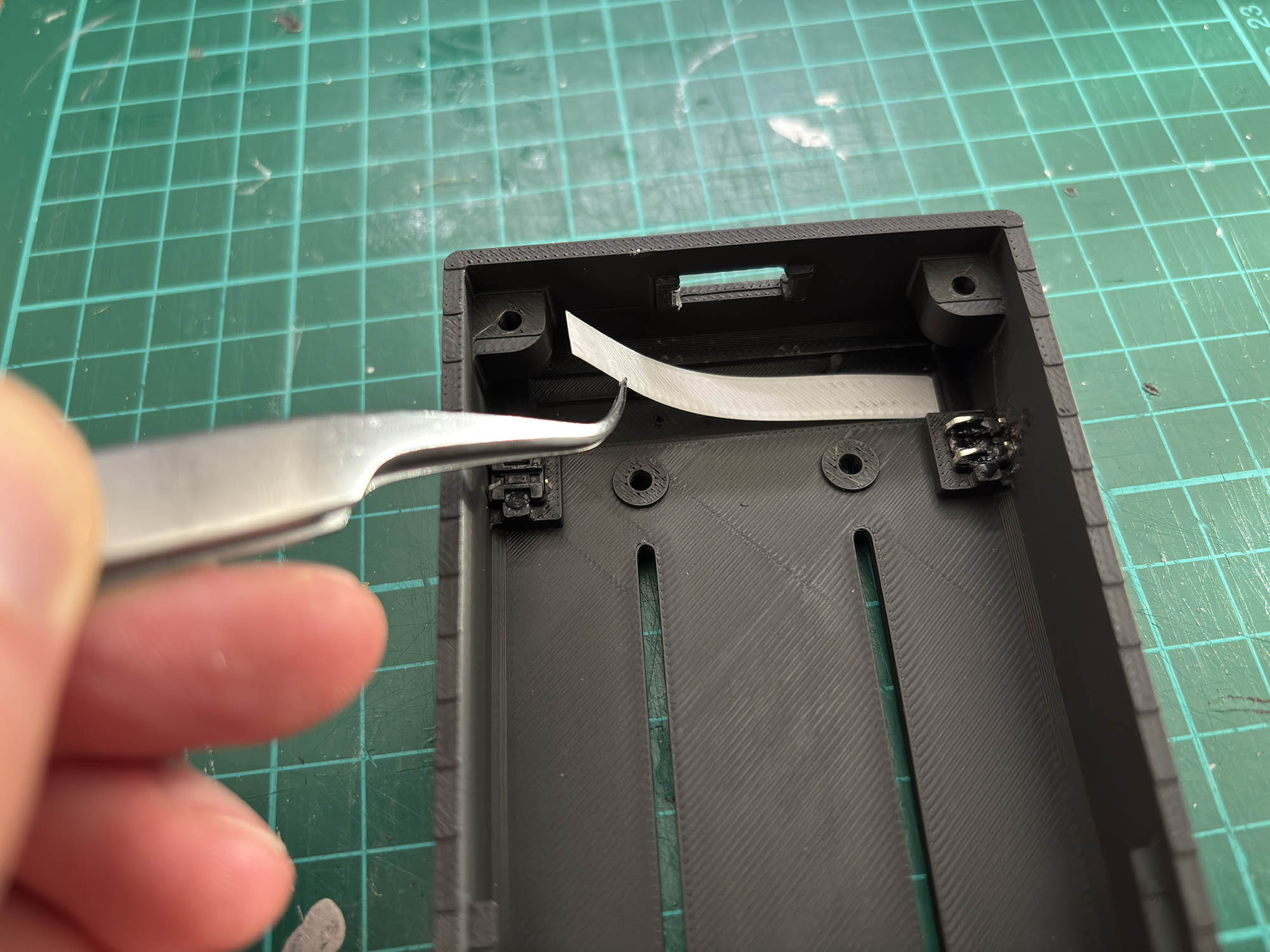
Insert the diffusion foil (one layer white PLA or alternatively a piece of paper) and glue it in place.
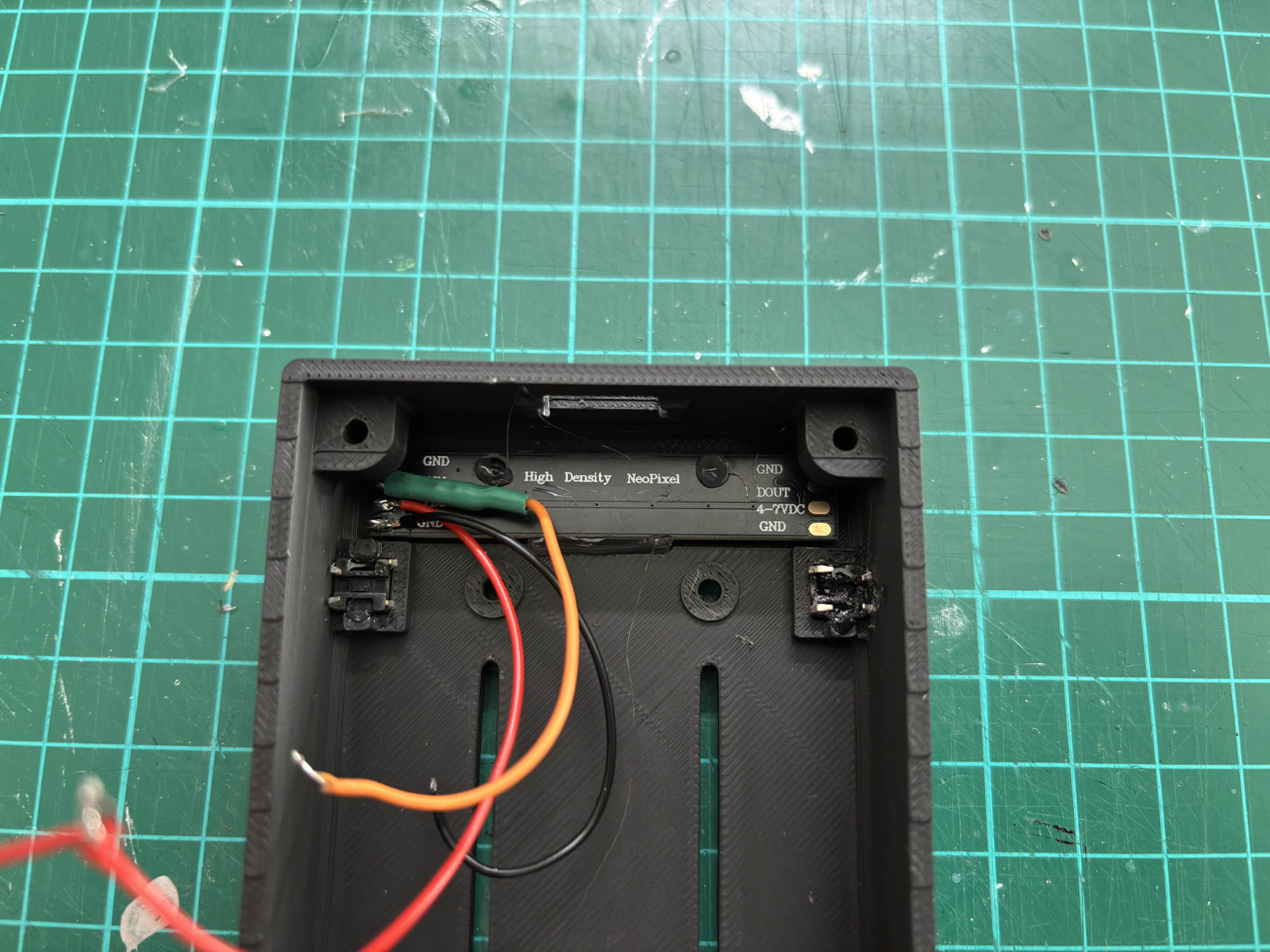
Position the LED strip and secure it with hot glue.
Screw the faders into the enclosure.
Connect all cables according to the pin assignment below.
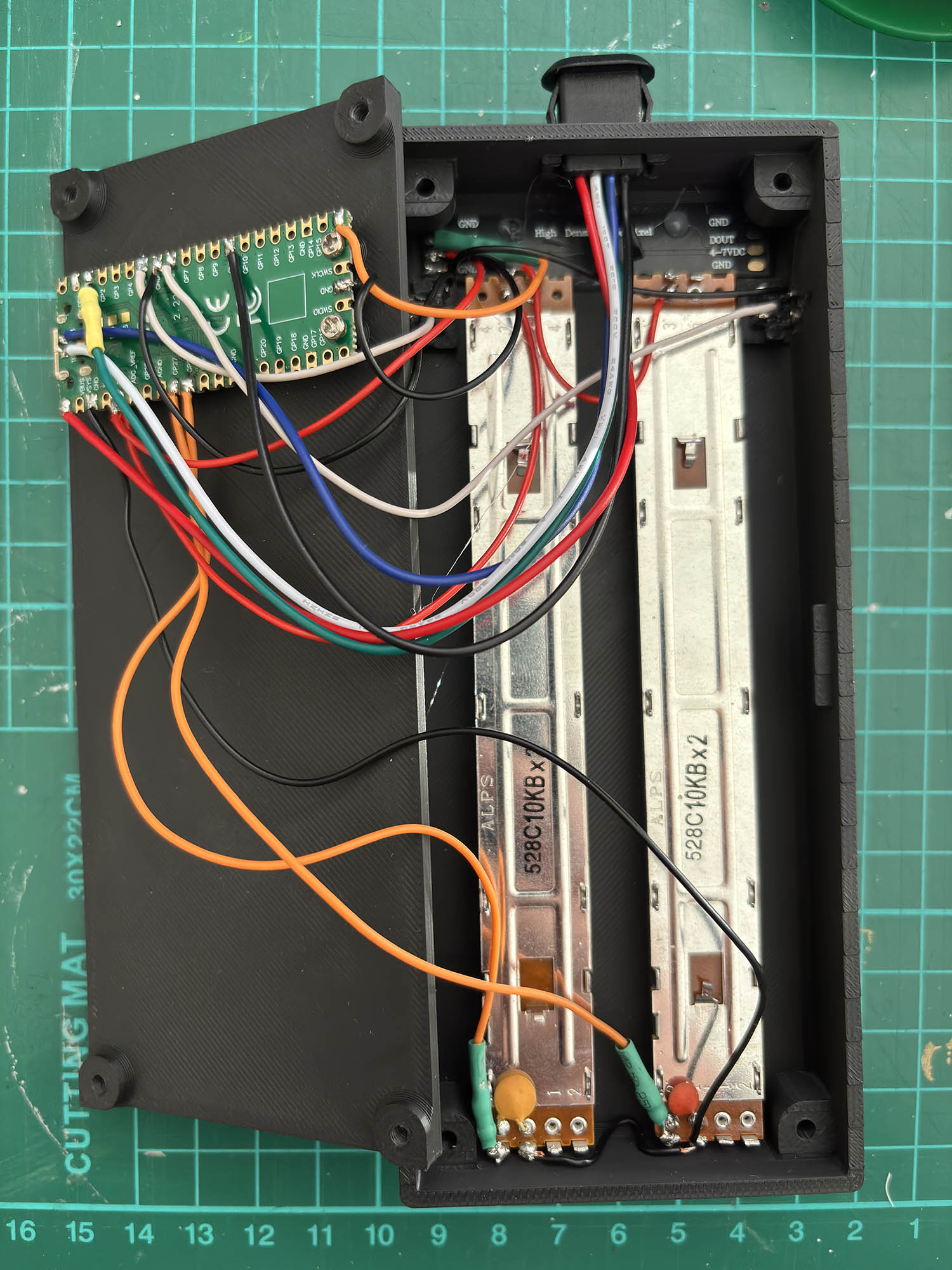
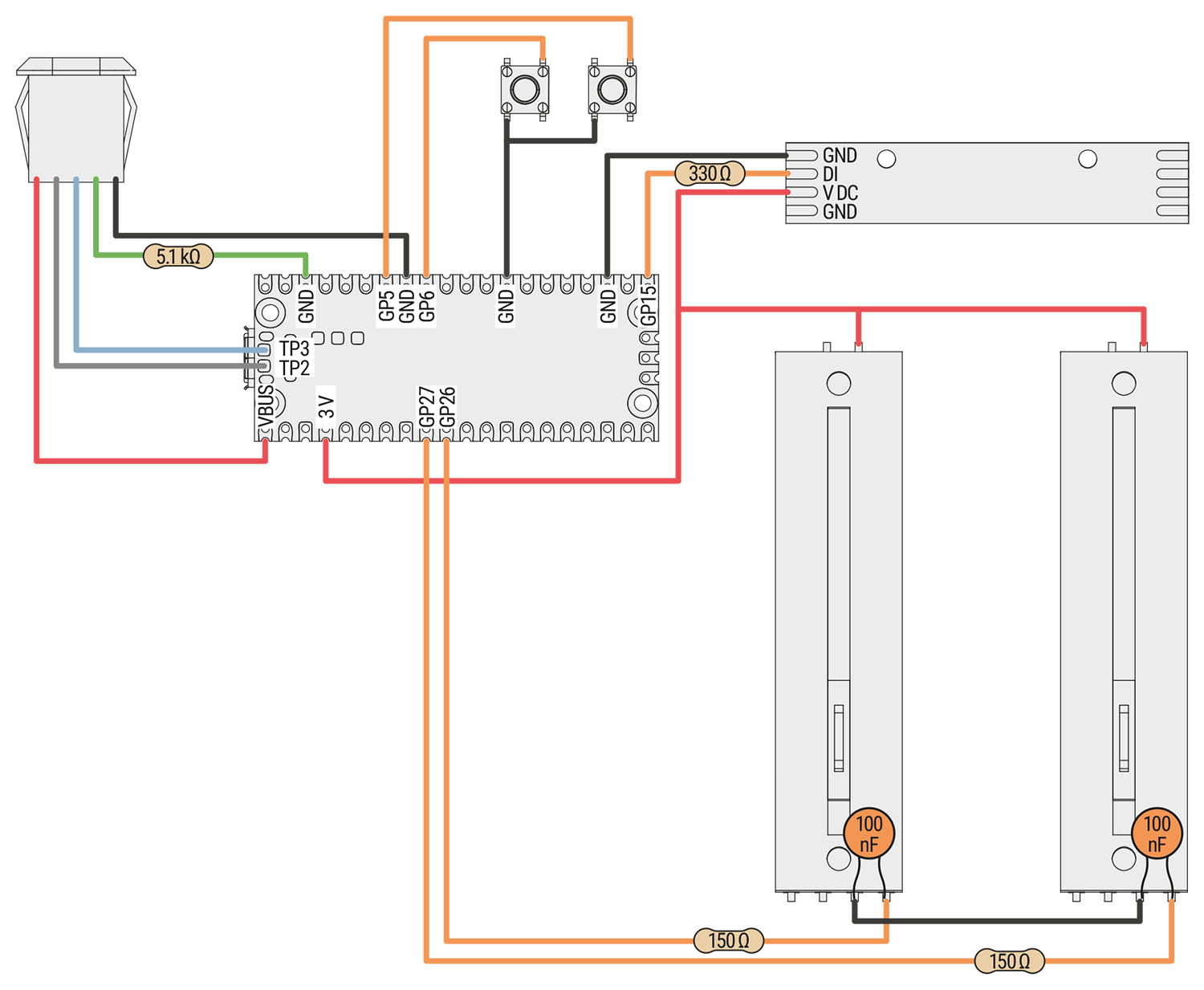
Fader 1 / 2:
Signal → 150 Ω → GPIO26 / GPIO 27
VCC → 3.3 V
GND → GND
Capacitor 100 nF between Signal and GNDButton left / right:
One side → GPIO6 / GPIO 5
Other side → GNDNeoPixel LED strip:
DIN → 330 kΩ → GPIO15
VCC → 3 V
GND → GNDUSB-C:
VCC (red) → VBUS
GND (black) → GND
D+ (blue) → TP3
D- (white) → TP2
CC1 (green) → 5.1 kΩ → GND
Software
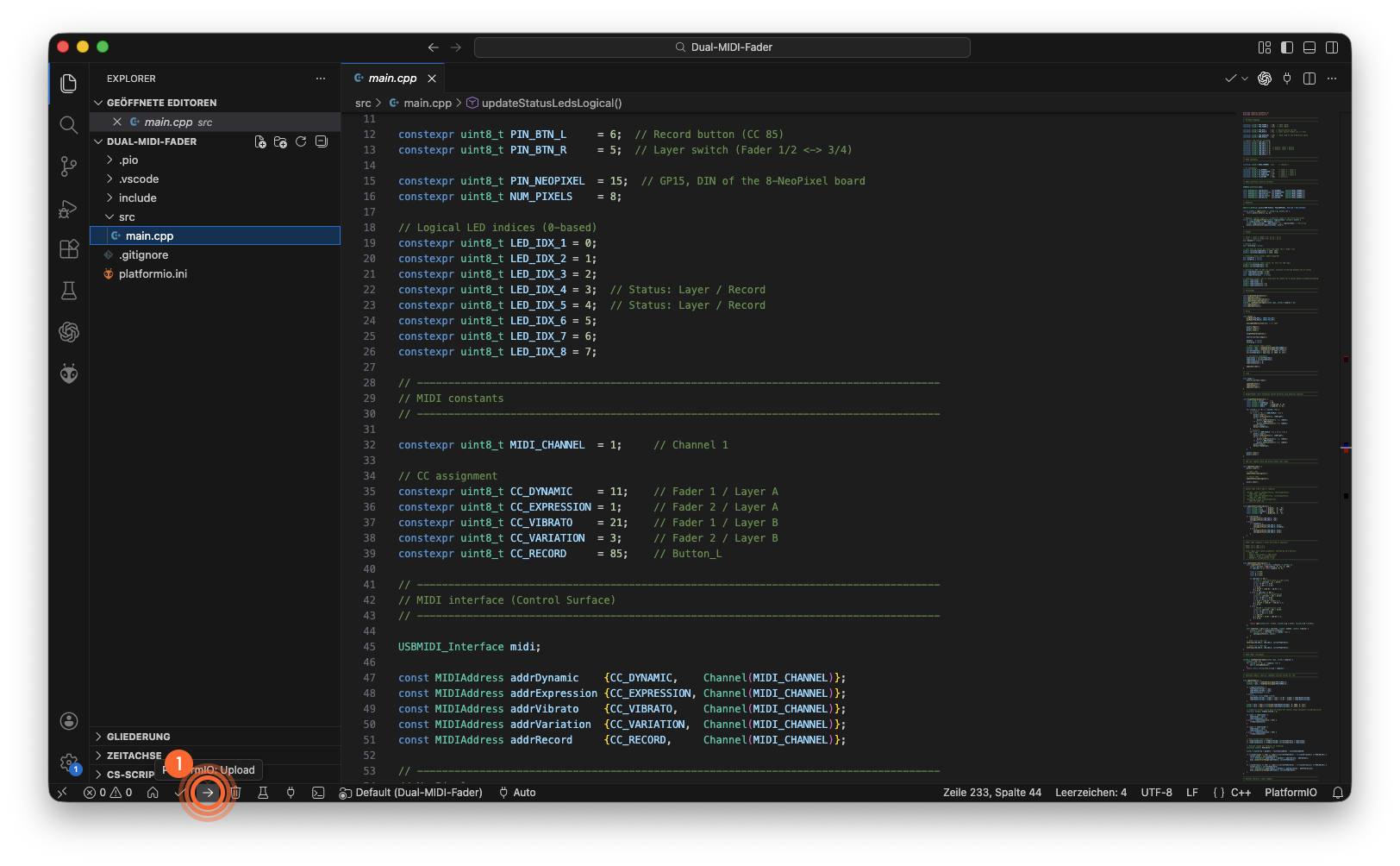
Install Visual Studio Code.
Install the PlatformIO extension.
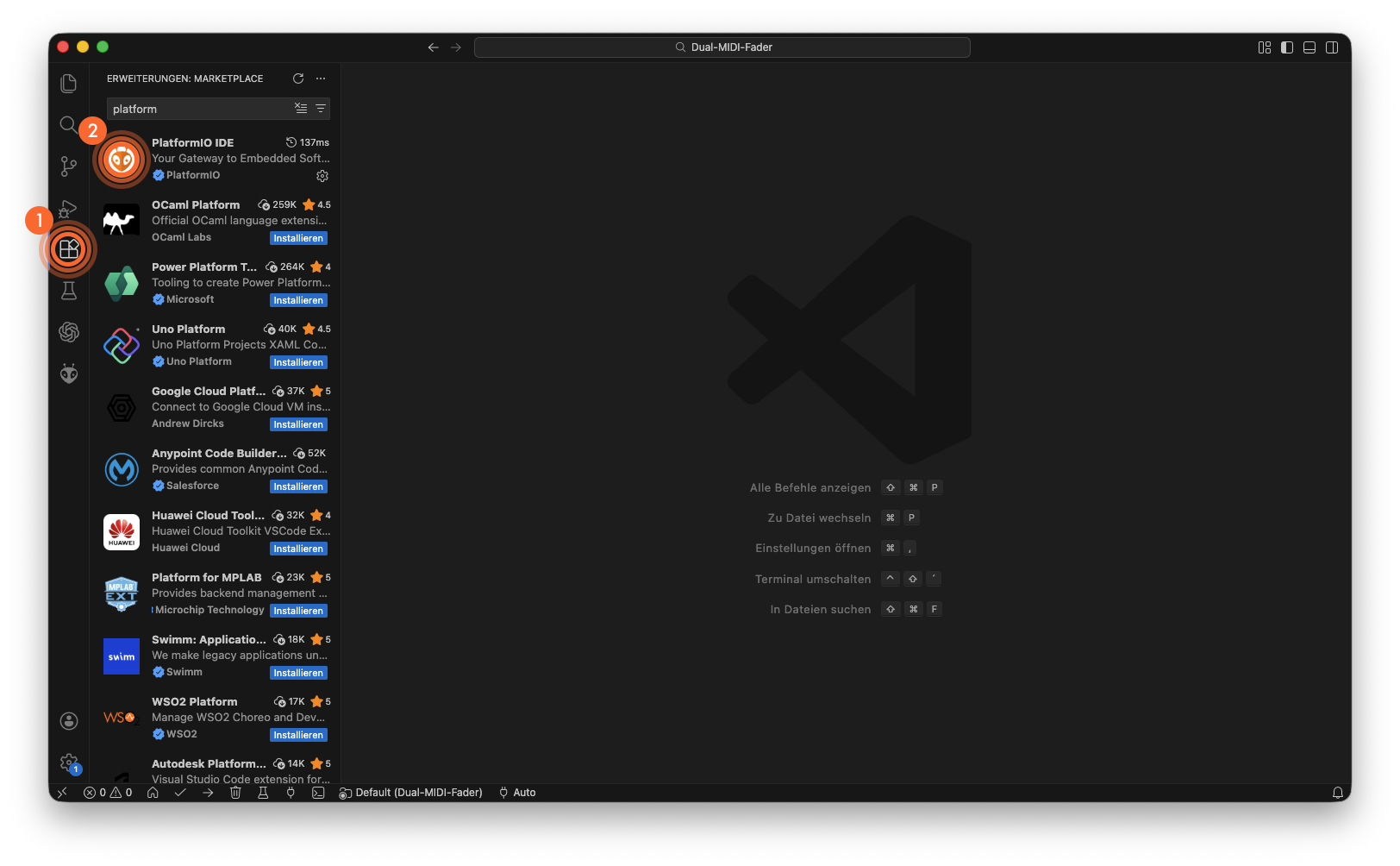
Download the source code from printables.com
Extract and open the project folder in Visual Studio Code.
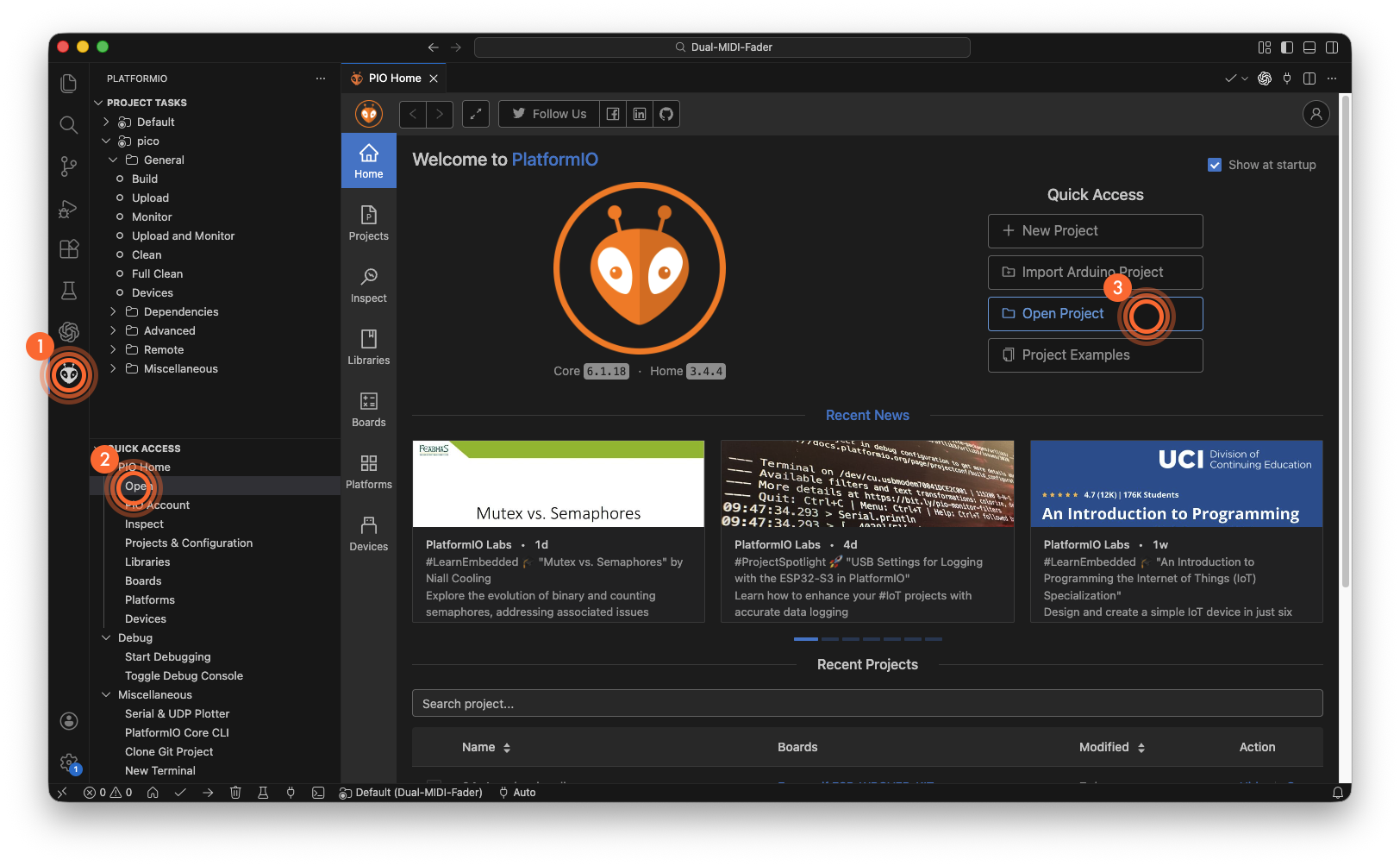
If required, adjust the MIDI CC mapping in src/main.cpp (CC1/CC3/CC21/CC11).
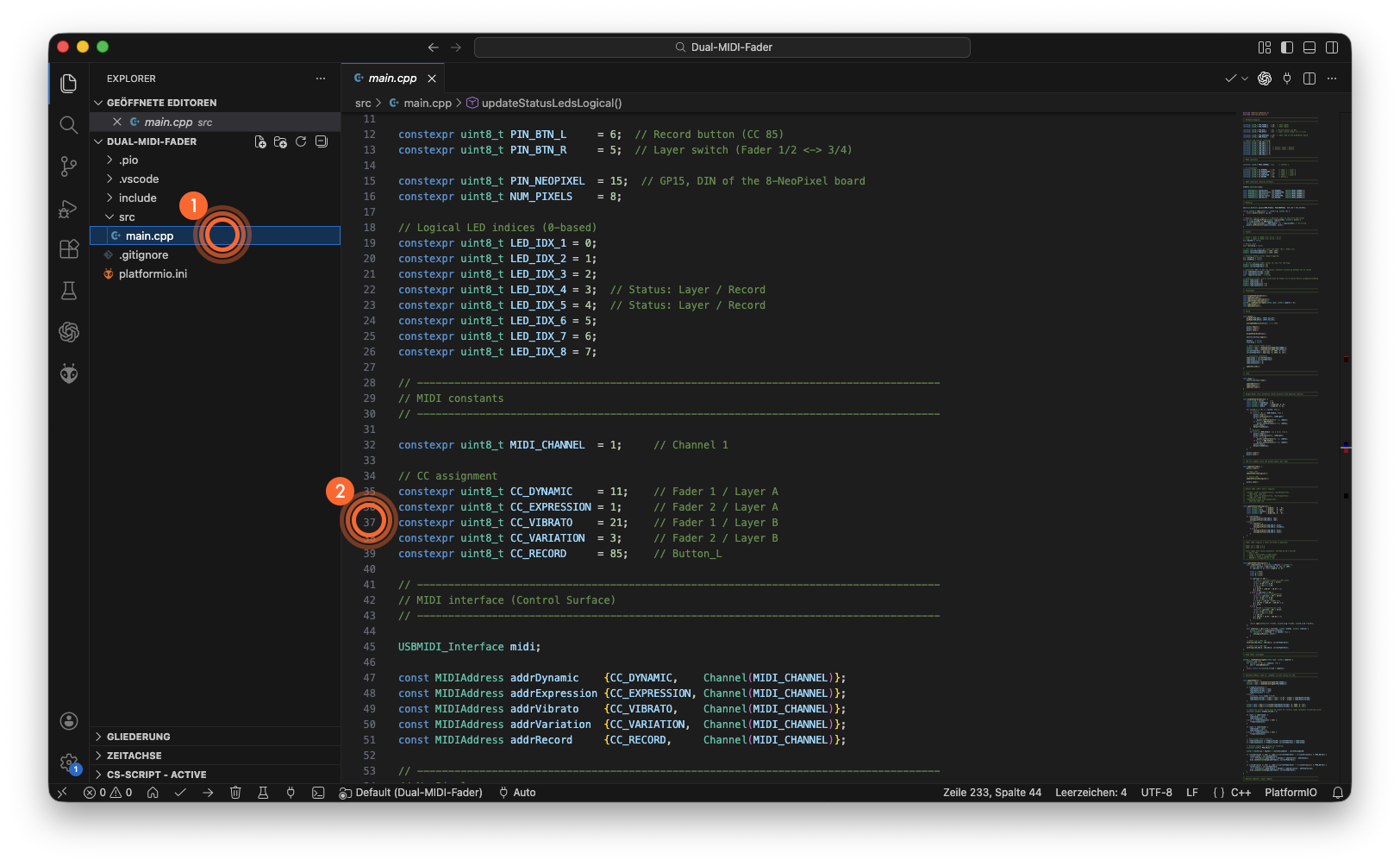
Build and upload the firmware to the Raspberry Pi Pico using PlatformIO.
Please note regarding the software: I am not a programmer and used AI to create the code. It runs reliably for me, but I cannot rule out errors or sloppy programming.