Ironing Calibration Test + Guide
Obliczymy ostateczną cenę na podstawie wybranego pliku. Sprawdzisz ją i zaakceptujesz przed płatnością.
Zapisane na tym urządzeniu.
Informacje o modelu
- Źródło
- Printables
- Kategoria
- Test Models
- Licencja
- Creative Commons — Public Domain
Guide - How to perfect your Ironing on PrusaSlicer
This is my own Guide of the Ironing Test by NuggetsINC on MakerWorld, but ready for Prusa Slicer 2.9.4
A very simple and detailed guide to test and understand how different ironing settings affect the end result of your prints.
I included the STLs for every object in case you want to modify anything by yourself.
Found it useful? Leave a comment!
Its ready to print for a Prusa Core One / Plus, just open the 3MF file, choose your filament and hit print.
How to print with any printer:
If you have a different printer, open a new proyect:
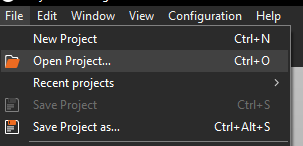
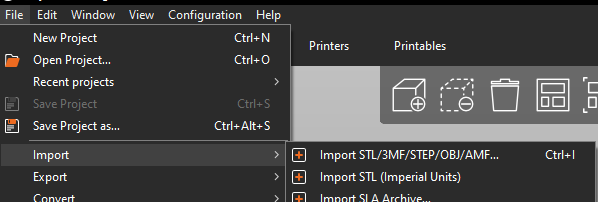
Then, choose the 3MF file and import it to load it for your printer:
Now you have all the swatches in the 3MF loaded like this:
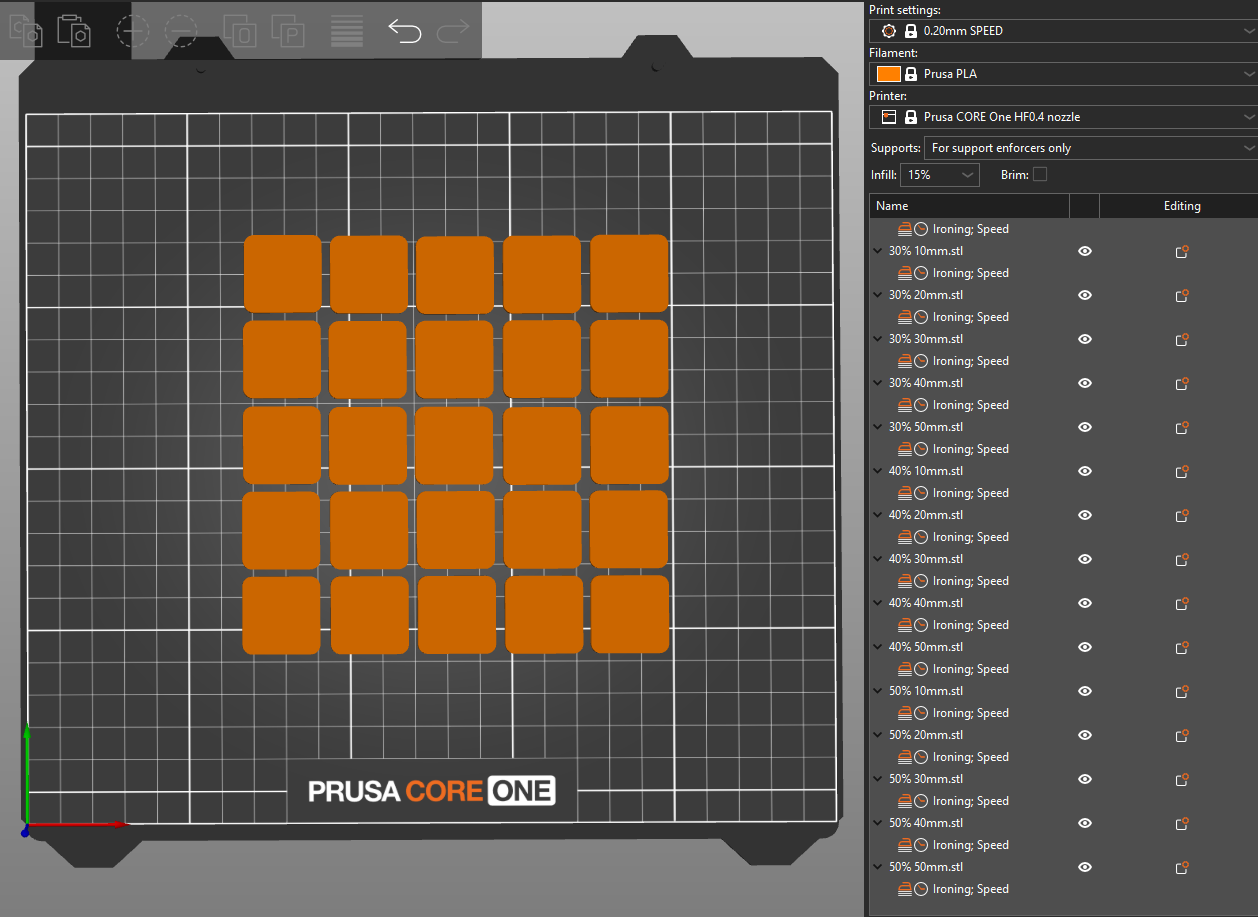
In the right panel, choose your print profile and the filament you will use:
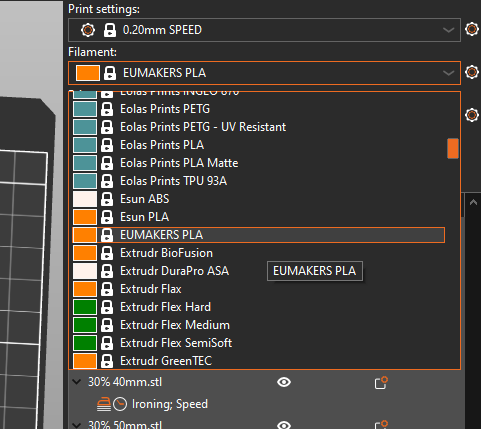
Just hit Slice and print!
Once the printer is finished, the process is as simple as it gets, just take a look!! 👀
Checking the results
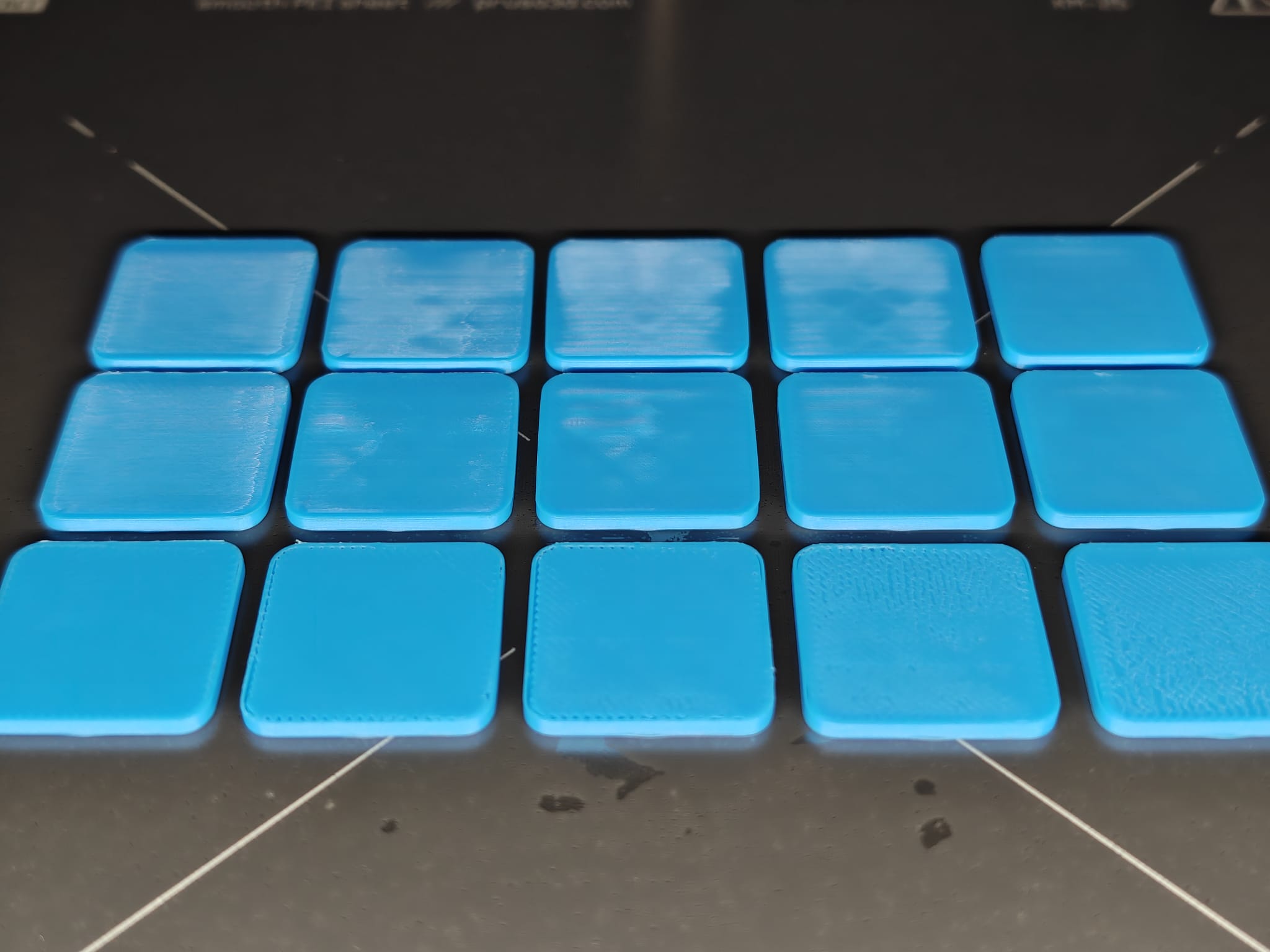
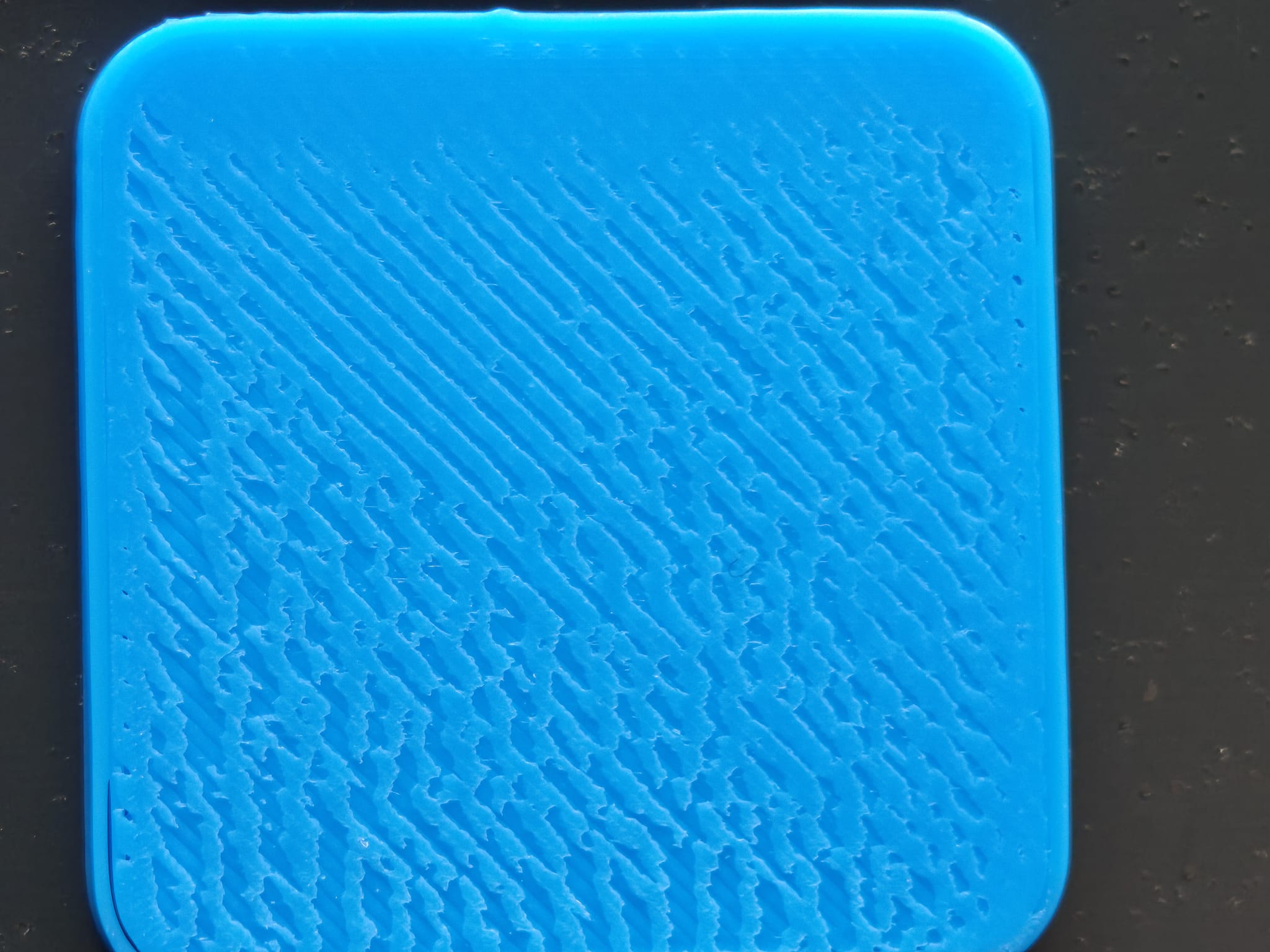
As you can see, most of the surfaces are irregular, blobby or simply not ideal. In most cases you can see visual defects at first glace, but some finner defects are more difficult to spot.
In my case, the bottom row seems Ok-ish and the top rightmost seems pretty good finished, so I will discard the other pieces.
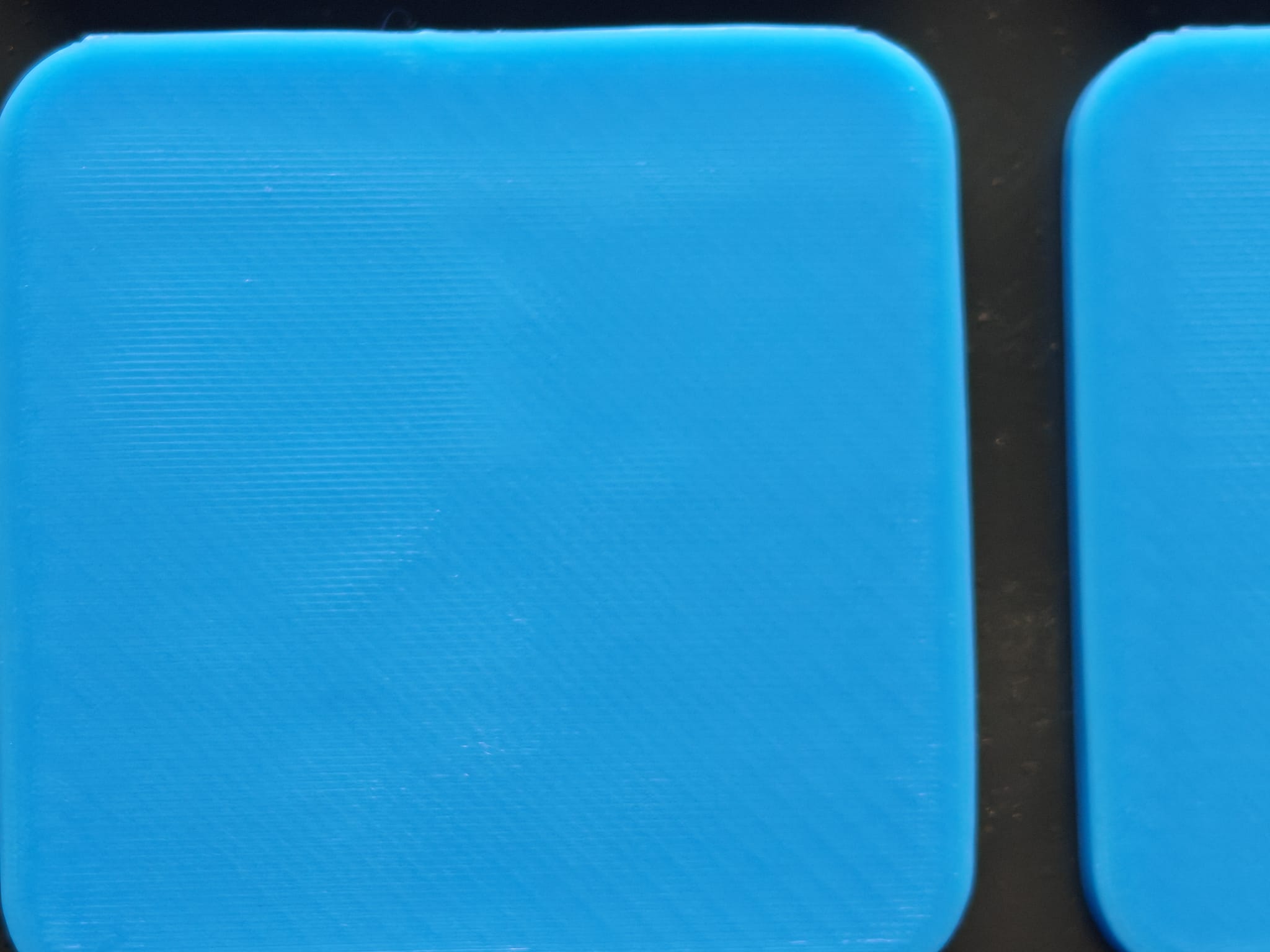
With the best looking pieces selected, take a closer look with a magnifying glass or a phone camera to spot even finer defects.
Here are some examples of different defects on my print:
Some little gaps and cracks (4/10)
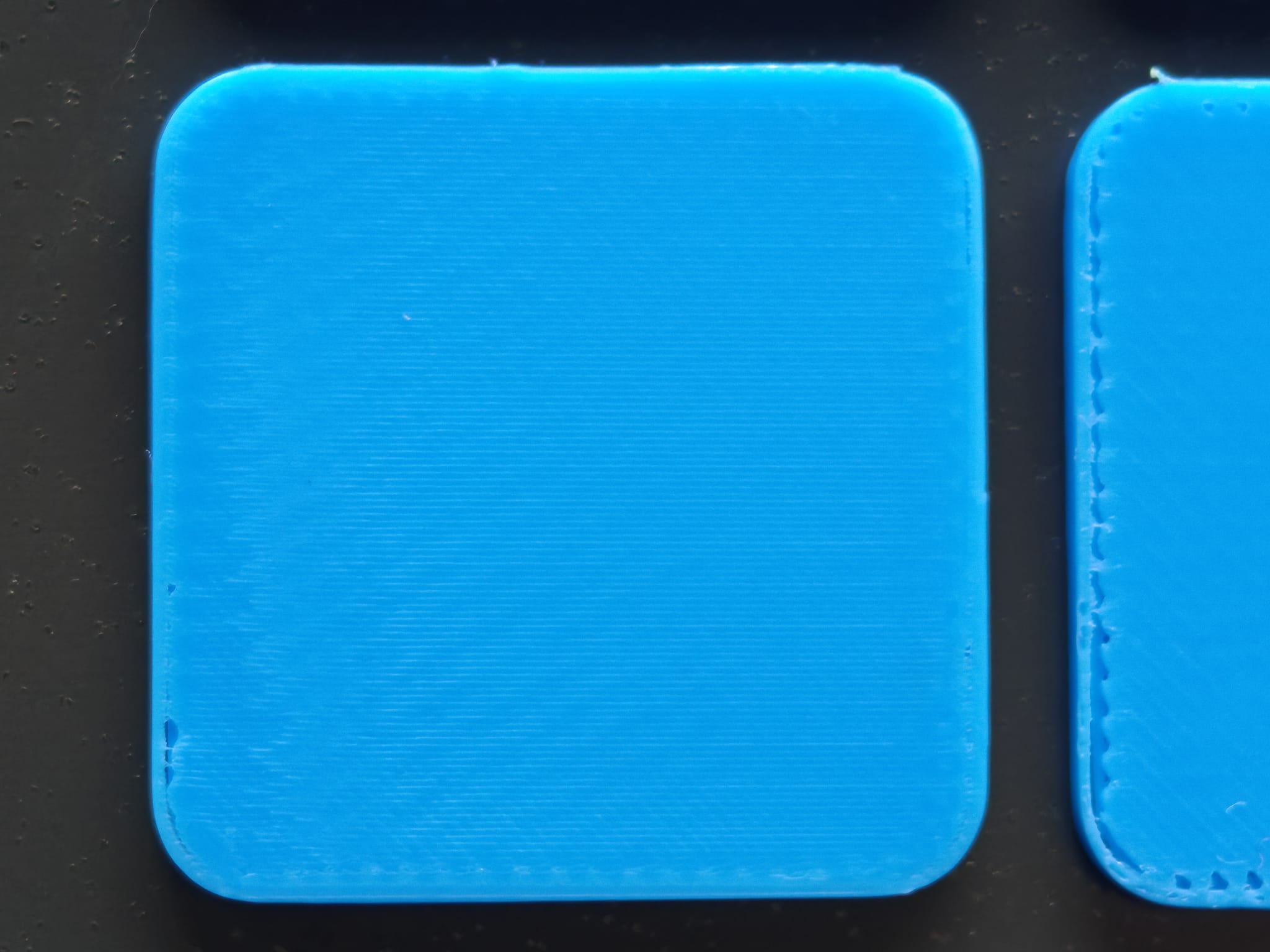
Very bad over extrusion (3/10)
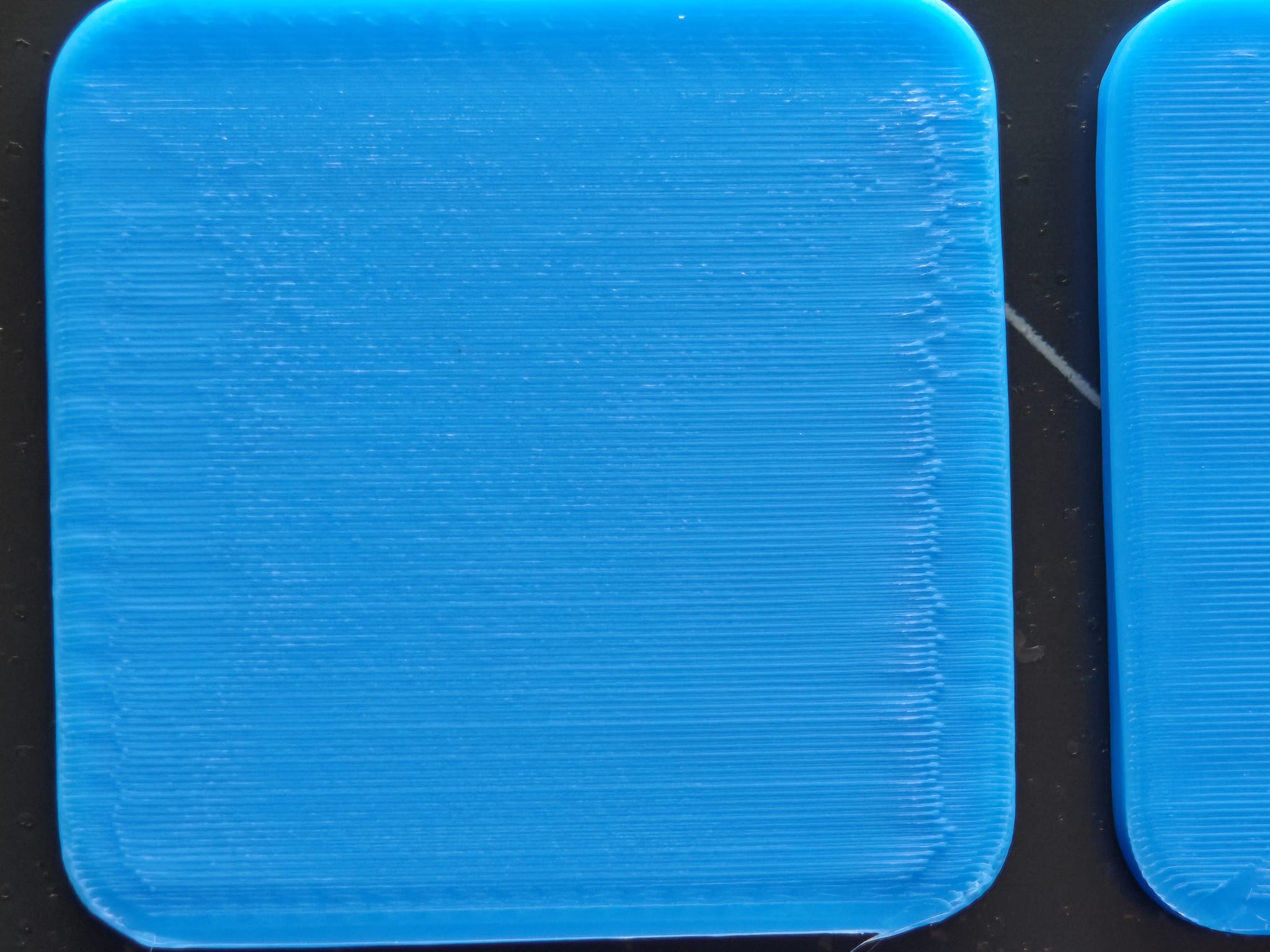
Not enough extruded plastic for the printing speed (1/10)
This one is very close to perfect, there is still some little spaces to fill out (8/10)
This was my best result!! (There's a little blob, probably fell from the nozzle over the other tests) (9/10)
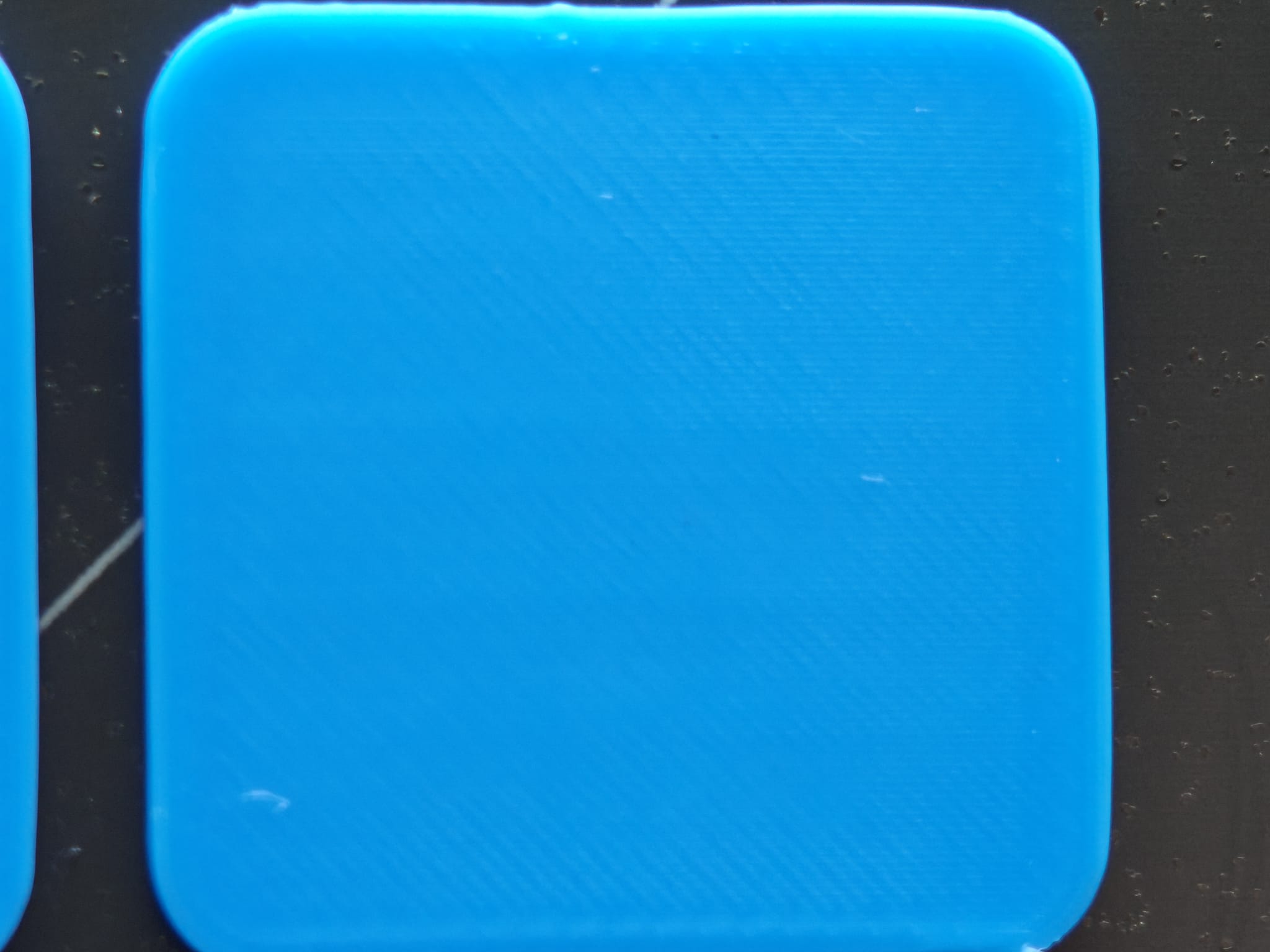
I will choose this piece as the best configuration for my filament and my printer, but if you have more than one swatch that looks good, is always a good idea to use your finger an feel the surface of each one.
Wich one feels smoother? Wich one makes more noise when scratched?
With your best result, flip it over to see your best Ironing setting!
In my case, 30% and 50mm
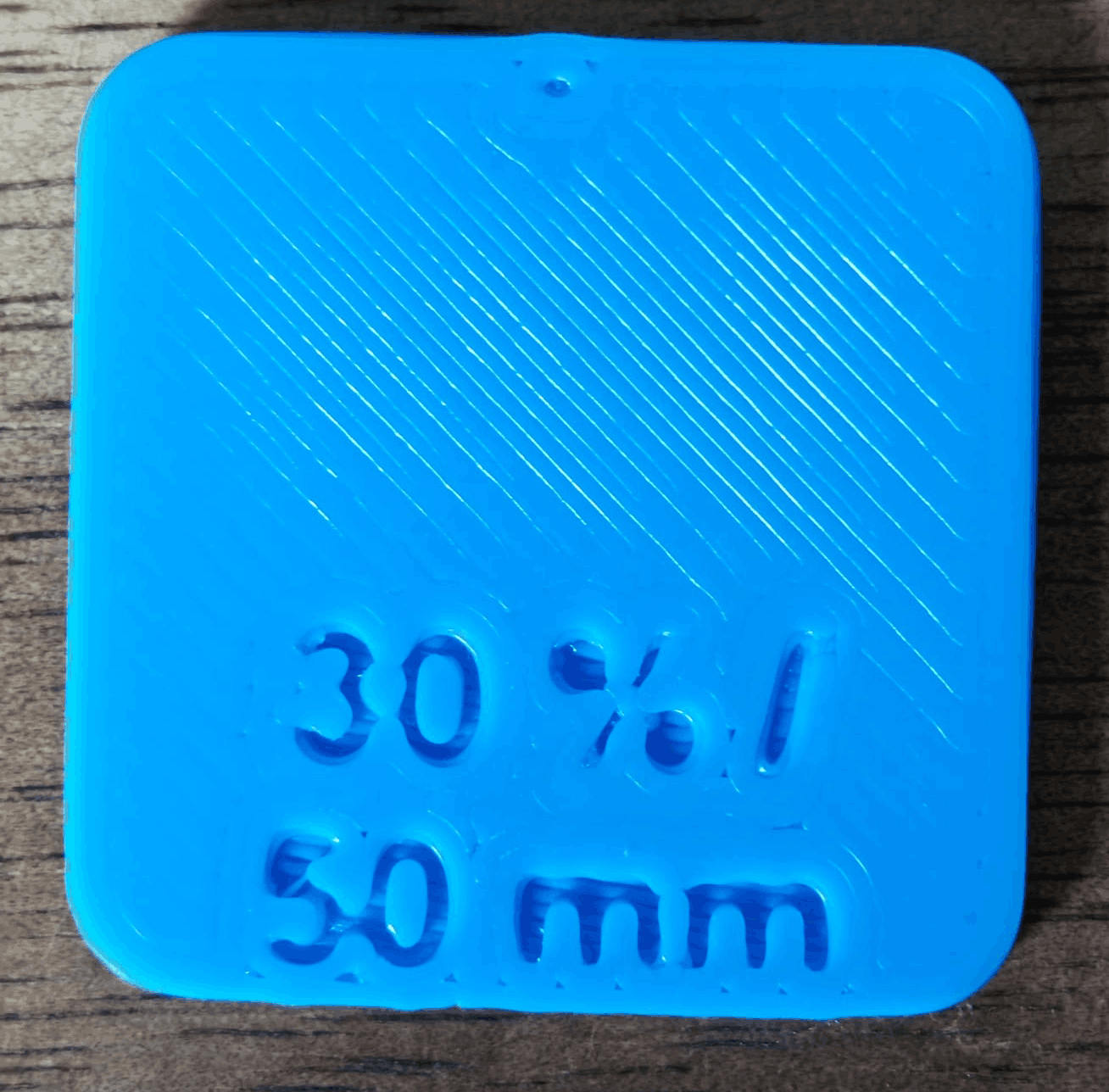
This settings refer to the Flow Rate during Ironing and the Ironing Speed.
Keep in mind that this is your perfect setting for This Filament, other colors and material may behave differently.
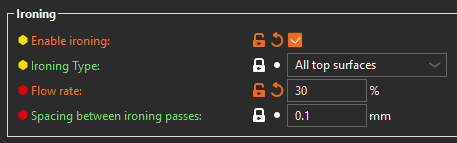
So, with this numbers in mind, go to PrusaSlicer > Print Settings > Infill > Ironing
Enable Ironing and input your perfect flowrate (for me is 30%)
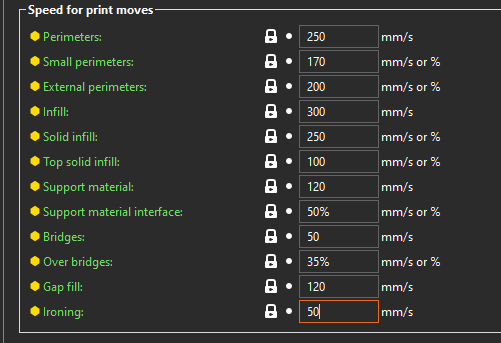
Now, go to the Speed tab > Speed for print moves > Ironing
Input your perfect Ironing Speed there (for me is 50mm)
Save your profile and done!!
How to make your own tests
I included the STLs for every object used in the 3MF in case you want to change any setting for yourself.
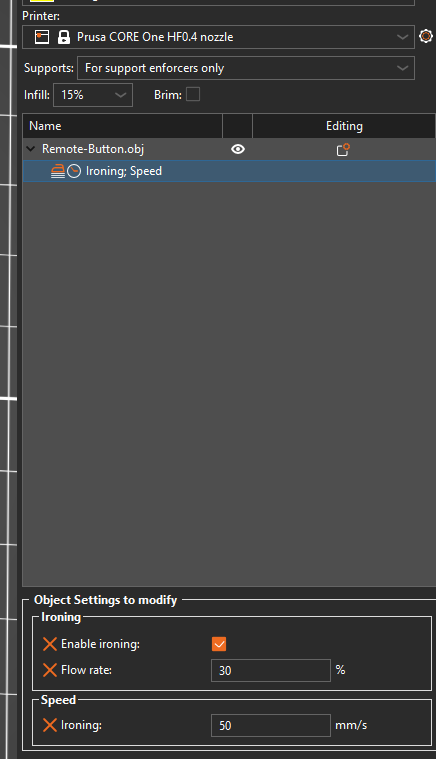
If needed, you can set different settings for every object in your plate, here is how you can input different ironing settings for an object.
Import your object, Select it > Right click > Add setting > Ironing
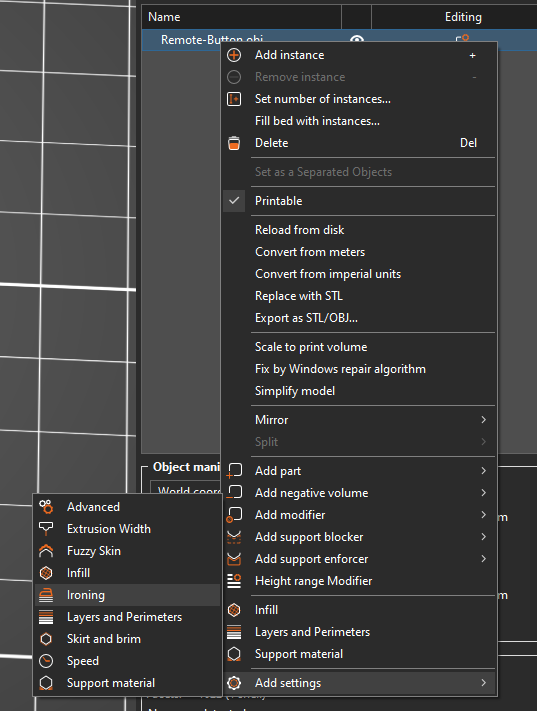
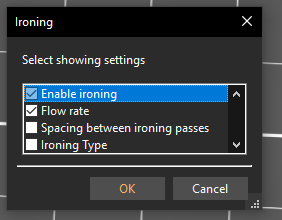
Then select "Enable Ironing" and "Flow rate" in order to modify those settings
Select your object again, Right click > Add setting > Speed
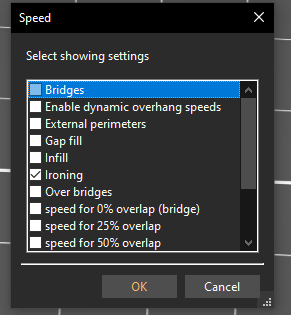
And enable only "Ironing" to configure Ironing speed.
Now your object will have a dropdown bar with this two settings:
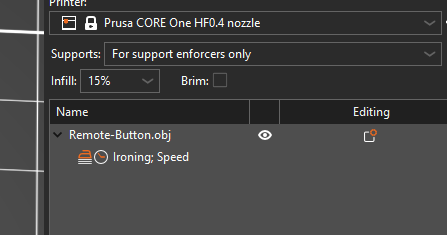
Selecting the "Ironing; Speed" bar lets you change the values set by your printing profile to the ones perfect for your filament.
In my case:
30% Flowrate
50mm Ironing speed