
1 / 1
Parametric Horizontal Card Box for Board Game Organization
Zamów wydruk tego modelu
Obliczymy ostateczną cenę na podstawie wybranego pliku. Sprawdzisz ją i zaakceptujesz przed płatnością.
Zapisane na tym urządzeniu.
This fusion 360 file uses parameters to allow for customization. You can quickly make custom boxes for your games.
- Ocena
- 4 / 5
- Polubienia
- 20
- Pobrania
- 57
- Wydruki
- 1
- Wyświetlenia
- 613
- Oceny
- 1
Aktualizacja u źródła:
Informacje o modelu
- Źródło
- Printables
- Kategoria
- Board Games
- Licencja
- Creative Commons — Attribution — Noncommercial — Share Alike
SzczegółyPliki (1)Wydruki i komentarze (Wydruki: 1) (Komentarze: 2)Remiksy (1)Kolekcje (42)Powiązane
This is a parametric box that's designed to help you create custom storage solutions for your board games - especially the more obscure ones.
Please leave a comment if there are other box types you would like.
Steps:
- Download and install fusion 360 personal, make an autodesk account, and login. https://www.autodesk.com/products/fusion-360/personal
- Download the file attached to this project, and open it in 360.
- In fusion, navigate to MODIFY > Change Parameters

- In the parameter window, change the expressions to match your desired proportions

- The parameters are:
- length - how long (in mm) the box will be on the Y axis
- width - how long (in mm) the box will be on the X axis
- height - how tall the box will be on the Z axis
- NOTE: All above measurements are for OUTER DIMENSIONS. This is to help create boxes that fit perfectly in the original game box.
- thickness - thickness of the walls. I recommend making this a multiple of you nozzle size. I use a 0.8mm nozzle, so I make my walls 1.6mm to get two layers and a much quicker print.
- columns - the number of card compartments you want in the x axis
- rows - the number of card compartments you want in the y axis.
- hole - the size of the finger hole.
- When you have set your parameters, click ok.
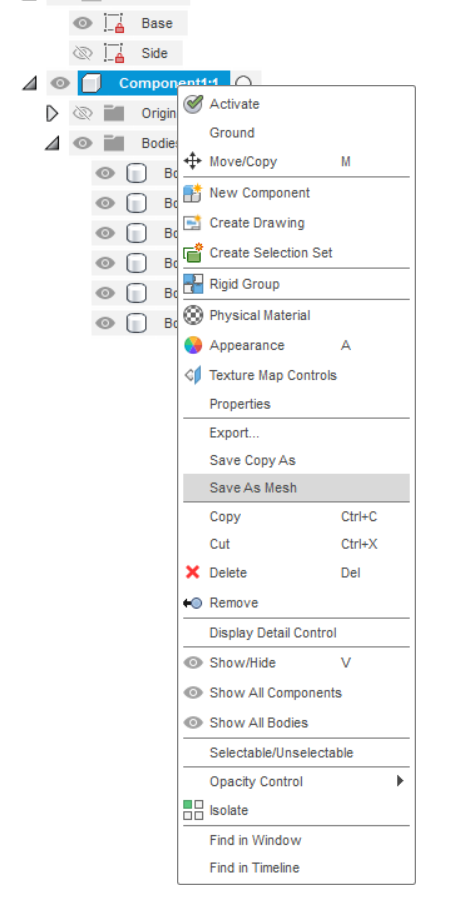
- On the left side of the screen, you'll see an item called Component1. Right click that component then click Save as Mesh.
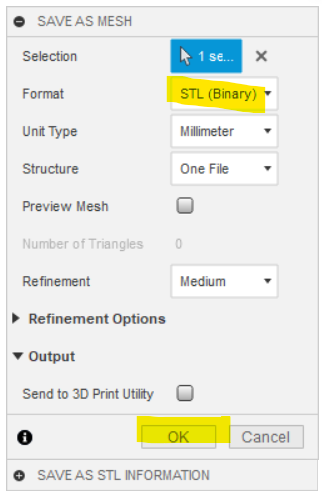
- In the popup, change the format to STL. You need to do this because each box is a different body, and STL combines them. If you don't do this (or combine the bodies in fusion) you may get issues when you slice the model.
- Open the meshes in your slicer, slice, and print.
Please leave a comment if you have questions.