
Wi-Fi QR Code Sign with embedded Magnet and NFC
Obliczymy ostateczną cenę na podstawie wybranego pliku. Sprawdzisz ją i zaakceptujesz przed płatnością.
Zapisane na tym urządzeniu.

This remix comes with embedded magnets, a little recess for a 25mm NFC sticker and chamfers.
- Ocena
- 0 / 5
- Polubienia
- 17
- Pobrania
- 80
- Wydruki
- 0
- Wyświetlenia
- 1605
- Oceny
- 0
Aktualizacja u źródła:
Informacje o modelu
- Źródło
- Printables
- Kategoria
- Home Decor
- Licencja
- Creative Commons — Attribution
This is a remix of the WiFi QR Code Sign - Embedded Magnet Version that uses embedded 8 mm x 3 mm magnets (Amazon) and has a recess for a 25mm NFC sticker (Amazon).
Use this sign to share your Wi-Fi SSID and password with your guests. Most mobile phones are capable of interpreting the QR code and will connect to the Wi-Fi network without manually select the SSID and enter the password.
Note: Your Wi-Fi SSID and passcode are available to anyone who has the QR code. Especially you shouldn't share unedited makes of this sign 😃
Make your Own
Since this should have a QR code with your Wi-Fi SSID and password, you have to make your own for this to be useful! But it is quite straight forward:
- Click on this Tinkercad link to create a copy of my template
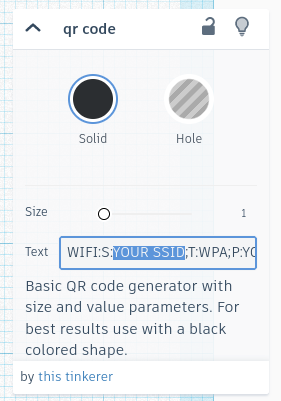
- Click on the QR code and change the text in the qr code overflow pane
- Change YOUR SSID and YOUR PW (after editing you should consider test the QR code by scanning it with your phone directly from the screen. Make sure to be in top view)
- Click on Export, then select .STL
- Import the .STL file into PrusaSlicer.
- Click to 3.6/3.65mm and then select the + sign with your right mouse button to insert a pause (to embed the magnets)
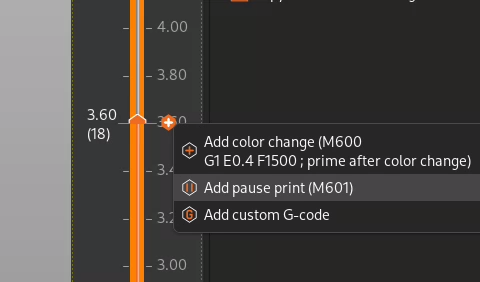
- Click to 5.15/5.2mm layer height and select the + sign to insert a color change (you'll want to use a darker color for the QR code)
- Slice and print the sign
You can write the NFC code using the NFC Tools App.
- Install the NFC Tools App from the Android store or from the Apple App store.
- Open the NFC Tools App
- Approach the NFC sticker. The App should display the Tag type (e.g. NXP NTAG215) and other information
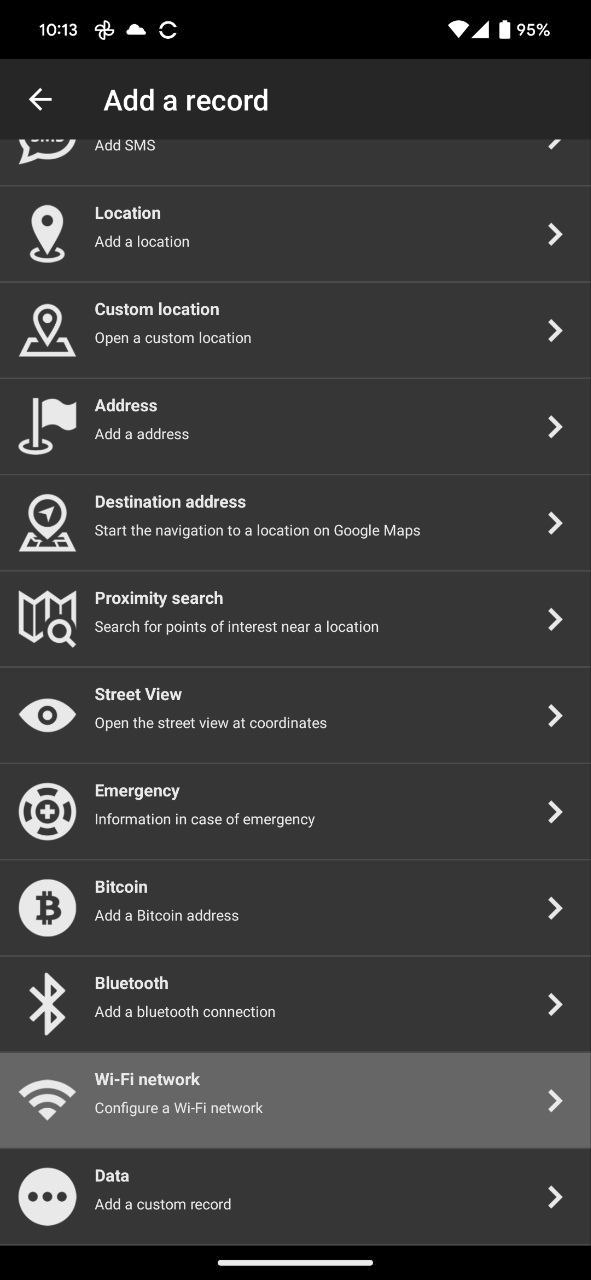
- Select the Write tab and click on Add a record.
- Scroll to the end of the list and select W-Fi network.
- Enter your W-Fi SSID and password
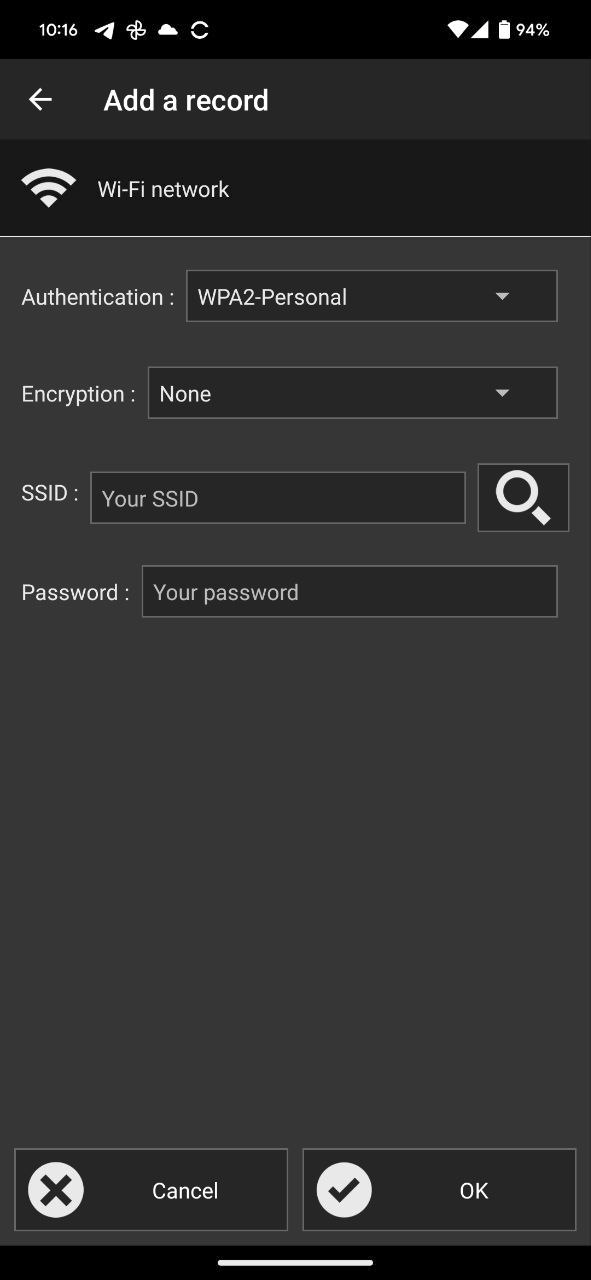
- Select OK and then Write.
- Approach the NFC tag again to write the tag.
With the tag flashed, you can stick it on the backside of your Wi-Fi QR-code sign. Your guests can now can or use NFC to connect to your Wi-Fi 🎉.