
William's Clover - Telescopic Fidget
We calculate the final price from your selected file. You review and accept it before payment.
Saved on this device.
Model information
- Source
- Printables
- Category
- Other Toys & Games
- License
- Creative Commons — Attribution — Noncommercial
SUMMARY SECTION
Feeling lucky? Love basketball? Get yourself this mesmerizing 9.1 cm × 9.4 cm × 2.0 cm telescopic clover! With its hypotizing, elastic-like features, you will never be bored with this fidget. To create this project, I worked with a partner, Kuvum, who gave feedback on my design, created a near-identical clover with me, and helped with any problems that I encountered. You can find his page here. Thank you Kuvum for helping make the project run smoothly!
LESSON PLAN & ACTIVITY
In this project, I used sketch offsets, extrudes, and cuts in order to create my own telescoping fidget in the shape of a clover. I worked with another partner, mentioned above, who helped provide feedback and helped troubleshoot problems we faced. Although we were not required to have the same designs, we both chose to design clovers so we could help each other throughout the project.
Specific constraints that were given were:
- The sketch must begin with a constraint box (center-rectangle created from the origin)
- The outermost line must fit within an 8cm x 8cm box or equivalent area (64cm^2) note: this one was not followed as we had to enlarge our clover for better telescoping properties
- Dimensions/relations should be efficient
- It is suggested but not required to fully define your entire sketch
- The sketch must contain zero error messages
- Demonstrate efficient use of “”Offset Identities"
ASSEMBLY/CONSTRUCTION INSTRUCTIONS SECTION
- Create a model of a clover by using arcs and lines and tracing a picture of a clover
- Make sure all the lines GOING IN THE SAME DIRECTION are tangent to each other; if lines are not tangent, use the tangent relation to make them tangent
- If you have any sharp corners, make sure to use the fillets tool to fillet them and change the fillet size to 0.5 cm
- When you are done tracing, delete the picture of the clover (if you have one) so you only have the sketch you created
- Once your sketch is created (make sure the whole shape is grey!), use the Offset Entities tool to offset the outer outline of the sketch 0.1 cm inwards (check the reverse box).
- After tracing, your sketch should look like this:
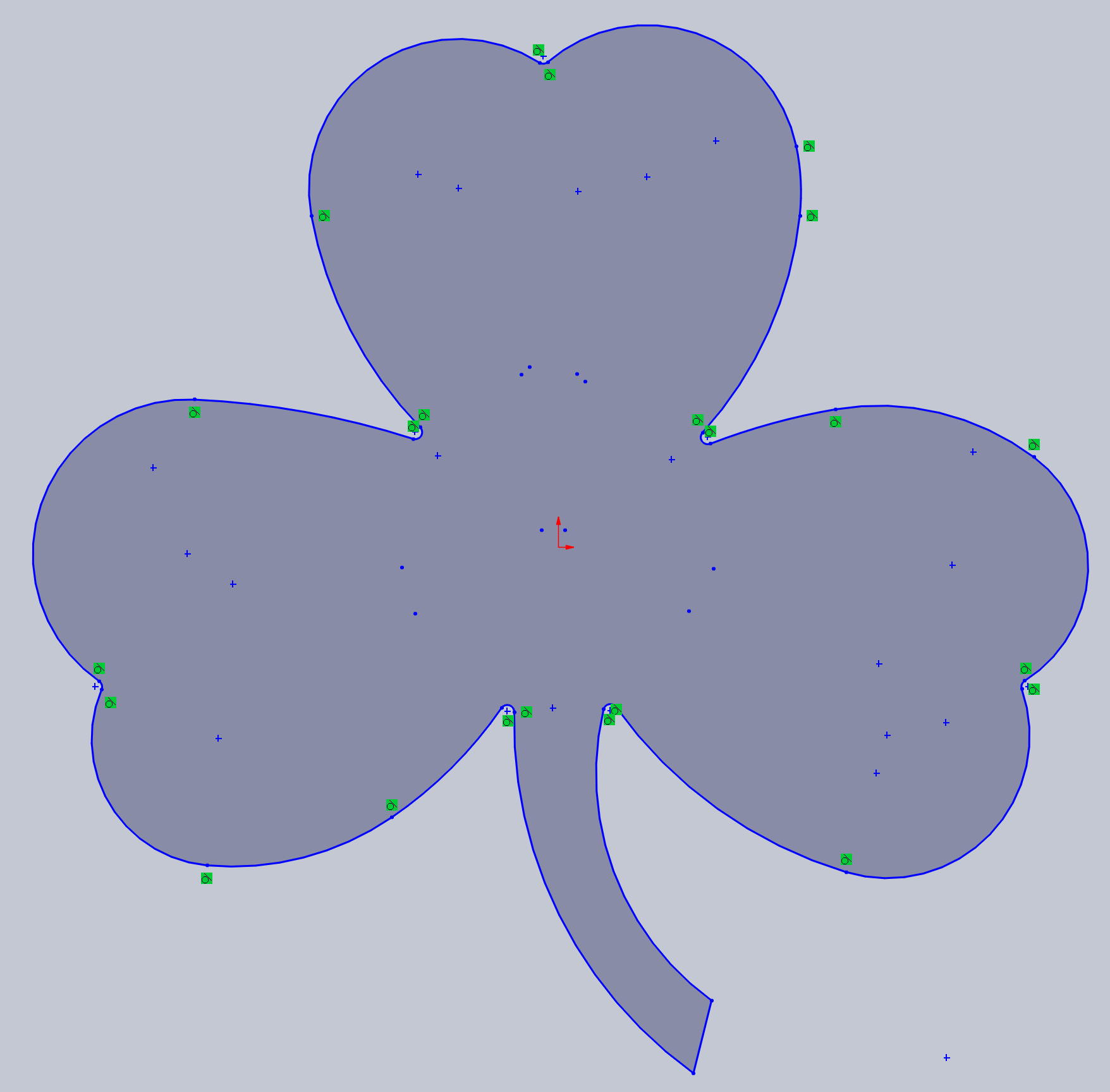
- Solidworks will automatically put offset lines around the stem of the clover. Make sure to delete the offsets in the stem and connect the separated lines with an arc (make the arc tangent to the lines it is connecting to!).
- After tracing, your sketch should look like this:
- Using the line created in step 2a, offset the line again by 0.1 cm inwards
- Repeat step 3 with the preceding line, and continue offsetting lines until you cannot offset lines anymore.
- At the end, your model should look like this:
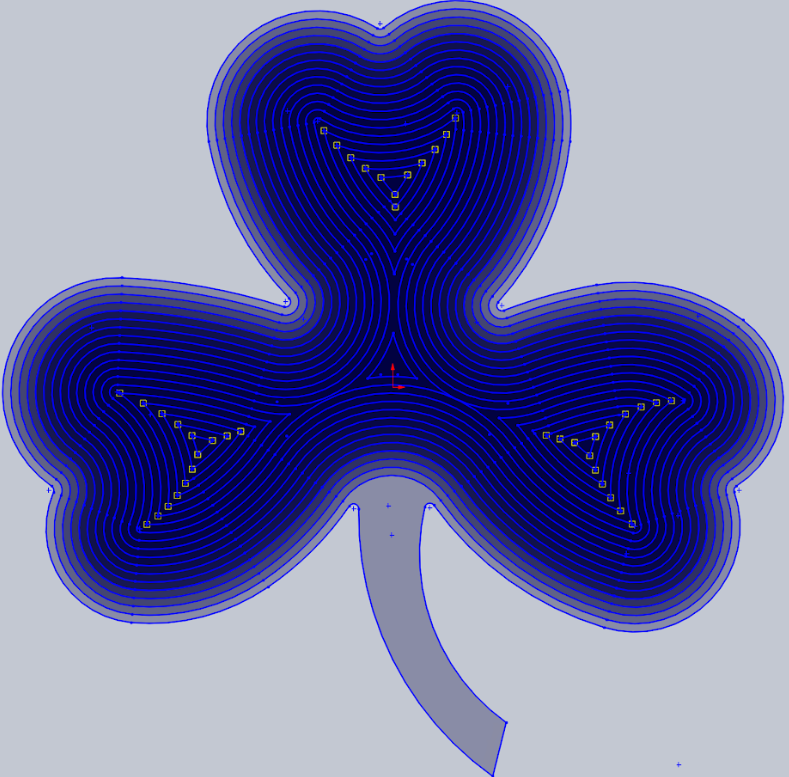 Notice that there are no offsets in the stem!
 - Exit the sketch, and use the Boss Extrude tool to extrude the OUTER LINE of the sketch
- Set the height to 1.0 cm
- Click the logo next to the angle option; then, set the angle to 15.00 degrees
- Use the Cut Extrude tool to cut the SECOND LINE inside the sketch
- On the dropdown menu next to the two arrows, press “Up to Surface”
- Choose the top of the original extrusion
- On the dropdown menu next to the two arrows, press “Up to Surface”
- Repeat Boss-Extruding and Cut-Extruding functions, switching back and forth between them, until you cannot extrude/cut any more
- When you are done, you should have a list of extrudes and functions on the side bar looking like this:
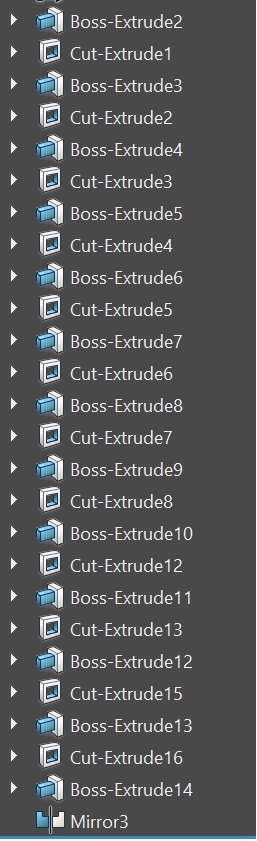
- Check that your extrudes and cuts are alternating, as shown in the picture below:
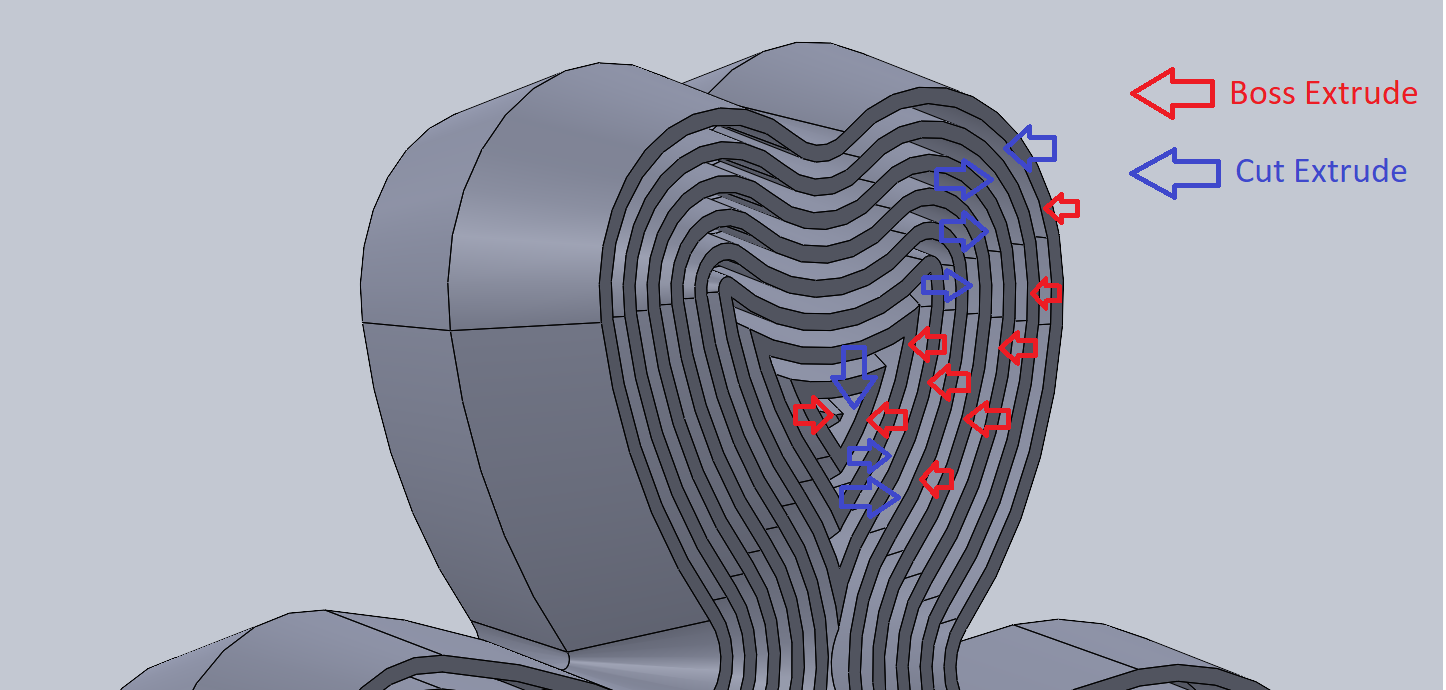
- When you are done, you should have a list of extrudes and functions on the side bar looking like this:
- Your overall sketch should now look like this:
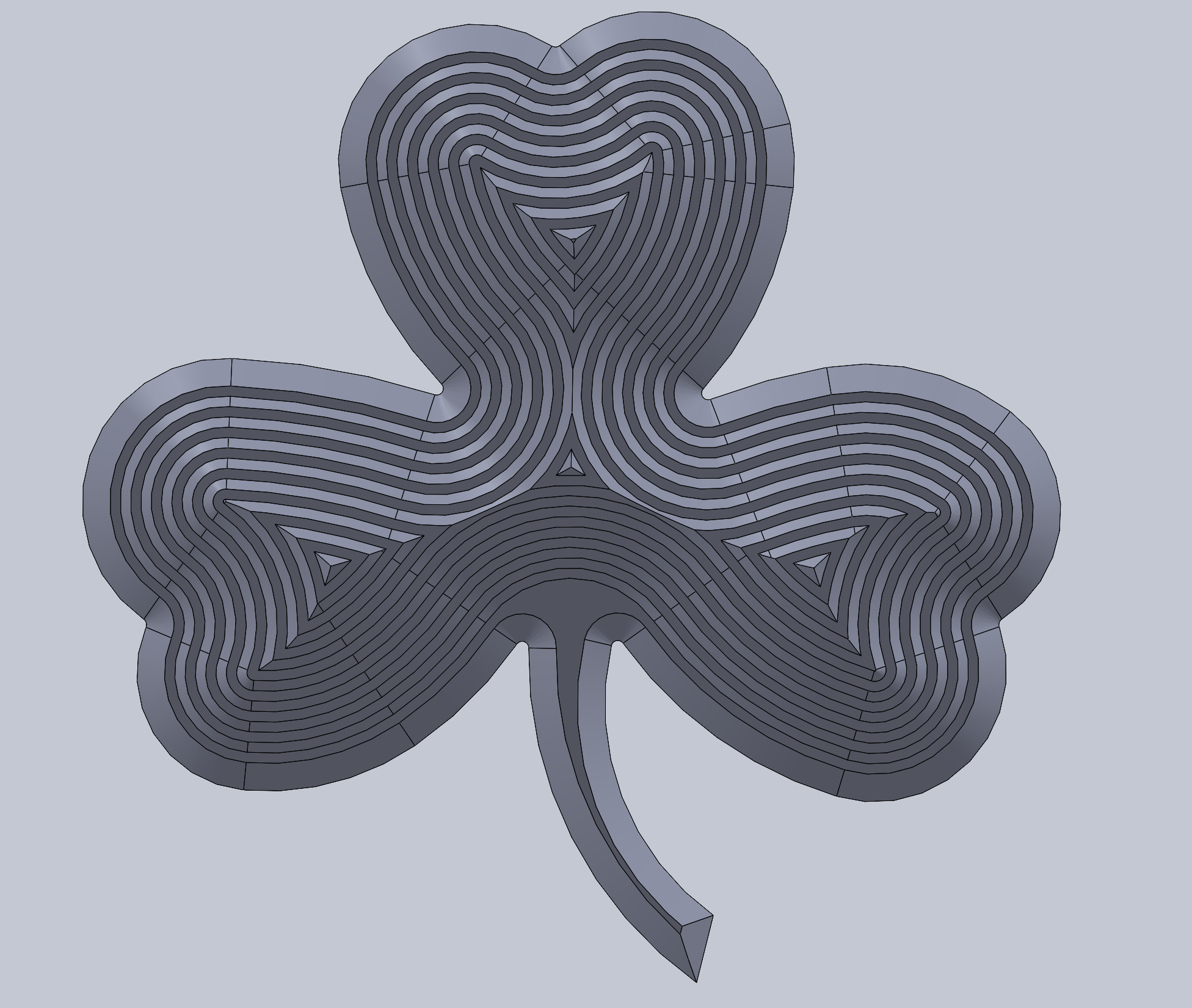
- Select the plane the sketch is on from the Feature Tree
- Click on the mirror option, and go to the menu option “Bodies to Mirror”
- Drag and select the entire object on the screen
- Select the checkmark for “Merge solids”
- Your clover should now be fully mirrored!
DESIGN CHOICES
INSPIRATION
This fidget was inspired by the Boston Celtics basketball logo, shown below. The Celtics are my favorite basketball team, and I wanted to create something related to them in honor of their recent 18th NBA championship. Additionally, in other parts of the world, clovers are a known symbol of luck and hope, messages I want to resonate with this design. I specifically chose to sketch the image of the clover below because its shape made it plausible to build on Solidworks, and its stem could act as a handle for the fidget.
PROBLEMS ENCOUNTERED
The very first problem that I encountered was that Solidworks gave me many errors when I offsetted lines in my sketch. This was because of two reasons: I had previously fixed all my points, and did not fillet some sharp edges in the clover, both of which stopped further offsets. I fixed this issue by removing all fixed/anchored relations from my sketch and adding fillets on all corners of the clover.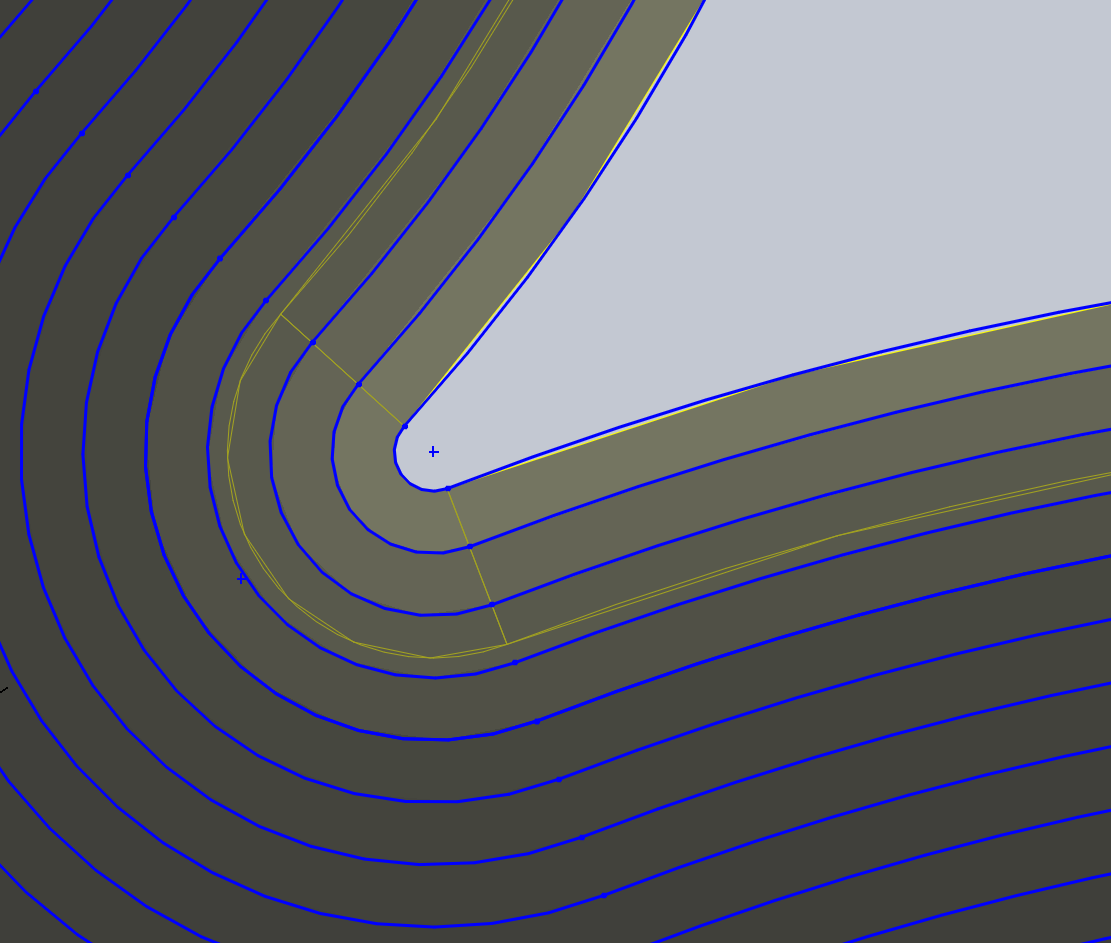
^^Examples of fillets I had to add on corners of the clover where the “leaves” touched.
Additionally, I learned to make all lines going in the same direction tangent to each other using the Tangent relation; by making these lines tangent, the overall sketch became smoother and looked less jagged.
VERSIONS
While creating this project, it took many tries and prototypes to get the final version obtained in the end.
We created three models of the clover in its original size, with the only difference between the three being the angles the edges were angled at. The three angles we experimented with were 25 degrees, 20 degrees, and 15 degrees. In order to get the most amount of offsets, we printed only the 15 degree model. The differences in angles between all three prototypes can be seen in the diagram below: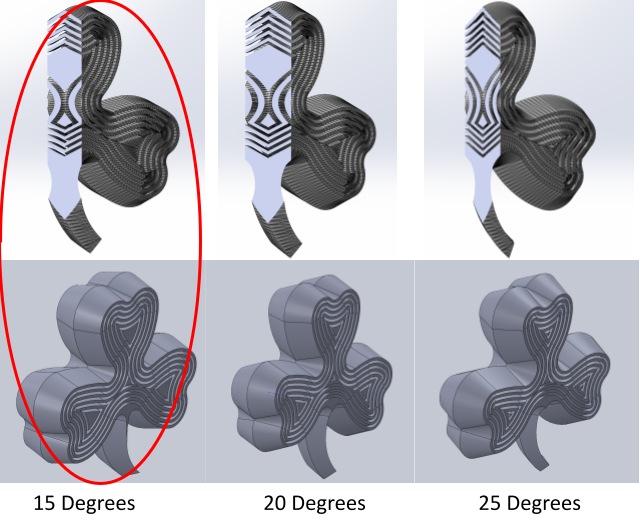
^^The circled images are the images of the model that we used for our first prototype
However, the first 15 degree version was very small, did not have enough offsets, and could not telescope very far. To fix this problem, we created a scaled copy of the clover and designed a bigger version 1.25x bigger.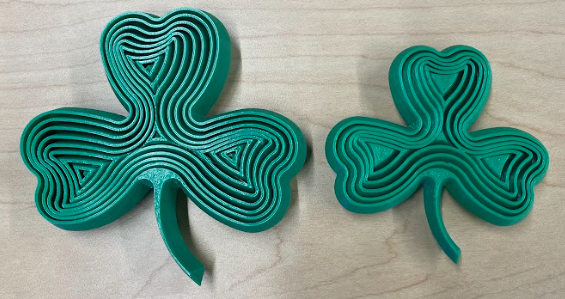
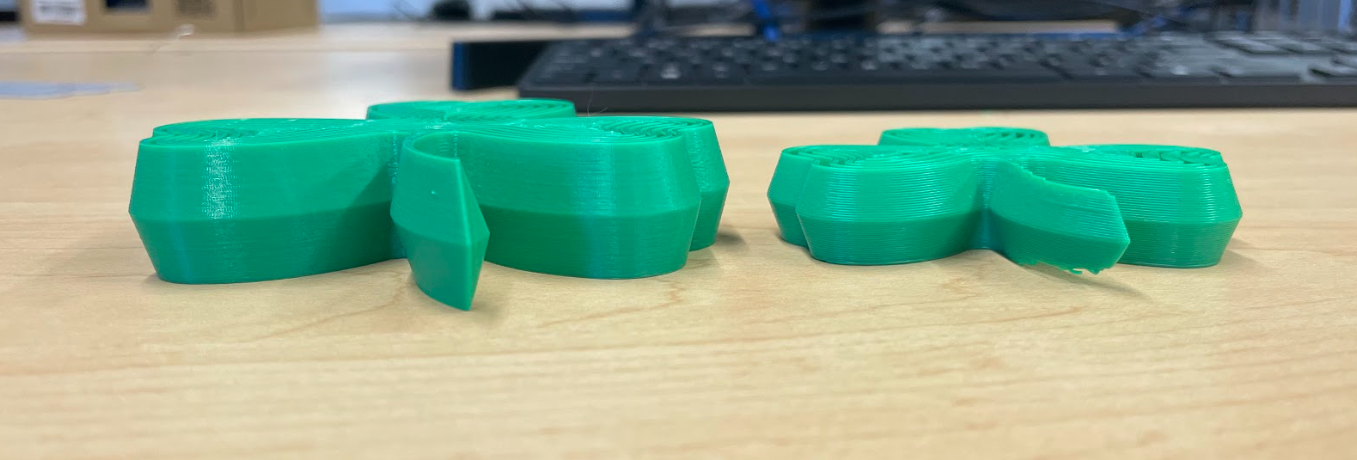
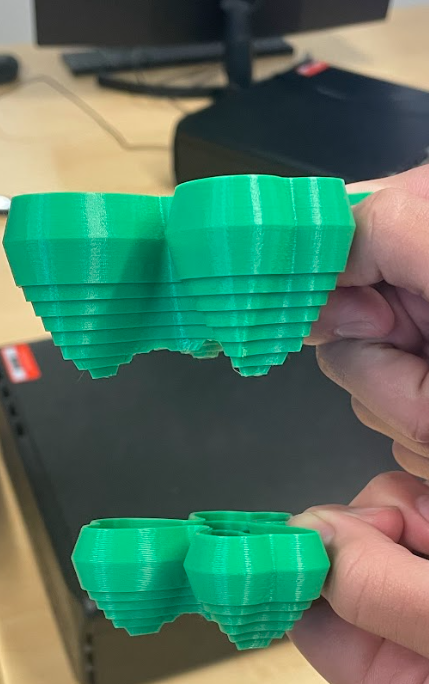
As shown above, my original prototype had only 6 offsets, while my final version had 9. Adding three more offsets and increasing the size allowed for further telescoping, louder sound, more comfort when holding, a more aesthetic look, and a better clover overall. The difference in telescoping, thickness, offsets, and shape between the final version versus the prototype of the clover can be seen in the two pictures above. Note: The bigger/thicker clover on the left/top of both pictures is the final version, which was 1.25x bigger than the original.