
Electronics
We calculate the final price from your selected file. You review and accept it before payment.
Saved on this device.
Model information
- Source
- Printables
- Category
- Other Printer Parts & Upgrades
- License
- Creative Commons — Attribution — Share Alike
Sandworm 3D printer - Electronics:
Signpost:
Electronics

Non-printed parts used in this section:
- M3 screws + M3 nuts + M3 heat-set nuts

Description of the electrical diagrams from the top image slider:
To view the electrical schematic images in the image slider above in full resolution:
Click on the image for full size → Right-click on the image → Open in new tab
Additional note for the AC Power IN diagram:
This wiring diagram shows the AC power input and relay-controlled power switching for the printer via Bigtreetech Pi (BTT-Pi), using GPIO control.
The printer and BTT-Pi each have their own independent PSU, ensuring that when the printer’s main power is turned off remotely via Wi-Fi, the BTT-Pi remains powered and can switch the printer back on when needed.
The COM GND wire connection in the diagram description (also known as Reference GND) is used to equalize the ground potential between both PSUs.
⚠ Why is this important?
Each PSU establishes its own ground reference, which may slightly differ due to various electrical factors (radio interference, switching noise, component tolerances, etc.).
For example, without the COM GND wire, one PSU might have a ground potential of 0.2V, while the other has 0.6V. This small voltage difference can cause communication errors, unstable signals, or even unwanted current flow between circuits.
By connecting COM GND, these potentials are equalized to a common reference (e.g., 0.4V in this example), ensuring more stable operation of the entire system.
Additional note for the Octopus pinout diagram:
* For the third extruder fan (used for cooling the extruder stepper motor and the EBB42 Canbus board), an external power supply is used (running parallel to the CanBus wires). It is connected to the Octopus board at pin PE5 and terminated near the extruder with a JST XH Extend Male connector.
This setup is necessary because the EBB42 board does not support three fans simultaneously. While there are guides explaining how to modify an unused connector on the EBB42 board for fan control using additional electronic components and soldering, here it is solved more simply by running two additional wires alongside the CanBus wiring.
However, I do not recommend operating the extruder without motor cooling, as the stepper motor generates significant heat, which negatively impacts its performance. Additionally, excessive heat can soften the plastic parts that hold the motor in place. The heat also transfers through the motor shaft to the extruder’s gearbox, which drives the filament, potentially causing premature softening or melting of the filament before it reaches the hotend.

1. Start with General Parts (Download) folder:
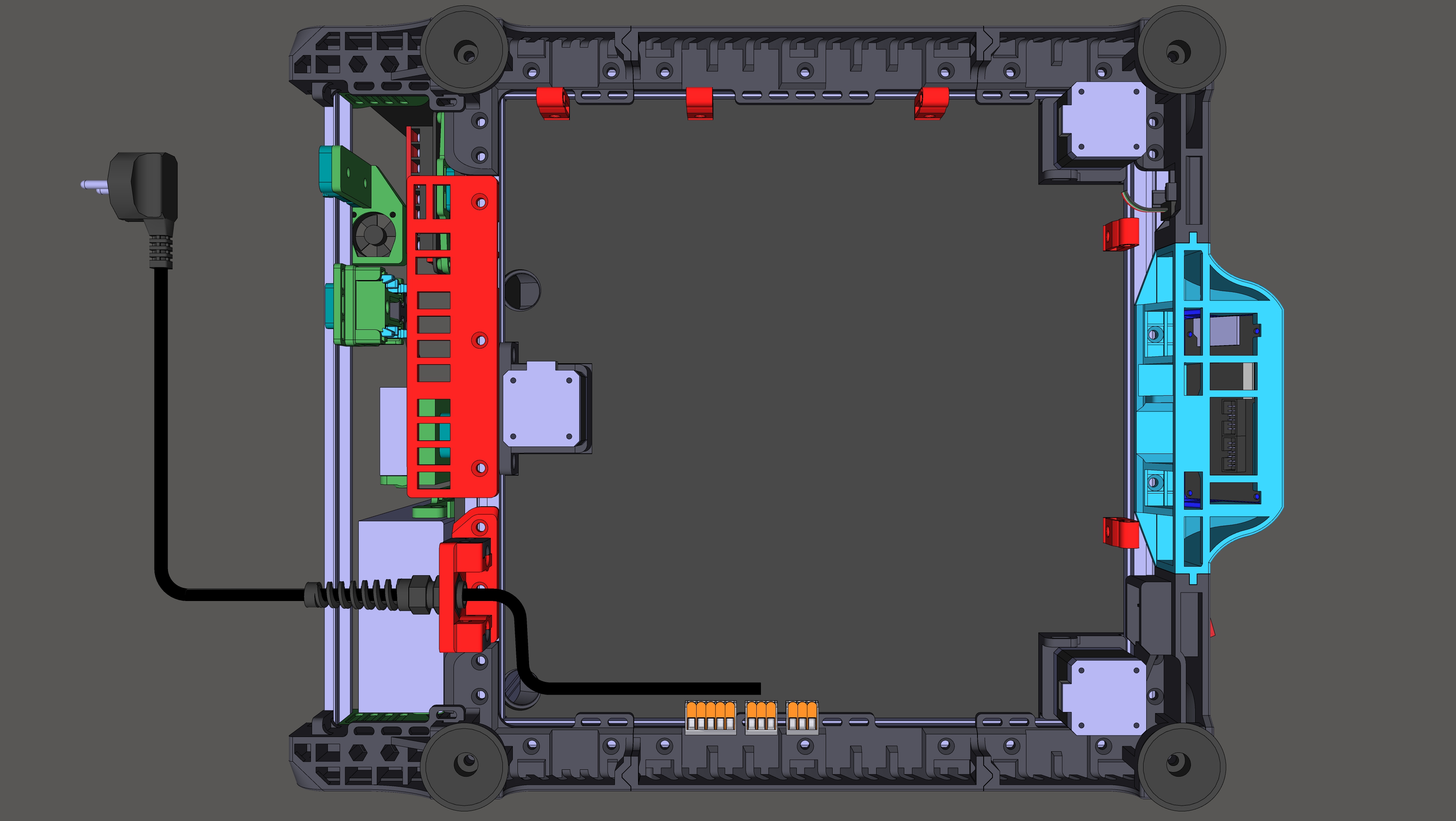
Mount the AC power IN model on the printer (for connecting the 230V power cable to the input Wago terminals, you will need PG9 Cable Grommet with anti-bending plastic spring). Next, mount the LCD Cable Holders and Bottom Cable Holder platform, all as shown in red in the image below...
Then, at the right rear leg, ground the AC power line to the printer's aluminum frame using:
- M5 Half rounded head 16mm screw
- M5 washer 1mm thick
- Ring crimp terminals
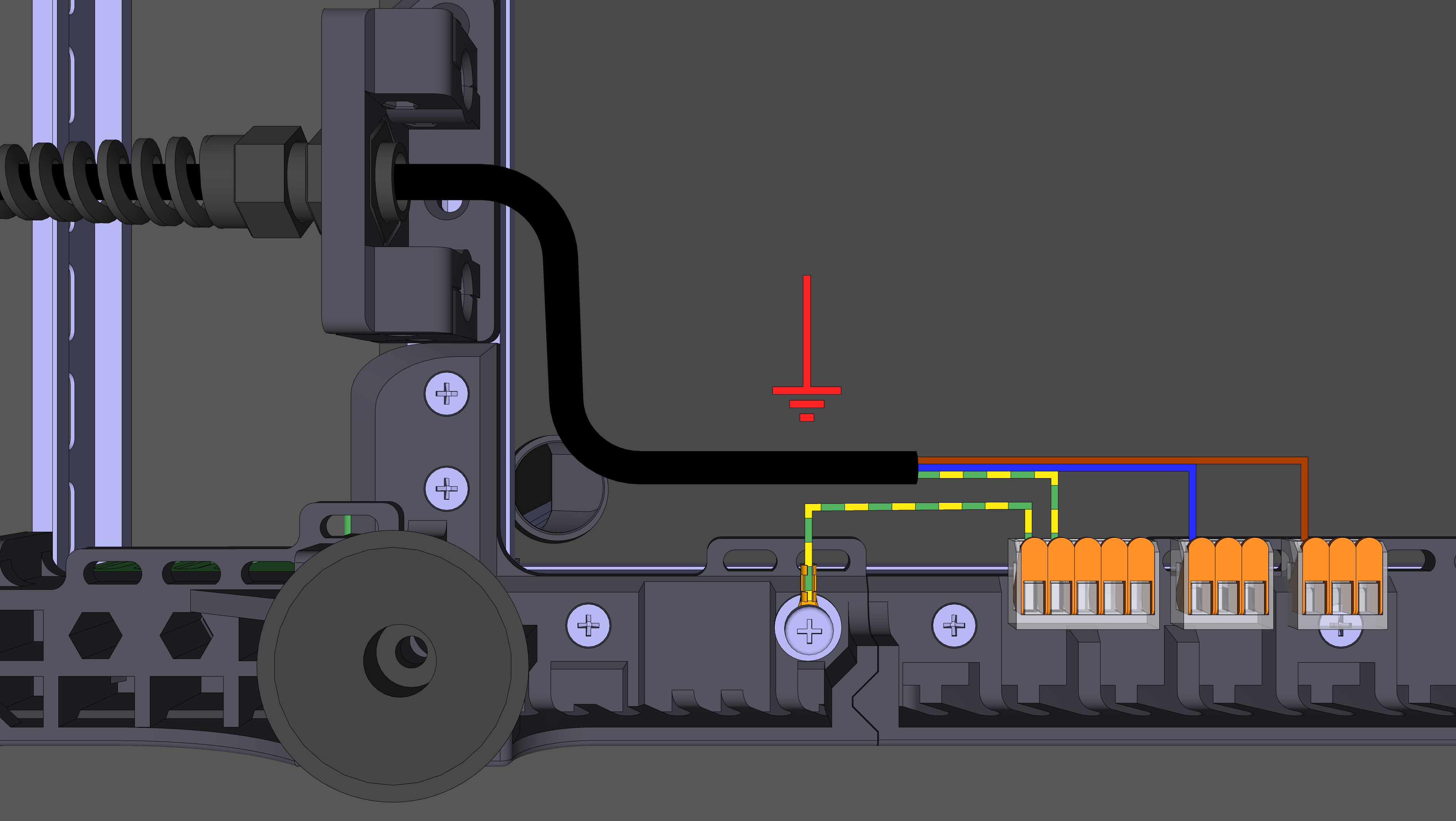
According to the AC Power In wiring diagram (You can find them between the top slide images), complete the rest of the AC wiring on bottom side...
Belt Cover and its Clips:
(Note: If you don't have a GT2 belts installed yet, skip this step, you can install the belt cover later)
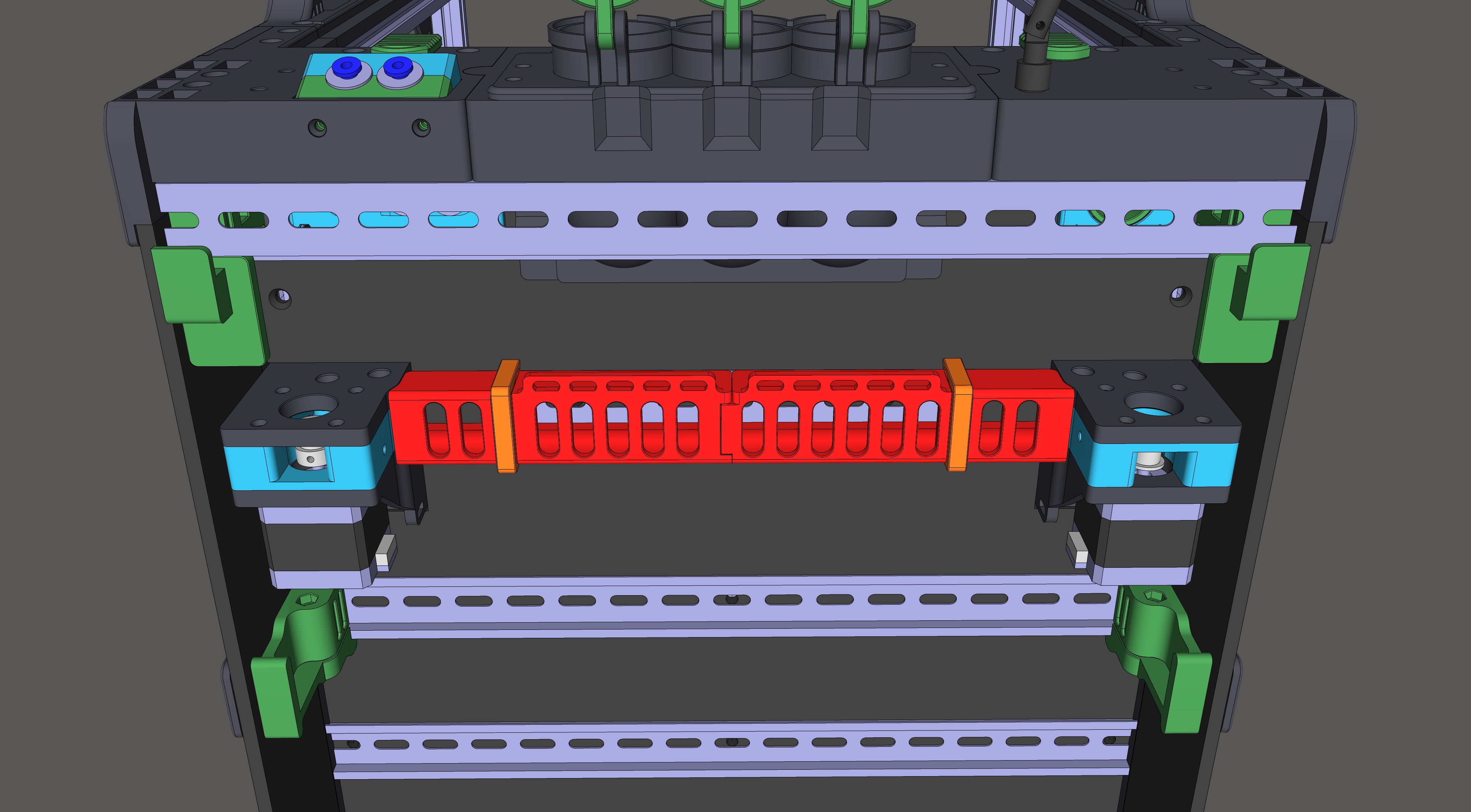
Print and mount the Belt_DIN_Cover.stl (red in the picture) to the Electronic part on the DIN rail using two Belt_DIN_Cover_Clips.stl (orange in the picture):
2. Electronics Mounts (From download) Folder:
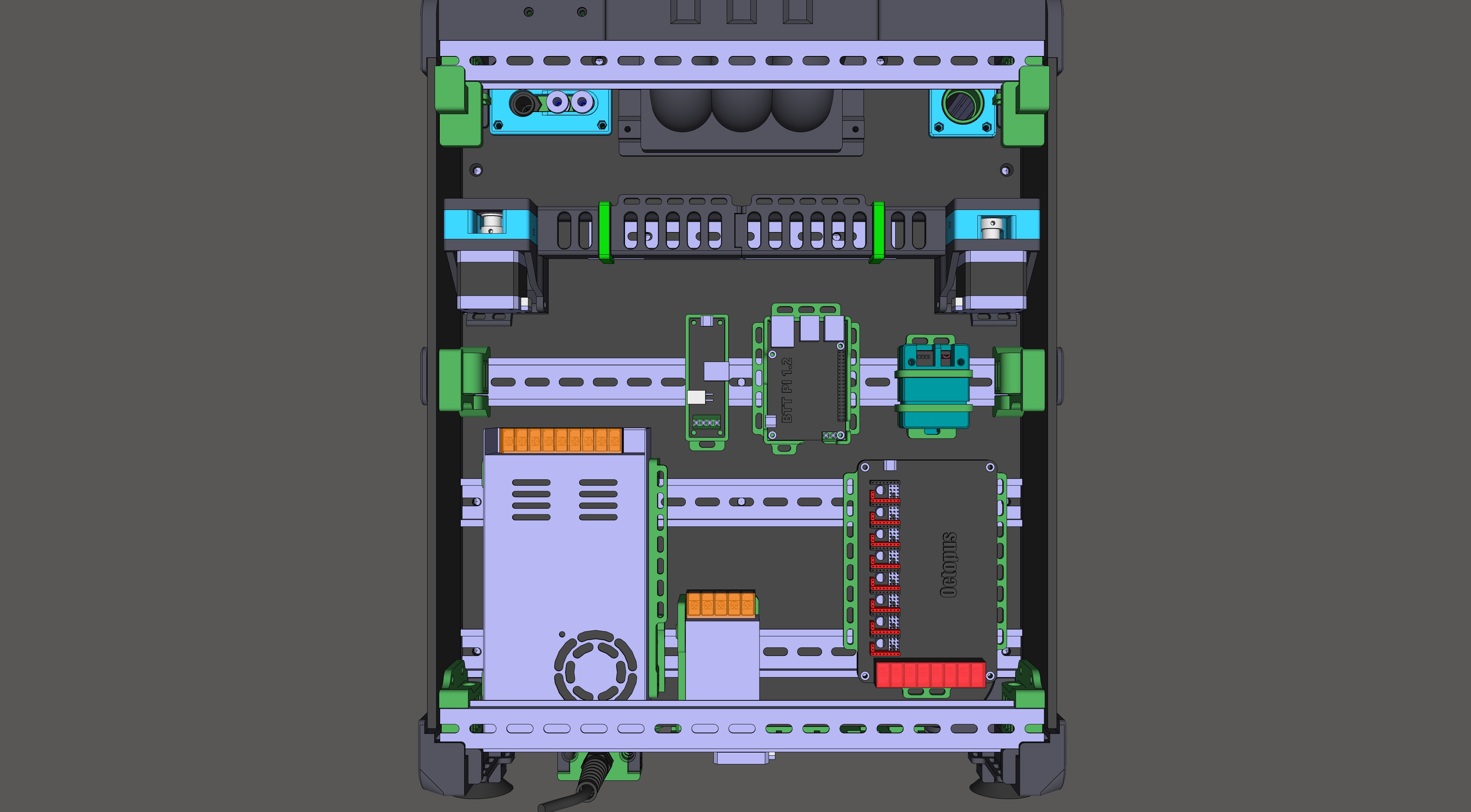
Place the electronics according to the picture below (For each Mount, print DIN_Clip_M3_nut.stl for placement on the DIN rail, you have the choice of classic M3 nuts or the heat-set version):
3. Accessories:
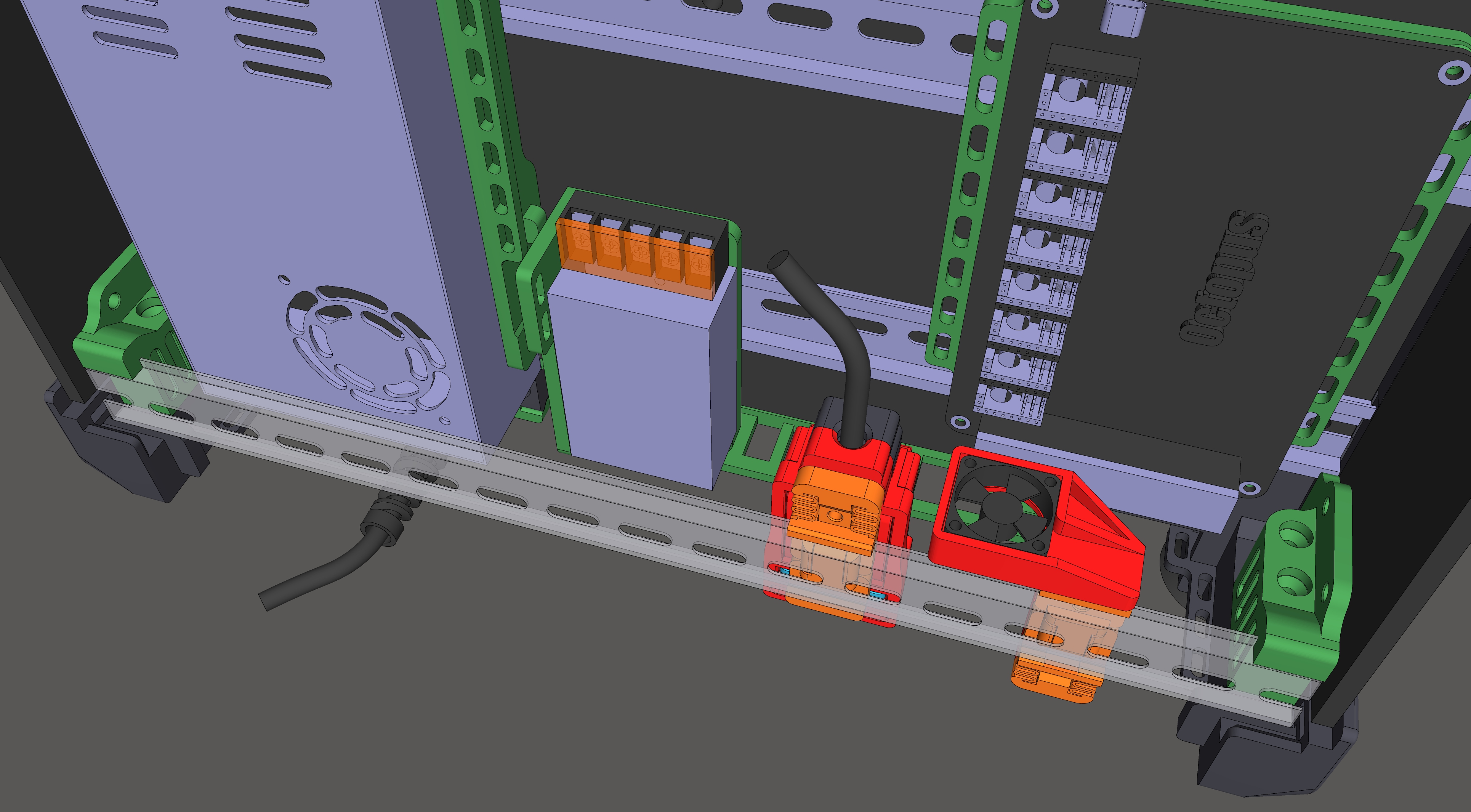
Mount Wago_Mount.stl (For redistributing power cables for the Octopus board) and TMC_Fan_DIN_Mount.stl (For cooling TMC Drivers) on the rear lower DIN rail that supports the door:

Roadmap:
Drive Mount → Chassis Bottom → Chassis Top → Chassis Middle → XY Axis → Z Axis → Electronics → Extruder → Filament and Spool → Levelup Addons → PrusaSlicer → GitHub
The next section is Extruder (if you don't have it yet) or Filament and Spool
