Switch 2 Portable Dock
We calculate the final price from your selected file. You review and accept it before payment.
Saved on this device.
Model information
- Source
- Printables
- Category
- Video Games
- License
- Standard Digital File License
V2.3 Update
Thicker base for screw standoffs on bottom case to avoid standoffs snapping off
Bottom screw holes and side LED grills redesigned so they can print without supports
V2.2 Update
In this update, I added standoffs to the part where the usb-c port screws in. While the current part worked for me and many others, I had a couple users report that the usb-c port would fall in. Adding standoffs increases print complexity a bit, but it creates more of a surface for the screws to thread into.
V2.1 Update
The v2.1 update is focused on 2 things: Improving the docking of the switch, and adding Dbrand Killswitch support!
To improve the docking of the Switch, the guide tab was lowered and brought more forward. Previously you would have to slot it in from the back, or align it perfectly. Now the case is a little more forgiving. For Killswitch compatibility, I modified the split top port piece to give more depth and width to accommodate the Killswitch. Assembly has not changed.
V2 Update
The v2 update brings a slightly slimmer body design, and allows for split top covers so designs can be printed on the dock! Assembly instructions remain the same, and there's now presupported and colored designs for the split top cover. Different designs available are pictured above. Updated assembly instructions for v2 are available here.
Switch 2 Portable Dock
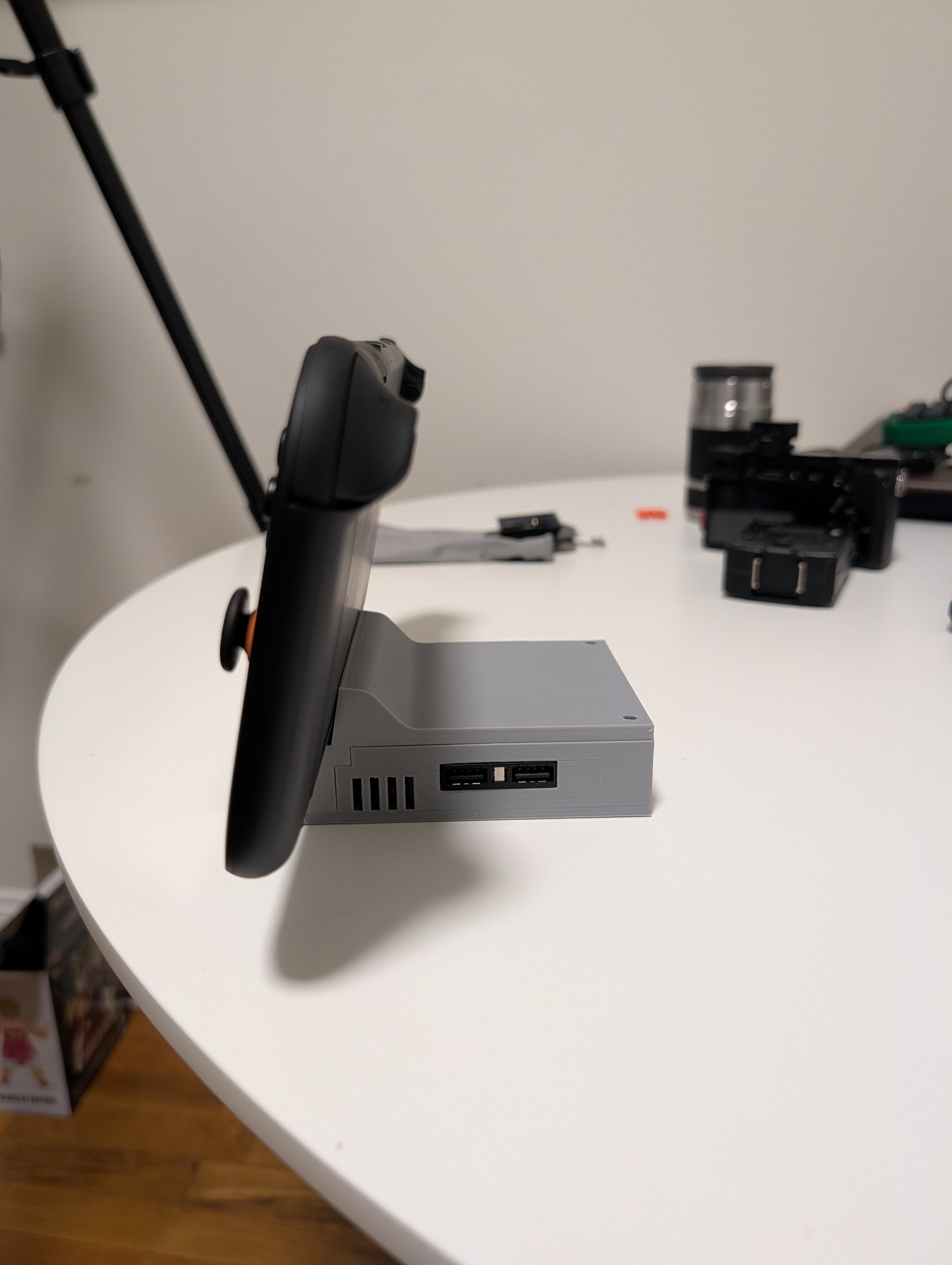
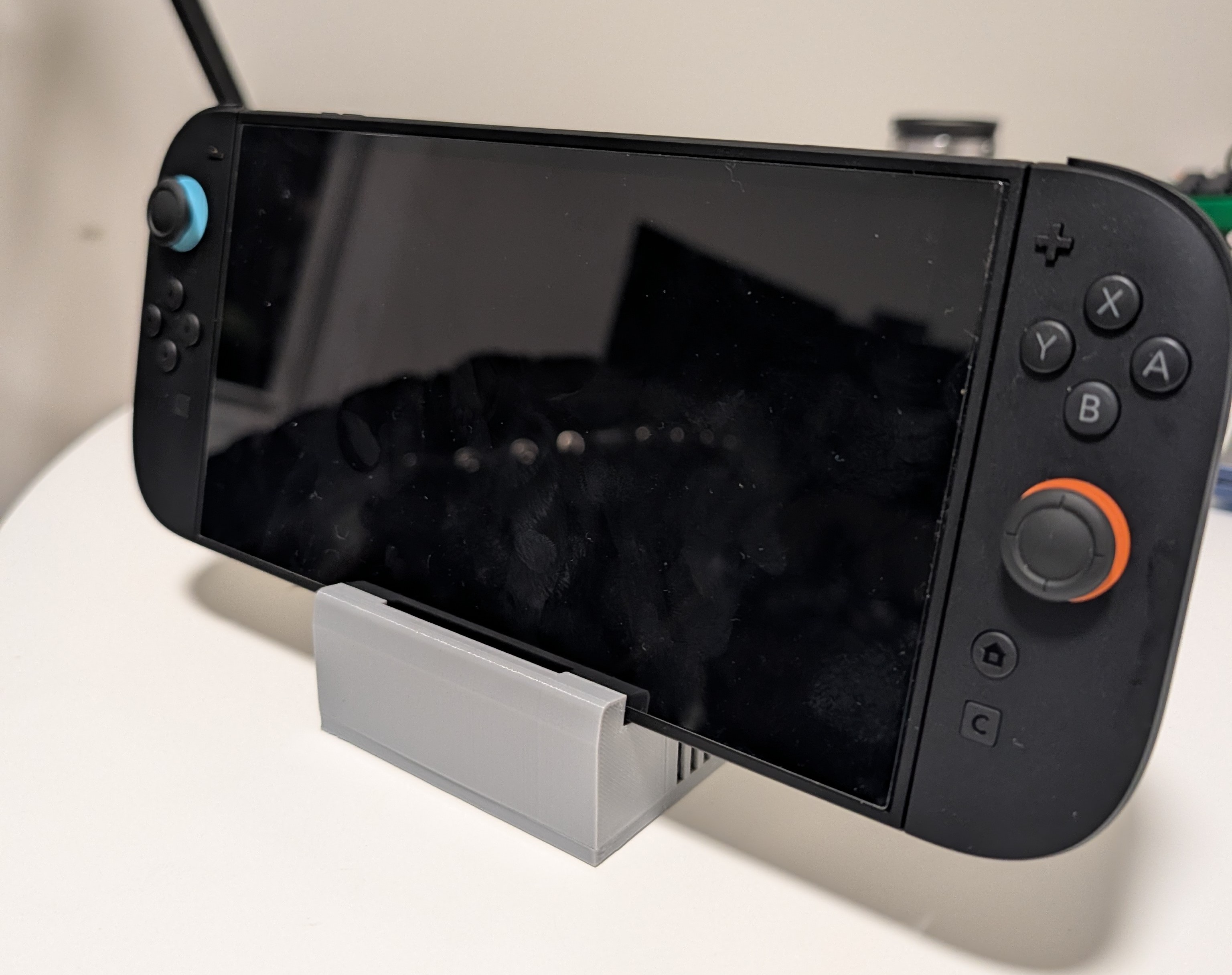
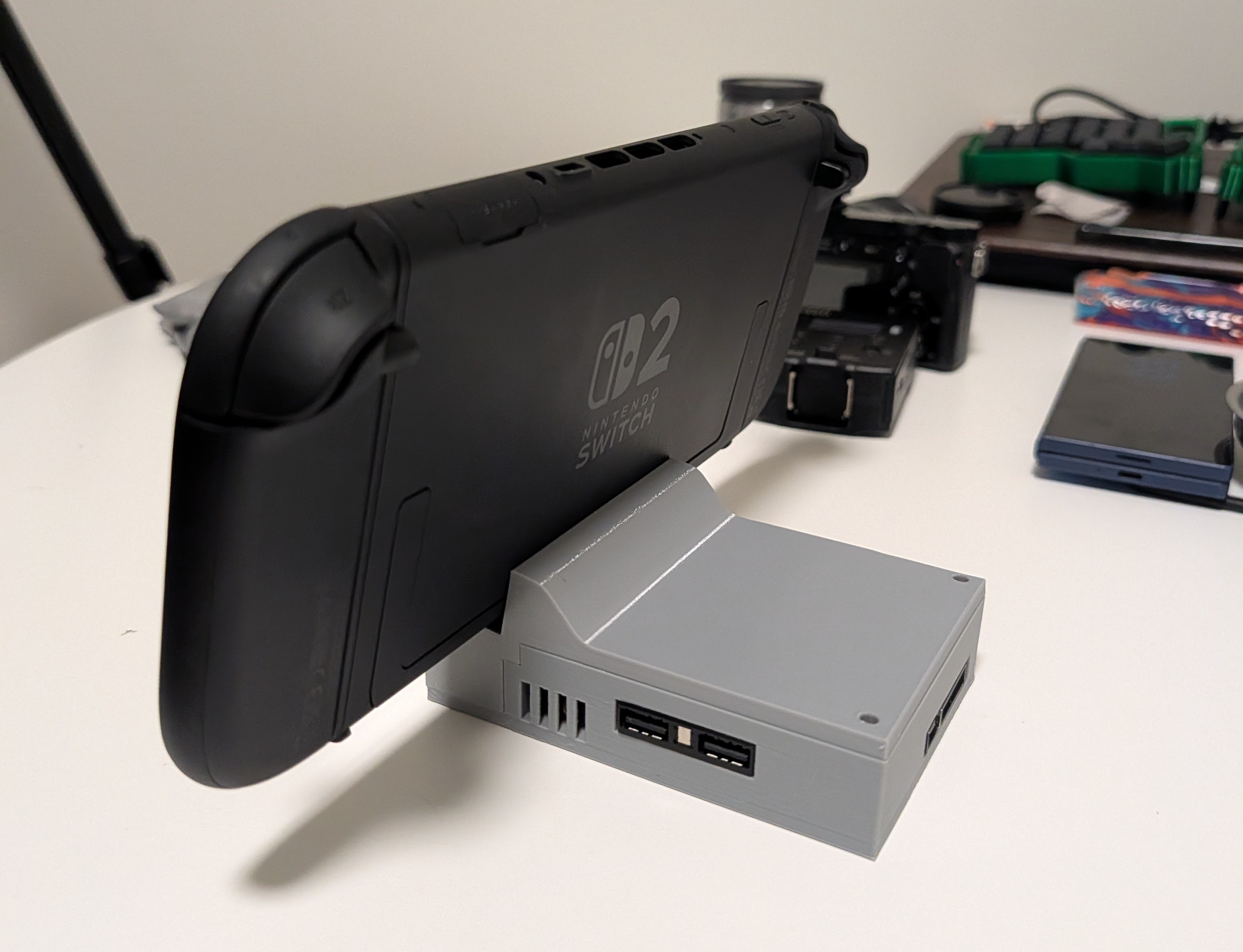
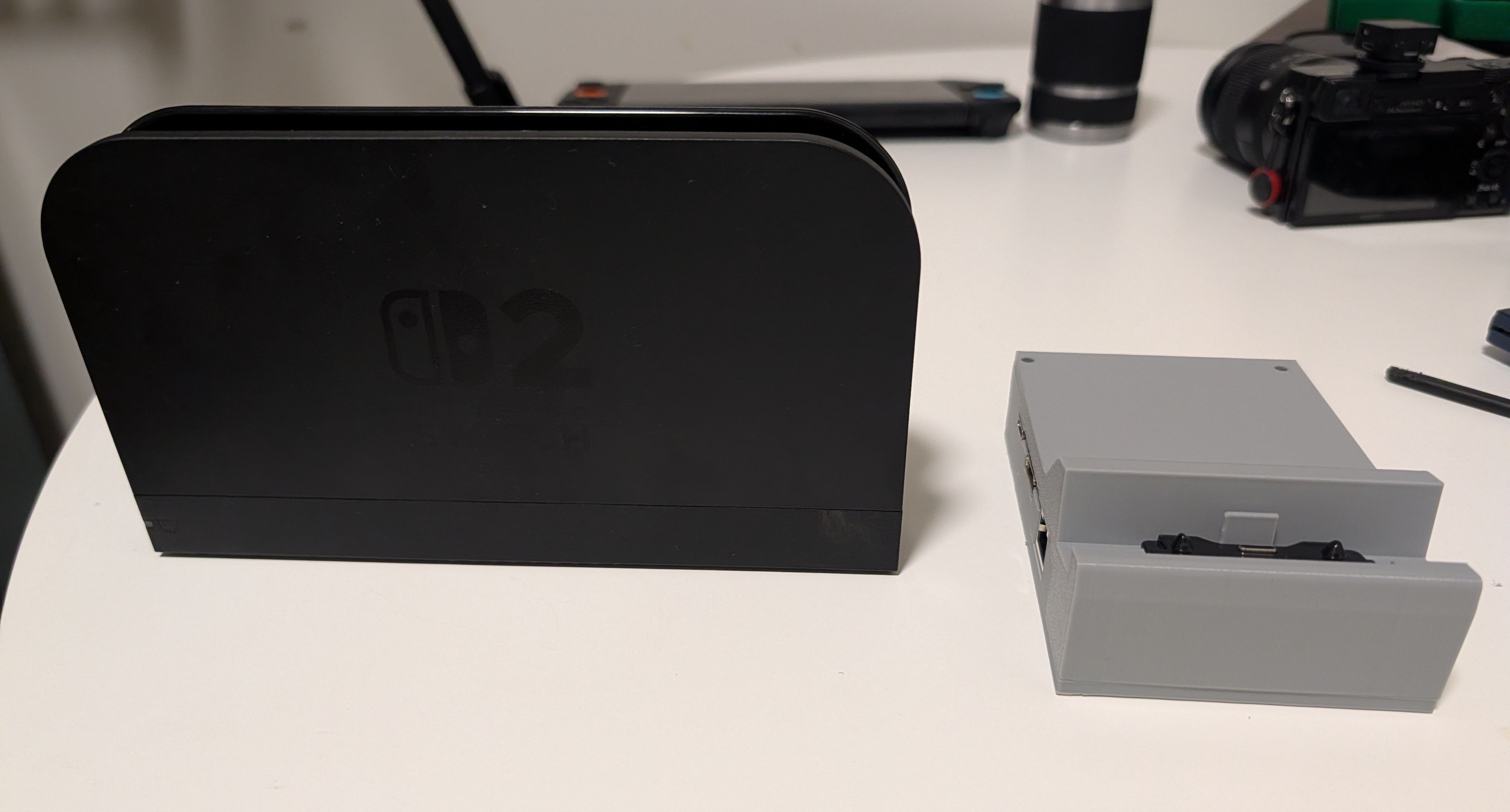
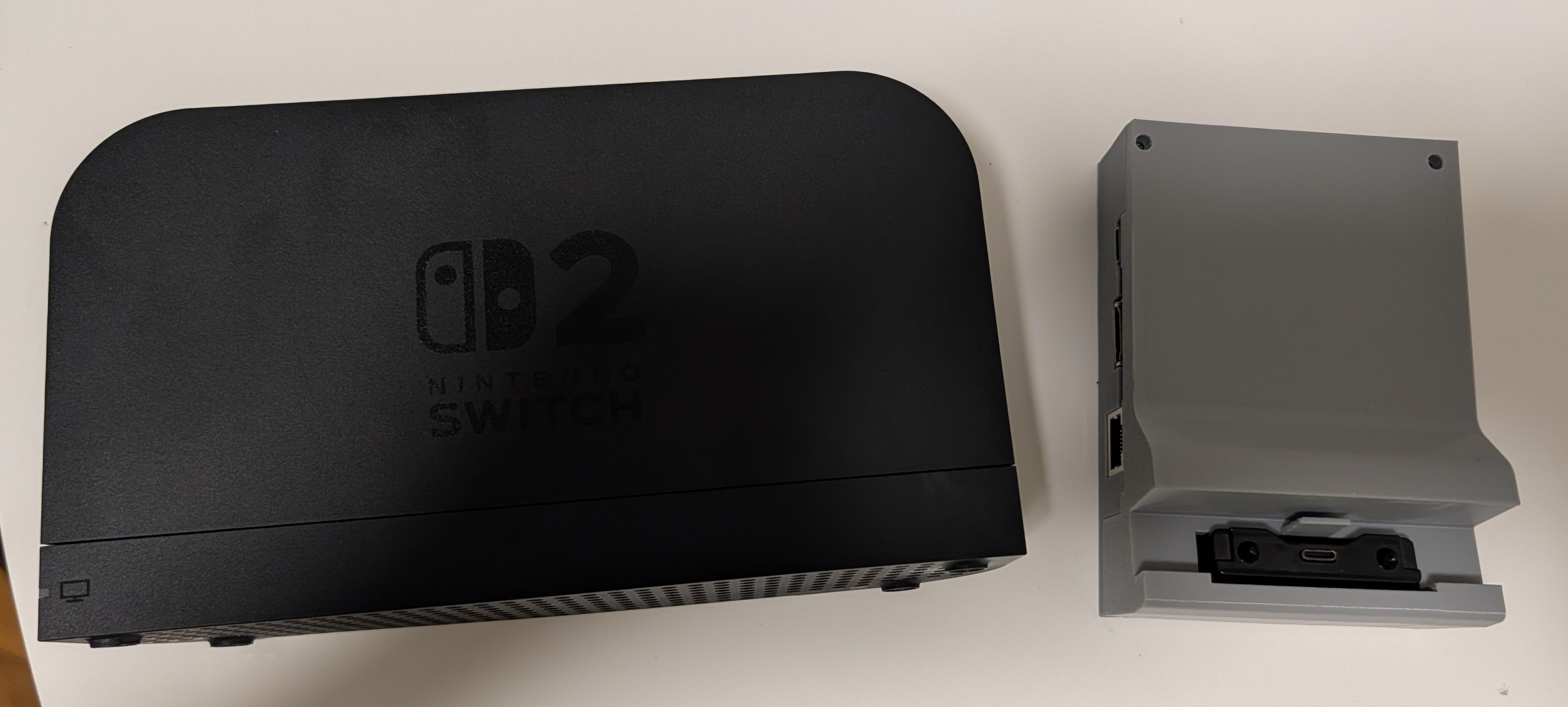
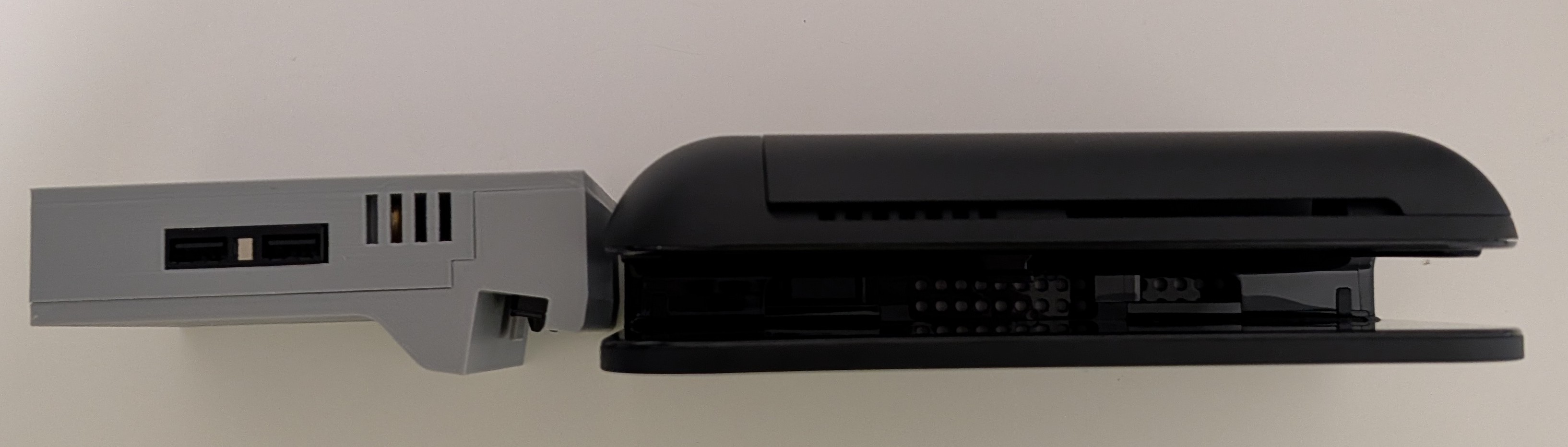
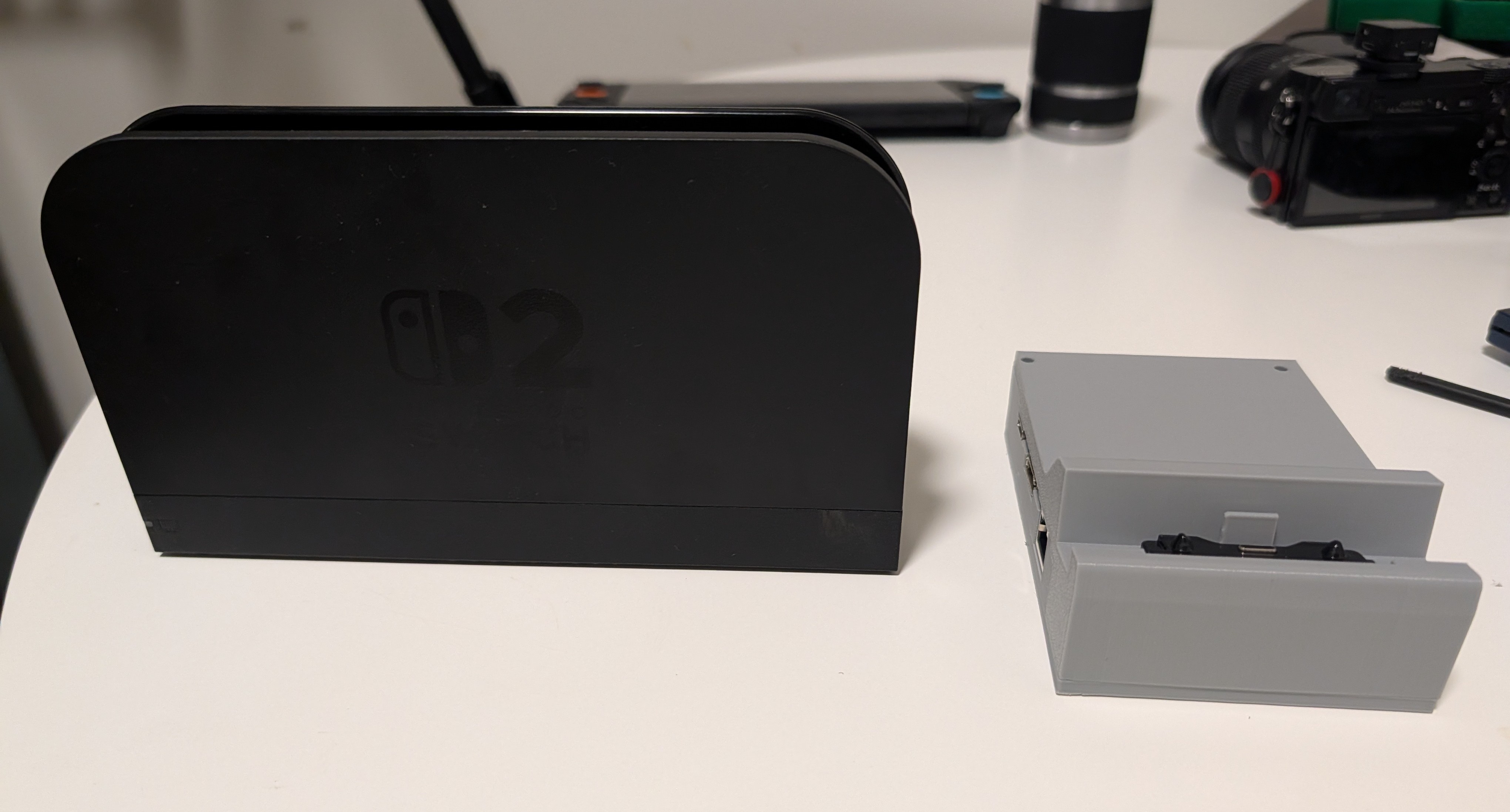
The Switch 2 Dock is great, but it's a BIG and BULKY. With this replacement case, you can take the electronics inside the Switch 2 dock, put them in a drastically smaller case, and even add a flair of style! This case maintains all functionality, and all additional parts are reused from the original case!
I'm working on a combination original dock disassembly and portable dock assembly guide, but in the meantime this video by Restore Technique will show how to disassemble the Switch 2 dock. The process might seem daunting on the surface, but it's all screws, plastic tabs, and some ribbon cables. Written instructions for assembly and tools needed are below:
Print Settings
Material: PETG or PLA
Layer Height: 0.2
Organic supports on long overhangs (not needed for all screw holes)
Snug Supports for Split Top Covers
Orientation
Bottom Case: Flat
Top Case: Sideways for most efficient printing.
Brim: Optional but it helps. Would suggest it more for the long skinny section of the top case
Infill: 10%, Gyroid (most infill types should work)
Tools List:
Screwdriver Bits (These should be standard in a multibit set)
PH00 Screwdriver
Y0 Screwdriver
Guitar Pick Spudger x2
Optional
Metal Spudger
Tweezers
Parts List (All from the Switch 2 Dock):
4mm Black Phillips Head Screw x9
4mm Black Tri-Wing Screw x4
6mm Silver Fan Screw x3
2mm Silver LED Screw
7.5mm Rubber Foot Pad x4
USB-C Port Spring x2
Black USB-C Port Cover
Main Board
USB-C Daughter Board
Status LED
Fan
Assembly Guide
Disassembly
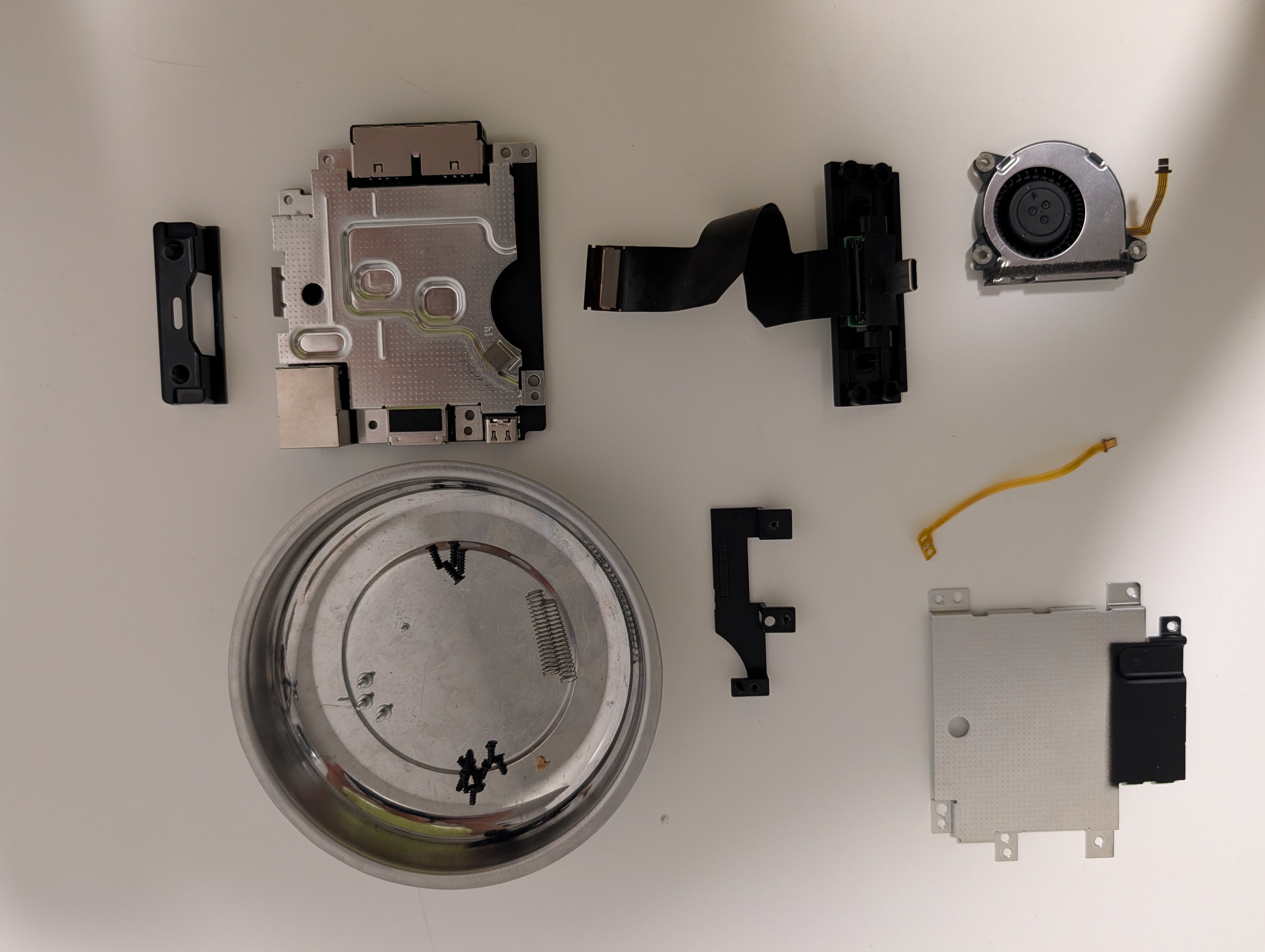
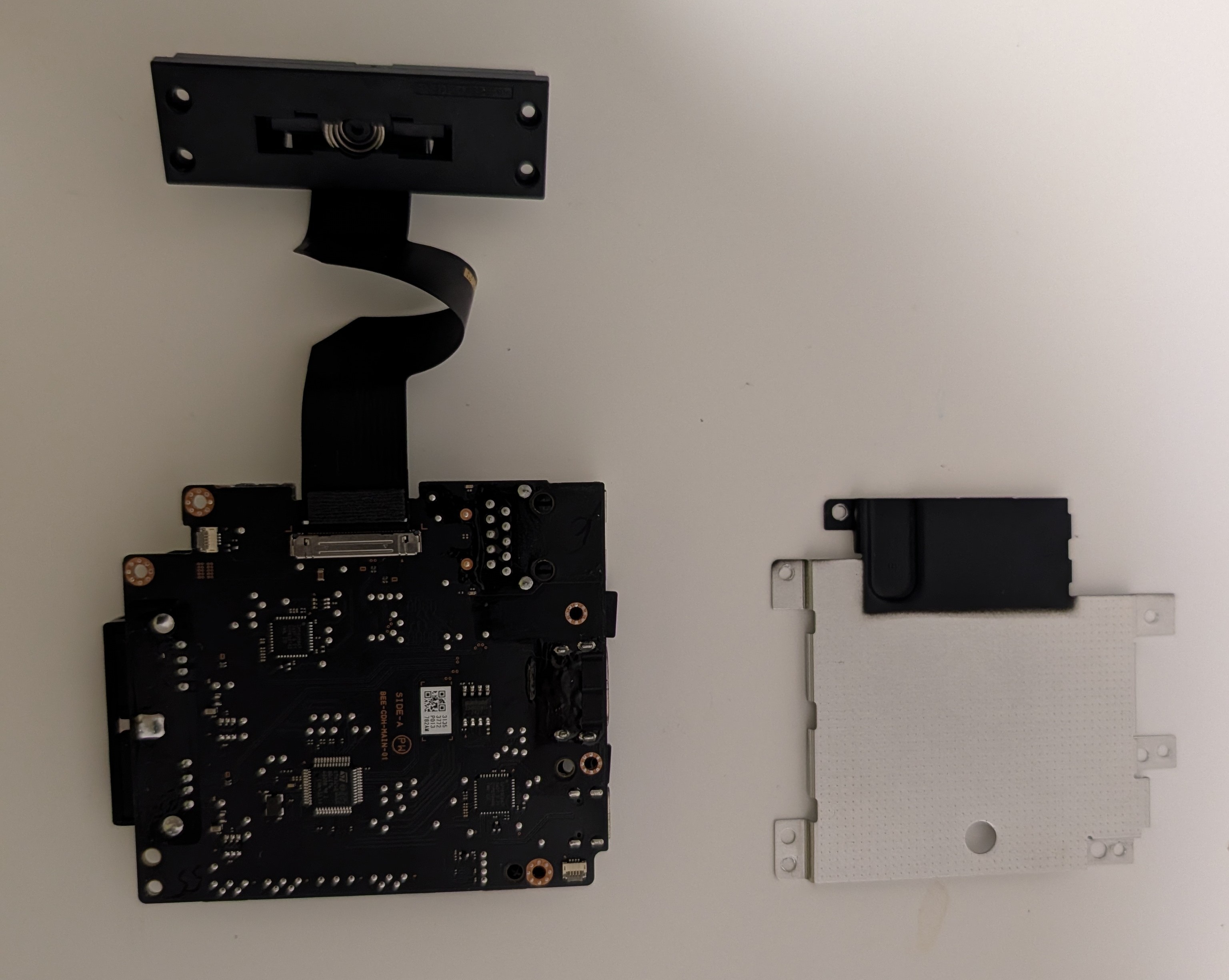
Follow this video by Restore Technique to disassemble your Switch 2 Dock until you have all the parts in the picture below.
You only need to remove one of the two heat shields. You don't have to remove the one with the thermal pads
I'd suggest to unplug the fan and LED because those cables are much more delicate
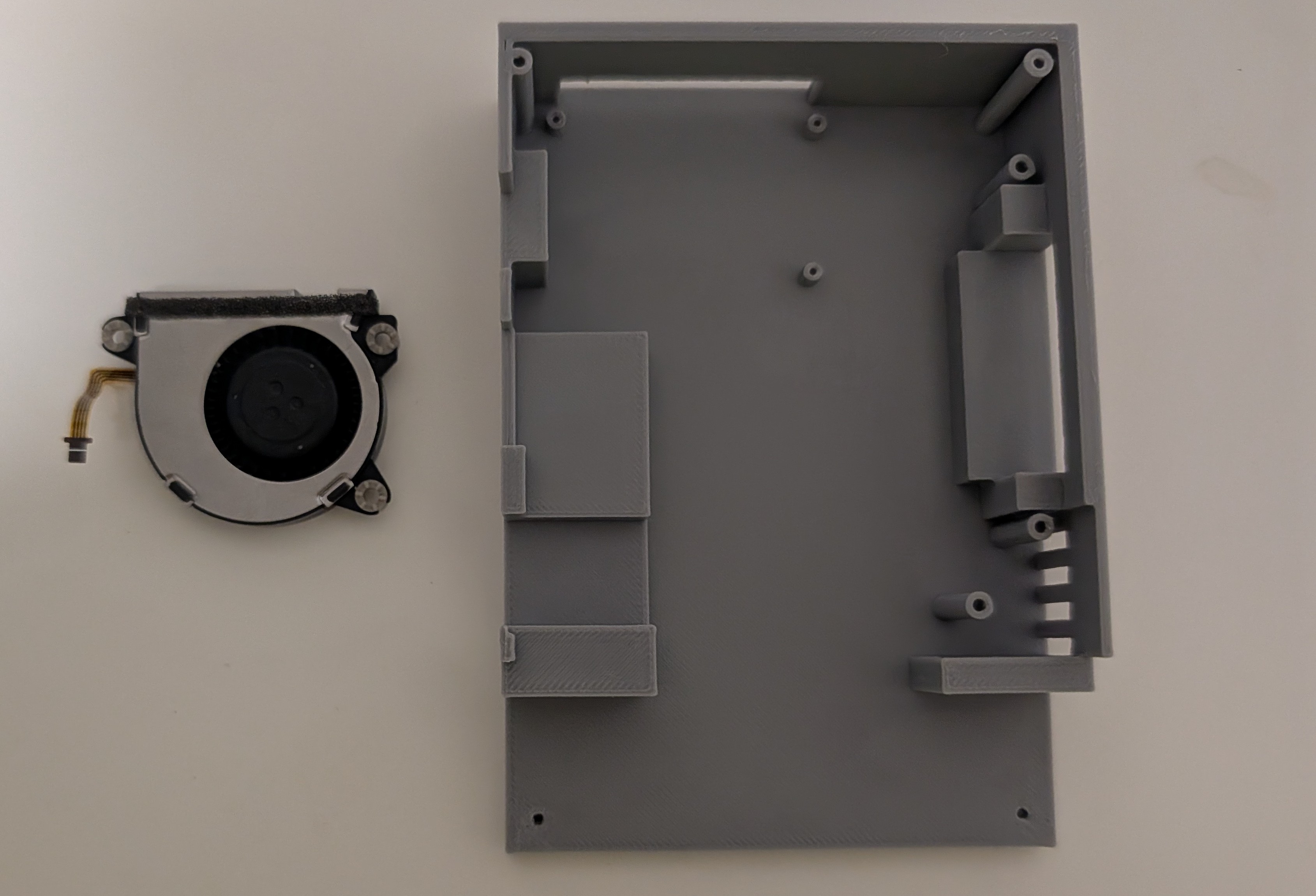
Exhaust Fan
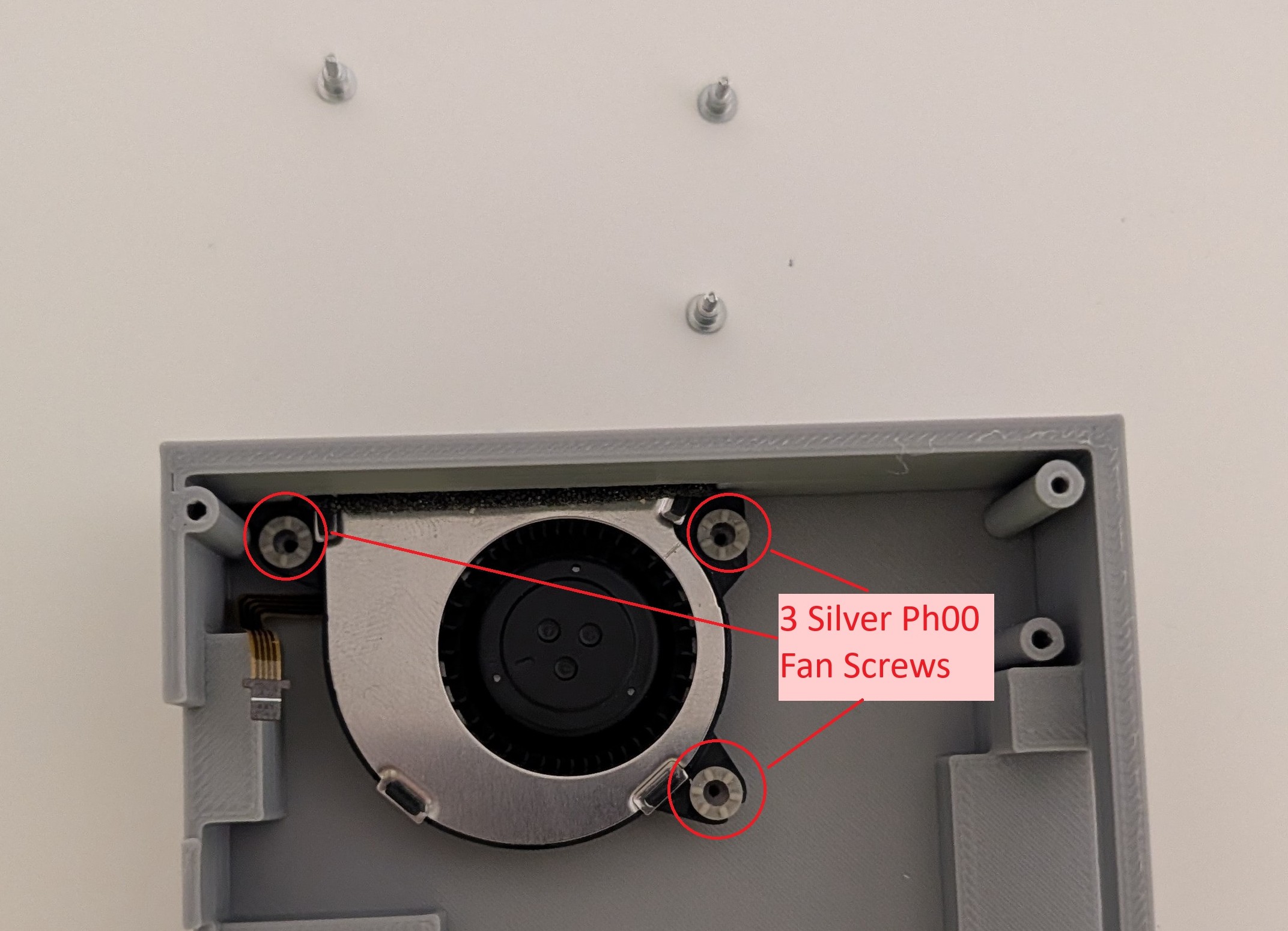
Situate the fan in the back part of the bottom case so that the 3 screw holes align and the fan is in the exhaust port.
Screw in the fan with the 3 silver Ph00 fan screws
Status LED
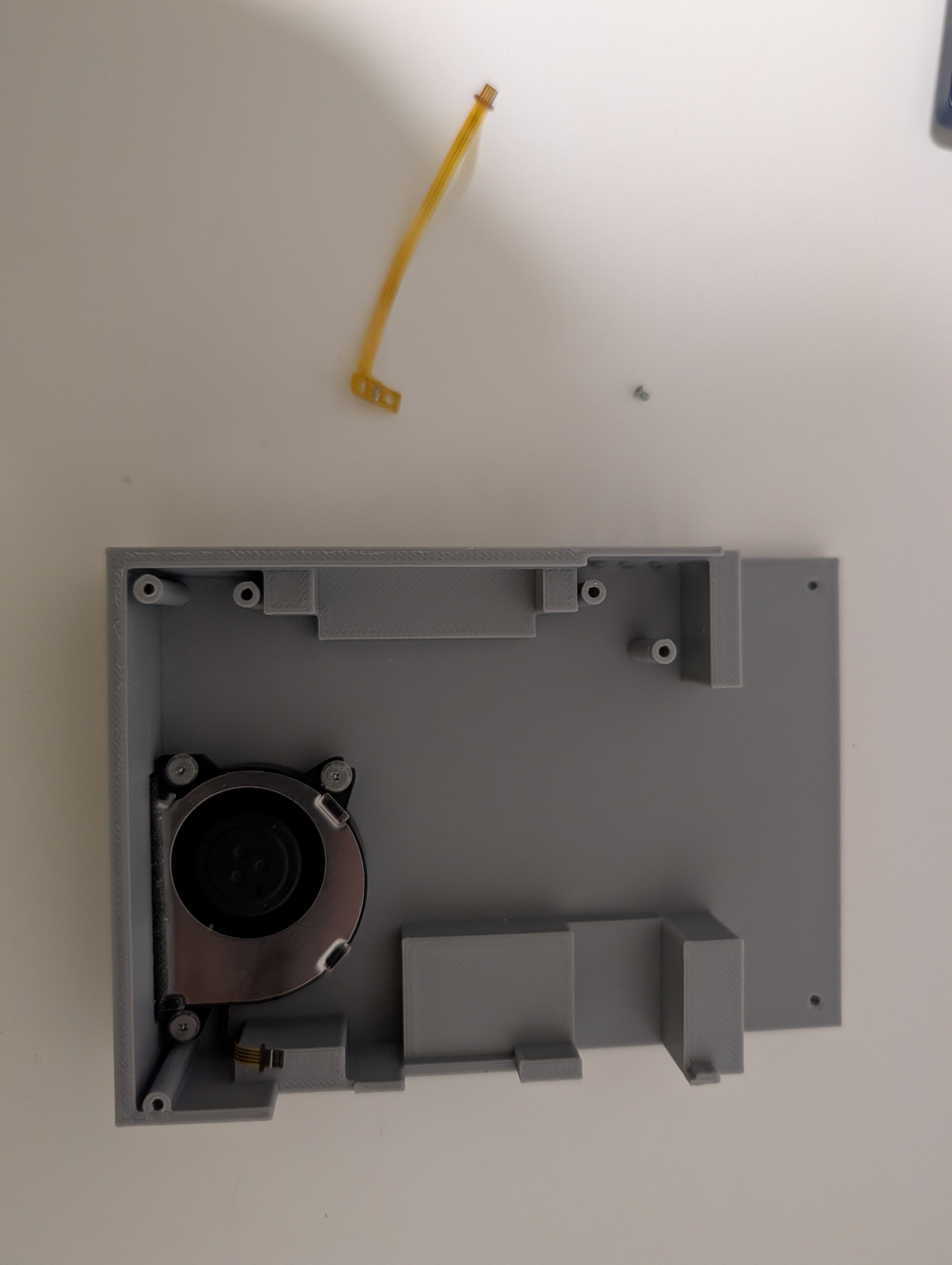
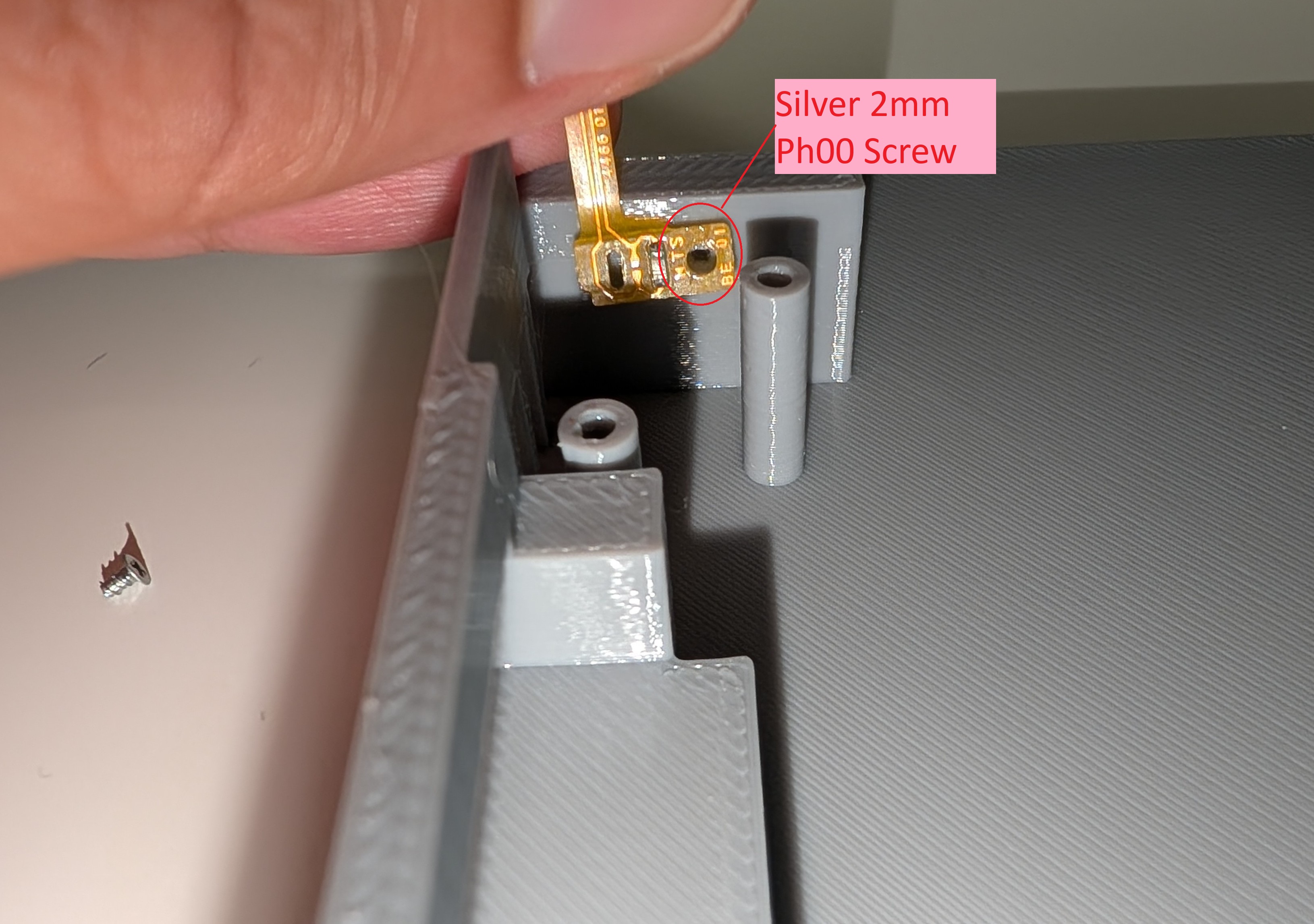
Place the LED along the wall perpendicular to the intake vent
Line up the screw hole next to the hole
Use the Silver 2mm Ph00 screw to secure the Status LED into the back wall with the ribbon cable facing up
Type-C Port
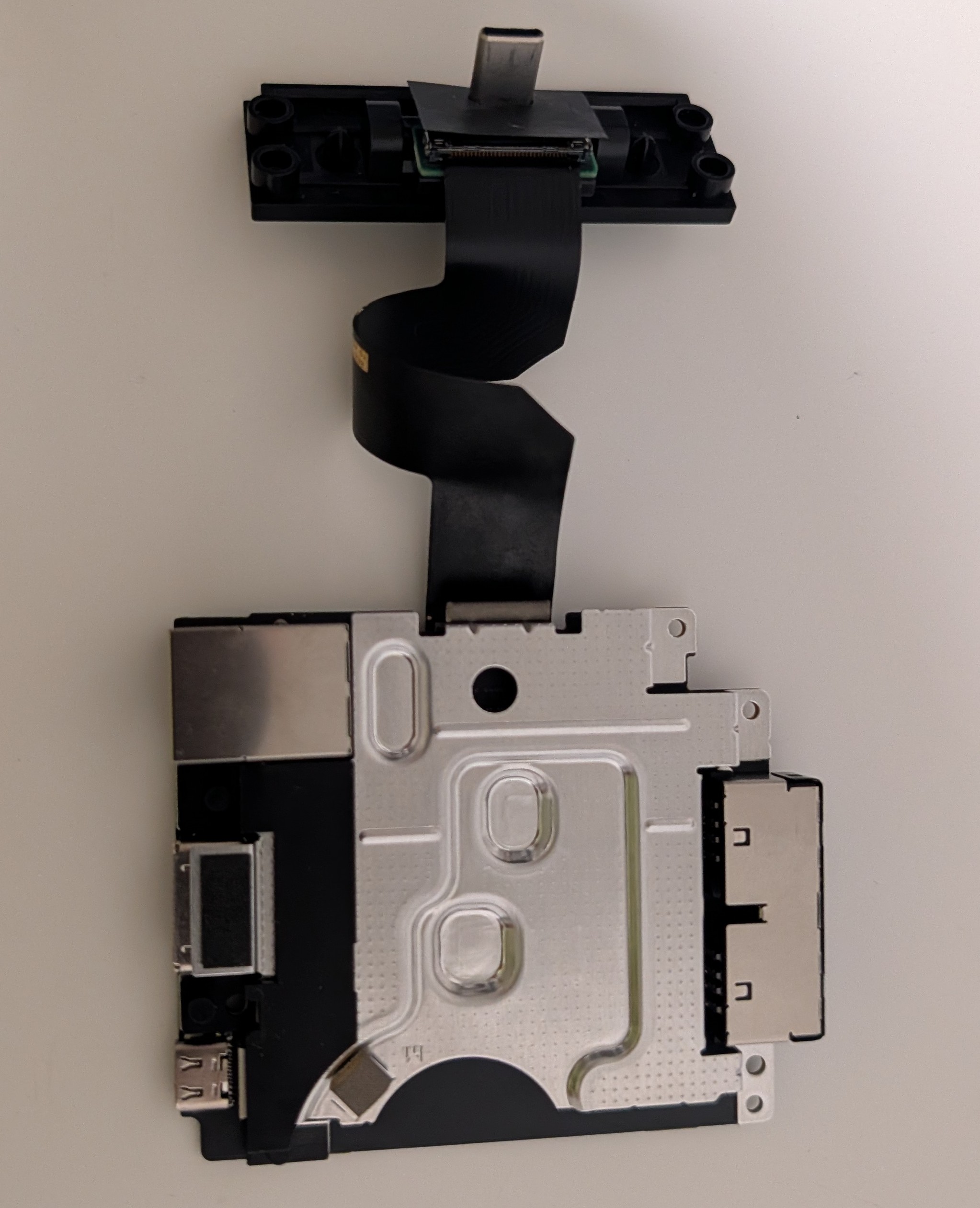
Line up the USB-C ribbon cable up to the connector, with the foam facing up
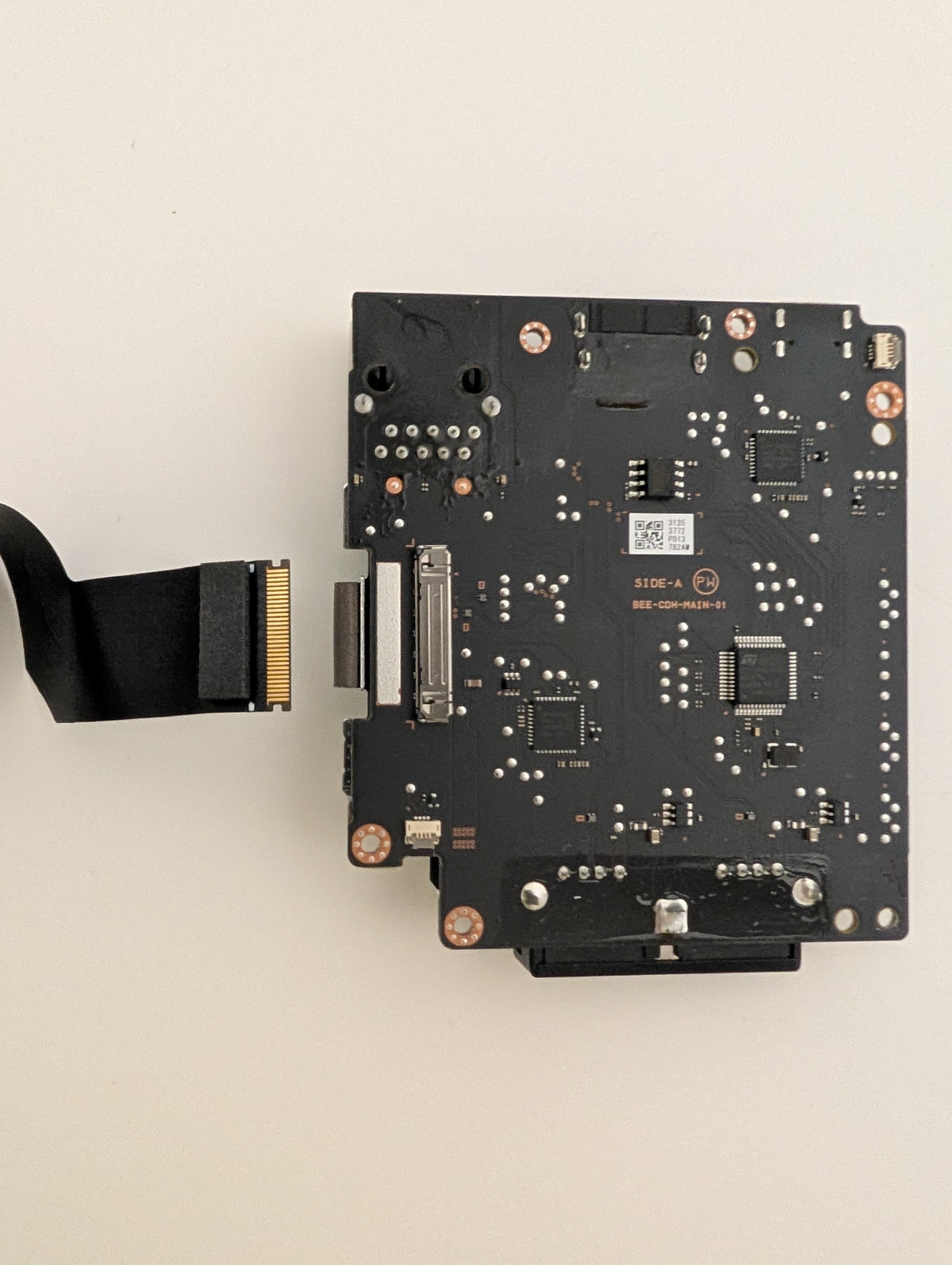
Open the connector (it opens towards the ribbon cable), plug the ribbon cable in, and then close it
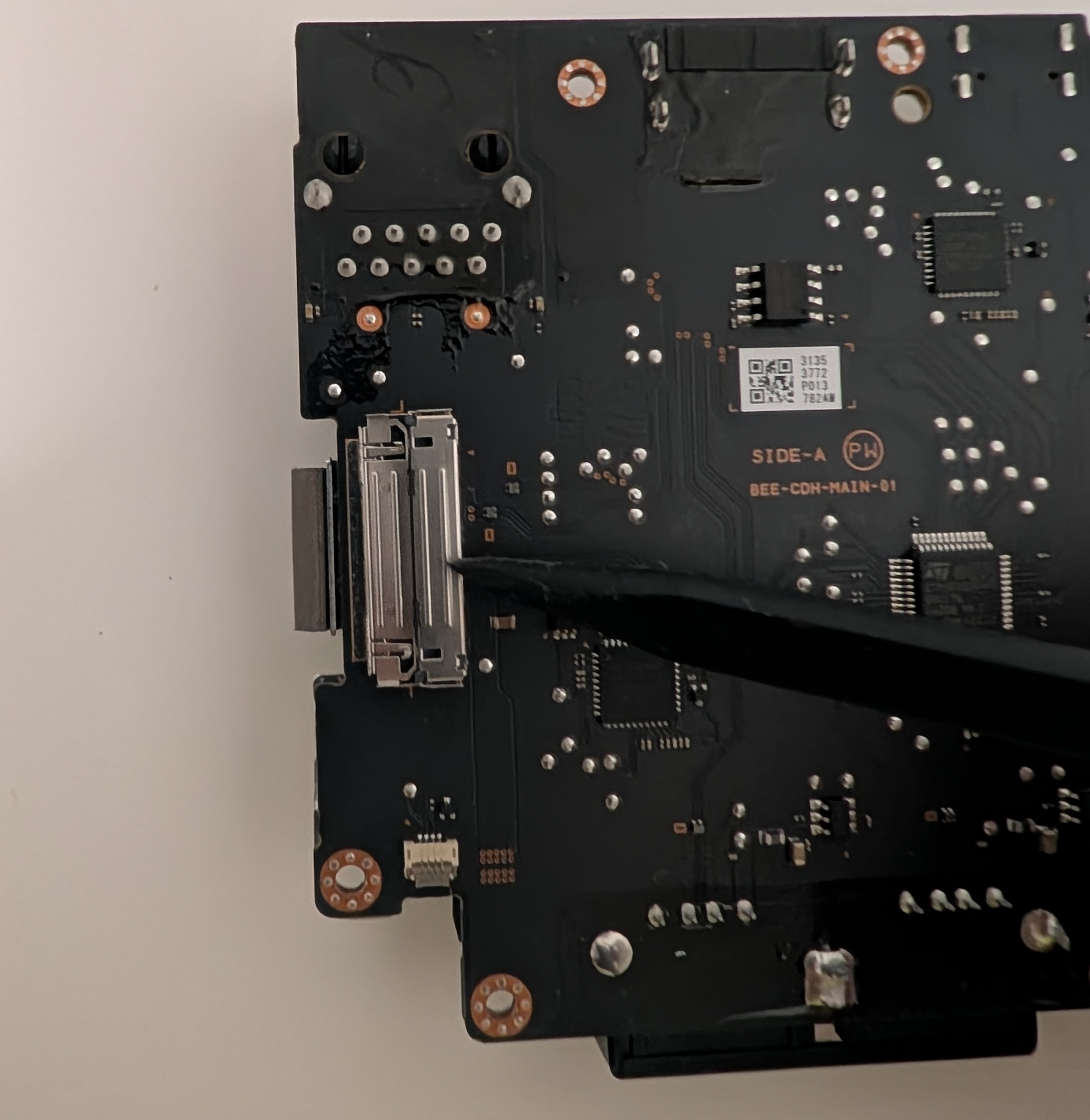
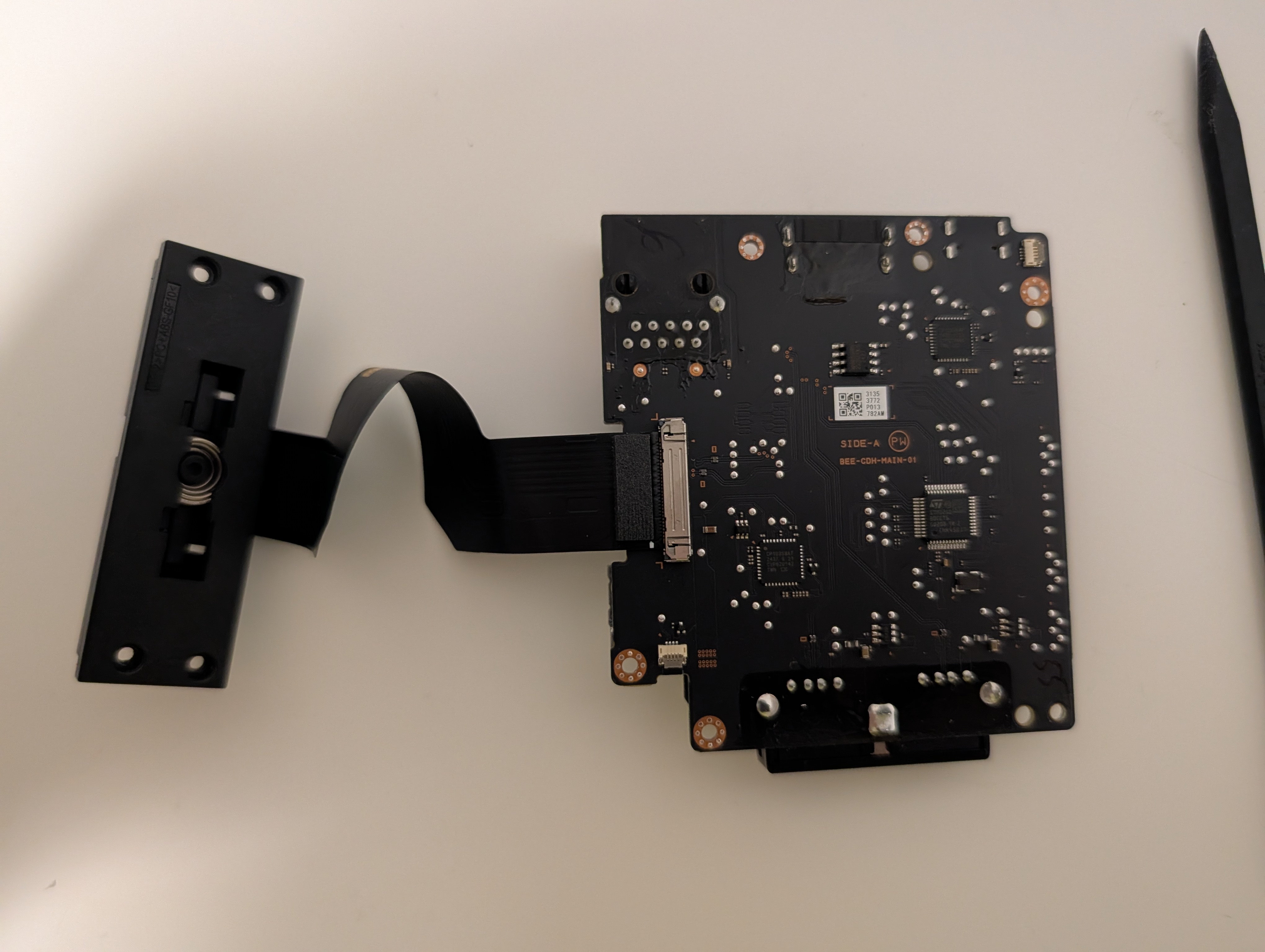
Flip the board over and place the plastic cover piece on the board as shown below so that the screw holes line up in the plastic and the board
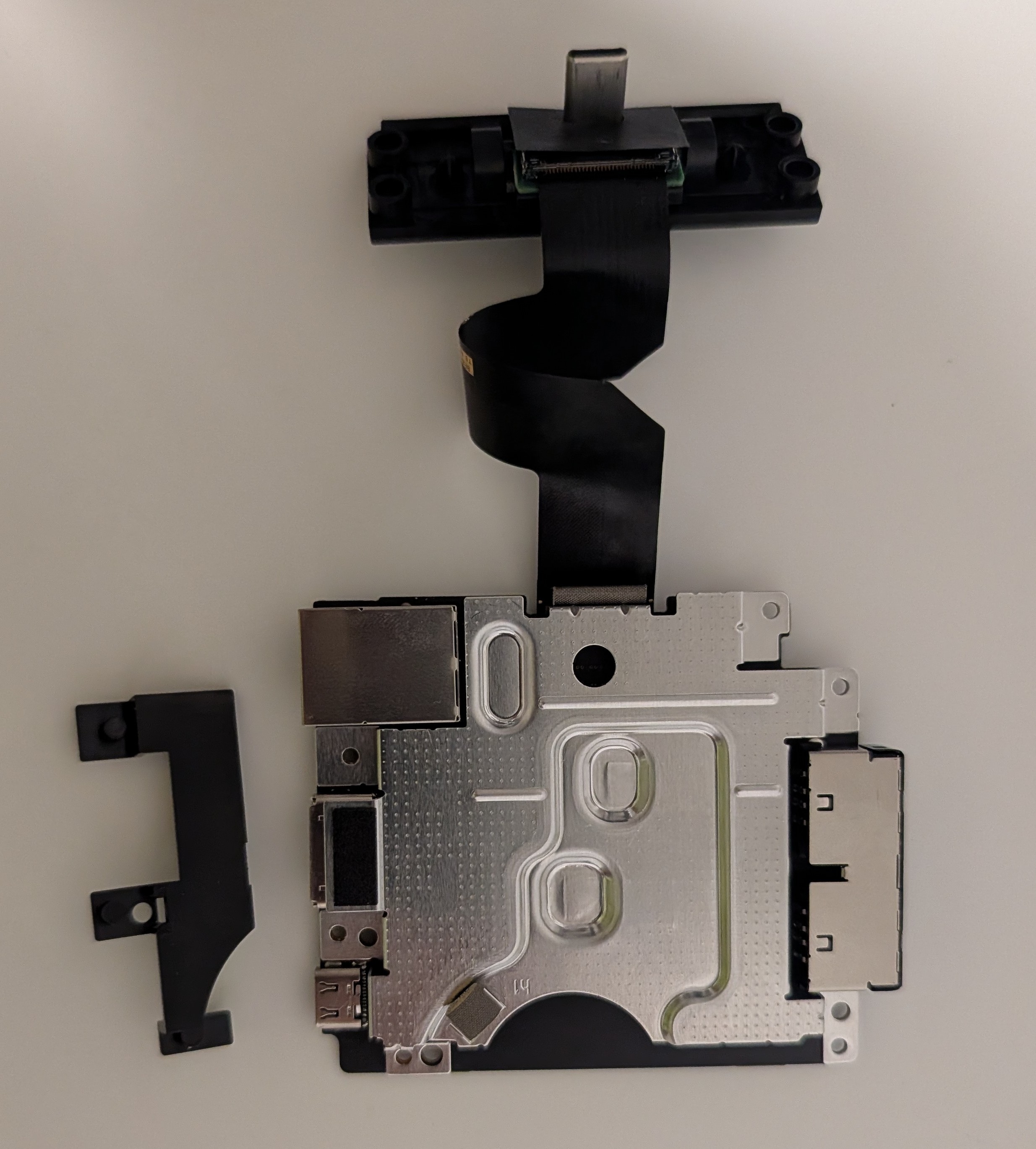
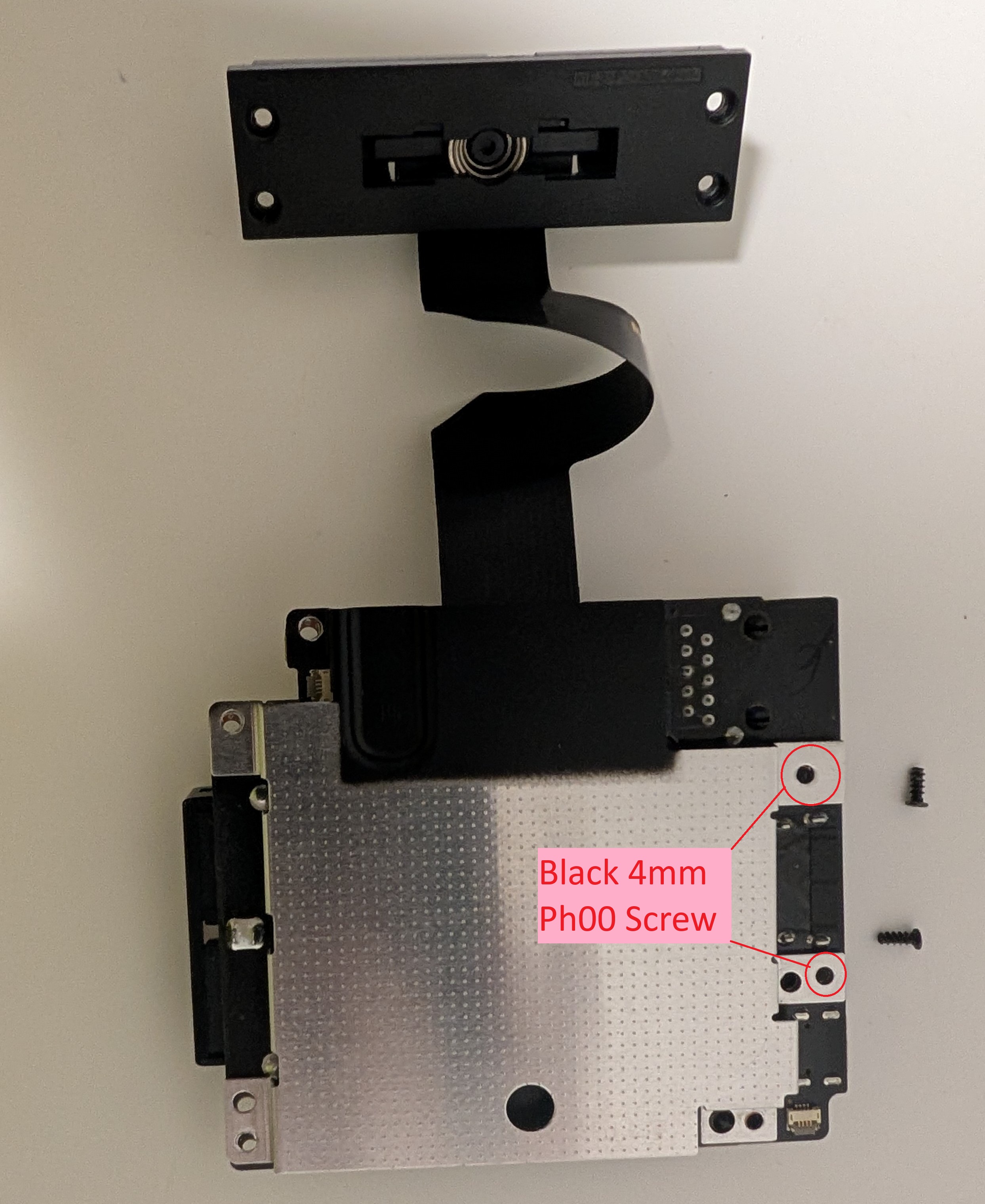
Flip the board back over, place the heat shield back on the board, and secure it with two 4mm Black Ph00 screws. Ensure the screw goes through the plastic cover from the previous step
Mainboard
Place the mainboard into the bottom case, sliding the usb ports into their slot. It should lie flat
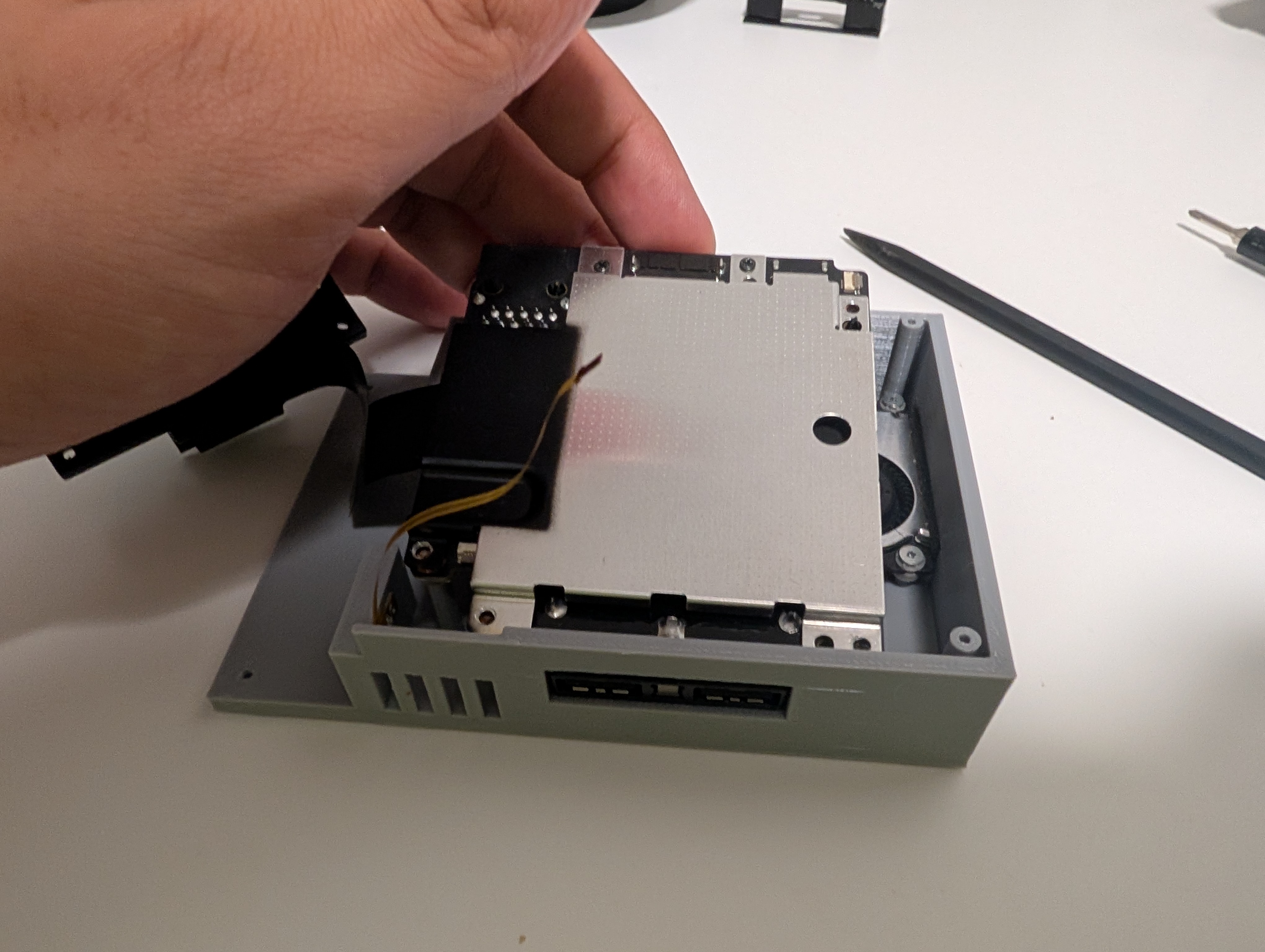
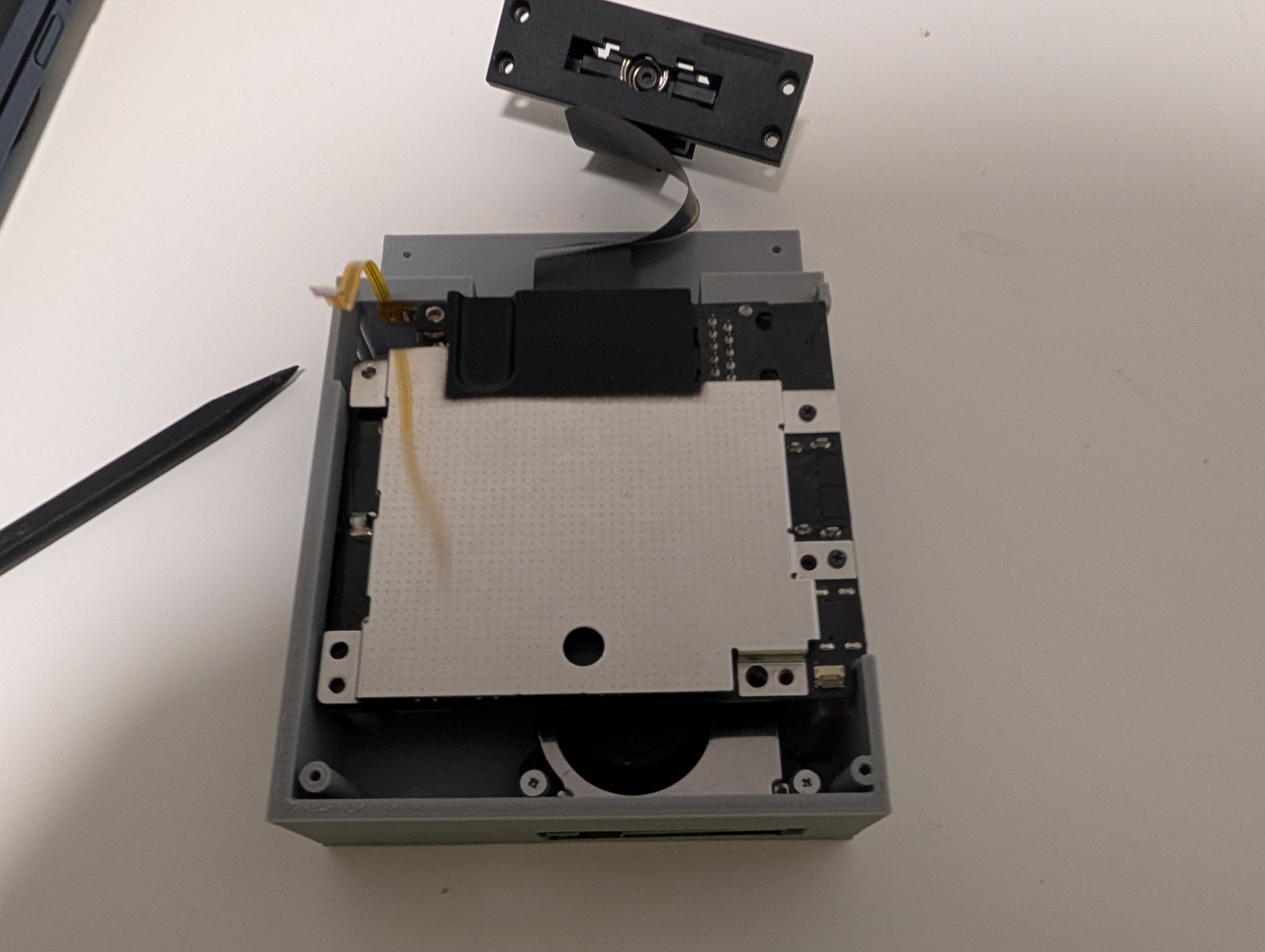
Flip open the fan ribbon cable plug. Plug the fan ribbon cable into the mainboard, with the gold pins facing down, ensuring the white line gets close to the connector. Flip the connector down to lock the fan into place.
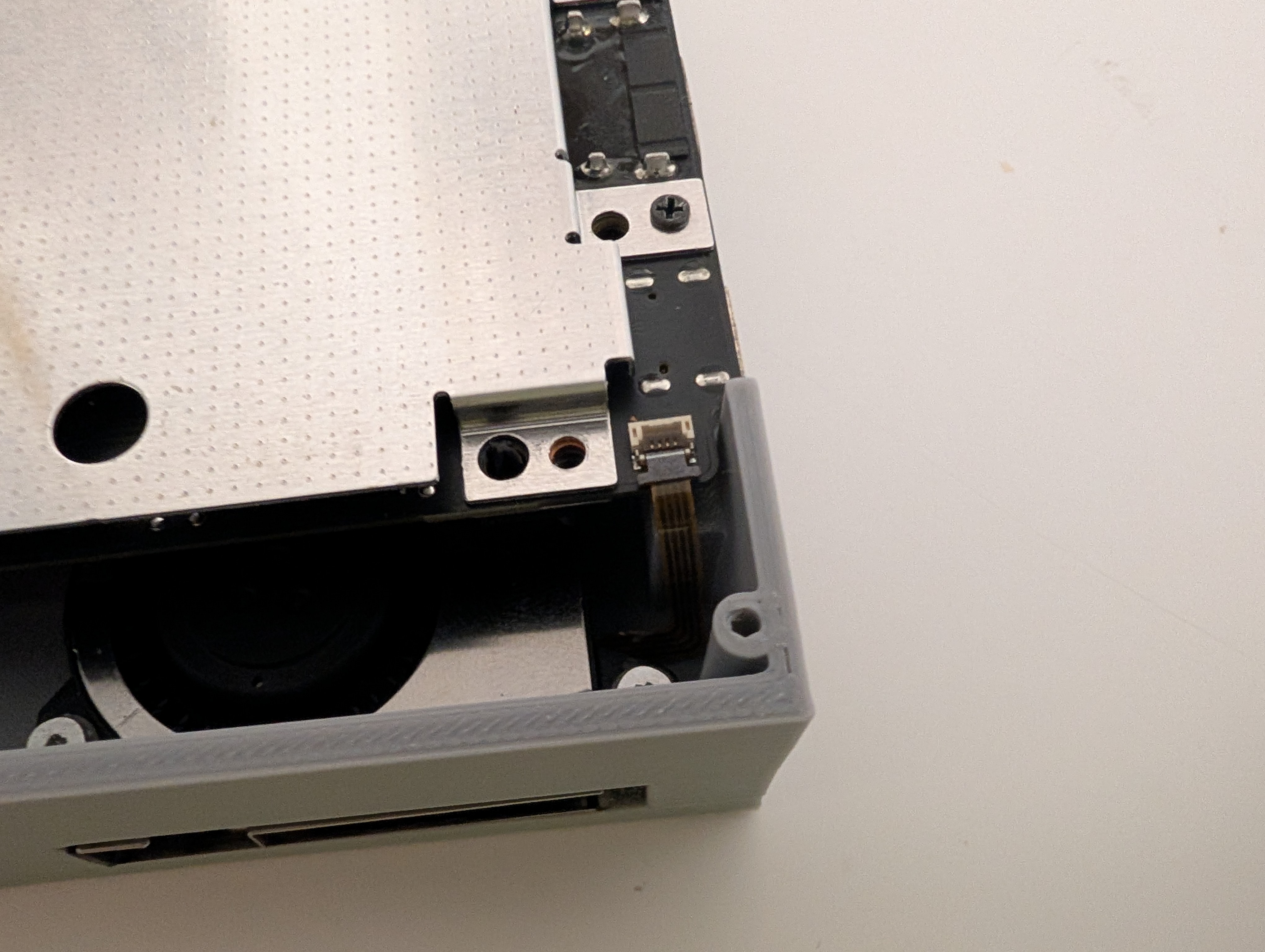
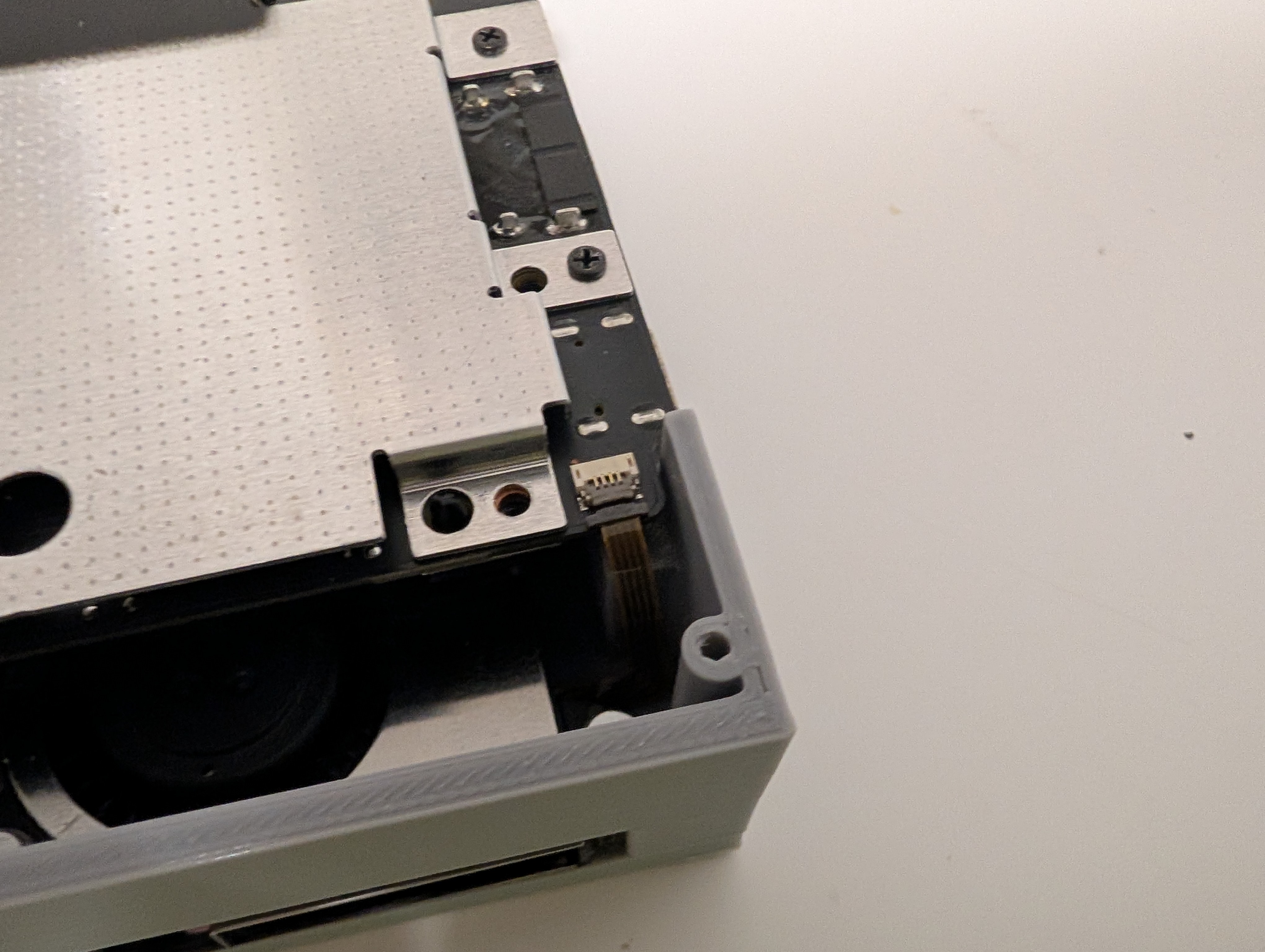
Plug the LED ribbon cable into the mainboard, with the gold pins facing down
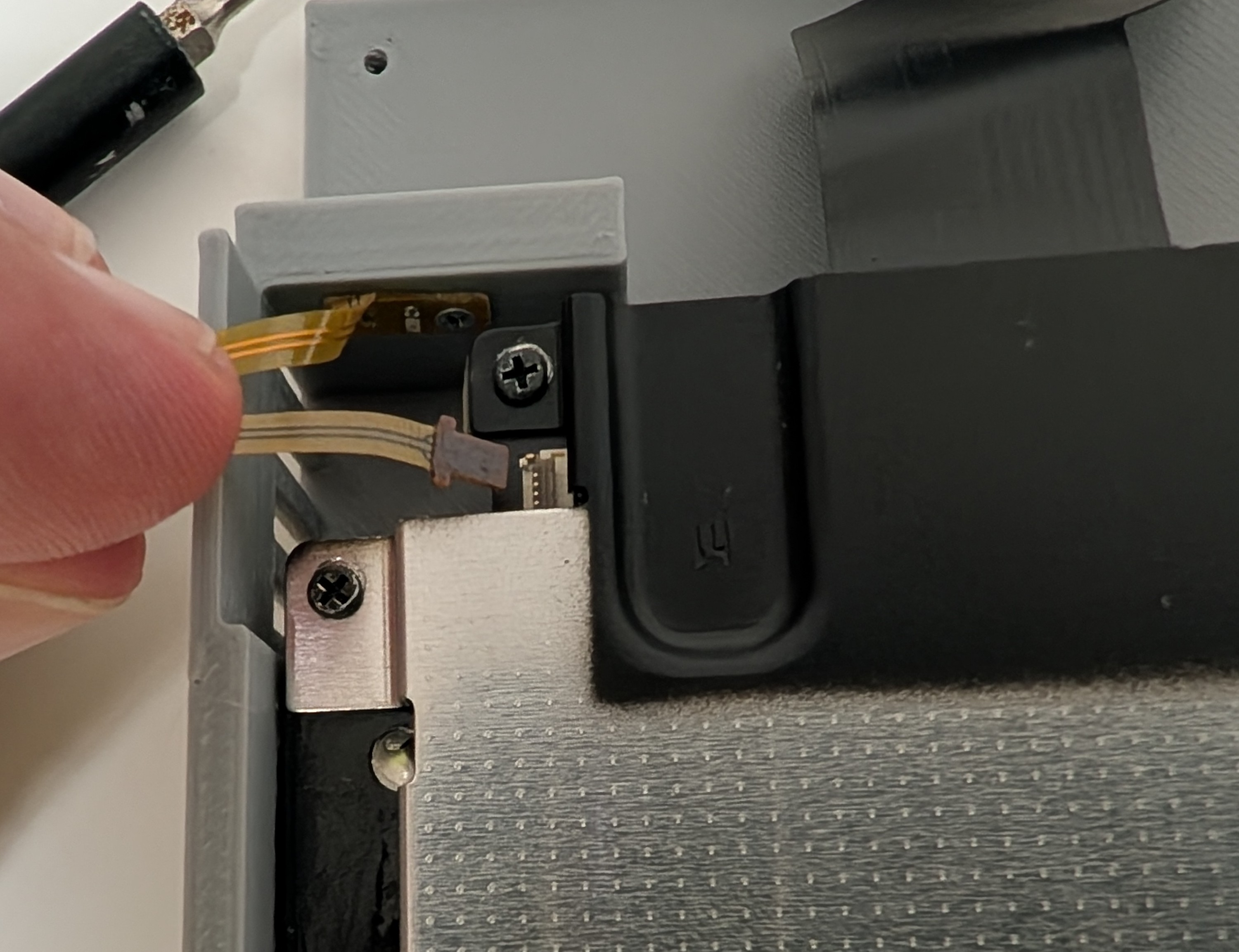
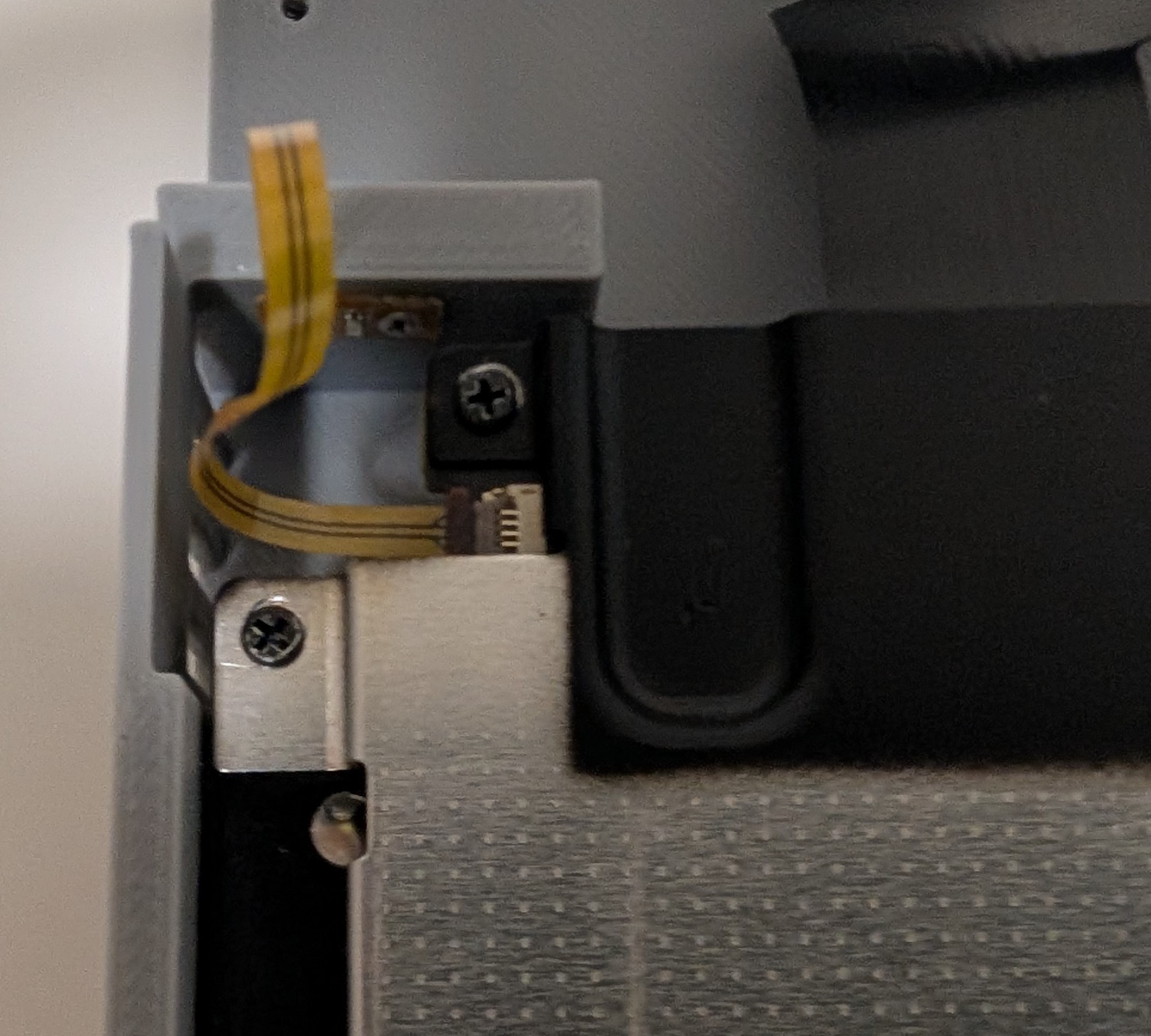
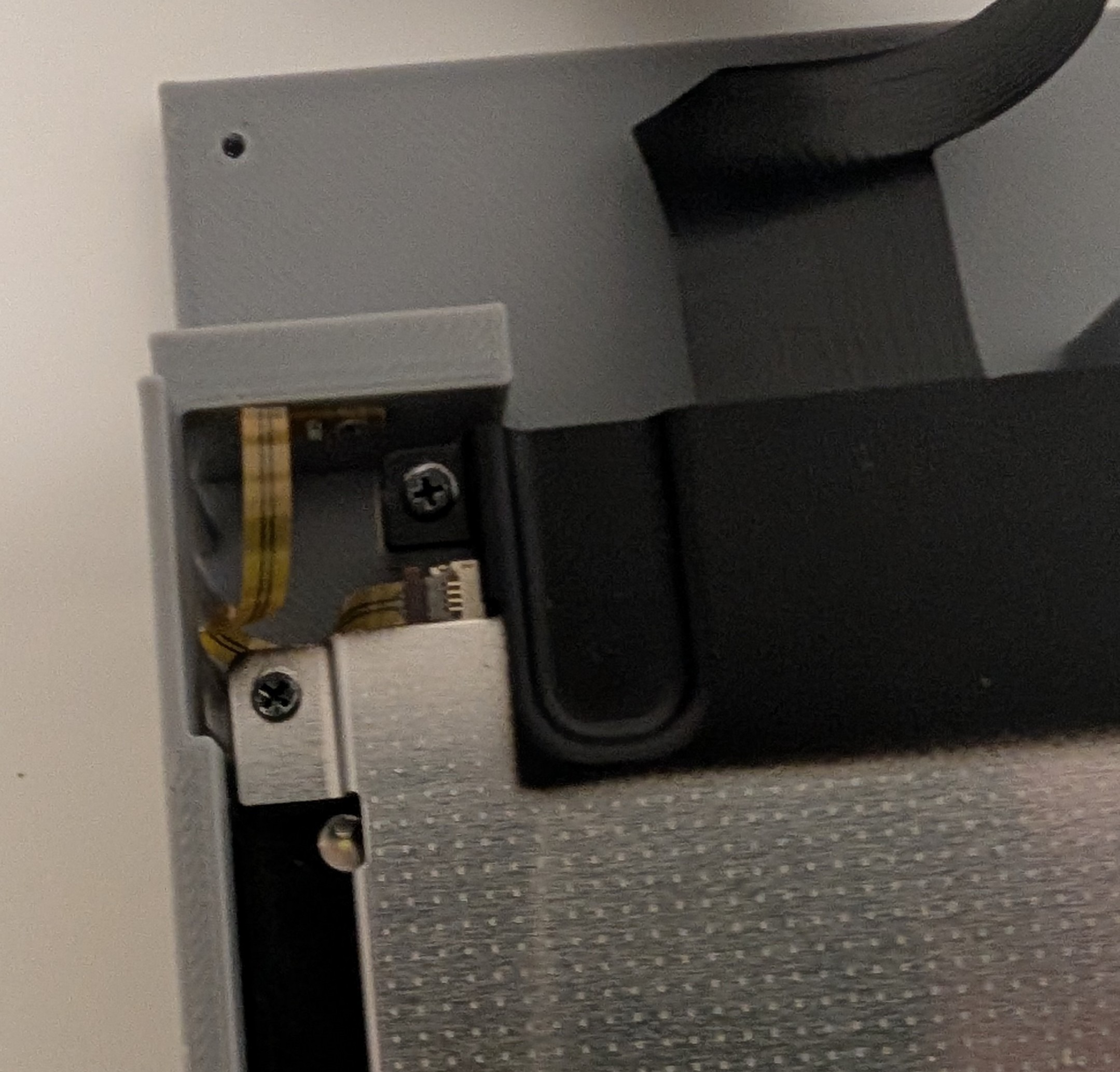
Tuck the excess cable underneath the mainboard. It's ok if it's a little twisted
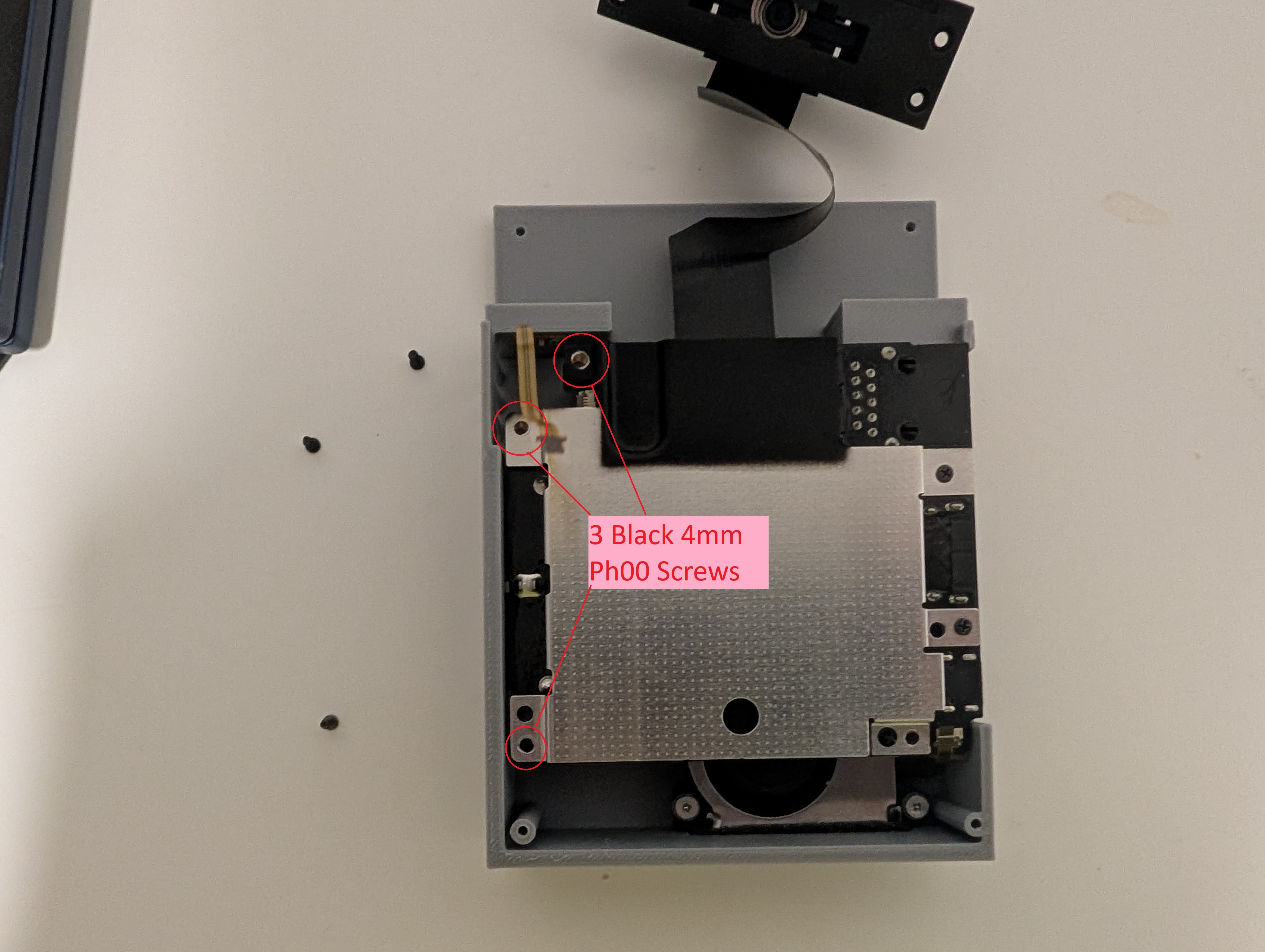
Use 3 of the 4mm Phillips head screws to secure the mainboard to the bottom case
Top Cover (note: The moving USB-C port cover is optional. One can skip steps 6.4, 6.5, and 6.7 if they don't want to install it)
Lay out the USB-C Port flat in front of the mainboard
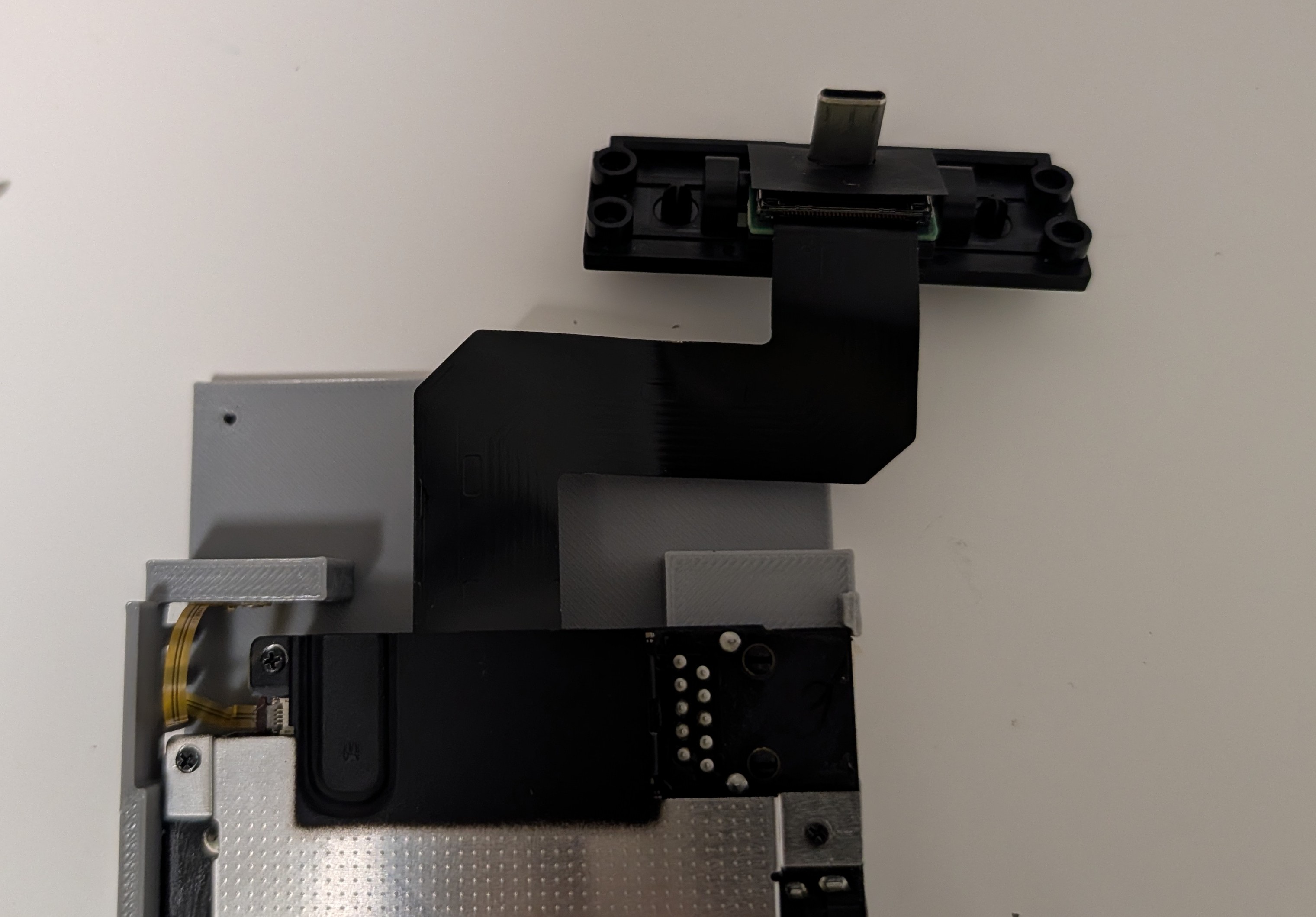
Fold the cable over to the left, leaving some slack to ensure it doesn't heavily crease
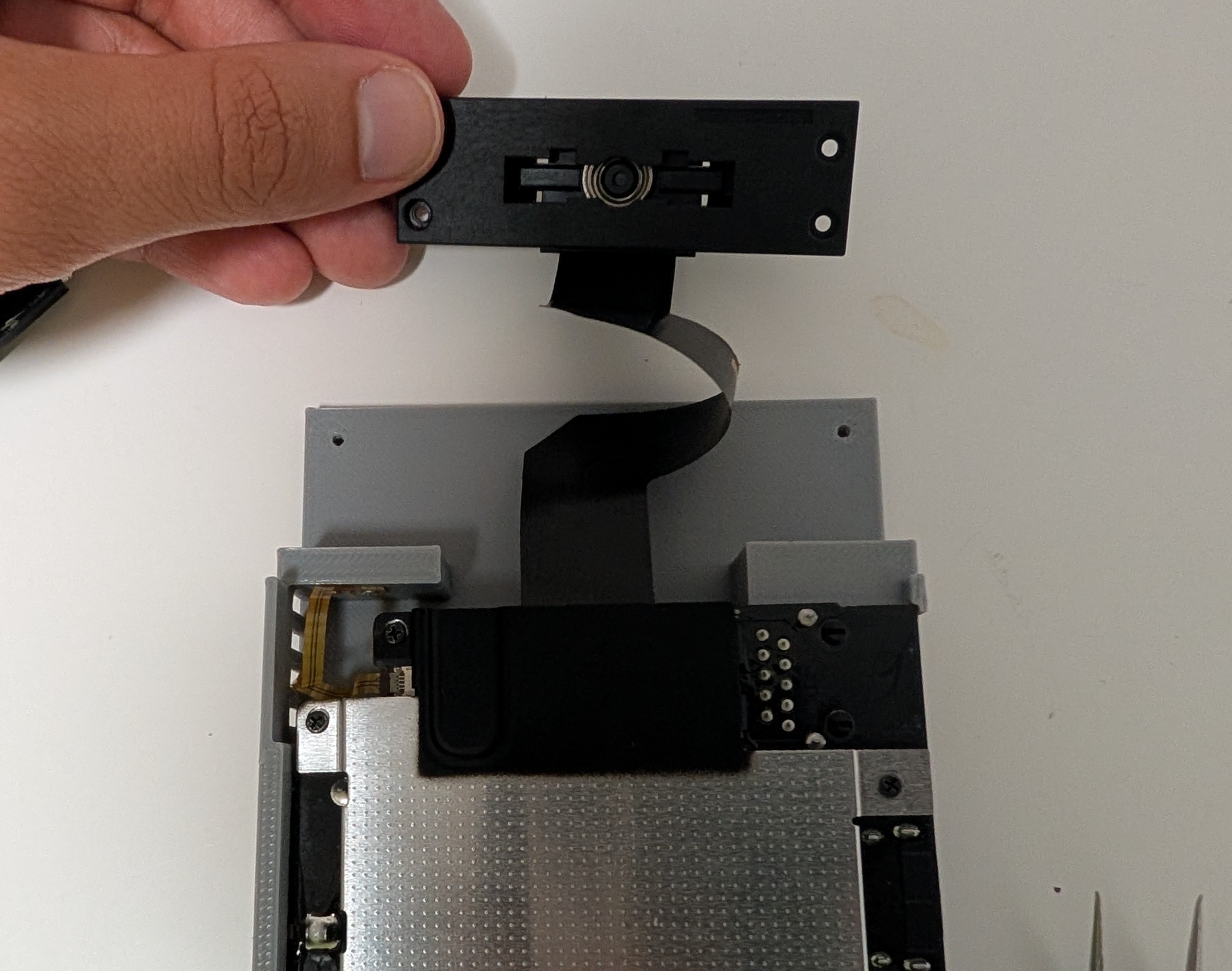
Fold it again downwards to have the USB-C port face up again. This is the final orientation of the connector
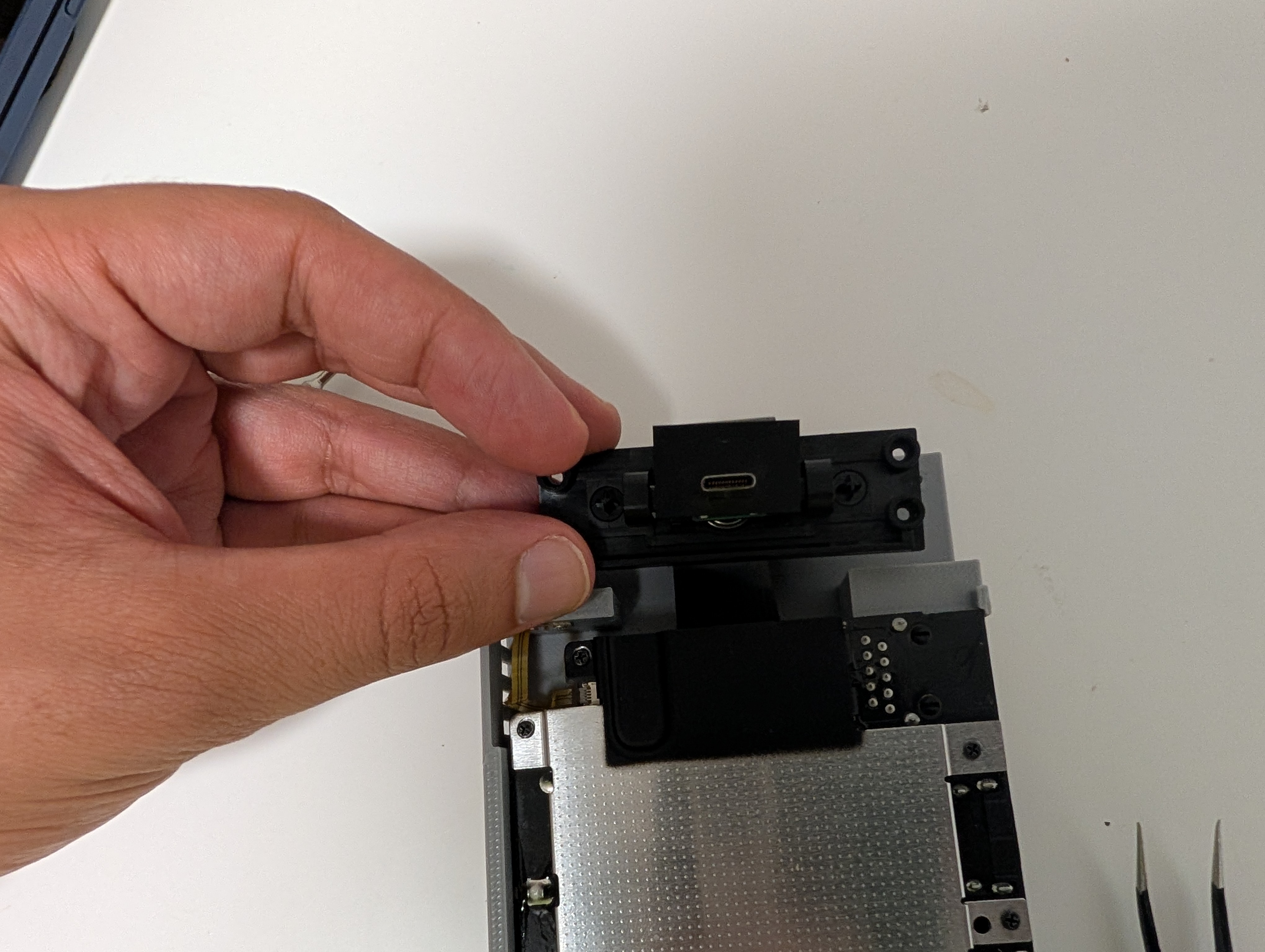
Place the springs on the base assembly
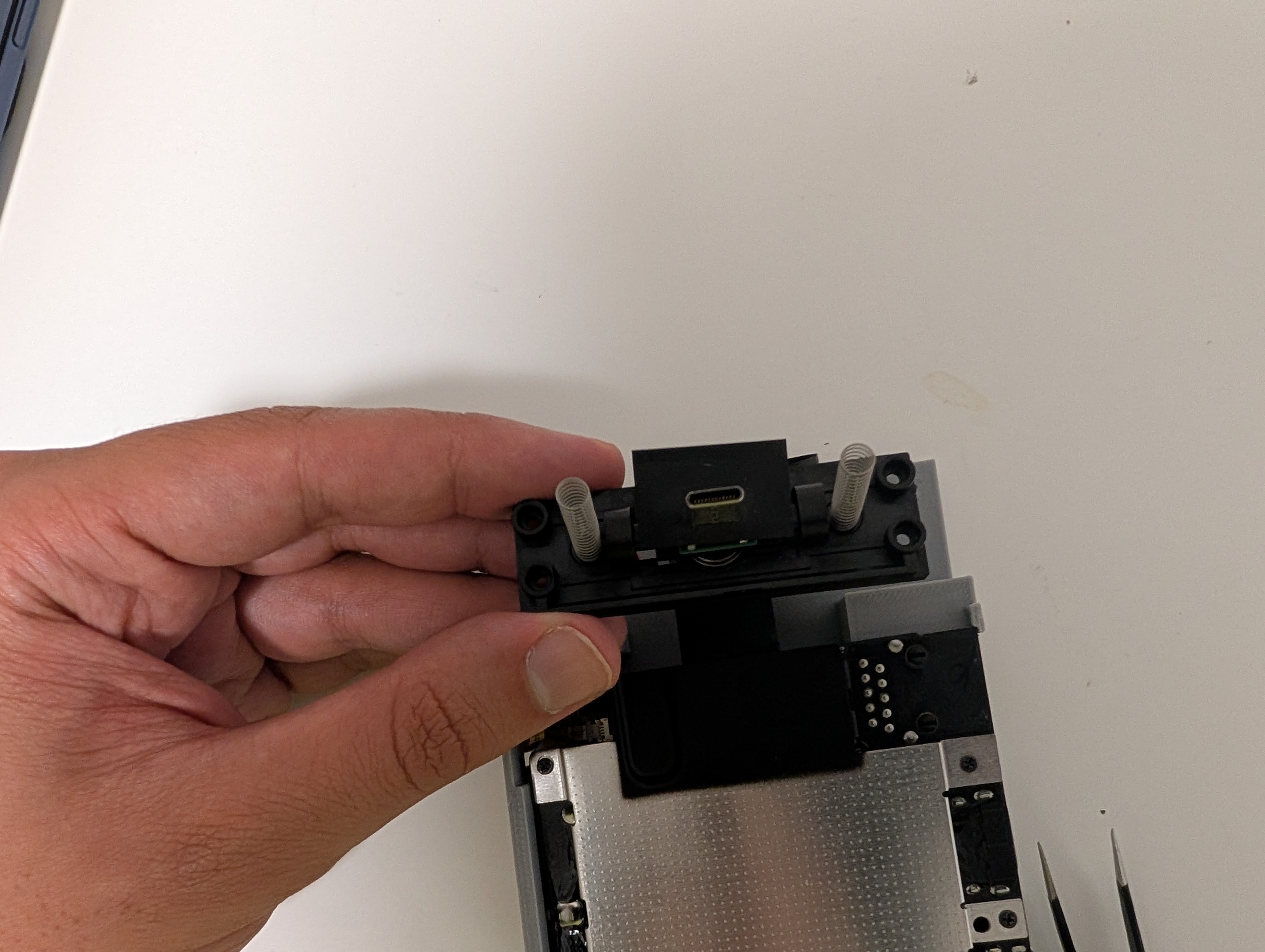
Place the plastic black cover on top of the port, making sure to align the springs with the pegs on both the base and the cover. The cover should move up and down freely
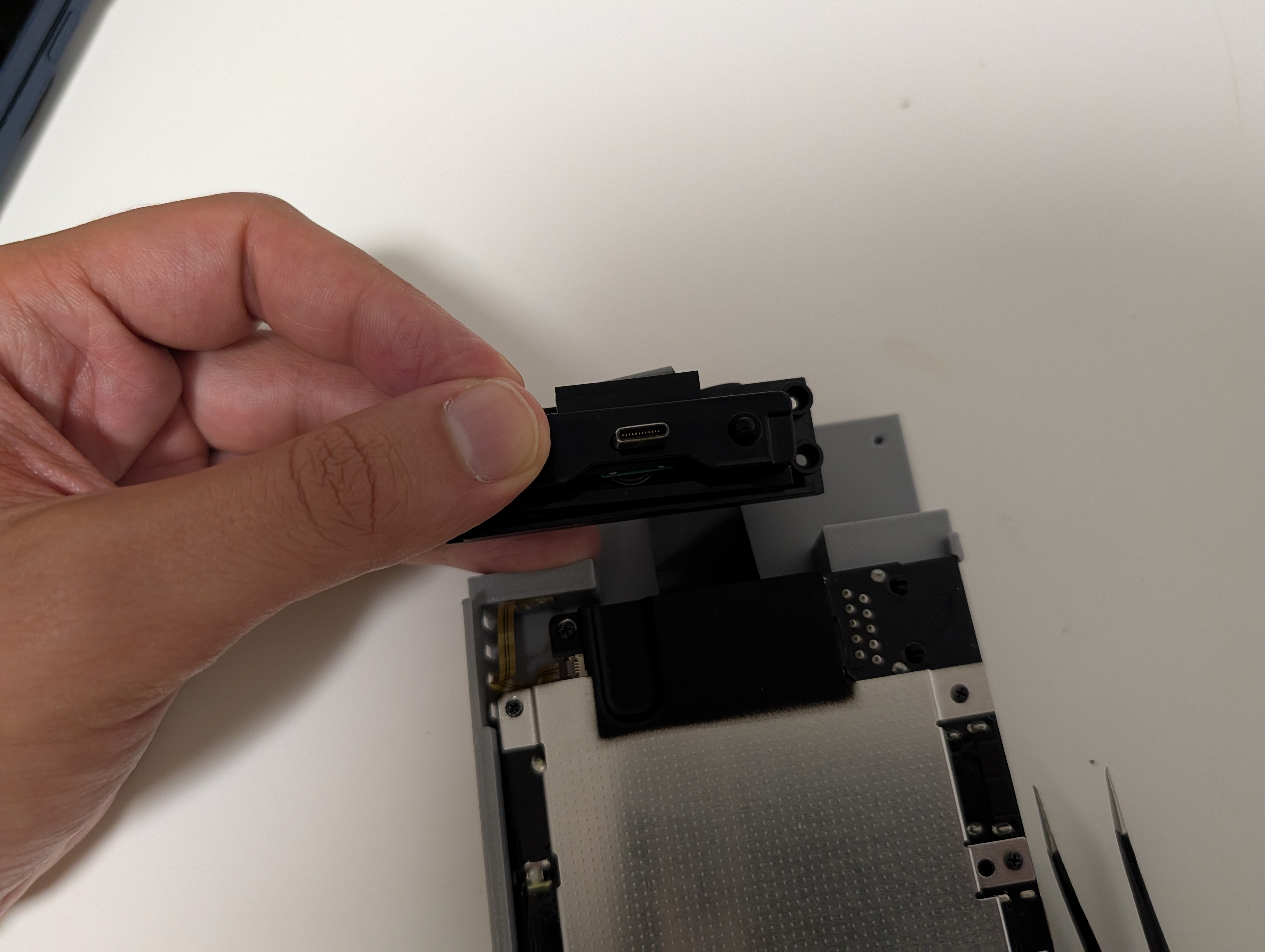
Screw in the USB-C assembly into the top housing with the 4 tri-wing screws. Ensure that the springs don't fall out of place while screwing it in
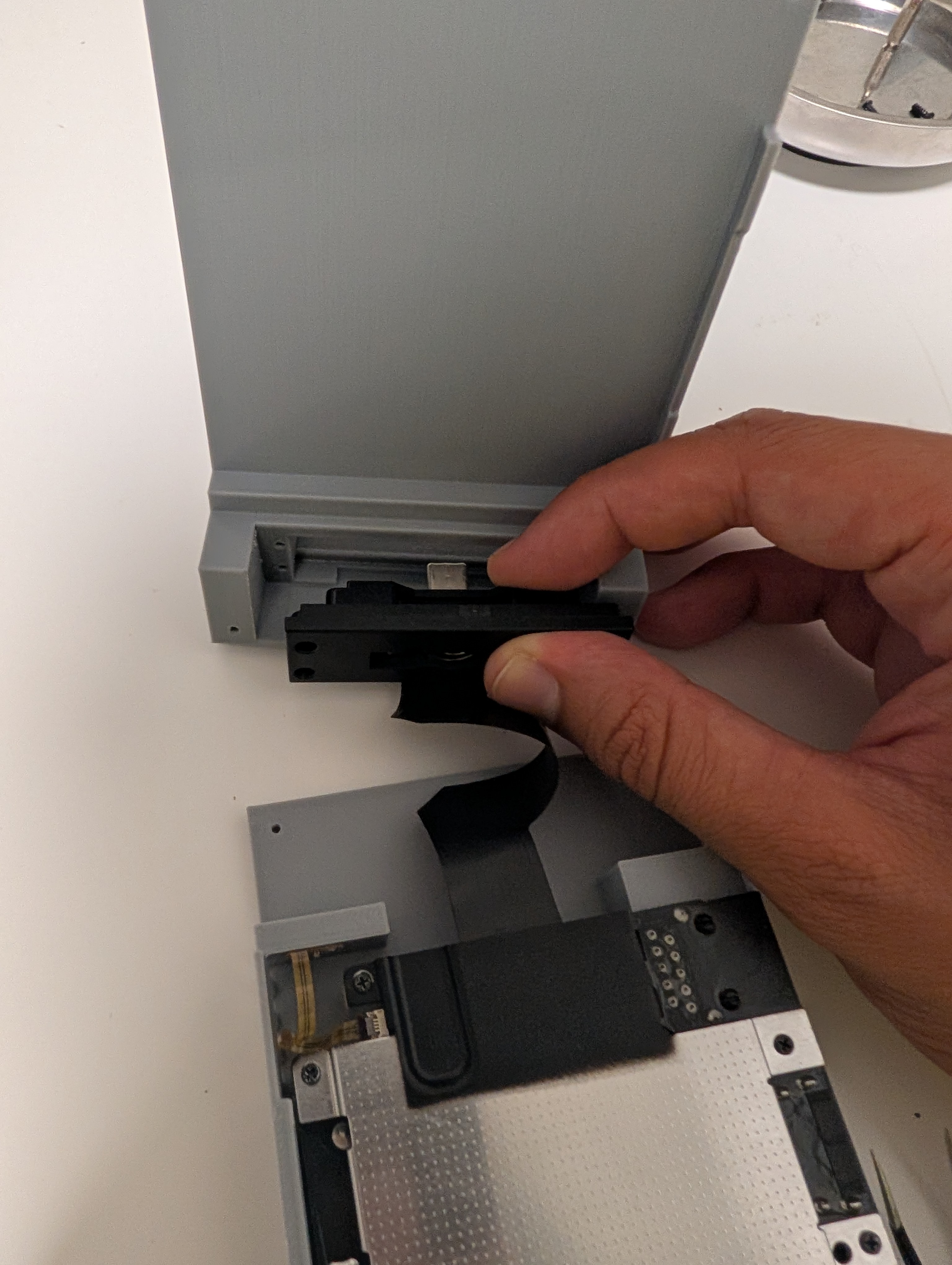
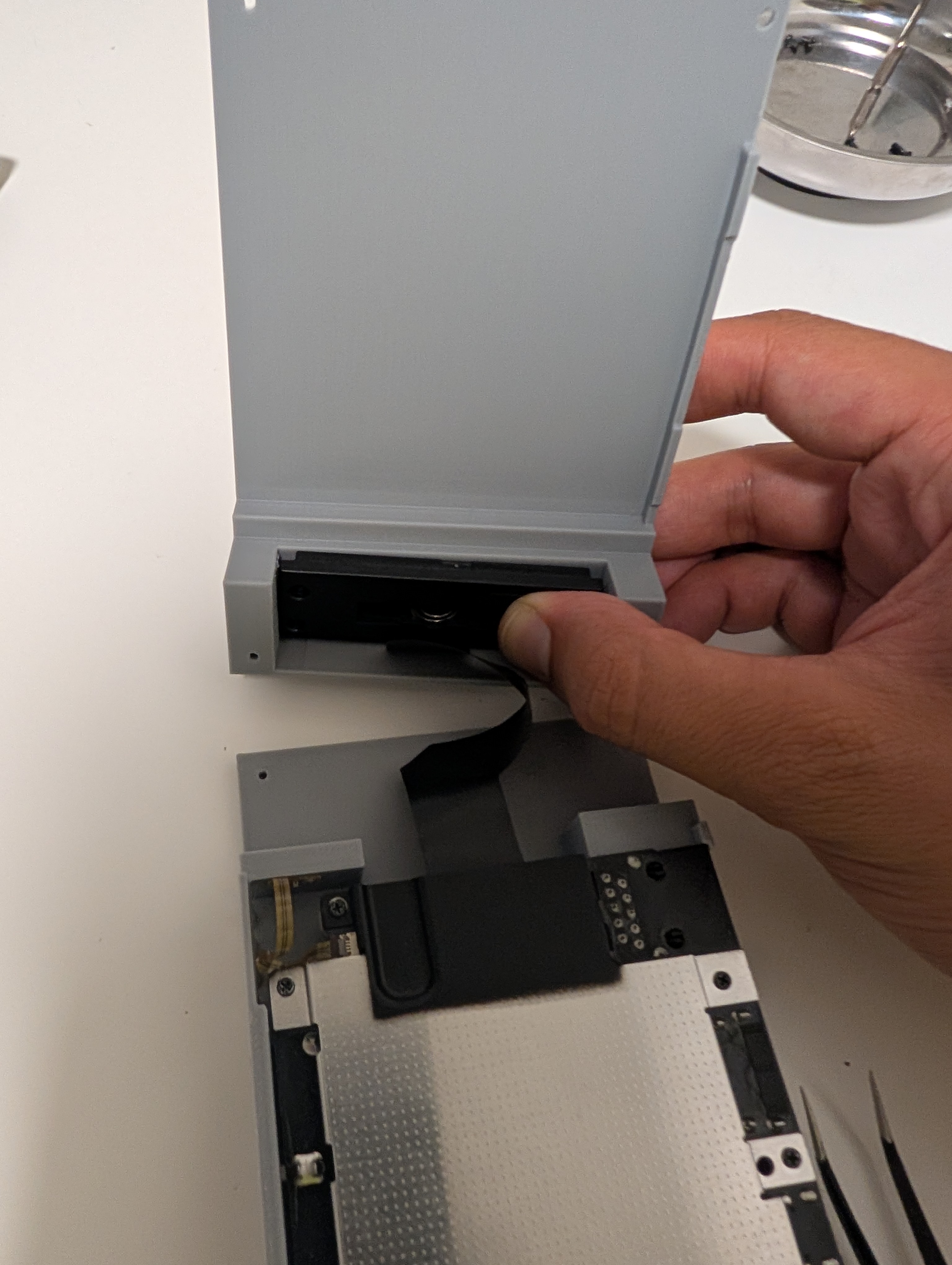
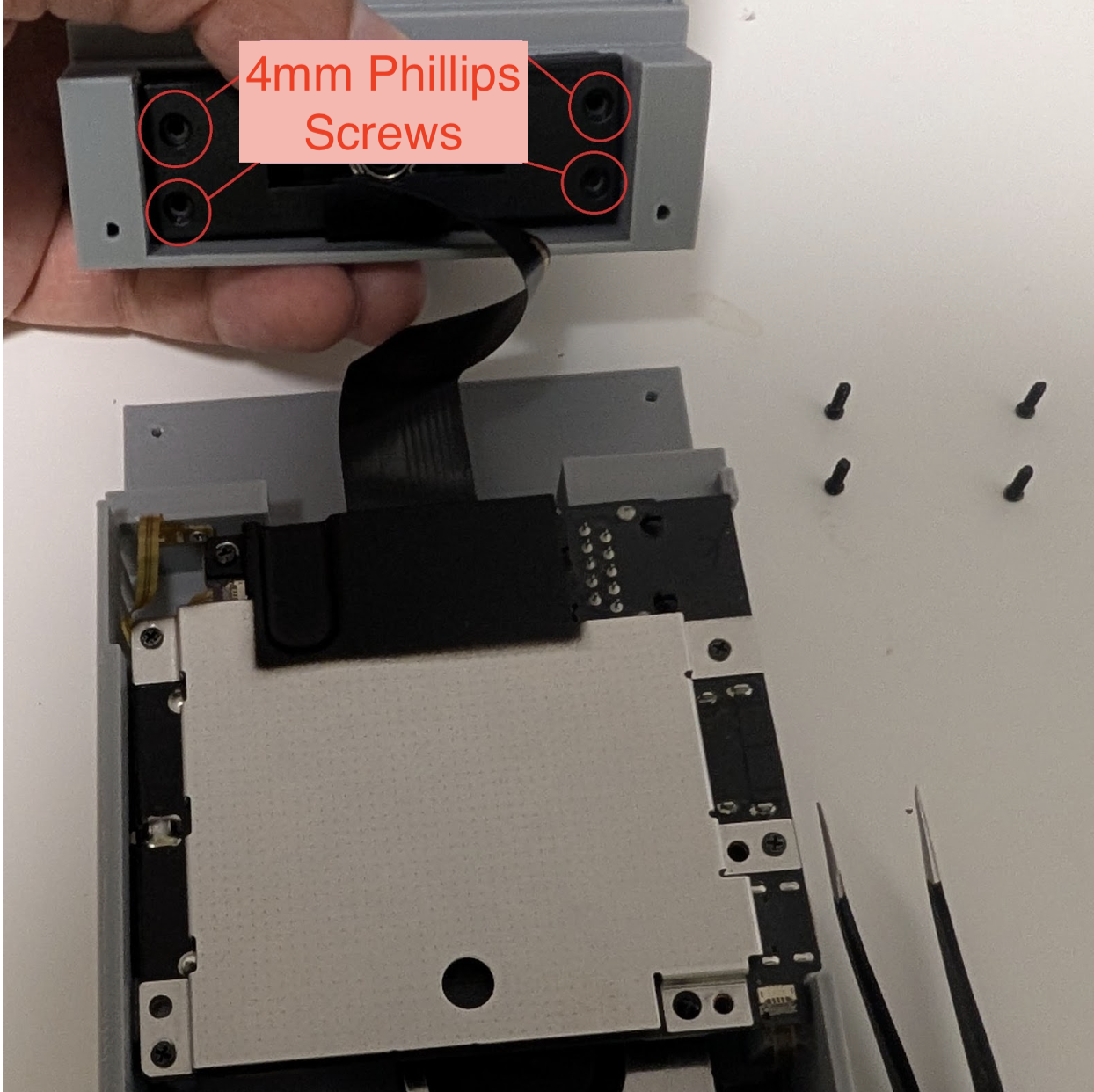
Ensure the cover port cover moves up and down
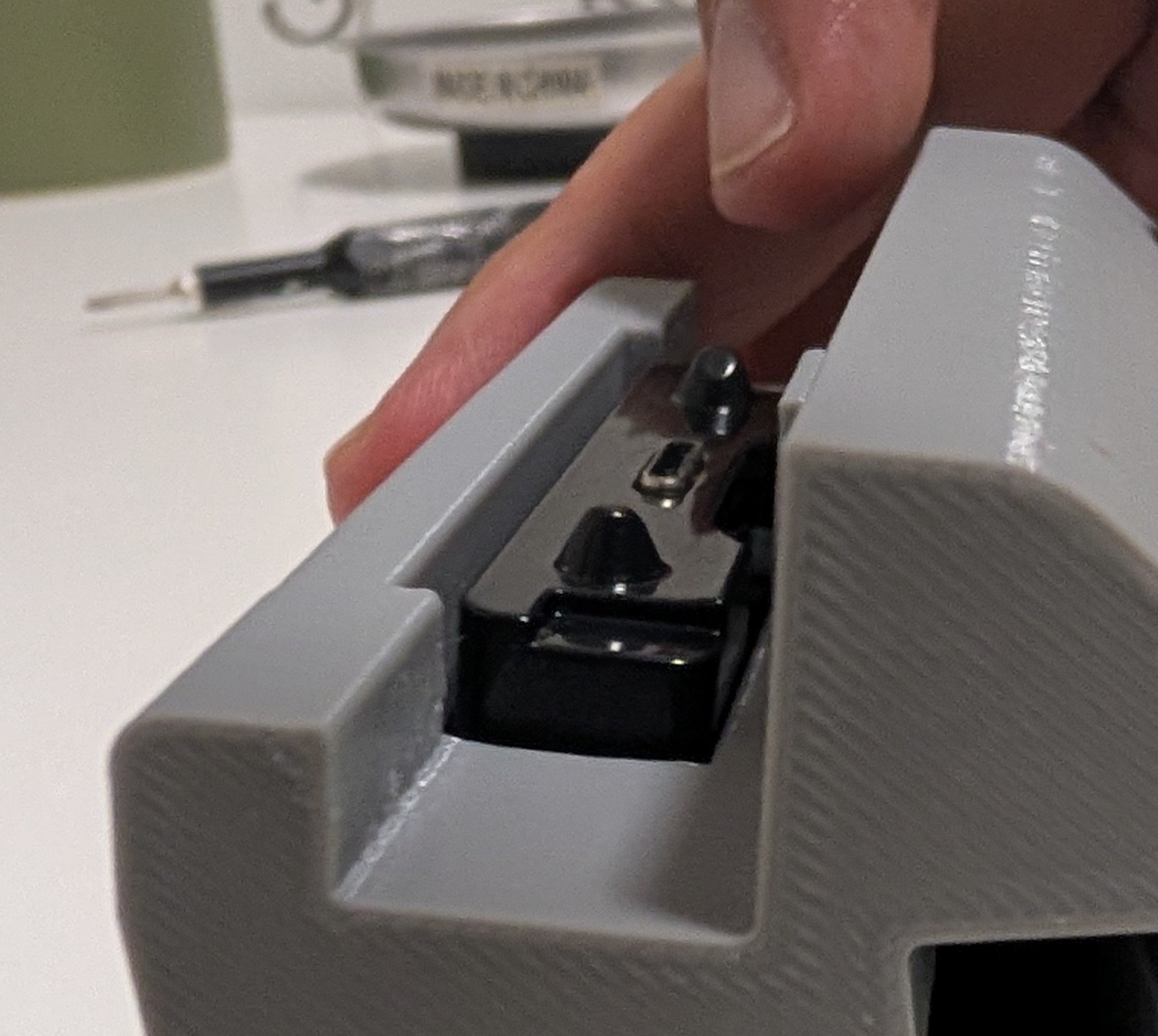
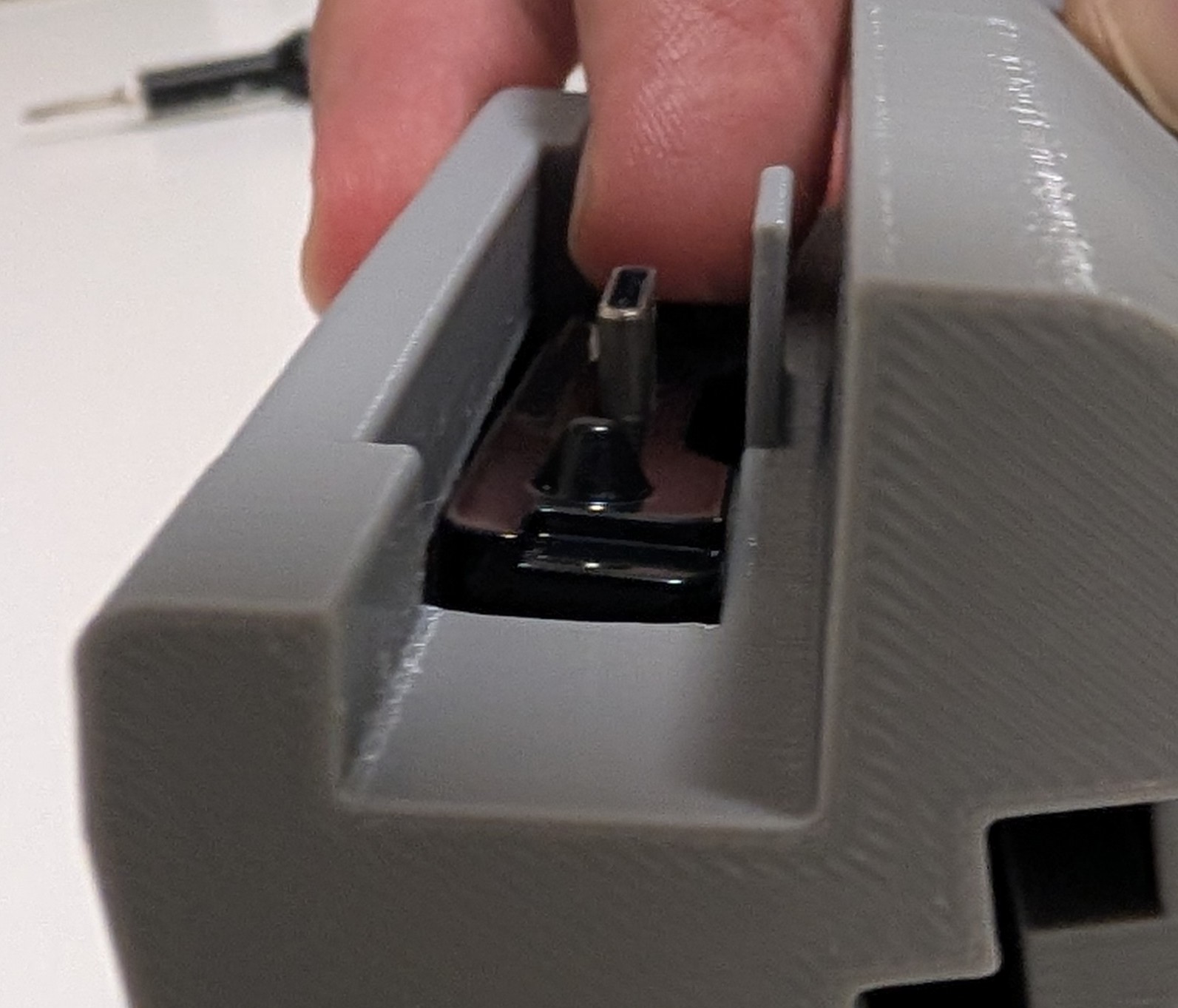
Fold the top case as described in steps 6.1-6.3 to place the top case on top of the bottom case
Top & Bottom Case
On the top case use 2 of the 4mm Ph00 screws to secure to two pieces together
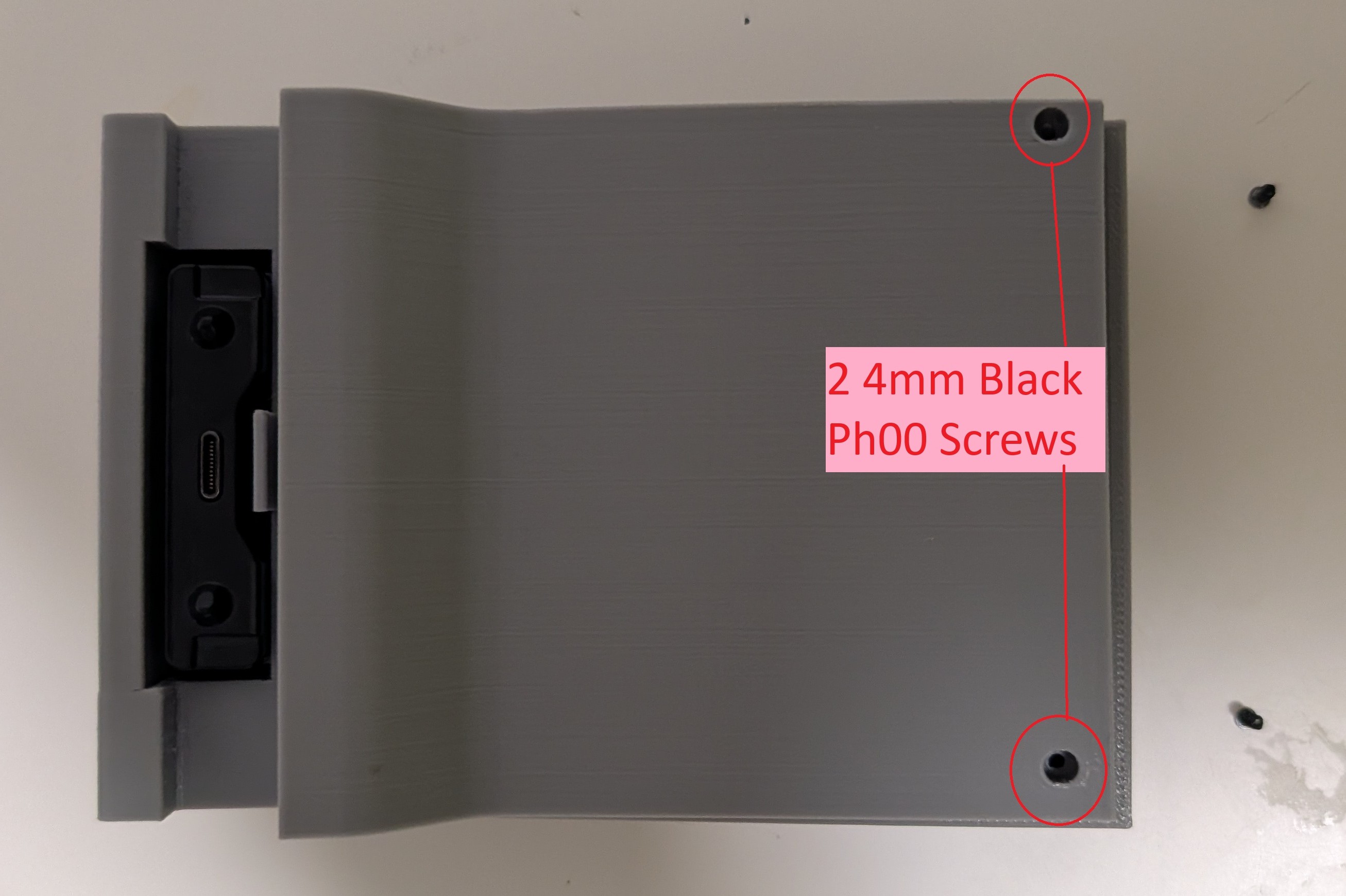
On the bottom case use 2 of the 4mm Ph00 screws to secure to two pieces together
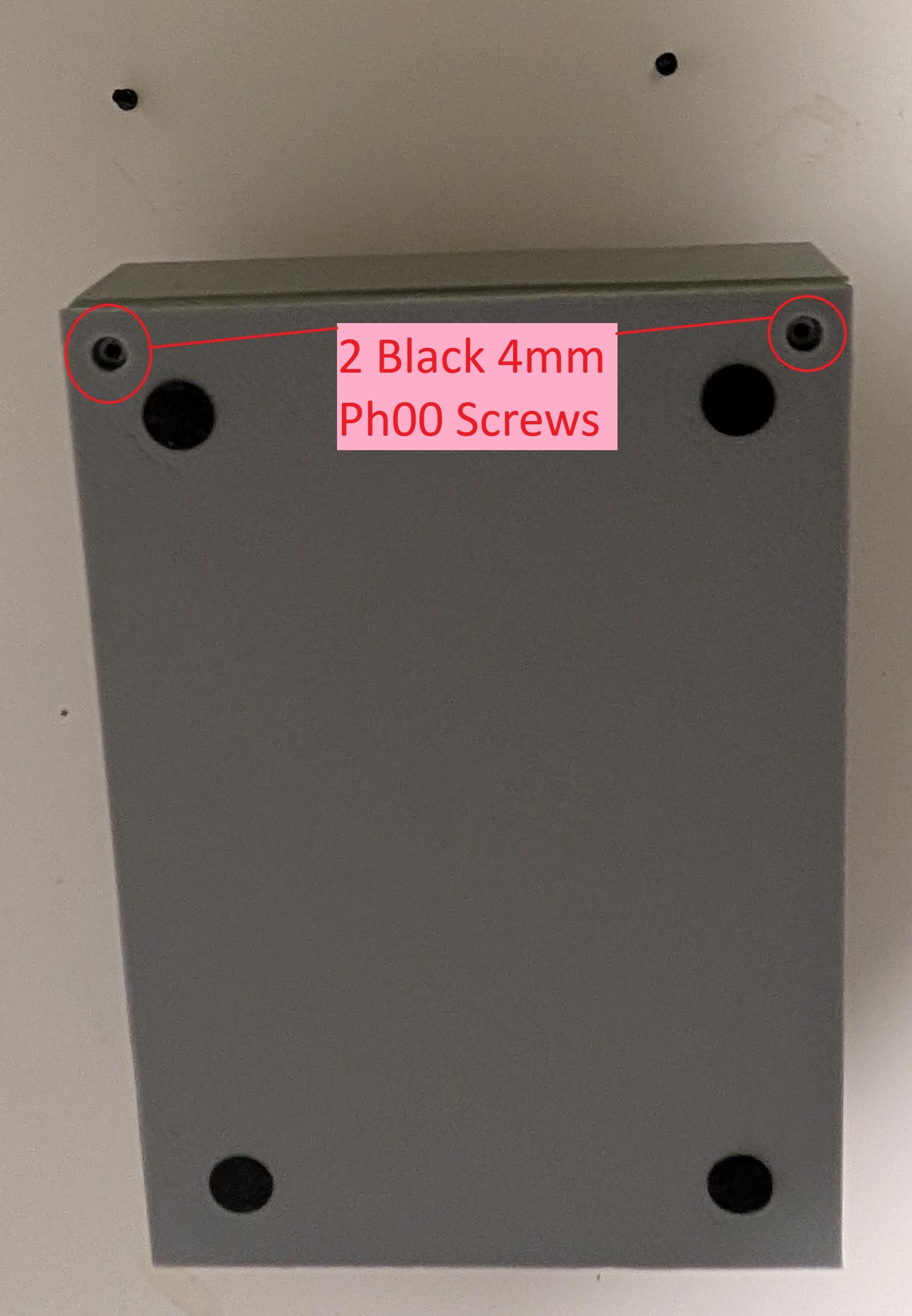
Place rubber feet on indents. If the glue isn't strong enough, feel free to add some super glue
Congratulations!!! You've made it to the end of the guide. Here are some in-use and original/new dock comparison pics, so you can see what to expect!