
Pill Reminder
We calculate the final price from your selected file. You review and accept it before payment.
Saved on this device.
Model information
- Source
- Printables
- Category
- Home Medical Tools
- License
- Creative Commons — Attribution — Noncommercial — Share Alike
This little device lights up to remind you to take your pills! Once you've taken your pill, simply return the pill bottle to the device and apply a bit pressure to reset the timer. It'll light up again in 20 hours (or whatever duration you set) to remind you once again.
I originally got this idea from BanditWorks3D over on MakerWorld. While I loved the concept, it never worked reliably for me. I think my pills bottles were too light for the pressure sensor to reliably detect when the bottle was removed and replaced, so I decided to see if I could solve this issue and started designing my own pill reminder from scratch. My version uses a force sensitive resistor (FSR) like the original, but has the user down the pill bottle for half a second, which maxes out the sensor and creates a much more reliable signal to detect. I'm happy to say that this method works perfectly for me no matter what size of pill bottle I'm using. My design is also easier to print and features a screw-on cover which keeps everything a bit more secure.
Printing
- All STLs are in the correct orientation for printing and printed at .2mm layer height with a .4mm nozzle.
- Pressure plate: Requires supports. I recommend using the provided 3mf file, which includes a modifier and some tweaks to the print profile for the best aesthetics and support removal.
- I used California Filament Cloudy White PETG for the pressure plate. It does a great job of diffusing the light, but any transparent or translucent filament should work fine.
- All other parts: No supports. STL files should be in the correct orientation for printing. I recommend printing with a concentric infill pattern on the top and bottom layers.
- I've used PLA and PETG for the rest of the body without issue. Any standard rigid material should work, though.
Tools
- Soldering iron and solder. I recommend using flux on all joints as well.
- Wire stripper
- Flush cutters
- A PCB Clamp (Not required, but highly recommended. I used this 3D printable one)
Materials
- Seeed Studio XIAO RP2040 or Adafruit QT P7 RP2040 (I found the XIAO a bit easier to work with because the pin labels are on the back where you'll be soldering)
- Adafruit Alpha MF01A-N-221-A01
- 24 LED NeoPixel Ring (or clone) - RGB and RGBW are both supported
- 24 or 22 gauge wire, ideally in 5 separate colors.
- USB C power supply. 2A recommended if using max brightness. Default settings should work fine with anything 500mA or above
- Glue of your choice (I used basic super glue, but hot glue would be a less permanent option if you want the option to reclaim your parts)
- Tape of your choice, the stronger, the better (optional, but recommended. I used gaffer's tape)
Step 1: Prepare the Microcontroller
First, download the newest CircuitPython firmware for your chosen dev board:
Once downloaded, connect your dev board to your computer. Now hold down the boot button (labeled "B" on the XIAO) and, while holding it down, press the reset (or “R”) button. You should see a new drive appear labeled RPI-RP2. Drag the .UF2 file you downloaded onto this drive and, after a small delay, it should reboot by itself. A new drive labeled CIRCUITPY should appear, meaning you've successfully flashed your microcontroller. Congrats!
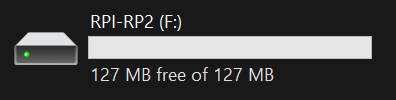
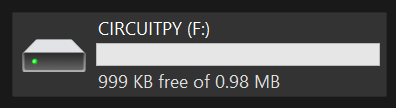
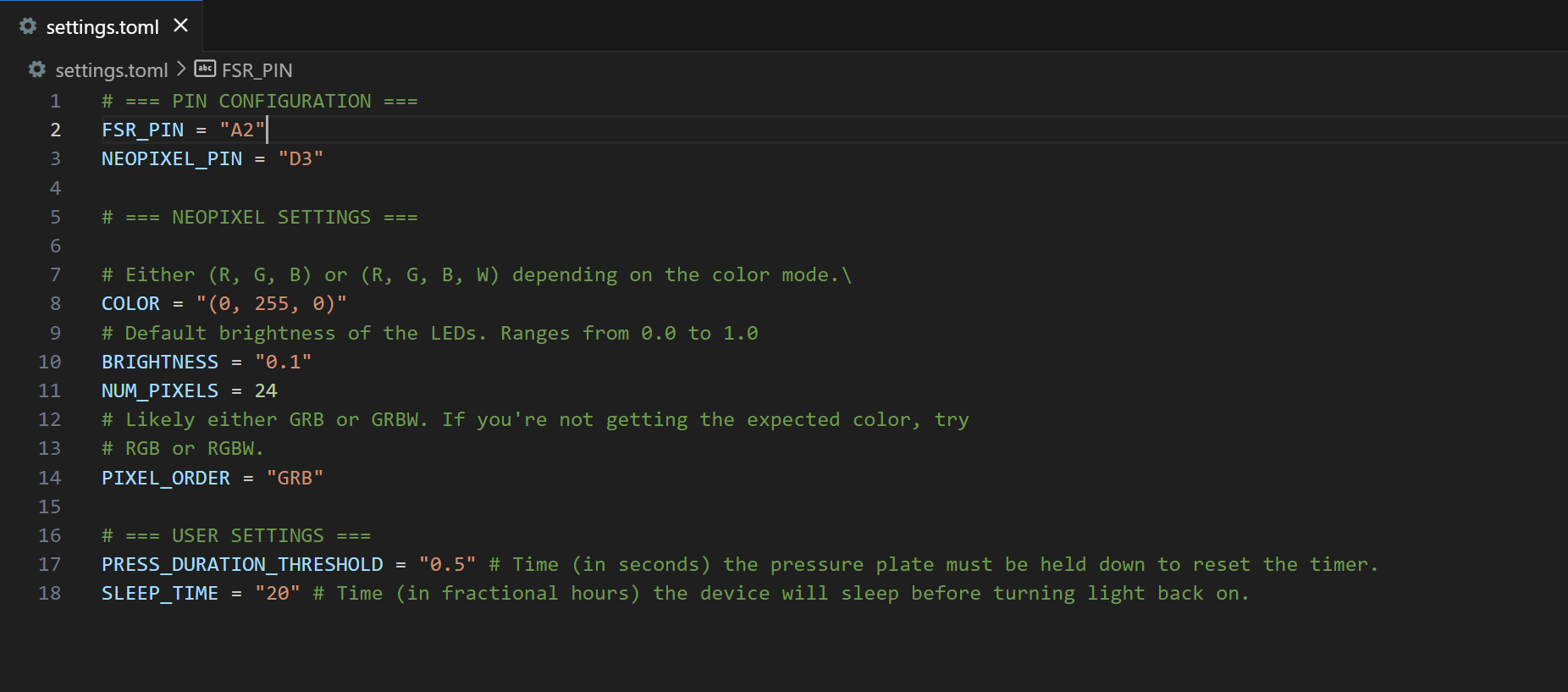
Now download the source code here and transfer all the files to the CIRCUITPY drive, overwriting any files with the same name. Before moving on, take a moment to open settings.toml in the text editor of your choice and check things over. If you're using RGBW leds, change the PIXEL_ORDER setting to “GRBW”. Also check that the color and sleep duration are set to your preference.
Step 2: Cut and Strip the Wires
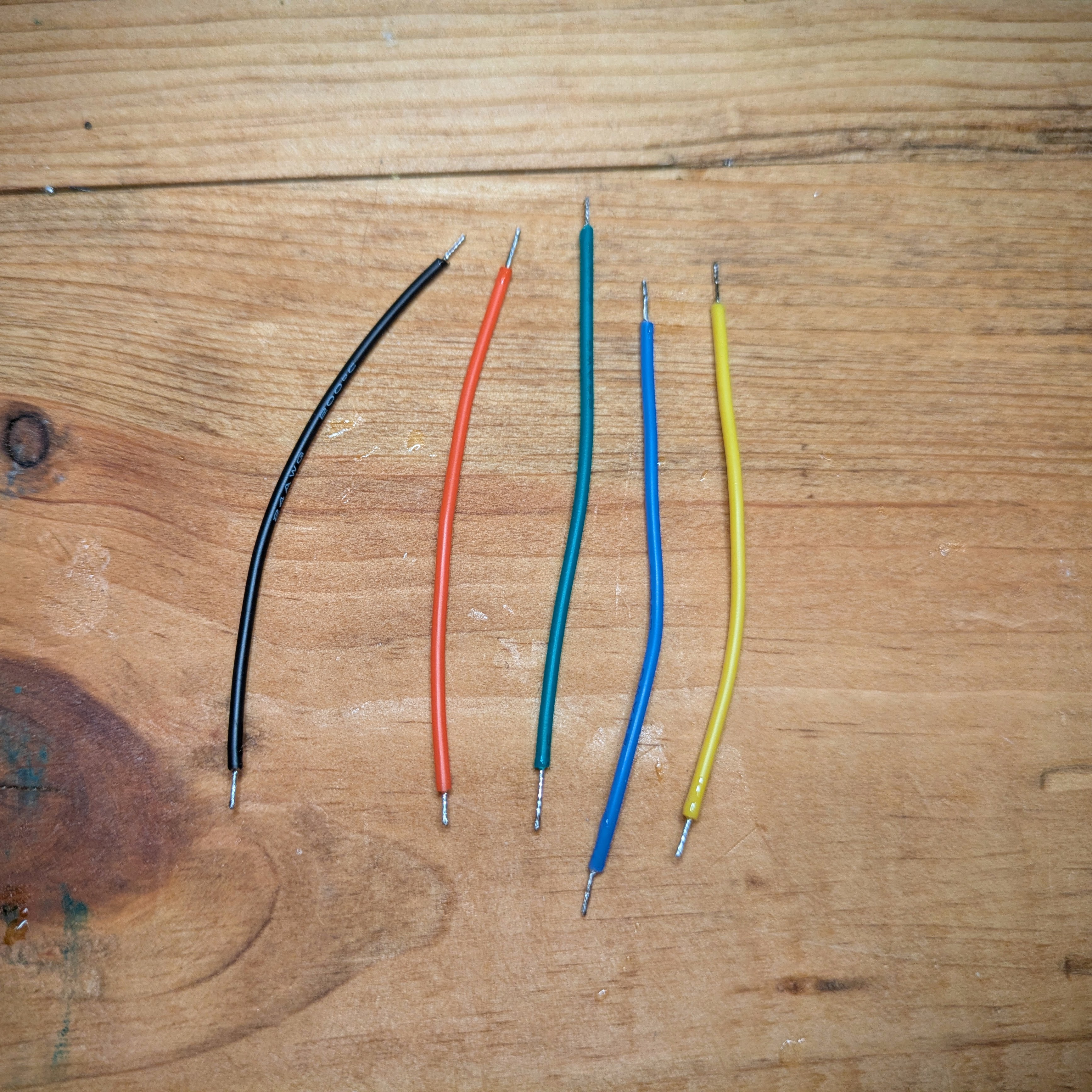
Cut 5 3-4 inch lengths of wire. Strip 4-6mm off each end and tin the tips with solder. You don't need to use the same colors as me, but for reference, the wires I'm using are as follows:
- Red: FSR “Positive” (the FSR doesn't care about polarity, but this is what I'll be connecting to the +3.3V pin on the dev board)
- Black FSR “Negative” (Used to connect to the analog input pin on the dev board)
- Green: NeoPixel Digital In (DIN)
- Blue: NeoPixel Ground
- Yellow: NeoPixel Positive
Step 3: Solder Wires to the FSR
Now it's time to get the hardest step over with. You have to be very careful when soldering wires to the FSR leads. Apply heat for as little time as possible to avoid melting the plastic and potentially damaging the FSR. I used my PCB clamp to sandwich the sensor and tinned the FSR leads first. This step might be a little frustrating, but with a bit of patience and a gentle hand, you'll have it over with in no time.
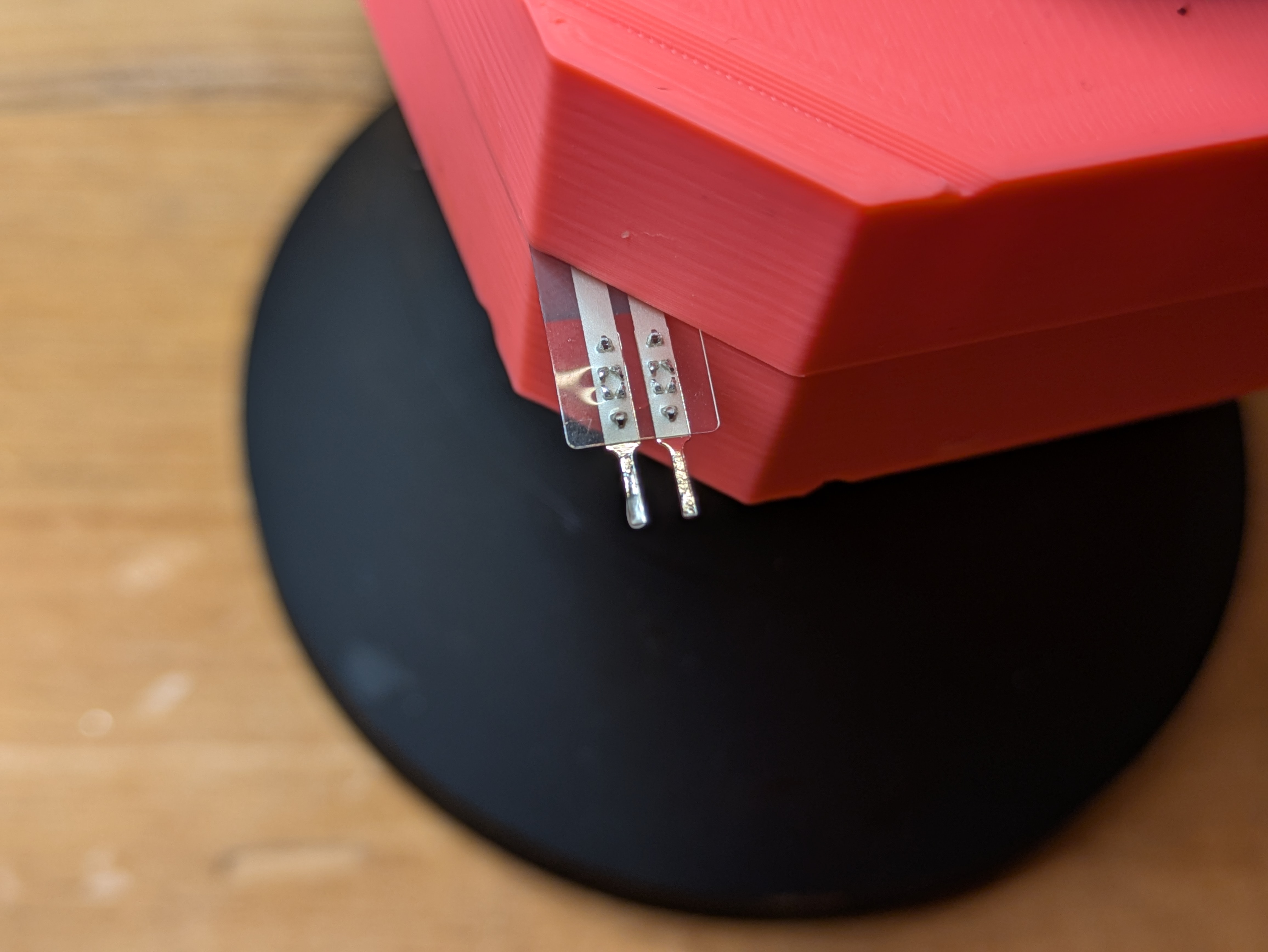
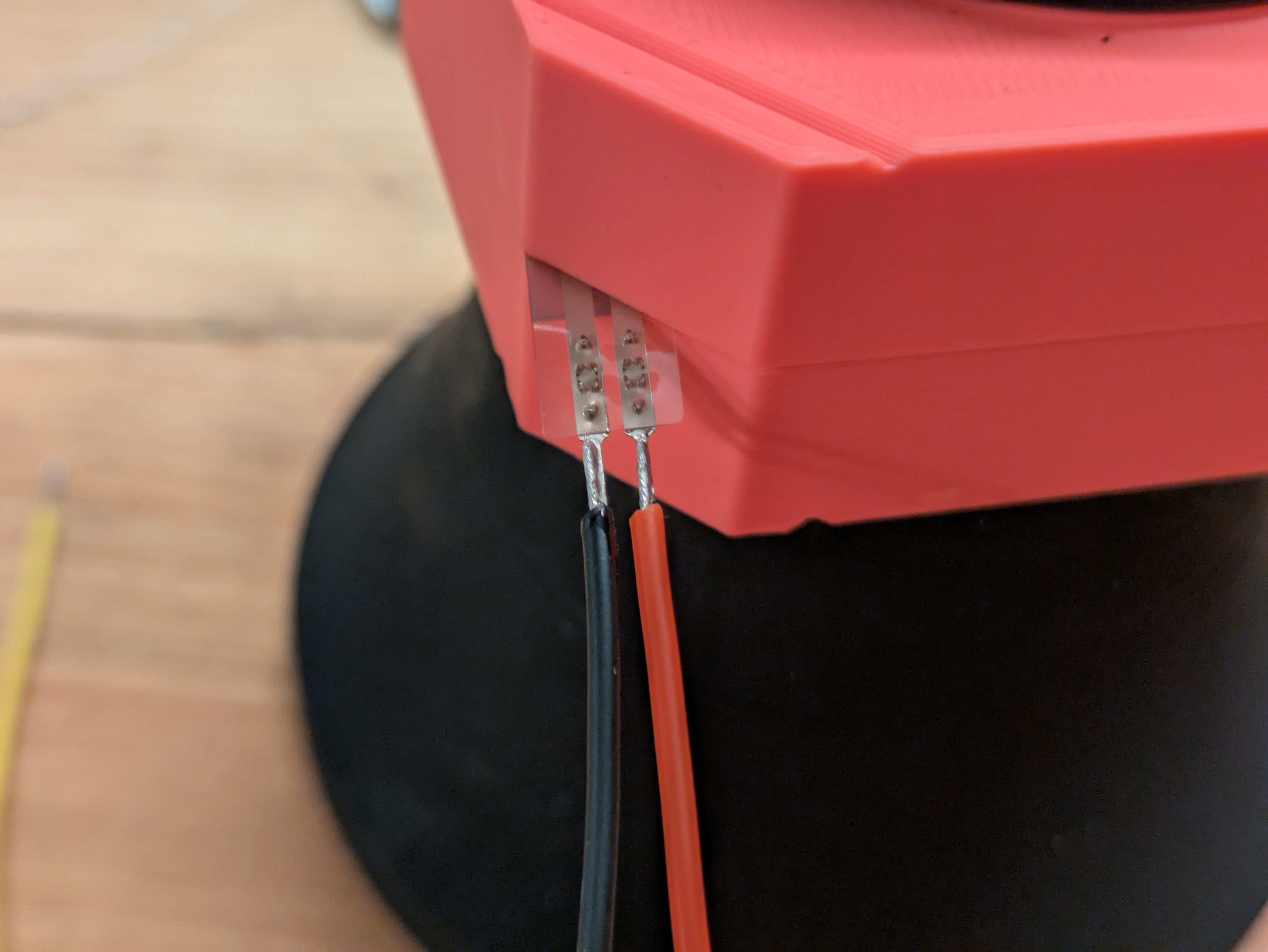
Remember that the FSR doesn't care about polarity, so the red and black wires can be in either position.
Step 4: Solder Wires to the Neopixel Ring
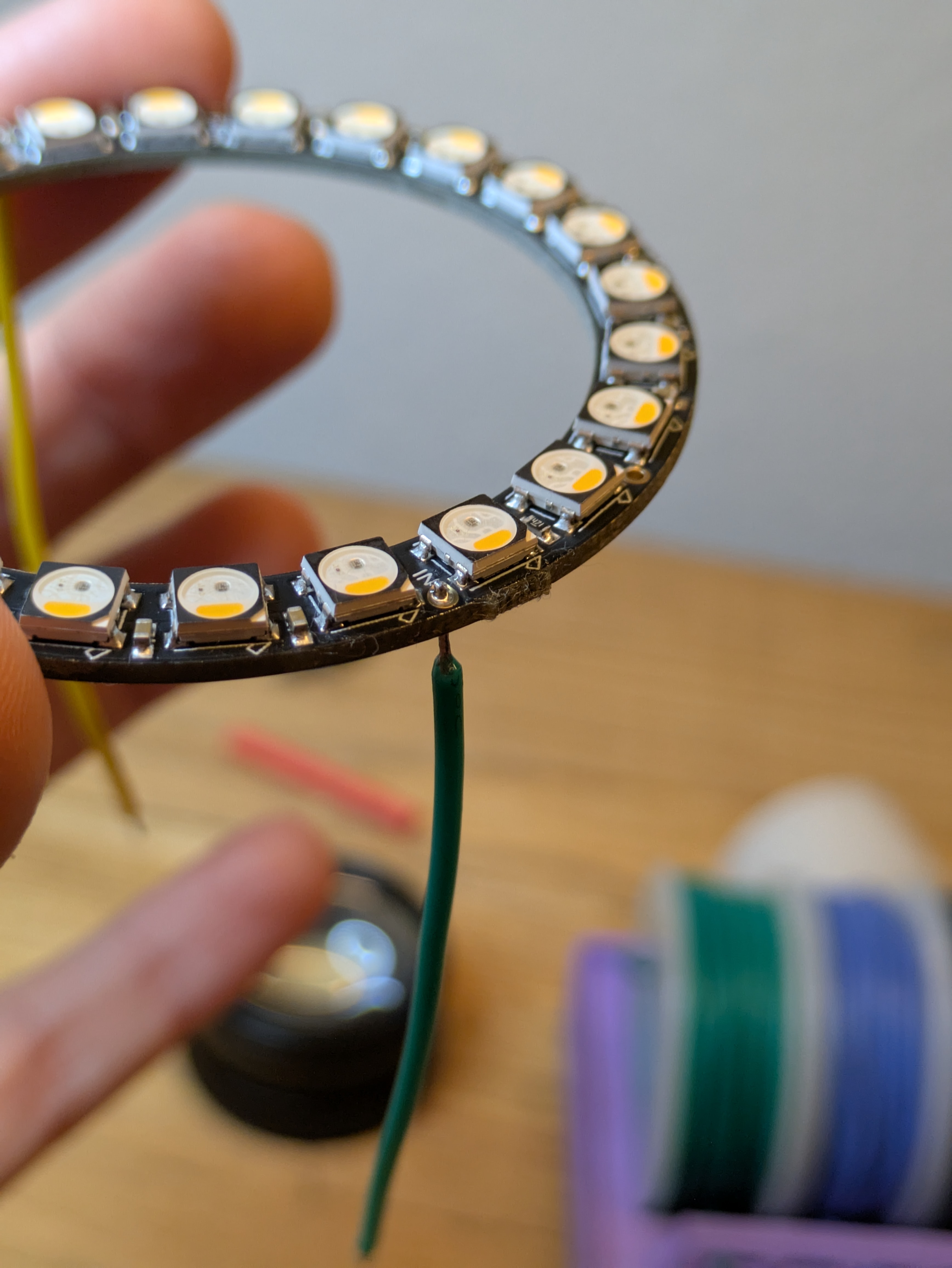
Next solder wires to the DIN, PWR, and GND terminals of the NeoPixel ring. I recommend soldering to backside of the NeoPixel PCB because it's easy to damage the LEDs when soldering on the front.
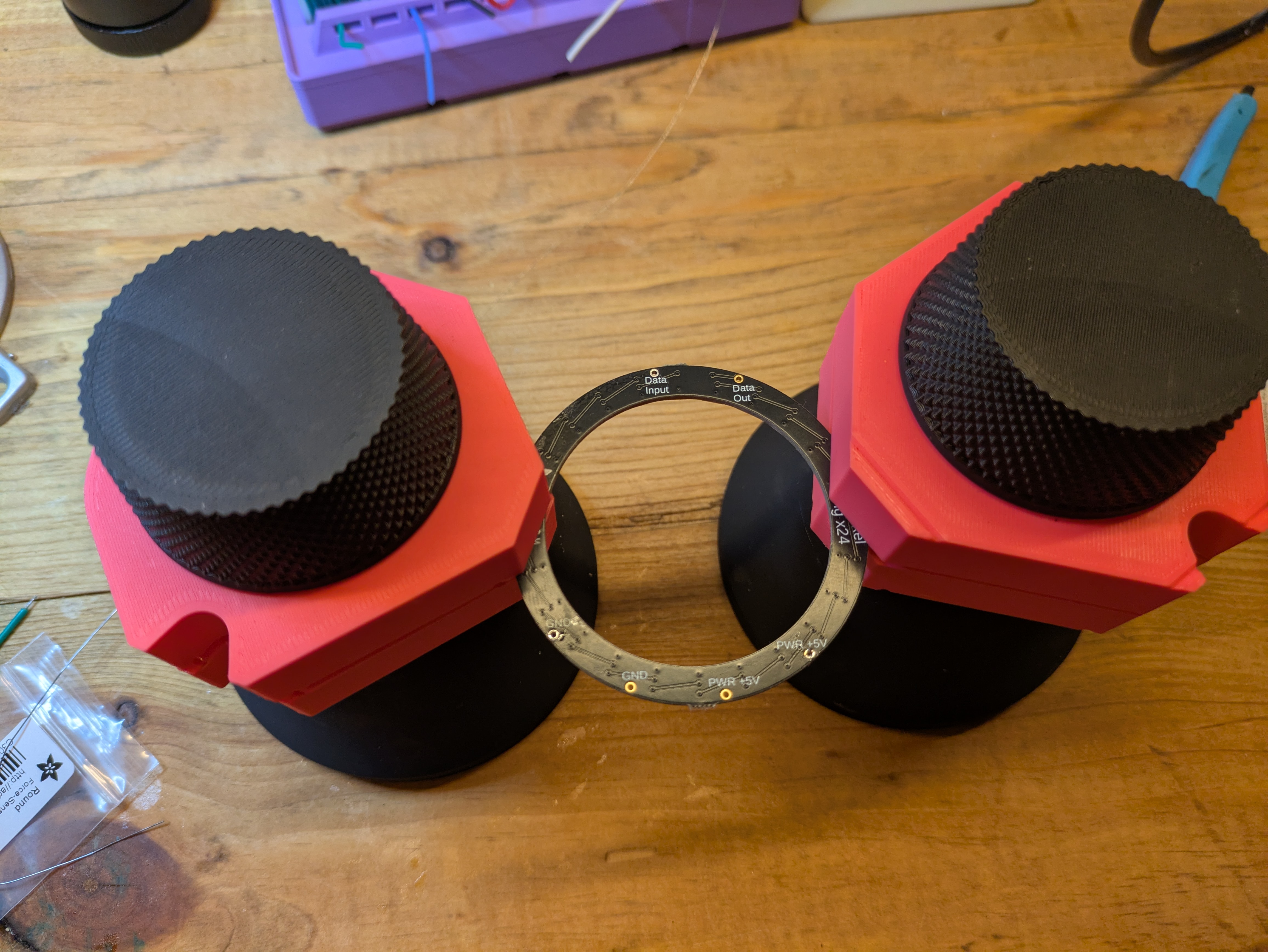
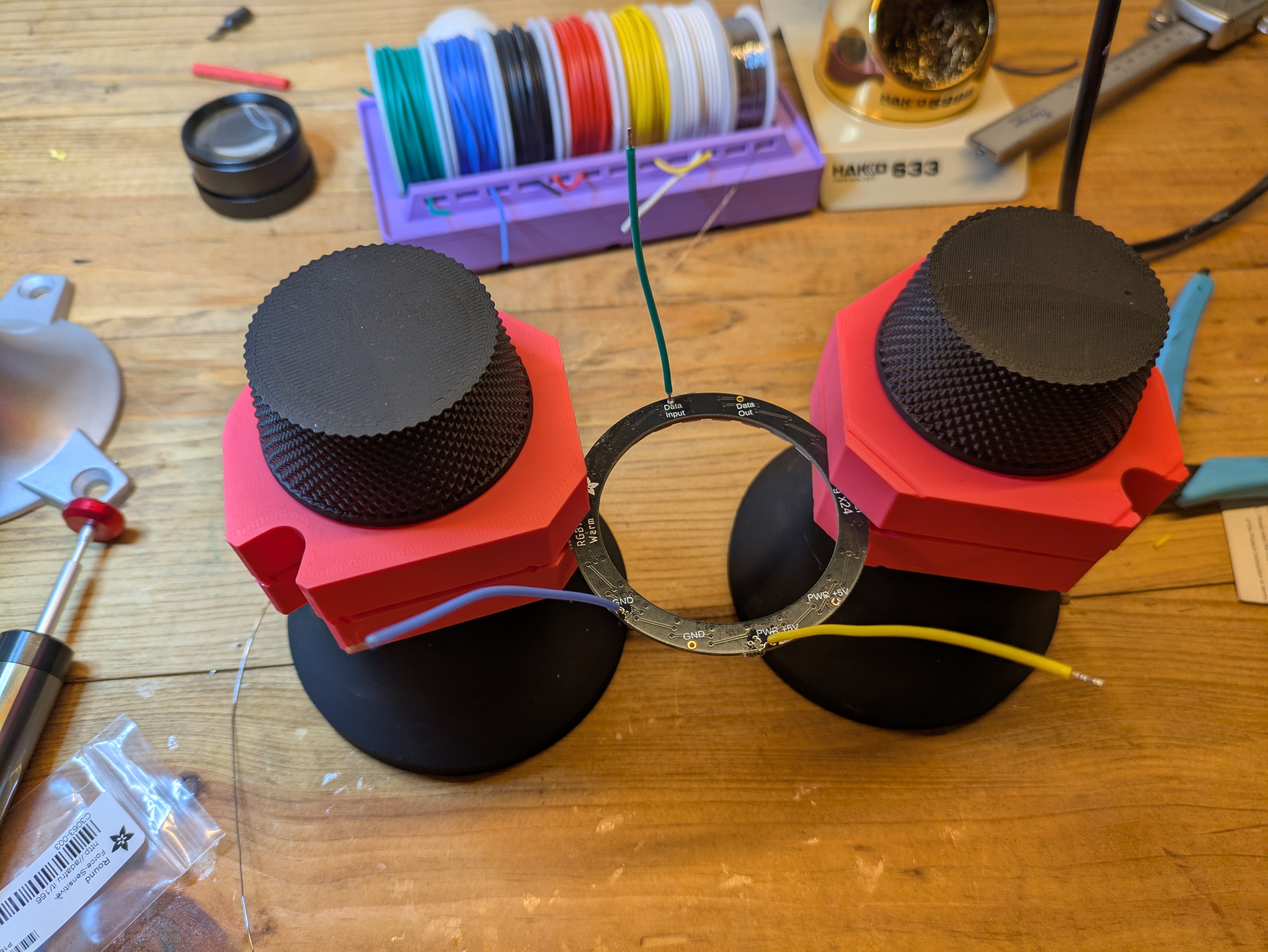
Once you're finished, you may need to use your flush cutters to trim the tips of the wires on the front side so they don't stick out above the LEDs:
Step 5: Prepare the Middle Plate
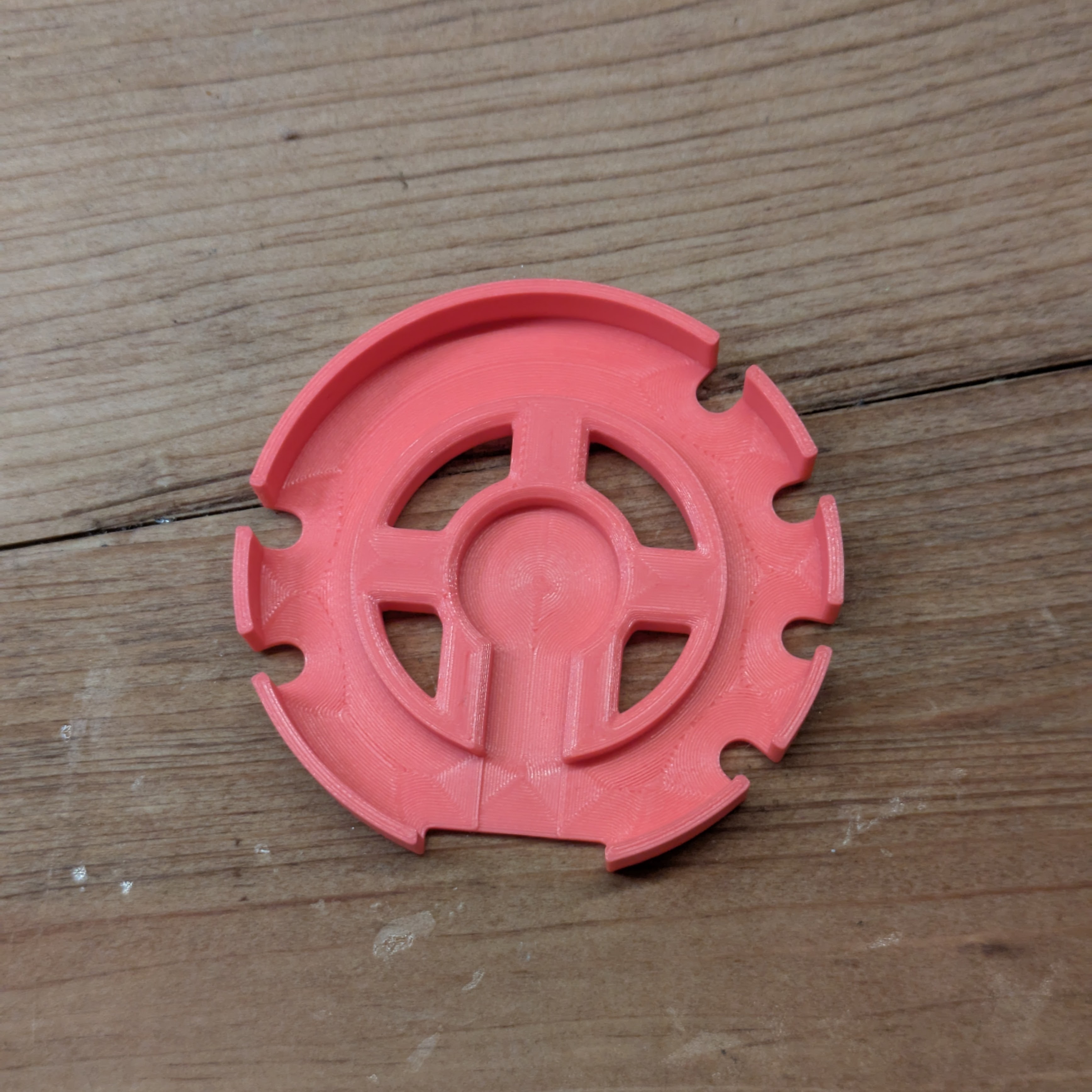
Remove the adhesive backing from the FSR and place it in the center of middle plate.
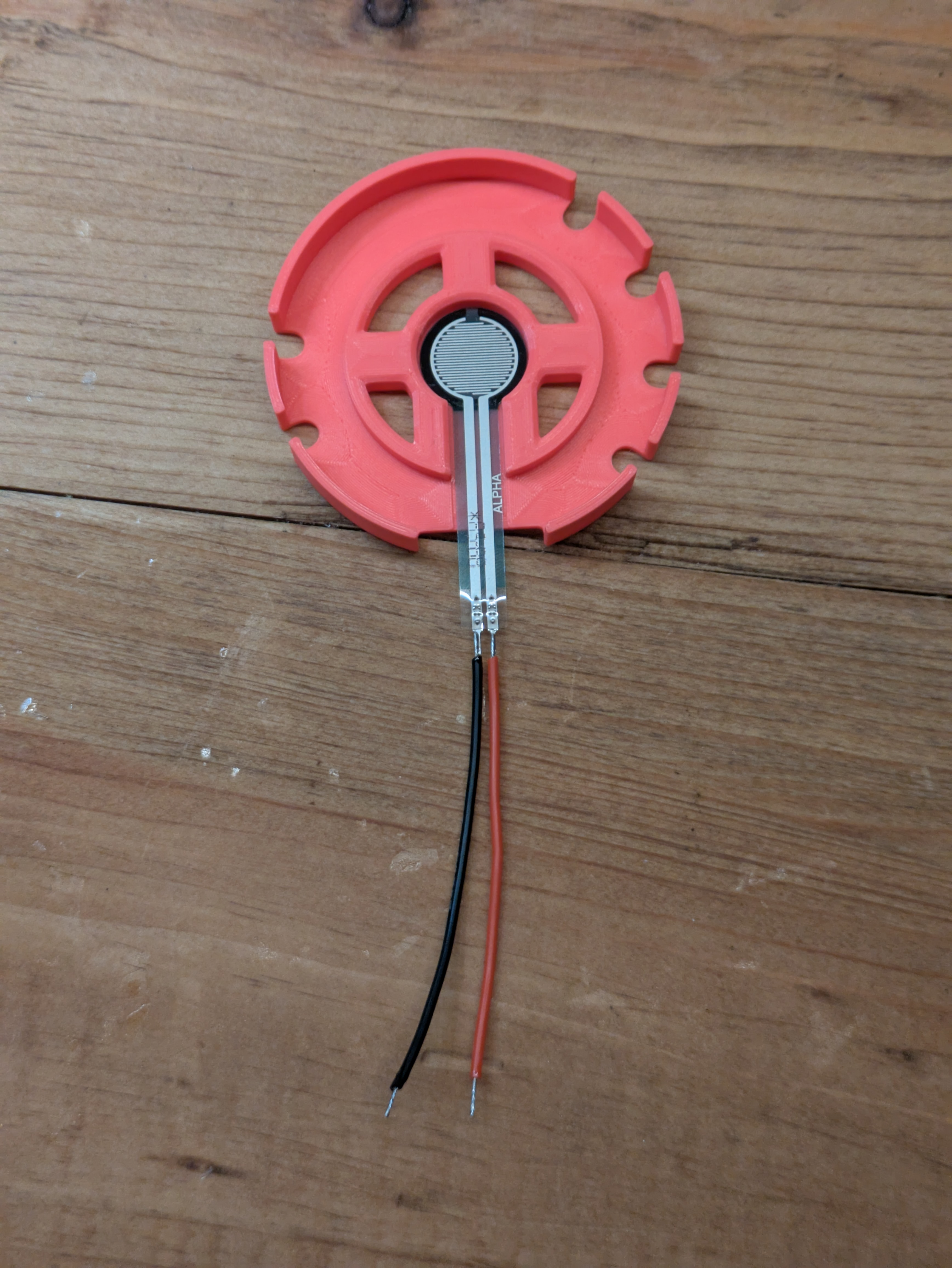
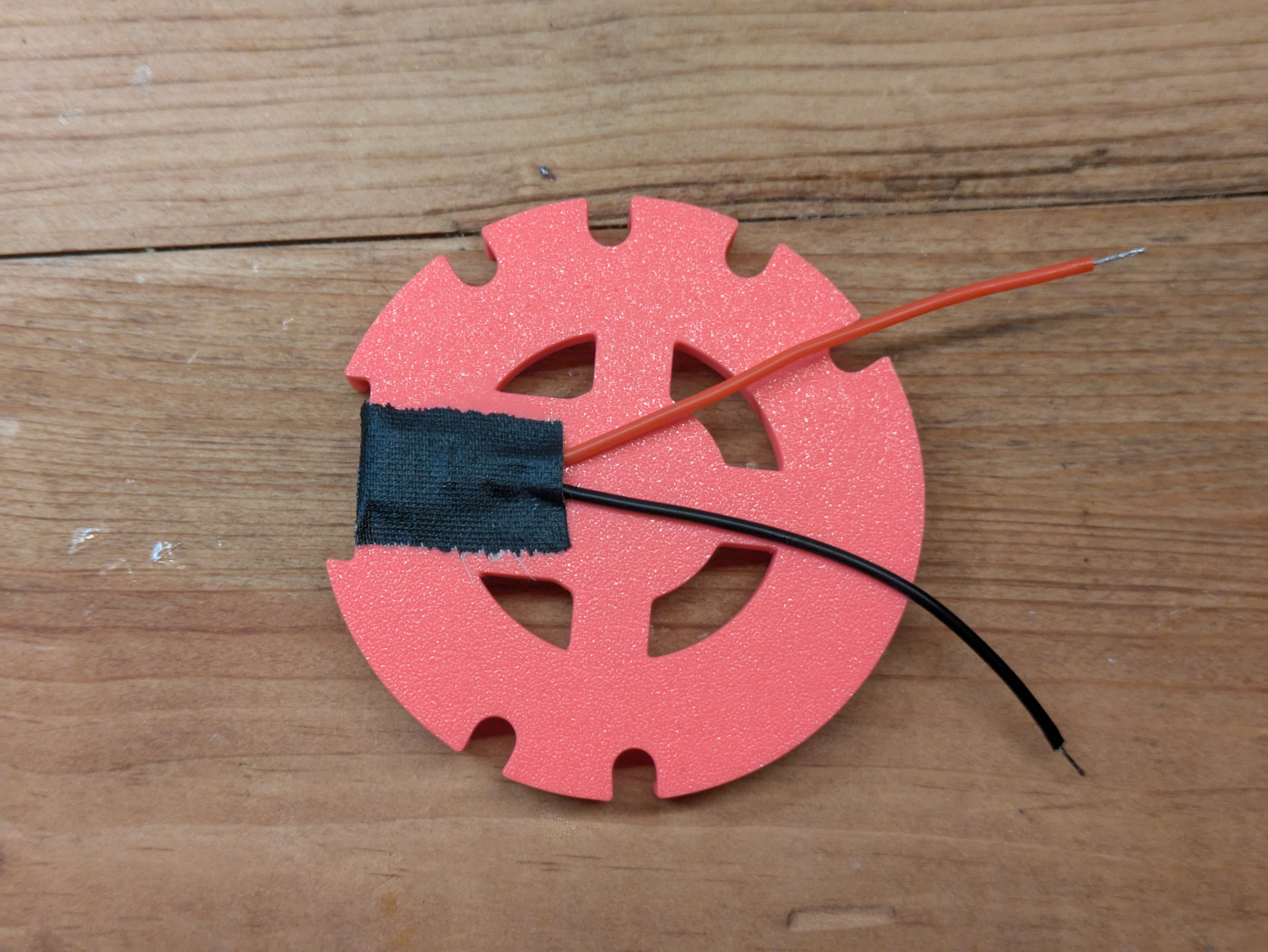
Turn the middle plate over and apply a small dab of glue in the indented area (I probably used too much here). Fold the FSR tail over and use a bit of tape to keep it pressed against the glue and to protect the exposed leads. You'll probably need something a bit stronger like duct tape or gaffer's tape to keep the plastic from springing back up.
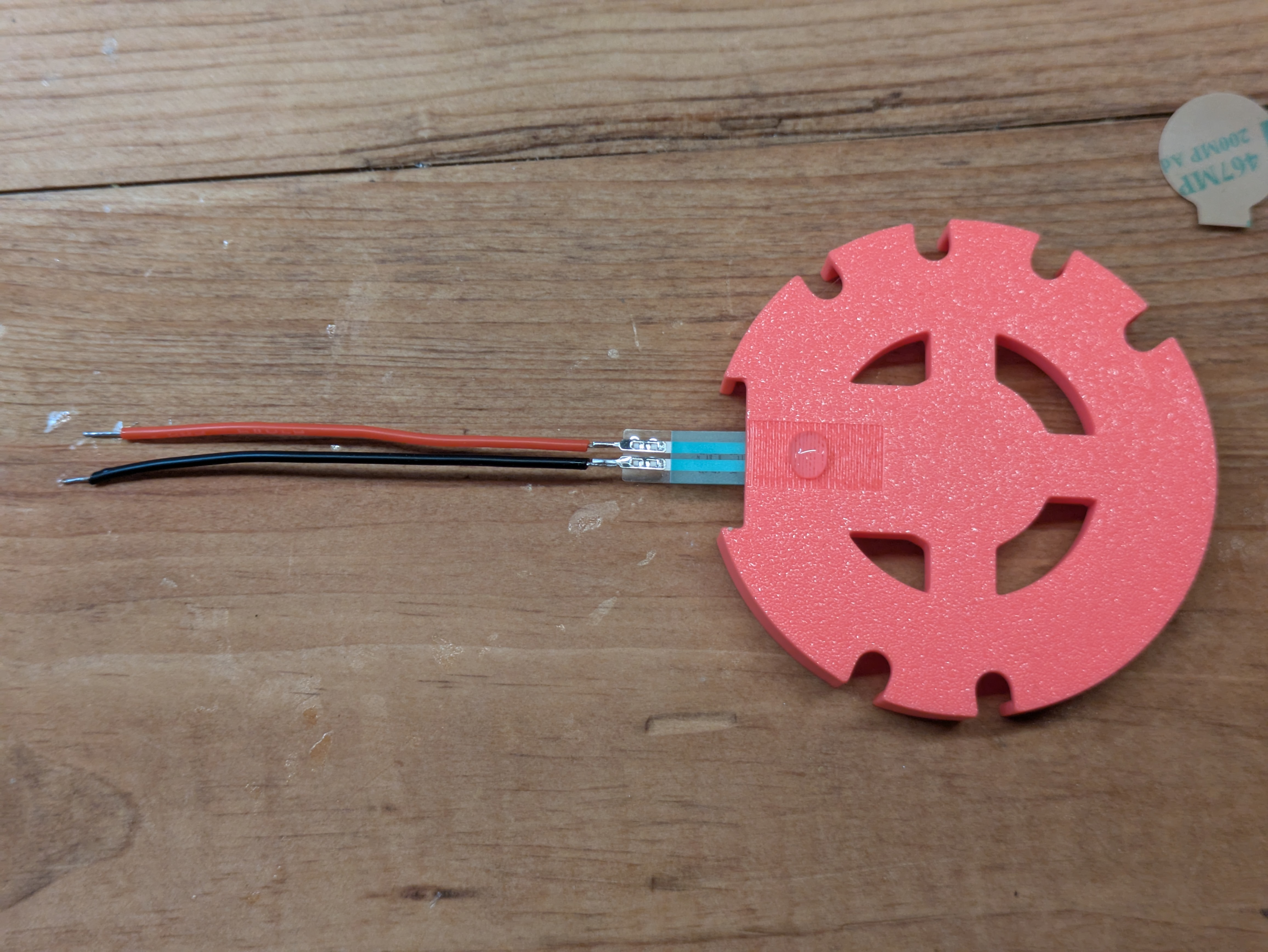
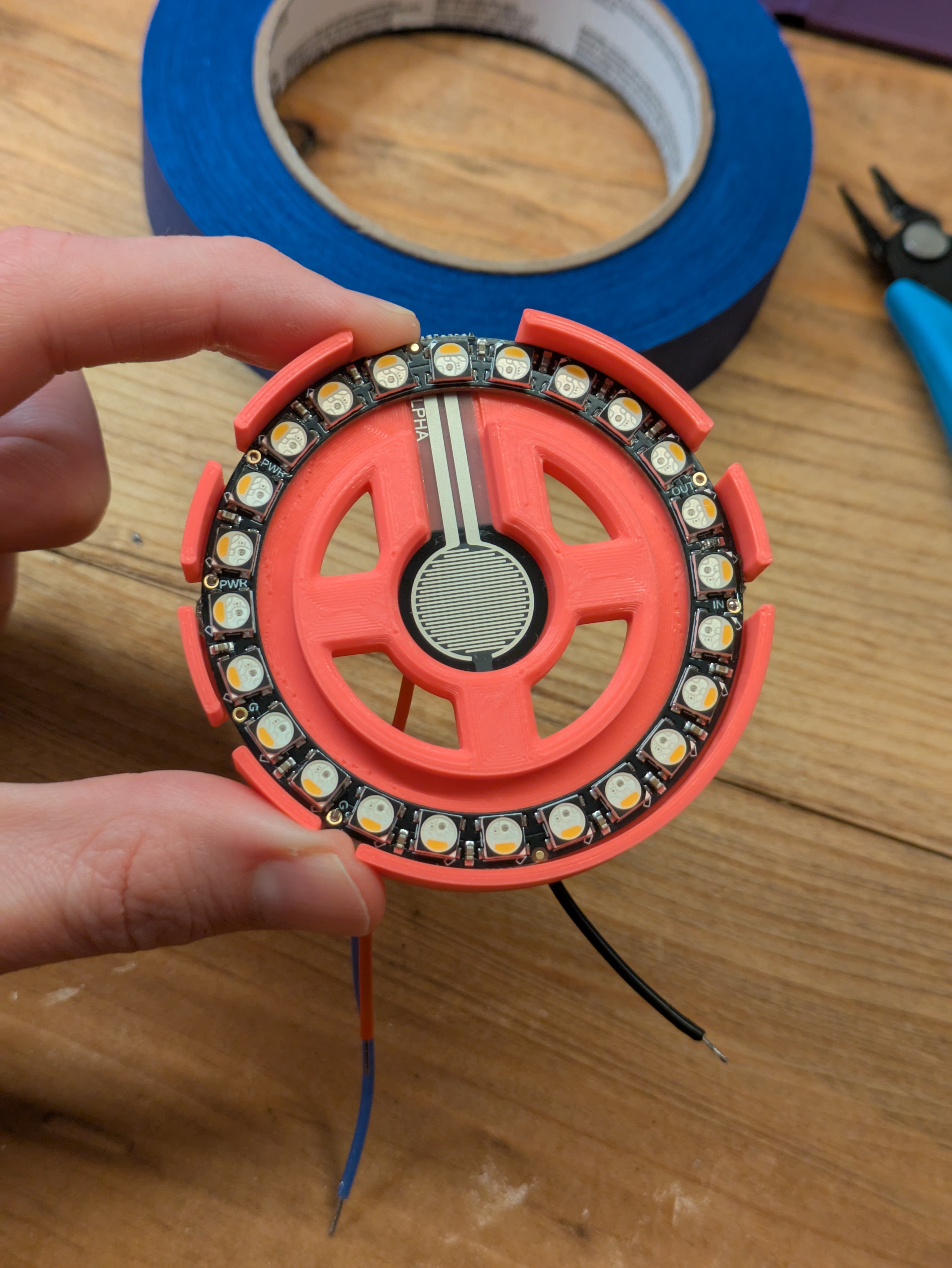
Turn the middle plate back over and place the NeoPixel ring inside, lining up with wires with the little cut outs. It should press fit in with a little force and stay in place without glue, but feel free to add some for extra security.
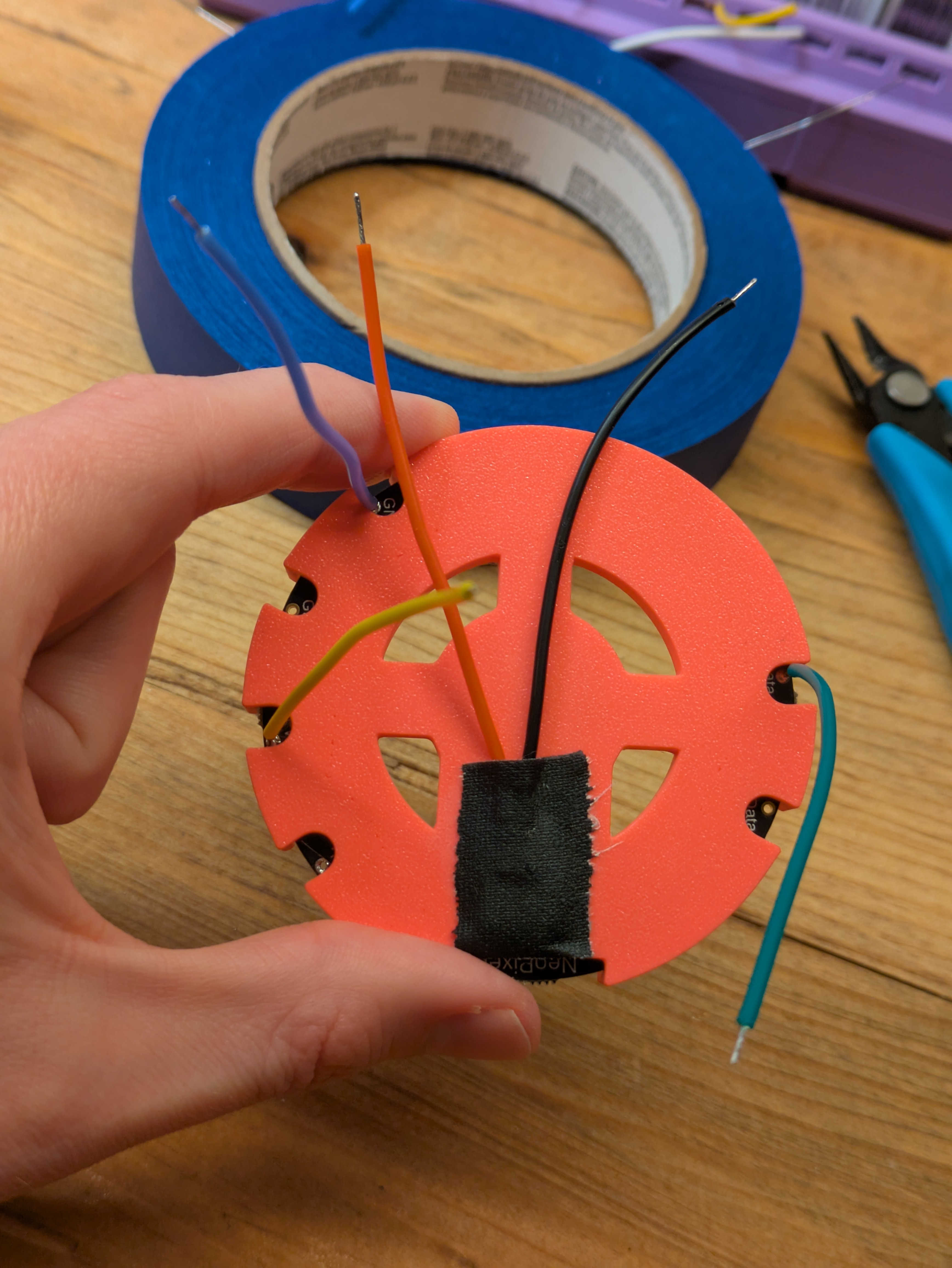
Step 6: Solder Everything to the Dev Board
Put your dev board facing up-side-down in your PCB clamp if you've got one. You might need to get a bit creative to get the wires from the middle plate to reach their pins. I used some spare parts to raise it up a bit. Place each wire in its respective pin hole:
| Wire | Pin |
| FSR 1 (black)(black) | 2 |
| FSR 2 (red) (red) | 3v3 |
| NeoPixel DIN (green) | 3 |
| NeoPixel PWR (yellow) | VCC |
| NeoPixel GND (blue) | GND |
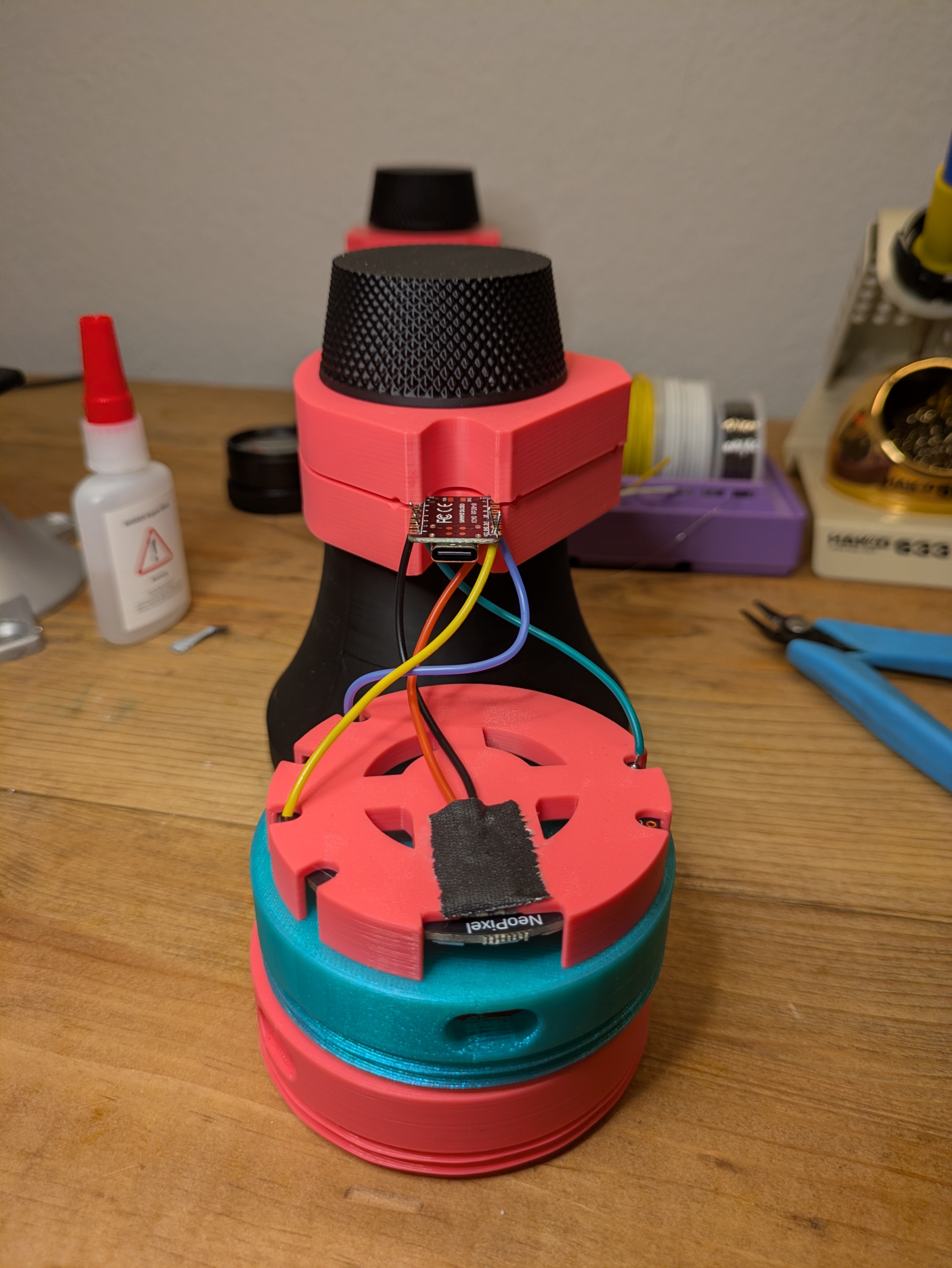
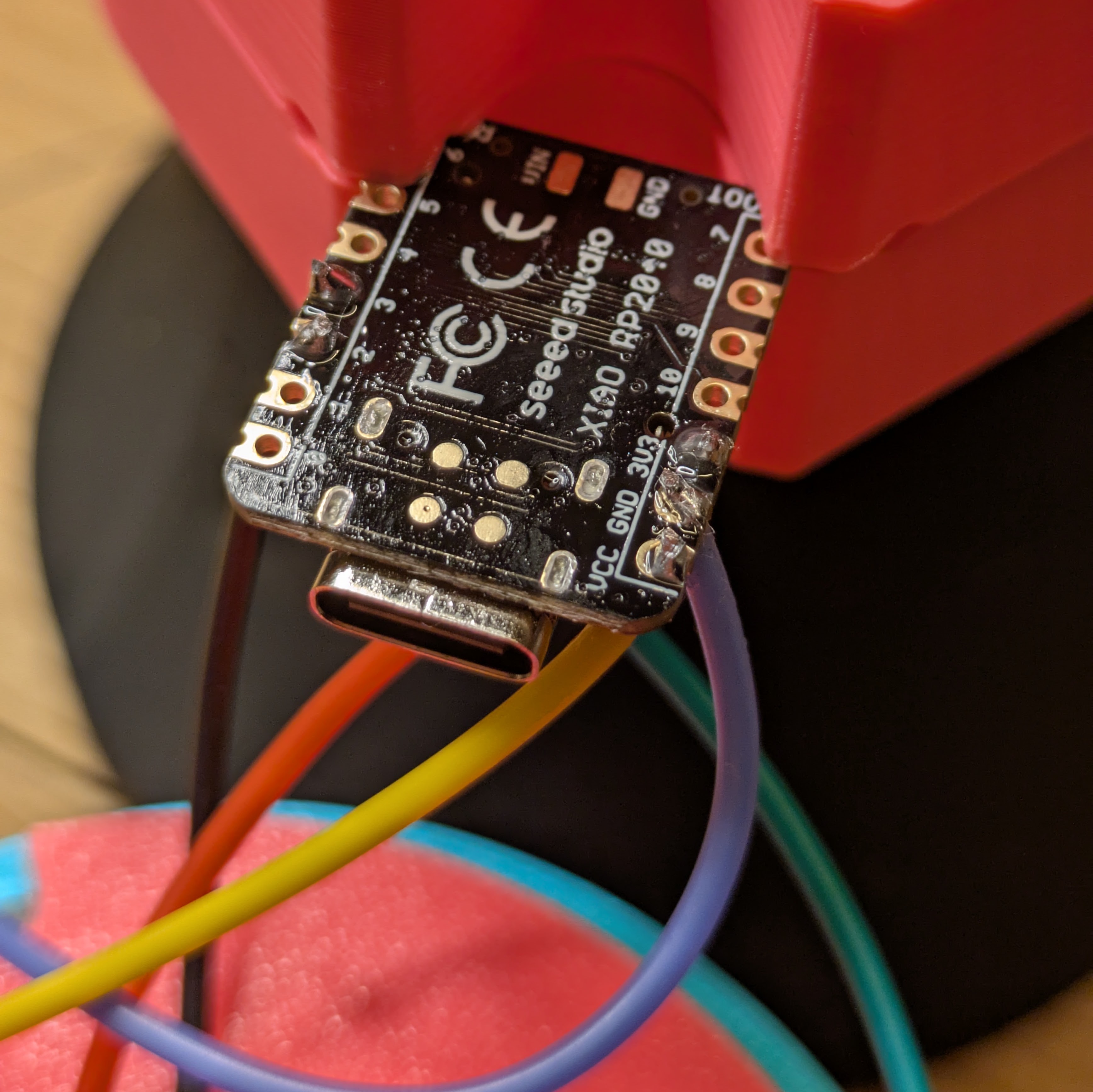
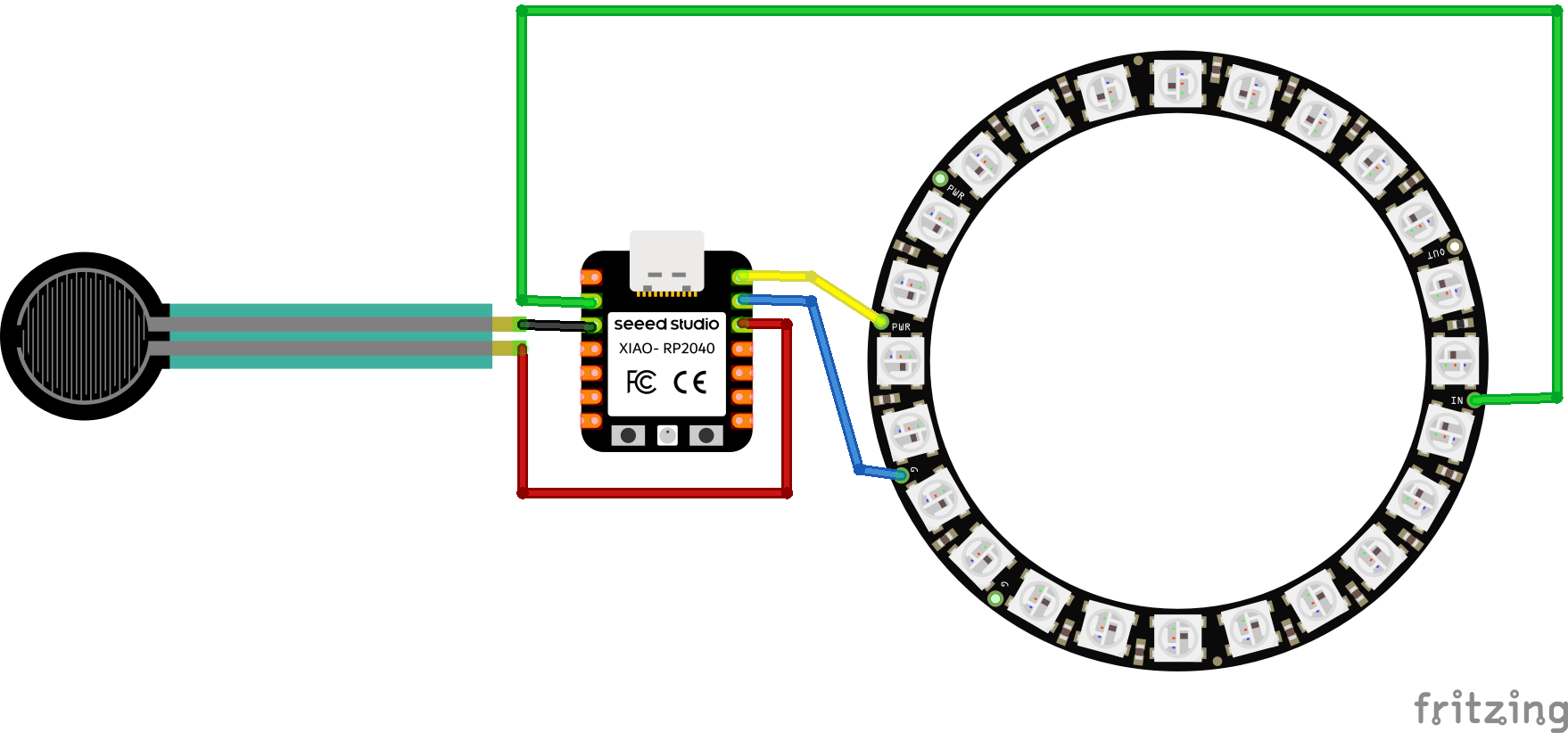
The pins are configurable in settings.toml, so don't need to use these exact pins if you don't want to. Before soldering, make sure the wires are coming out the top side of the dev board. If everything looks correct, solder all 5 wires into place.
Step 7: Finish Assembly
Take your dev board and snap it into the holder in the bottom section. Depending on the material you used, it might be difficult to snap it into place. Try giving it a good amount of force, but if you just can't make it work, you may need to print it again and set the XY Size Compensation setting to a small negative value.
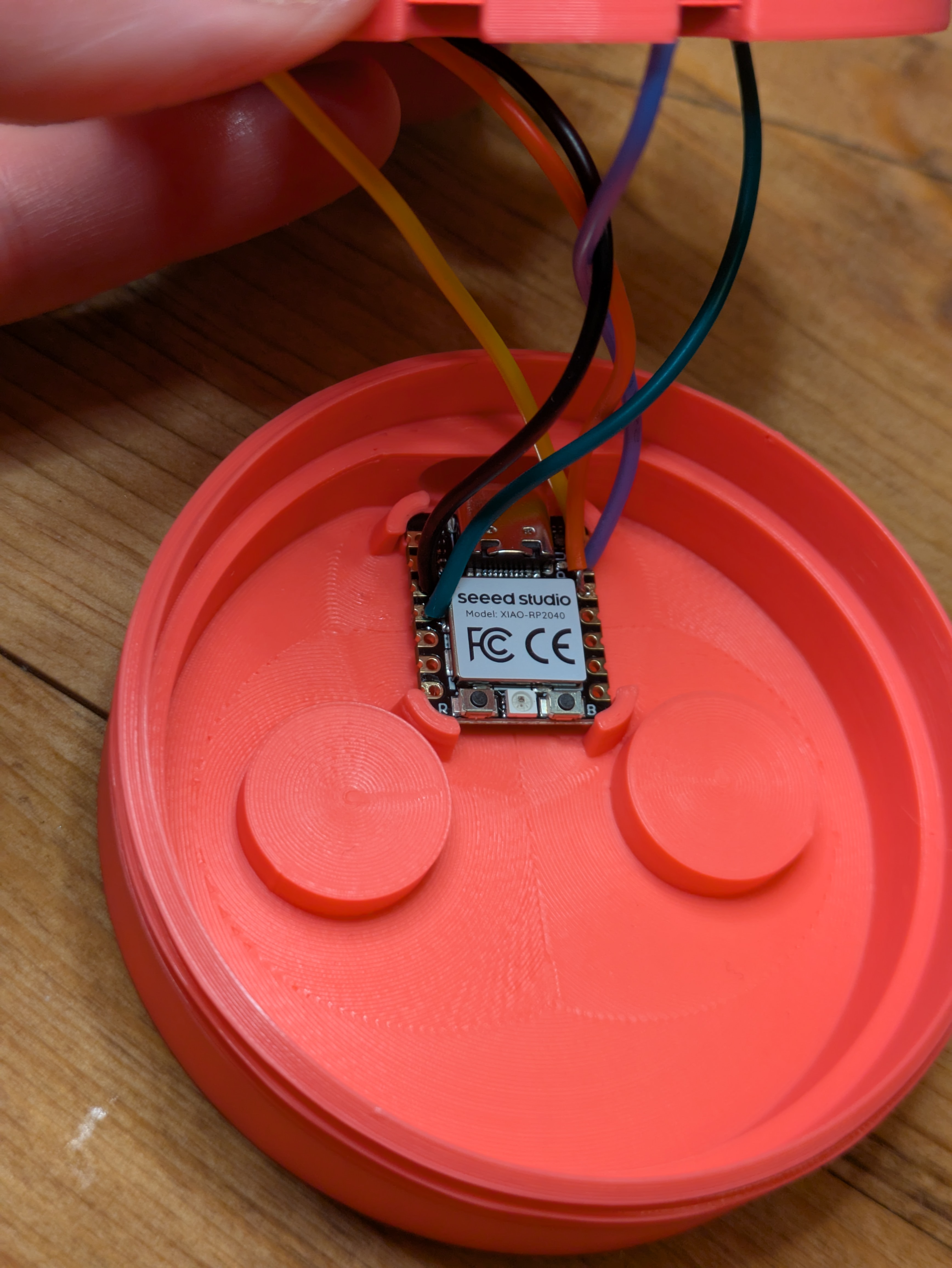
Place the middle plate into the bottom section. Try to arrange things so that the wires blocking the opening in the middle plate.
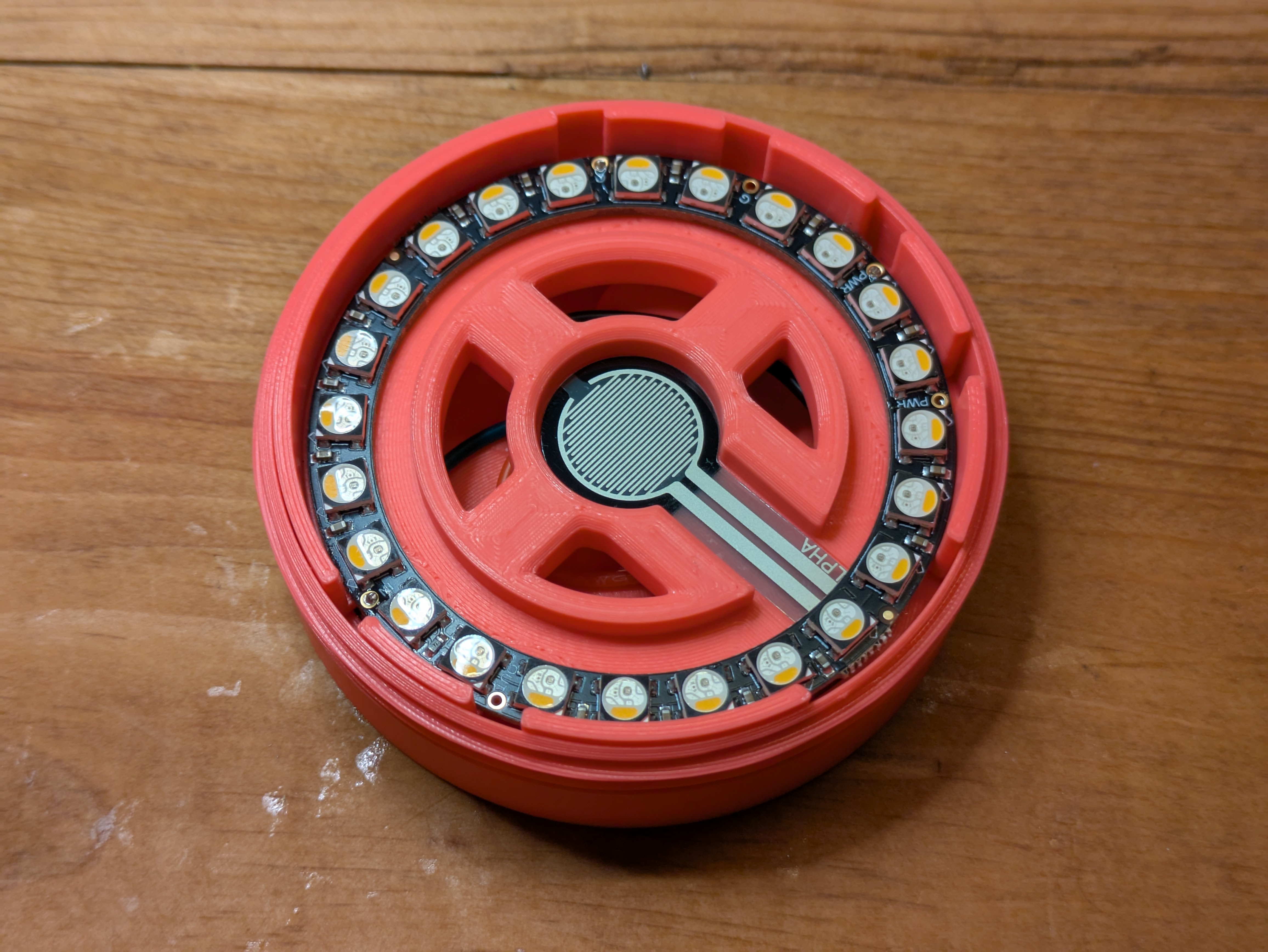
Put a dab of glue in the middle section of the pressure plate and then insert the face plate.
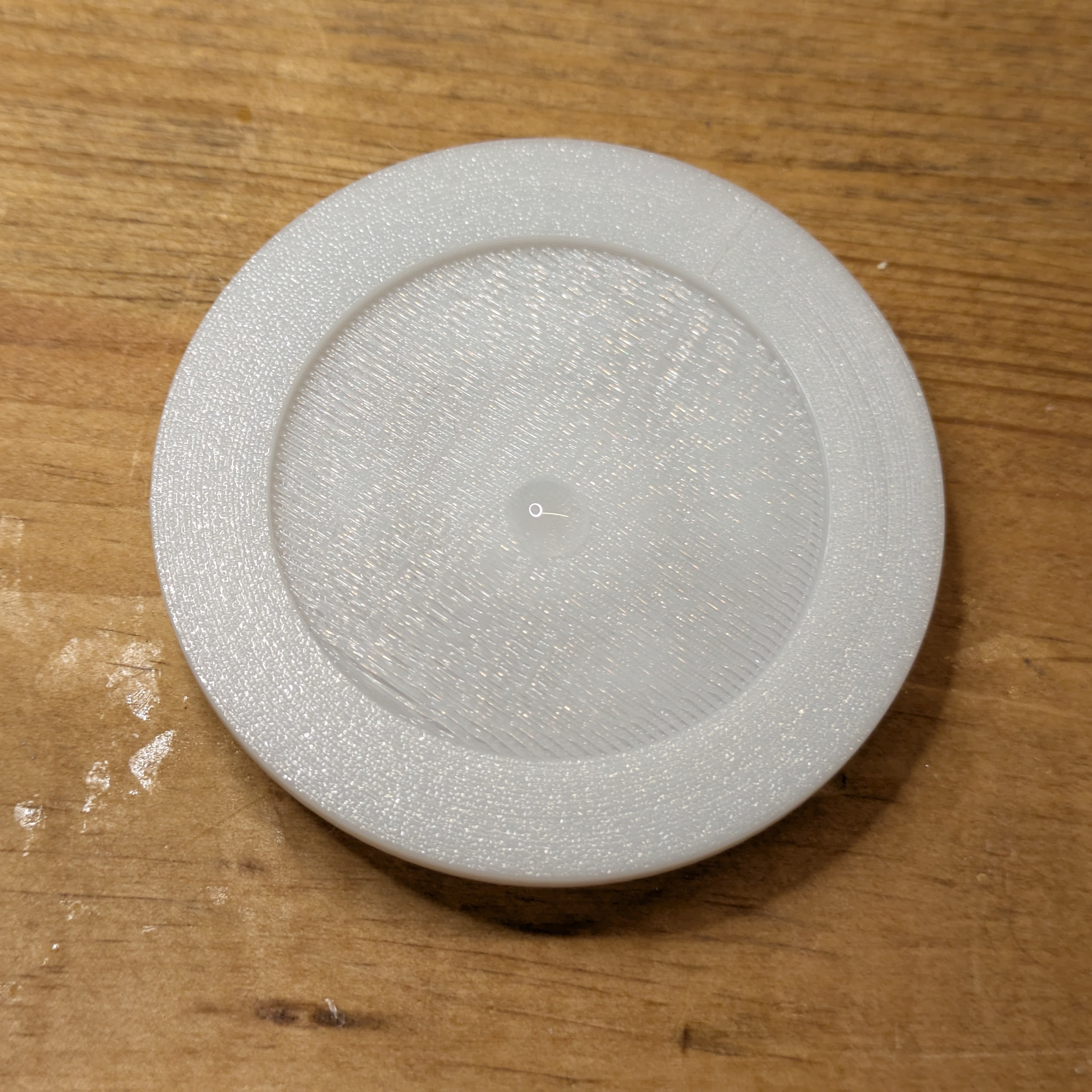
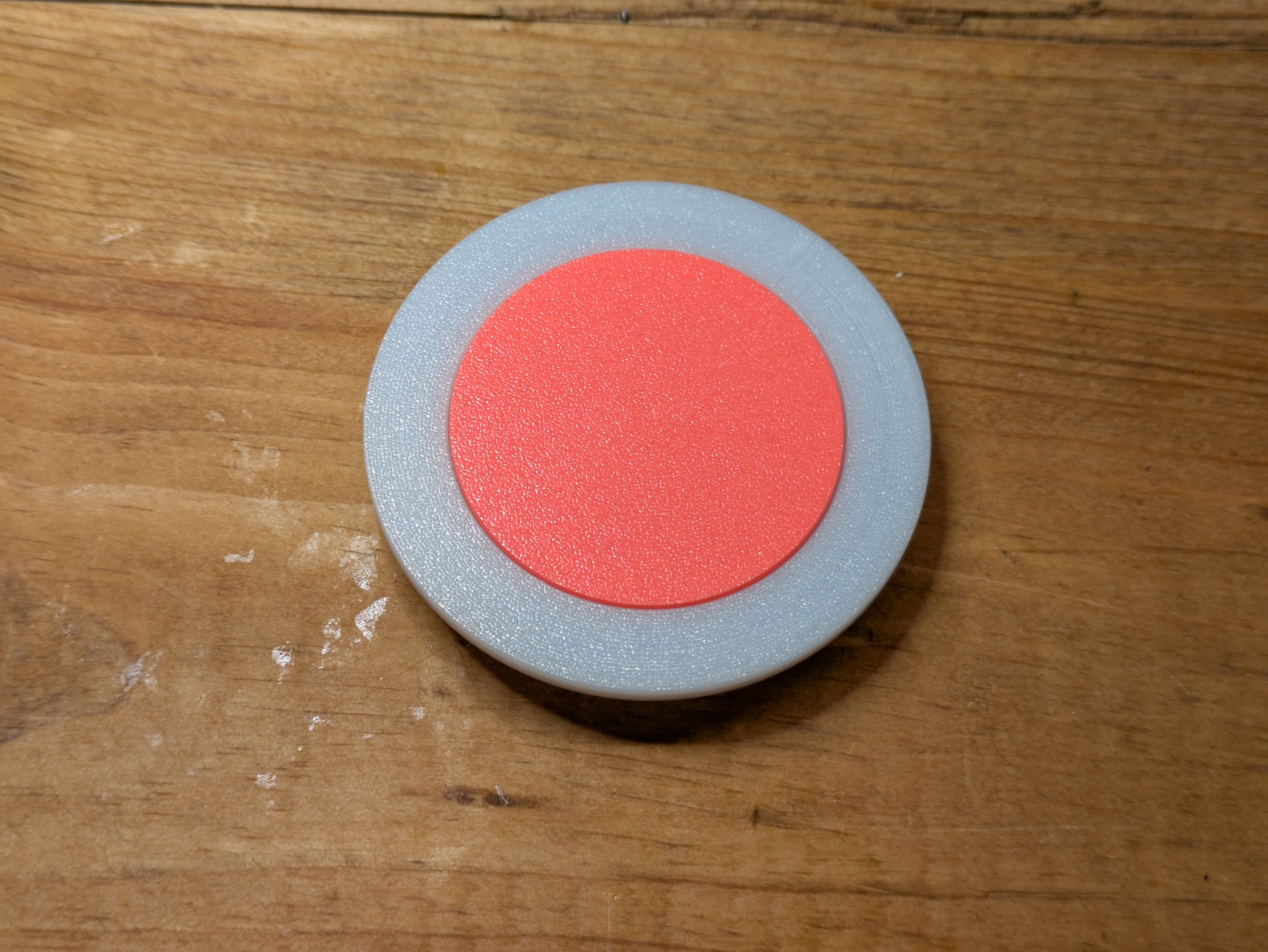
Insert the pressure plate into the middle plate and ensure nothing is getting in the way of it sitting flat on the sensor.
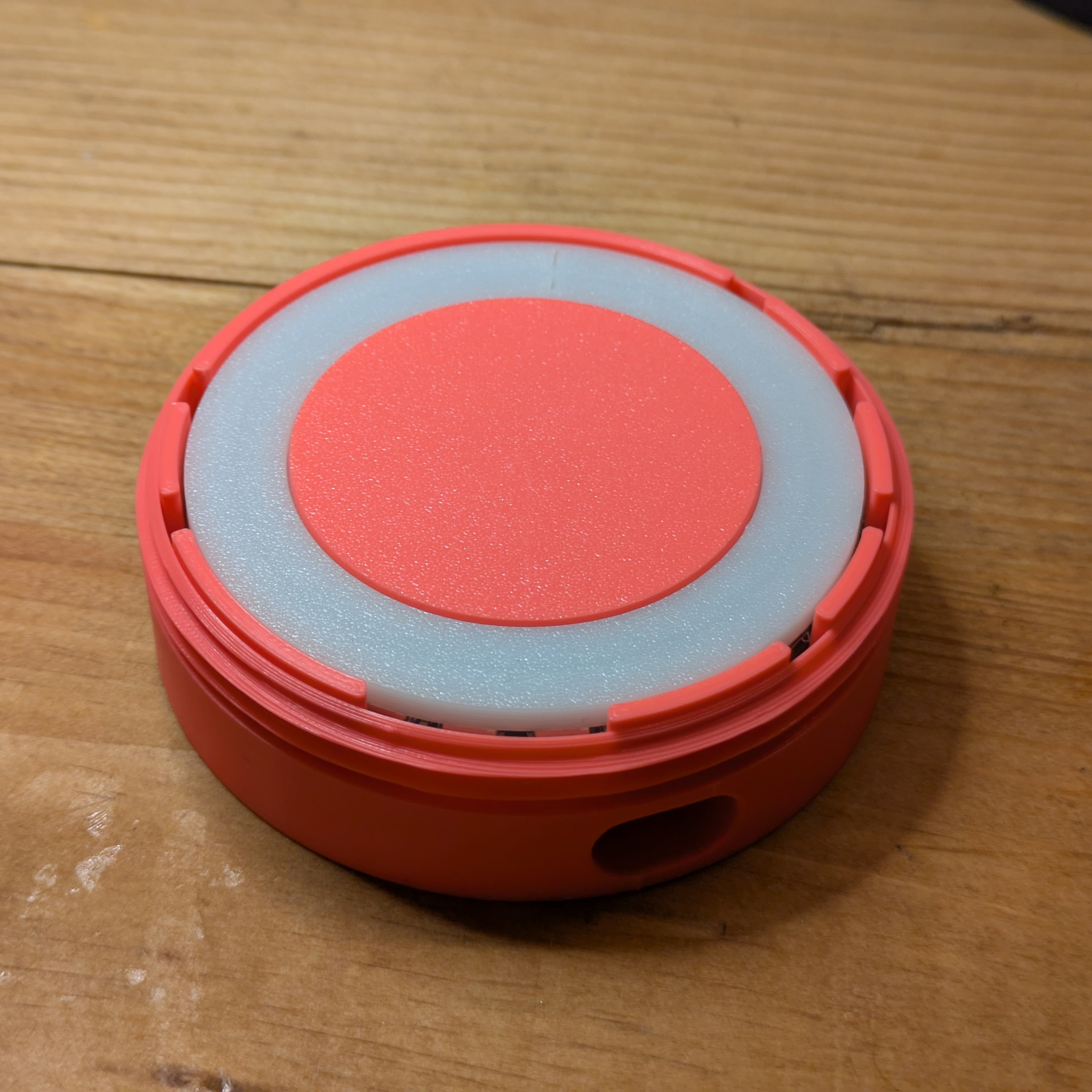
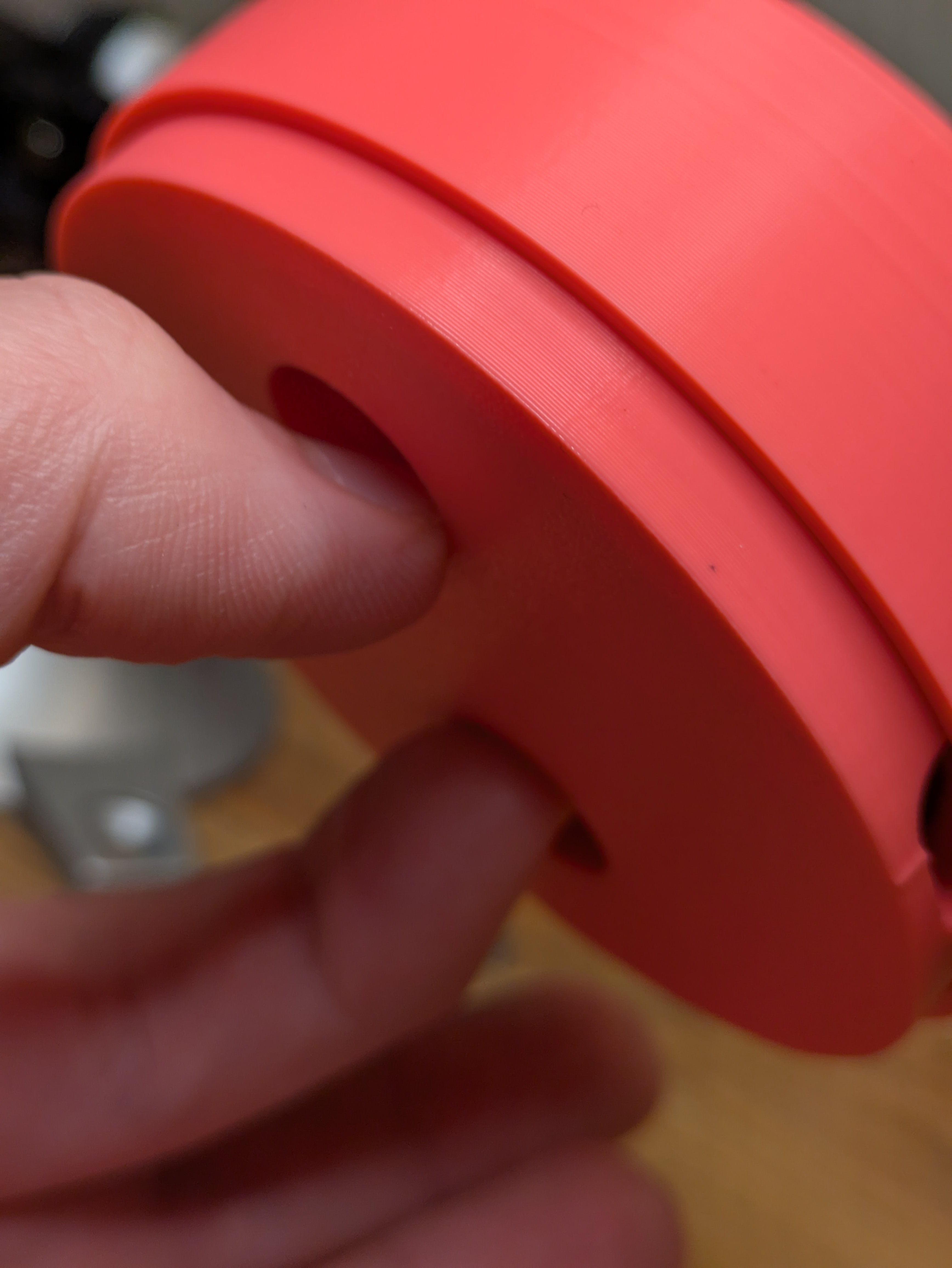
Pinch the two holes in the bottom of the bottom section and screw on the top cover.
The little cutout in the top cover should line up with the window for the USB-C port. If it doesn't, try unscrewing it a little and see if it lines up without becoming too loose. Let me know if it's still not lining up and I'll upload an alternative version with the cutout in a different position.
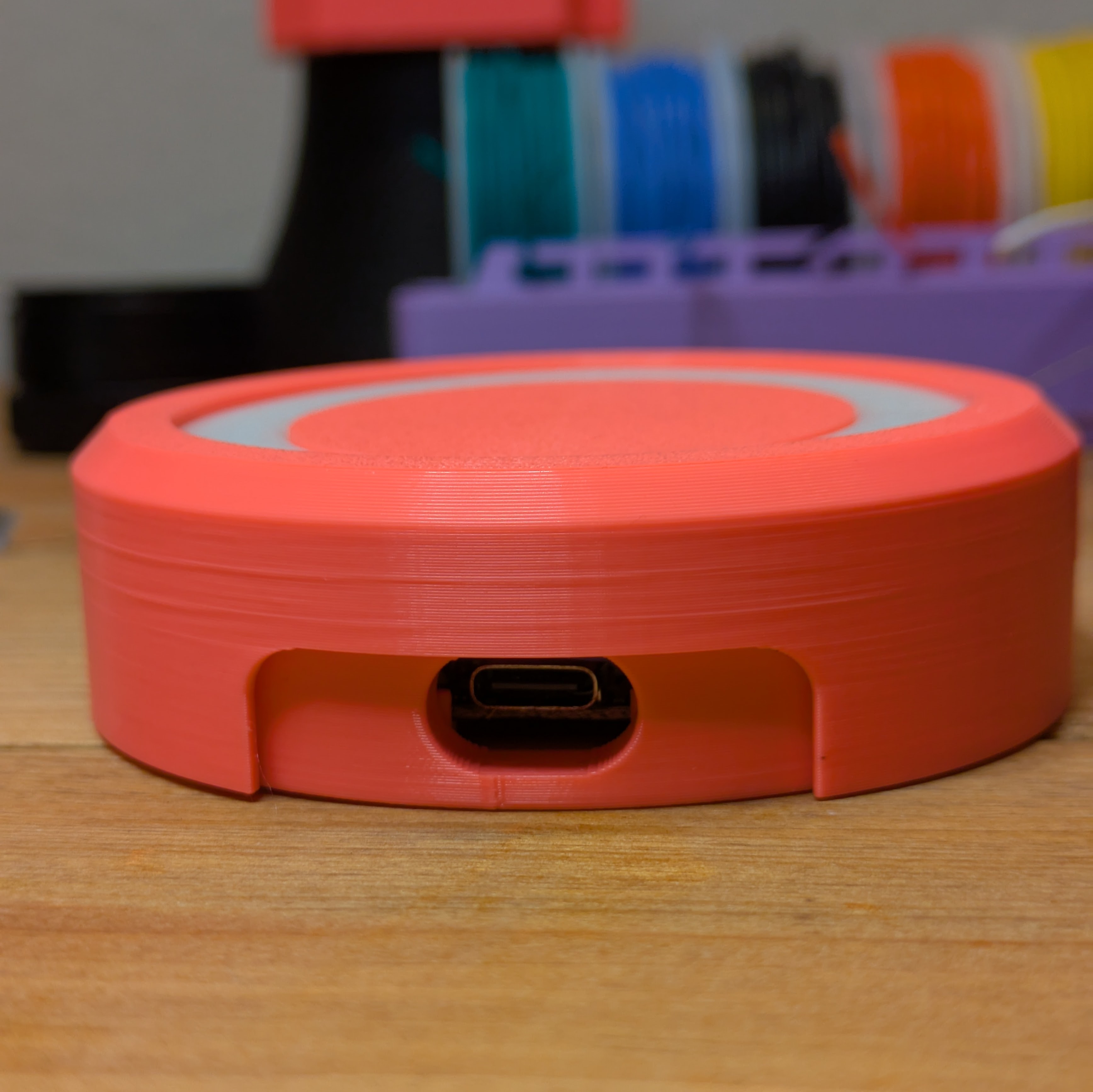
Shake it up! Shake the device a bit and you should be able to hear the pressure plate move around a bit. If it doesn't, you may need to file off a portion of it where there's too much friction or reprint it with the XY Size Compensation setting set to a small negative value.
Step 8: Plug It In and Test It Out!
Plug your pill reminder into your power supply and it should light up right away. After waiting for a few seconds, try putting a small amount of firm pressure on the pressure plate and you should see the lights begin to dim. They should go all the way out after about half a second.
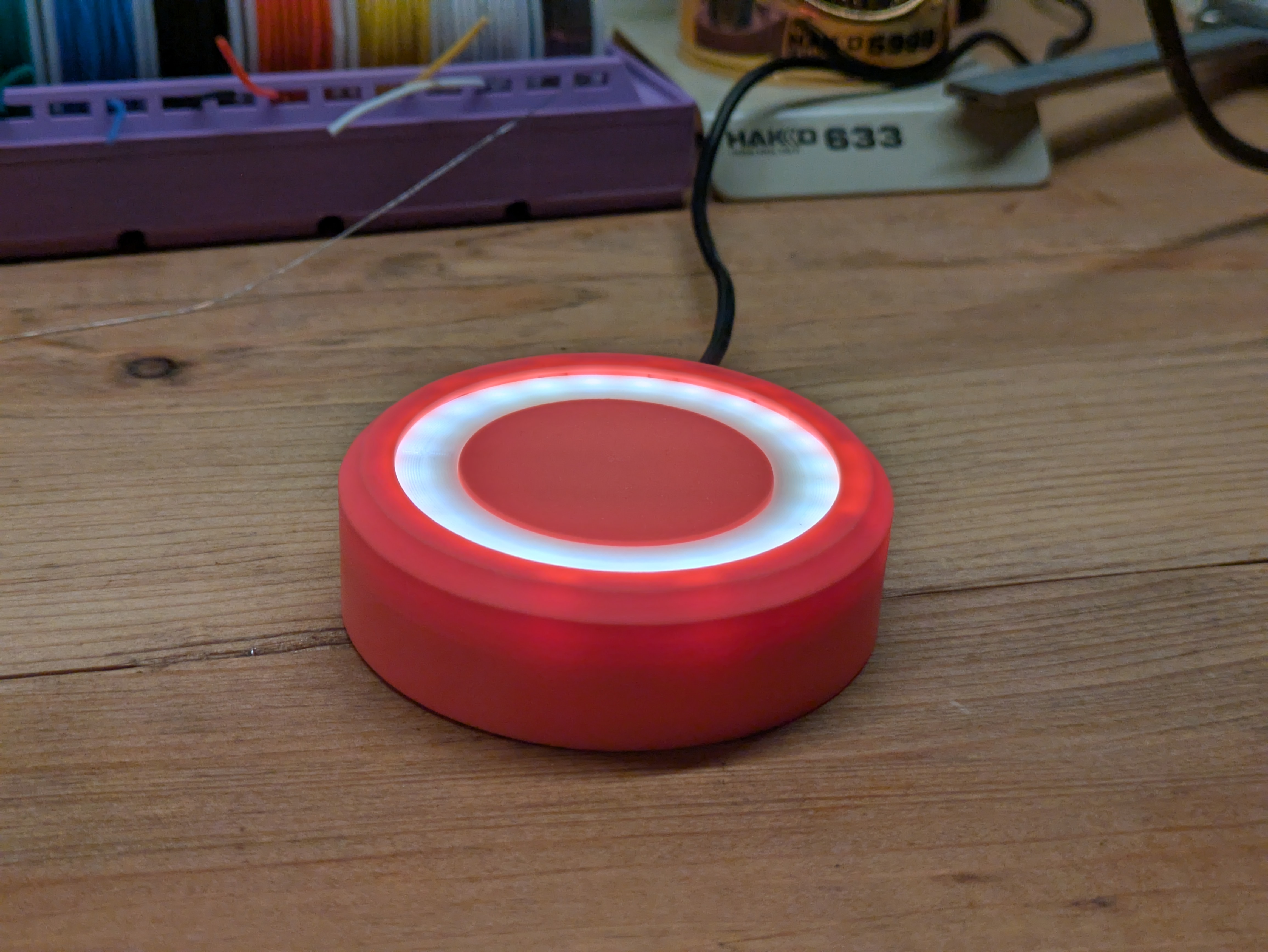
Your pill reminder is finished! Congratulations! Please like and share a picture of your build. I'd love to see what you make :)