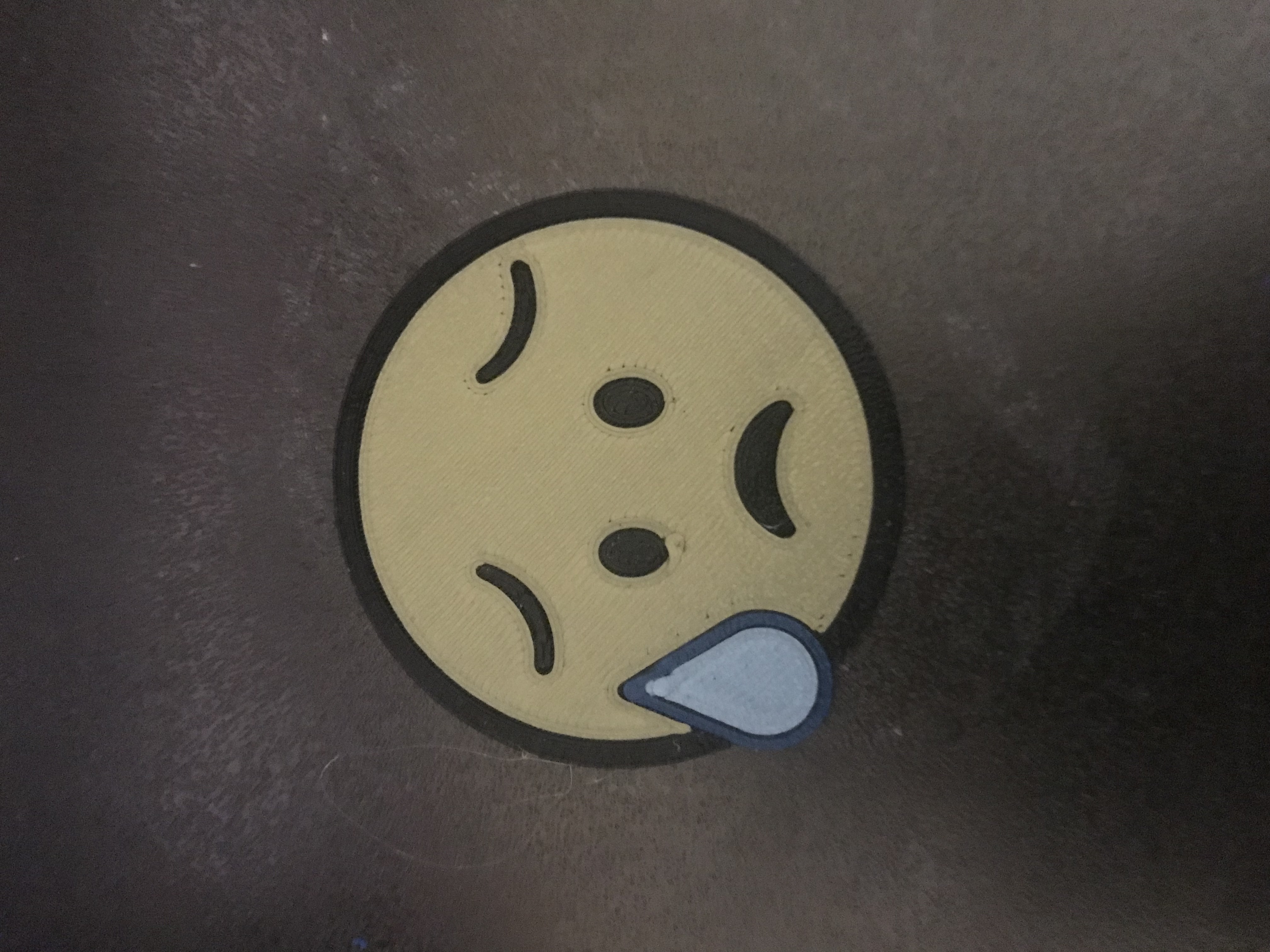
Embedded Emojis - Merged Gcode
We calculate the final price from your selected file. You review and accept it before payment.
Saved on this device.
Model information
- Source
- Printables
- Category
- 2D Plates & Logos
- License
- Creative Commons — Attribution — Noncommercial
These emoji tokens use special gcode and dont use much filament. Enjoy.
A single extruder is used to make an embedded, multi-color design that exists only on one layer of filament.
Update: turns out I didn't merge the kiss emoji correctly. It turns the temperatures off on accident. Hence my thought to be broken hotend. It's fixed now.
Here's the process I've gone through to make these:
To design the emoji:
1. Create a 2d-image in Sketchup.
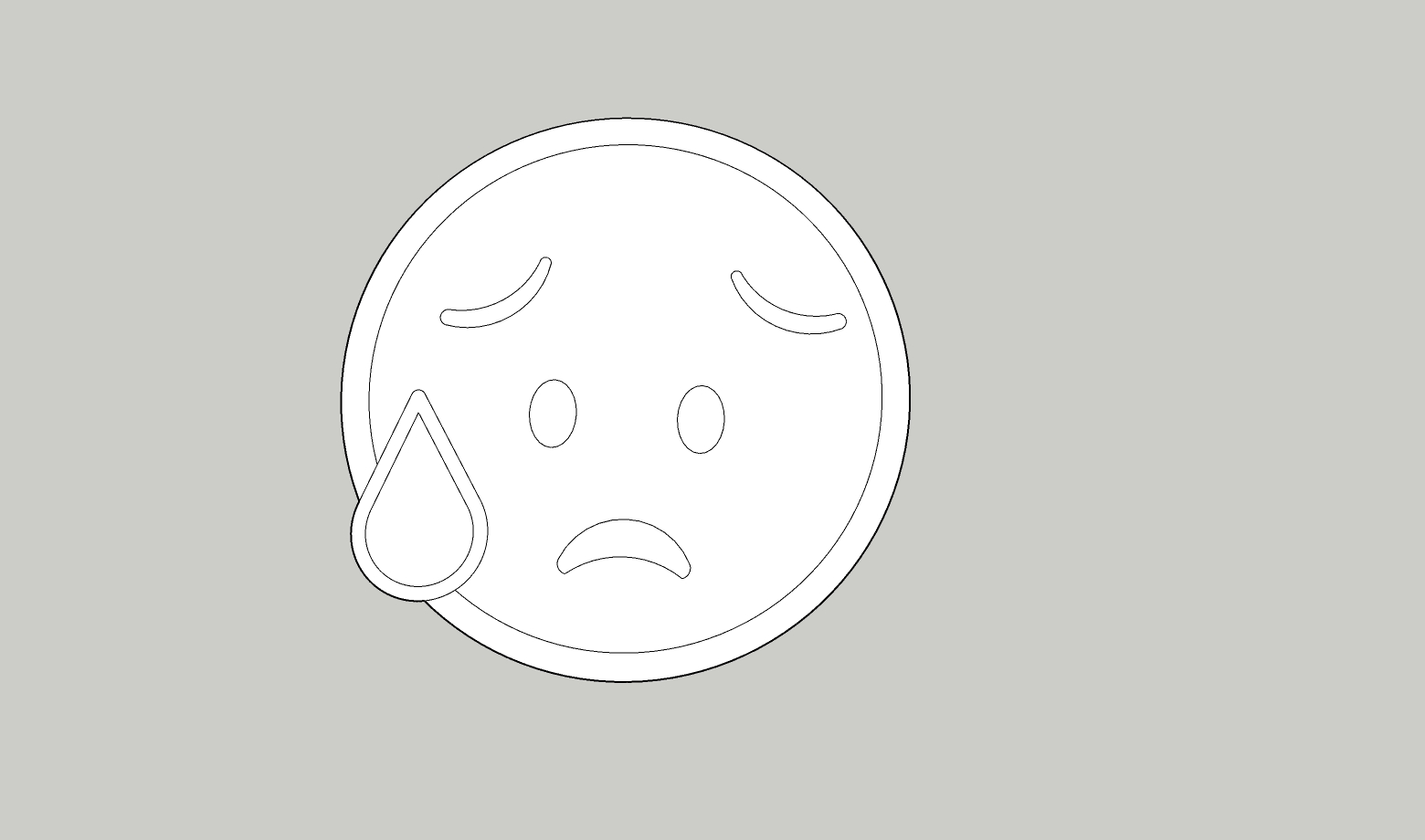
2. Group each color.

3. Give each group a depth of 0.20mm (layer height).
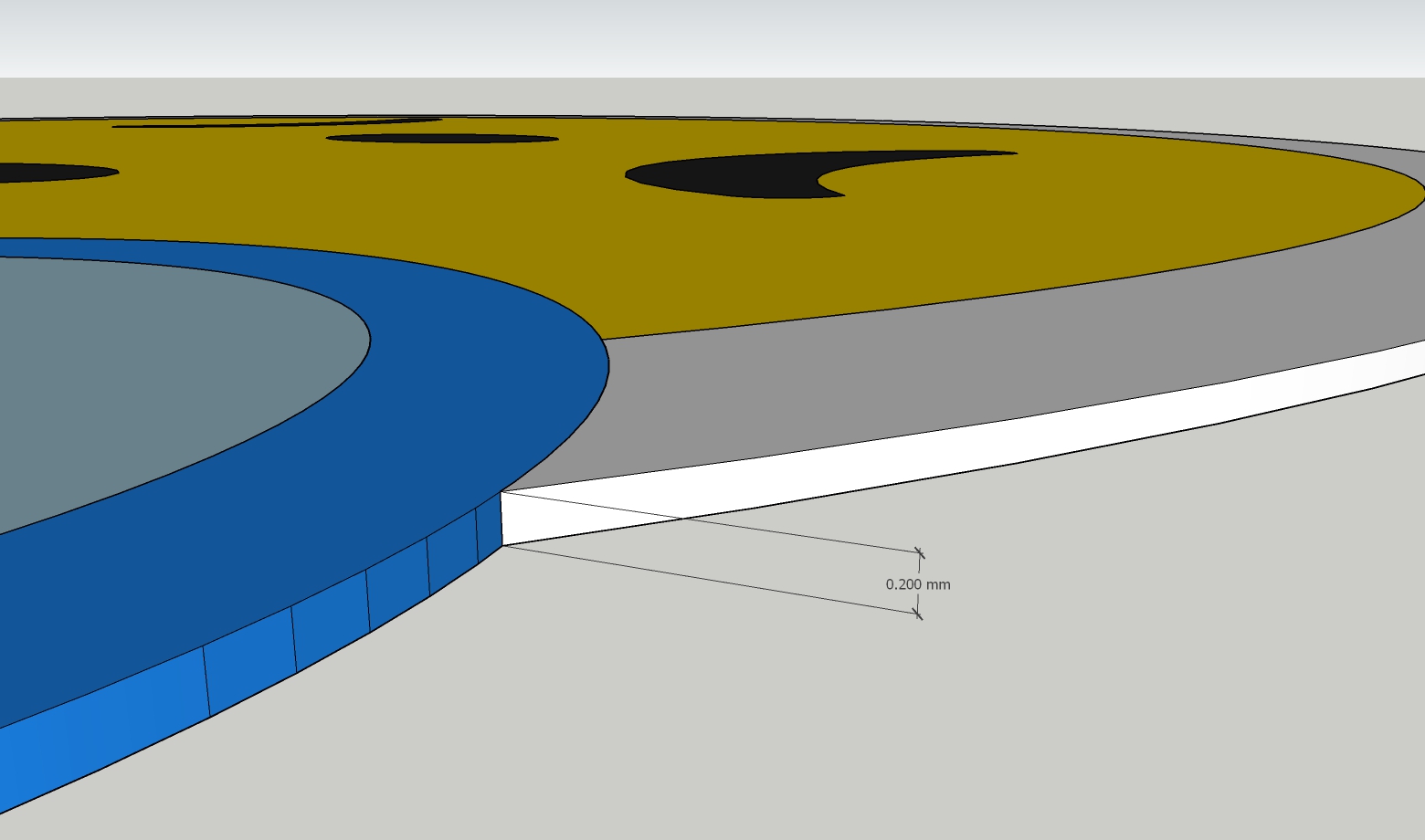
4. Add a thicker base color for the backing.
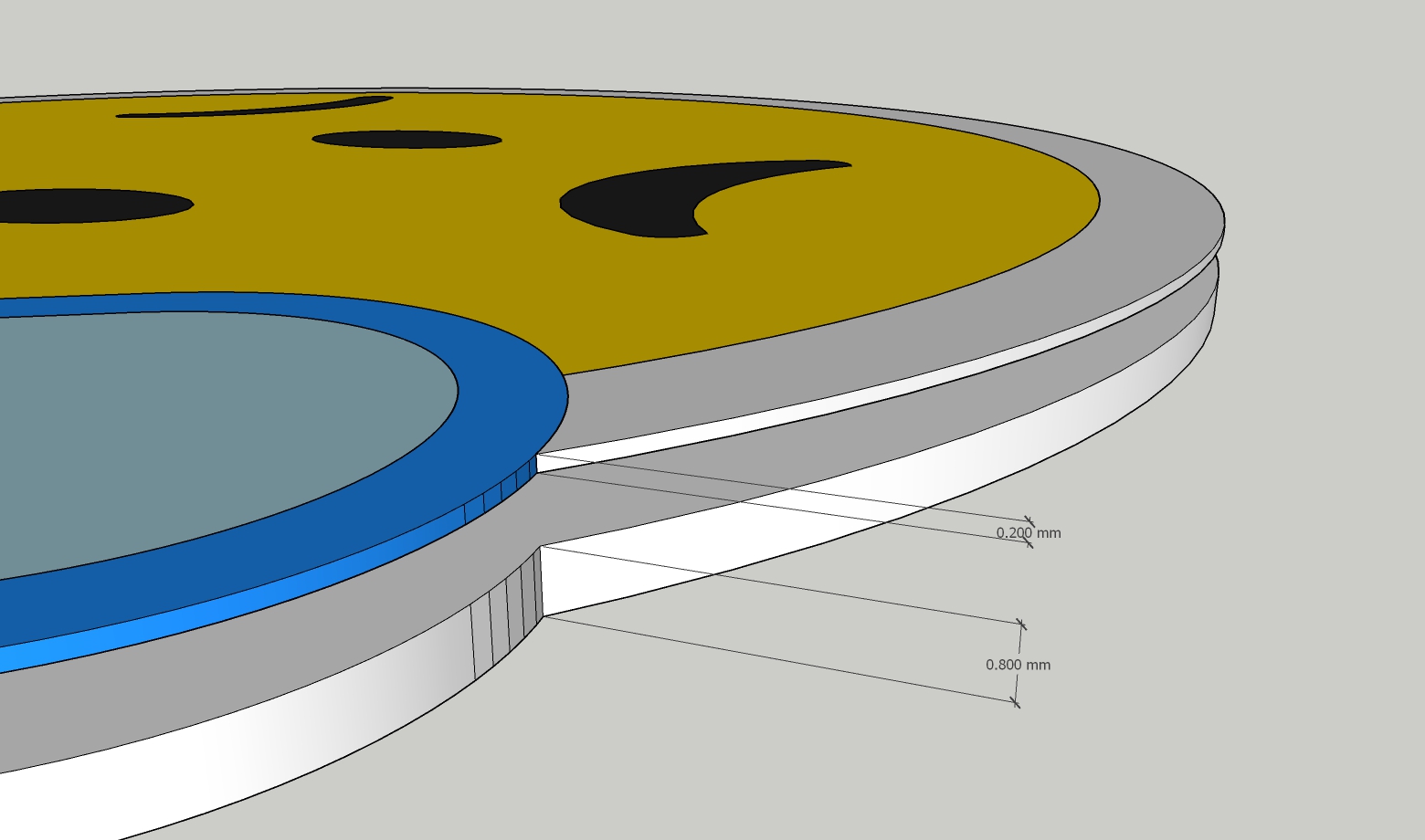
5. Export the whole object as a single stl. We'll split the colors up in the slicer.
Now I move over to Prusa Slicer to create the base gcode:
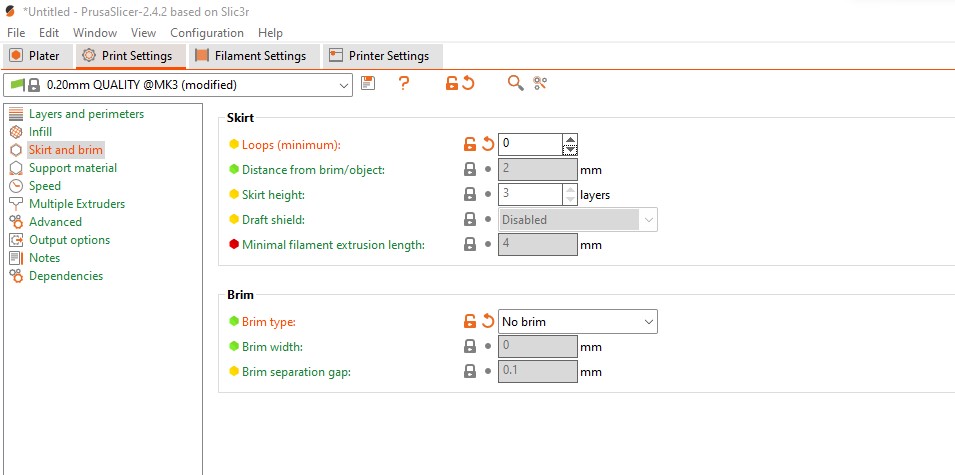
1. Turn off the brim and Loops
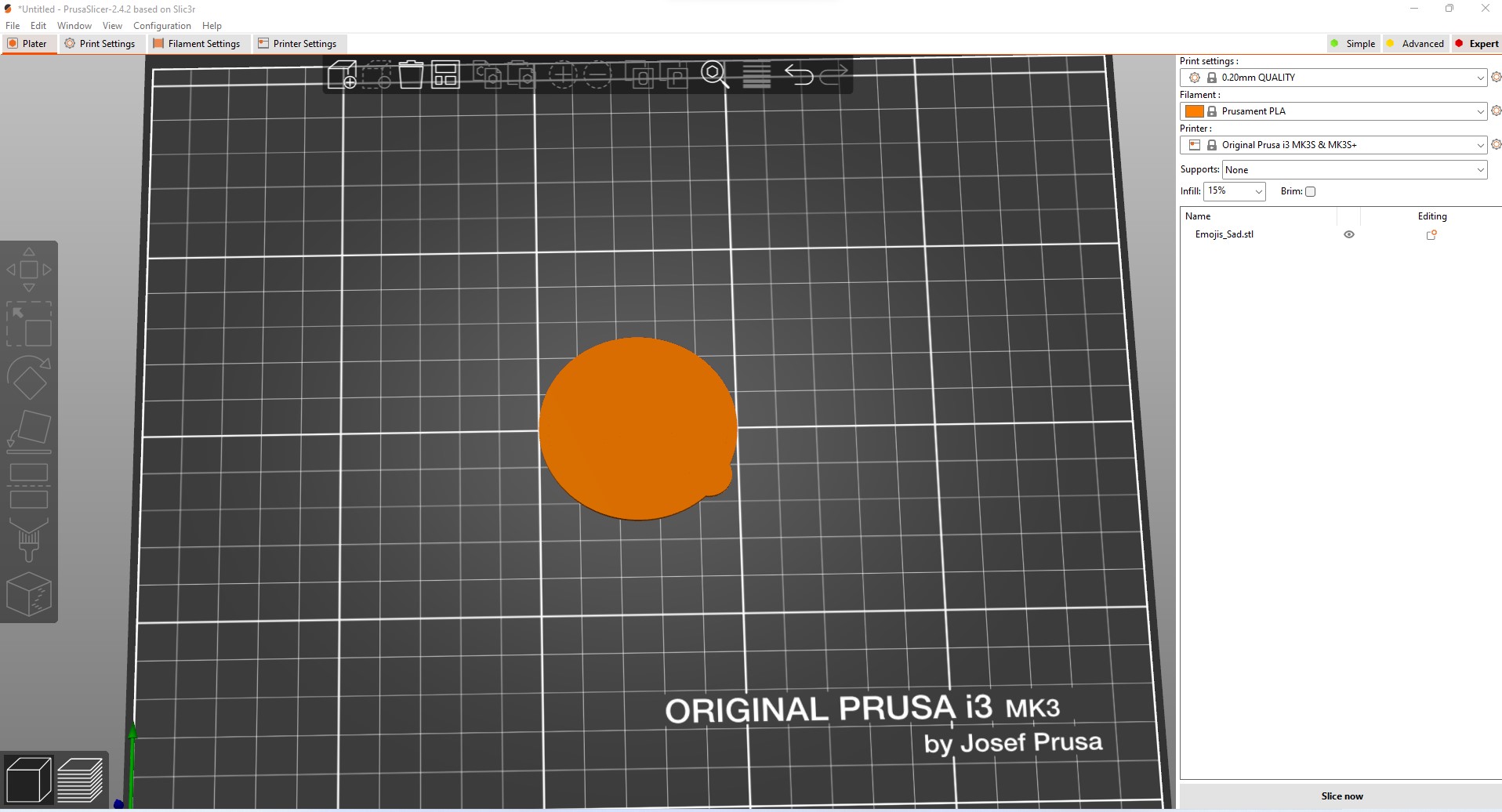
2. Import the stl and place it face down with the backing facing upward.
3. Split into objects and merge the colors
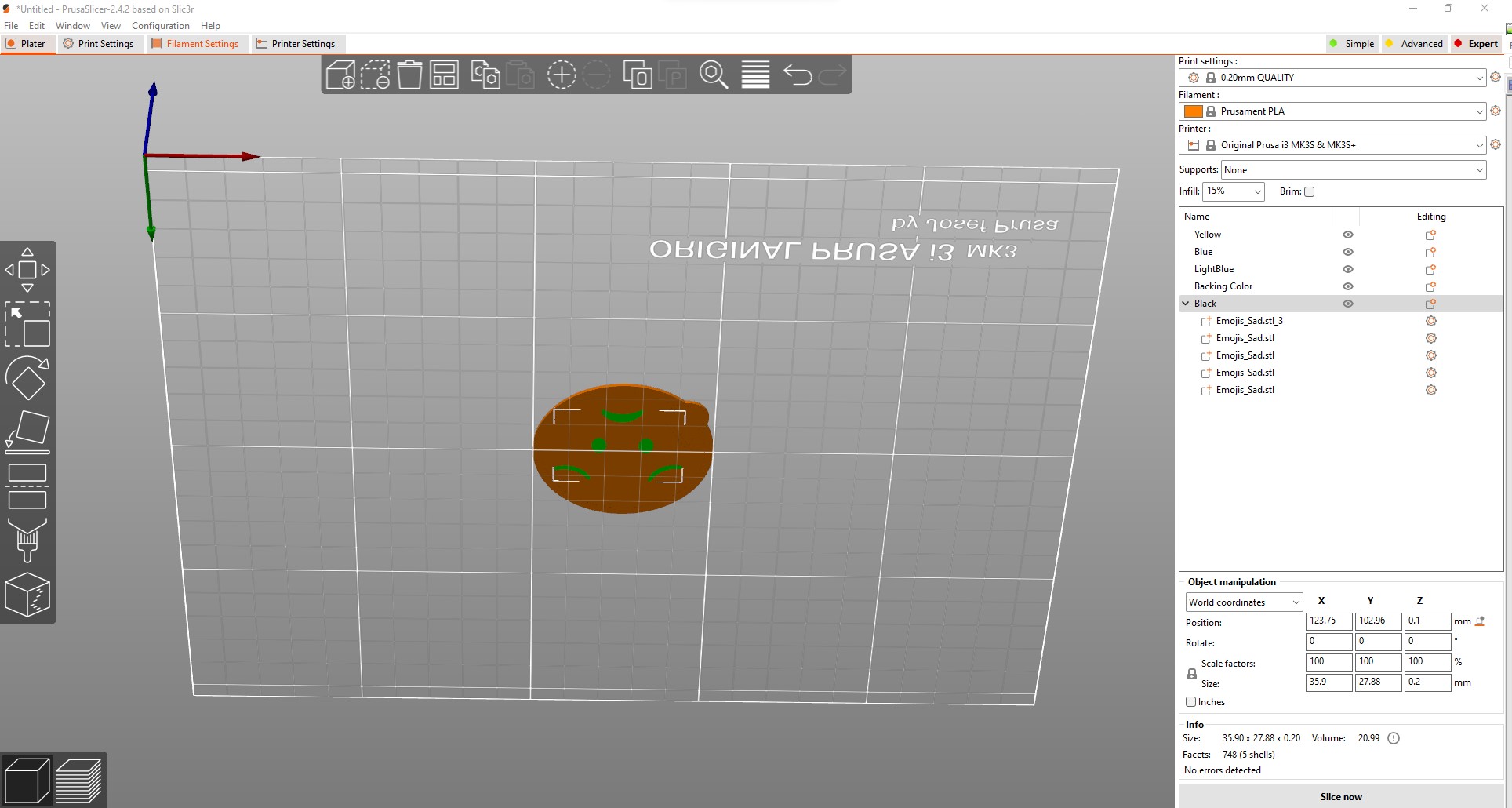
4. Slice each color by utilizing the "visable" selector. Make all but one color visable and then hit Slice.
5. Export each sliced color to a file.
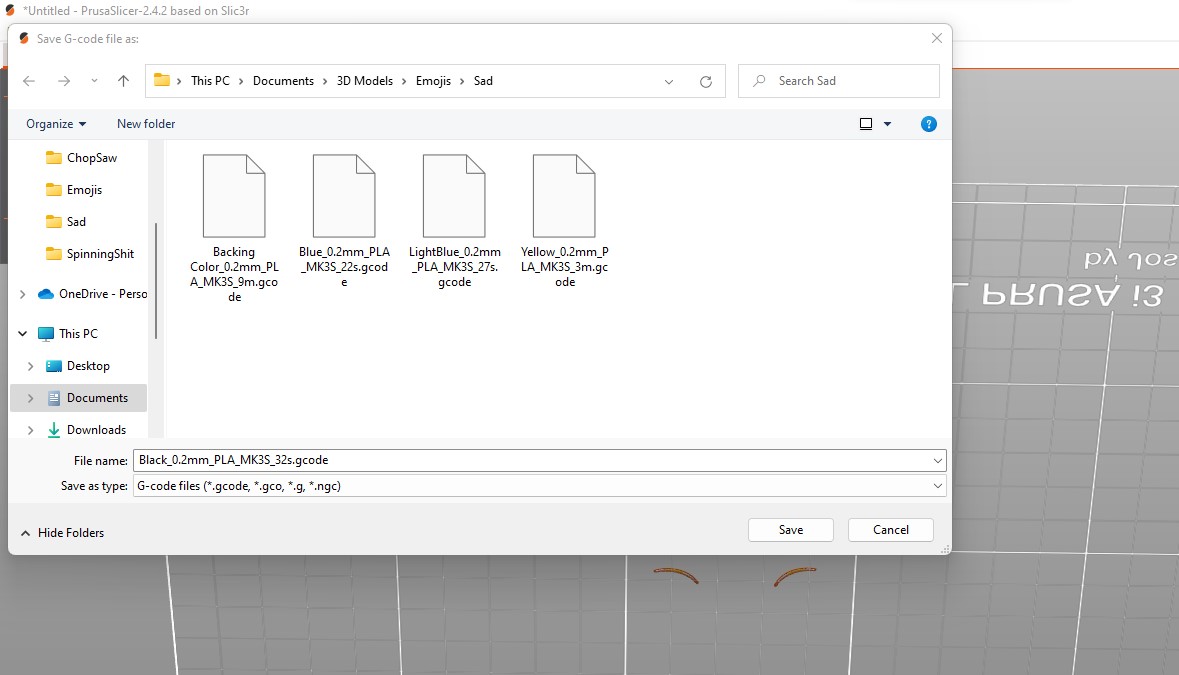
Next I use a text editor to merge the gcodes into a new file.
1. The first color's gcode should include everything in the header and everything upto but not including the custom code at the end. The code you want to stop at is M107
Example of first portion [to copy and paste in a new document]:
; generated by PrusaSlicer 2.4.2+win64 on 2022-05-19 at 22:12:52 UTC
;
; external perimeters extrusion width = 0.45mm
; perimeters extrusion width = 0.45mm
; infill extrusion width = 0.45mm
; solid infill extrusion width = 0.45mm
; top infill extrusion width = 0.40mm
; first layer extrusion width = 0.42mmM73 P0 R0
M73 Q0 S0
M201 X1000 Y1000 Z200 E5000 ; sets maximum accelerations, mm/sec^2
M203 X200 Y200 Z12 E120 ; sets maximum feedrates, mm / sec
M204 P1250 R1250 T1250 ; sets acceleration (P, T) and retract acceleration (R), mm/sec^2
M205 X8.00 Y8.00 Z0.40 E4.50 ; sets the jerk limits, mm/sec
M205 S0 T0 ; sets the minimum extruding and travel feed rate, mm/sec
M107
;TYPE:Custom
M862.3 P "MK3S" ; printer model check
M862.1 P0.4 ; nozzle diameter check
M115 U3.10.1 ; tell printer latest fw version
G90 ; use absolute coordinates
M83 ; extruder relative mode
M104 S215 ; set extruder temp
M140 S60 ; set bed temp
M190 S60 ; wait for bed temp
M109 S215 ; wait for extruder temp
G28 W ; home all without mesh bed level
G80 ; mesh bed leveling
G1 Z0.2 F720
G1 Y-3 F1000 ; go outside print area
G92 E0
G1 X60 E9 F1000 ; intro line
G1 X100 E12.5 F1000 ; intro line
G92 E0
M221 S95; Don't change E values below. Excessive value can damage the printer.
M907 E430 ; set extruder motor current
G21 ; set units to millimeters
G90 ; use absolute coordinates
M83 ; use relative distances for extrusion
M900 K0.05 ; Filament gcode LA 1.5
M900 K30 ; Filament gcode LA 1.0
M107
;LAYER_CHANGE
;Z:0.2
;HEIGHT:0.2
;BEFORE_LAYER_CHANGE
G92 E0.0
;0.2
M73 P13 R0
M73 Q13 S0
G1 E-.8 F2100
M73 P22 R0
M73 Q22 S0
G1 Z.4 F720
;AFTER_LAYER_CHANGE
;0.2
; printing object LightBlue id:0 copy 0
G1 X142.96 Y100.953 F10800
G1 Z.2 F720...
;WIPE_END
G1 E-.04 F2100
G1 Z.6 F720
M107
2. Add a color change code (M600)
;WIPE_END
G1 E-.04 F2100
G1 Z.6 F720
M107M600 ;color change to next color
3. The remaining colors with the exception of the backing should be added, in order, to the main gcode document. You'll only need the actual printing portion of the respective gcode.
; printing object Black id:0 copy 0 THIS IS WHERE YOU START TO COPY
M73 Q19 S0
G1 X135.203 Y112.664 F10800
G1 Z.2 F720
M73 P22 R0…
G1 X128.646 Y90.744 E-.04408
;WIPE_END
G1 E-.75592 F2100
G1 Z.6 F720
M107M600 ;color change to next color DONT FORGET TO ADD THE M600 FOR EACH
; printing object Yellow id:0 copy 0
M73 Q3 S3
G1 X130.469 Y99.302 F10800
G1 Z.2 F720…
4. The last object to be merged is the backing. Copy it from the start of the print and this time take all of the remaining code, including the custom configuration stuff at the end.
…
; stop printing object Blue id:0 copy 0
;WIPE_START
G1 F8640;_WIPE
M73 P72 R0
M73 Q73 S0
G1 X141.041 Y100.348 E-.76
;WIPE_END
G1 E-.04 F2100
M73 P73 R0
G1 Z.6 F720
M107M600 ;final color change
; printing object Backing Color id:0 copy 0
G1 X139.972 Y85.882 F10800
G1 Z.2 F720
G1 E.8 F2100
M204 S800
;TYPE:Perimeter
;WIDTH:0.42…
;WIPE_END
G1 E-.04 F2100
G1 Z1.4 F720
M107
;TYPE:Custom
; Filament-specific end gcode
G4 ; wait
M221 S100 ; reset flow
M900 K0 ; reset LA
M907 E538 ; reset extruder motor current
M104 S0 ; turn off temperature
M140 S0 ; turn off heatbed
M107 ; turn off fan
G1 Z31 ; Move print head up
G1 X0 Y200 F3000 ; home X axis
M84 ; disable motors
M73 P100 R0
M73 Q100 S0…
; wipe_into_infill = 0
; wipe_into_objects = 0
; wipe_tower = 1
; wipe_tower_bridging = 10
; wipe_tower_brim_width = 2
; wipe_tower_no_sparse_layers = 0
; wipe_tower_rotation_angle = 0
; wipe_tower_width = 60
; wipe_tower_x = 170
; wipe_tower_y = 125
; wiping_volumes_extruders = 70,70
; wiping_volumes_matrix = 0
; xy_size_compensation = 0
; z_offset = 0
; prusaslicer_config = end
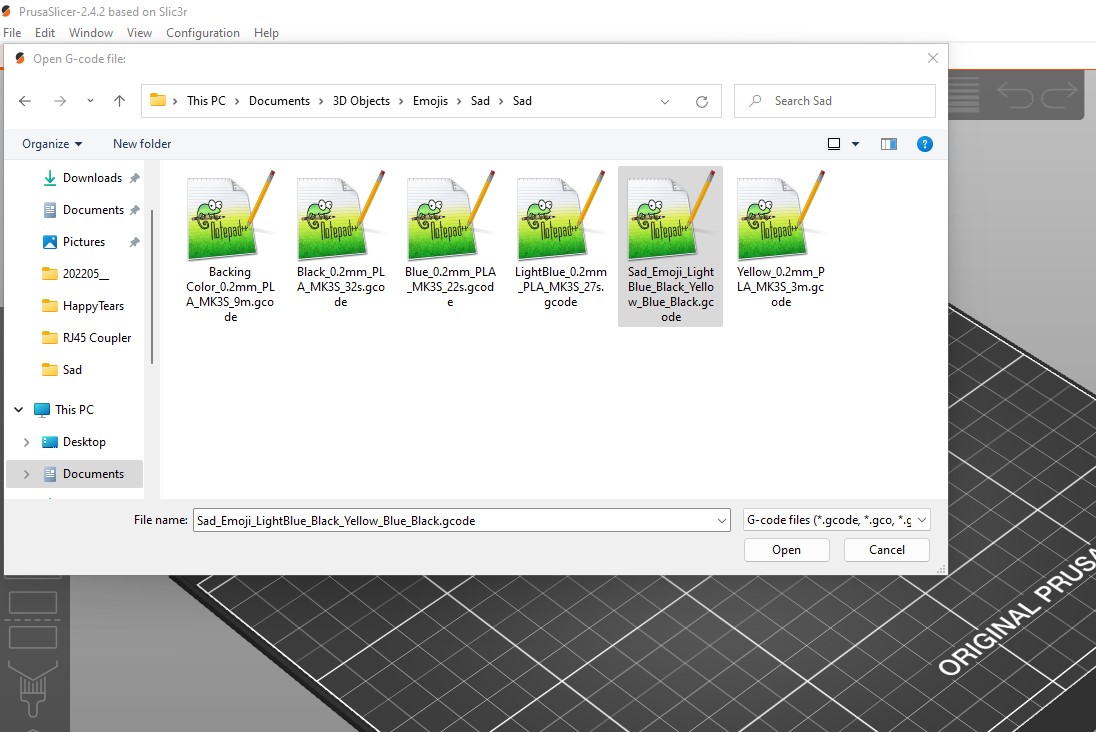
5. Save the newly minted gcode file with a name that describes the color changes so that they are not forgot.
example: "Sad_Emoji_LightBlue_Black_Yellow_Blue_Black.gcode"
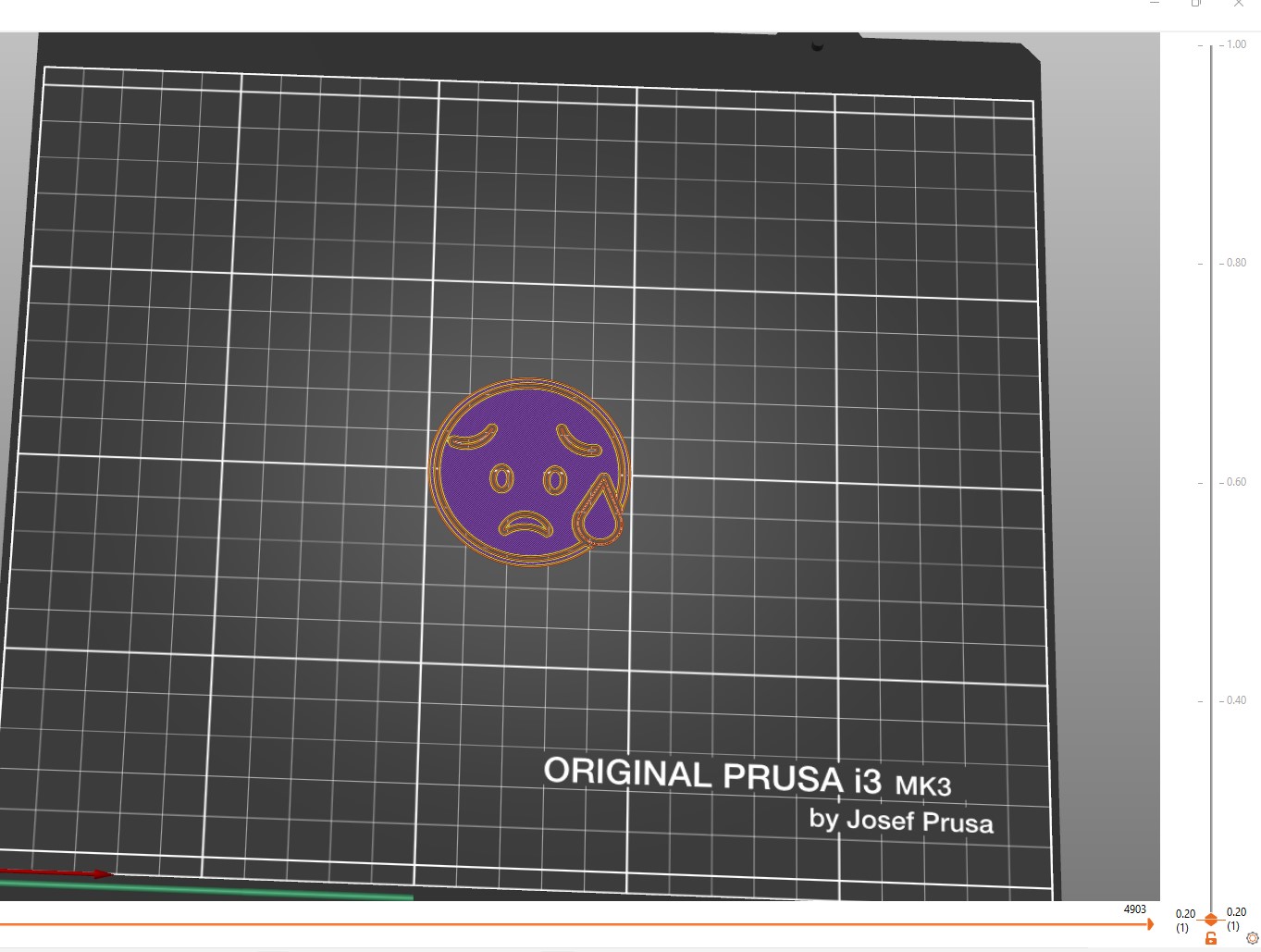
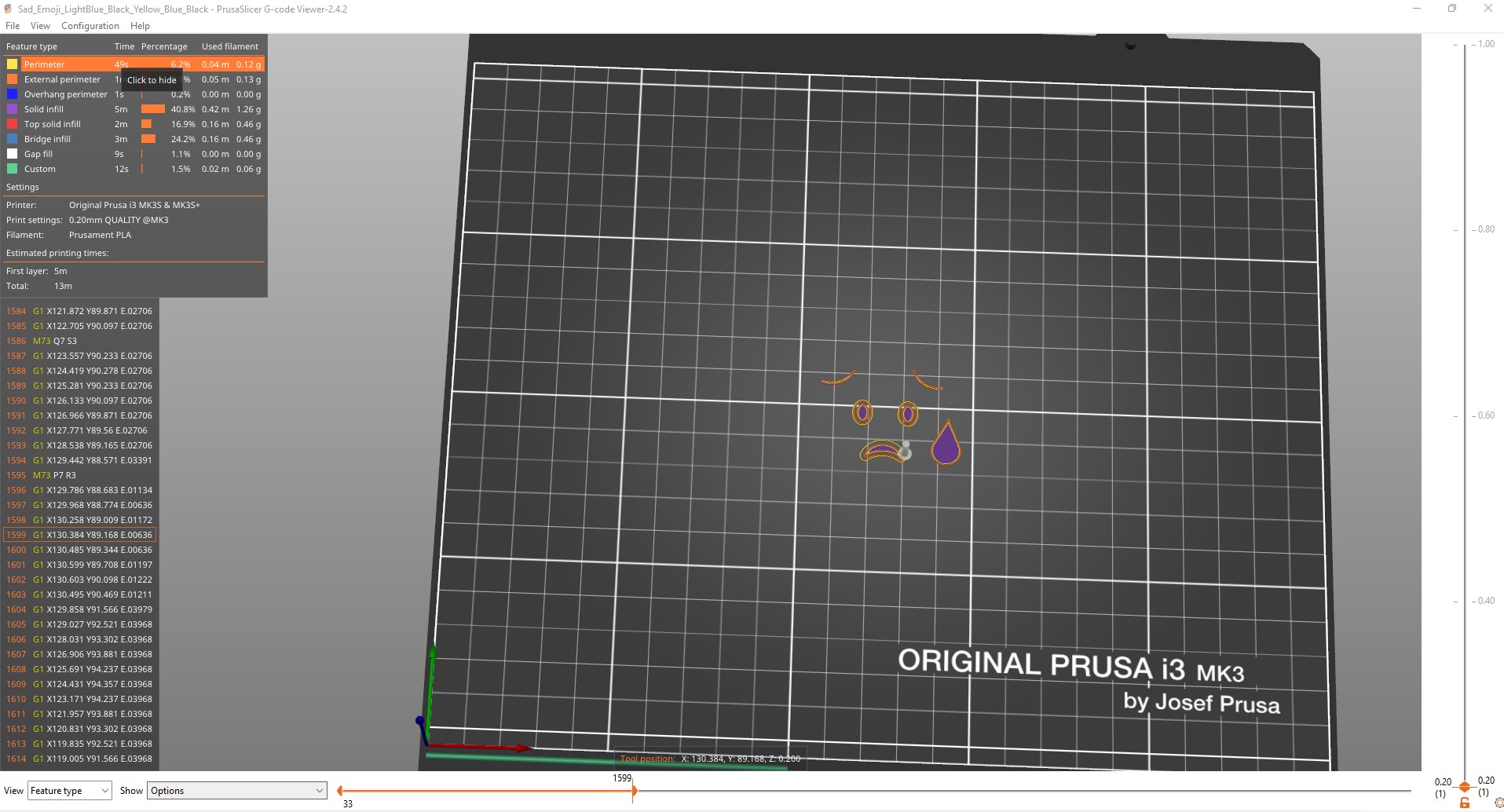
The final step before sending to the printer is to check with the Prusa G-Code Preview.
1. Open it from within the File menu of Prusa Slicer
2. Bring the z-axis down to the first layer.
3. Scrub through the x and y axis to see the nozzle path and ensure things look like they should.
Transfer the gcode to your printer and print making the manual color changes when necessary.
The result should look something like this: