
Print your Minecraft Worlds/Builds Guide!
We calculate the final price from your selected file. You review and accept it before payment.
Saved on this device.

Follow this guide to learn how to 3D print your very own minecraft worlds from any platform!
- Rating
- 0 / 5
- Likes
- 29
- Downloads
- 139
- Makes
- 0
- Views
- 3,852
- Reviews
- 0
Updated at source:
Model information
- Source
- Printables
- Category
- Sculptures
- License
- Creative Commons — Public Domain
You can try to print my model as an example if you wish, or you can use these applications below to create your very own!
My model was printed on a stock ender 3 V2. Its best to know your printers limitations before you get started. Knowing what can and cannot be printed on your printer is a must.
First, you are going to need to make a copy your world save data.
-If its is a Java save, make a copy and place it where you can easily find it.
-If it is a bedrock save, Make a copy of your save and use the Chunker web app to convert your world into a java save! https://chunker.app/
-If its on a console you could use realms to transfer it to the another bedrock version where you can grab the file (PC/IOS/ANDROID)
Once you have your Java world save, Download Mineways to convert your world into a printable model format.
-Go to https://www.realtimerendering.com/erich/minecraft/public/mineways/ and follow the installation instructions there (Mac and Linux versions are available in the quick start) You can watch their tutorial on how to use the program it here:
Once you have selected the part of the world that you want to print, Export it as a .STL file instead of a .wrl file so you can slice it for 3D printing!
Some things to consider:
- You may need to remove some objects that would be impossible to print. This can either be done in game which can take time, Or you can use PrusaSlicer to add negative volume shapes over the things you do not want to print.
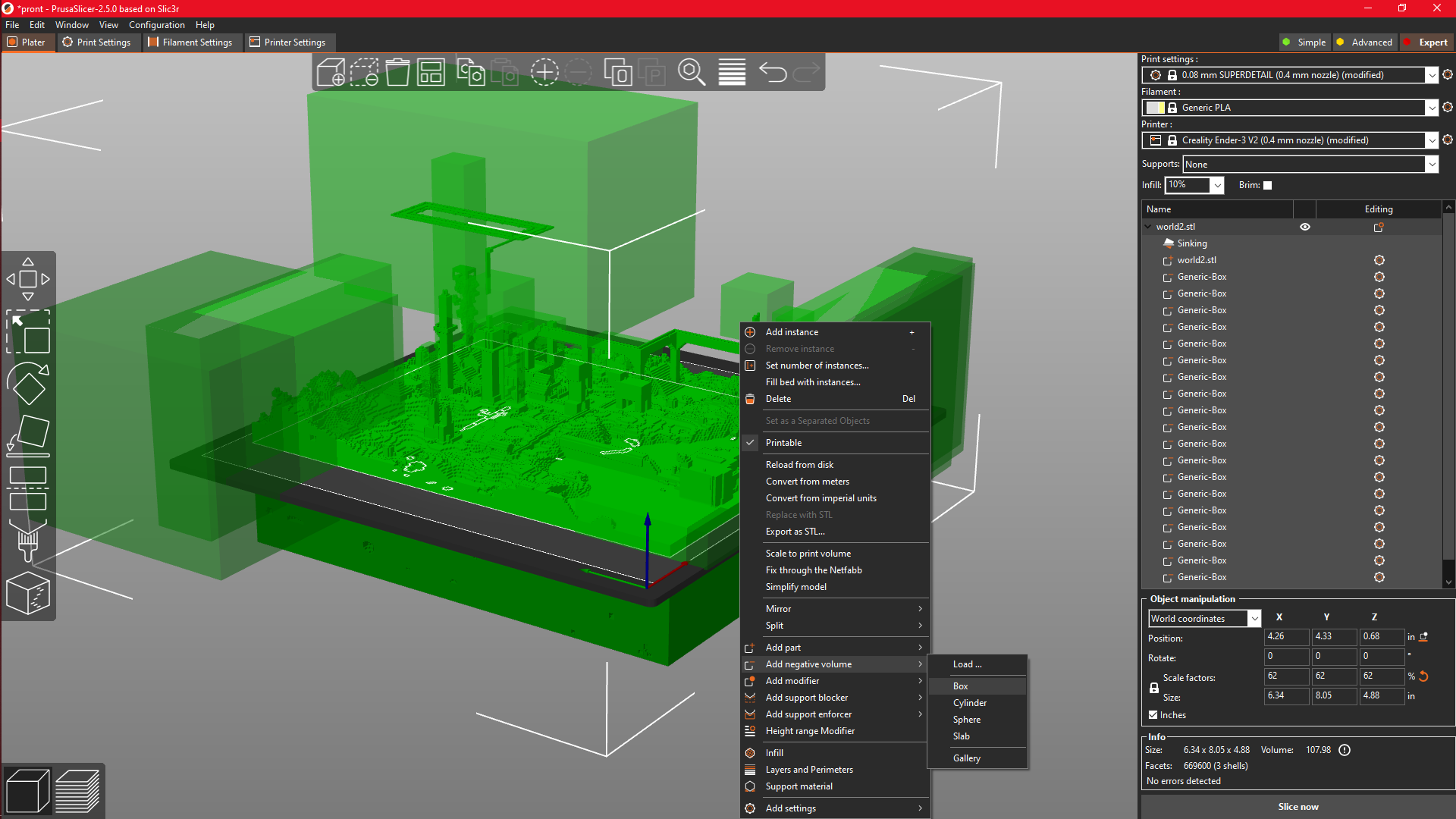
My example has quite a few things that would be impossible for my printer to print, removing these structures was necessary for my world to print successfully. I did not use any supports, but if you would like to, I would recommend making your own instead of the auto generated ones. (Maybe make them in game?)
- You are going to be playing around with scaling, Make sure your world is not too small to print by inspecting your sliced preview.
- Most trees can be hard to print but I have gotten a few to print on my model.
- Try to use 0.10mm or less layer heights for the best results.
- Get creative and try to split your world into smaller chunks if you have a small printer like me. Just take note of the positions and scaling.
- You do not have to print an “entire world” like I did, You can just select and export a smaller area that includes the build that you want to print.
- Have fun! Post your makes and upload your own models if you would like to share with the Pintables community! (doesn't have to be a remix but you can add a link to this guide to spread the knowledge)