
Customizable Spotify Code Keyring or Tag
We calculate the final price from your selected file. You review and accept it before payment.
Saved on this device.

Make a Spotify key-ring or a tag! There are instructions for how to customize in OpenSCAD (it's quick, easy and free)
- Rating
- 5 / 5
- Likes
- 417
- Downloads
- 1,710
- Makes
- 11
- Views
- 8,742
- Reviews
- 3
Updated at source:
Model information
- Source
- Printables
- Category
- Other Costume Accessories
- License
- Creative Commons — Attribution — Noncommercial — Share Alike

Features:
- Easy to customize
- Change the sizes
- Multiple frame options
- Change the icon
- Use text instead of a code (useful for double sided prints)
- Multi-color export (layer-change or inlay)
Notes:
I've also included the heart cutout template if you just want to use another program to add the code/some text.
The SVG file and the example STL files are obviously Rick Rolls if that's what you're here for :)
I've also uploaded a .zip file with more types

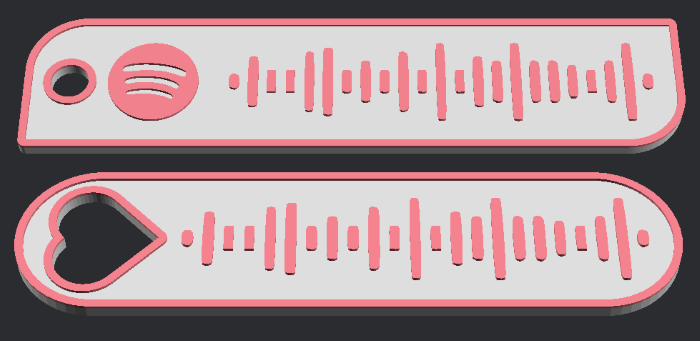
Corner & Border options:
Optimize by line size:

How to Customize
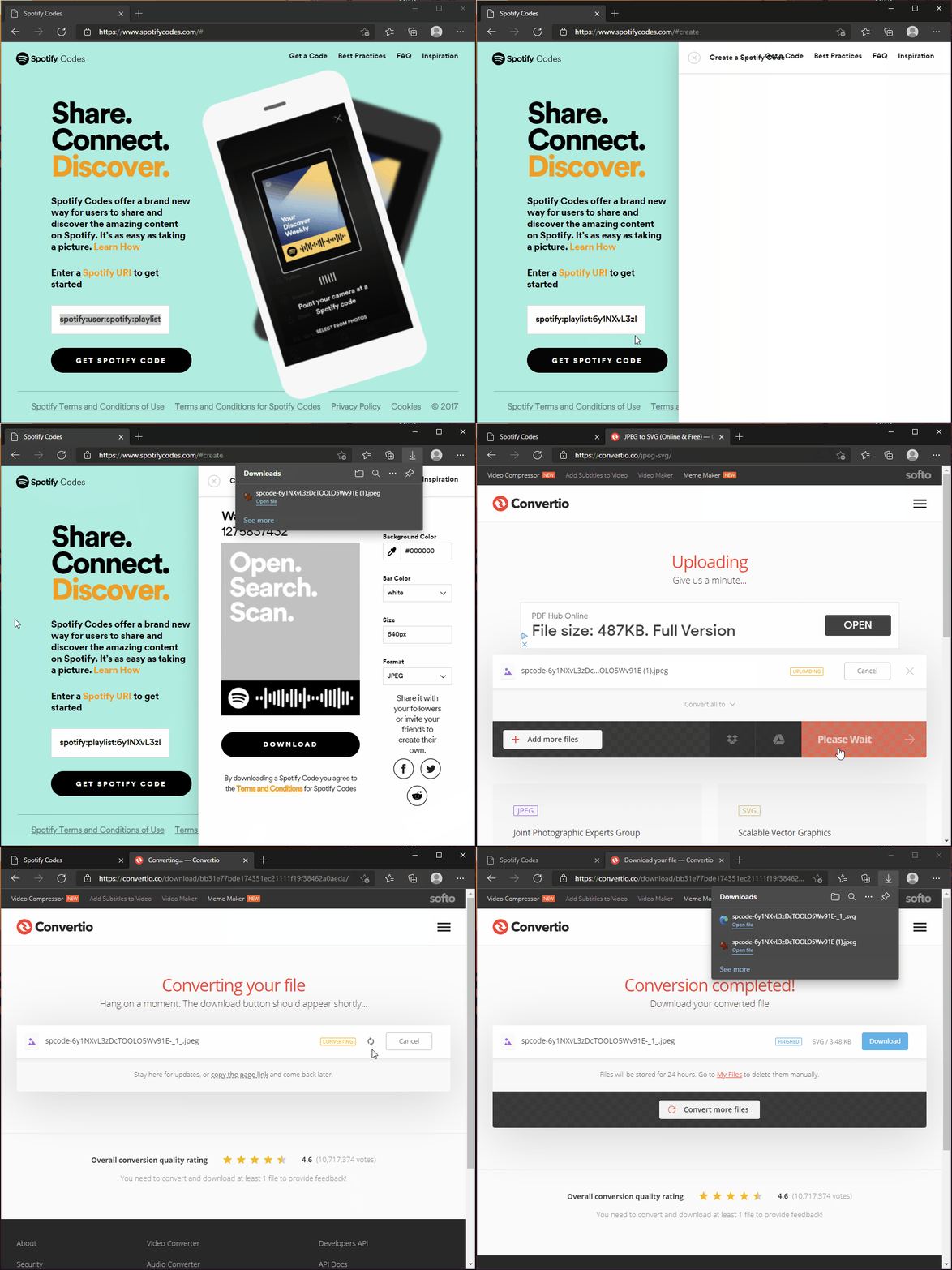
Create the Spotify Code
- Go to here - https://www.spotifycodes.com/#create
- Enter your Spotify URL and then click download (use the default settings)
- You can right-click songs, artists, playlists, etc and go to Share > Copy Link To Playlist
Convert the downloaded JPEG file to an SVG
- Go to this site - https://convertio.co/jpeg-svg/
- Drag the JPEG file into the window
- Click Convert. When it's finished, click download
I'm aware you can download the code as a SVG file from the first site, but this will not be formatted properly for our uses.
Tip: Click the images to see a larger view
Customize with OpenSCAD
- Download OpenSCAD from here and install it - https://openscad.org/downloads.html
- Put the downloaded SVG file in the same folder as the .SCAD file from this page
- Double-click the .SCAD file to open it
- Click Window, then untick Hide Customizer
Optional: Click Window, then tick Hide Editor - Customize the settings. After changing a setting, you may need to click outside the text box to apply the change.
- Enter the SVG file name in the Basic settings tab or rename the file to Code.svg
- Click Design > Render and wait for the design to render
- Click File > Export > Export to STL
- Save the file
Note: If you want to inlay the code/icon, you'll need to export and save both 'Multi-Color Preview' and 'Multi-Color Code' under Basic Settings.


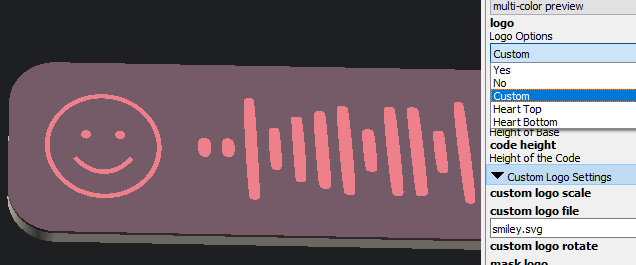
How to use a custom icon
I suggest downloading icons from here - https://iconmonstr.com/
- Put the downloaded SVG file in the same folder as the .SCAD file
- Type the filename into the customizer
- Select the Custom Logo Option
- You may need to change the file scale setting
Notes
If you want to print a double sided tag, you can set Base Height to 0 and export the second side. Then just flip this over in the slicer
If you want a different color for the logo and code, you can enable Custom Logo and leave the Custom Logo File field empty. Then to get the logo, use text and just enter a space.
You can rotate the Heart Hole keyring option using the custom logo rotation settings
- If you want to rotate or invert the Spotify logo, use custom logo and one of these
