
Engineering Square - 3 Options
We calculate the final price from your selected file. You review and accept it before payment.
Saved on this device.
Model information
- Source
- Printables
- Category
- Tools
- License
- GNU General Public License v3.0
Warning
These files has many parts and take time to load and slice. I have attempted to make it as easy as possible to lay out and print.
Options
No slider guide
Inner slider guide
Outer slider guide
The engineering squire guide positions differ in order to align the ruler marking accurately for different types of use case, for example building a printer frame and measuring inside distances and squareness, then use the inner guide. Doing carpentry where you want to measure from an edge, use the outer guide option.
Slicer Imports
Import the .3mf file into your slicer, I have tested this is Orca and Bambu Studio.
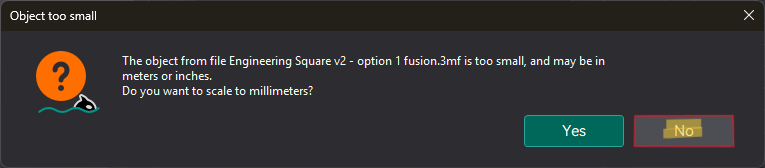

At the first prompt select No, it's incorrectly complaining about the scaling of the writing, scaling is already in mm and is correct.
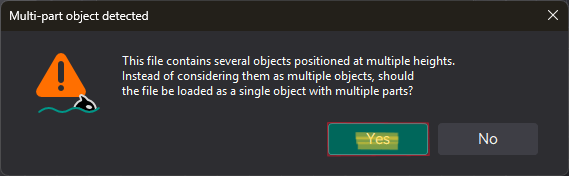
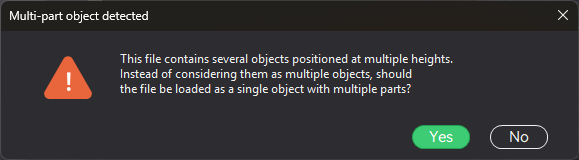
The second prompt asks if you want the objects as parts, maintaining their heights. This is what we want, so select yes.
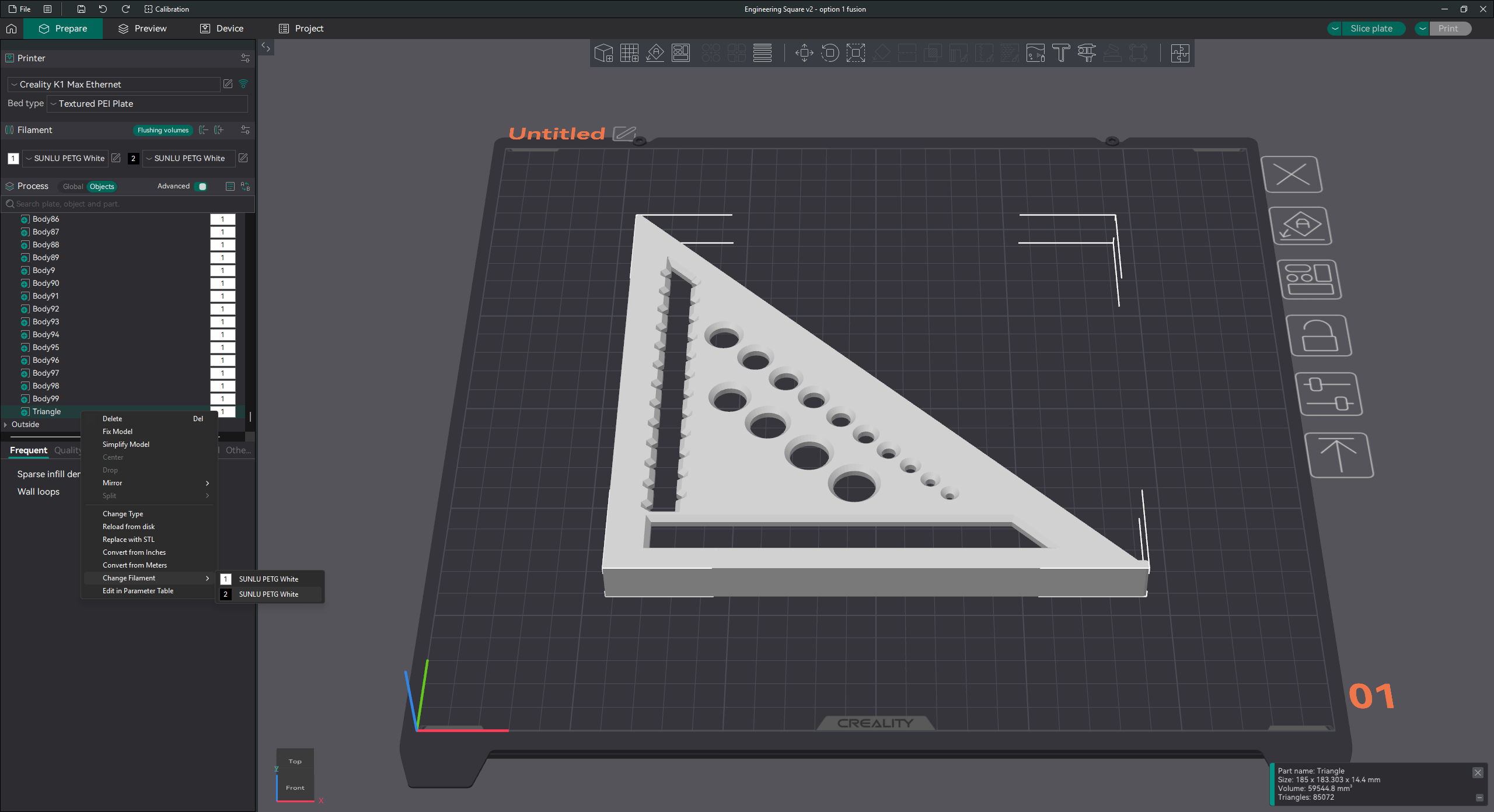
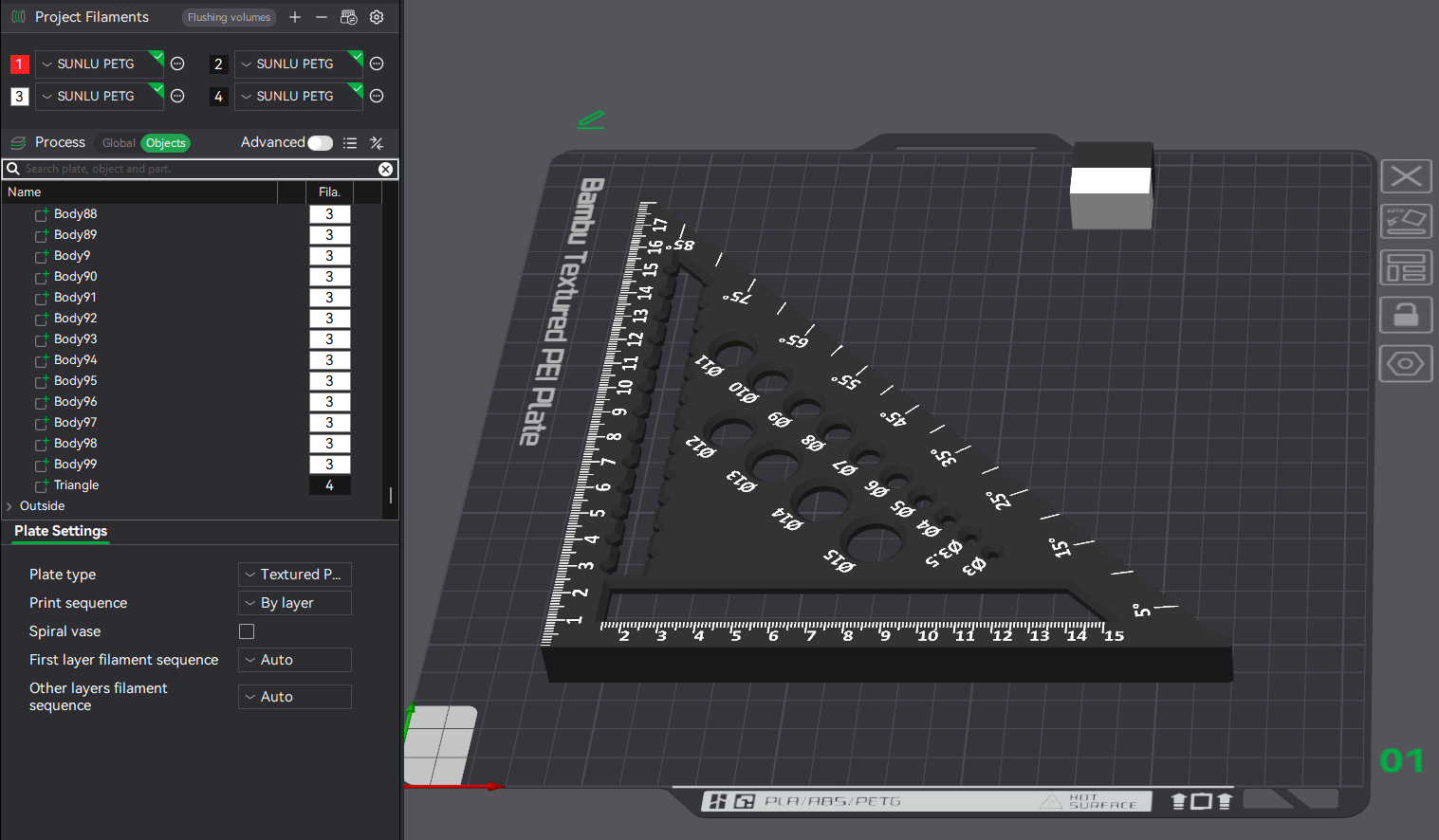
After this the part will be loaded face up the the default colours. Set the global colour for all the parts by right clicking the imported selection on the build plate. In my case I want white lettering on black so I select everything as white. There are over 400 parts, so we don't want to do them all one at a time.
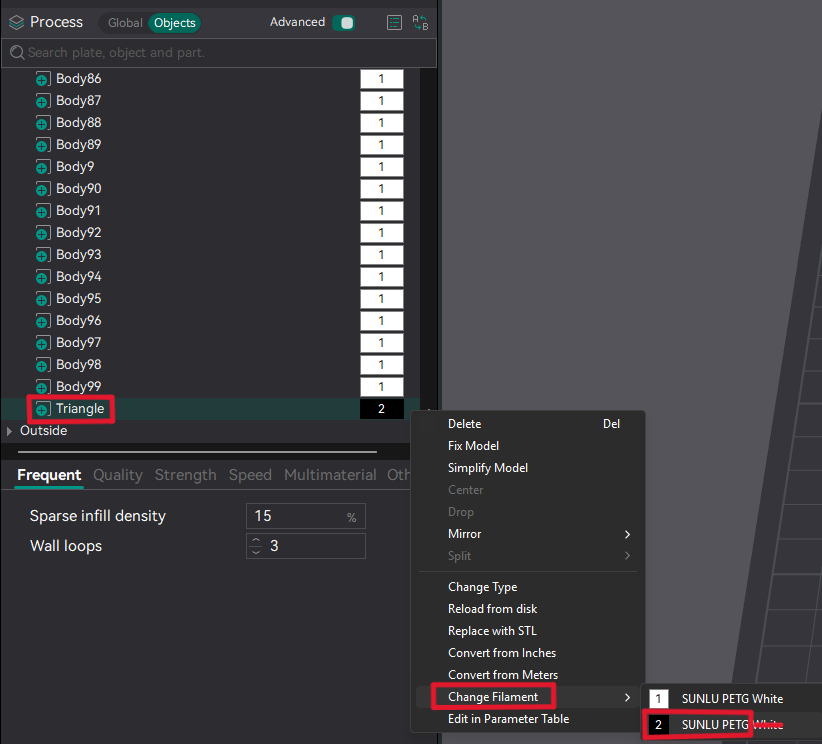
Now scroll down to the bottom, find the "triangle" part and set the filament to black.
Last step, flip the lettering towards the base plate.
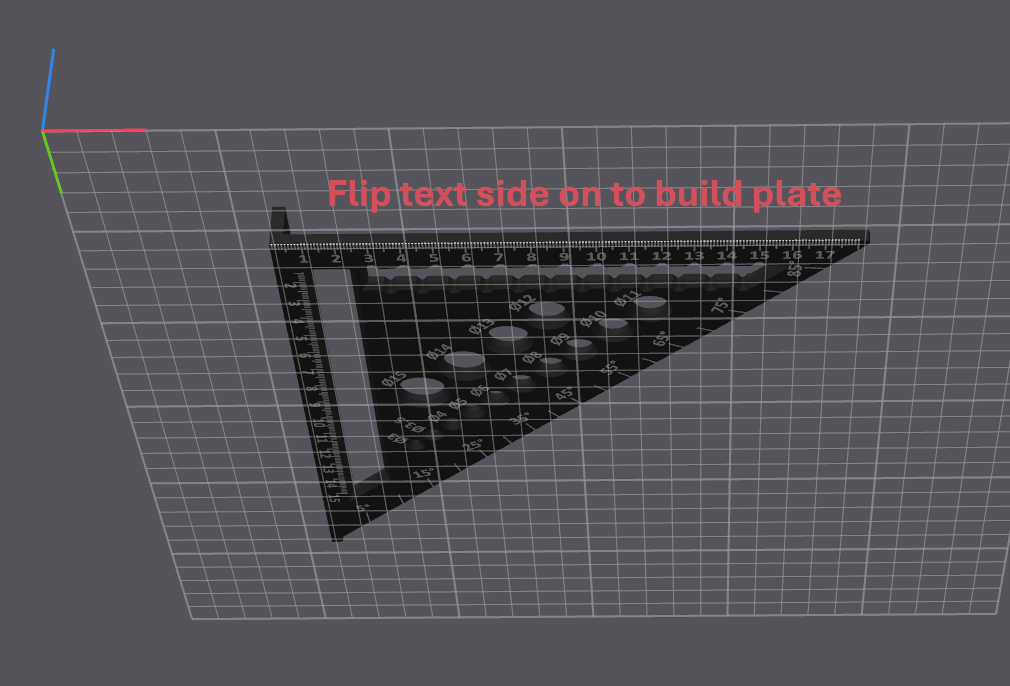
You are now ready to slice and print your engineering squire.
Test Print
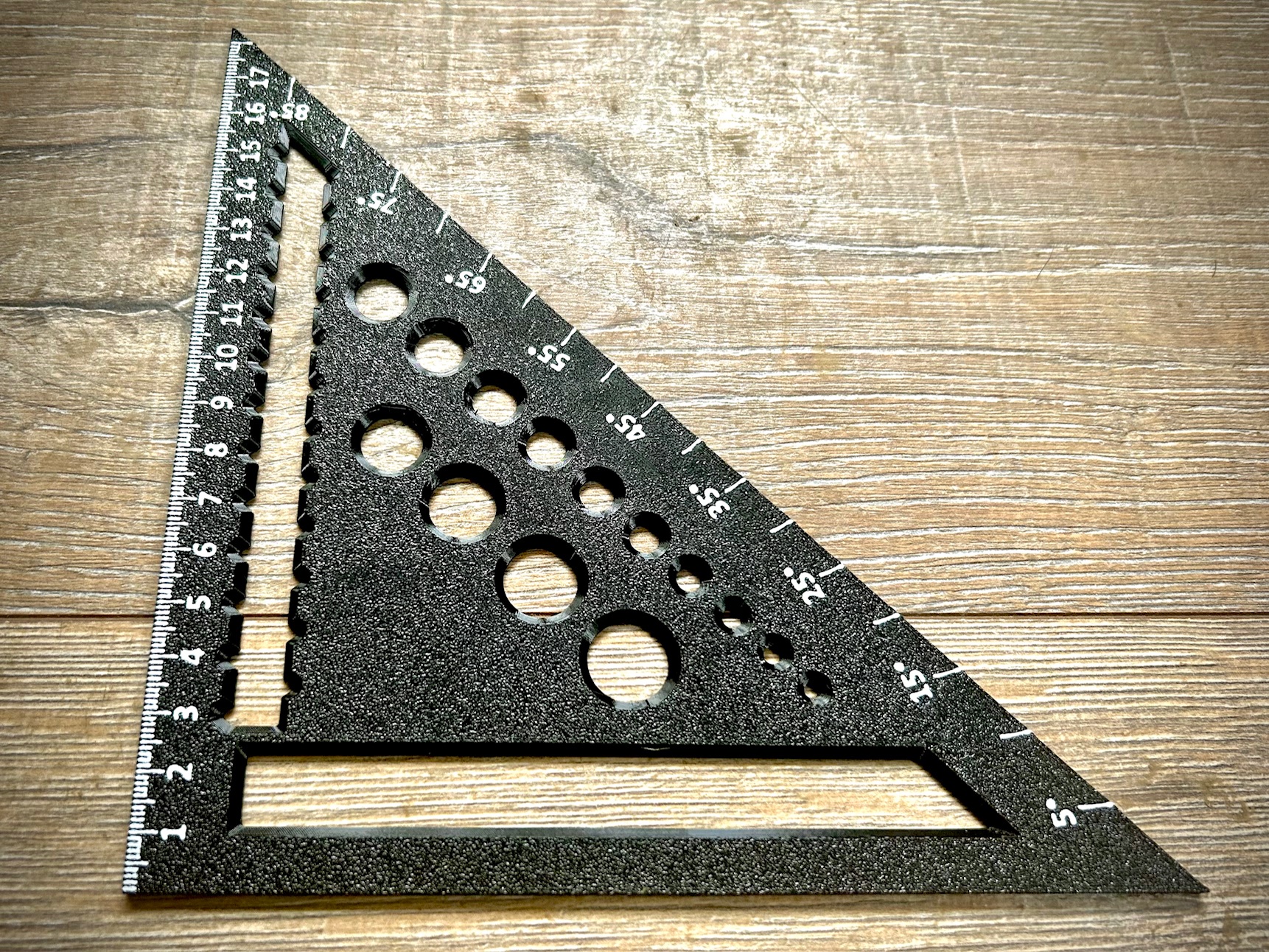
The test print on a P1S with a 0.4mm nozzle and 0.2mm layer height yielded a very good looking and practically usefull result.