
Toolgrid Label Generator
We calculate the final price from your selected file. You review and accept it before payment.
Saved on this device.
Model information
- Source
- Printables
- Category
- Organizers
- License
- Creative Commons — Public Domain
Introduction
Easily create a group of labels for your toolgrid.
These labels have pins on the back side that lock in to the holes in your tool grid.
Make sure to do a test print to confirm the pin sizes.
Quick Start
It is recommended to print a single tag to confirm the diameter of the pins is correct, and adjust if needed.
Enter a list of labels separated by commas. If the text runs longer than any of the labels, increase the Font Ratio.
Export the labels as a 3mf file, as STL export will merge the text with the tag body.
In your slicer, switch to the object view and set the color for each tag and text. Be careful repositioning objects, as the text and tag body may not move together.
Setting Up OpenSCAD
In order for the labels to be output as a separate part for multi-color printing, you need to enable Lazy Unions.
In OpenSCAD, go to Edit > Preferences, and on the Features tab select the checkbox next to lazy-union.
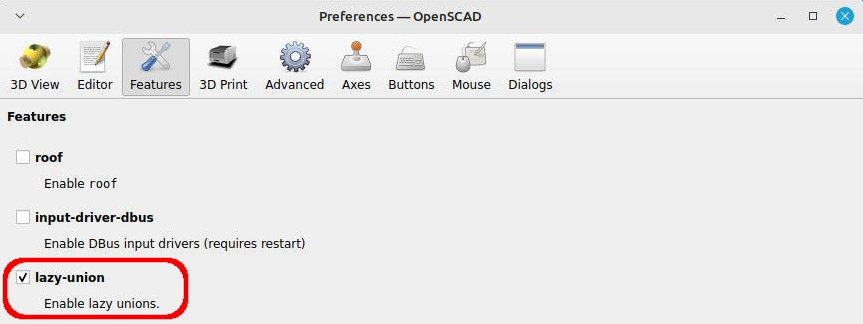
Note - this feature is not available in older versions. If you do not have this setting, download the latest developer snapshot of OpenSCAD.
Additionally, make sure you export the model as a 3mf. If you export a STL file, the components will all be merged together.
Detailed Customization
Symbol - There are several symbols that can be added to the right side of each tag. Default is no symbol.
Separate Symbol - This will set the symbol as a separate object if you wish to use a different color to print it (3 colors total).
Delimiter - The labels get entered as a list separated by this character. Default is comma; if you want to use a comma in your labels, you can change the delimiter to a different character.
Labels - Enter a list of labels, separated by the delimiter character. A tag will be created for each.
Constant Width - When enabled, all tags are the same length. Otherwise each tag length will be calculated independently.
Font Height - This is how tall the text will be. Recommended 7 or greater for a .4 nozzle. When you increase font height, you will need to increase label height as well.
Text Depth - The label text is generated as a separate object for multi color printing. This will set how high the text is, it should be equal to 2 layers.
Text Align - The text can be aligned on the left or center. Right align is not supported (it interferes with the symbol).
Font Family - The font to use. Available options will depend on the fonts you have installed on your computer; see Window > Font List for available fonts. Bold fonts typically print better.
Font Ratio - Tag lengths are automatically calculated based on the Font Height and the number of characters, scaled by this factor. Since not all text characters are the same width, this may not be accurate. If your text extends past the edge of the tag, try increasing the font ratio or add spaces to the end of that label.
Label Height - How tall the tag is. The default setting allows tags to be placed immediately next to each other. If you increase the font size, this needs to be increased as well.
Label Thickness - How thick the tag is. In most cases there is no need to change this.
Grid Pitch - Set this to the hole spacing of your toolgrid boards to ensure the pins always line up.
Pin Diameter - The diameter of the pin at the largest point. This may need to be adjusted for a good fit.
Pin Taper - The pins are smaller at the end for easier installation. This sets how much smaller to make the end.
Pin Length - How long to make the pin.
Pin Web - The pins are cut to a cross shape to make them easier to install and more tolerant of different hole diameters. This sets the web thickness. Increase if your pins break easily.
Printing
The exported labels will be oriented text side down. You need to set the colors for each object independently. When using symbols and Separate Symbol is enabled, there are 3 objects for each tag; otherwise, there are 2. These objects are sequential, so by setting every other (or every third for symbols) object to the text color you can quickly set up the color profile.
Remixes
Remixes are encouraged. Feel free to remix or upload any labels you generate.