
1 / 2
Parametric Magnetic Token Box for Board Game Organization
Order a print of this model
We calculate the final price from your selected file. You review and accept it before payment.
Saved on this device.
This fusion 360 file uses parameters to allow for customization. You can quickly make custom boxes for your games.
- Rating
- 5 / 5
- Likes
- 52
- Downloads
- 150
- Makes
- 1
- Views
- 1,700
- Reviews
- 1
Updated at source:
Model information
- Source
- Printables
- Category
- Board Games
- License
- Creative Commons — Attribution — Noncommercial — Share Alike
This is a parametric box that's designed to help you create custom storage solutions for your board games - especially the more obscure ones.
Please leave a comment if there are other box types you would like.
Steps:
- Download and install fusion 360 personal, make an autodesk account, and login. https://www.autodesk.com/products/fusion-360/personal
- Download the file attached to this project, and open it in 360.
- In fusion, navigate to MODIFY > Change Parameters

- In the parameter window, change the expressions to match your desired proportions

- The parameters are:
- magnetDia - the diameter of the magnet you will be using. I recommend to use and 5mmx3mm and to leave all the magnet parameters alone.
- length - how long (in mm) the box will be on the Y axis
- width - how long (in mm) the box will be on the X axis
- baseHeight - how tall the box will be on the Z axis
- lid height - how tall the lid of the box will be. I usually use shorter lids, but have used long lids in games like Wingspan, where I want all the eggs in one box, but use the lid and base as containers I can spread around the table.
- thickness - thickness of the walls. I recommend making this a multiple of you nozzle size. I use a 0.8mm nozzle, so I make my walls 1.6mm to get two layers and a much quicker print.
- magnetSpace - the amount of room around the magnet. tweaking this can help with gluing.
- magnetHeight - the height of the magnet you'll be using.
- When you have set your parameters, click ok.
- On the left side of the screen, you'll see a folder called Bodies. Open that folder and right click Box Base > Save as Mesh.
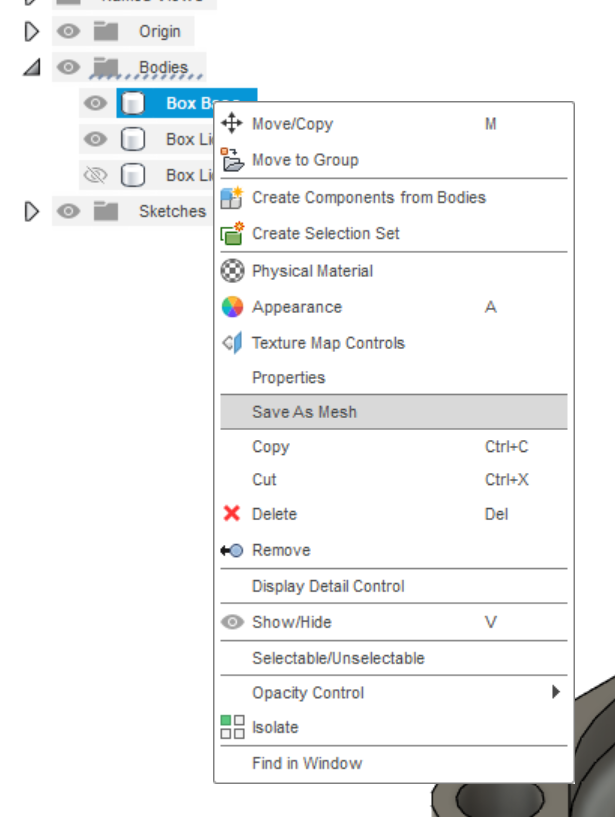
- Click OK in the popup.
- Repeat for Box Lid Mag
- Open the meshes in your slicer, slice, and print.
Please leave a comment if you have questions.