
Phanny - Wireless Split Keyboard - Sponsored by PCBWay
Obliczymy ostateczną cenę na podstawie wybranego pliku. Sprawdzisz ją i zaakceptujesz przed płatnością.
Zapisane na tym urządzeniu.
Informacje o modelu
- Źródło
- Printables
- Kategoria
- Computers
- Licencja
- Creative Commons — Attribution — NoDerivatives
This repo is going to show the process of me designing, printing, working in KiCad, Fusion360, and overall building this split keyboard. I plan to explain the issues I didn’t know were issues until it was too late, and show how I managed to overcome some of the problems in the initial design.
Bill of Materials (Parts Used)
Hand-designed Phanny PCBs (manufactured by PCBWay)
3D printed PLA+ case (plate & base)
The Design
This board would not have come to life if not for Aran from PCBWay . He reached out to me to see if I had any interest in working on another project, this time utilizing their PCB manufacturing service. I enjoyed the work they did on a case I designed, and I love trying new things, so I took him up on his offer and got to work.
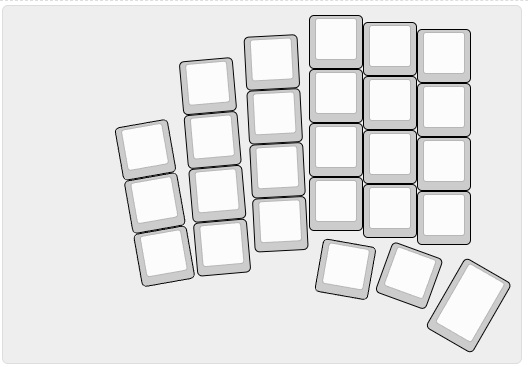
I knew the basics of what I wanted: split, ortho, staggered column, splay, and a num-row. I decided to get the layout dialed in using the well-known Keyboard Layout Editor I started playing around with different layouts and testing different splay angles. Then I adjusted how much column stagger I wanted. My aim was to make something comfortable when reaching for any key. Another issue I knew I wanted to overcome from prior boards was the thumb cluster. Thanks to printing several test plates, I think I landed on something very comfortable for long typing sessions while still leaving enough keys that I don’t feel forced into multiple layers.
KiCad
After finalizing my design, I moved into new territory: KiCad, a software program for designing circuit boards, schematics, and PCBs. I spent longer than expected trying to learn on the fly like I did with Fusion360, and that landed me with nothing but wasted time. I turned to YouTube and watched the tutorial videos from Modern Hobbyist Modern Hobbyist – Designing a Custom Keyboard PCB FROM SCRATCH and Joe Scotto How to Design Mechanical Keyboard PCBs with KiCad . Combined, their videos give enough of a breakdown that anyone could design a PCB, and both creators offer downloadable packages containing parts and footprints.
Schematic
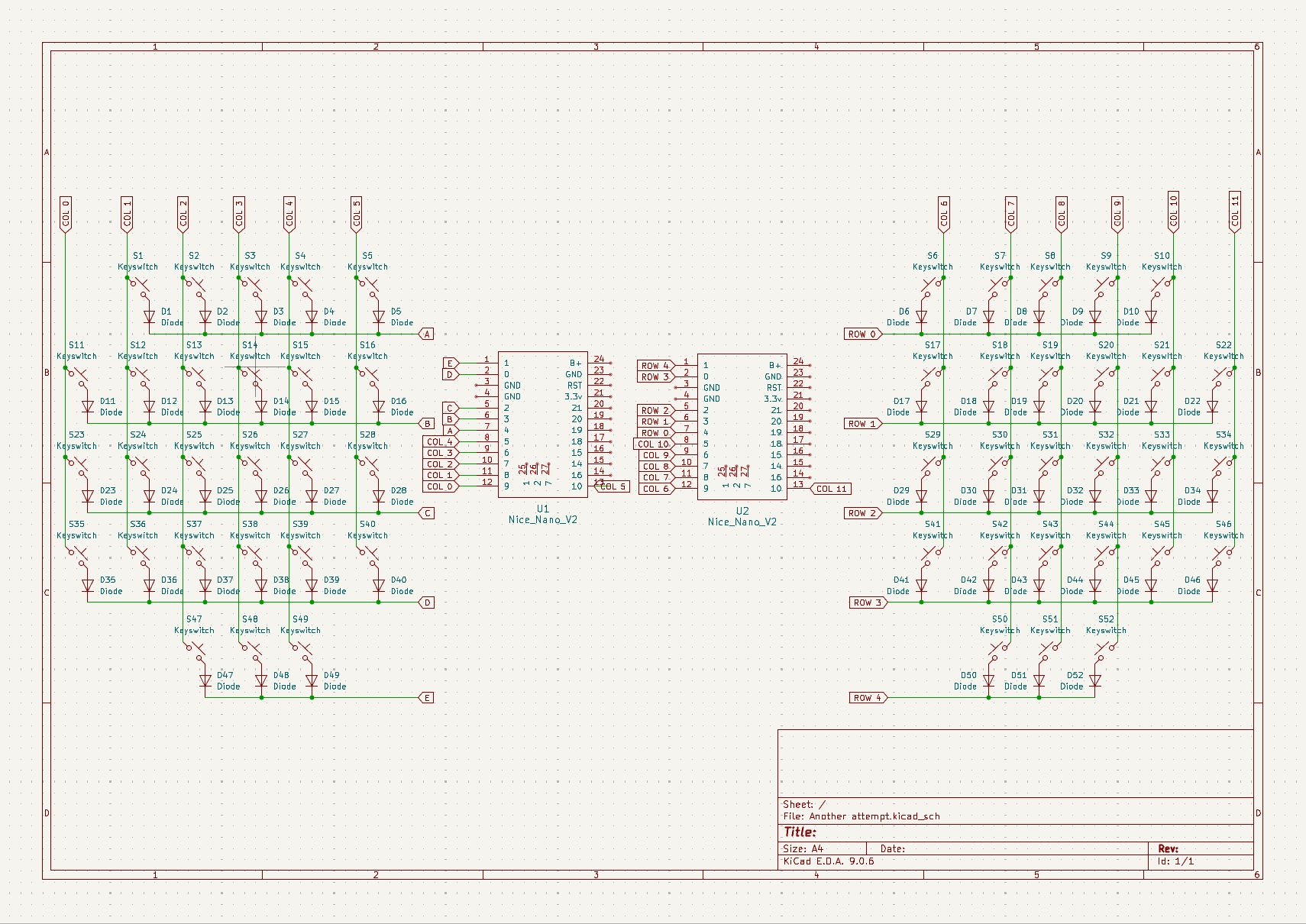
The schematic editor was the easy part. It’s like designing a matrix—because it is designing the matrix—but instead of copper wire, it's pixels on a screen. This is where my lack of knowledge showed. I didn’t realize I could just copy the left, paste, then flip. So I ended up doubling my work.
Once I fixed all my errors, I clicked the PCB Editor and hit “Update PCB from Schematic.” Suddenly I had 52 MX footprints, 52 1N4148 diode footprints, and 2 nice!nano footprints neatly arranged. Thankfully, Modern Hobbyist’s video showed plug-ins that make placing switches based on Keyboard Layout Editor files much easier.
PCB Routing
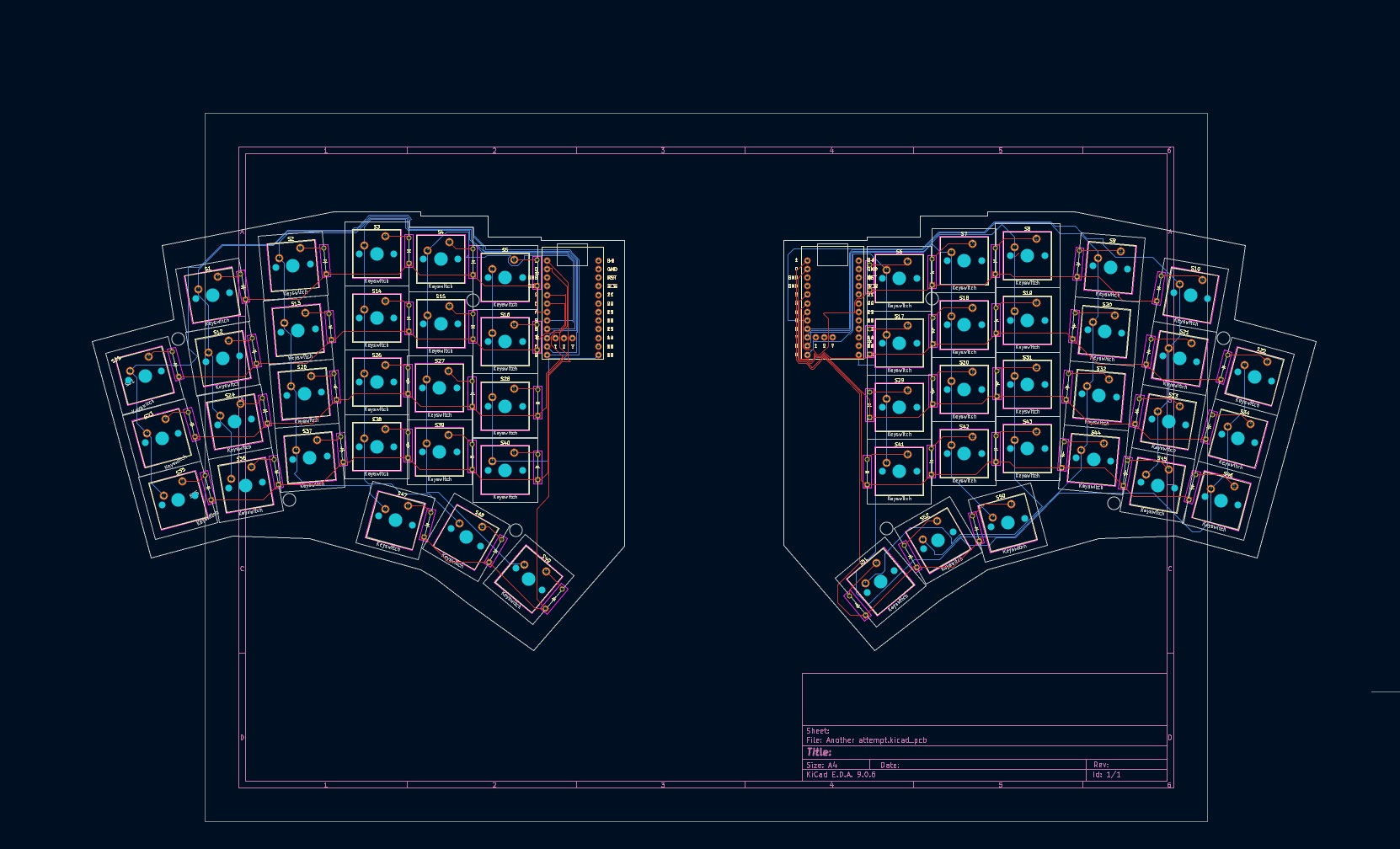
Routing traces is basically a game of connect-the-dots, except the final picture is not a bear. This was challenging because you have to avoid blocking access to any other rows or columns. Pin by pin I worked through it until everything was connected and looking decent (to someone who knows nothing about circuitry).
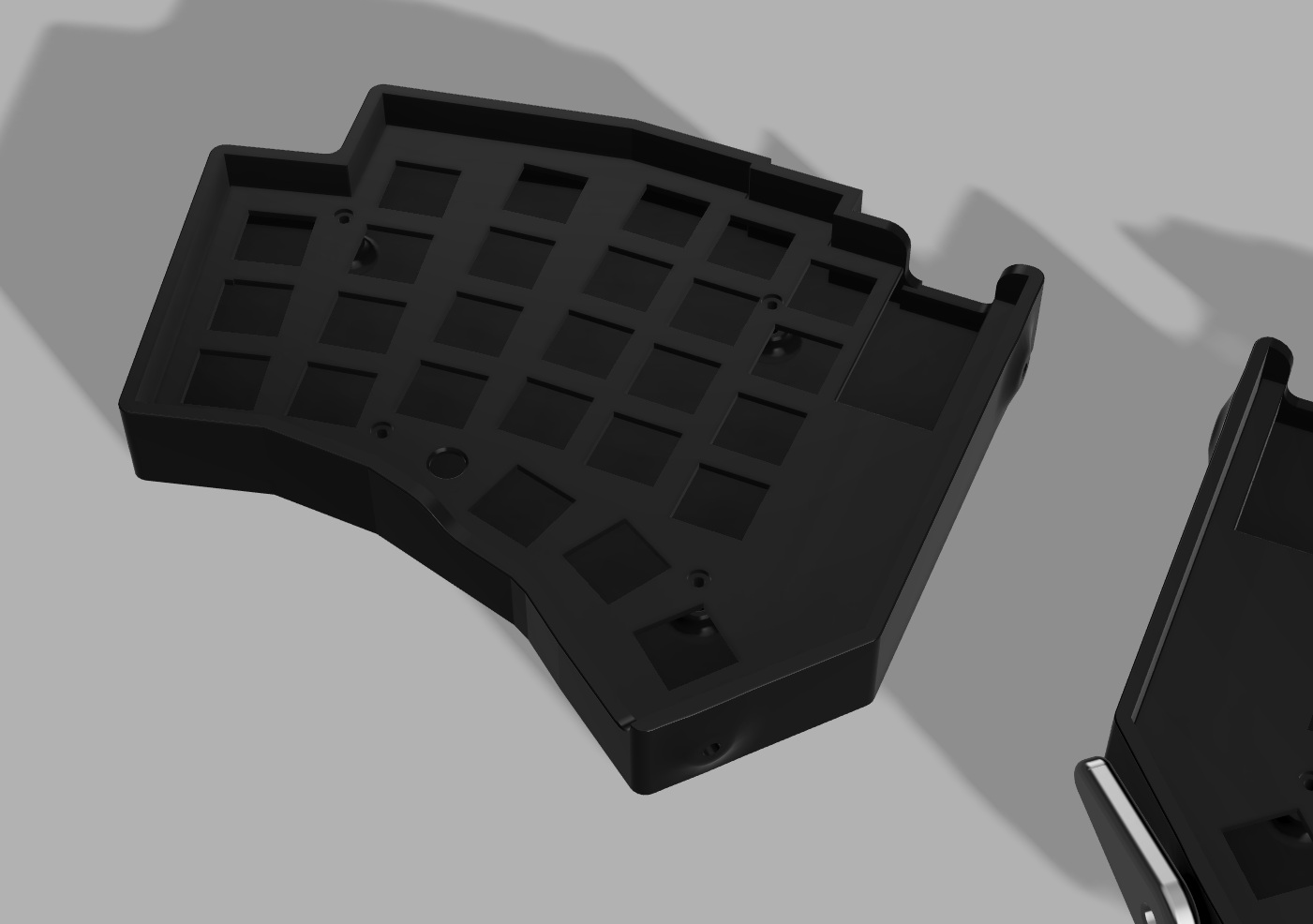
Then came drawing the board outline. Adding “Edge Cuts” was another problem I discovered later. I rushed the design, eyeballed the right PCB instead of mirroring properly, and got bit in the ass designing the case.
Submitting to PCBWay

After fixing all visible errors, I sent the Gerber files to PCBWay using their plug-in. The system takes you to their site with the technical info pre-filled. You choose solder, solder mask color, silkscreen, and hit “Add to cart.”
Someone from PCBWay reviews your work and points out issues. My reviewer noticed I accidentally set huge mounting holes (2mm radius, not diameter) and fixed it. They also recommended thinning the break seam so both halves would snap cleanly apart. I happily let the experts help.
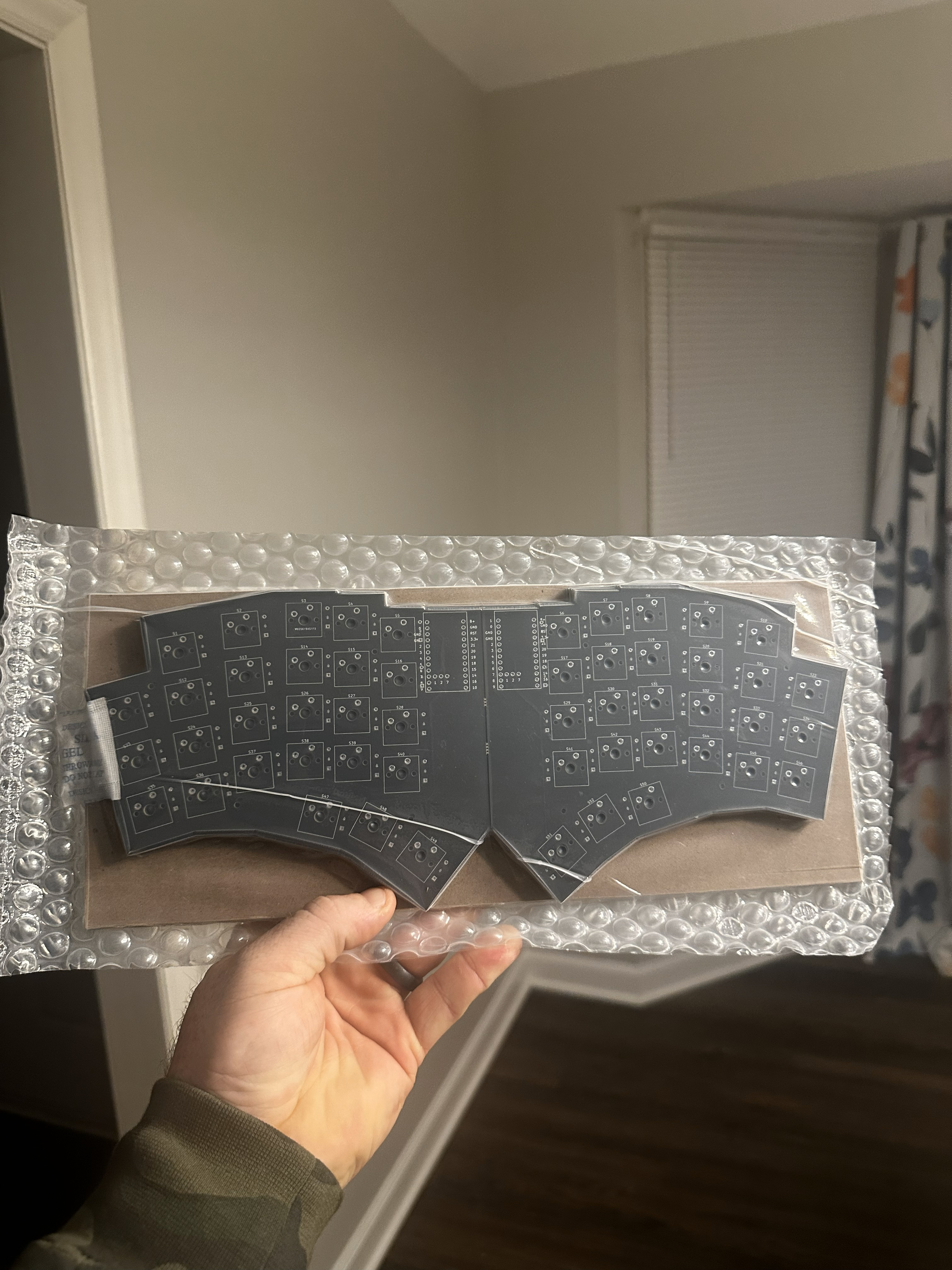
One week later, I had five pristine PCBs. Holding a board you designed—and having it look good—is a feeling I now crave. I went with flat black PCBs with white accents. Safe choice, great look.
Case Design
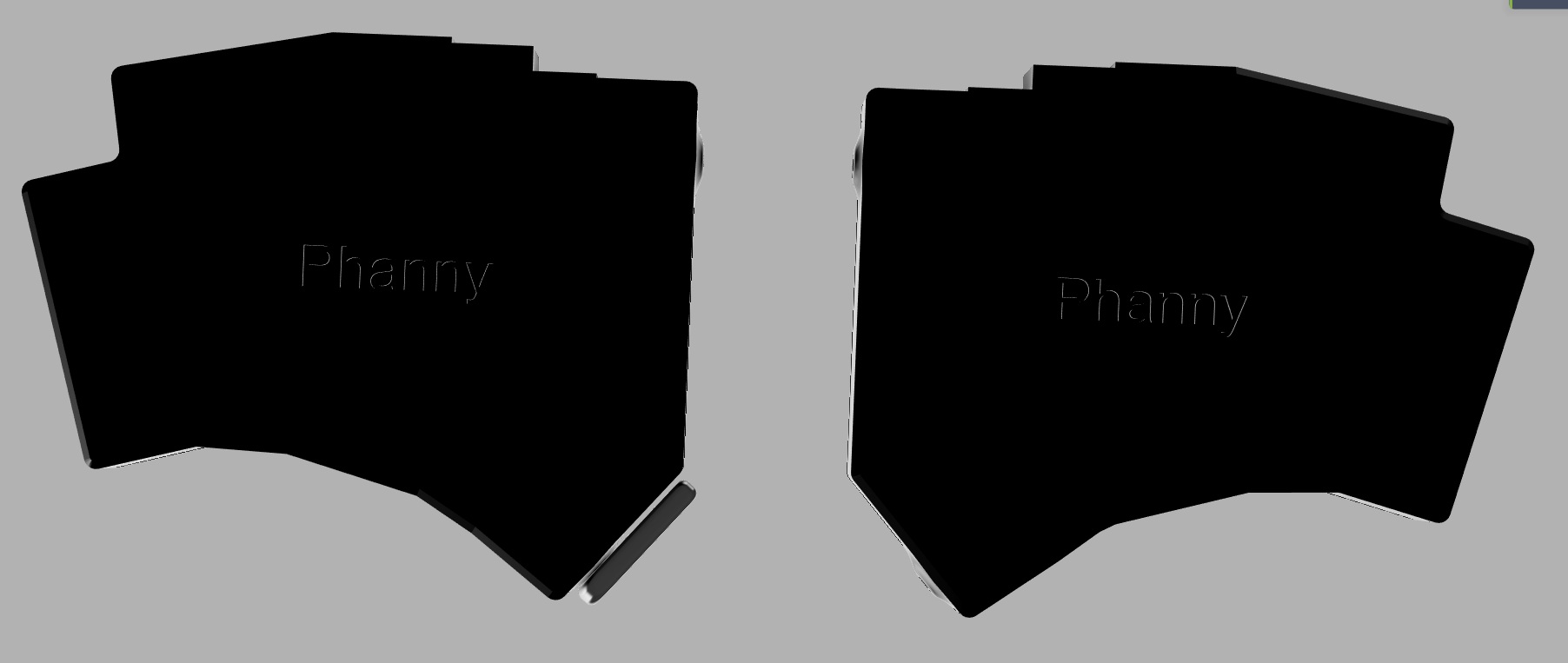
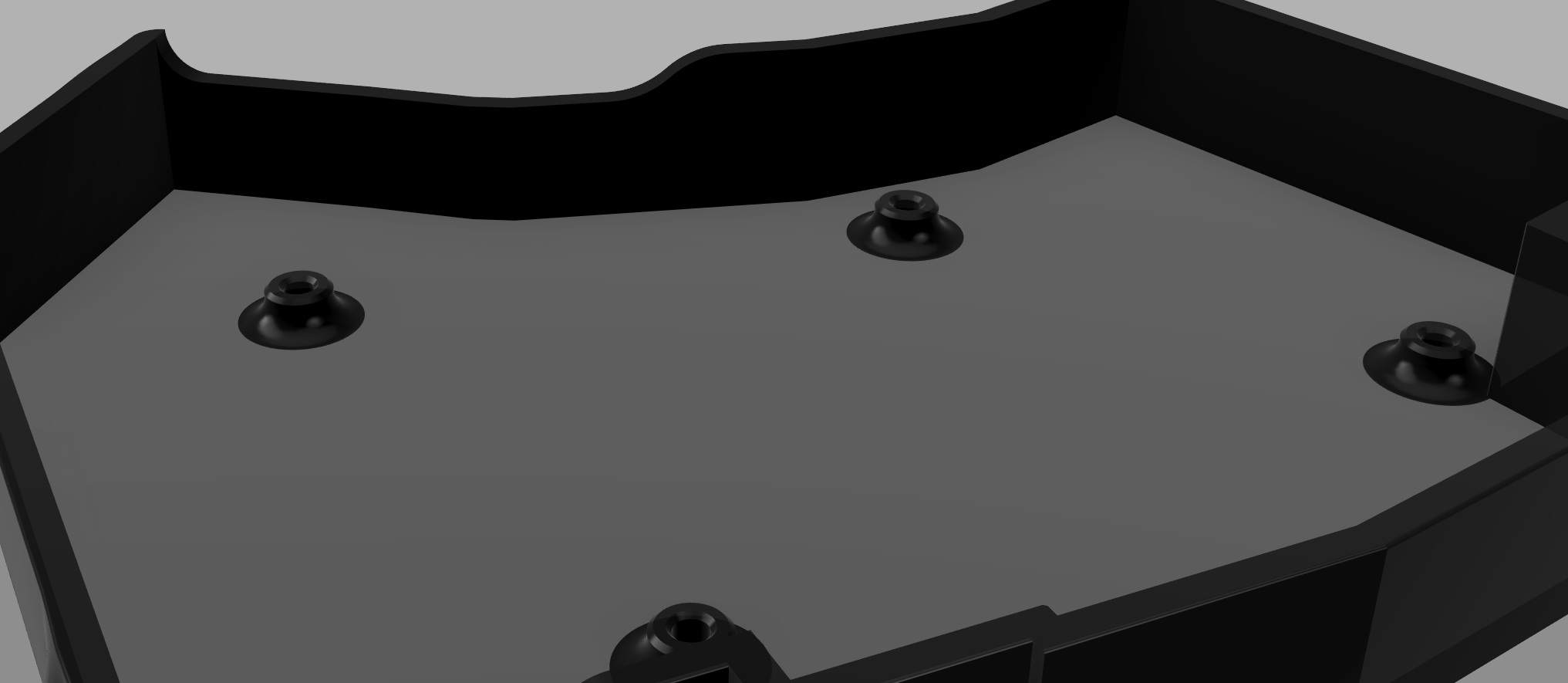
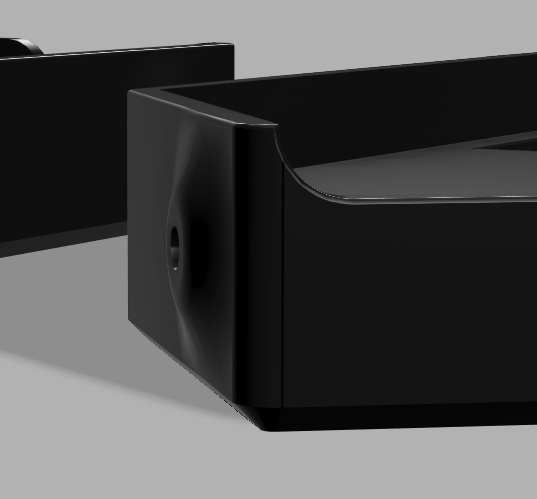
I exported my PCB from KiCad into Fusion360. I included all components so I could design around them with confidence (because I had already done enough guessing elsewhere).
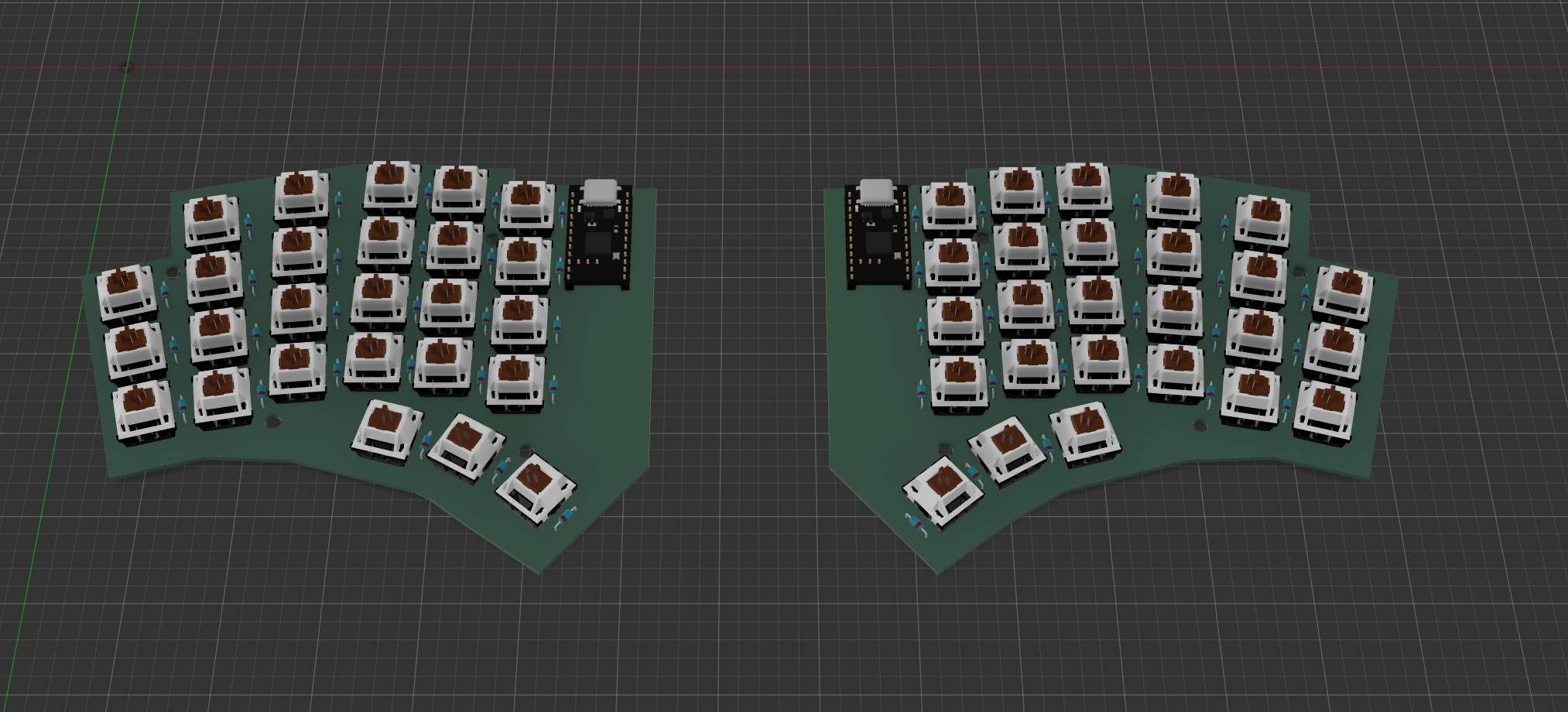
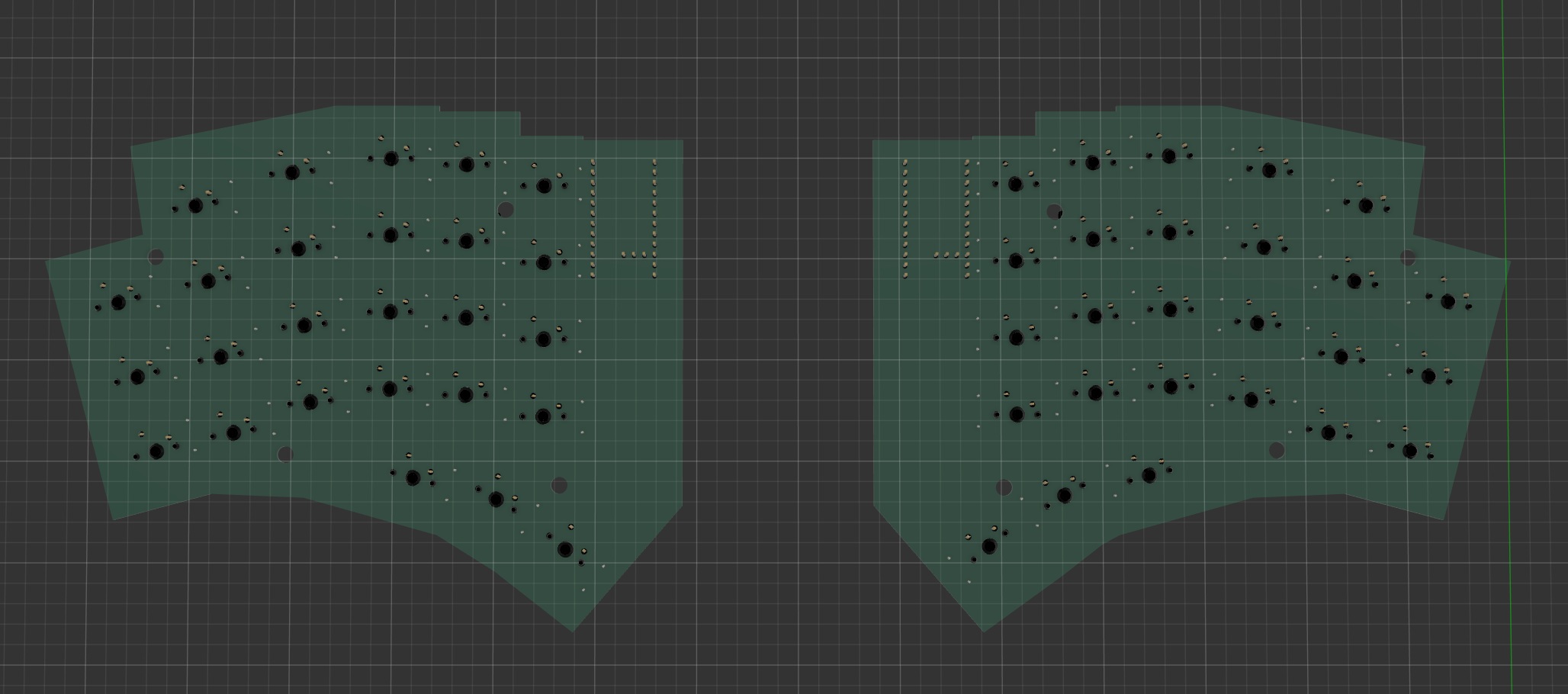
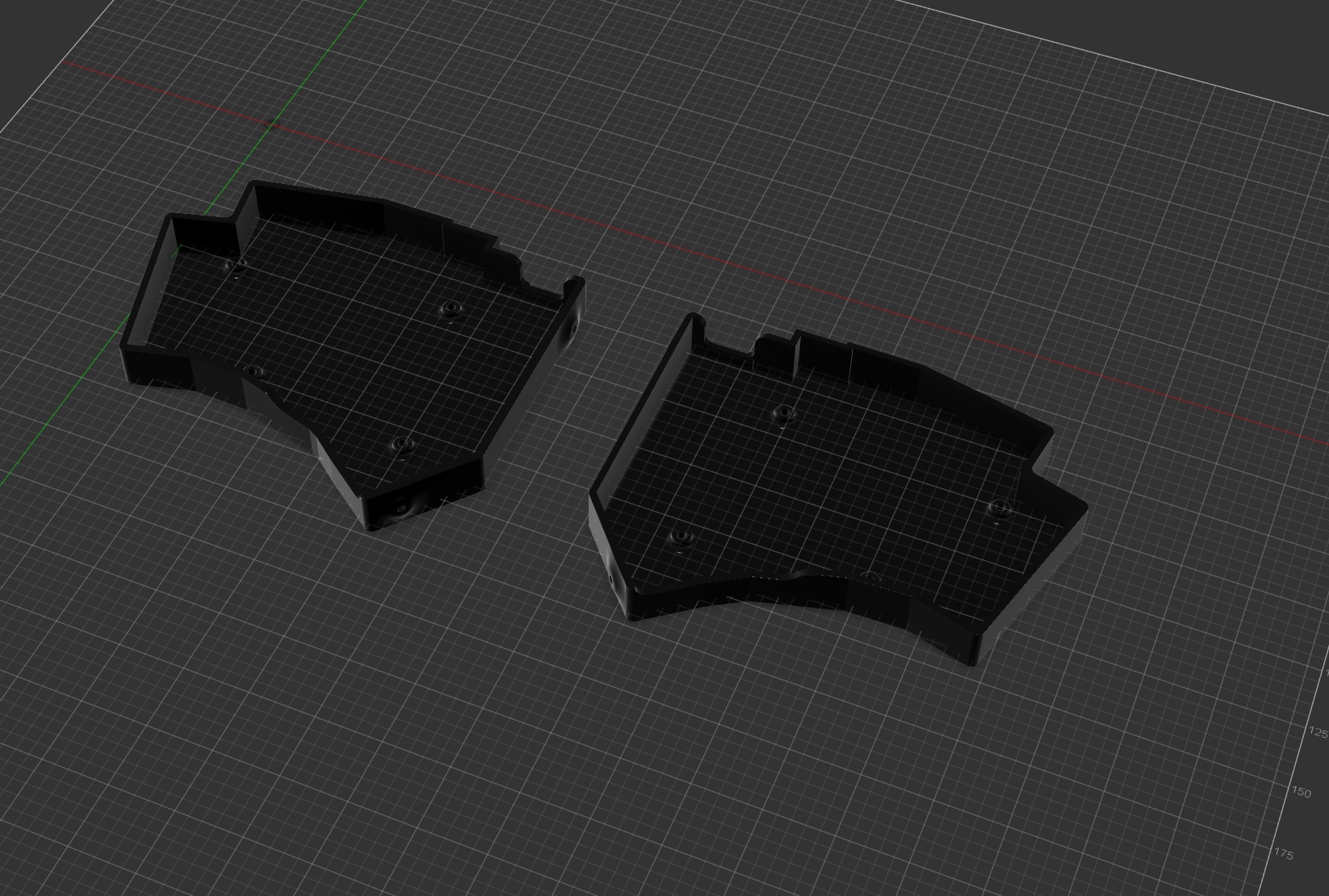
A YouTuber I watch, Stuff Made Here, says something like: “Don’t design around a mistake instead of fixing it. It will cause more problems later.” I ignored that advice from someone who builds robots, the proceded to go through about twelve different case iterations until landing on the one I’m sharing here.
Assembly & Soldering
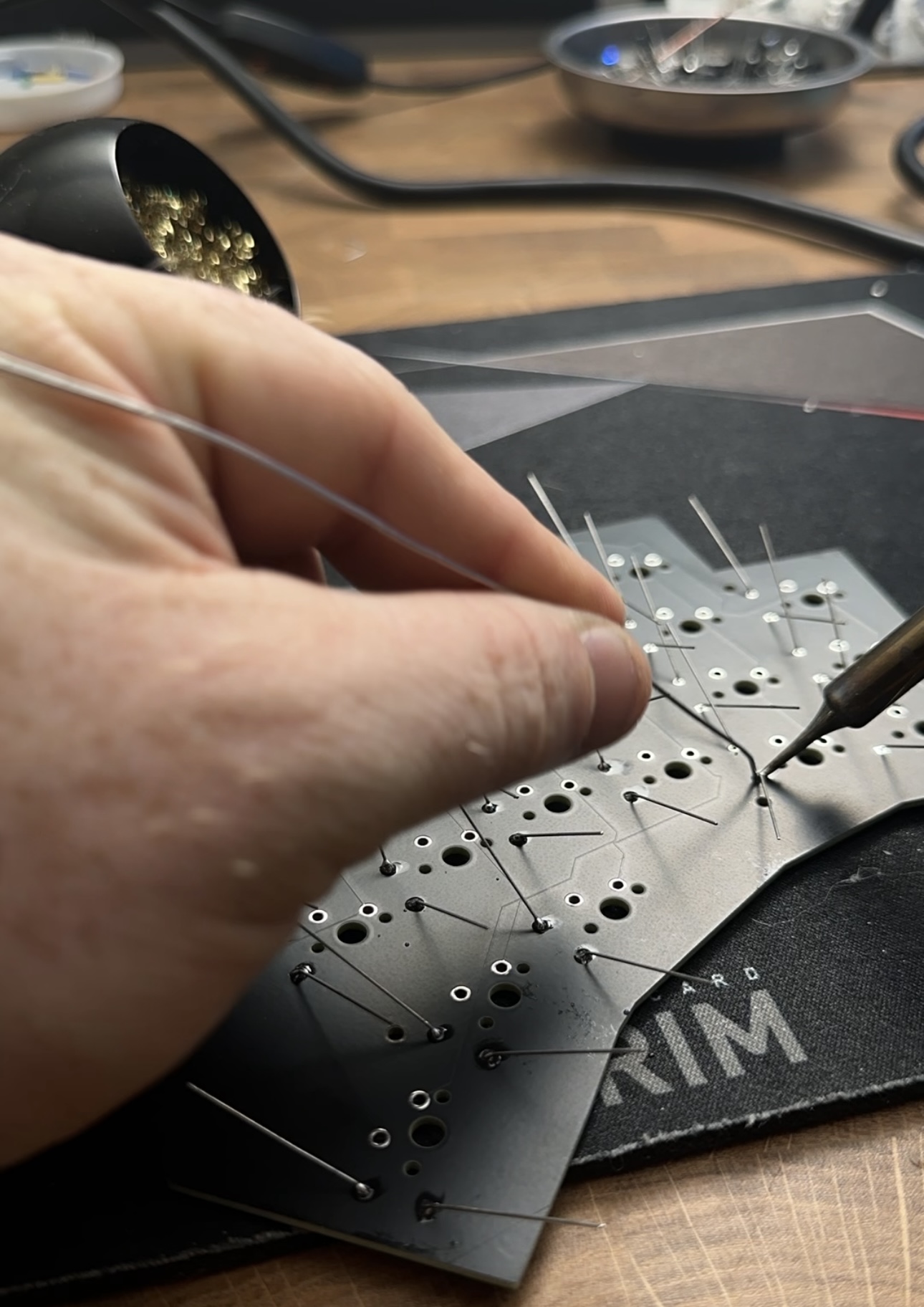
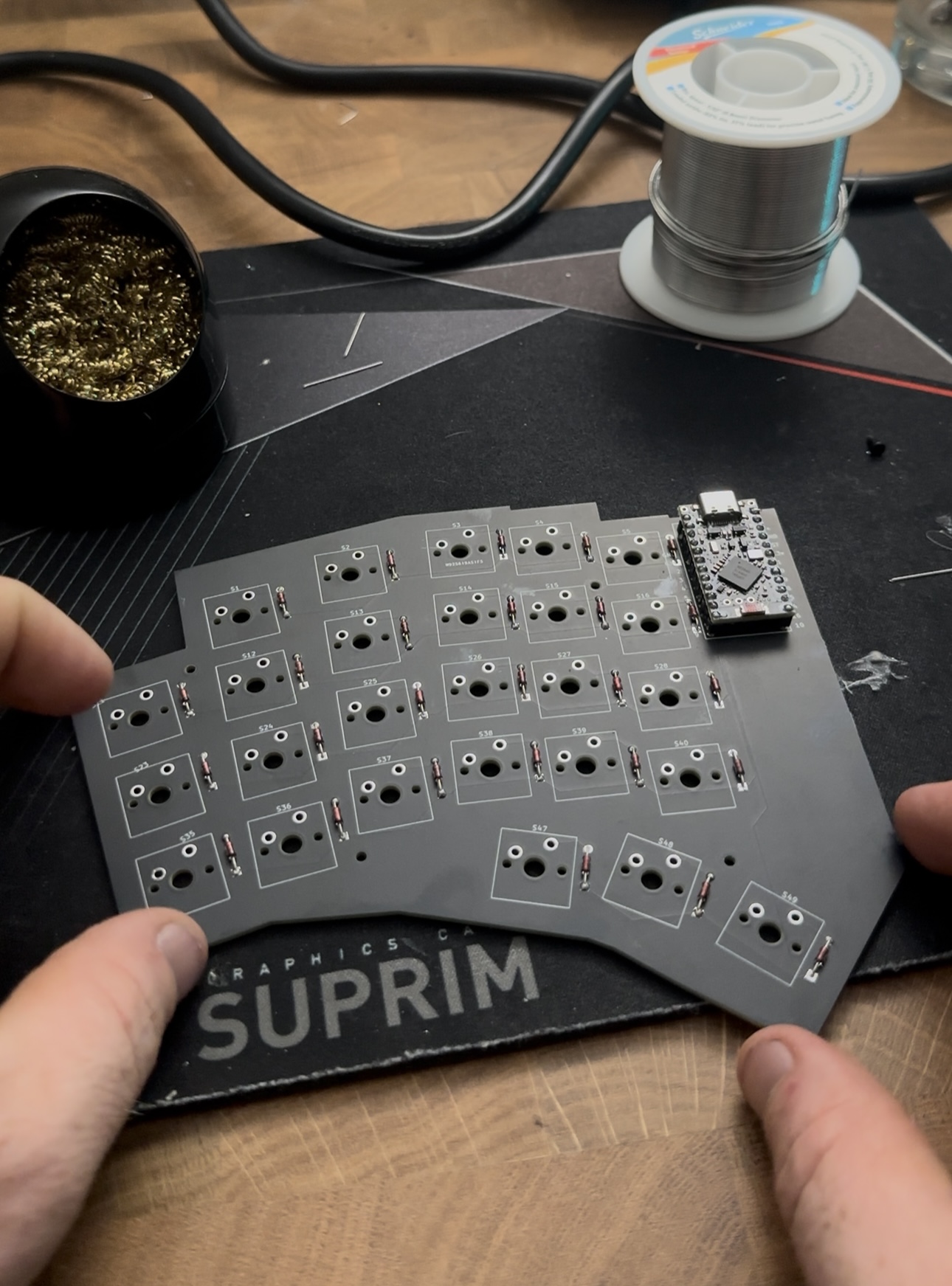
Time to solder and hope I correctly referenced the schematic.
Order of operations:
Diodes (through-hole, top side)
MCU socket headers
Battery wires to BAT+ and BAT- Design flaw: I forgot a dedicated power connector
Latching switch to battery and pads IMPORTANT: Positive to positive, negative to negative Best case: you fry an MCU Worst case: angry lithium fire rock
Switches
Then for the first time, I plugged in one half of the keyboard.
Firmware
Thanks to help on previous builds, I was pointed to the Shield Wizard for ZMK, and it changed everything. It walks you step-by-step through generating your firmware. In about 20 minutes you can go from a pile of solder, copper, and silicon to a fully functional wireless keyboard. Then you have to edit your keymap. It will be in alphabetical order when the firmware is built. This is easy if you use ZMK Keymap Editor
Completion
Next, I screwed the plate and PCB into the case, synced the two halves by shorting the reset to ground at the same time for both sides, connected to my computer, and began typing this article.
If you’d like do download the files for KiCad, or to send to PCBWay to make your own Phanny, please visit my GitHub repository forms here: