
Wdeck - ESP32 MacroPAD
Obliczymy ostateczną cenę na podstawie wybranego pliku. Sprawdzisz ją i zaakceptujesz przed płatnością.
Zapisane na tym urządzeniu.
Informacje o modelu
- Źródło
- Printables
- Kategoria
- Electronics
- Licencja
- GNU General Public License v3.0
🔗 Ready to build your own? For full documentation, assembly guides, and software downloads, visit the official project hub: here
🔥 Key Features
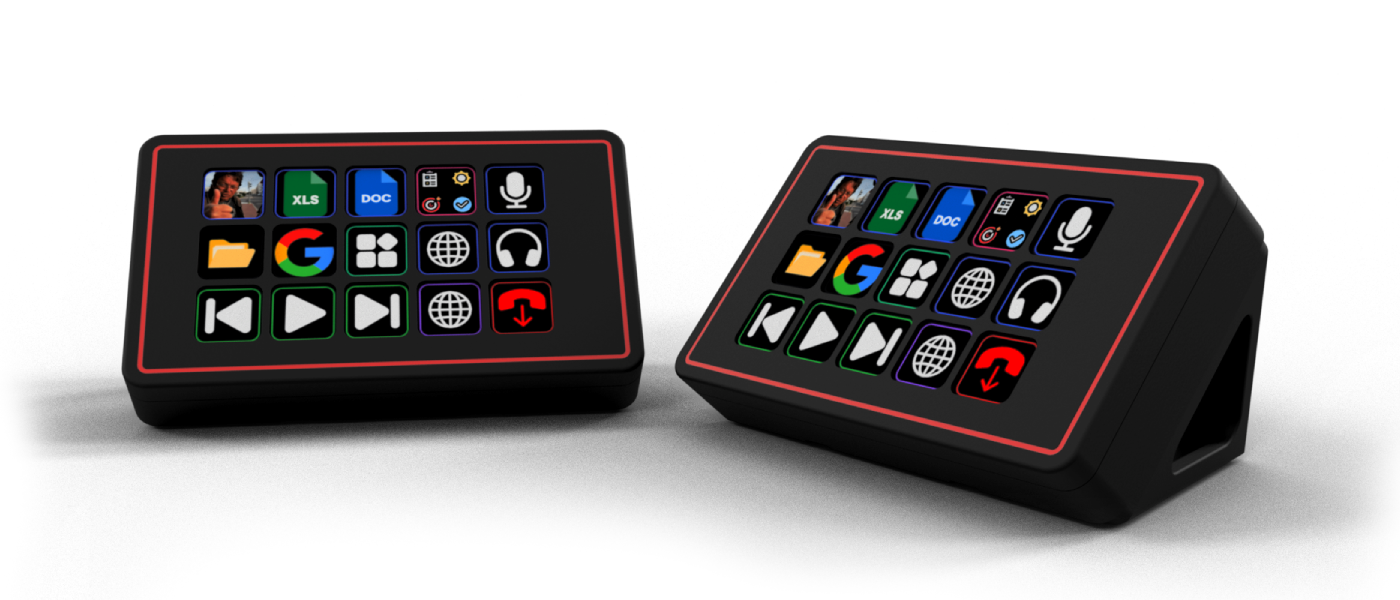
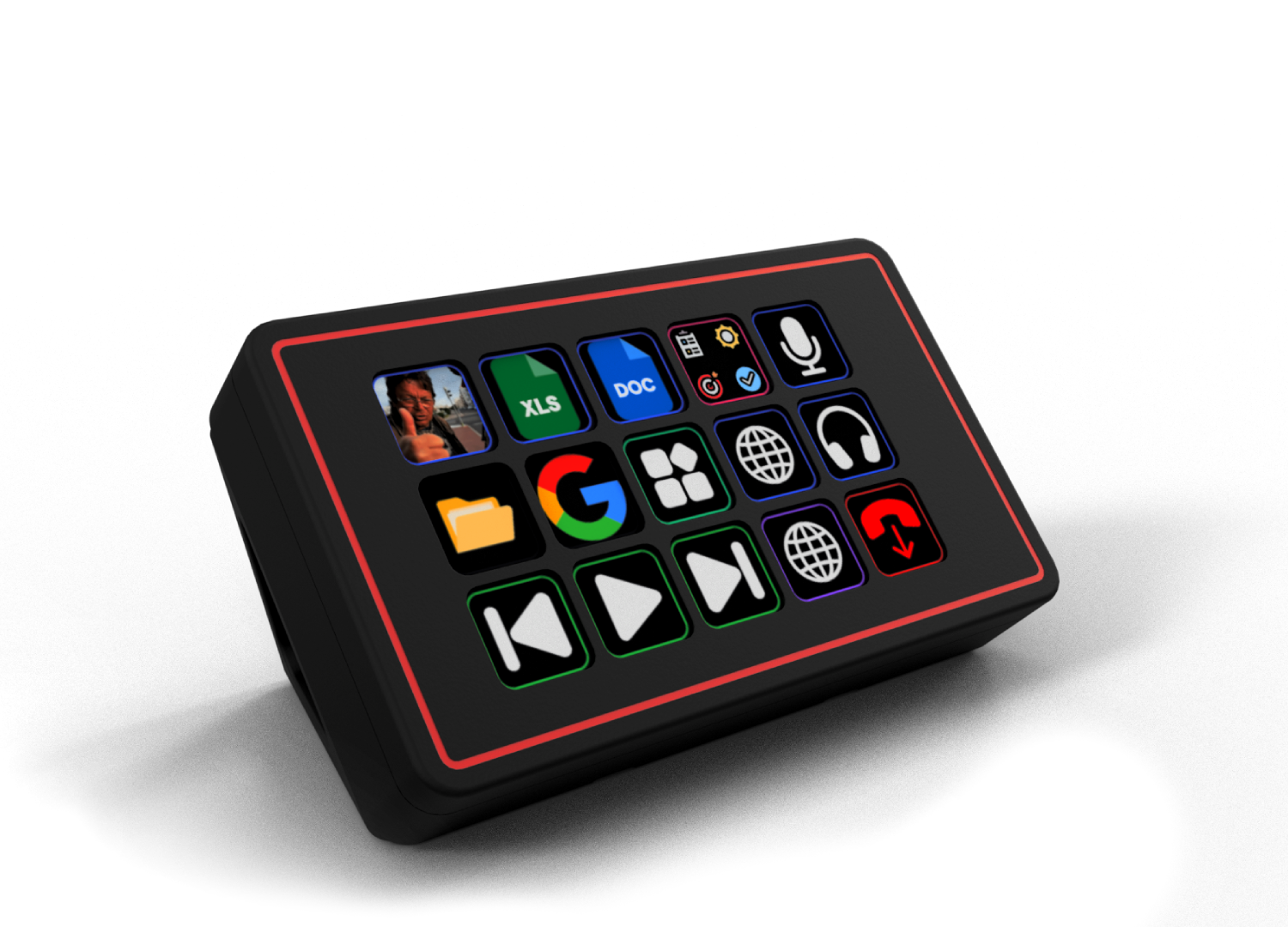
Smart Profiles: The Wdeck detects which application you are currently using and automatically switches icons and macros on the fly.
Simple Macro Engine: Drag-and-drop interface in the desktop app. Pick an icon, assign a shortcut or action, and save. No manual config files needed.
Real-time Sync: Hardware and software stay perfectly in sync.
🛠 Bill of Materials
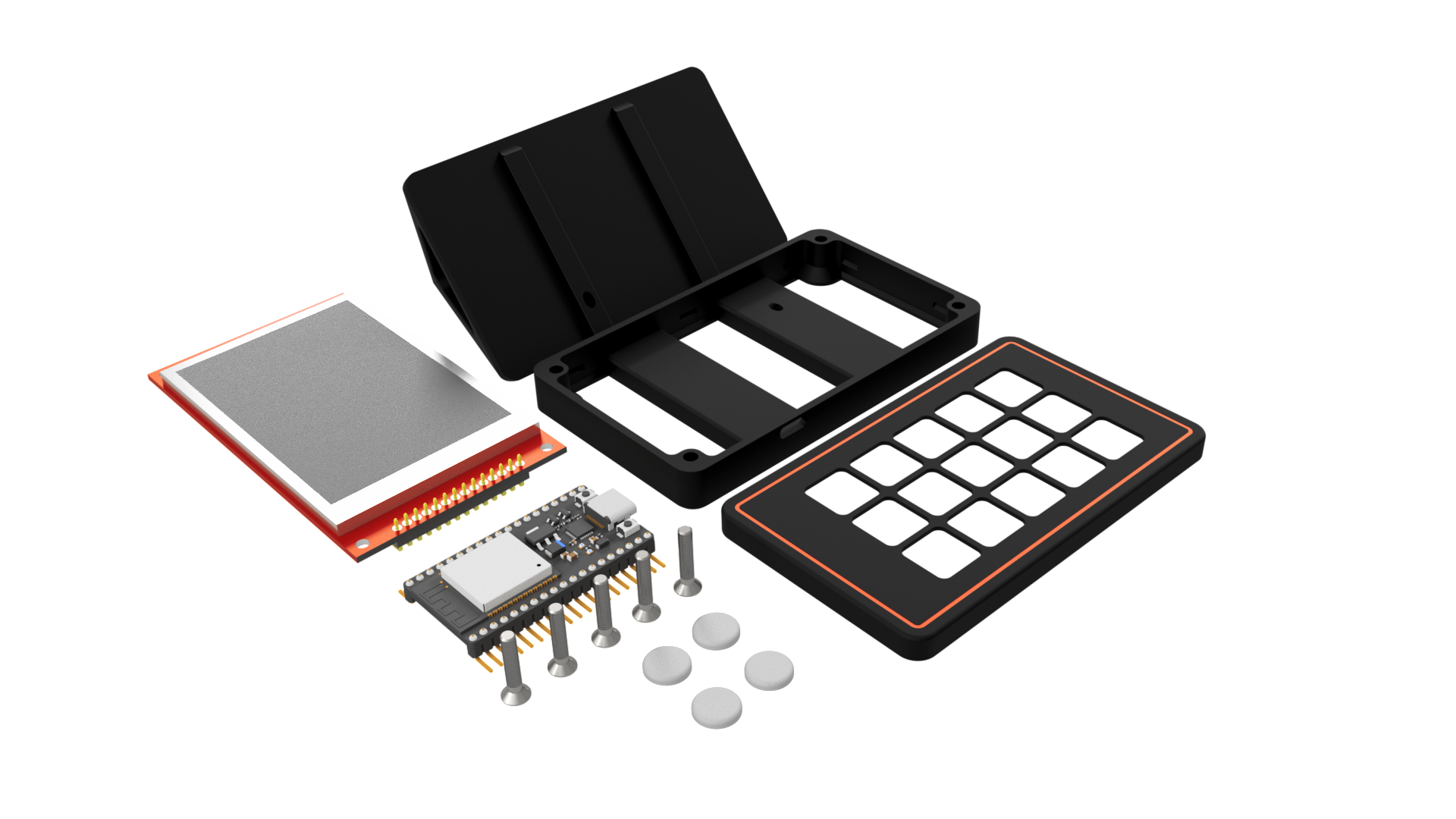
This is a DIY project, but it's built using widely available and cheap components.
ESP32 Core: WROOM, S2, or S3 DevKit (1x)
3.5" TFT Touchscreen: 480x320 SPI TFT with ILI9488 driver. (Note: It MUST have a Capacitive or Resistive touch layer, otherwise touch will not work!)
Screws: M3x14mm countersunk screws (5x)
🖨 3D Printing Guidelines
The case has been designed with ease of printing in mind. No complex supports are needed if oriented correctly on the build plate.
Material: PETG is highly recommended for its durability and thermal resistance (the screen and ESP32 can get a bit warm). PLA works fine for prototyping.
Layer Height: 0.2 mm for a perfect balance of speed and surface finish.
Infill: 15% - 20% (Gyroid or Grid).
Perimeters: 3 perimeters for extra rigidity.
⚡ Wiring & Assembly
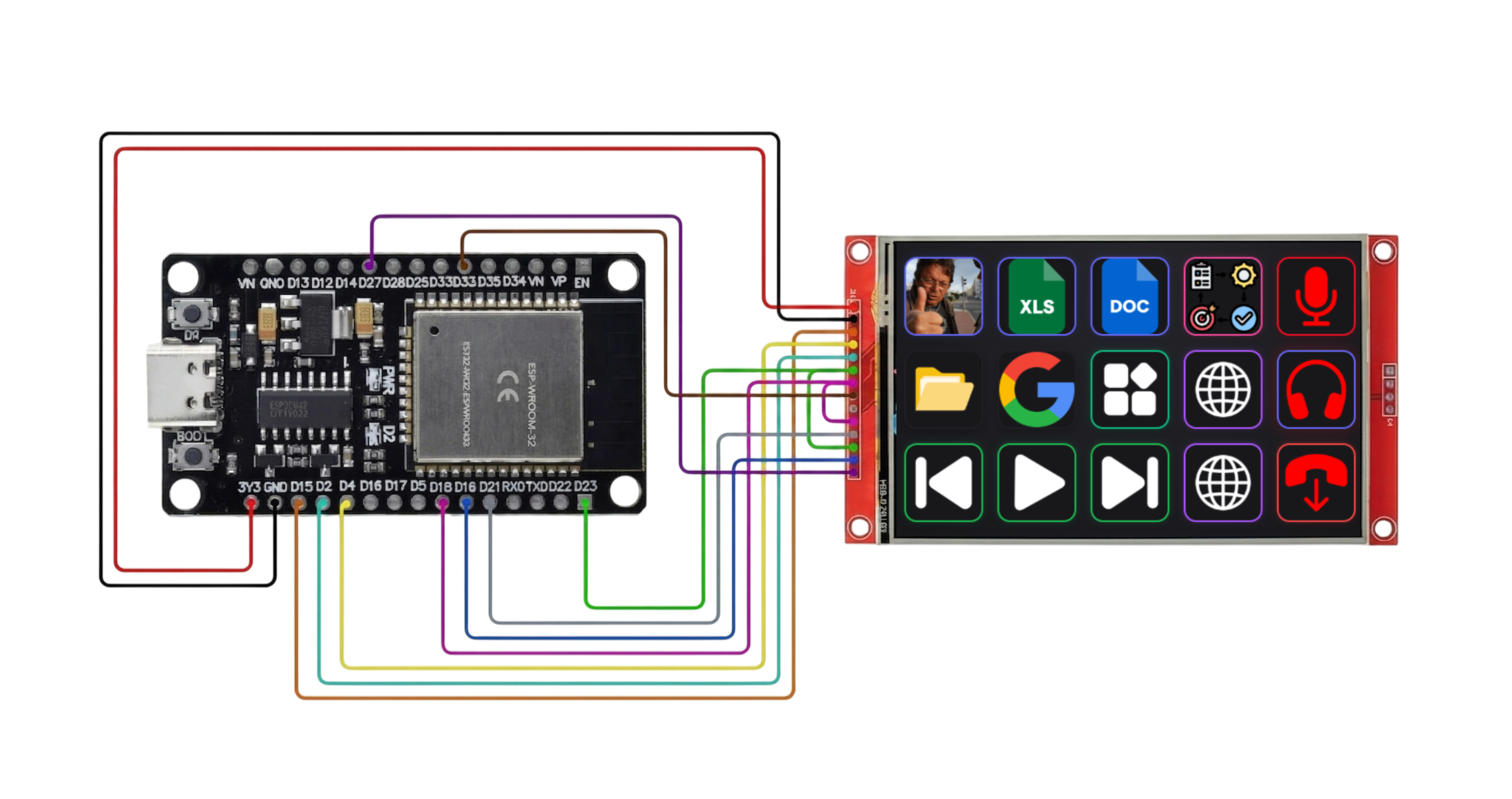
The physical build takes roughly 30 minutes. You will need a soldering iron to connect the display to the ESP32.
Solder the connections: Follow the exact pinout required for the ILI9488. Keep your iron around 320°C to avoid damaging the ESP32 pads.
Mount the hardware: Insert the screen into the front bezel, place the ESP32 in its dedicated slot, and secure the backplate using the M3 screws.
💻 Software Setup
Forget about complex Arduino IDE setups or installing sketchy drivers. We've made it as simple as possible.
Download the latest Wdeck Installer for Windows from our website.
Run the application (Run as Administrator recommended for hotkeys to work globally).
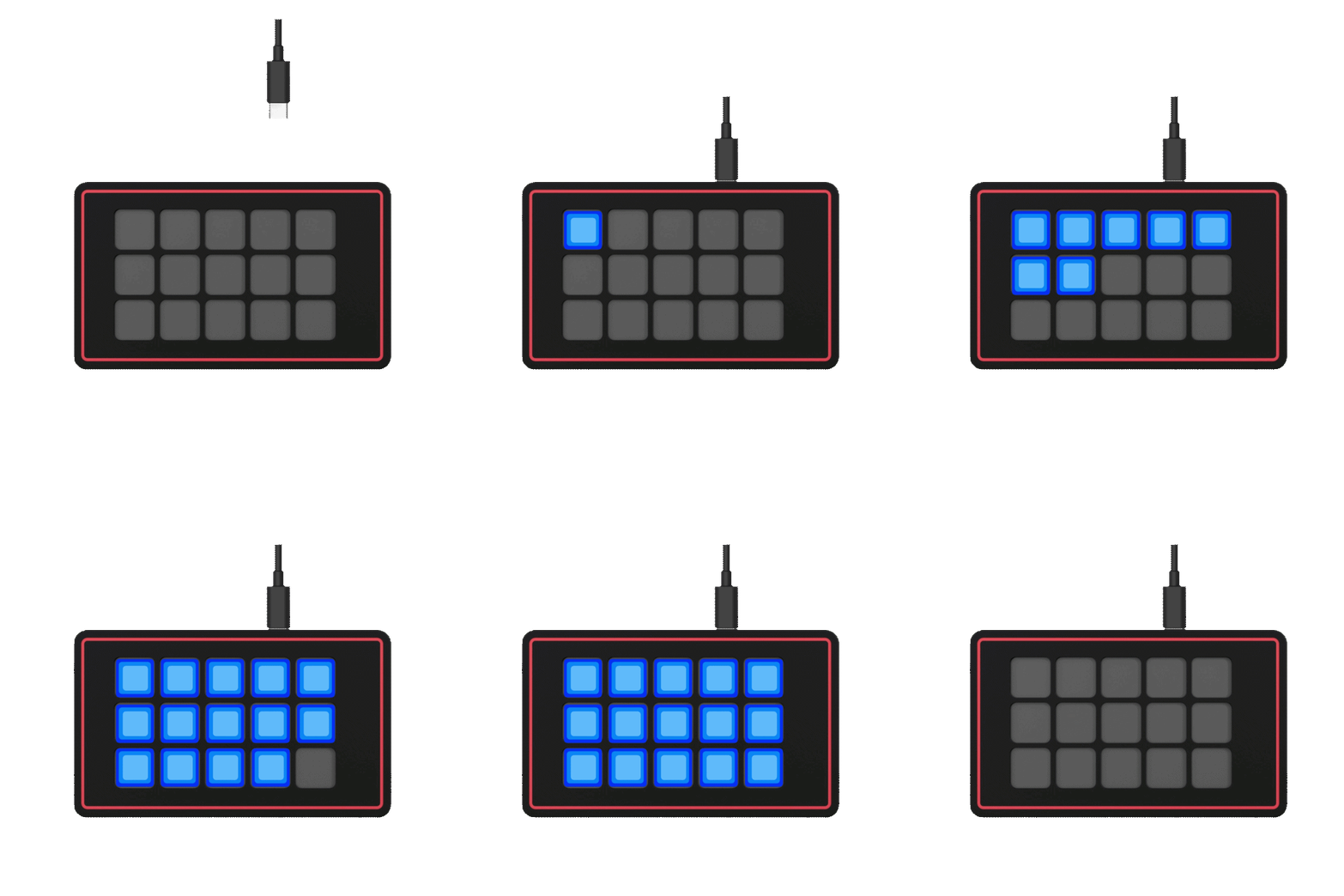
Connect your assembled Wdeck via USB.
Open the Flash Menu inside the app and click Flash – it takes just a few seconds!
🖥 The Wdeck App
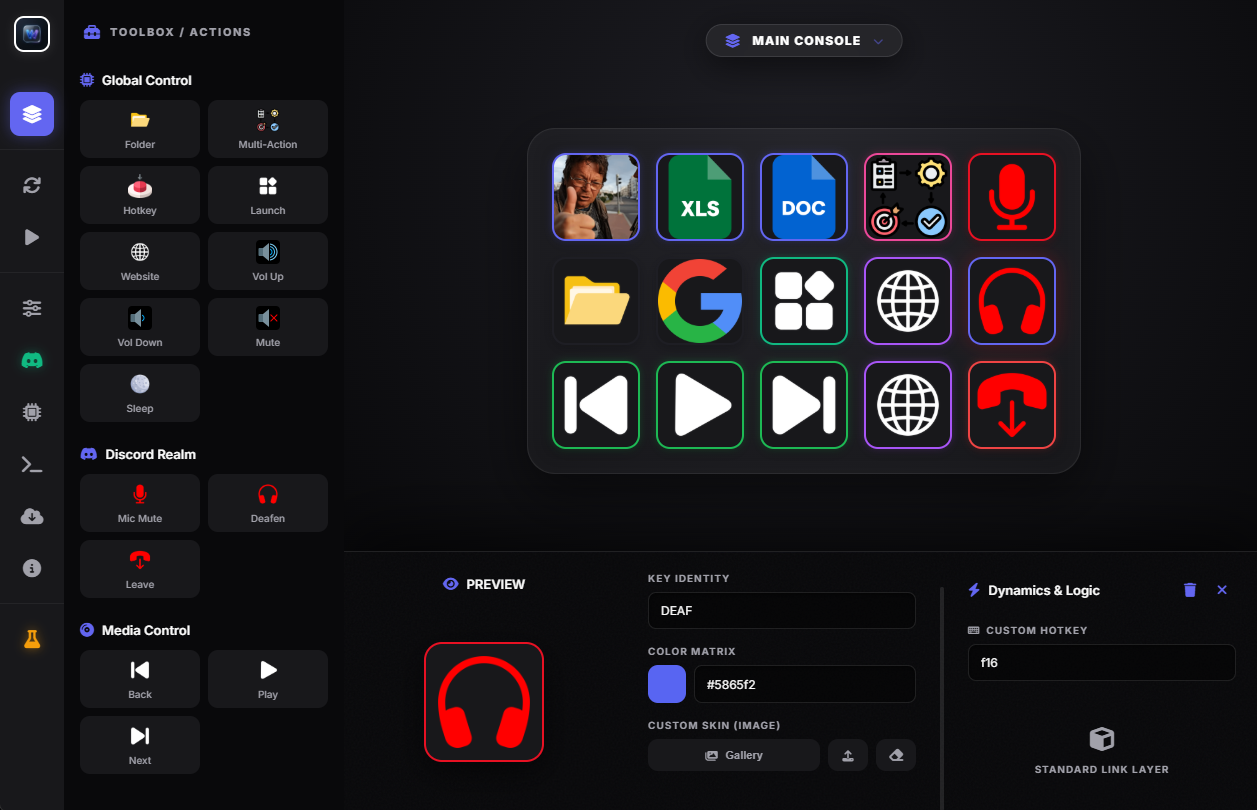
The true power of Wdeck lies in its custom Windows companion app. No coding or config files required!
Drag-and-Drop: Easily assign actions, shortcuts, and icons to your buttons.
1-Click Flashing: Flash your ESP32 directly from the app via USB—no Arduino IDE needed!
Studio Console: Manage your profiles and monitor device status in real-time.
🌐 Links & Resources
Everything you need—from the Windows app installer to the official documentation and source code—is available on our website.
Official Website & Downloads: here
Creator: Wilda
If you build one, please share your make! I would love to see your custom color combinations and desk setups. Happy printing and automating!