
Add-In for Fusion to Export/Import User Parameter
We calculate the final price from your selected file. You review and accept it before payment.
Saved on this device.
Export or Import User Parameter from Fusion.
- Rating
- 0 / 5
- Likes
- 0
- Downloads
- 6
- Makes
- 0
- Views
- 49
- Reviews
- 0
Updated at source:
Model information
- Source
- Printables
- Category
- Accessories
- License
- Creative Commons — Attribution — Noncommercial — Share Alike
Import oder Export der User Parameter einer Fusion-Datei in eine CSV-Datei.
Beim Importieren werden bestehende Parameter aktualisiert und nicht vorhandene Parameter angefügt. Das Attribut für Favoriten wird berücksichtigt.
Installation:
Zip-Datei laden
Datei entpacken
Fusion öffnen
Gehe zum Scripts & Add-ins Dialog (Shift-S)
Klicke das + icon und dann "Script or add-in from device". Das öffnet den Finder (Mac) oder File Explorer (Windows)
Navigiere zum Ordner, der in Schritt 2 erstellt wurde und klicke "Open"
Das Add-in ist nun in der Liste
Aktiviere die "Run on Startup" Checkbox und klicke auf "Run"
Das Import-Export-Add-In ist nun im Menü "Volumenkörper/Ändern" sichtbar
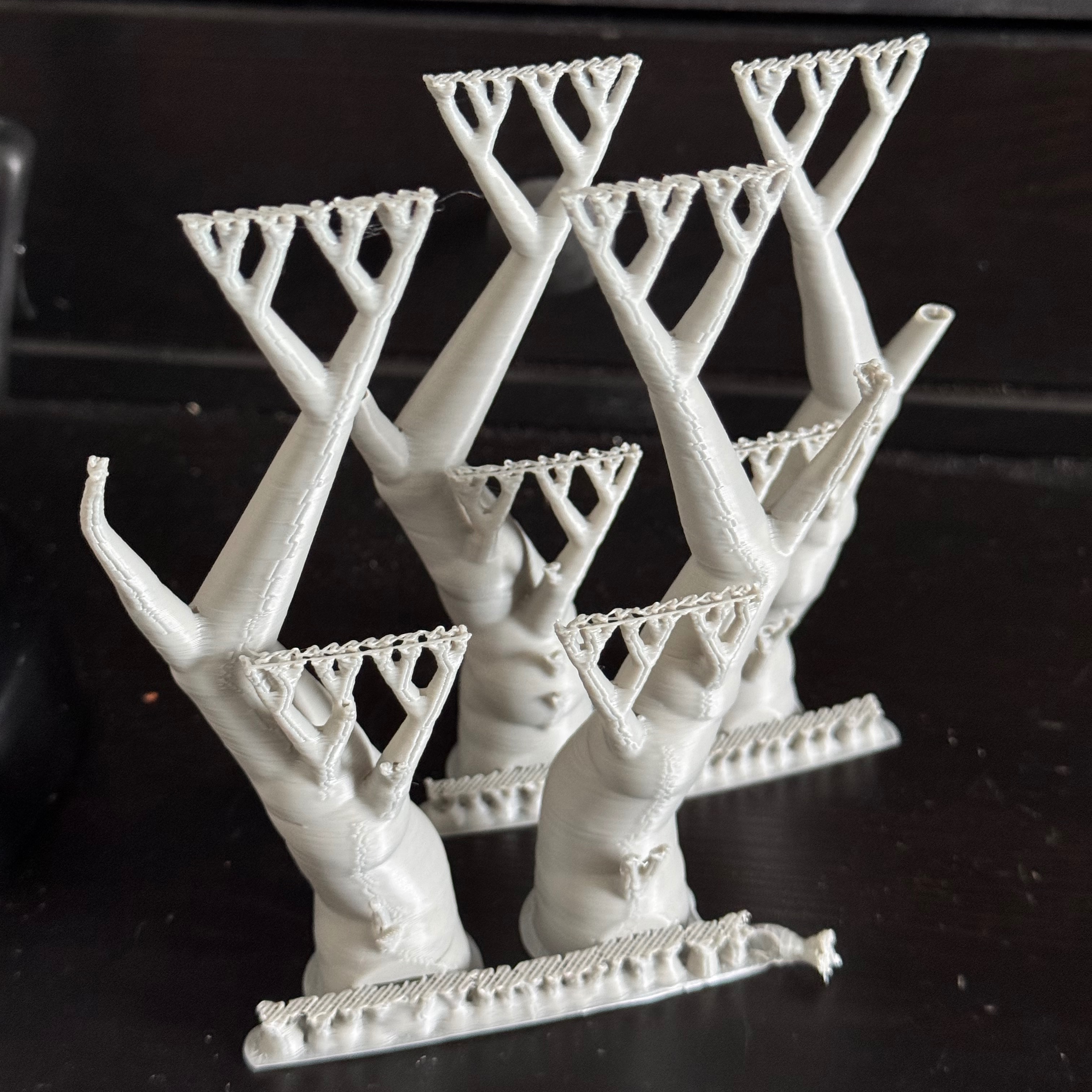
Die Druckdatei ist nur als Beispiel eines Designs beigefügt. Ich verwende das Add-In für diese Adapter: https://www.printables.com/model/1624401-adapter-fur-filamentspulen-parametrisiert
ACHTUNG: Es wird keine Gewährleistung für die fehlerfreie Ausführung des Add-Ins übernommen. Überprüfen Sie die Funktion an einer Testzeichnung.
Import or export the user parameter of a Fusion file to a CSV file.
When importing, existing parameters are updated and non-existent parameters are added. The attribute for favourites is taken into account.
Installation:
Download zip file
Unzip file
Open Fusion
Go to the Scripts & Add-ins dialogue (Shift-S)
Click the + icon and then ‘Script or add-in from device’. This opens the Finder (Mac) or File Explorer (Windows)
Navigate to the folder created in step 2 and click ‘Open’
The add-in is now in the list
Activate the ‘Run on Startup’ checkbox and click ‘Run’
The Import-Export add-in is now visible in the ‘Solid/Modify’ menu
The print file is only included as an example of a design. I use the add-in for these adapters: https://www.printables.com/model/1624401-adapter-fur-filamentspulen-parametrisiert
ATTENTION: No guarantee is given for the error-free execution of the add-in. Check the function on a test drawing.
Translated with DeepL.com (free version)