
WLED Powered Crocs
We calculate the final price from your selected file. You review and accept it before payment.
Saved on this device.
Model information
- Source
- Printables
- Category
- Other Fashion Accessories
- License
- Creative Commons — Attribution — Noncommercial — Share Alike
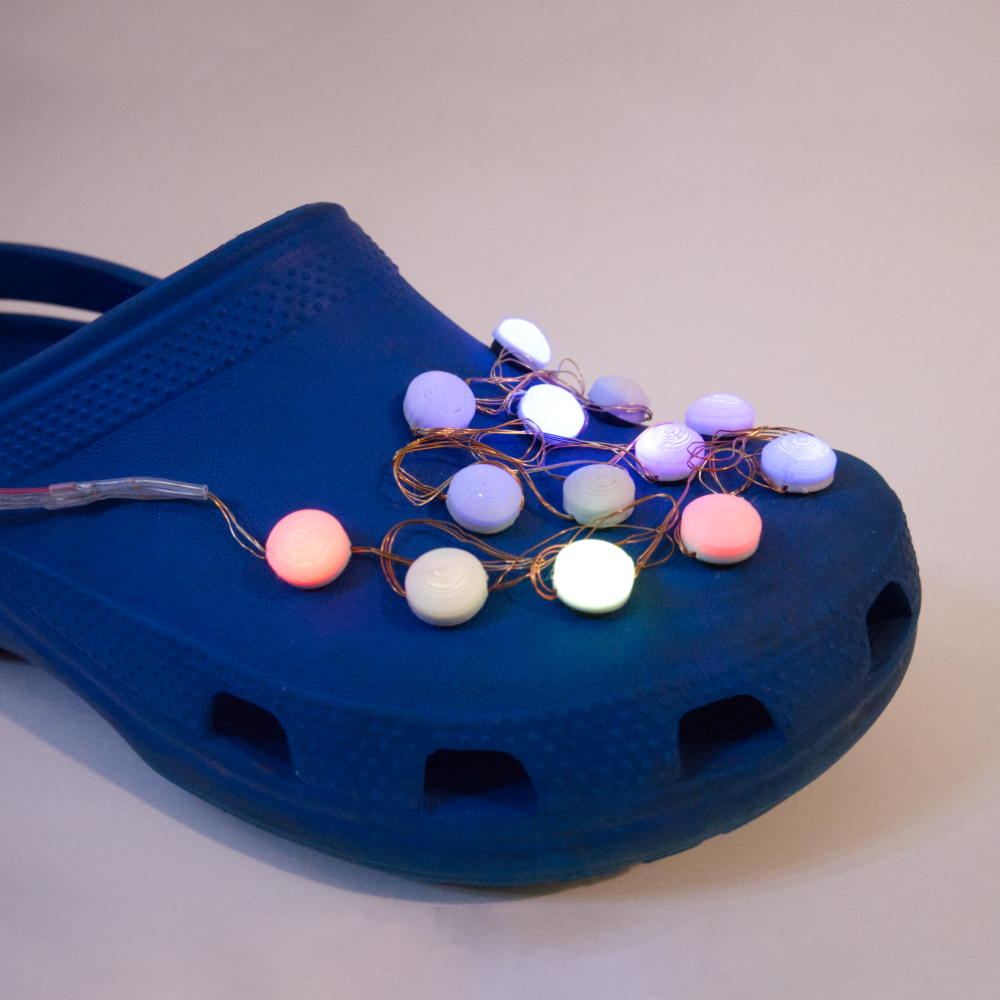
Need a Halloween costume? Christmas Party? Show support of your favorite sports team?
Add some flare to your Crocs with individually addressable LEDs and WLED. Perfect for the occasional occasions.
Please ignore the bad print quality. I was printing fast to hit a deadline.
Parts Needed:
| Part | Qty | Note | Link |
|---|---|---|---|
| Your favorite Crocs | 1 pair | ||
| ESP8266 dev board | 1 | Remove pin header | link |
| 128x64 I2C OLED | 1 | Remove pin header | link |
| Rotary encoder | 1 | PCB Module. Remove pin header | link |
| WS2812B fairy lights | 26 | I used two strands trimmed to length. | link |
| Portable charger | 1 | I used an Anker one I already had. Others may fit. | link |
| Micro USB | 1 | Short. To connect ESP8266 to portable charger. | |
| M2 screws and nuts | 4 | 6mm long? Came from kit. Not very critical. | |
| M3 screws | 4 | 6mm long? I ran out and had to use glue. | |
| 3 pin JST-SM male | 2 | I reused them from the end f the LED string. | link |
| 3 pin JST-XH | 2 | 2 male and 2 female | link |
| 3 conductor wire | ~8 feet | I used an old 24awg headphone extension cable. | link |
| Assorted wire | For internal wiring of electronics. | ||
| Heat shrink | Assorted sizes |
Printed Parts:
| Part | Qty | Supports? | Color (mine) |
|---|---|---|---|
| Light Base | 26 | No | Any (black) |
| Light Diffuser | 26 | No | White |
| Side Clip | 2 | No | Any (black) |
| Back Clip | 2 | No | Any (black |
| Electronics Enclosure | 1 | Yes | Any (black |
| Battery Holder | 1 | Yes | Any (black) |
Printing Notes:
- I used Elegoo PLA+ but most filaments should work.
- Print one light base and one diffuser as a test. The diffuser should press fit on the base and make a tight fit. If not scale the diffuser to ensure it works before printing more.
Assembly:
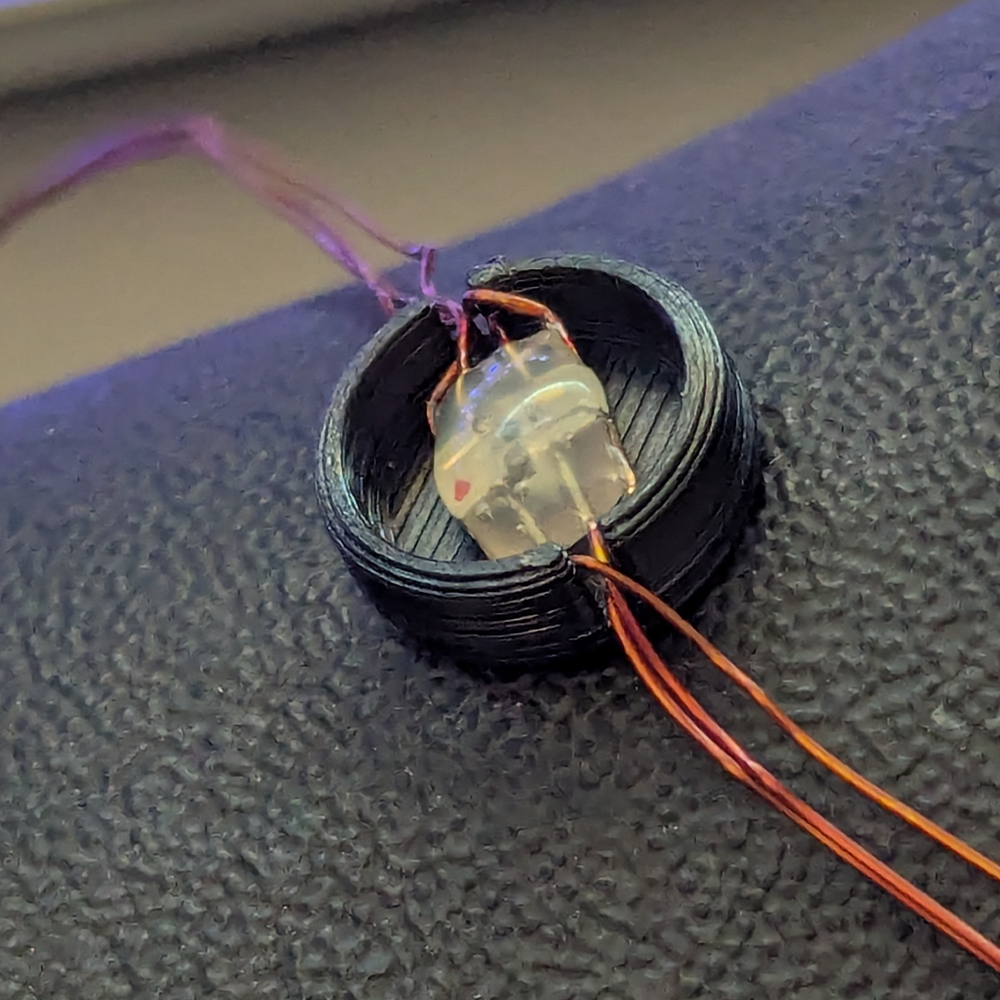
- Using tweezers insert LED face up in light base with wires placed in slots. You will have to bend the wires coming from the LED to line up with the slot.
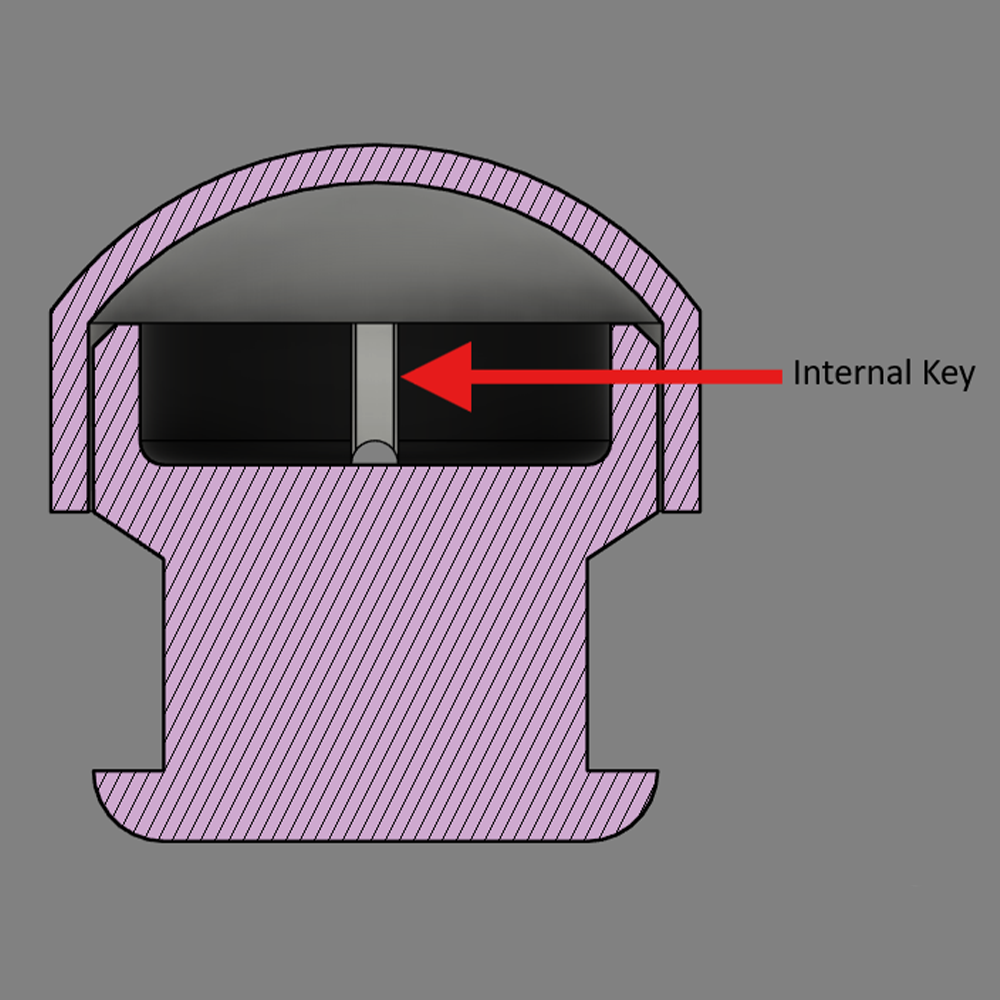
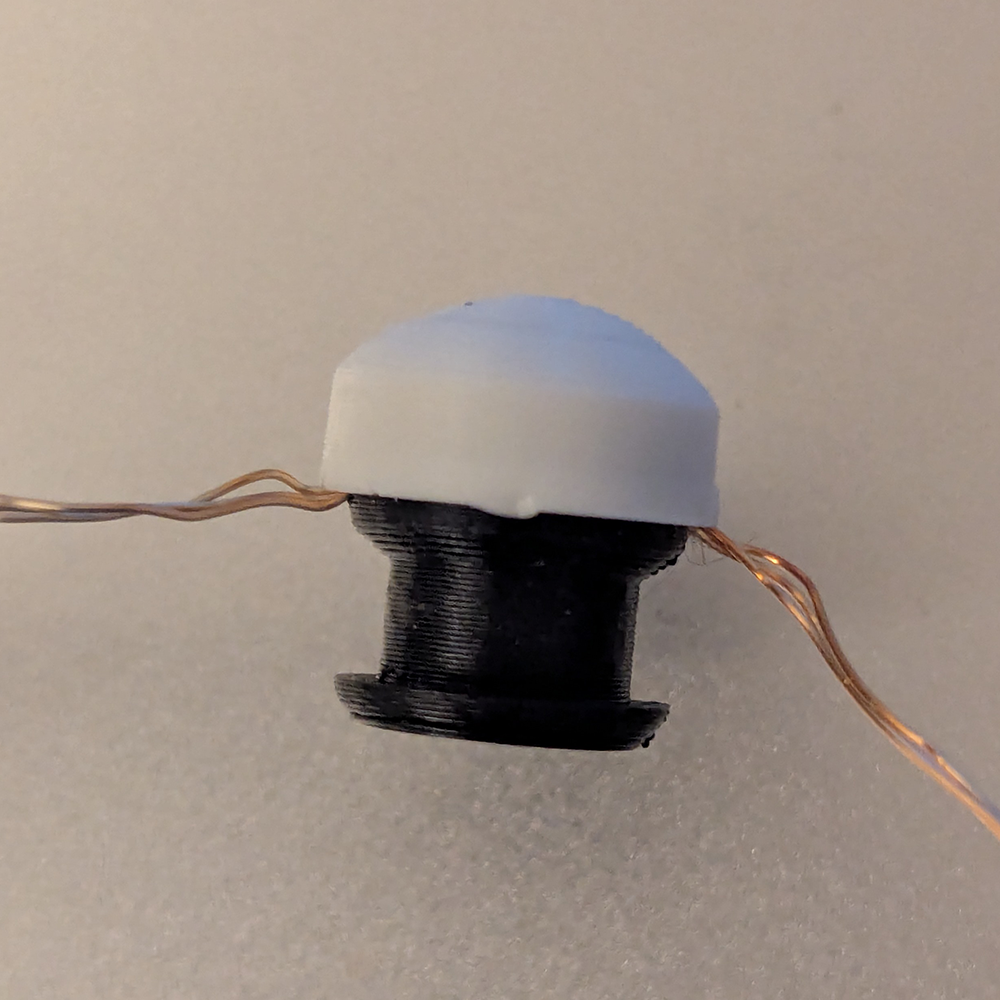
- Press diffuser on top. It has internal keys that line up with the wire slots. It should make a tight press fit
- Repeat steps 1 and 2 for all LEDs. You should have two strands of 13.
- Place light assemblies in Crocs working from the top outside hole in rows. Connector should go towards the strap of the Croc. Use tweezers to tuck wires between lights.
Note: You could probably insert LED through back of the hole, then assemble to tuck wires inside the Croc. This would mean fully disassembling them to remove though.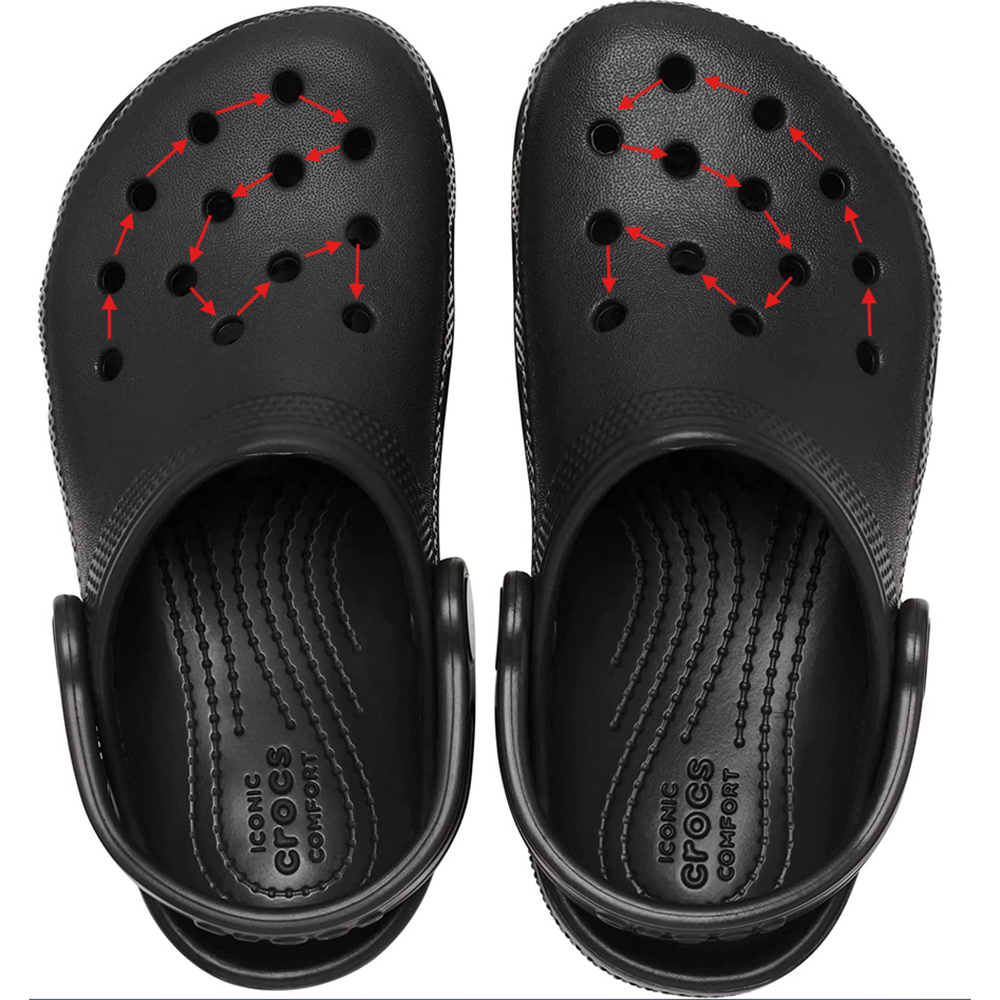
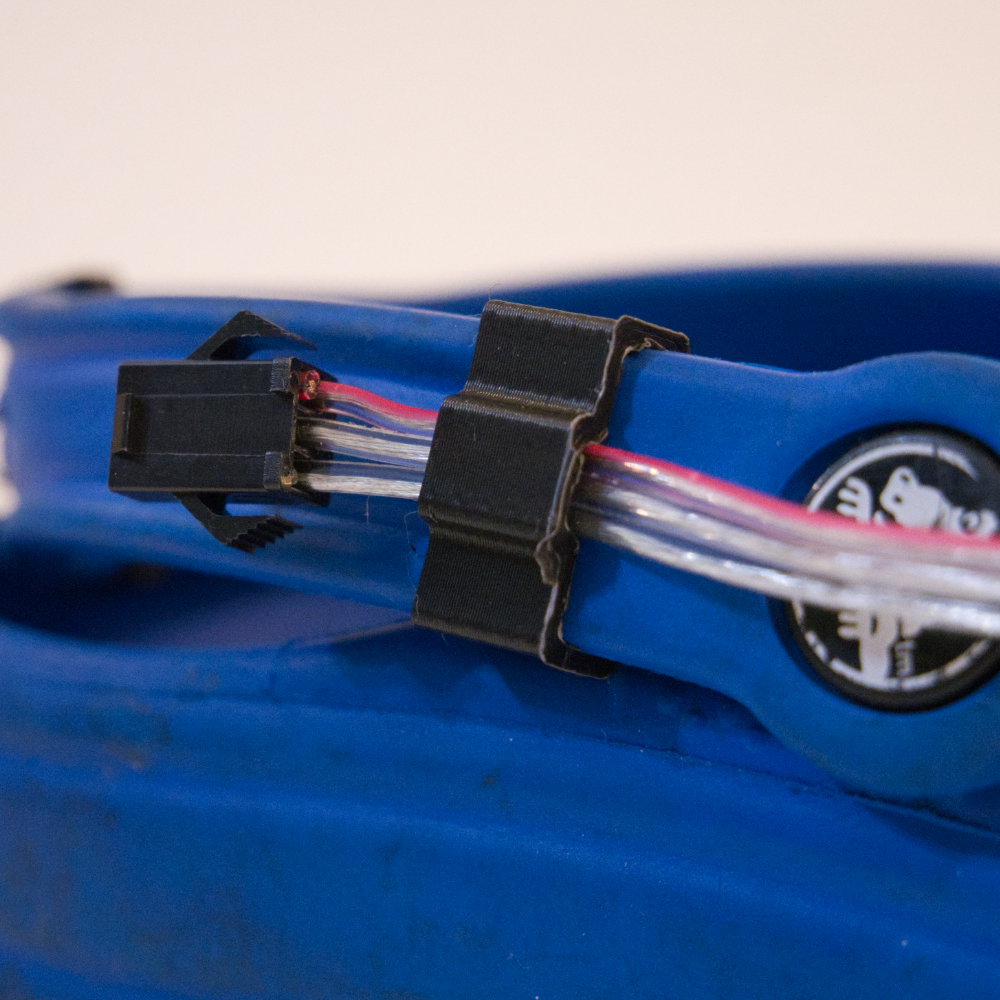
- Place connector against side of Croc and clip the side clip over the wire. The strap should squeeze in and the wire will sit inside the bump.
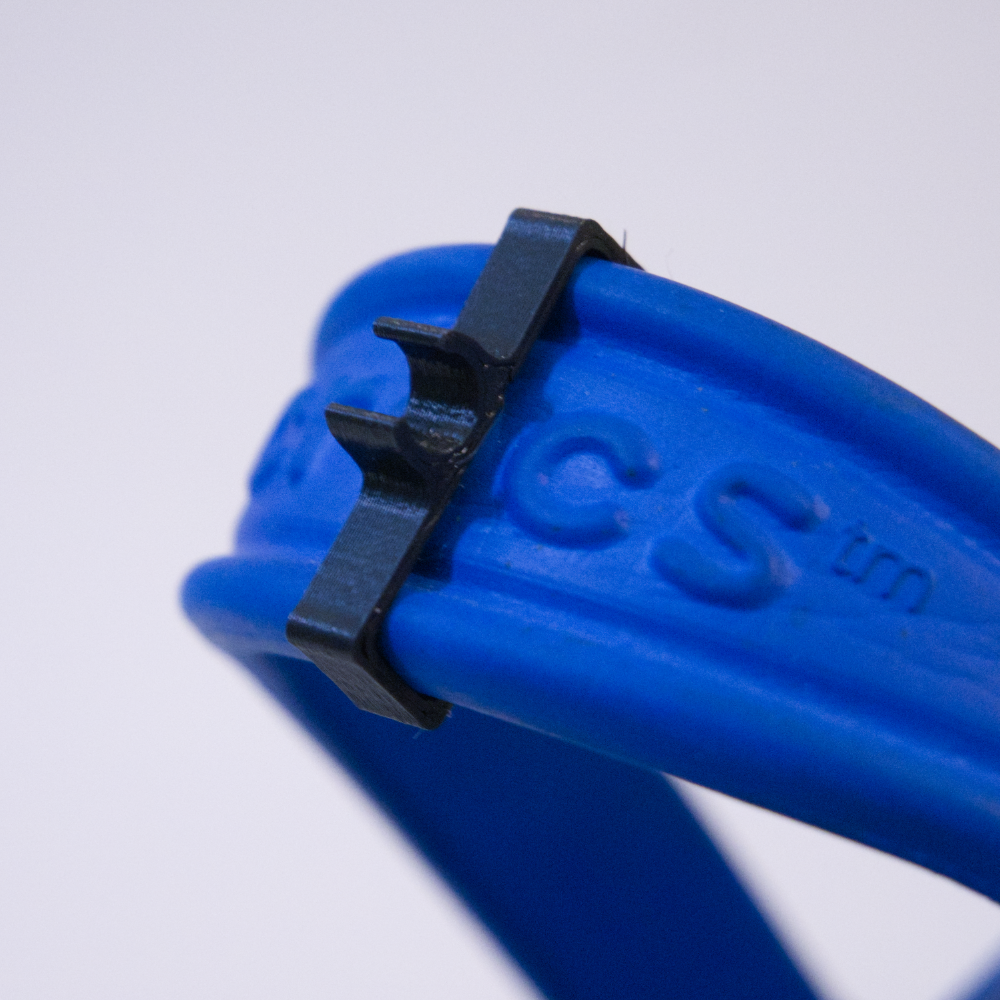
- Attach the rear clip to the back of the strap. This is for wire management of the control wire.
- Solder wires to OLED and rotary encoder, but not to the microcontroller yet. Electronics are placed inside the case in a specific order and wiring everything first makes it difficult. Make sure wires can reach outside of the case and be soldered to the ESP8266. There should be enough free space in the case to fit plenty of spare wire.
- Solder wires to the male JST-XH connectors and cover with heat shrink.
Note: I placed a small piece of heat shrink over the center pin then a larger piece over all pins to prevent shorts.
- Push M2 screws through the electronics case. Insert OLED and add nuts to secure in place.
Note: Tighten just enough to hold OLED against the front of the case. Do not over tighten or you risk cracking the screen.
- Remove knob and nut from rotary encoder. Press the encoder shaft through the mounting hole and screw on nut. Replace the knob and ensure it spins and clicks.
Note: Encoder only fits one way and may need to be wiggled into place with the PCB at an angle.
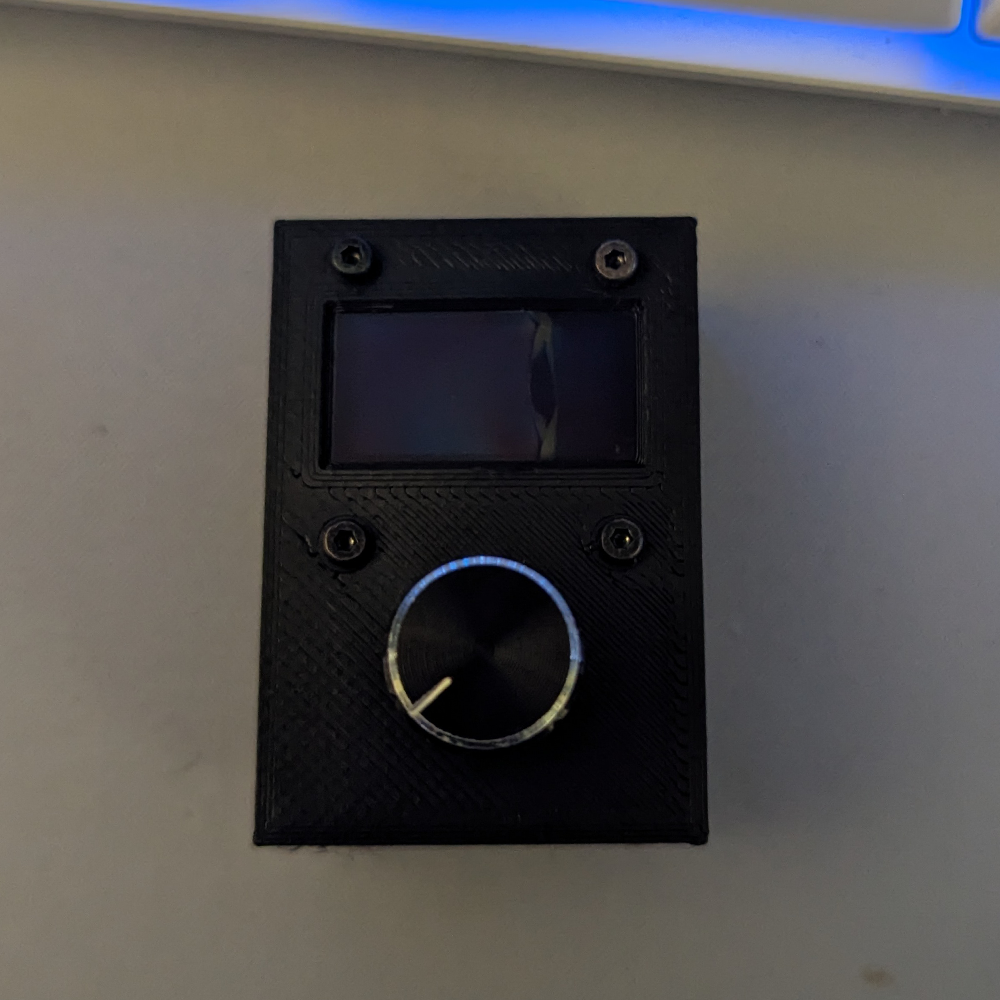
- Press JST-SM connectors through slots on case and glue the back of them in place.
Note: They will be a tight fit. I had to sand the holes slightly larger.
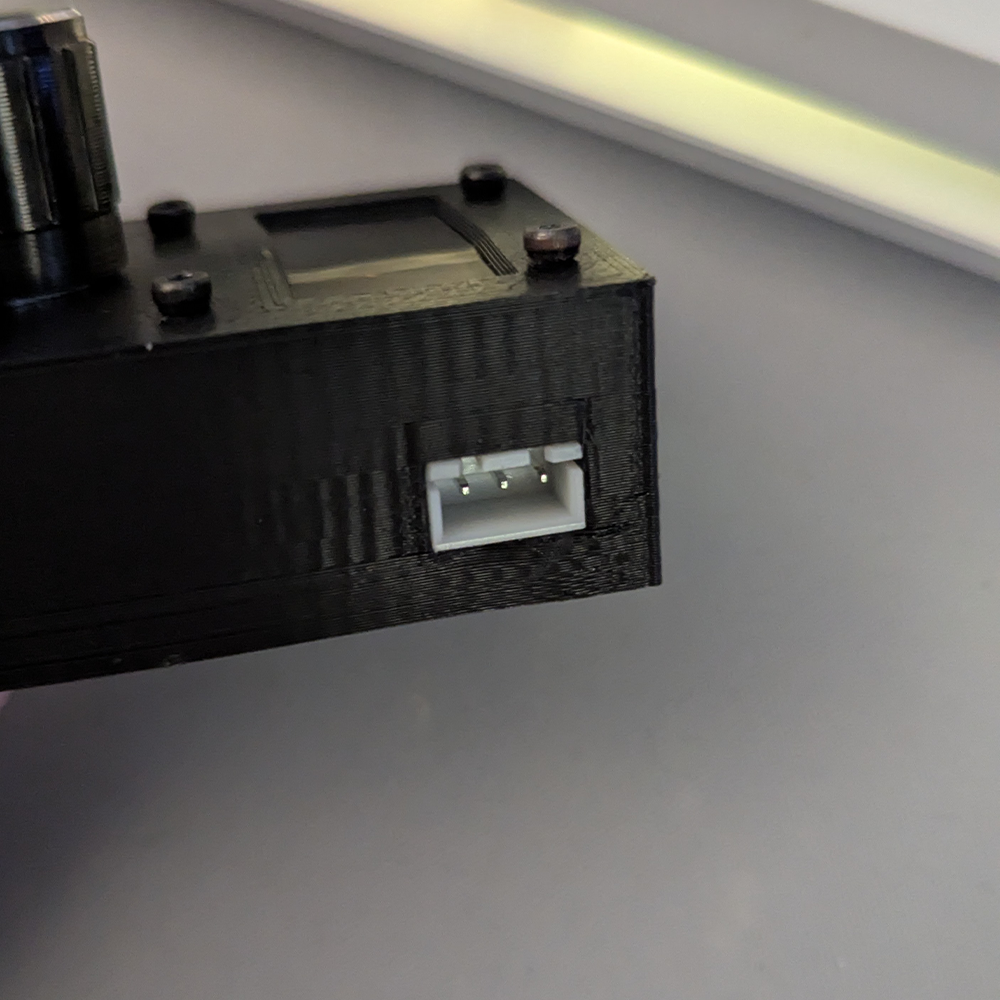
- Solder all 5v and ground wires together with an extra tail to connect to ESP8266. Add heat shrink over connection.
- Solder all wires to the top of the ESP8266 following below:
- OLED SCL to GPIO5 (D1)
- OLED SDA to GPIO4 (D2)
- Encoder CLK to GPIO14 (D5)
- Encoder DT to GPIO12 (D6)
- Encoder SW to GPIO13 (D7)
- LED connector left to GPIO15 (D8)
- LED connector right to GPIO2 (D4)
- 5v bundle to VIN
- Ground bundle to GND
- Push wires into electronics case and place ESP8266 on the back pins. The USB connector will line up with the slot.
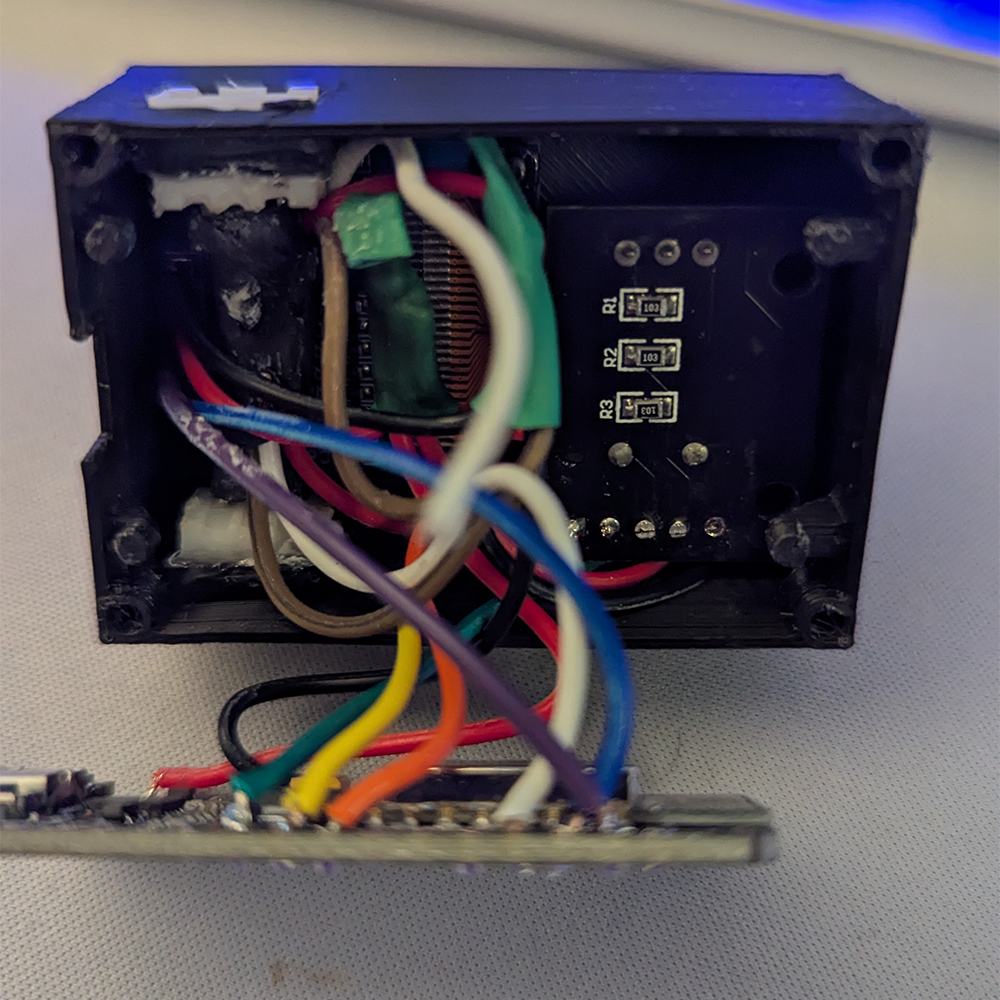
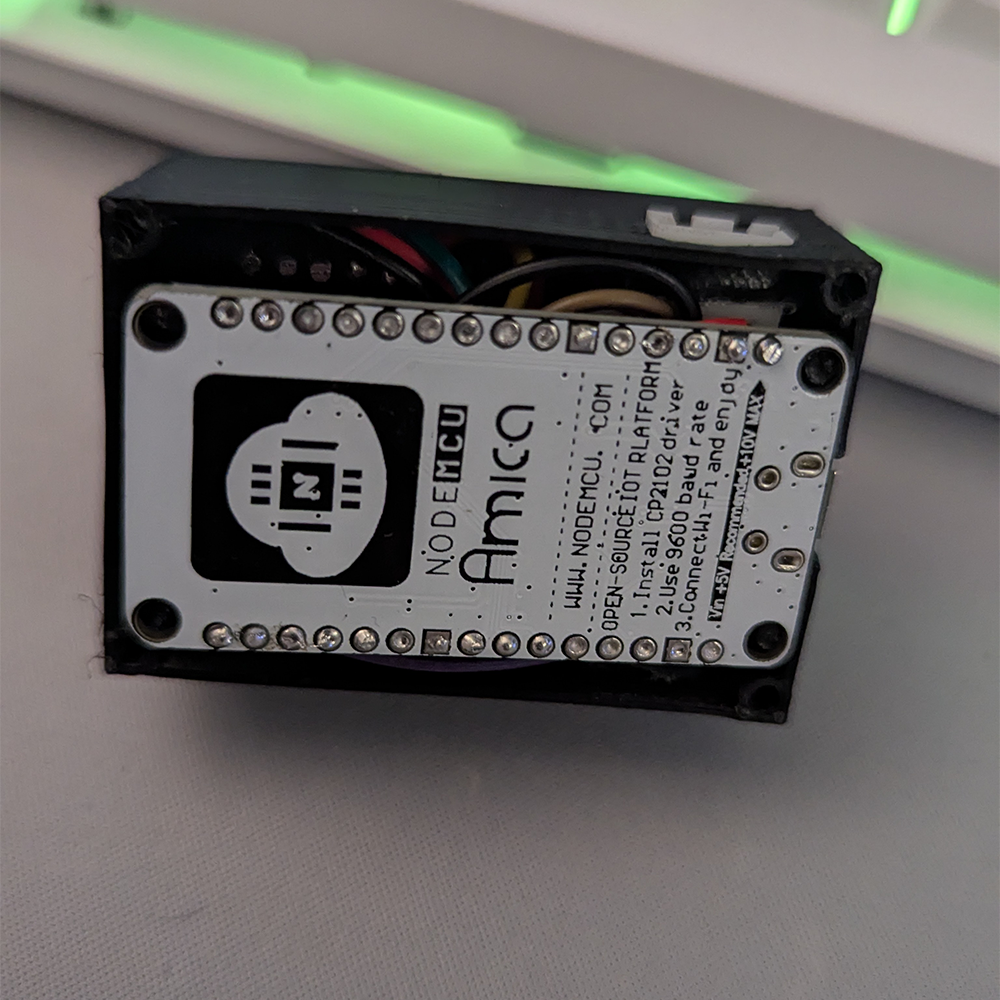
- Using M3 screws screw electronics case to the battery holder. There are holes on the back to slide a hex wrench through.
Note: I ran out of the right length of screw but in my print one would fit. I had to glue mine together instead.
- Cut 3 conductor wire long enough to go from belt down legs to Crocs with some extra. I made mine about 4-5 feet long. Extra wire can always be coiled up at the belt pack.
- Crimp JST-SM female to the wires. I did 5v and ground on the outside and data in the middle. Push into connector as shown. Add some glue to wires where they meet the connector and cover with a piece of heat shrink for strain relief. Place larger piece of heat shrink over that and the butt of the connector.
Note: In the image below the green is the smaller heat shrink and black is larger.
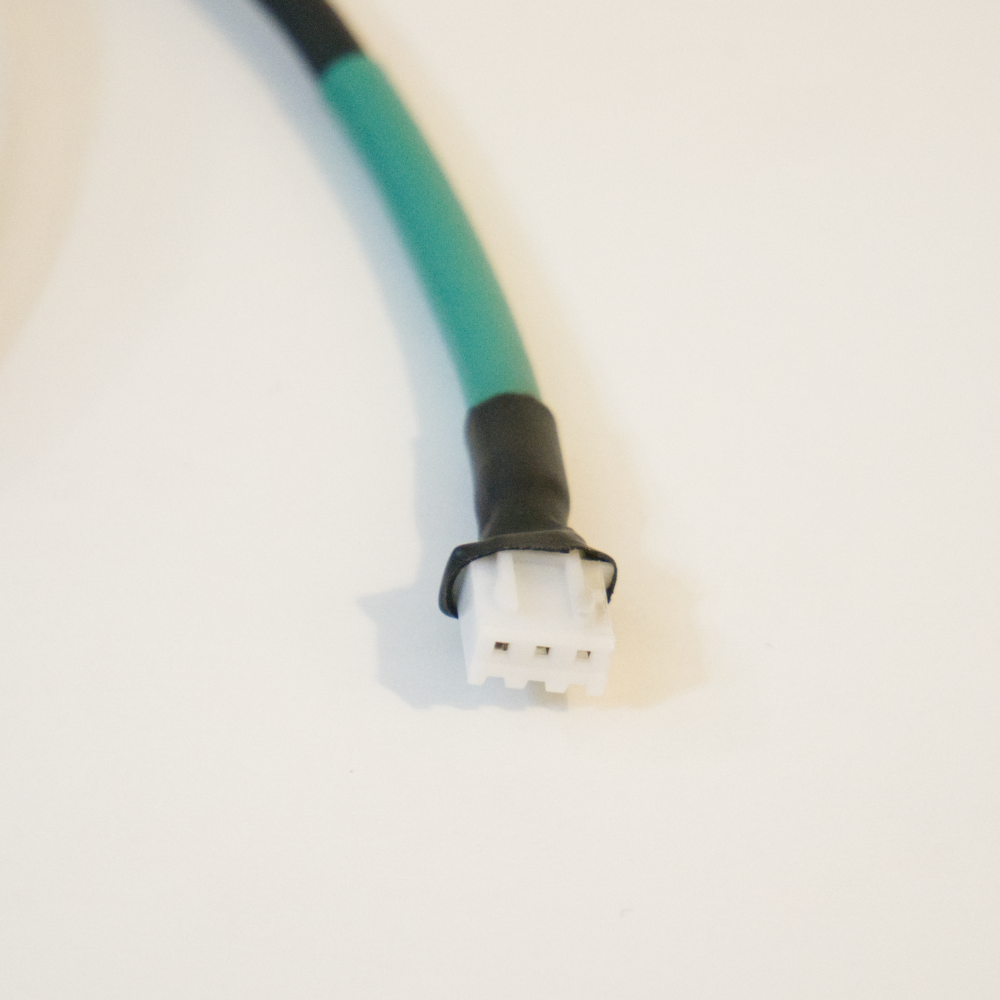
- Split apart the wires for the JST-XH. Place large piece of heat shrink over the long wires and smaller pieces over the wires on the connector. Solder connector to long wire as required by led strip. The red stripe should be 5v, center data, and remaining ground. Heat shrink the individual wires. Slide a larger piece over those connections and shrink to hold together.
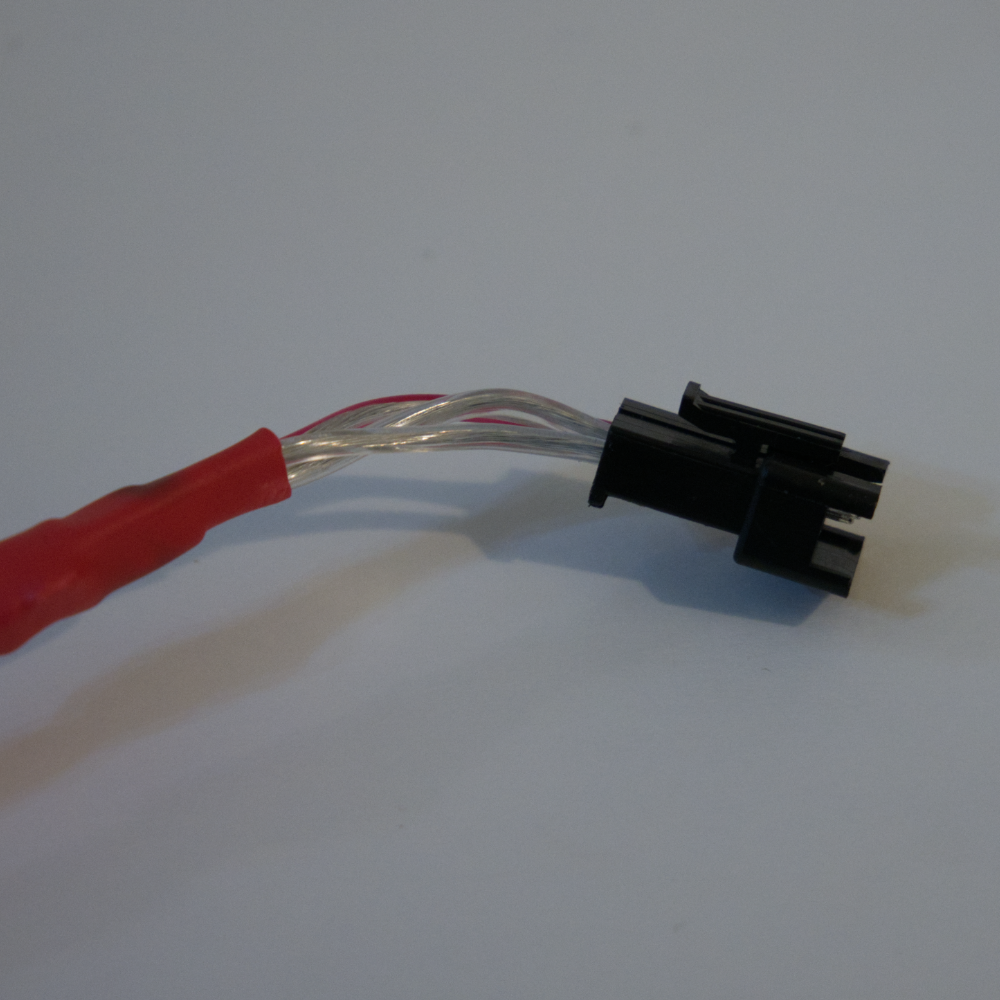
Firmware:
You will need to compile WLED. I used version 0.15.0-B7. Instructions to do that can be found here.
Include the following usermods:
To do so add the following to the build flags section in platformio.ini:
-D USERMOD_FOUR_LINE_DISPLAY -D FLD_PIN_SCL=5 -D FLD_PIN_SDA=4
-D USERMOD_ROTARY_ENCODER_UI -D ENCODER_DT_PIN=12 -D ENCODER_CLK_PIN=14 -D ENCODER_SW_PIN=13
Then uncomment the library for OLED displays under the library section:
  #For compatible OLED display uncomment following
   U8g2 #@ ~2.33.15
Finally, flash the firmware to your controller.
WLED Config:
Once flashed connect the controller to power and configure wifi.
Connect to the controller over wifi and configure the LED output with the following settings:
- Start: 0, Length 13
Data GPIO: 2 - Start 13: Length: 13
Data GPIO: 15
All other settings should be default.
I created the following preset that creates segments and turns them off on boot:
{"0":{} ,"1":{"mainseg":0,"seg":[{"id":0,"start":0,"stop":13,"grp":1,"spc":0,"of":0,"on":true,"frz":false,"bri":255,"cct":127,"set":0,"n":"Left","col":[[255,160,0],[0,0,0],[0,0,0]],"fx":0,"sx":128,"ix":128,"pal":0,"c1":128,"c2":128,"c3":16,"sel":true,"rev":false,"mi":false,"o1":false,"o2":false,"o3":false,"si":0,"m12":0},{"id":1,"start":13,"stop":26,"grp":1,"spc":0,"of":0,"on":true,"frz":false,"bri":255,"cct":127,"set":0,"n":"Right","col":[[255,170,0],[0,0,0],[0,0,0]],"fx":0,"sx":128,"ix":128,"pal":0,"c1":128,"c2":128,"c3":16,"sel":false,"rev":false,"mi":false,"o1":false,"o2":false,"o3":false,"si":0,"m12":0},{"stop":0},{"stop":0},{"stop":0},{"stop":0},{"stop":0},{"stop":0},{"stop":0},{"stop":0},{"stop":0},{"stop":0},{"stop":0},{"stop":0},{"stop":0},{"stop":0}],"n":"Segments"} }You can add this to your controller by following these instructions.