
Arcade IoT Button
We calculate the final price from your selected file. You review and accept it before payment.
Estimated printing price per file
€2.76 – €3.38 net (excluding VAT)
For file: arcade_button_devkit2-Enclosure (Meshed)_0.2mm_PLA_MK3S_3h17m.gcode
This is an estimate for one file. You’ll confirm the exact price before ordering.
File and estimate settings
File used for this estimate
Average indicative estimate: €3.07 excluding VAT (range midpoint).
- Weight reported by the author
- 34 g
- Print time reported by the author
- 3.28 hr
- Source material
- PLA
- Estimate material
- PLA
- Estimate printer
- Bambu Lab P1S - 0.4 nozzle
- Estimate process
- 0.20mm Standard
Indicative estimate for the selected file only, based on the author’s weight and print time. File variants are not added together. The final price is calculated after file analysis.
Saved on this device.

Enclosure for 30 mm arcade button.
- Rating
- 0 / 5
- Likes
- 44
- Downloads
- 137
- Makes
- 2
- Views
- 1,628
- Reviews
- 0
Updated at source:
Model information
- Source
- Printables
- Category
- Electronics
- License
- GNU General Public License v3.0
What is it?

Enclosure for 30mm Arcade Button with LED. They are sold by adafruit or digikey. But I think you can find them in other places too.
Why make it?
Initial idea was just a secret santa gift but then I made multiples of these for other people and at home. Since it has a mounting for ESP32 it can be made as an IoT button therefore the sky is the limit.
Additional use cases
You can use this as just a regular button and connect button/LED wires directly to a microcontroller.
Can use ESP32 to have WiFi connectivity + your custom project
For basic functions ESPHome is probably the easiest way to setup IoT button.
Or it can be used with Home assistant
Time tracking example
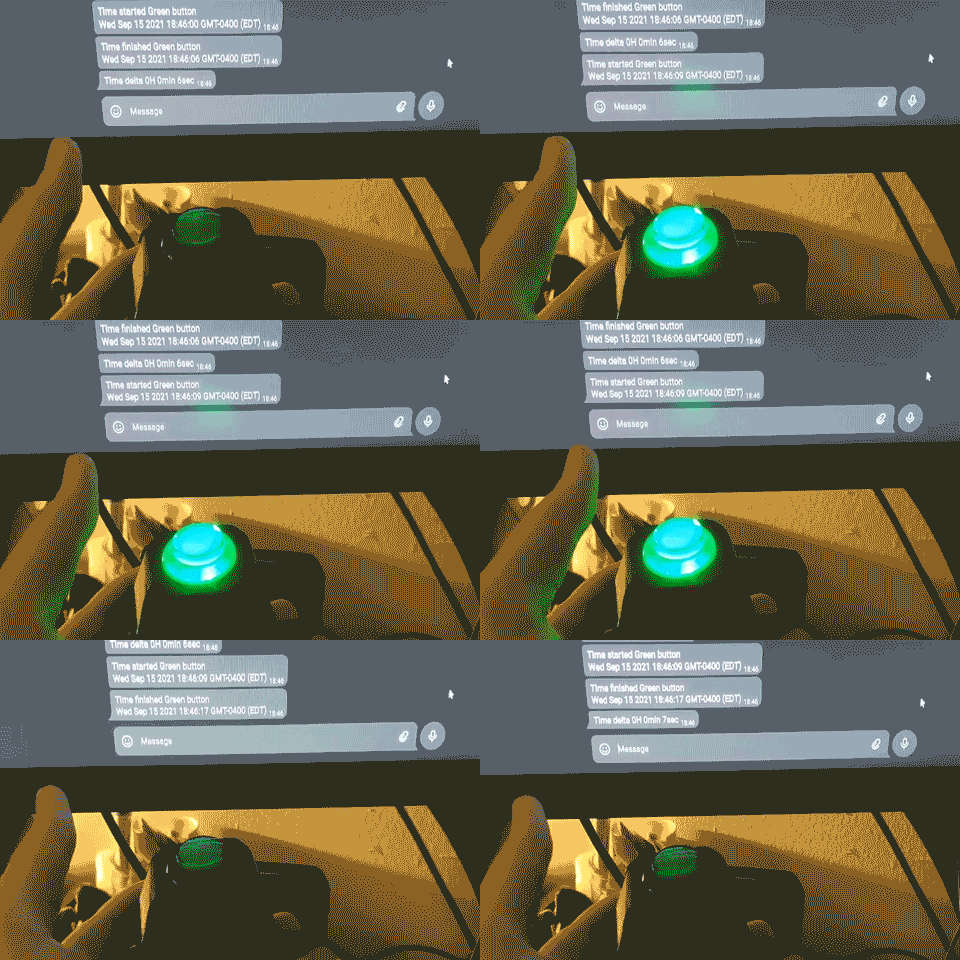
I like to track time of various tasks or activities. Therefore, having this button on a table where I can just bash it to start the timer and then bash again to stop and send me a message with time delta in human readable time.
Basic data workflow.
Button press to ESP32.
ESPHome Publishes message to Mosquitto MQTT server.
In node-red I subscribe to the message and start counting the time.
Once pressed again node-red calculates the delta.
Prepares a text message and activates a python script which sends it to telegram chat via telegramBot.
Button - ESP32 - MQTT - Node-Red - Telegram
This guide should work for raspberrypi setup or any other debian based server.
BOM
1x Enclosure
1x ESP32 Board
2x 2 position headers 0.1in spacing
4x ~6cm wires
4x CONN SOCKET 22-30AWG CRIMP GOLD
4x Bumper feet
Shrink tube
Assembly
1. Before printing check what is your ESP32 size and adjust it in FreeCAD under Enclosure Body and ESP back holder feature
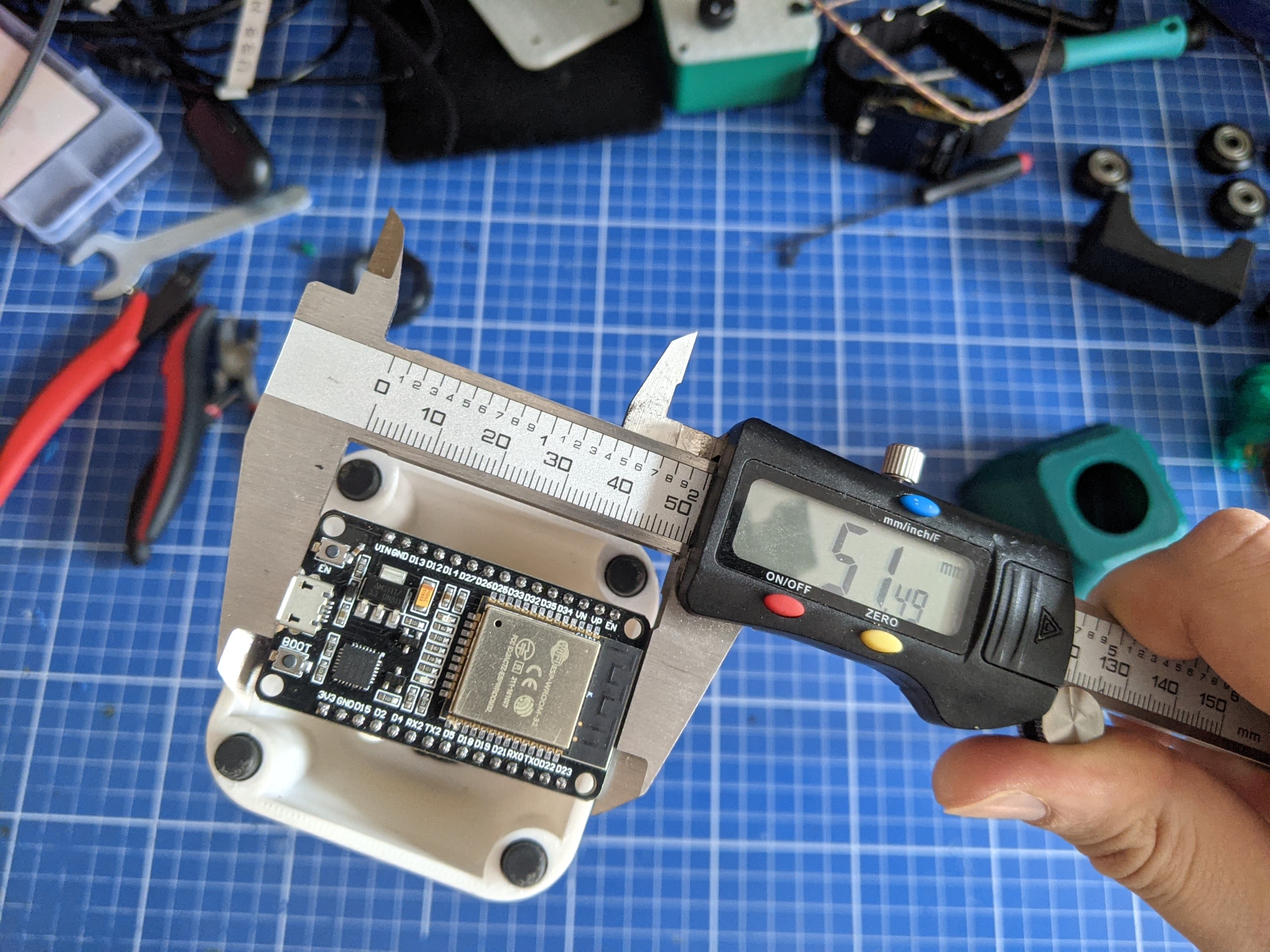
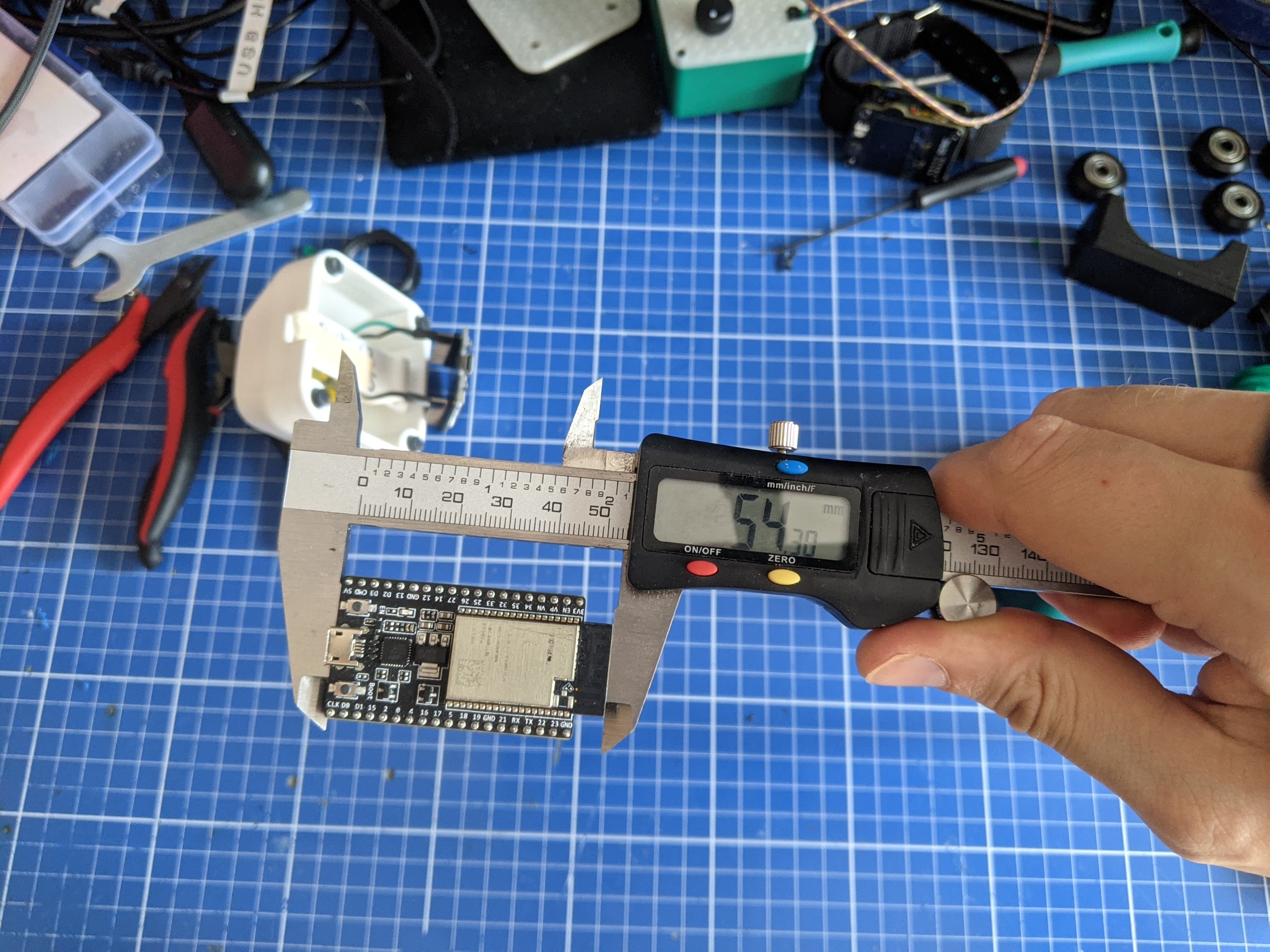
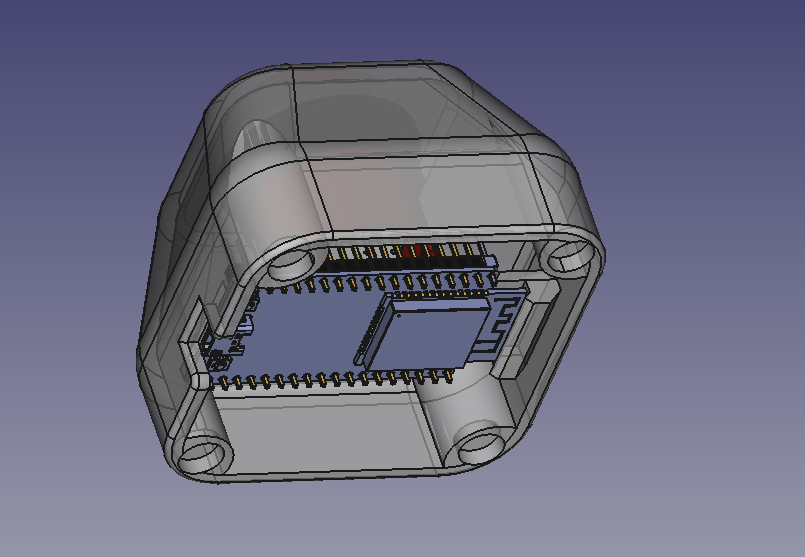
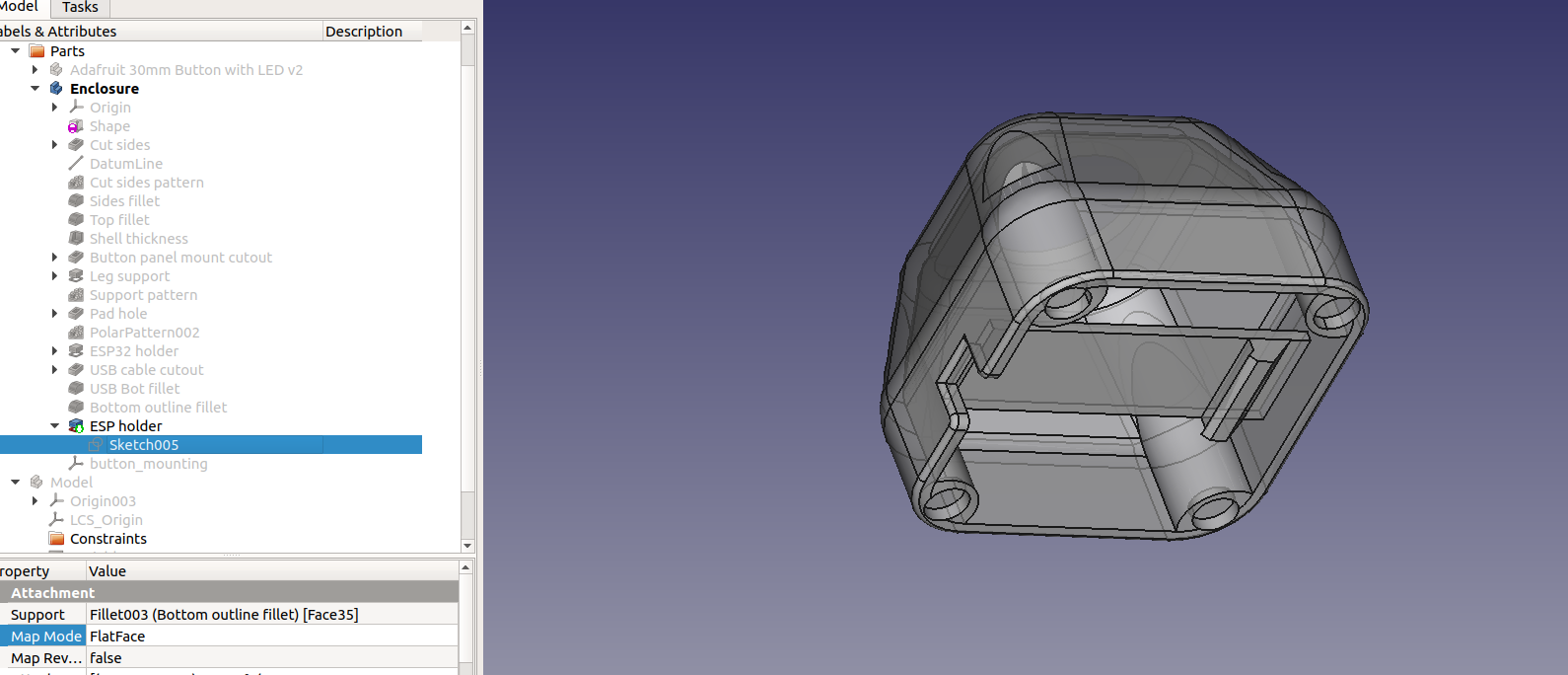
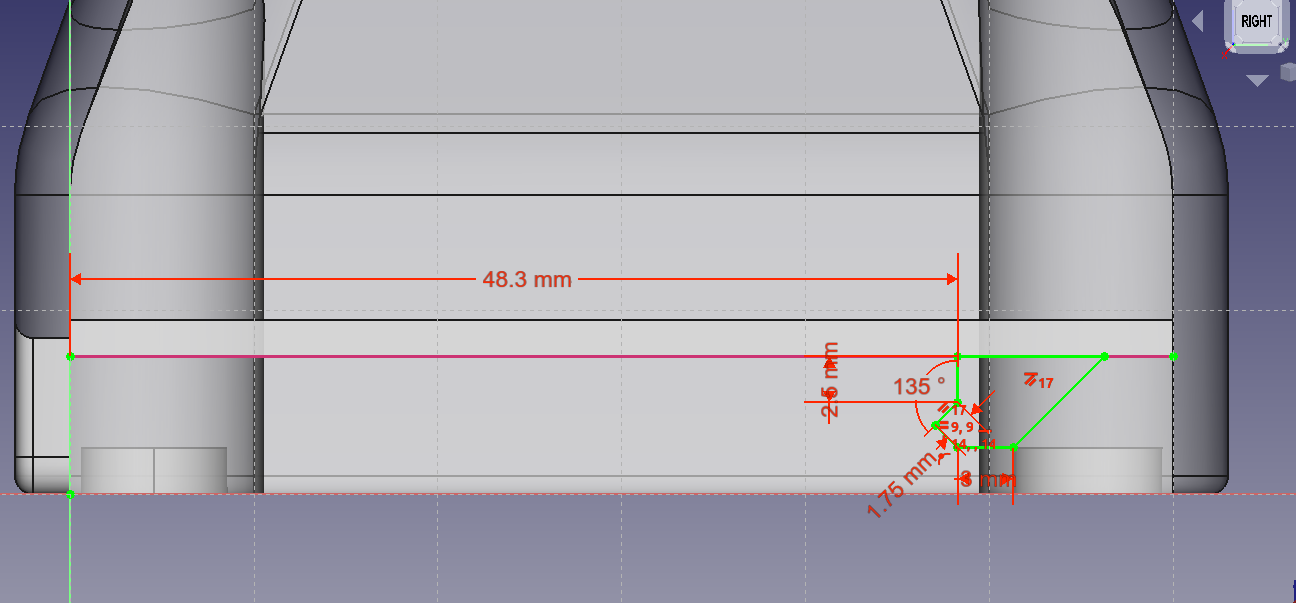
2. Print. No support needed.
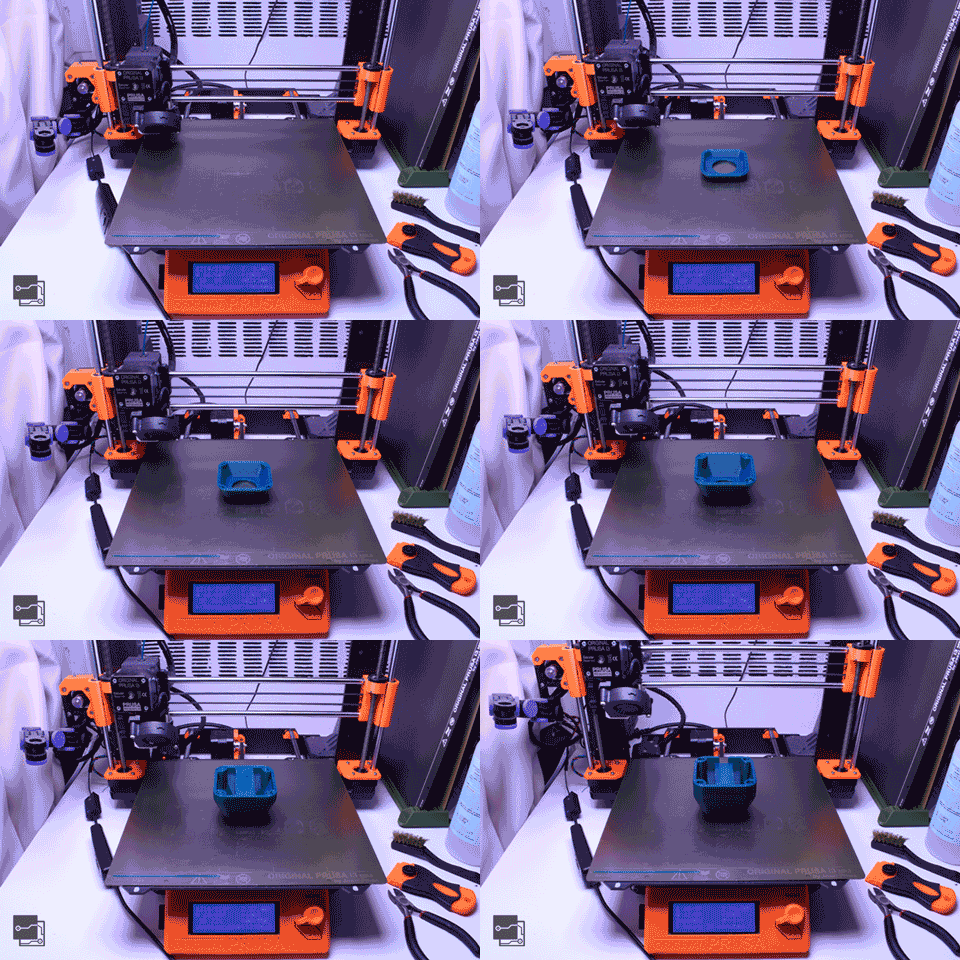
3. Cut wires
4. Strip wires
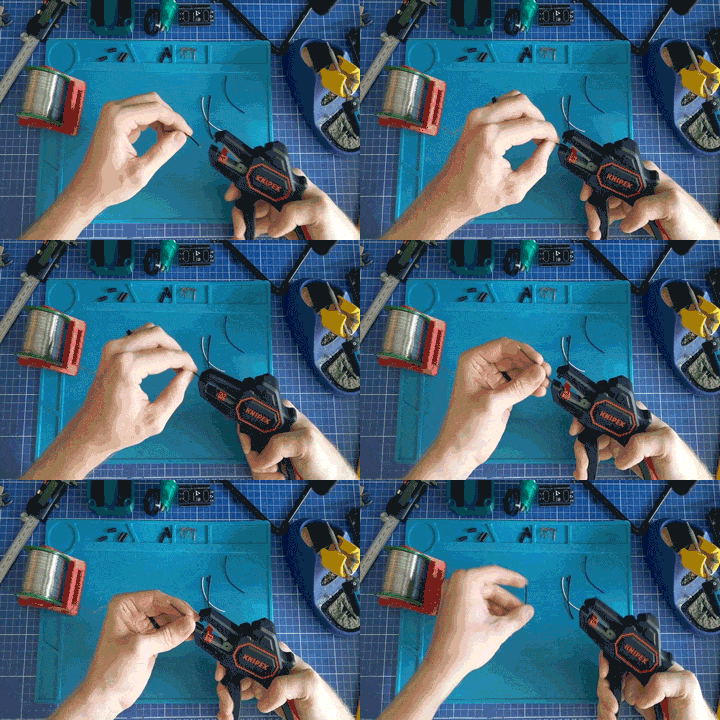
5. Crimp wires
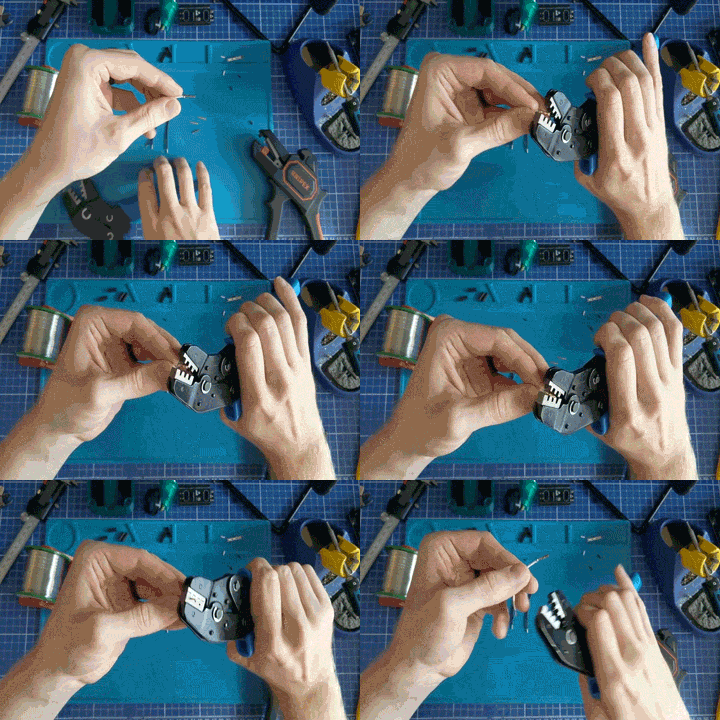
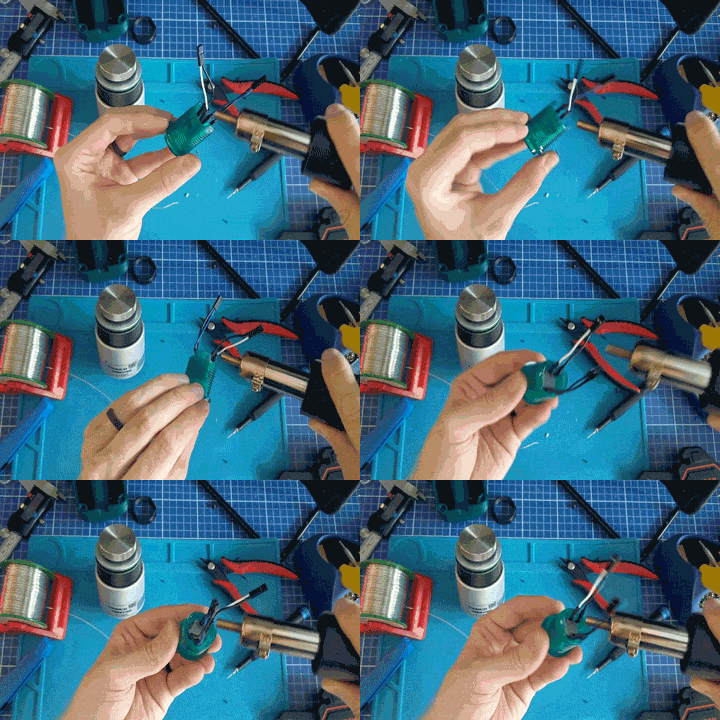
6. Insert into housing
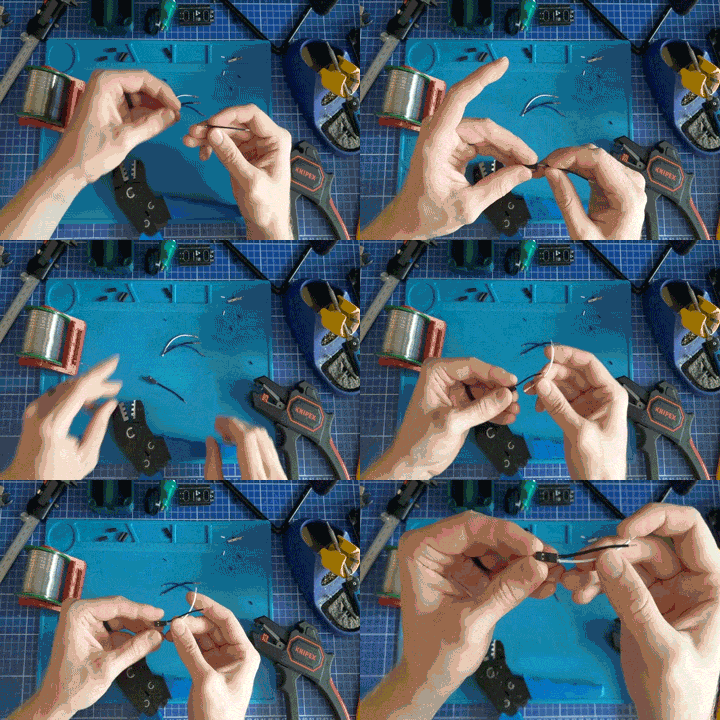
7. Insert shrink tube
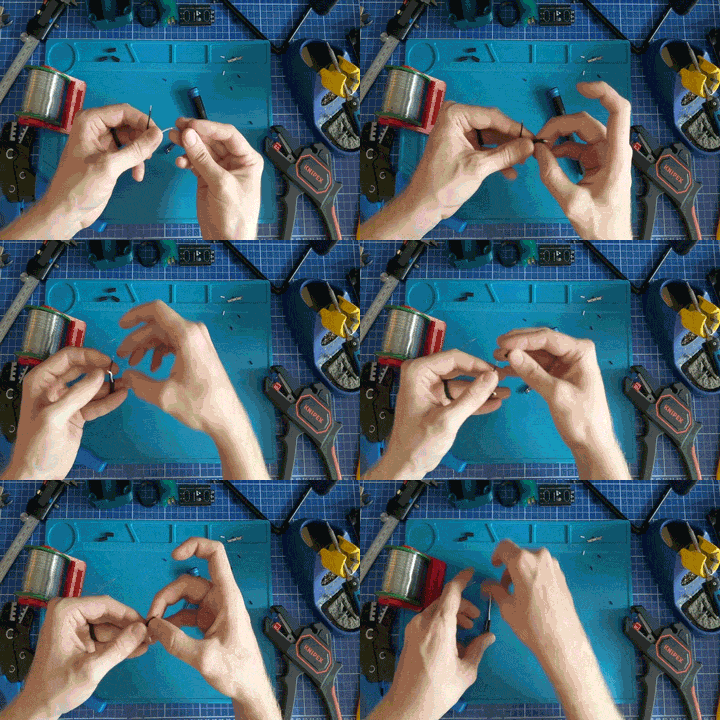
8. Solder Push Button and LED wires
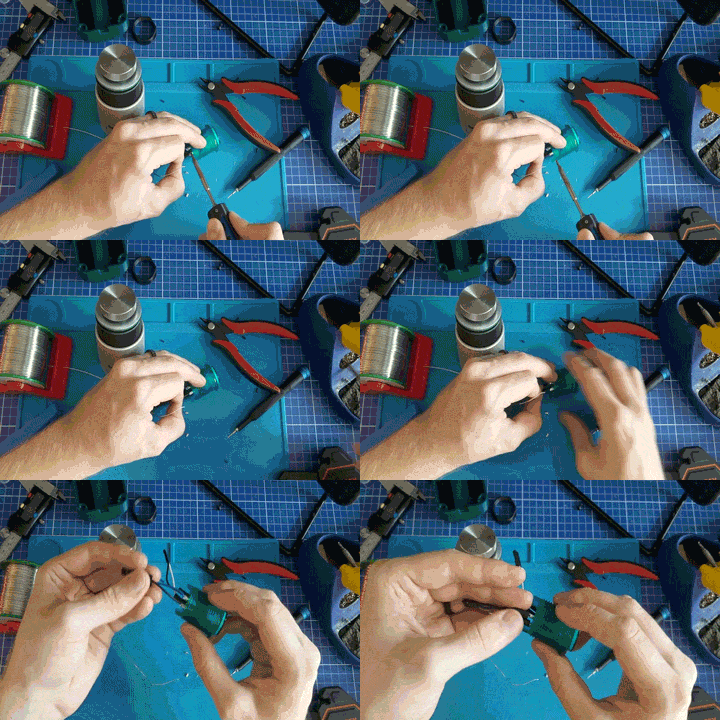
9. Heat shrink tubes
10. Insert Nut into Enclosure
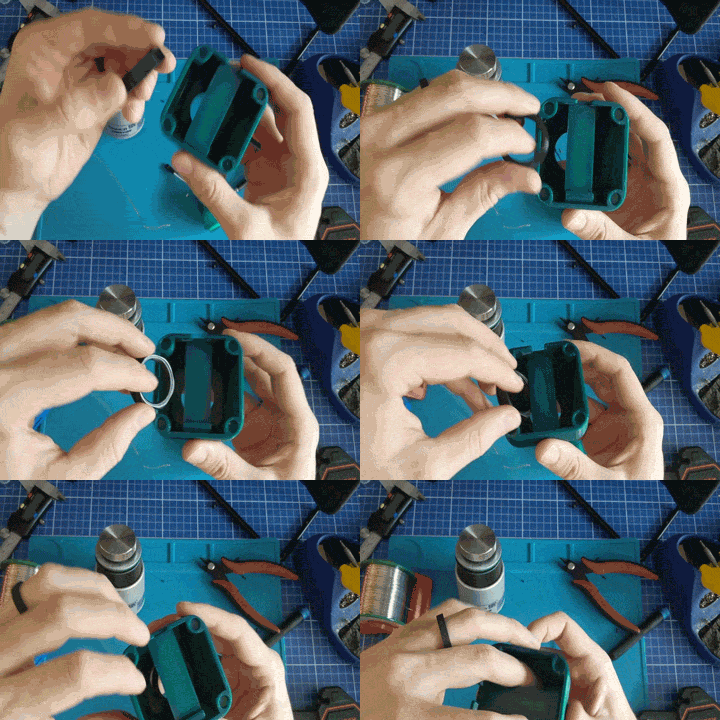
11. Insert Button and make sure wires pass through the nut
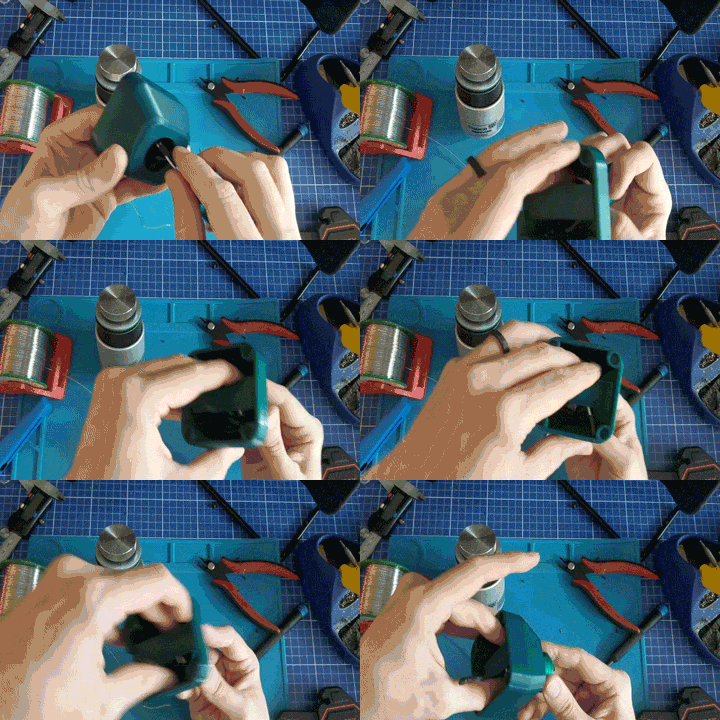
12. Turn the nut until tightened
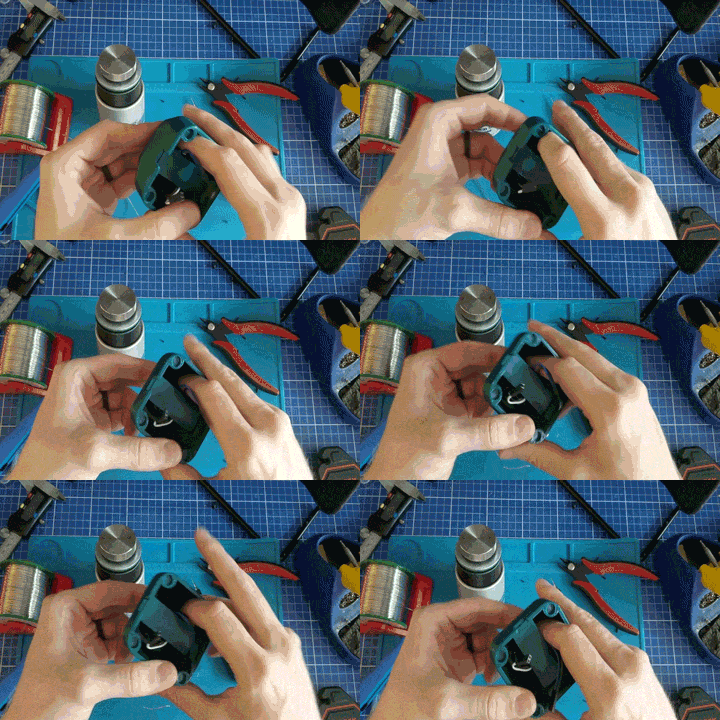
13. Choose GPIO Pins. On ESP32 Dev kit I am using pins that have GND next to them
| Name | Pin |
| LED | 21 |
| Button | 19 |
14. Connect to ESP32 pins.
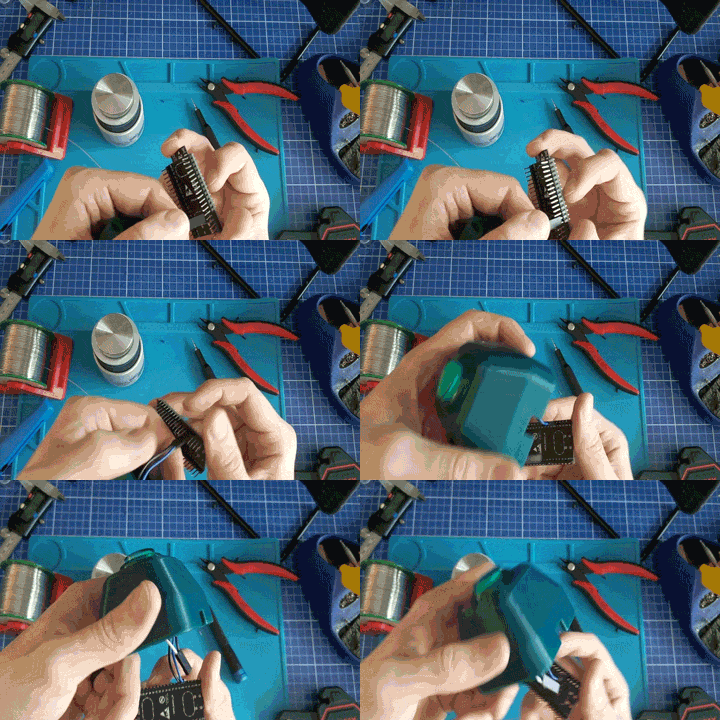
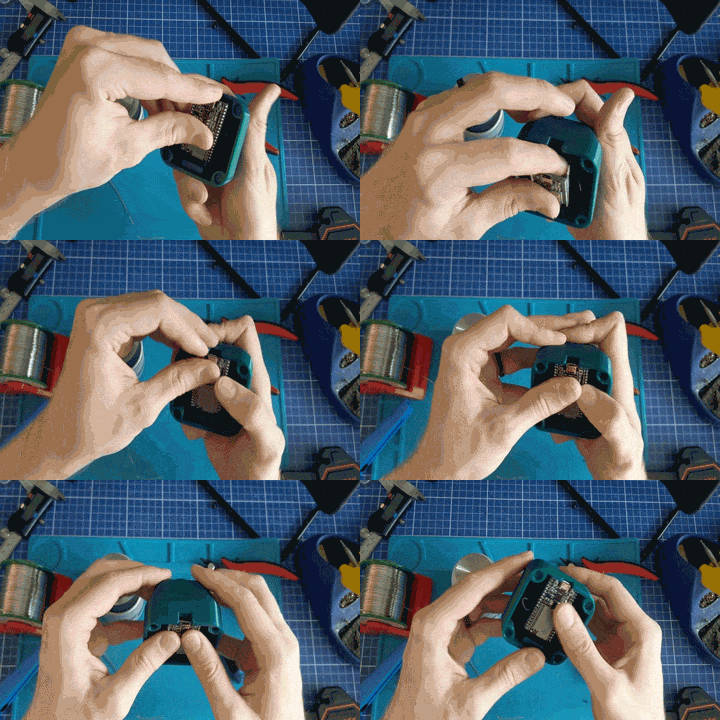
15. Insert ESP32
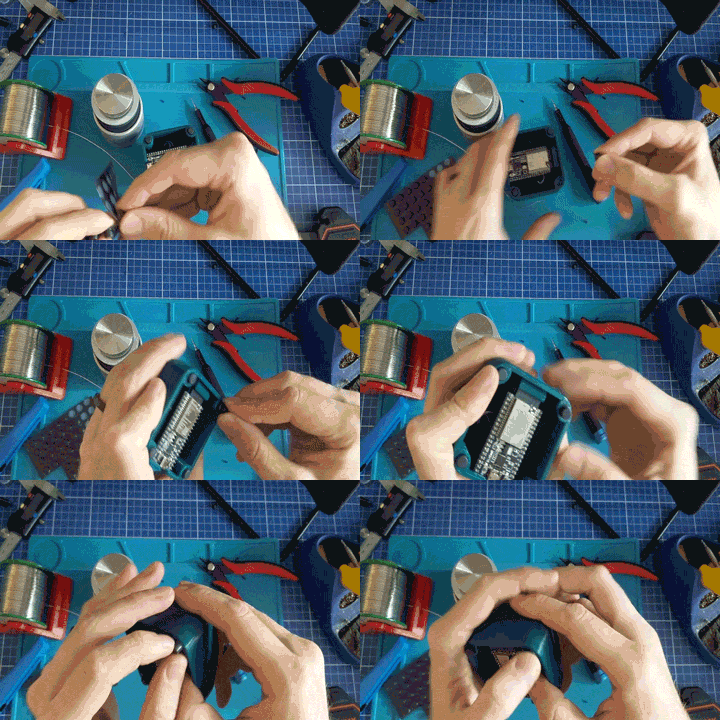
16. Add rubber feet
MQTT Broker
Install or know IP of your MQTT Broker.
I used Mosquitto broker
ESPHome firmware setup
Check out how to setup ESPHome.
And use this template.
1. Navigate to IoT_files directory
2. Setup python environment (tested on Python 3.7.7)
python3 -m venv env
3. Activate environment
source env/bin/activate
4. Upgrade pip
pip install --upgrade pip5. Install esphome
pip install esphome
6. Create secrets.yaml file with content of your wifi credentials
ssid_name: "xxxxxxxxx"
ssid_psw: "xxxxxxxxx"
ap_ssid_name: "xxxxx"
ap_ssid_psw: "xxxx"
7. Update IoT_files/arcade_button.yaml Board from platformio list
or try running esphome wizard and find your board in that list
8. Setup MQTT broker and update broker IP in arcade_button.yaml
9. Update binary_sensor and output pins
10. Compile and flash firmware
esphome arcade_button.yaml runTelegramBot python script
Create Bot using BotFather
Once bot is created you will have bot API token.
On the same server as node-red setup python env or re-use esphome env
Install telegram bot libraries
pip install python-telegram-botRun command to find out your chat_id with your token
Add telegram bot to a channel type anything in the channel and bot will respond with it's ID
python3 telegram_chat_id.py --token abcd:123456798Then close the script Ctrl+C
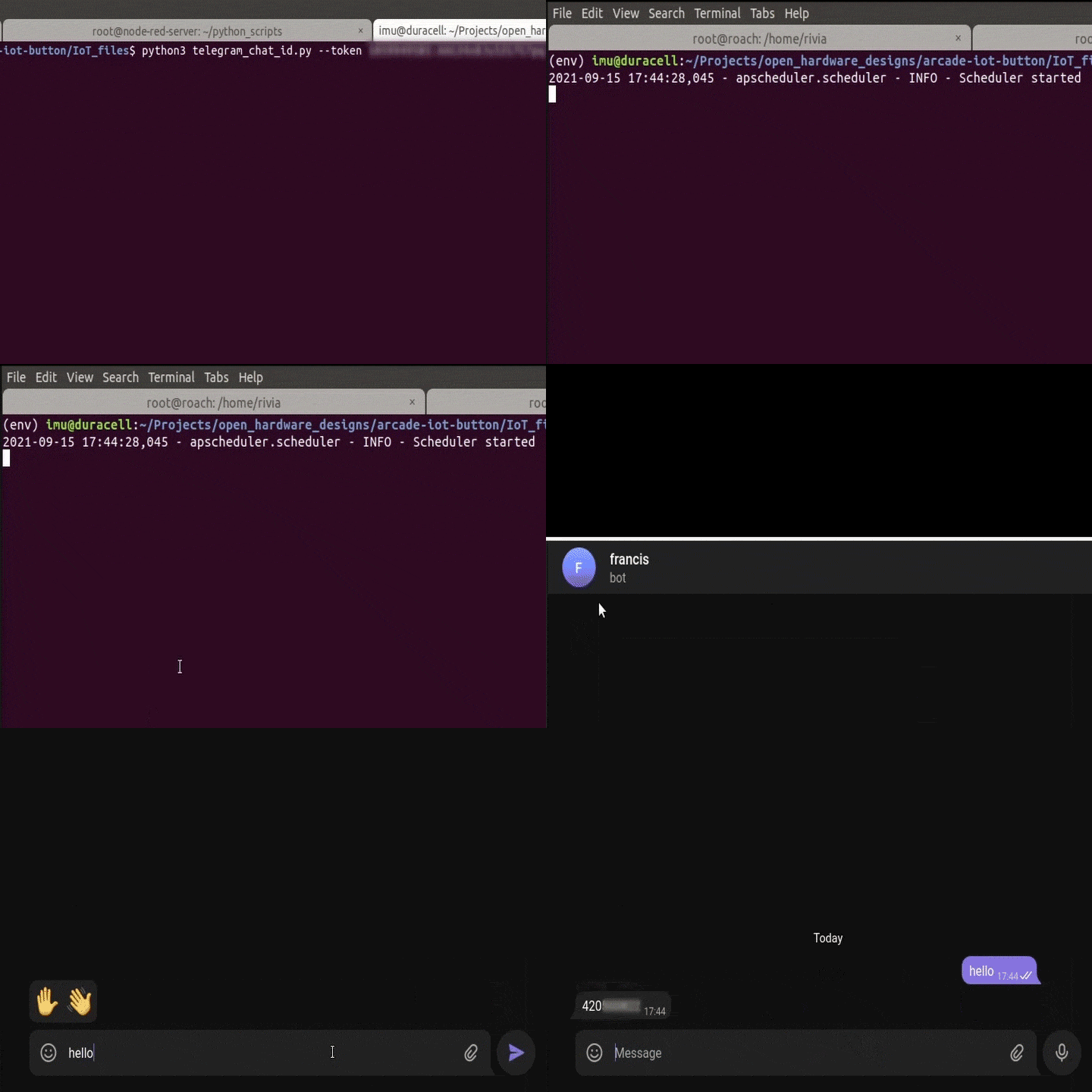
Get full path for python env and oT_files/telegram_notifications.py. We will use them in next step
Node-red Flow
Install node-red from getting started guide
bash <(curl -sL https://raw.githubusercontent.com/node-red/linux-installers/master/deb/update-nodejs-and-nodered)Import IoT_files/node-red-flow.json
Make sure MQTT node is connected to your server
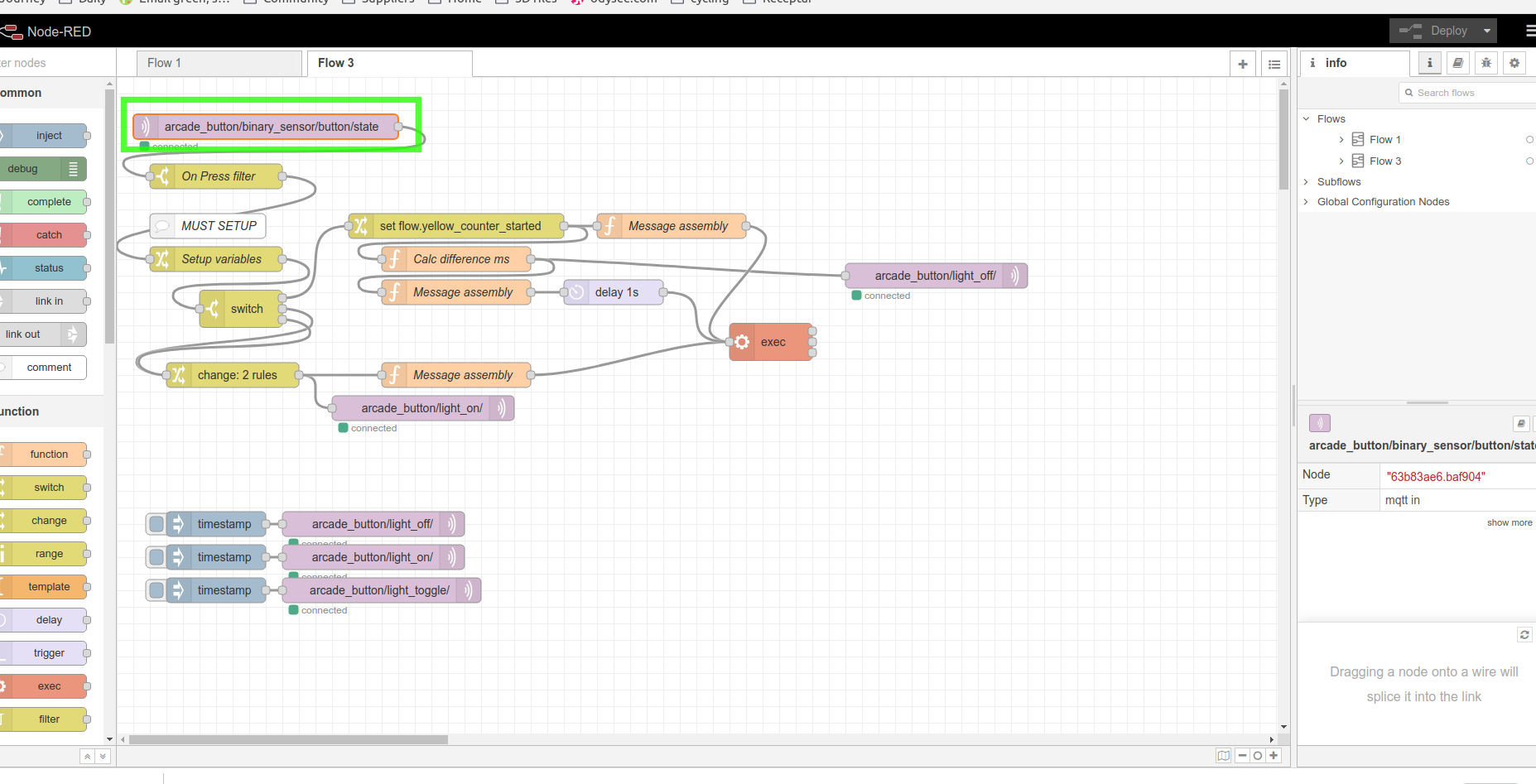
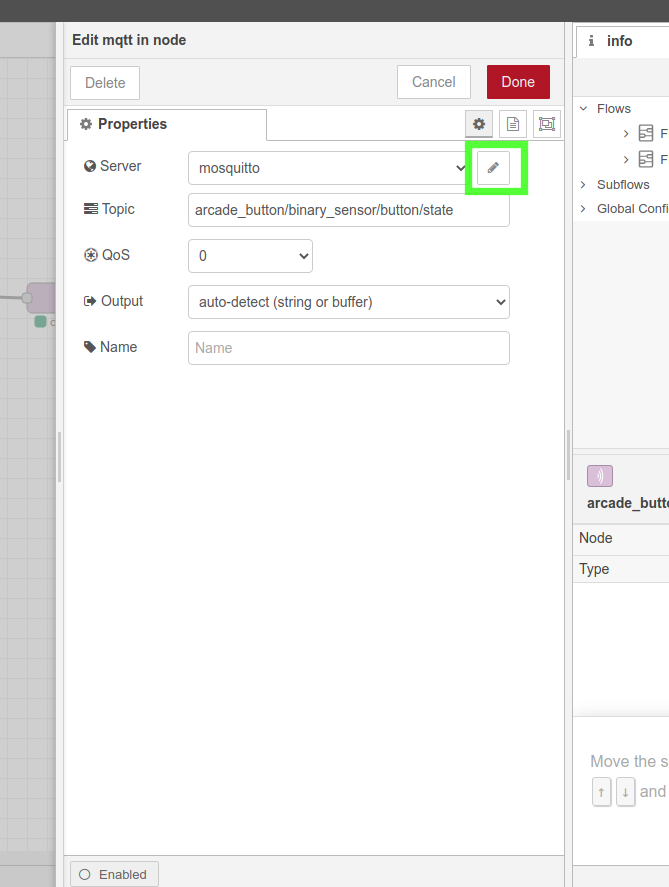
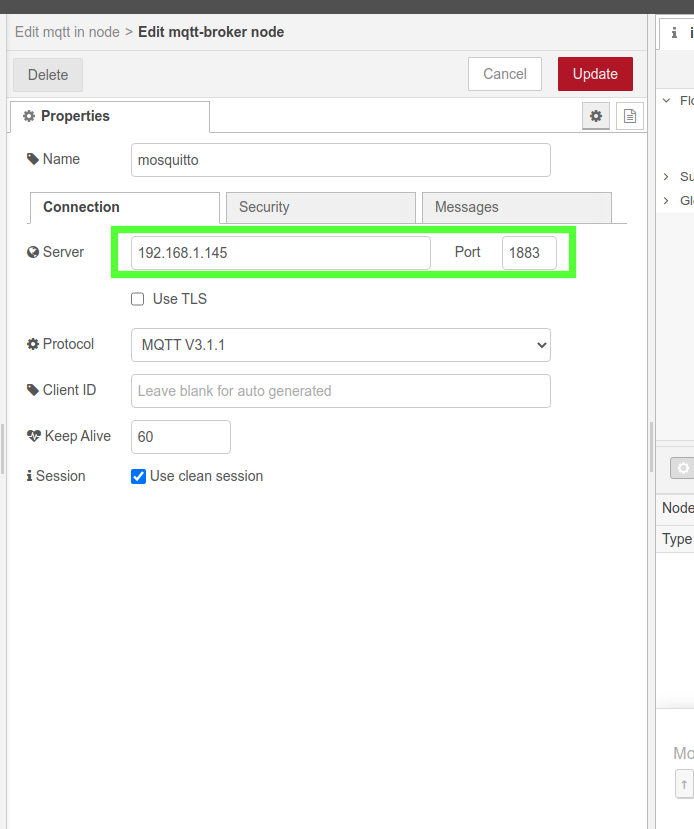
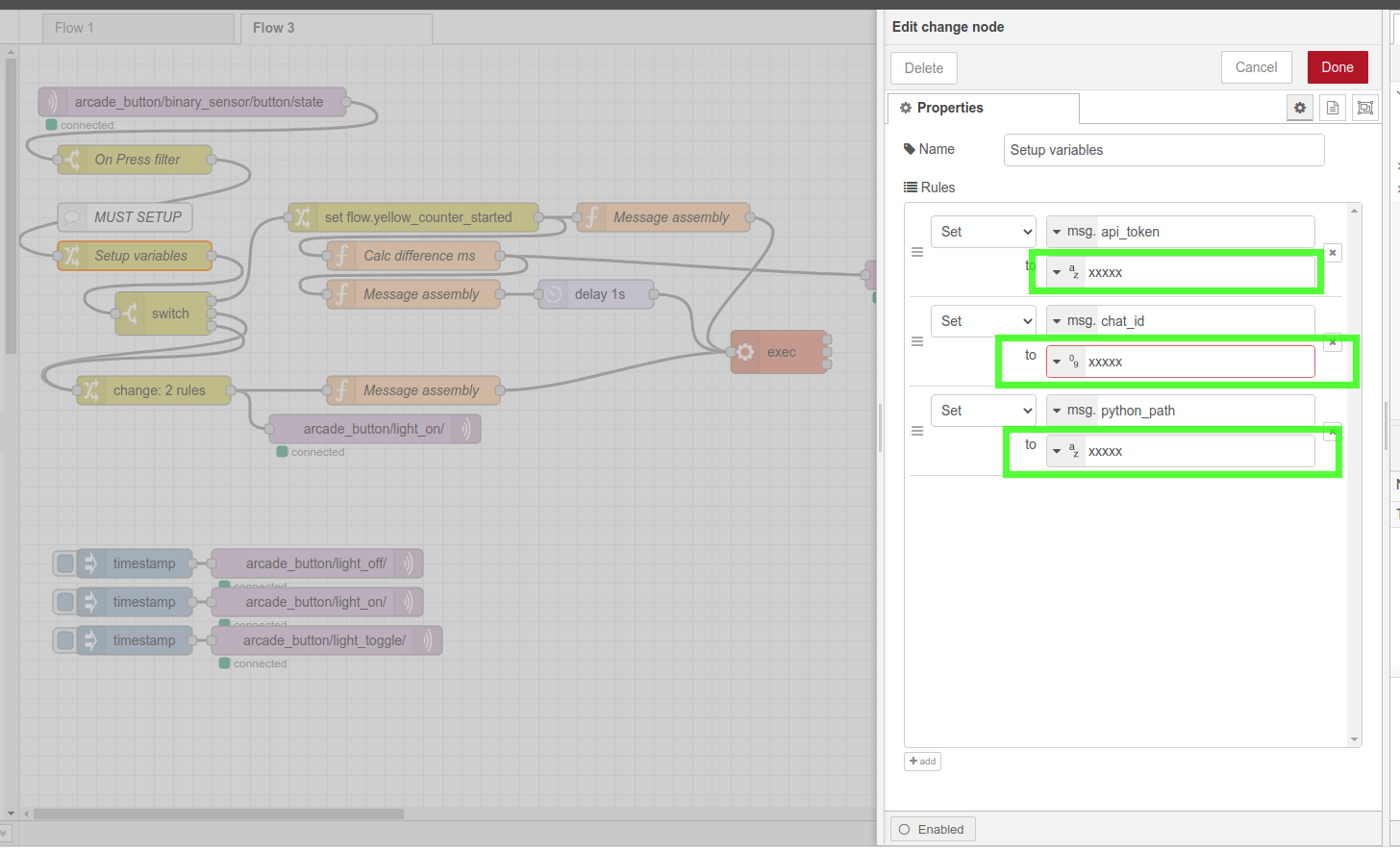
Modify Setup variables nodes with your Chat ID, bot token and path to python env and script.
Test it out!
Latest updates are on GitLab.