
FakeTec TakNode
We calculate the final price from your selected file. You review and accept it before payment.
Saved on this device.
Model information
- Source
- Printables
- Category
- Portable Devices
- License
- Creative Commons — Attribution — Share Alike
My first go at a custom case for my FakeTec Meshtastic nodes.
As every story goes, I couldn't find a case that fit all of my needs (Compact, GPS, no extra lights or environment sensors, or vibrators or etc etc), so I took a stab at making my own. I also noticed that many existing designs are for specific FakeTec versions, making it very difficult to find a version that fit my needs, I personally liked, and supported the FakeTecs I possessed.
I needed a node for ATAK, so it needed GPS, a decent battery, and a decent antenna. A screen is nice to have to make sure it's working. I also didn't want stuff for messaging as the node was a GPS relay first, so indicator lights, buzzers, environment sensors, vibration motors, 3 way hats and rotary encoders are unnecessary bulk and costs. Finally, I wanted to be able to attach it to a belt or MOLLE for games of Airsoft and give it to other people, so it needs to be compact and have a good rigid attachment point.
The result of these requirements is a sleek, palm sized module, perfect for the field.
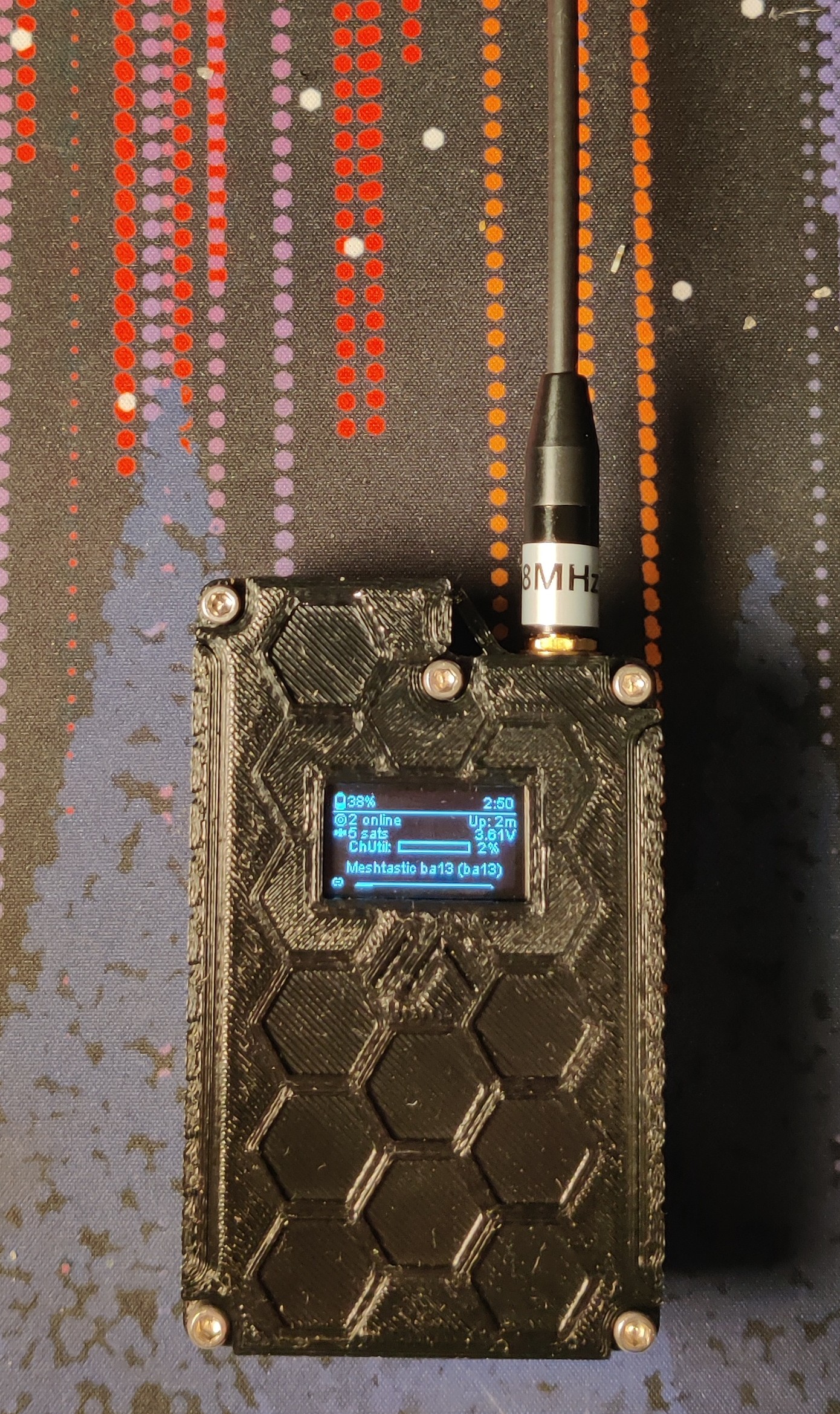
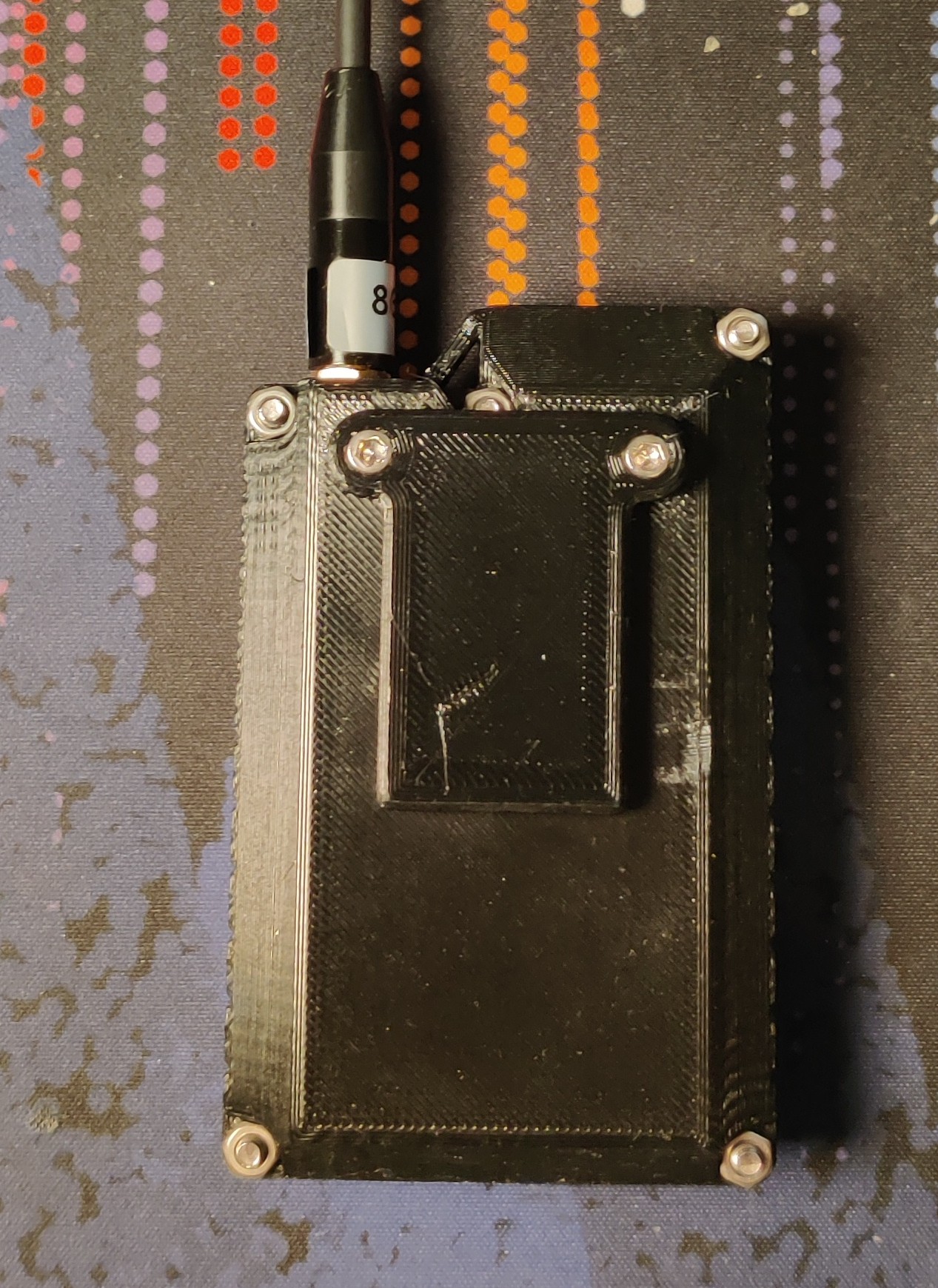
Inspiration
This model was inspired by many other similar nodes.
A big one is Tony G's T-Beam 1.x case for Meshtastic.
The 3 part design, the hex front paneling, the recessed buttons, all inspired from here.
Another inspiration was OZKAN's FakeTec Case - Testosterone Edition. The tiered top shape, wrist strap loop, and antenna mount were all inspired from here. This case also inspired the sled design for mounting the FakeTec.

FakeTec Compatibility
There are several versions of the FakeTec, and many people have also made their own modifications to fit their own needs (Me included). This case was designed with wide compatibility in mind.
The FakeTec itself is mounted to a sled, which in then mounted to the rest of the case. This sled can be easily modified to fit the footprint of many different FakeTec versions, provided they still roughly match the original Heltec v3 layout.
Supported FakeTecs | |||
|---|---|---|---|
Model | Author | Link | Note |
v3 | Pro-micro B+ and B- pins are exposed for battery connection | ||
v4 | |||
v5 | You will probably struggle to use the battery connector in its intended orientation | ||
roTec | None of the JST1.25 connectors are accounted for, you must leave them off the board to use this sled | ||
v5.5 | You should omit the buttons pull-up resistors and capacitors since they're not needed and get in the way. | ||
v5.5.1 | Better layout, more support on the sled | ||
Others | A step file for a blank sled has been provided | ||
Please note that only the sled for my v5.5 and v5.5.1 have actually been tested, the rest were designed using measurements from the PCB files. They're probably fine.
Parts to Buy
Part name | Potential Source | Note |
|---|---|---|
FakeTec | See Above | Whichever one you want. |
Antenna | You can use any SMA Meshtastic Antenna. | |
IPX to SMA Pigtail | You want this to be pretty short, less cable less mess. | |
4 pin 6x6x5mm Tactile Switch | A bog standard button, you know what these are | |
ATGM336H GPS Module | ||
Active Ceramic GPS Antenna | You will usually get one of these with your GPS Module. | |
0.96" OLED Display (SSD1315) | These are the slightly smaller black ones, often marked as "New". The exact indicator that you're looking for is that they use the | |
[Optional] 4 pin (1 row) 2.54mm female pin socket | Used for making the front panel removable | |
103450 Battery | You probably shouldn't buy Li-Pos from AliExpress. I however have gotten away with these ones so far. | |
[Optional] Battery Adhesive Tabs | Help stick in the battery, keep it from rattling around | |
Wire | I use 0.3mm Copper enameled copper wire as it's nice and thin for the tight spaces, but any wire you can fit in there should do. | |
[Optional] Heat Shrink Tubing | For protecting and guiding some of the wire | |
4x M2 6mm Threaded Insert | For holding the FakeTec to the sled | |
4x M2x6mm Screws | For screwing the FakeTec to the Sled | |
4x M2 3mm Threaded Insert | For holding the sled to the Middle Section | |
4x M2x8mm Screws | For screwing the Sled to the Middle Section | |
4x M2 2mm Threaded Insert | For holding the screen to the Top Section | |
4x M2x3mm Screws | For screwing the screen to the Top Section | |
2x M3 6mm Threaded Insert | For holding the Belt Hook to the Back Section | |
2x M3x10 Socket Head Screws | For screwing the Belt Hook to the Back Section | |
5x M3x20 Socket Head Screws | For holding the 3 sections together | |
5x M3 Nuts | For holding the 3 sections together |
Parts to Print
You will need to print all of:
Middle Section.stl
Front Panel.stl
Back Panel.stl
Button Pin.stl
You will need to print atleast one of (Depending on your FakeTec Model):
FakeTec v3 Sled.stl
FakeTec v4 Sled.stl
FakeTec v5 Sled.stl
FakeTec v5.5 Sled.stl
FakeTec v5.5.1 Sled.stl
roTec Sled.stl
You may optionally decide to print:
MOLLE Clip.stl
Belt Clip.stl
For Tinkerers
For those of you looking to make your own sled for another FakeTec variant, a STEP file of the base sled is available as one of the model downloads.
For those of you looking to change the case, a STEP file is provided with all of the components, and you can find the FreeCad project on my GitHub here: https://github.com/jtljac/Faketec-TakNode
You can also find my library of support models here: https://github.com/jtljac/Model-Library
Build Guide
Assembly is easy, but not necessarily straight forward, therefore I have included a complete build guide:
Front Panel
To start, we will assemble the front panel.
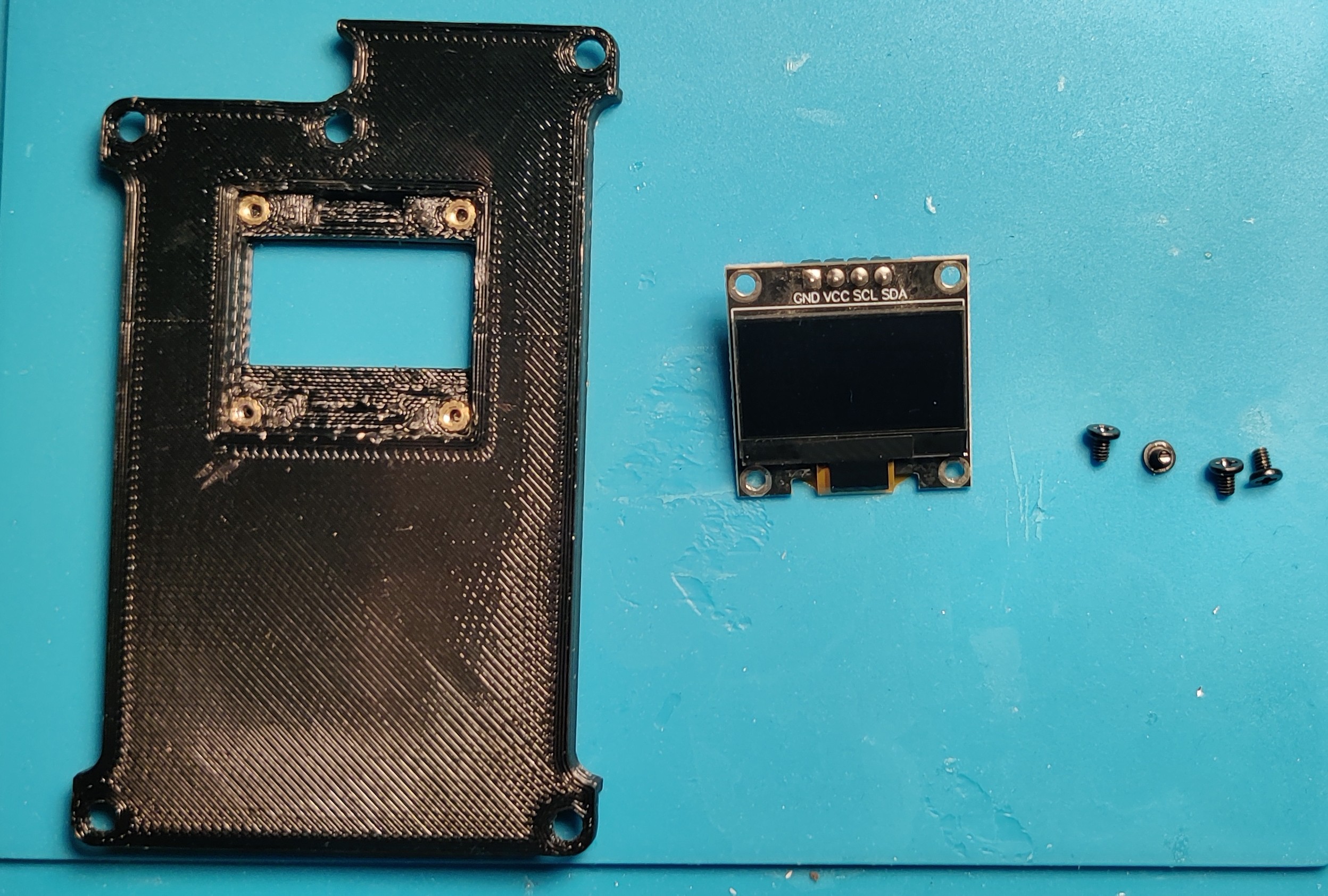
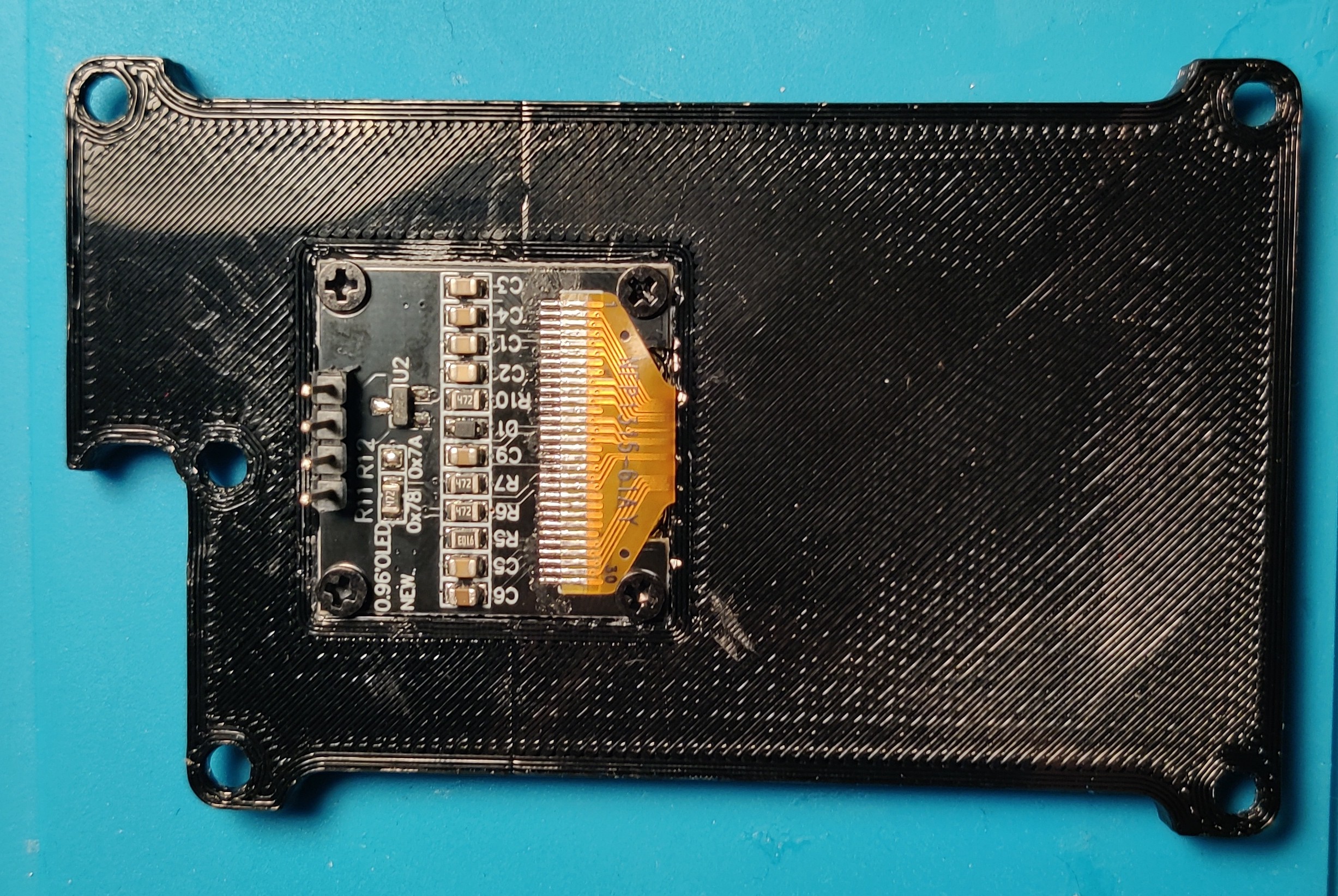
Start by installing the 4x M2 2mm heat press threaded inserts into the 4 holes in the screen depression on the inside of the front panel.
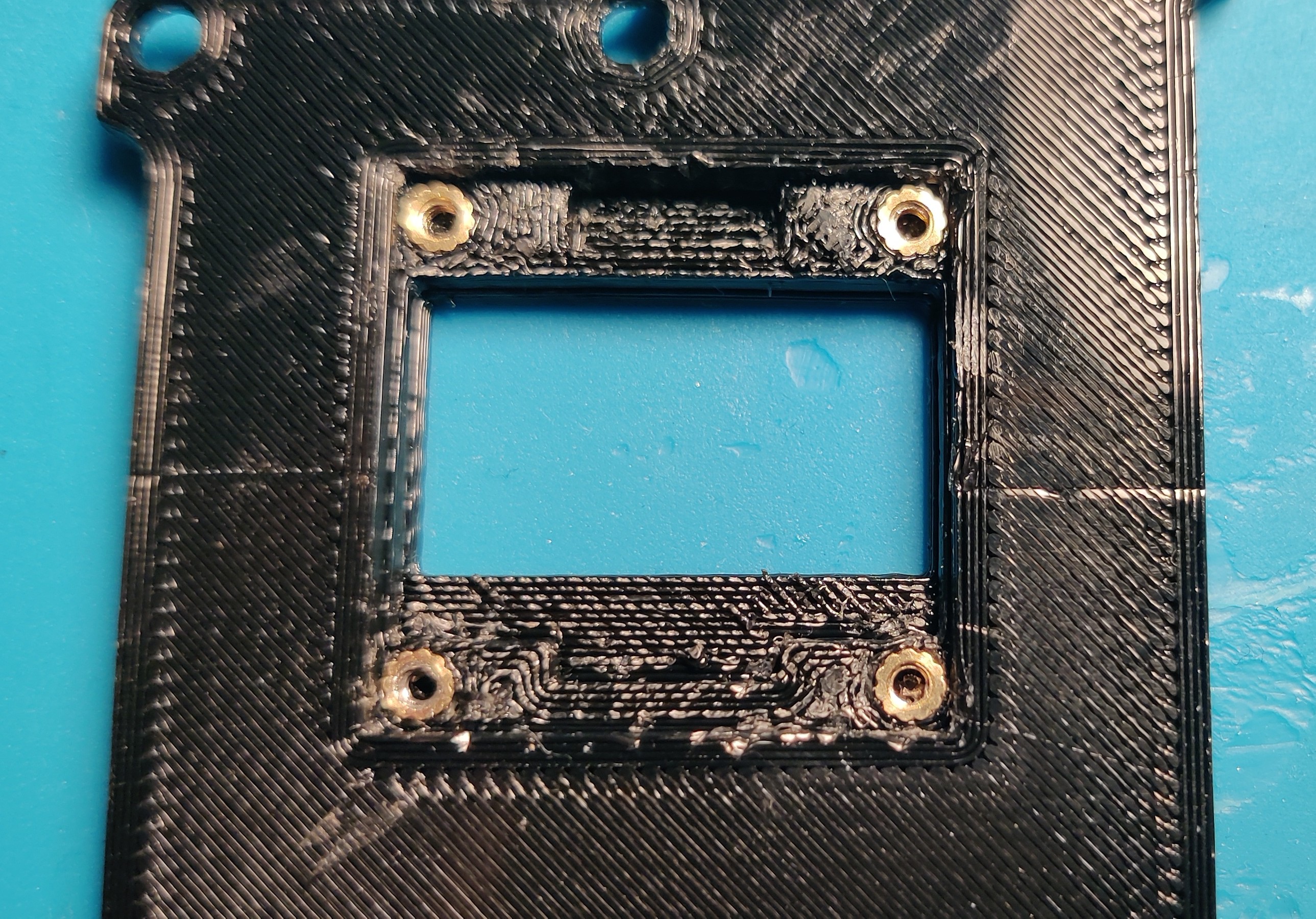
Next, install the 0.96" OLED Display (SSD1315) and affix using the 4x M2x3mm screws.
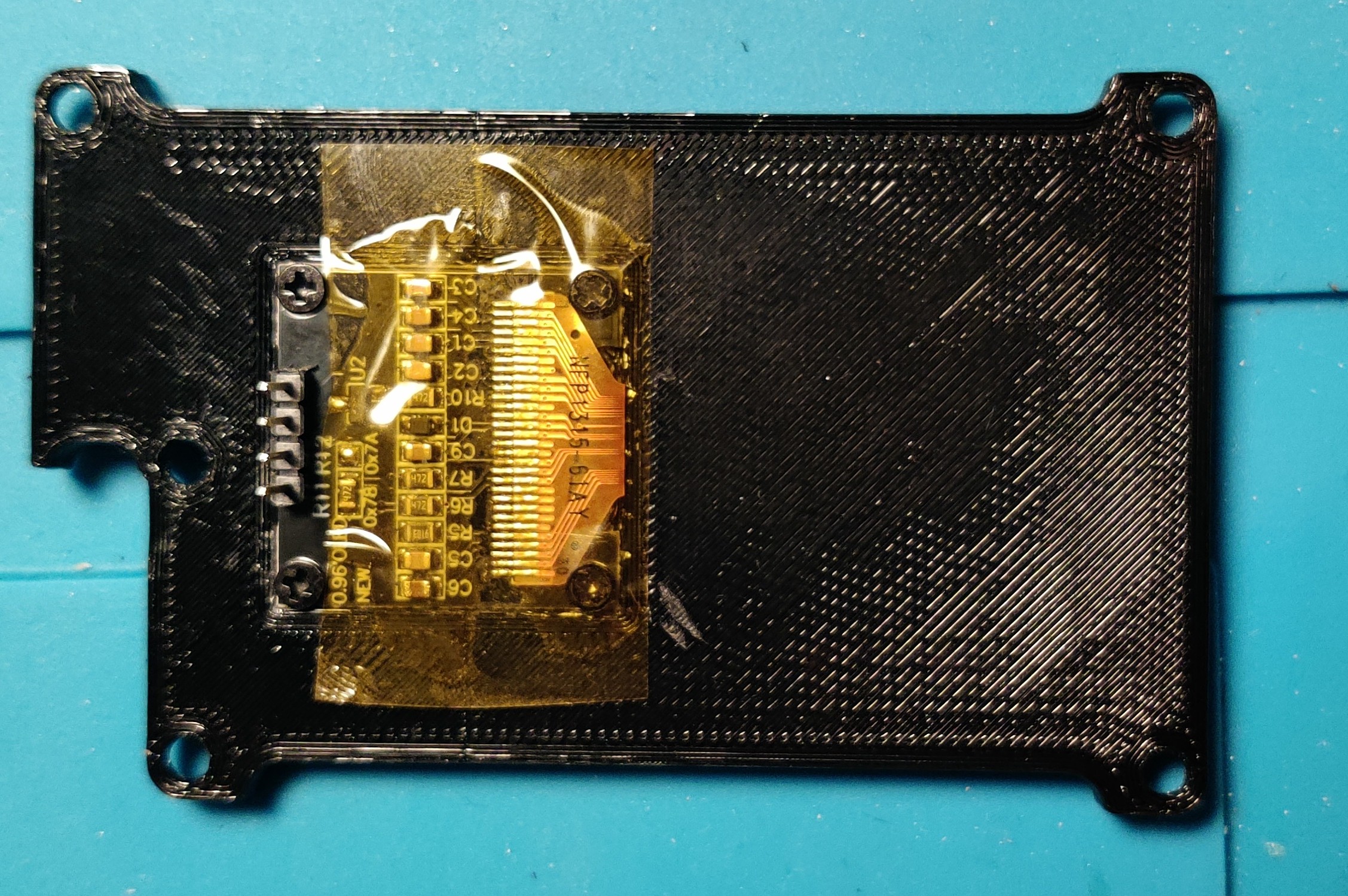
As an extra step, I like to add some Kapton Tape over the screen components to prevent any chance of shorts, but this is probably unnecessary.
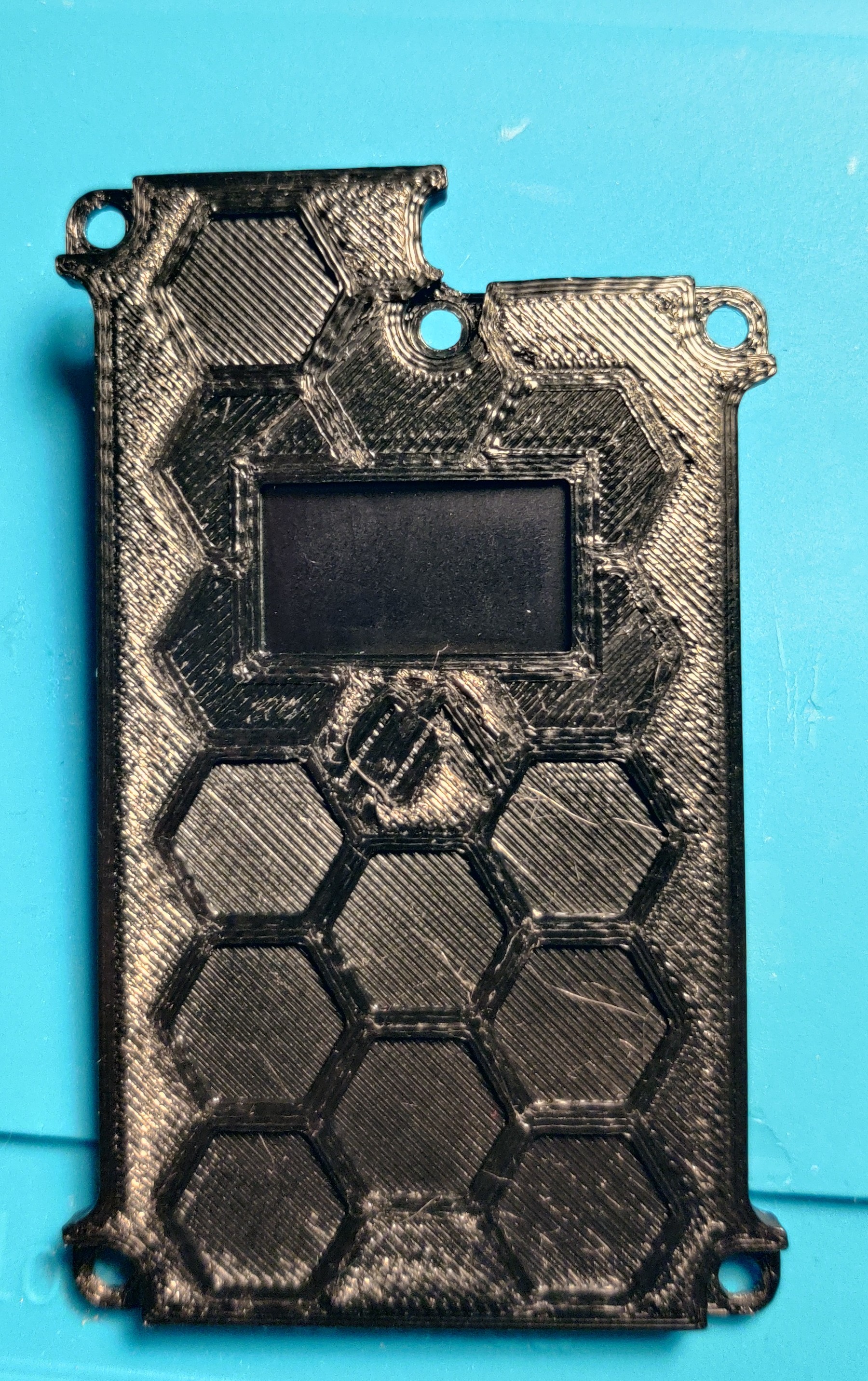
That is the front panel complete.
Back Panel
Next, we'll sort the back panel.
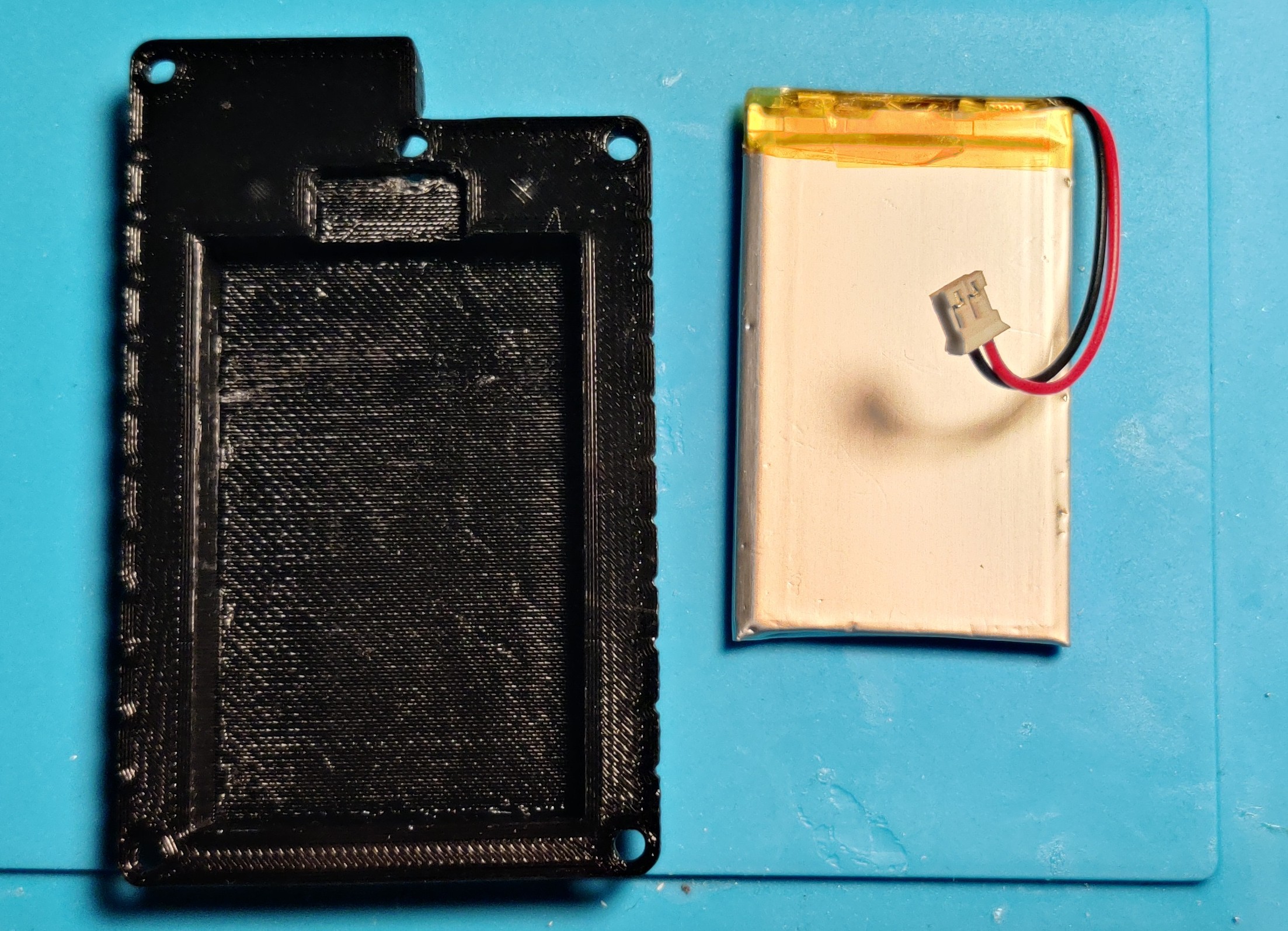
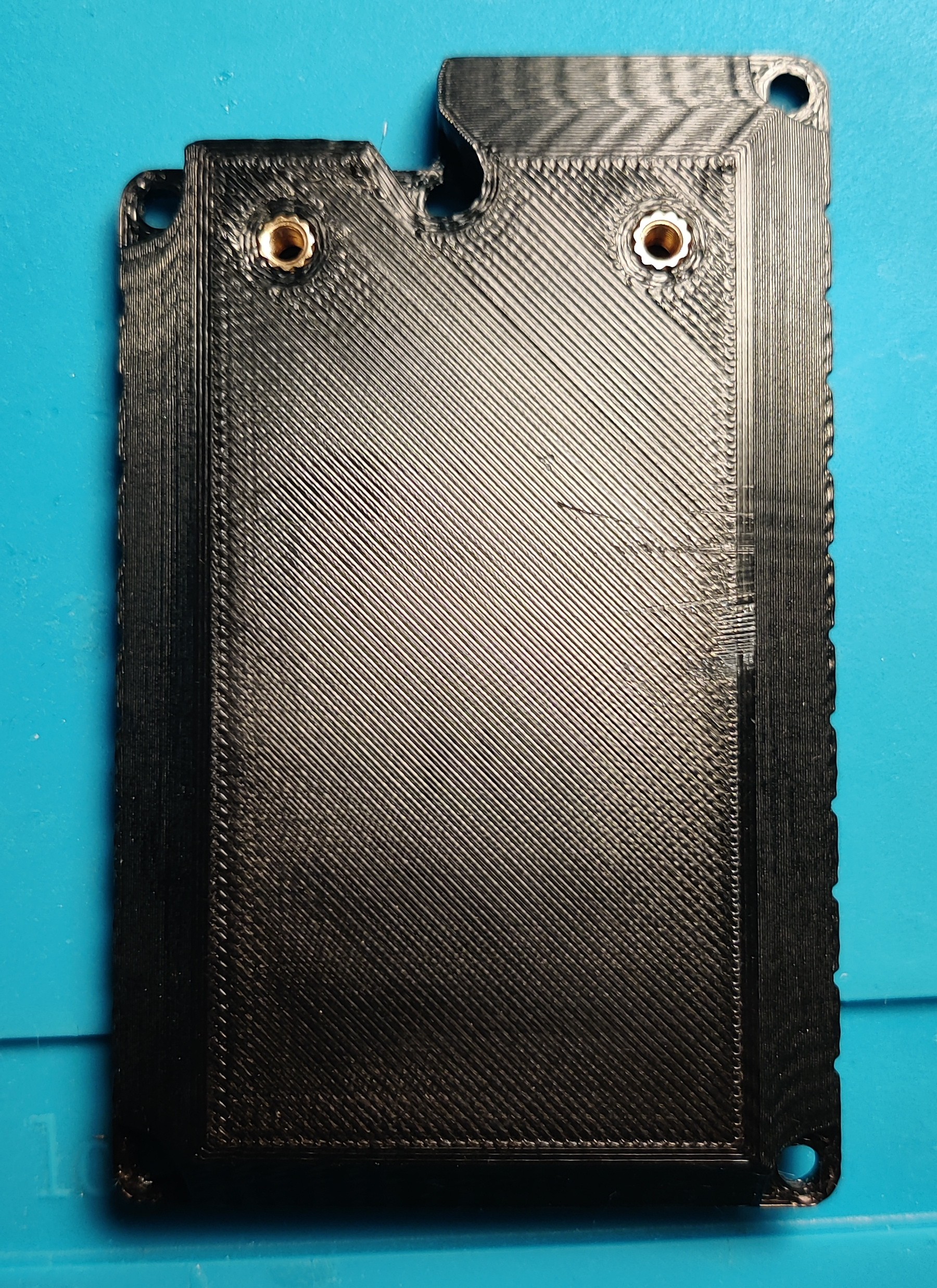
First, flip the back panel so we're looking at the rear, and install the 2x M3 6mm heat press threaded inserts.
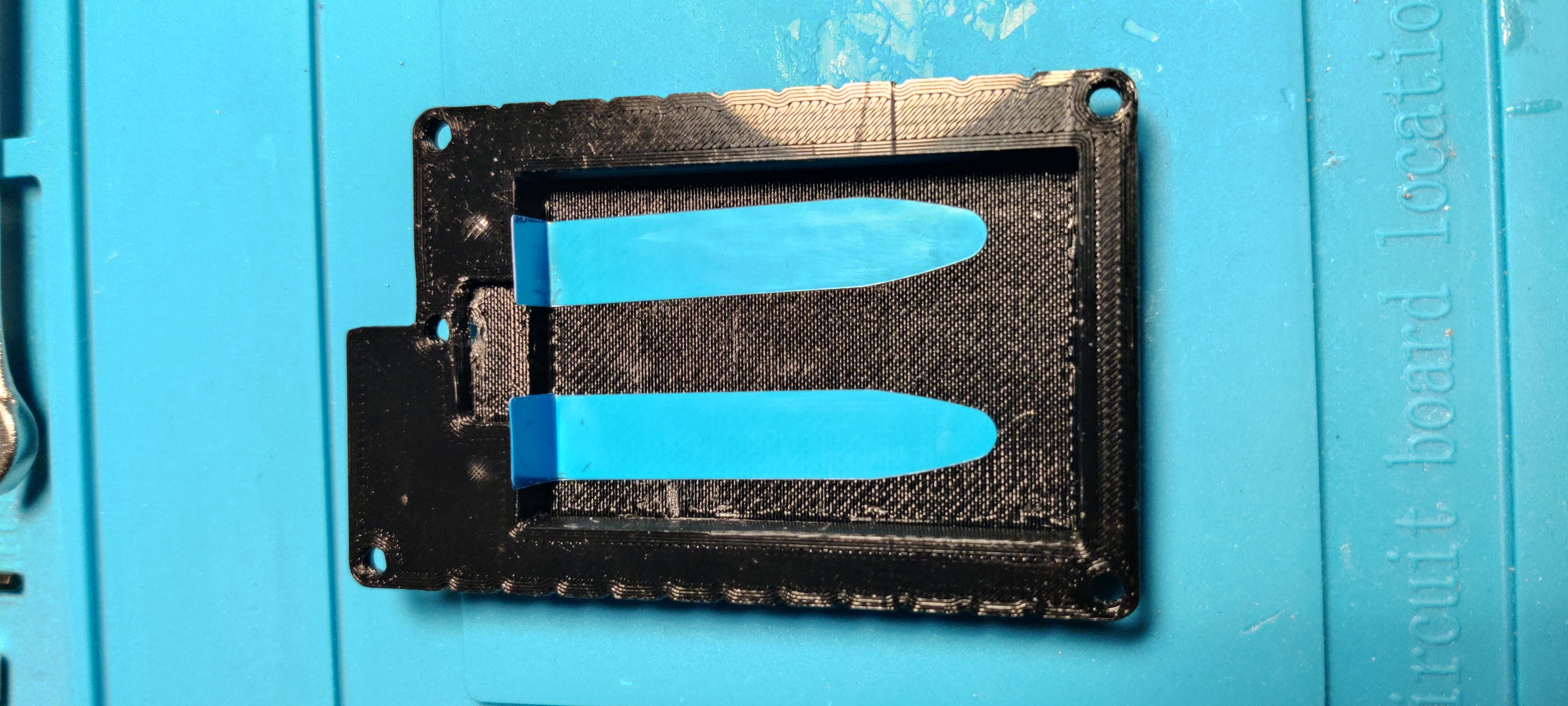
Then flip back to the inside. To secure the battery I prefer to add 2 battery adhesive strips, these ones are for installing in a phone. You can skip this step if you wish, the battery will probably be fine.
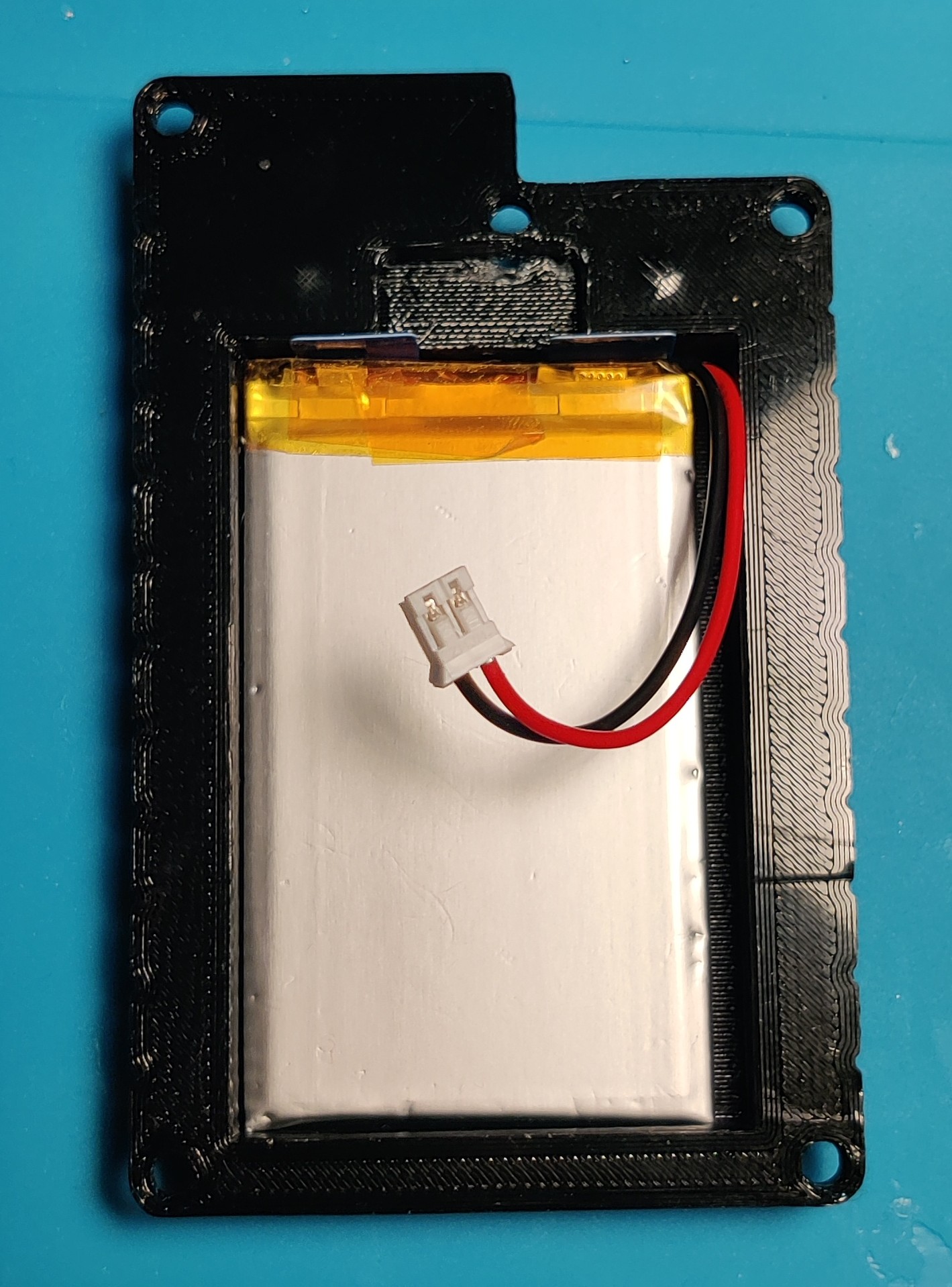
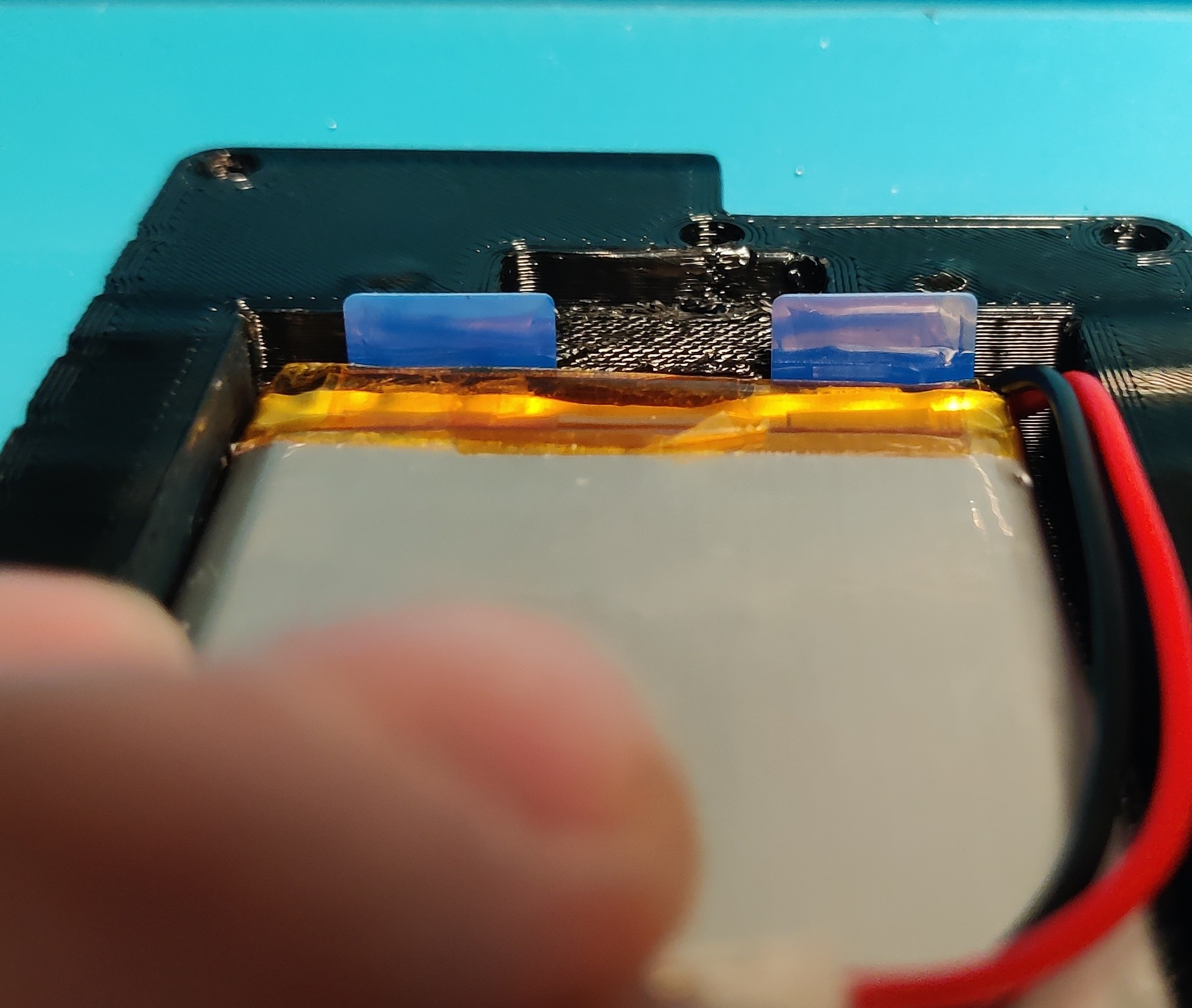
Then install the 103450 Battery, taking care to make sure your pull tabs are accessible (though I will note I've not yet been able to successfully pull them from this angle).
Take care to make sure whichever orientation you install the battery in, the wires can reach where they're meant to on the FakeTec.
That's the back panel complete.
Middle Section
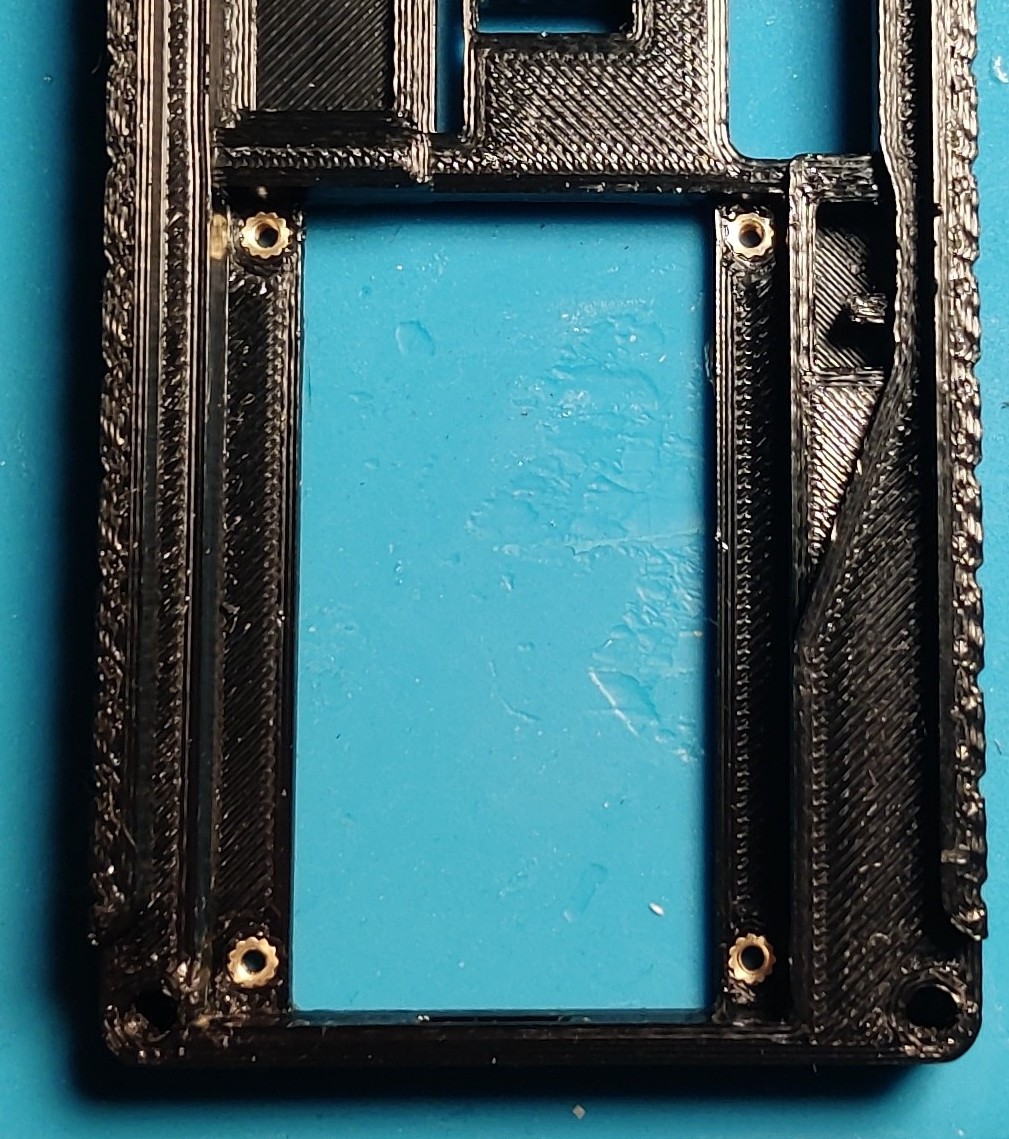
Moving onto the middle, we first want to prep the sled bay by inserting the 4x M2 3mm heat press Threaded Inserts.
Screen Connector
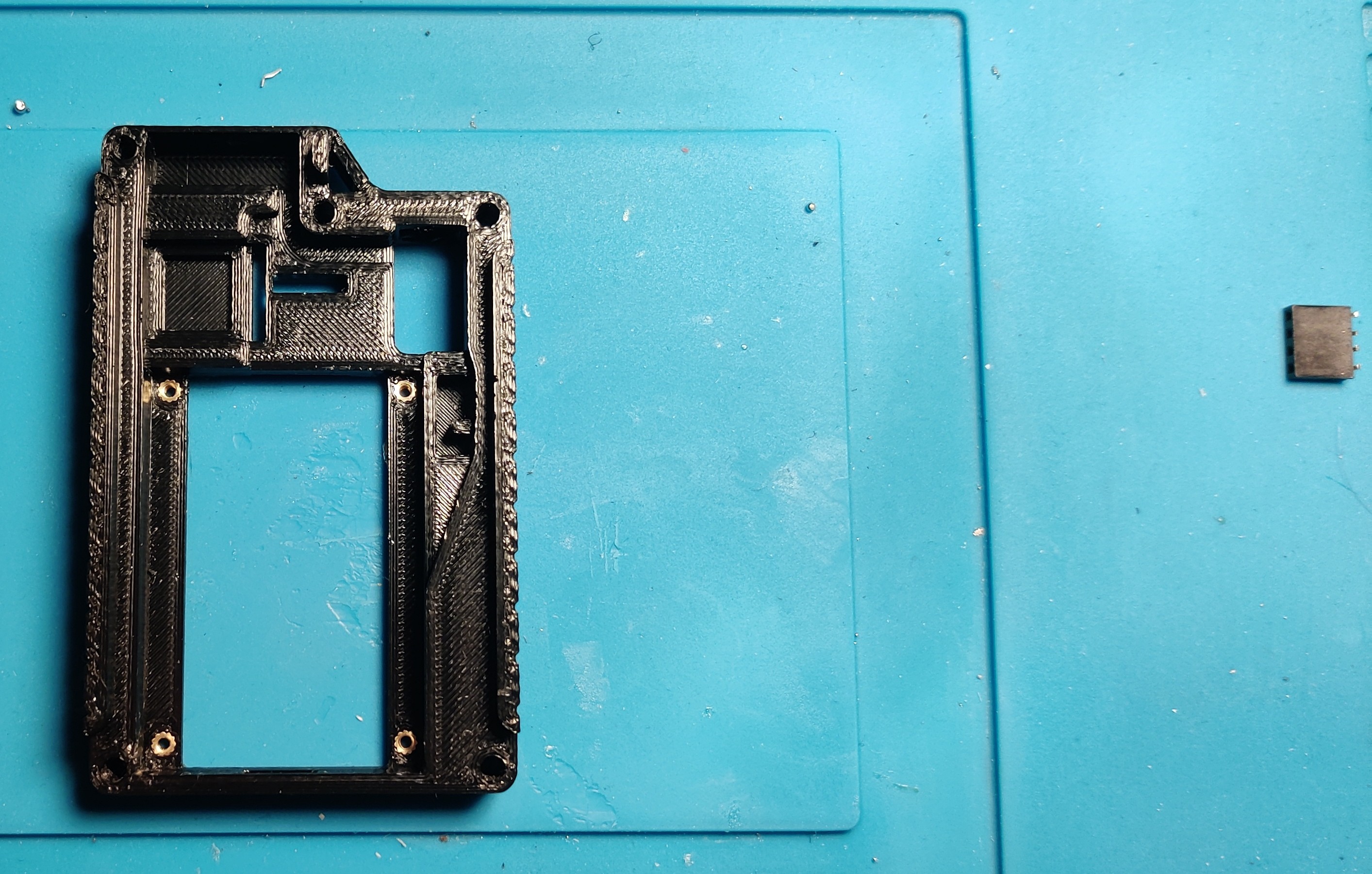
Next, we want to install the screen connector before any other components as it's incredibly fiddly.
The horizontal rectangular slot in the top is lined up such that the pins on the screen slot into it perfectly, to allow freely removing the screen when disassembling the case, we can avoid directly soldering wires between the screen and the FakeTec by installing a 1x4 2.54mm pitch female header in this slot for the screen to plug into, and wire that female header to the FakeTec.
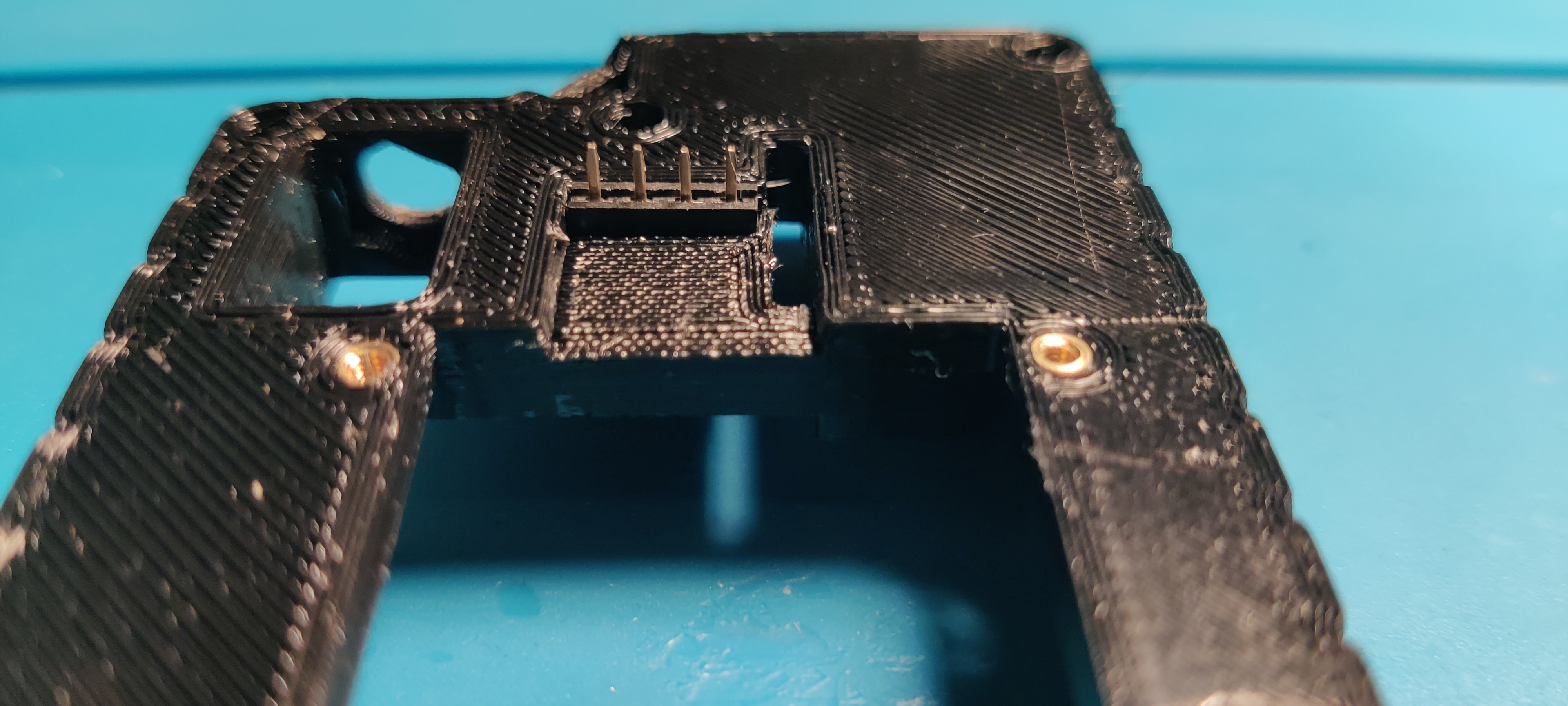
I've found it's easier to push the female header in from the bottom, as you can leverage against the left wall.
You'll note that the wall on the right side is pretty thin. This will buckle whilst installing the female header, the pressure this puts on the female header should hold it in place.
Once pushed in, you want the top of the female header casing to be flush with the top of the case. This will allow the screen pins to be pushed fully into the female header when the case is put together.
If the header is too loose, you can additionally super glue it in place.
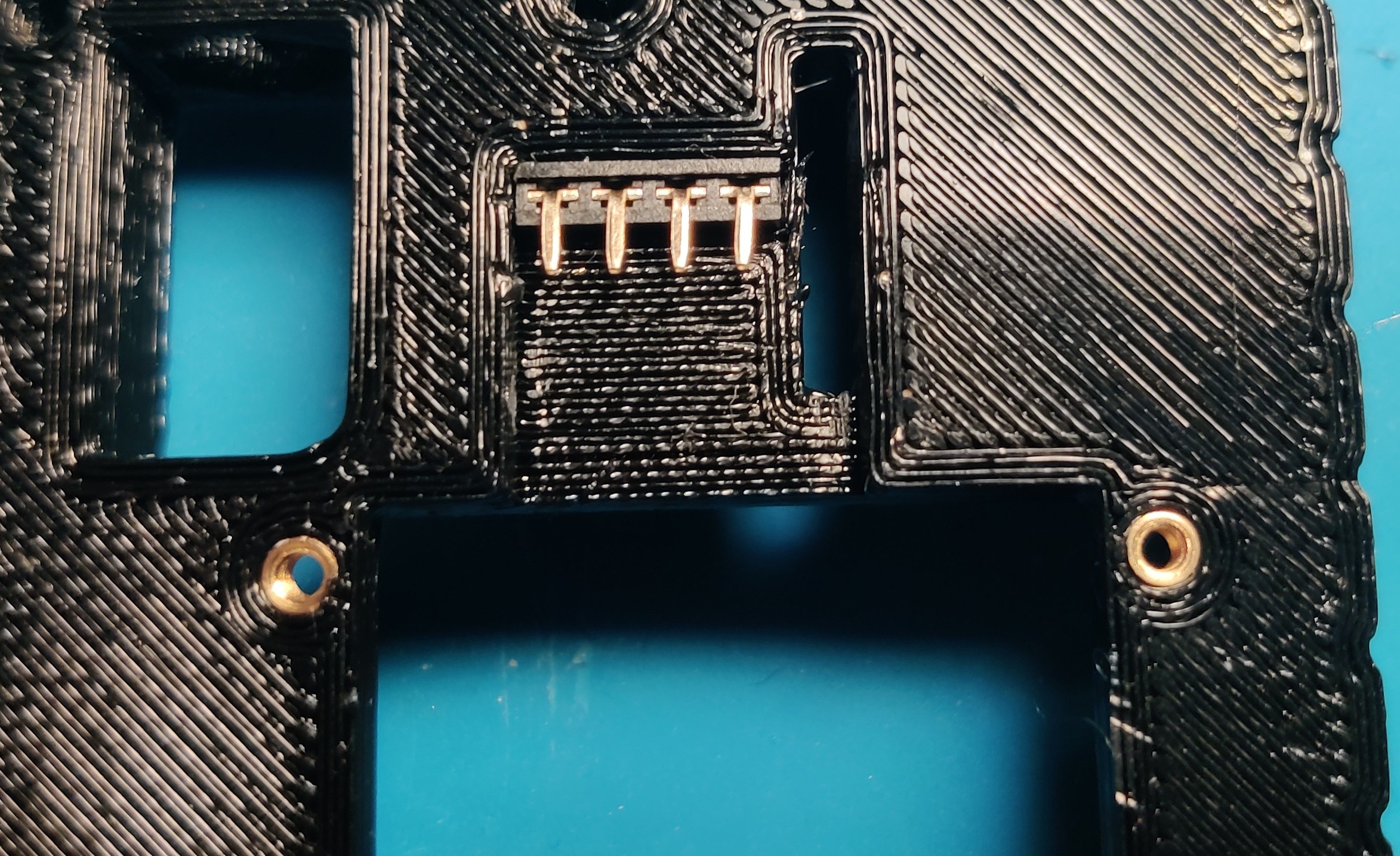
Finally, you want to bend the pins on the female header over towards the bottom so they're horizontal and won't interfere with the back panel.
Antenna
With the female header installed, we can move on to the antenna pigtail.
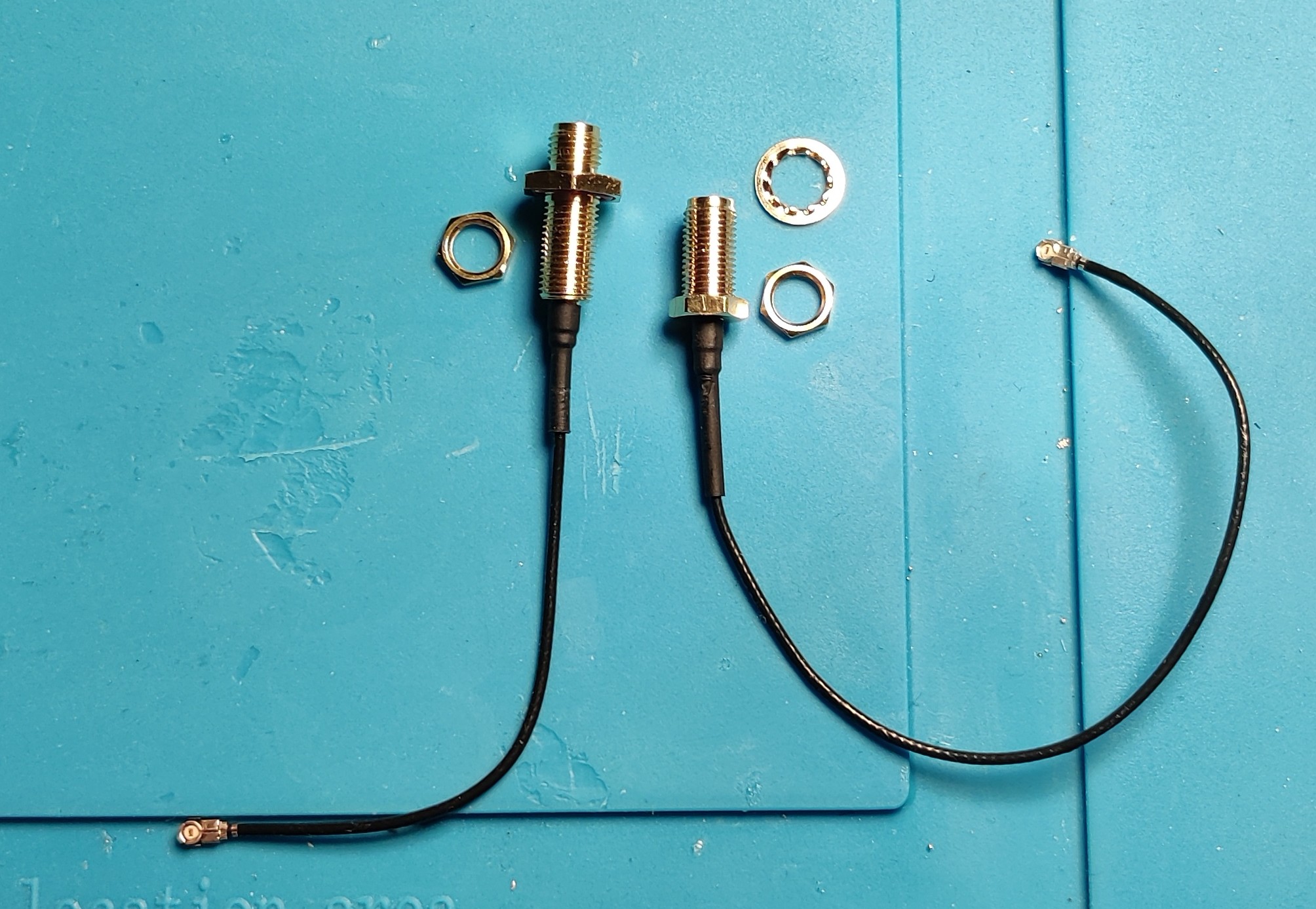
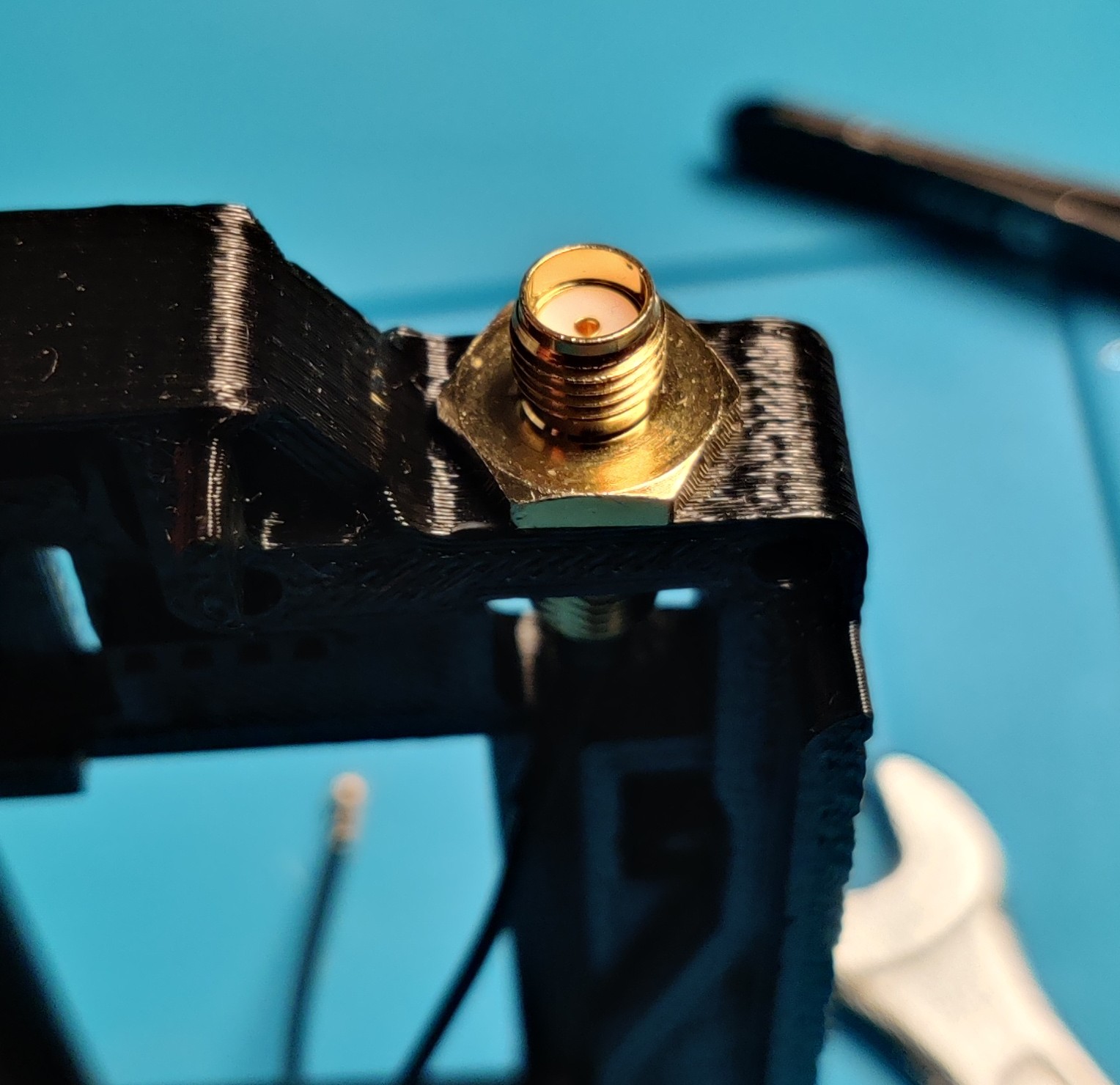
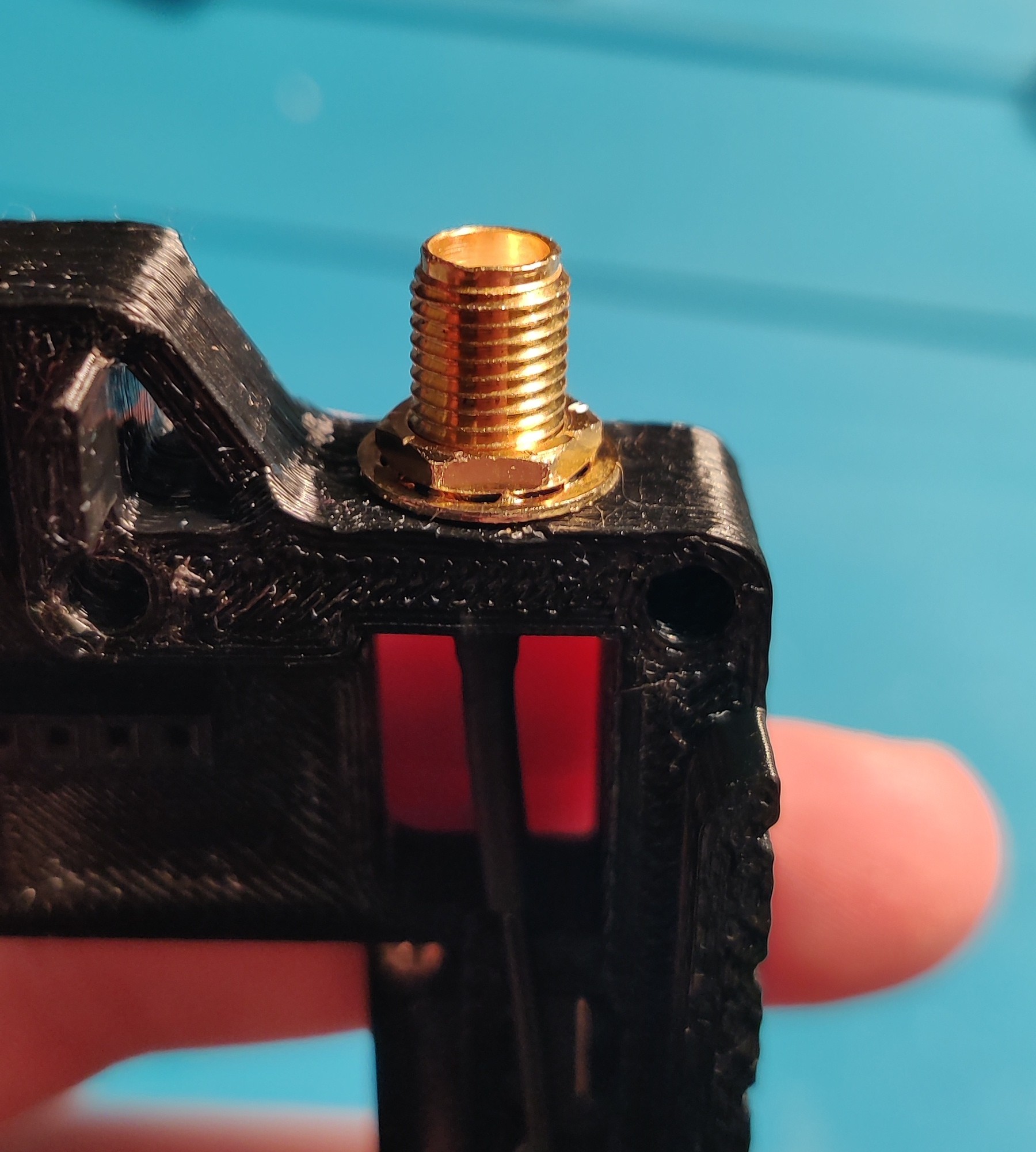
I've seen two types of pigtail: One where the SMA thread is in two parts, separated by a large fixed hex nut, where the top section is just for the antenna, and bottom section is inserted outside in and a nut is screwed on inside to fix it (positioned on the left). The other type has a single long SMA thread, which is inserted from the inside out, and a washer and nut is screwed on the same side as the Antenna (positioned on the right).
For the left Type:
Install the nut in the hexagonal slot at the top of the middle section, this should fit somewhat snugly and flush.
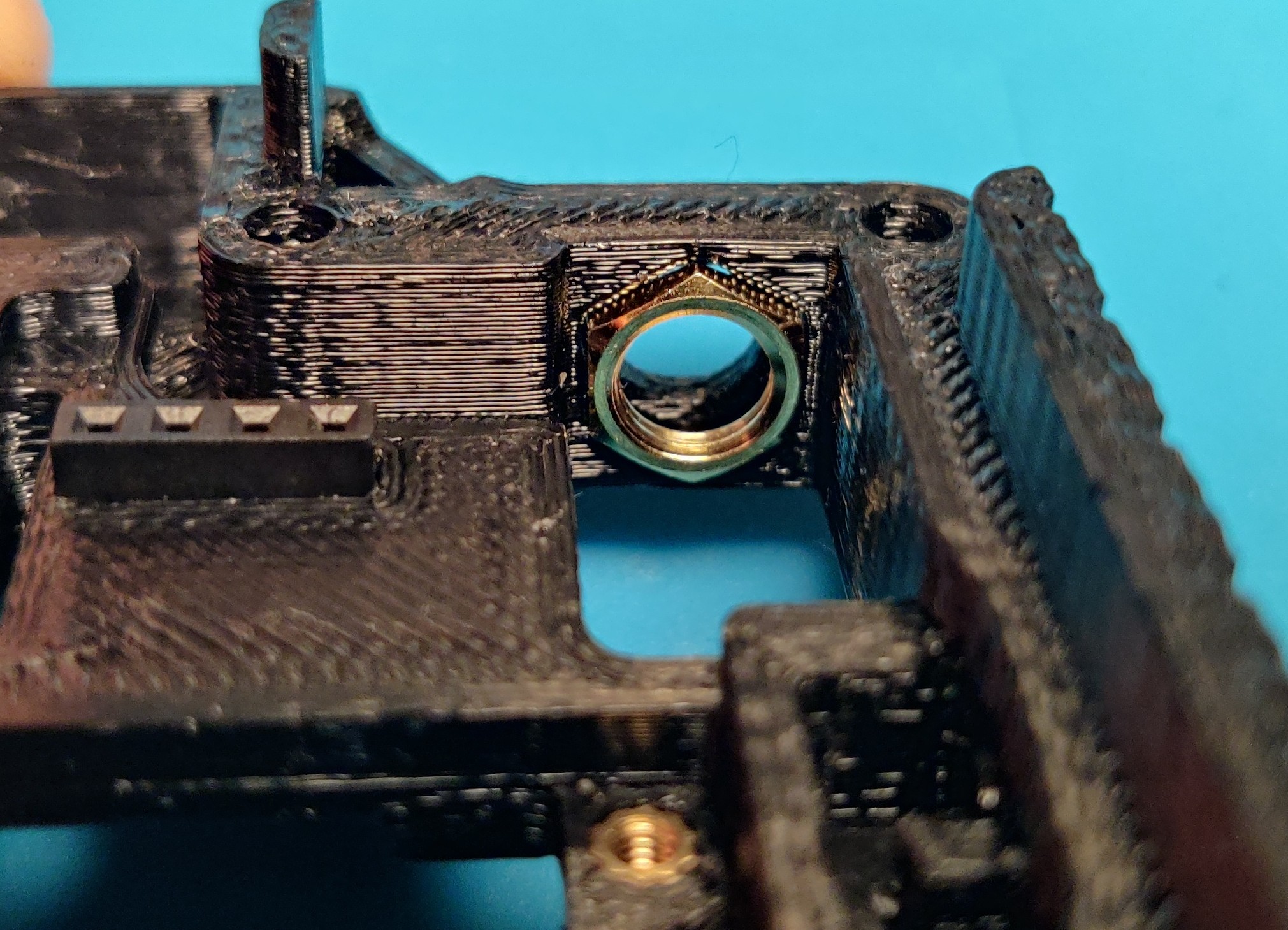
Then thread the pigtail through the hole and nut from the outside.
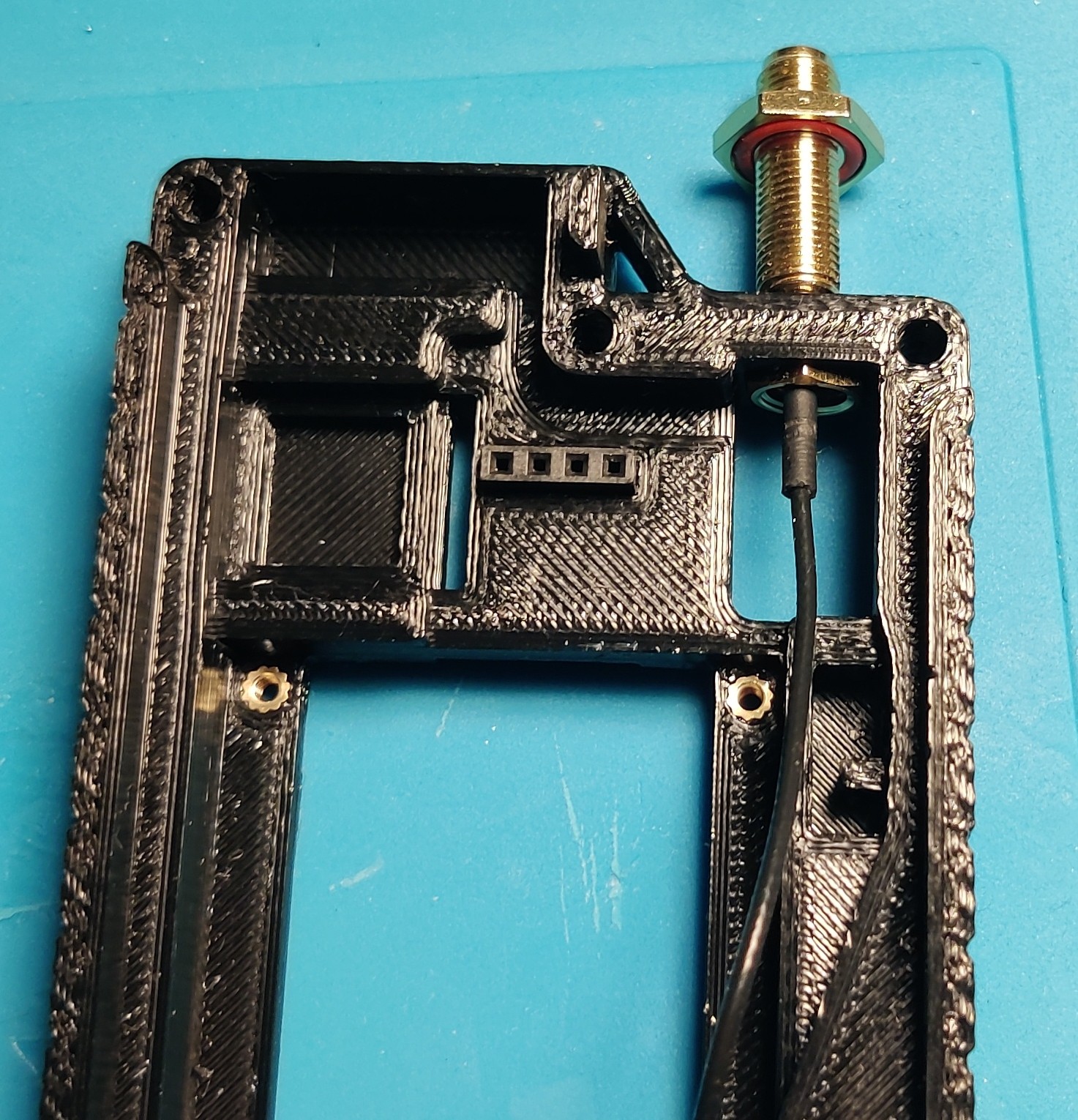
Then screw the pigtail all the way down, making sure to align the flat sides to the edge of the middle section.
I find a wrench (in my case an 11mm) helps.
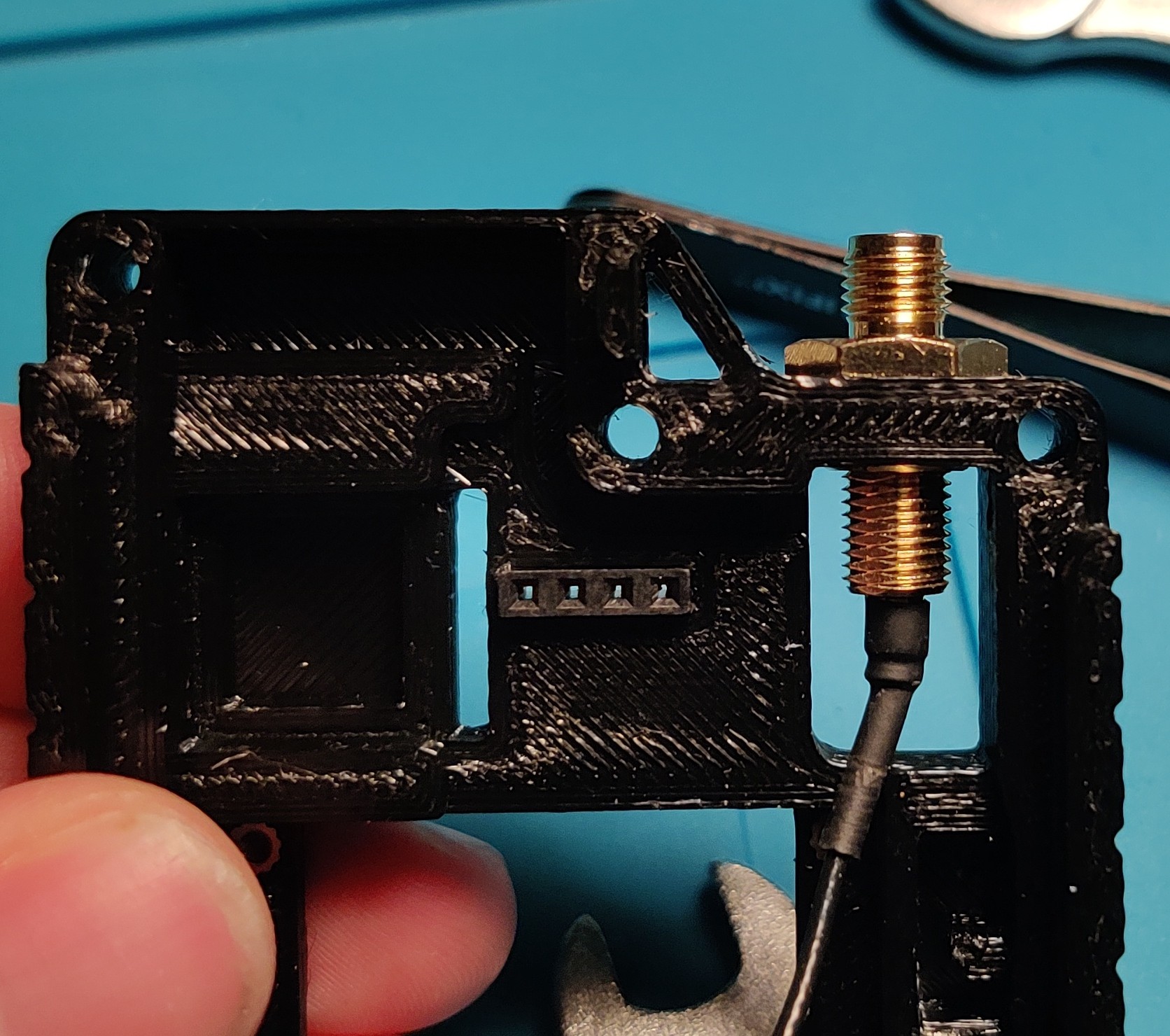
For the other type:
Position the SMA connector from the inside at the hole at the top of the middle section.
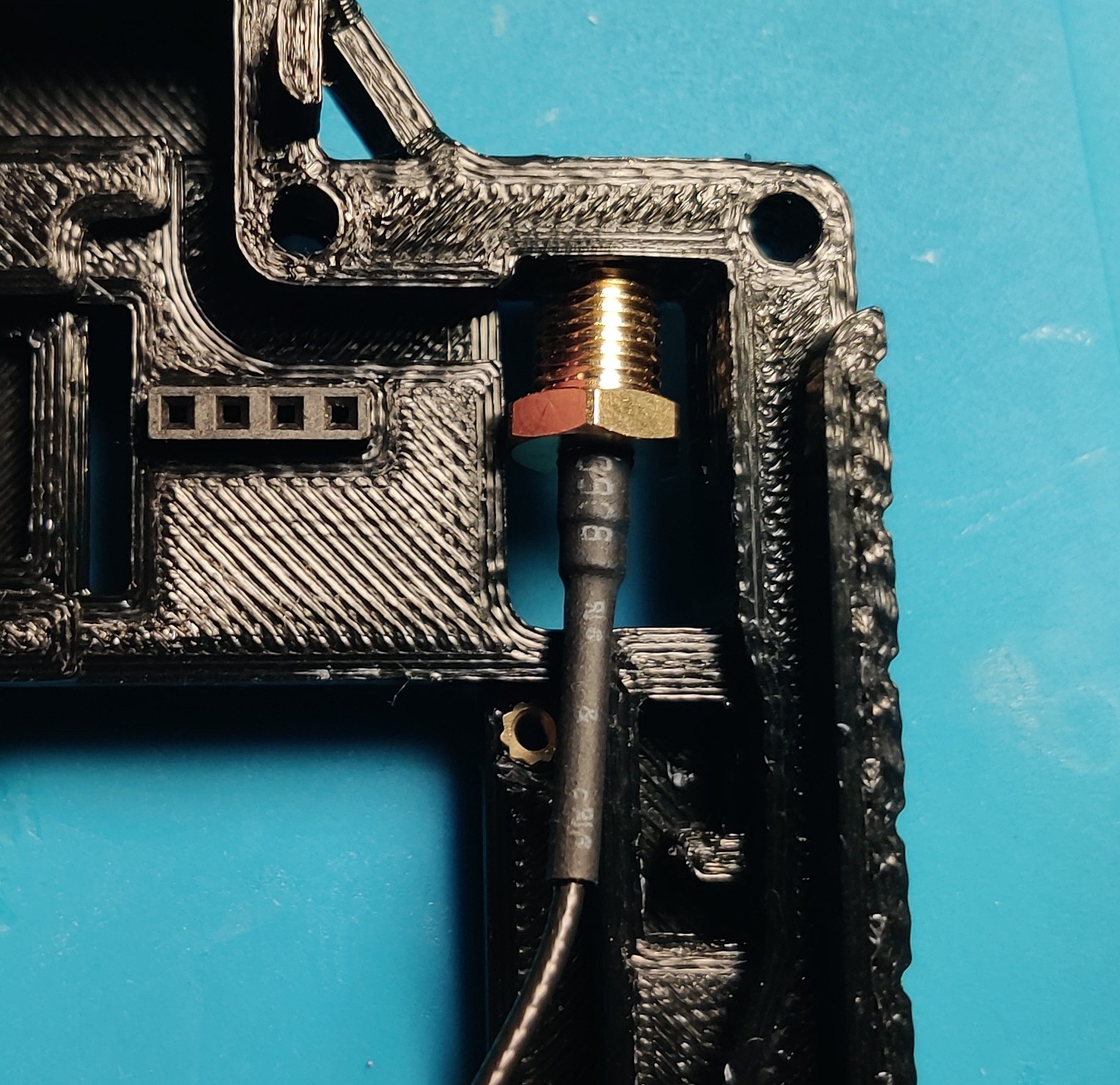
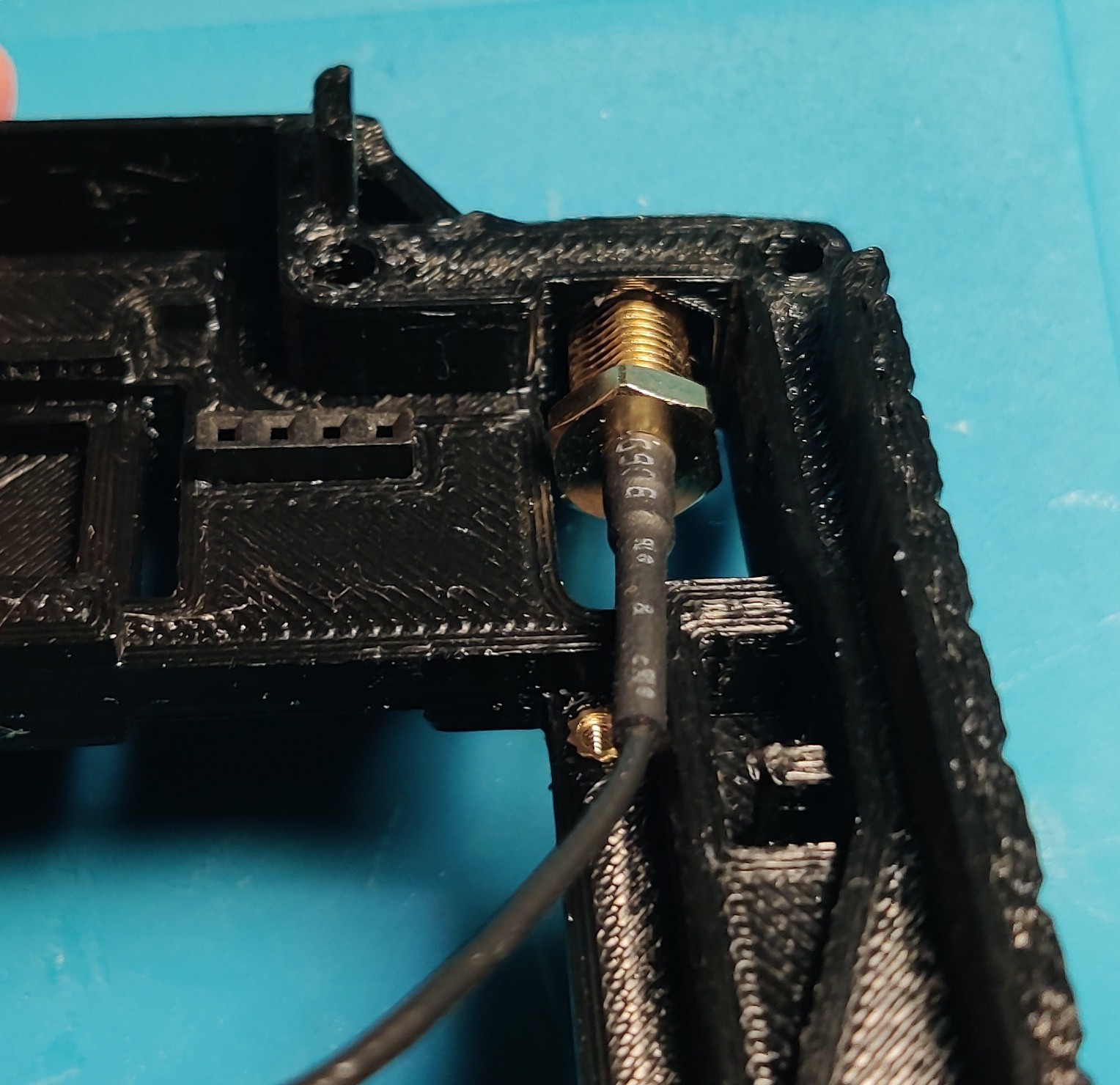
Push the SMA connector through the hole until it's fixed hexagon section fits into the hexagonal slot. If the hole is too tight, then you may need to screw the SMA connector through, once you reach the part where the hexagon part needs to go into the hexagonal hole, pull it in when screwing on the nut in the next step.
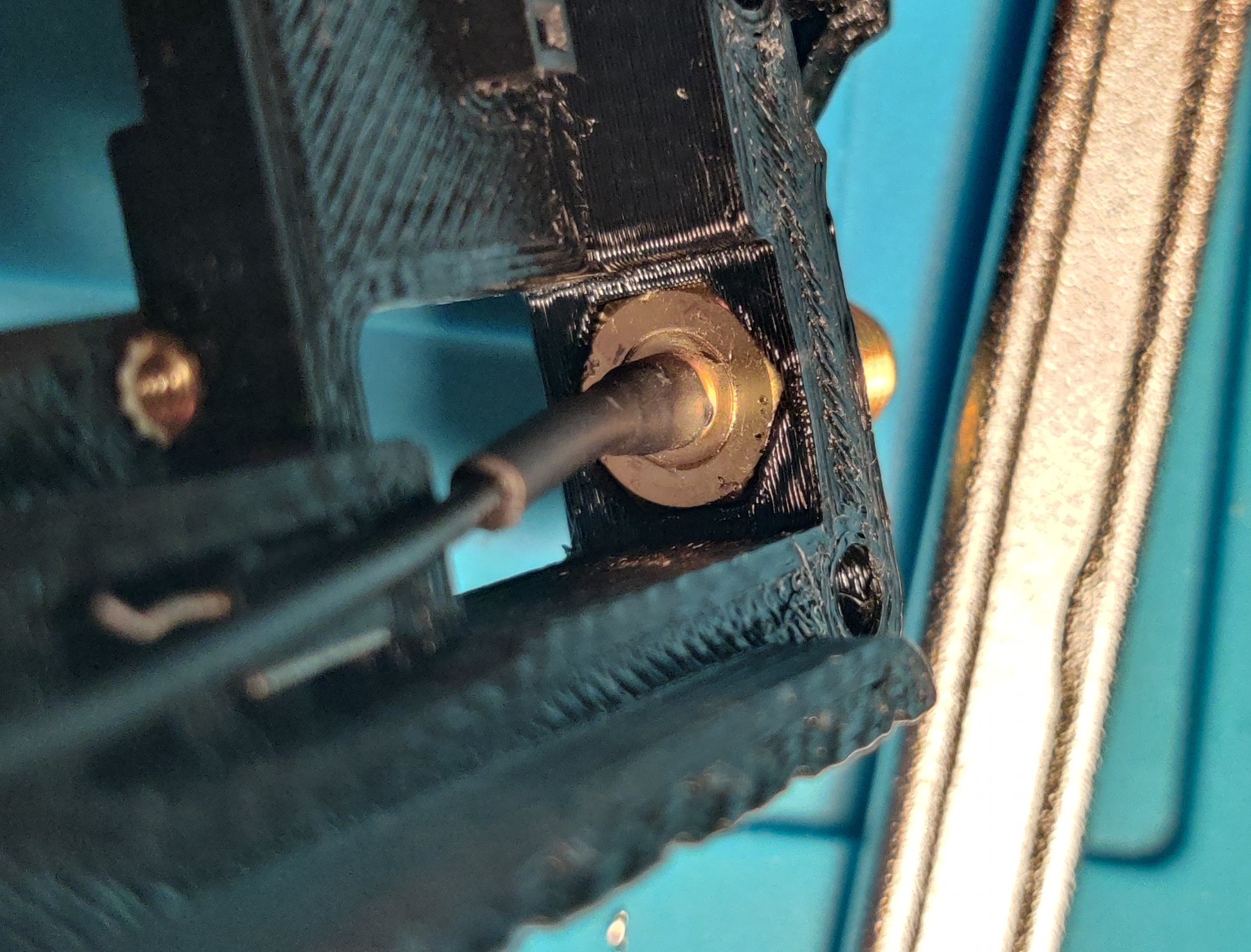
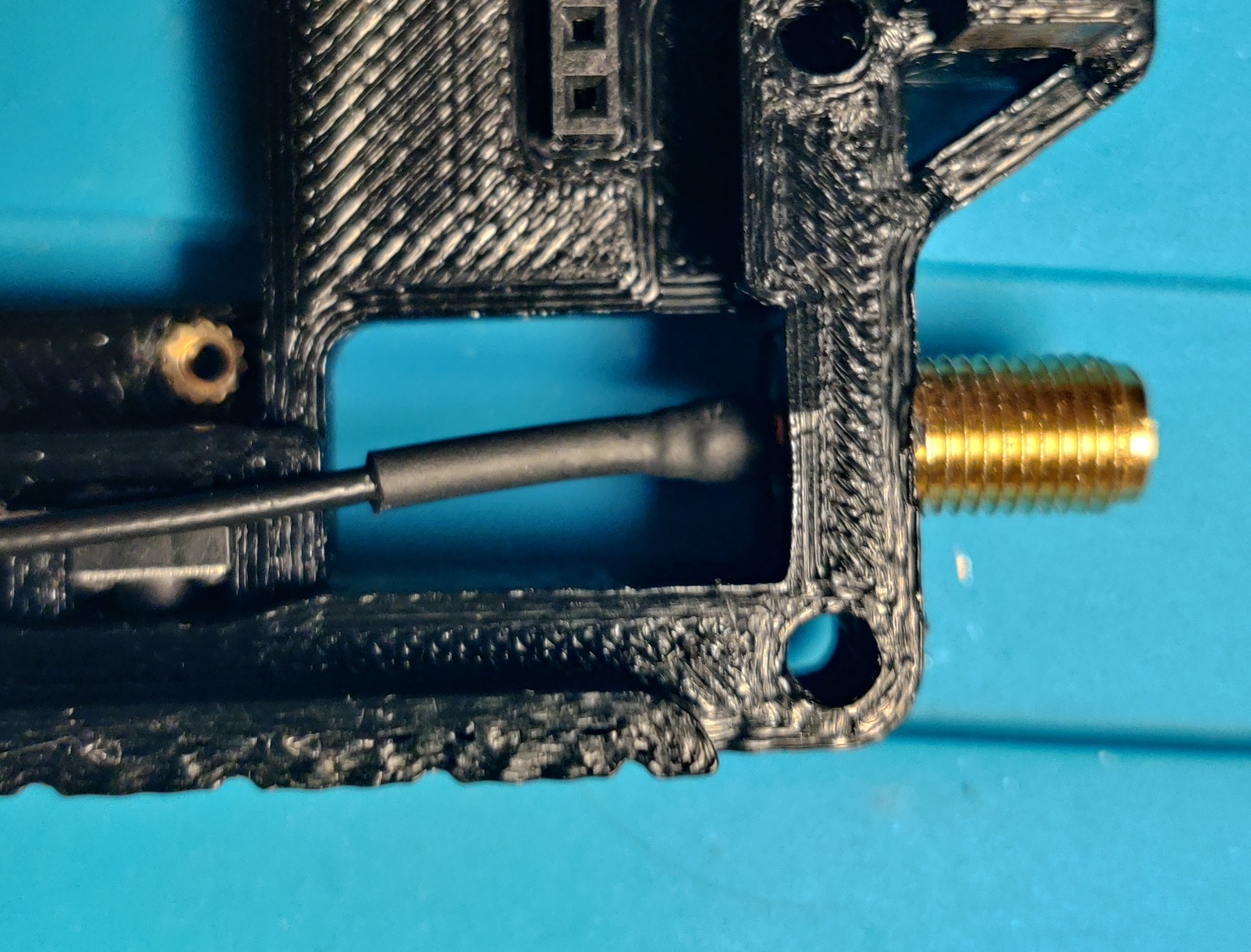
Finally, put the brass washer on and screw the brass nut on tight. The hexagon section of the SMA section should be flush with the Hexagonal hole after this step.
Sled
For the next part, we will install the FakeTec into it's sled, for this demonstration I will be using my FakeTec v5.5.1, the process may be slightly different for your FakeTec and sled.
Start by installing the 4x M2 6mm Heat press Threaded Inserts into the holes in the FakeTec part of the Sled. Note that in my case, as my FakeTec is a v5 derivative, I can't use the Pro Micro side screws, so I won't bother installing those Threaded Inserts.
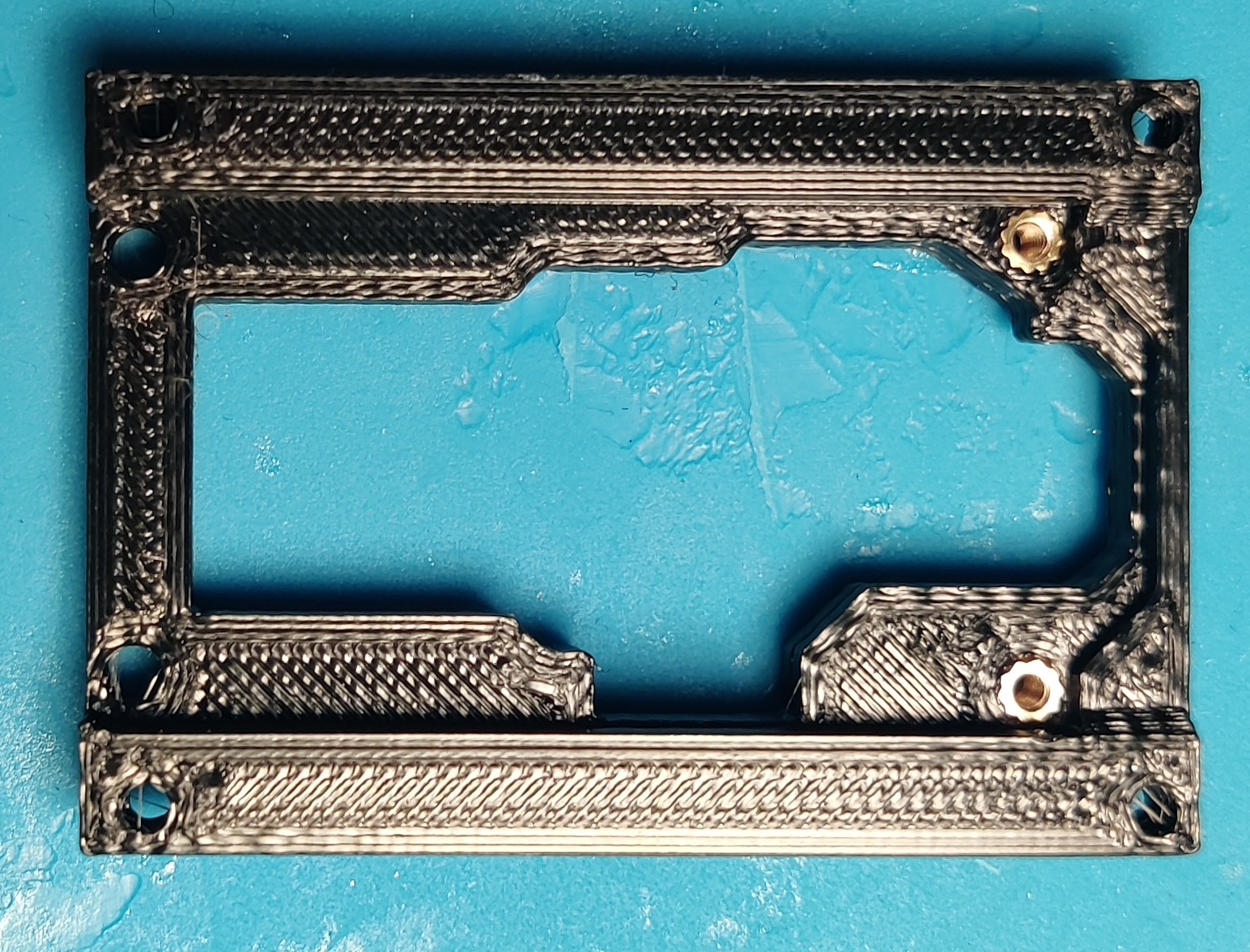
It should be noted that if your sled cuts into the hole for the Threaded Insert, you can probably still get away with installing the Threaded Insert anyway.
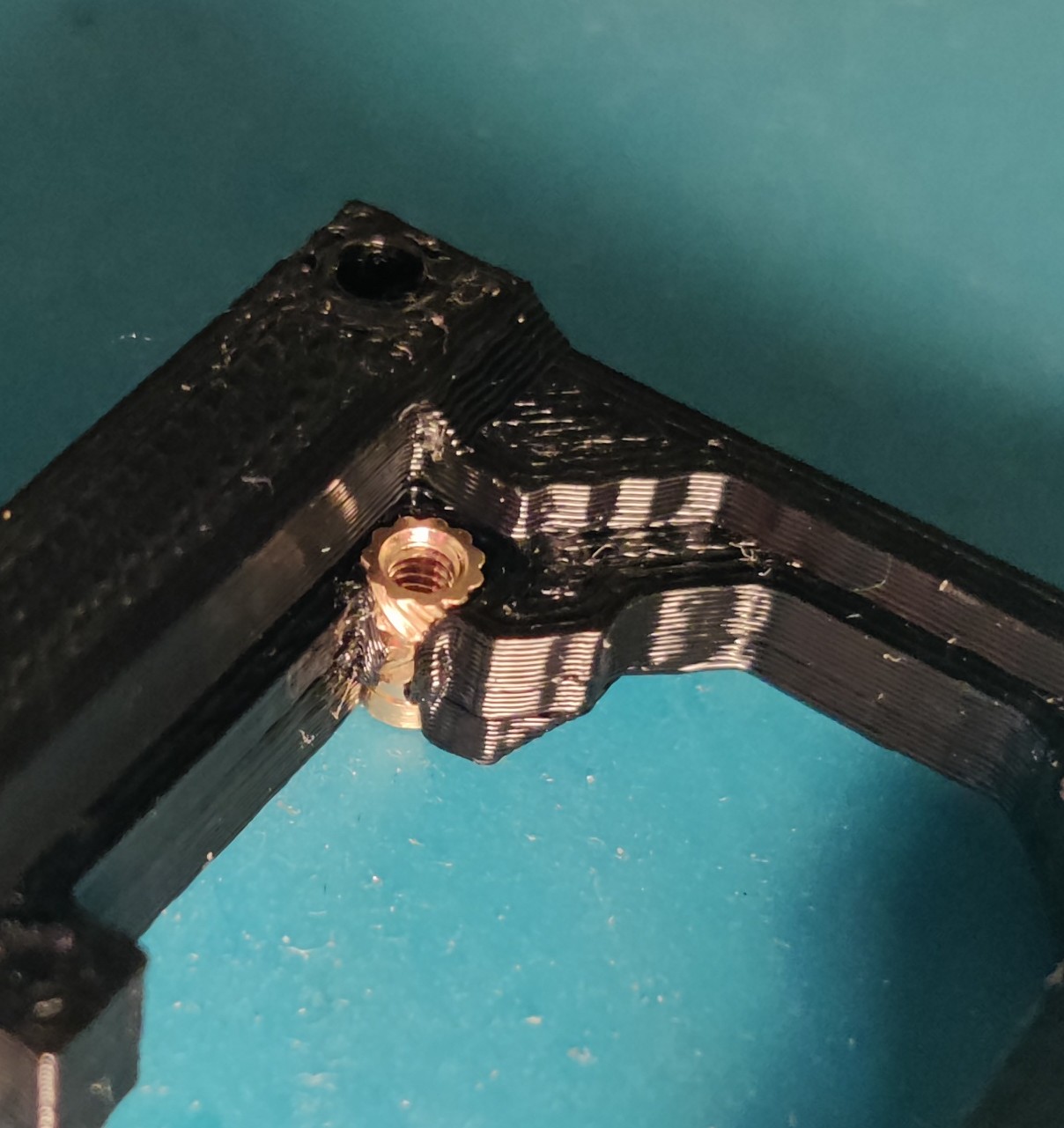
Afterwards, we can install the FakeTec into the sled and fasten the 4x M2x6mm Screws.
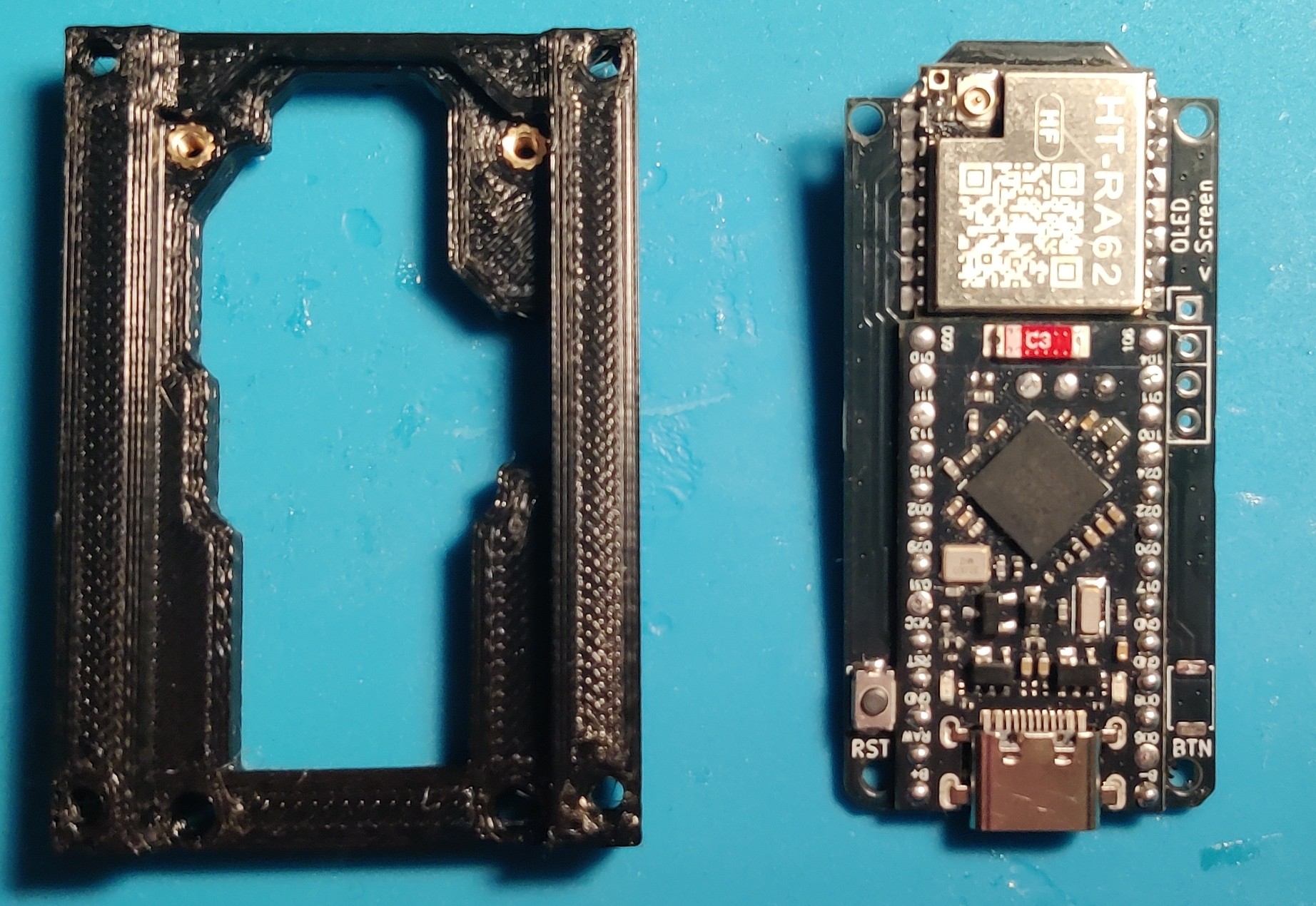
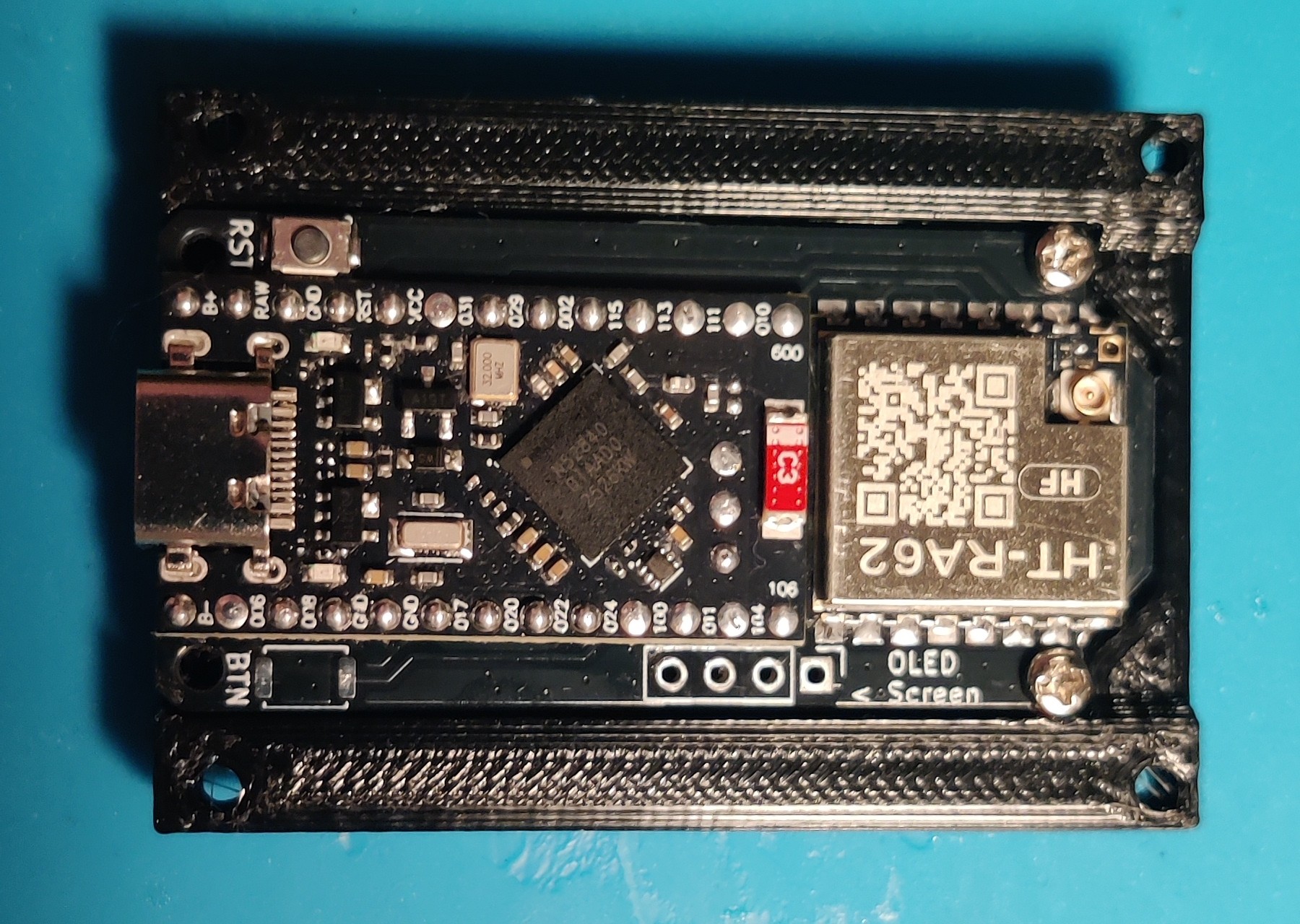
Finally, insert the Sled into the case, USB C port first so it slots into the gap on the middle section, and screw in with the 4x M2x8mm Screws.
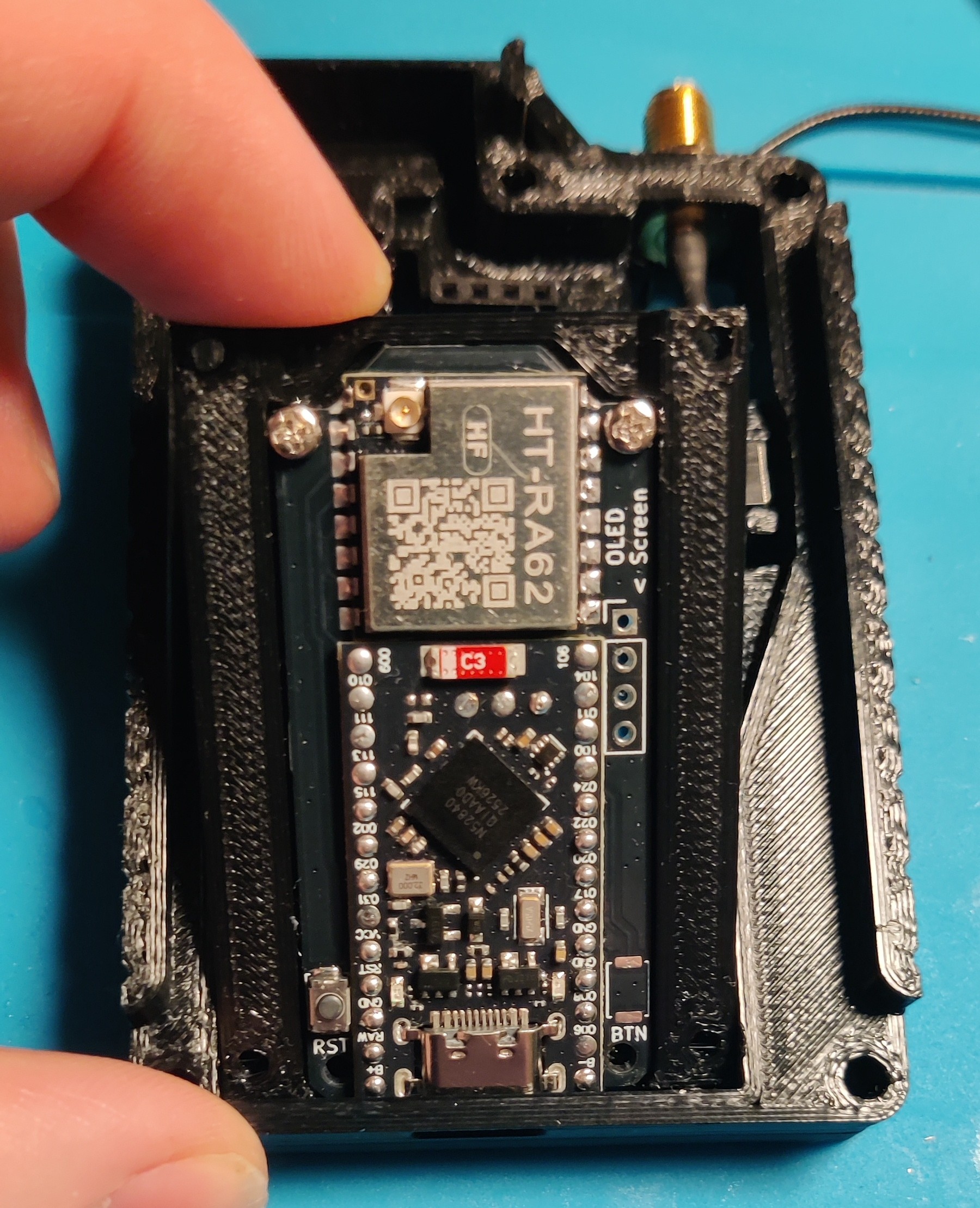
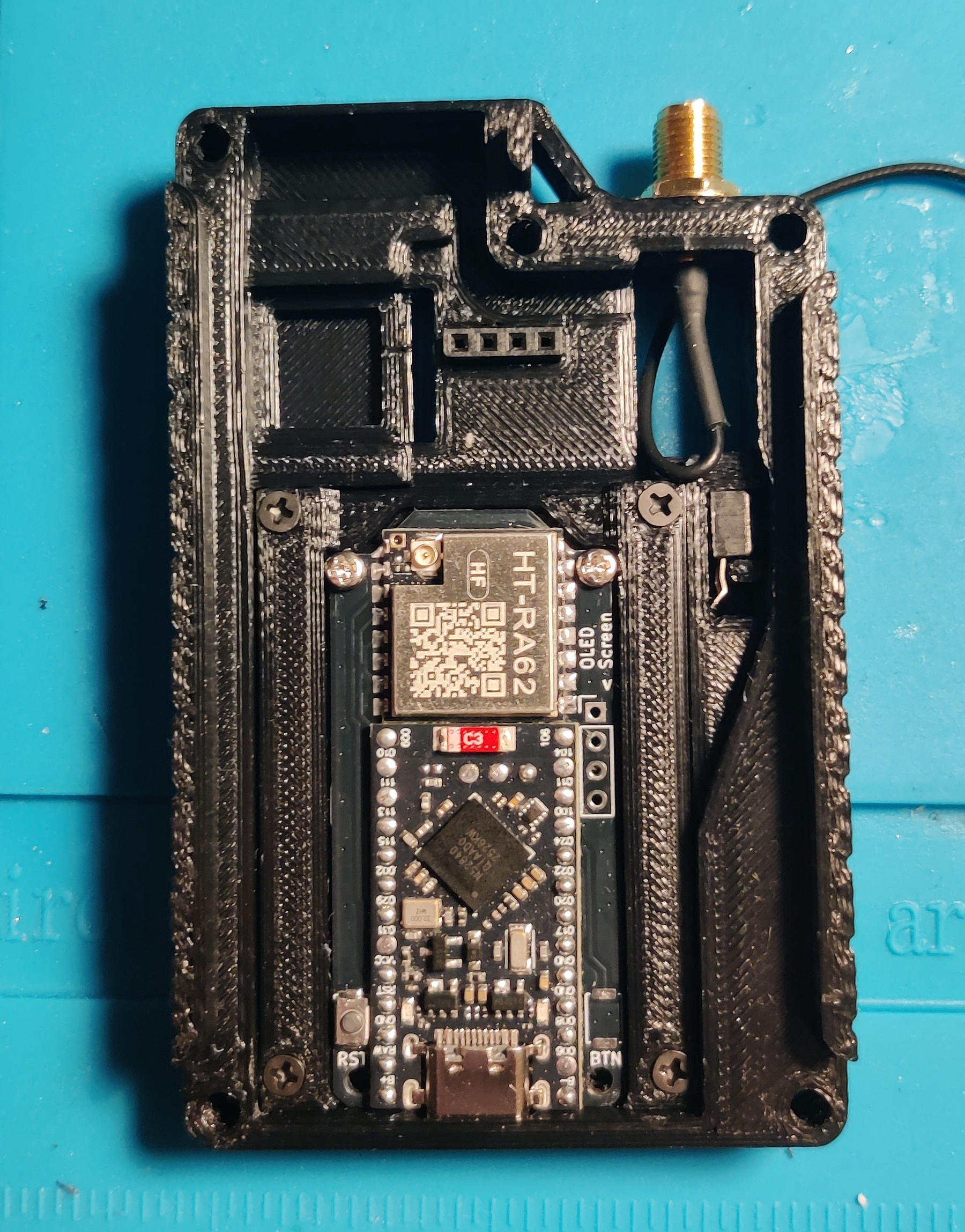
Button
Moving on, we finally start some soldering and the next fiddly bit: the button.
We want to start by installing the button pin into its hole in the right side of the case.
Note that the pin needs to be flush on the inside, and able to move freely, otherwise it will get stuck, or will prevent the button from releasing. You may need to clean the inside of the pin hole, or sand the pin down.
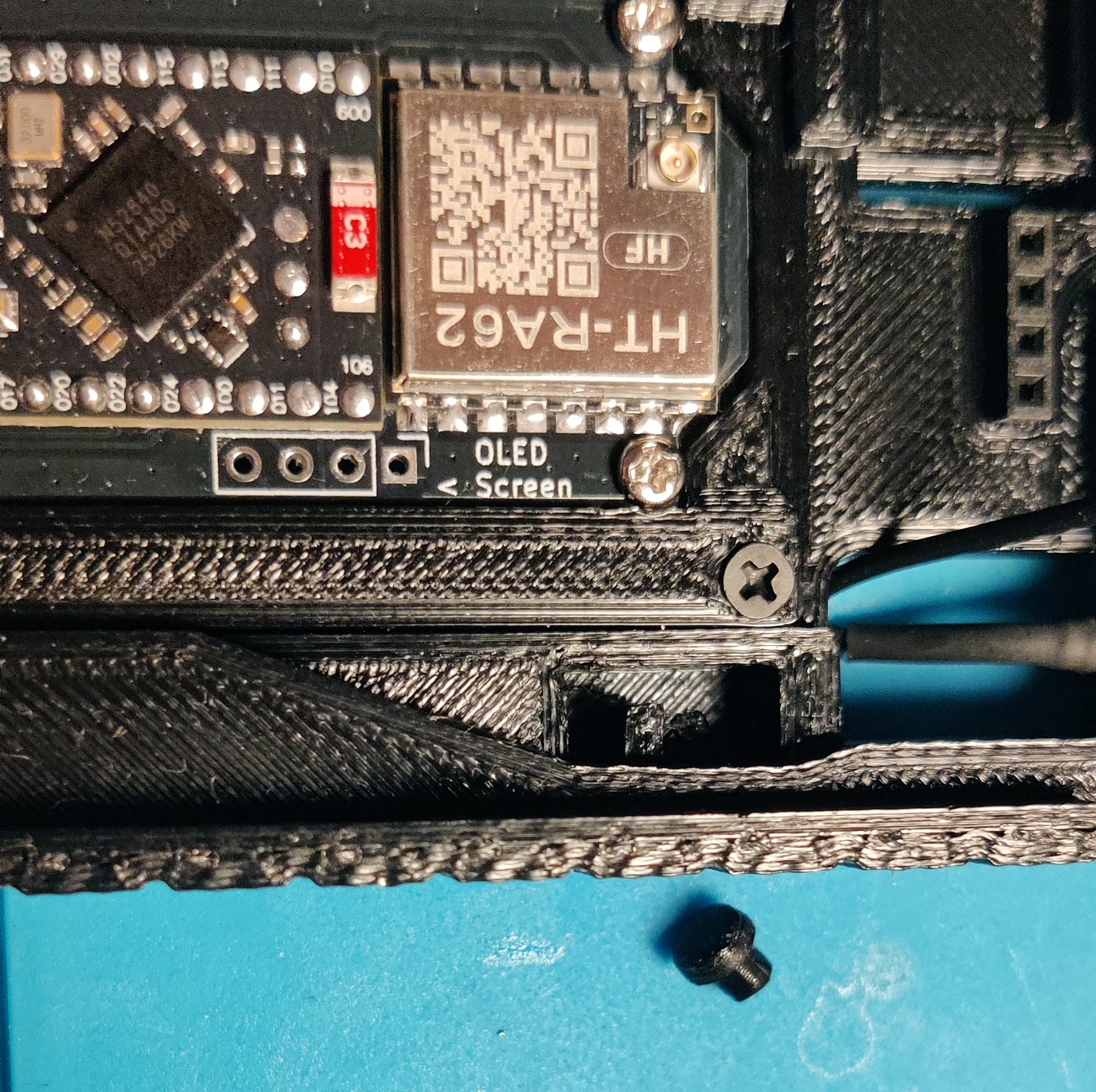
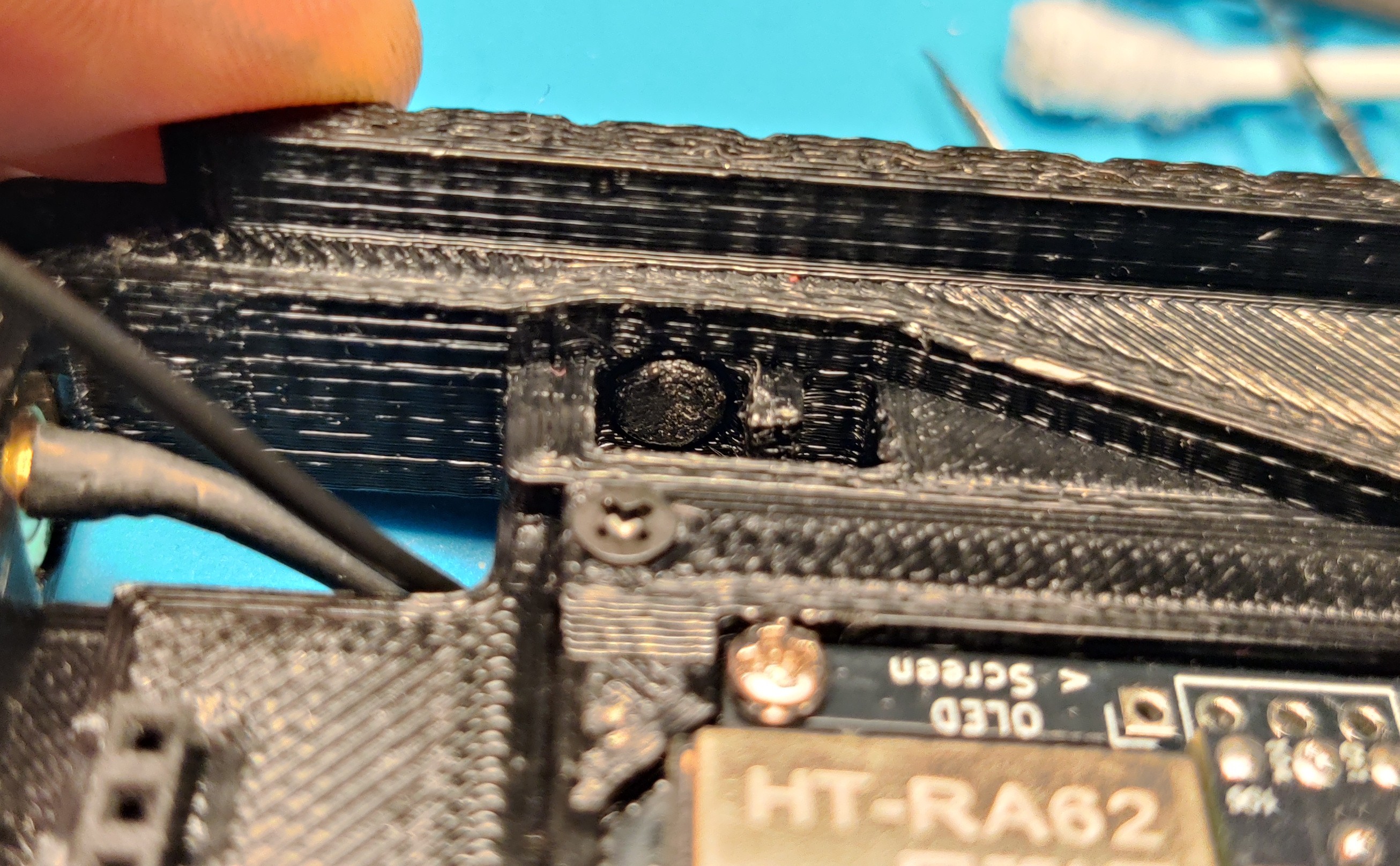
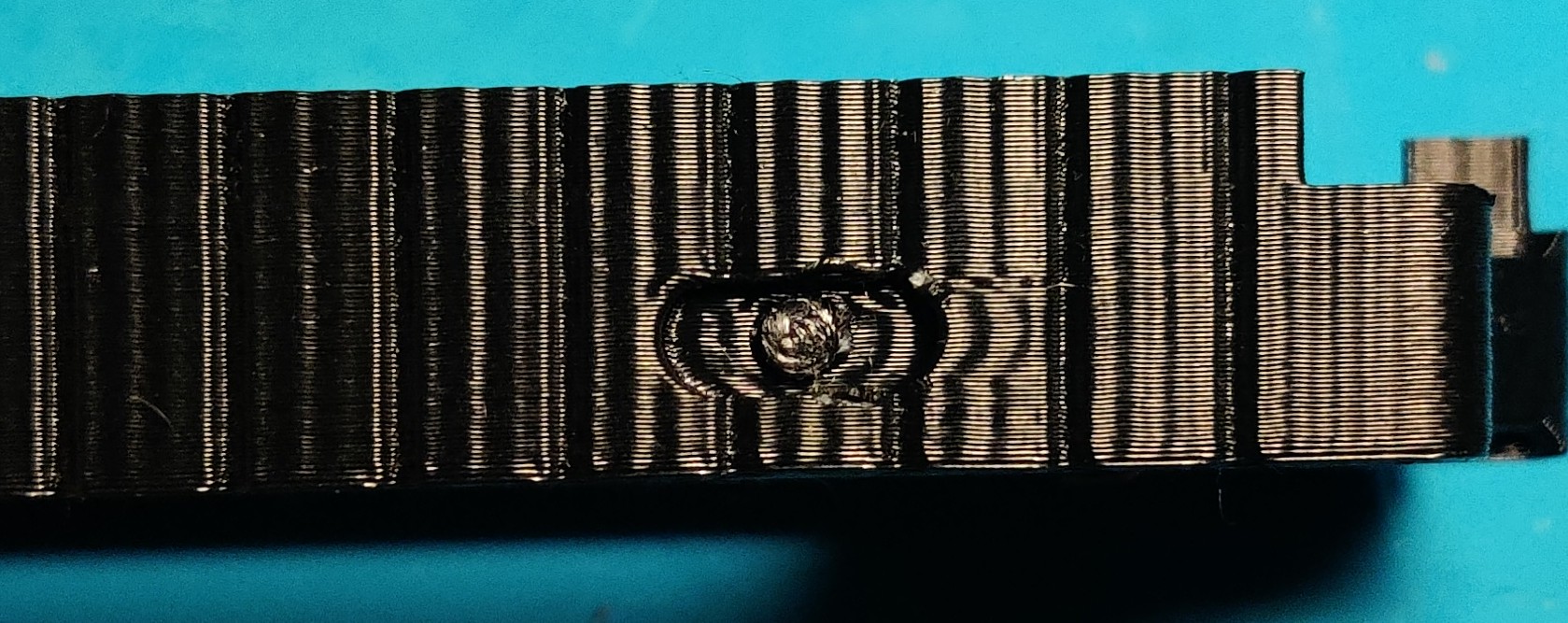
With the pin installed, we can move onto the button.
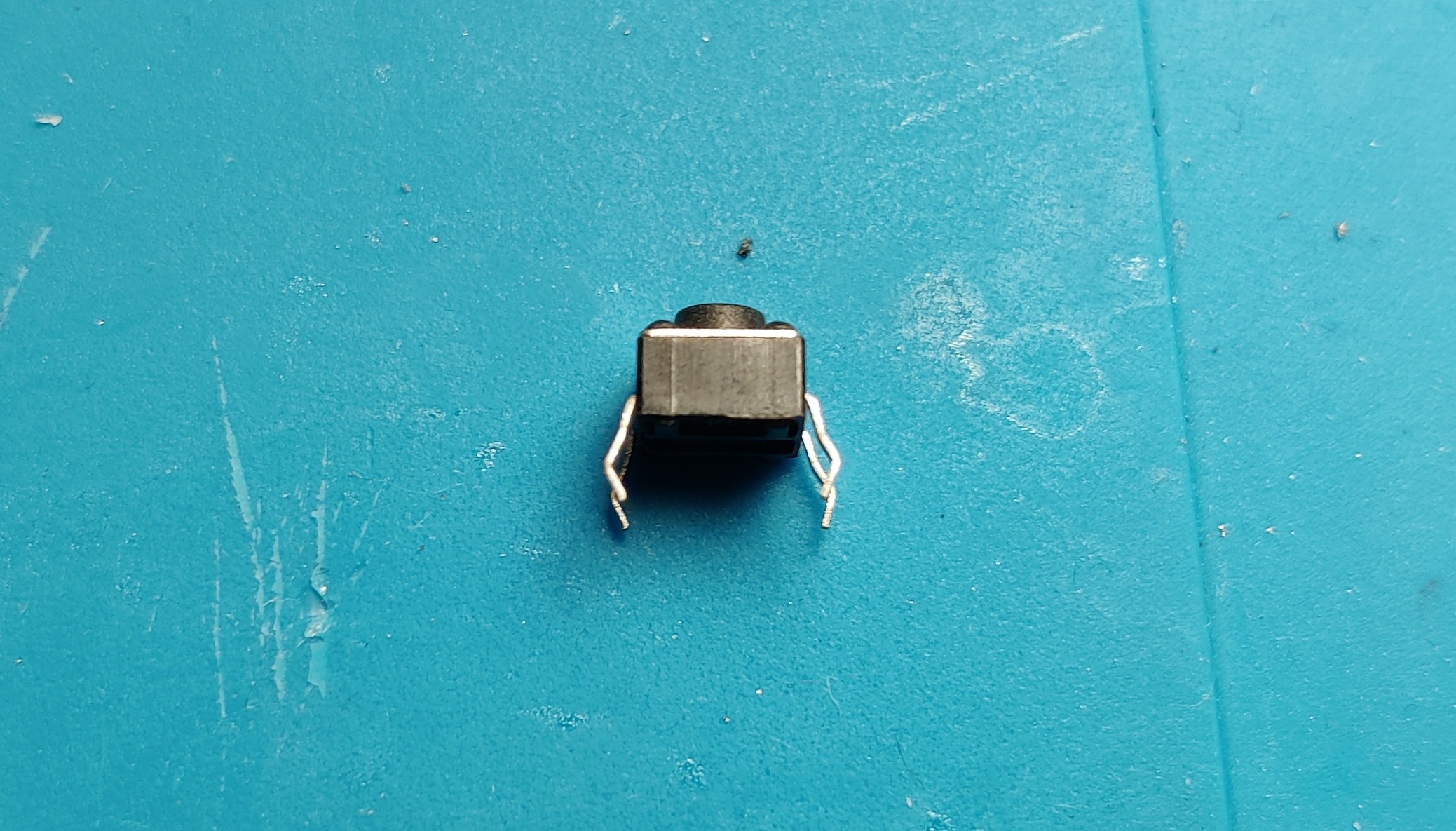
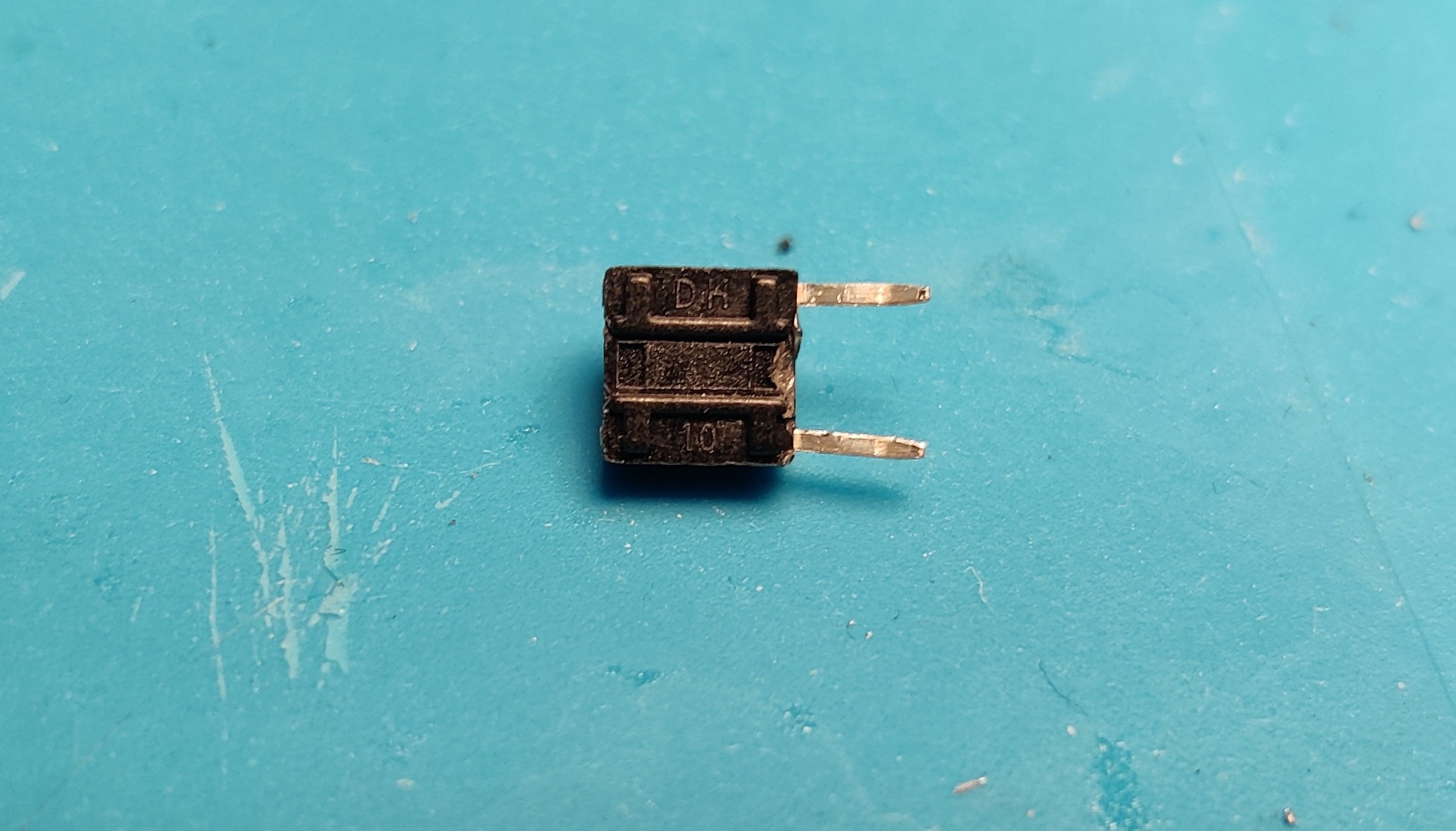
We start by snapping off two legs Both From The Same Side, as legs opposite each other are connected together and we still need the button to work. You can make sure you've got the right legs as the bottom should show a gap representing the path that is open by default and closed when you press the button.
You also want to straighten the remaining legs and bend them out to the side.
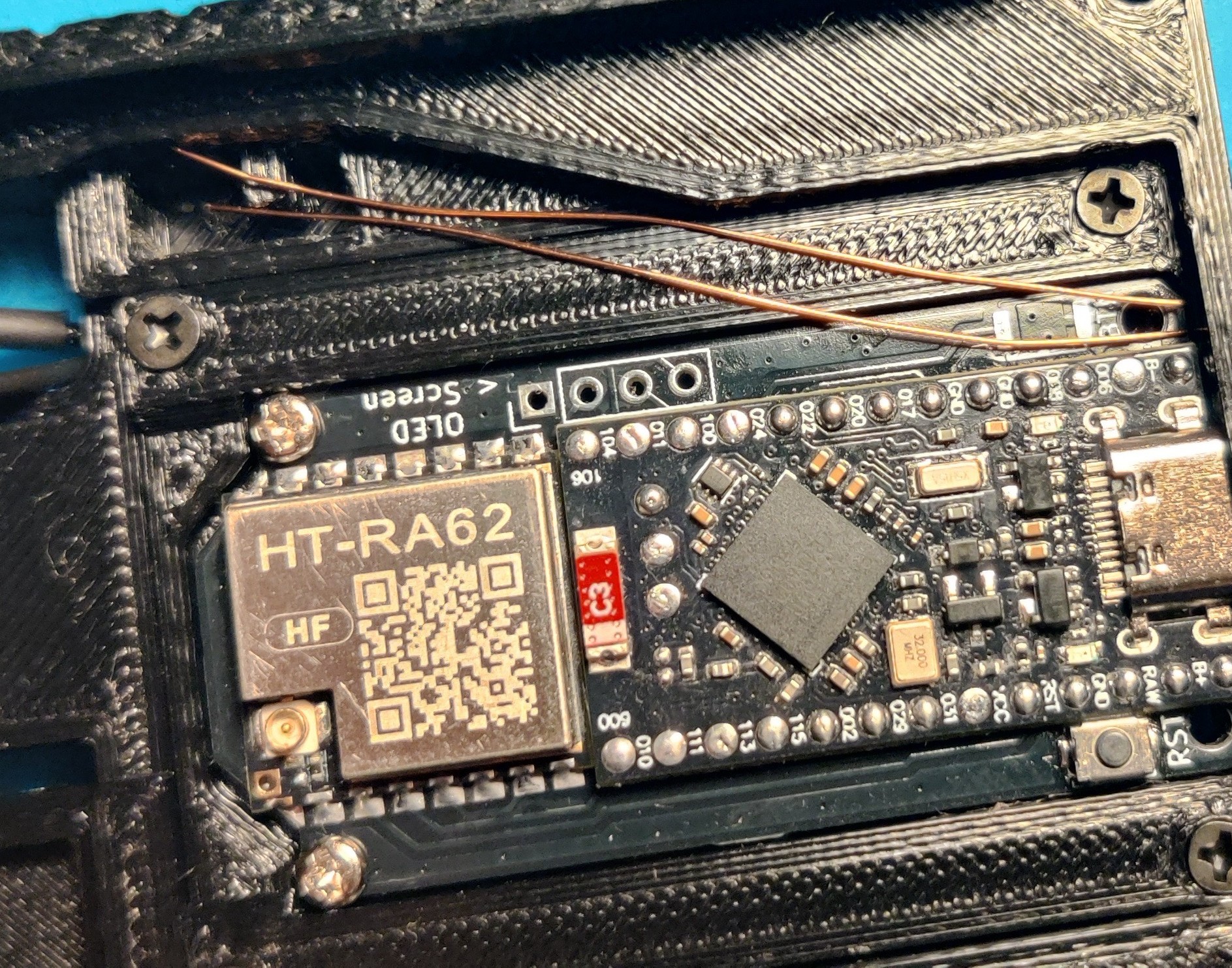
Next we need 2 lengths of wire approximately 50mm in length, or wide enough to reach from the button bay to the button contacts on the FakeTec.
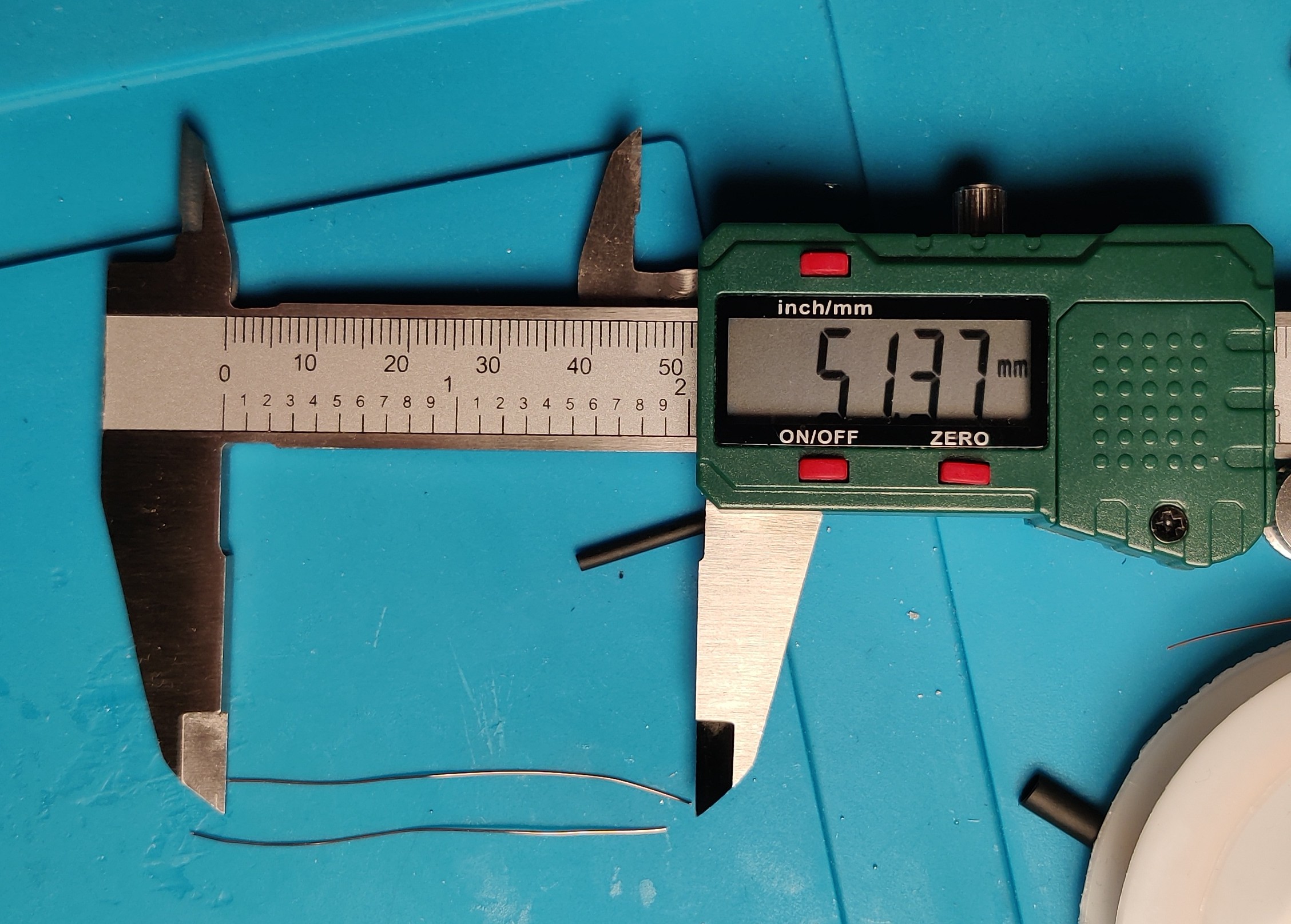
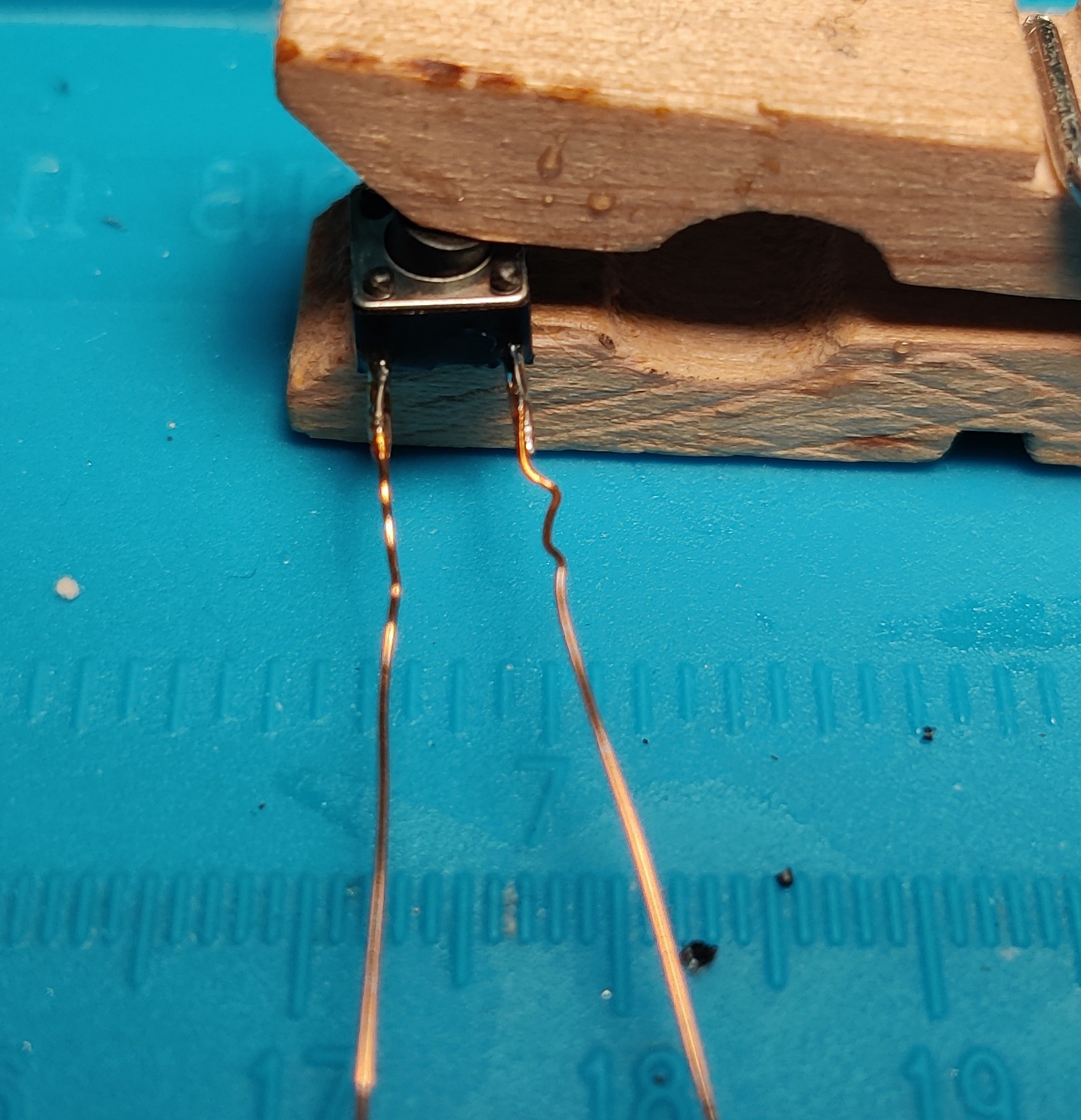
Then we solder a wire to each leg of the button, you should solder to the top side of the leg as there is the most room on that side in the case.
I also add some heat shrink to the right leg (The leg that will be underneath when installed in the case) to ensure that it can't short
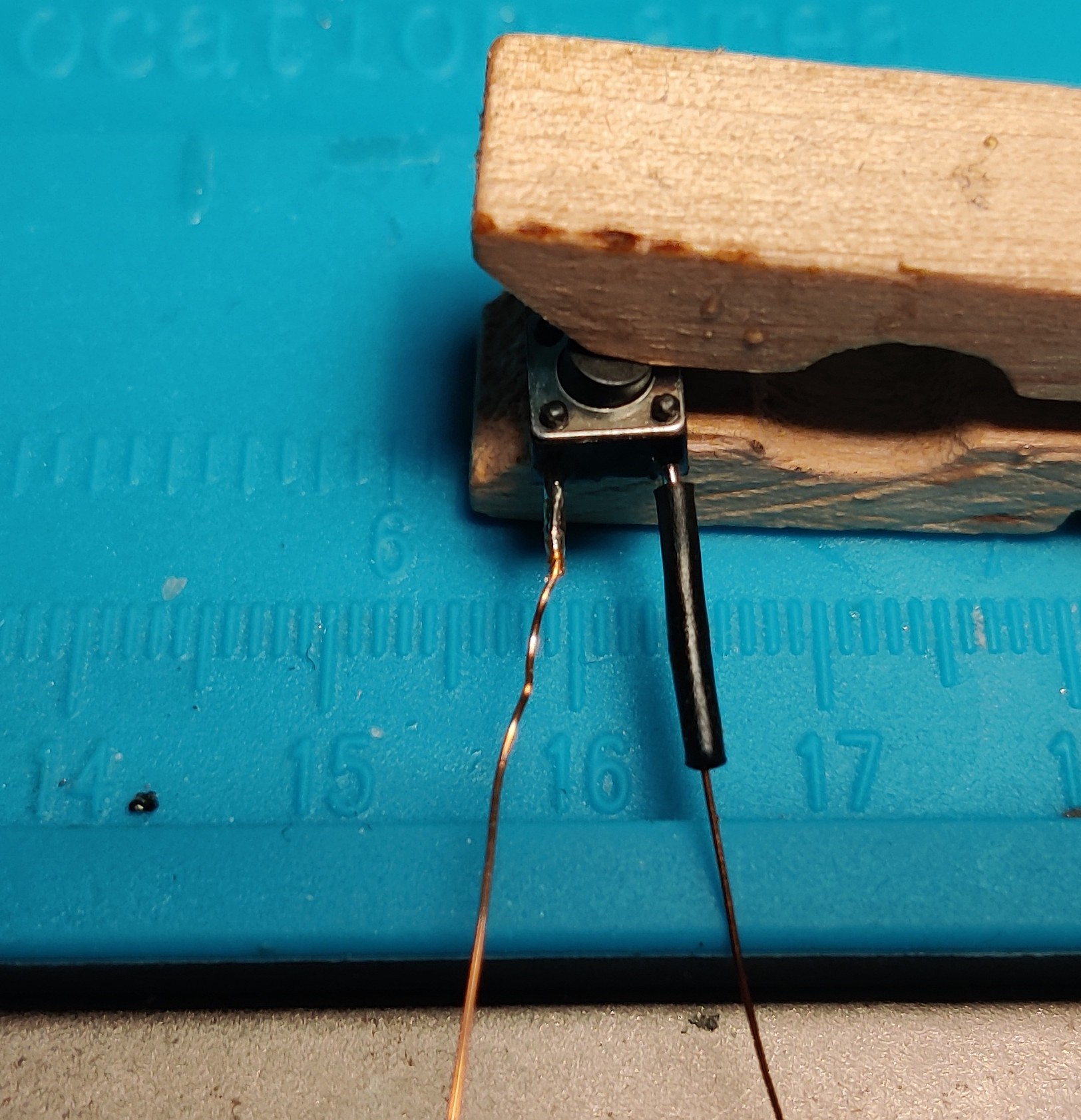
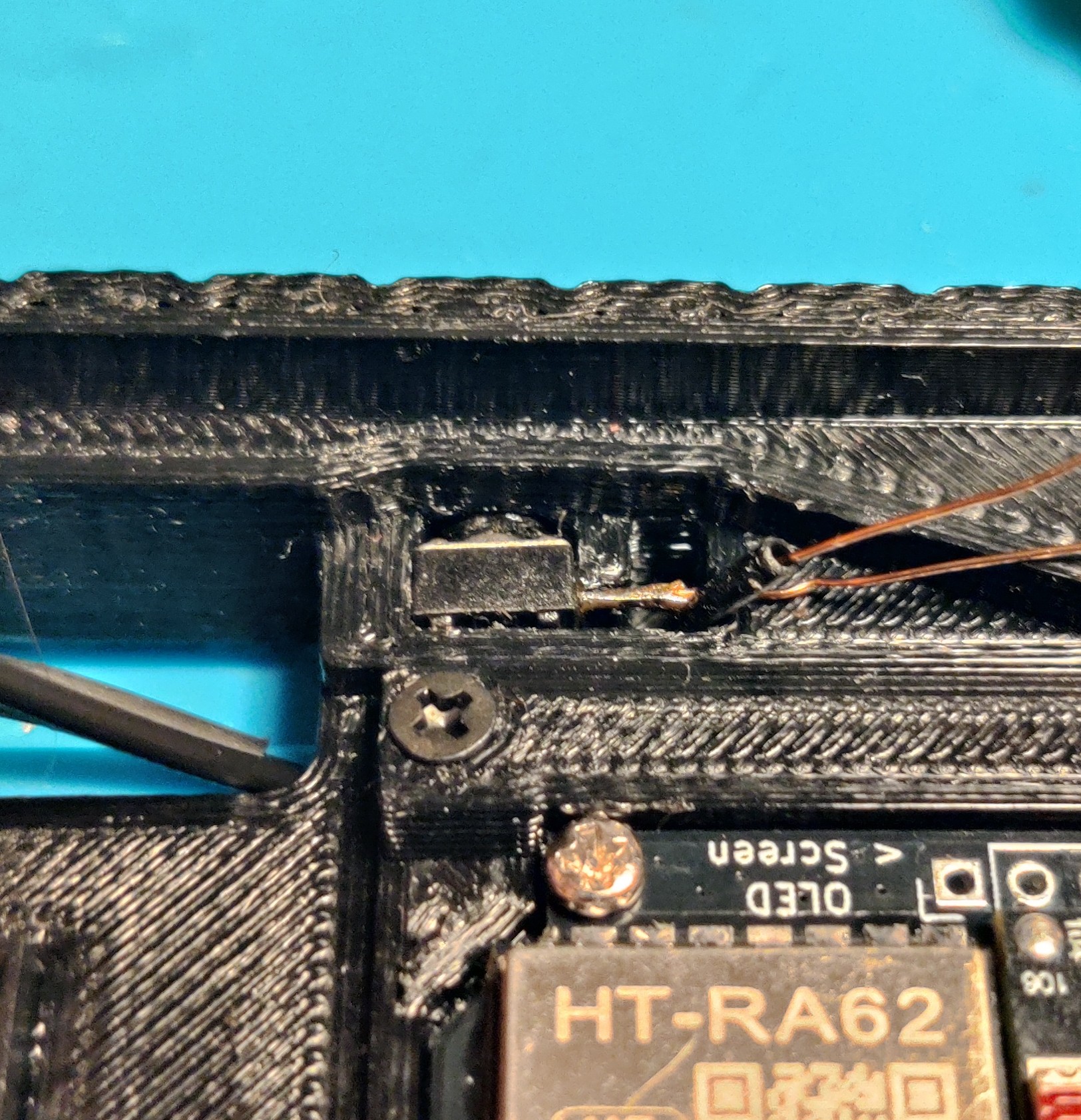
Next we install the button into the case. This is quite fiddly, you can make it easier by kinking the heat shrink covered wire so it pokes out it's slot. You may find the button pin is interfering if it isn't seated correctly, in which case try sanding the button pin more.
Once the button is in, make sure you test that the button can be pressed and unpressed with the pin, as if it can't you'll need to rip the button out (Likely destroying it's remaining legs) and start again.
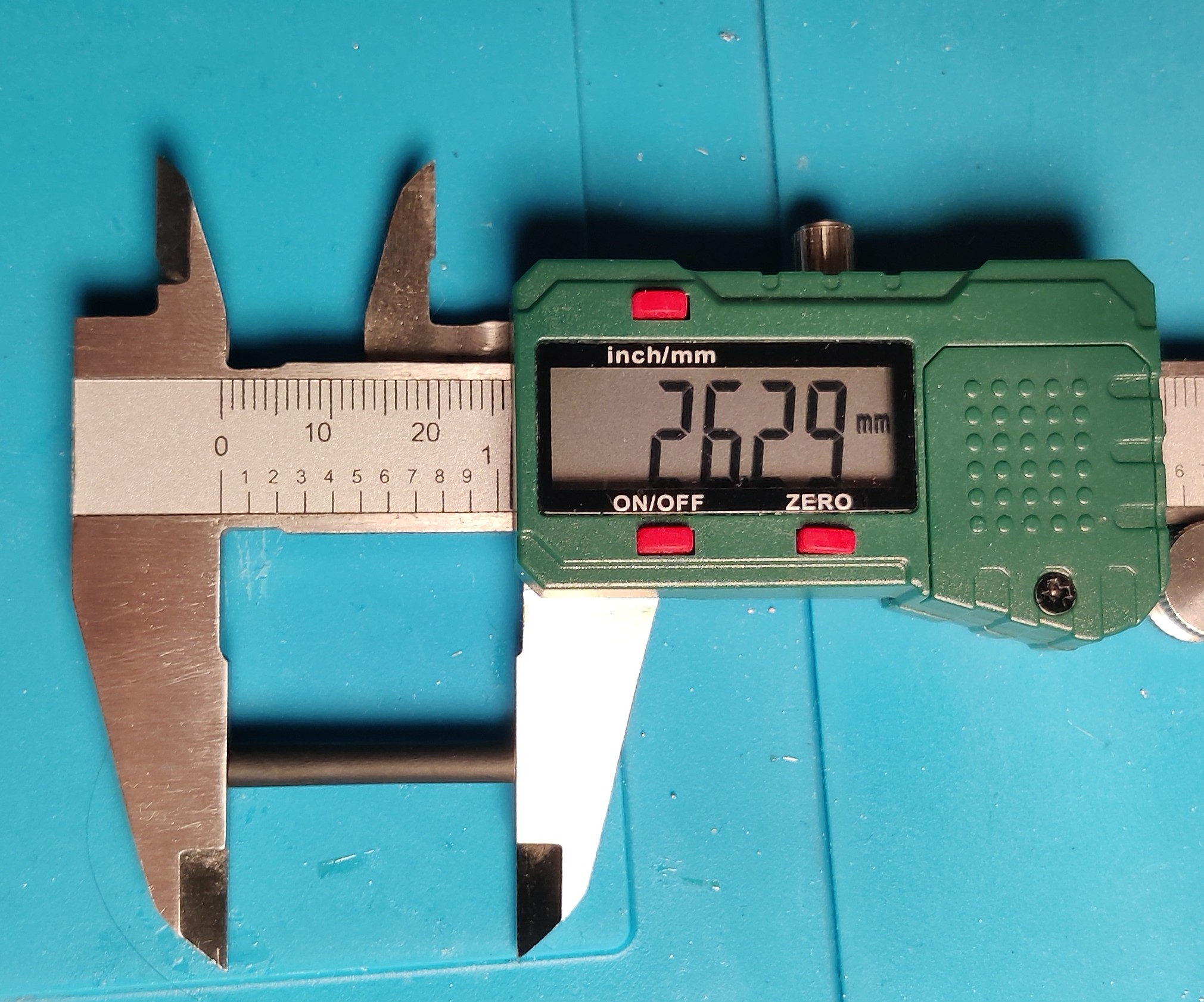
With the button installed, I add some more heat shrink approx 25mm long around the wires to keep them clean (I don't bother heating and shrinking it, it's just for ducting).
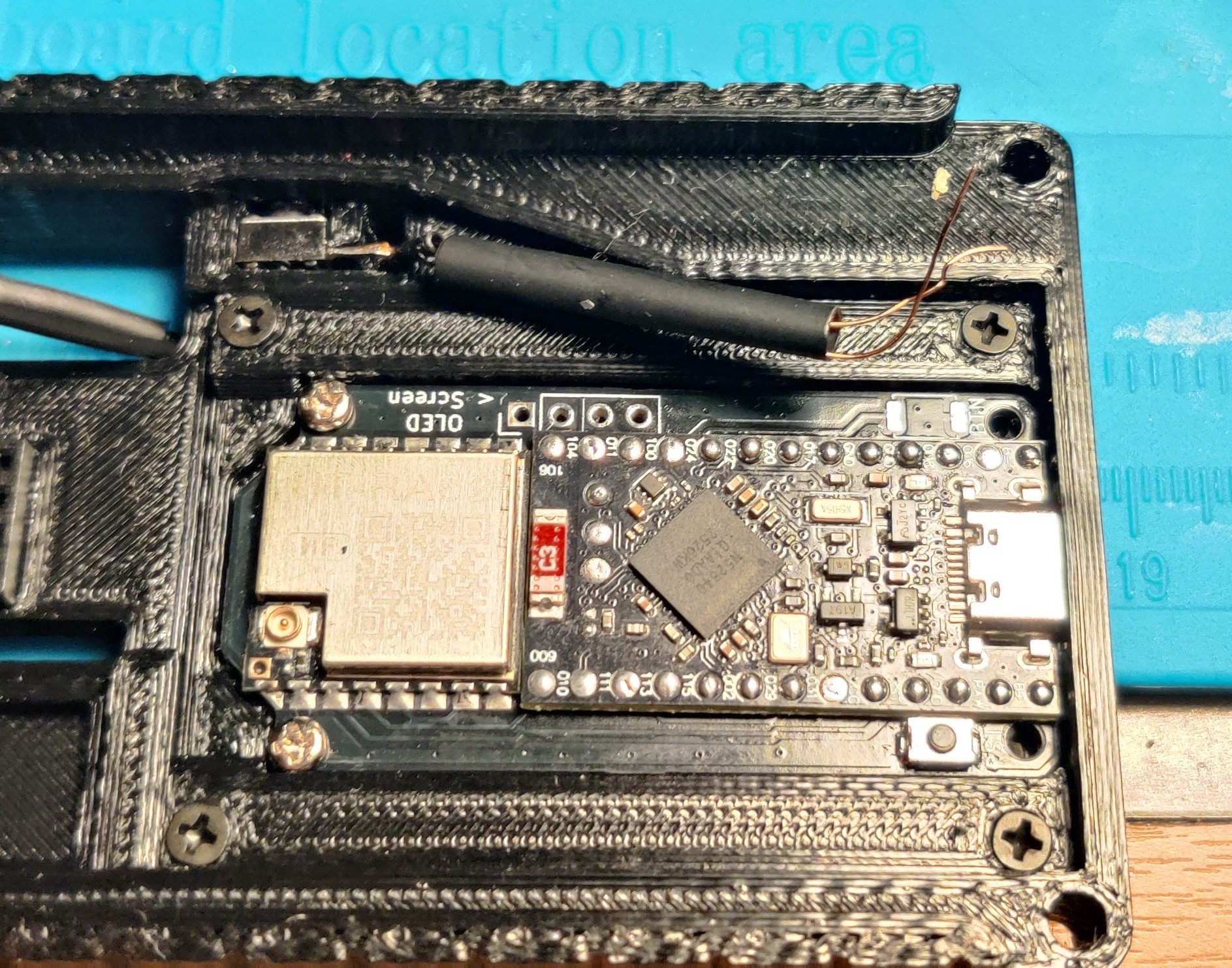
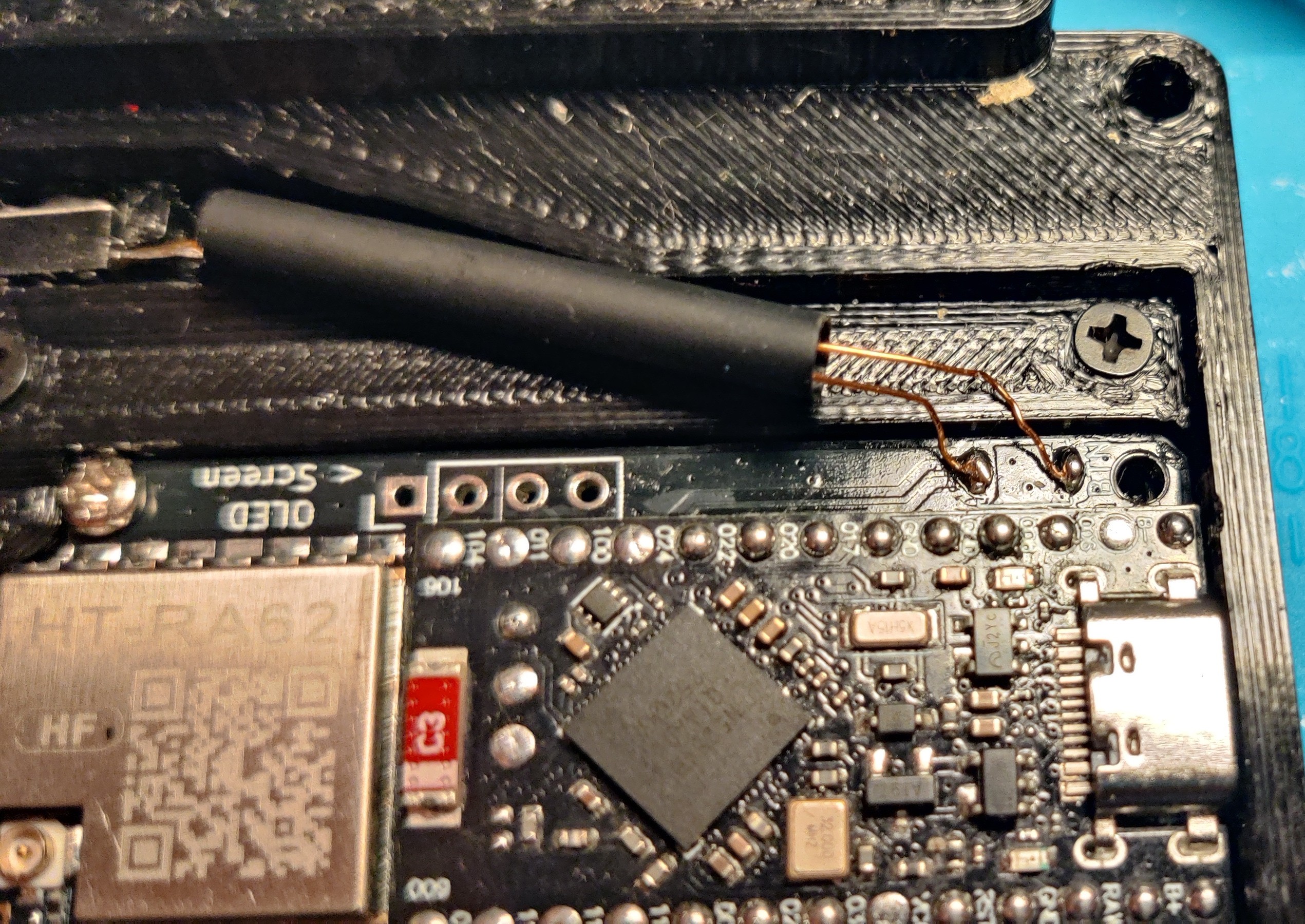
Finally, we can solder the wires to the FakeTec, you should trim them to length here so you don't have excess wire hanging around.
Screen Wiring
Continuing soldering, it's time to do the screen wiring.
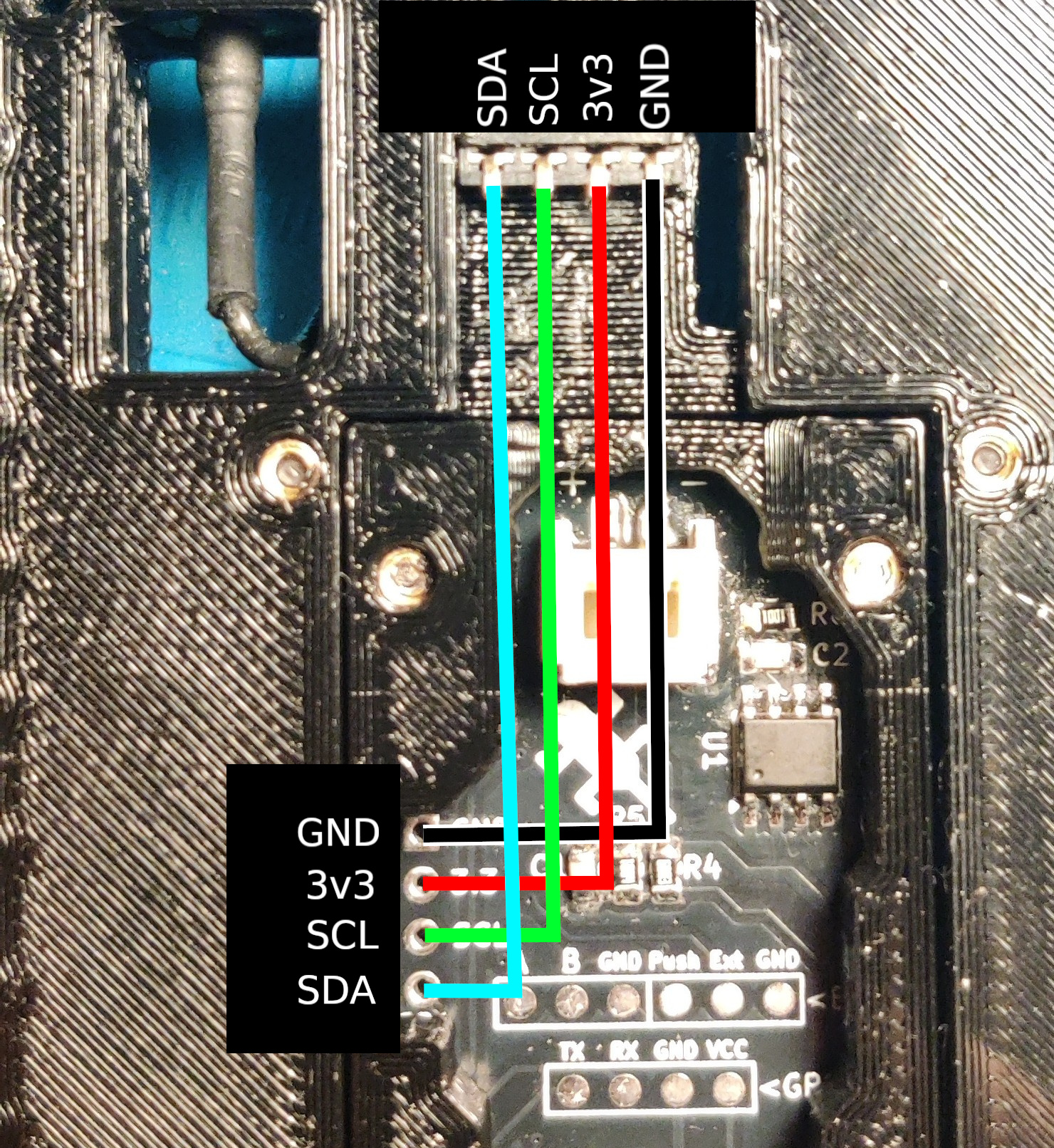
You need to wire the female header to the FakeTec's OLED/I2C pins using the following diagram (Sorry for the crap image):
Note your FakeTec may use a slightly different layout, or have the I2C pins in a different place or even a different order, in which case use the female header layout in the below diagram as a reference and go from there. It is also possible the the screen to be 3v3, GND, SCL, SDA, which would mean you'd need to swap the 3v3 and ground wires. Getting this wrong can damage the screen!
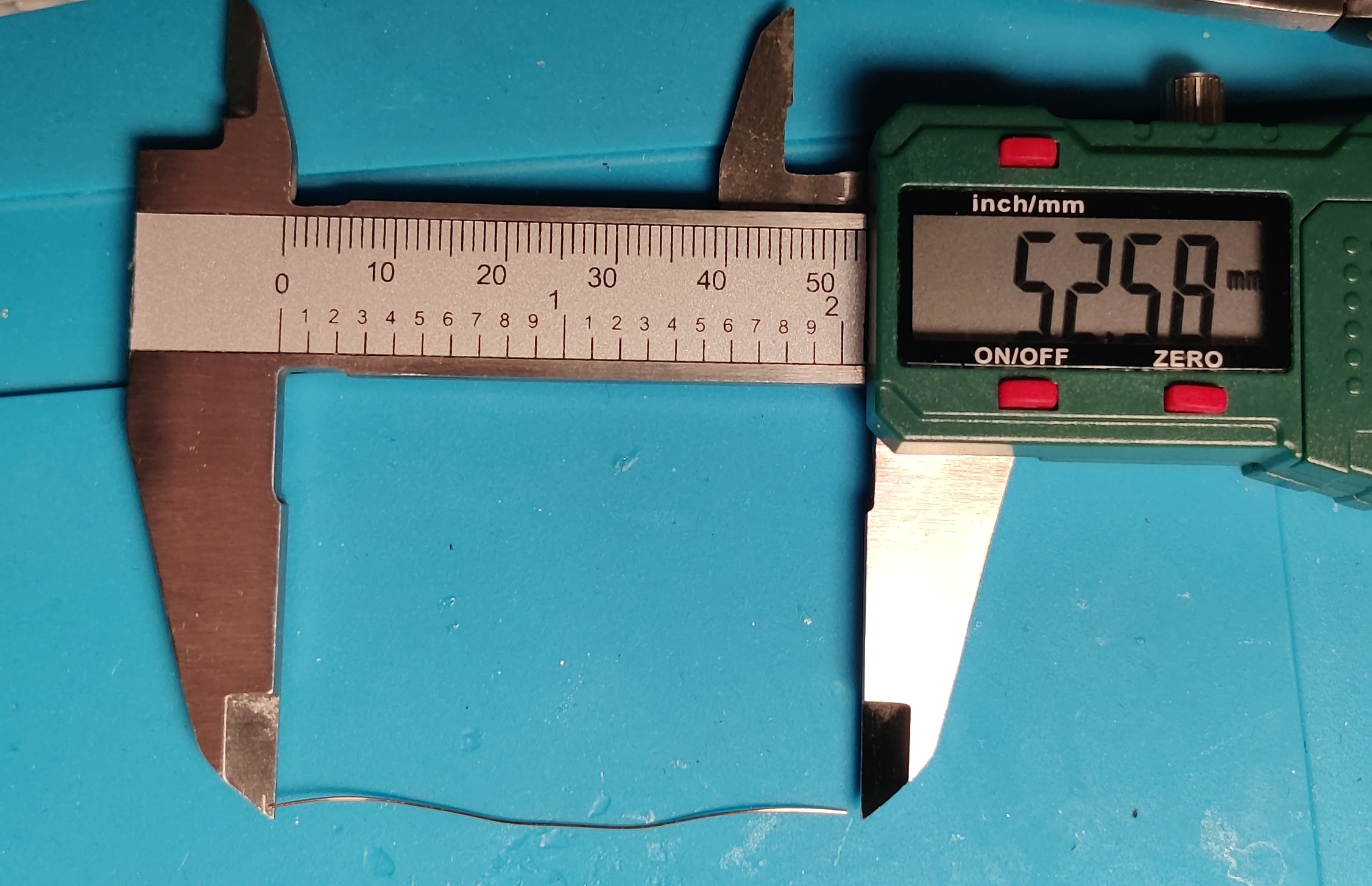
For this, we need 4 lengths of wire approximately 50mm in length.
To start will, solder all 4 wires to the female header.
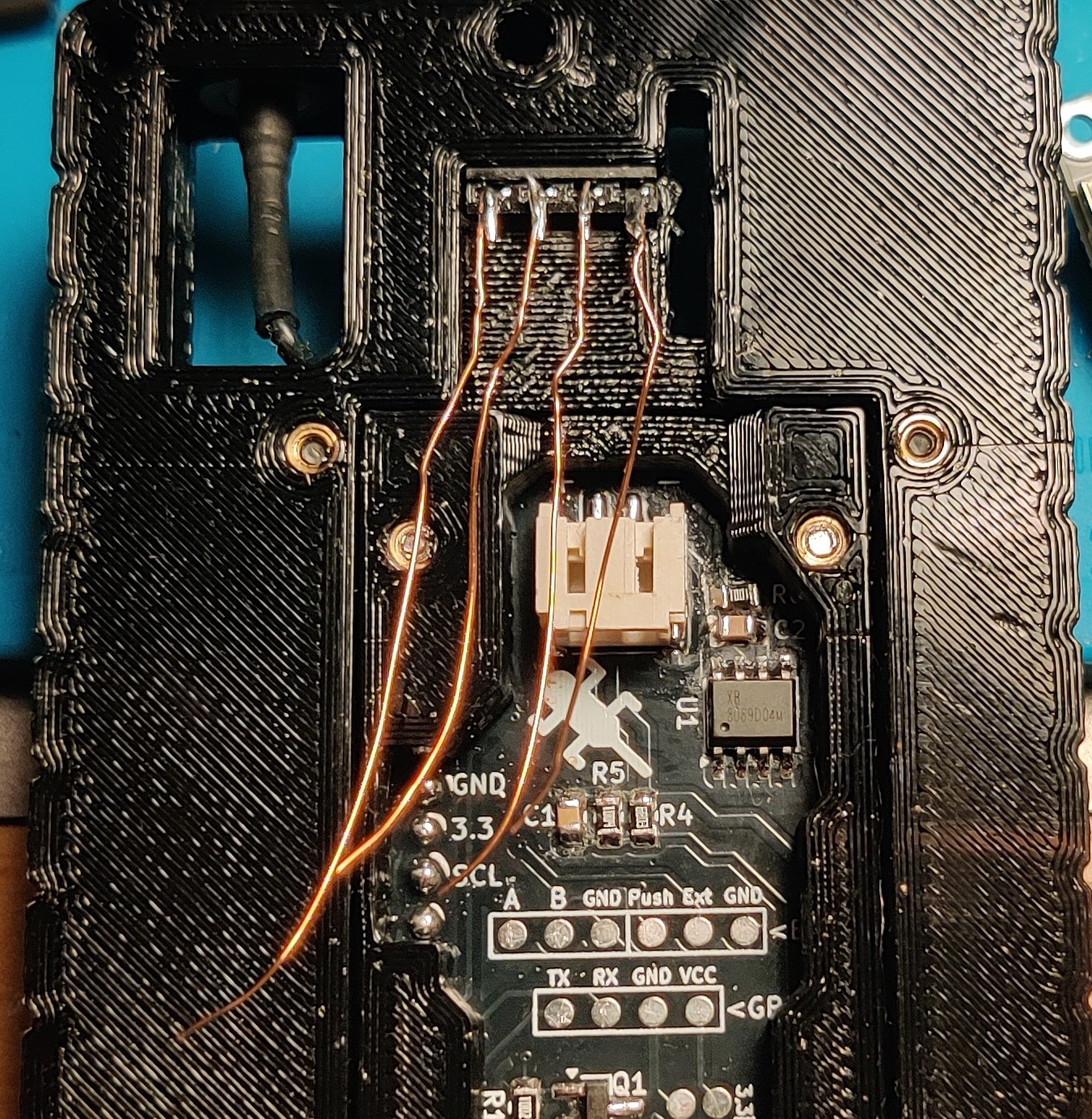
Solder each wire to it's destination using the above diagram.
I also use heat shrink here for ducting, so you don't lose which wire is which you should insert a wire through the heat shrink, solder it, and then move onto the next wire (One loose wire in the heat shrink duct at a time).
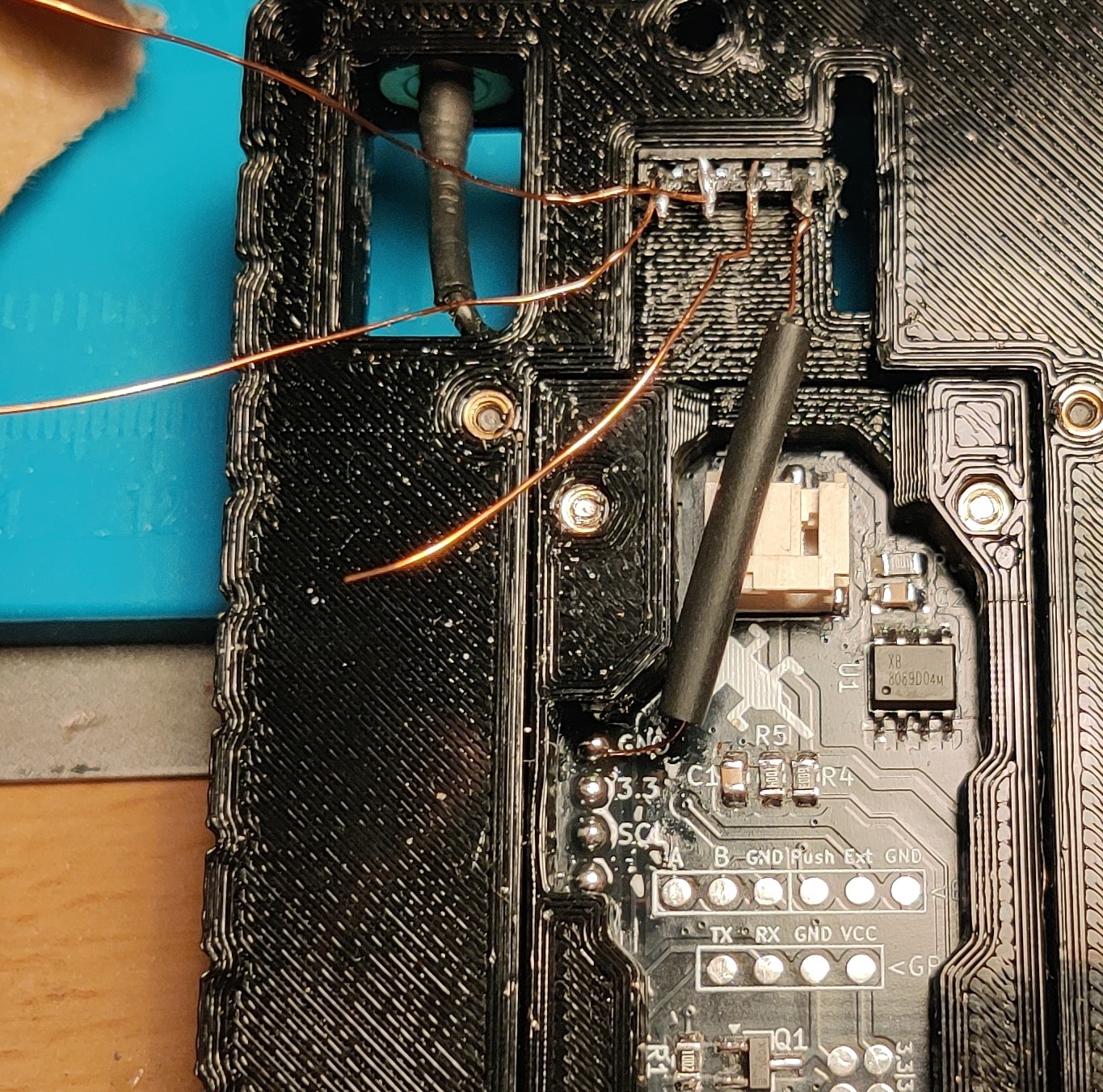
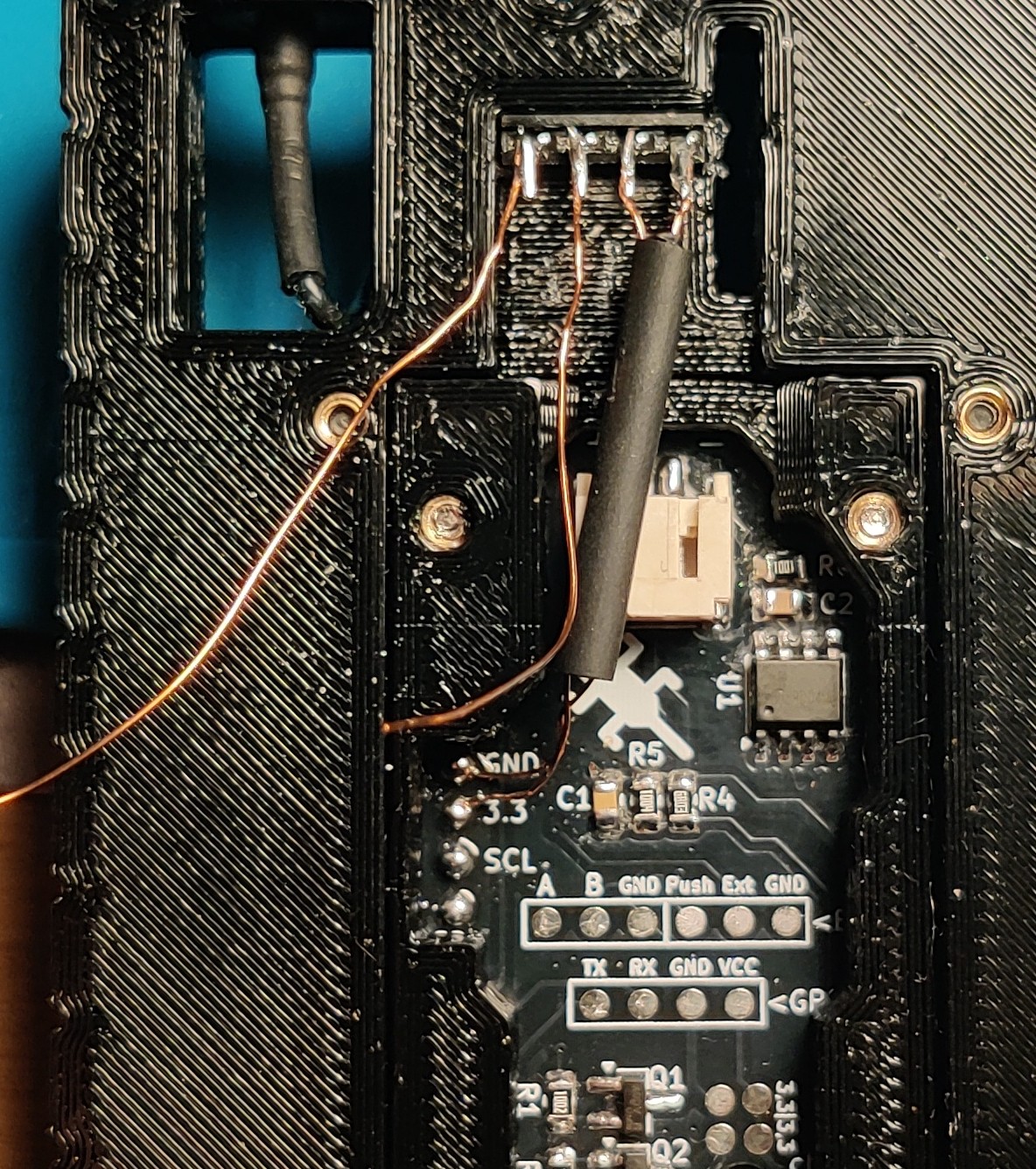
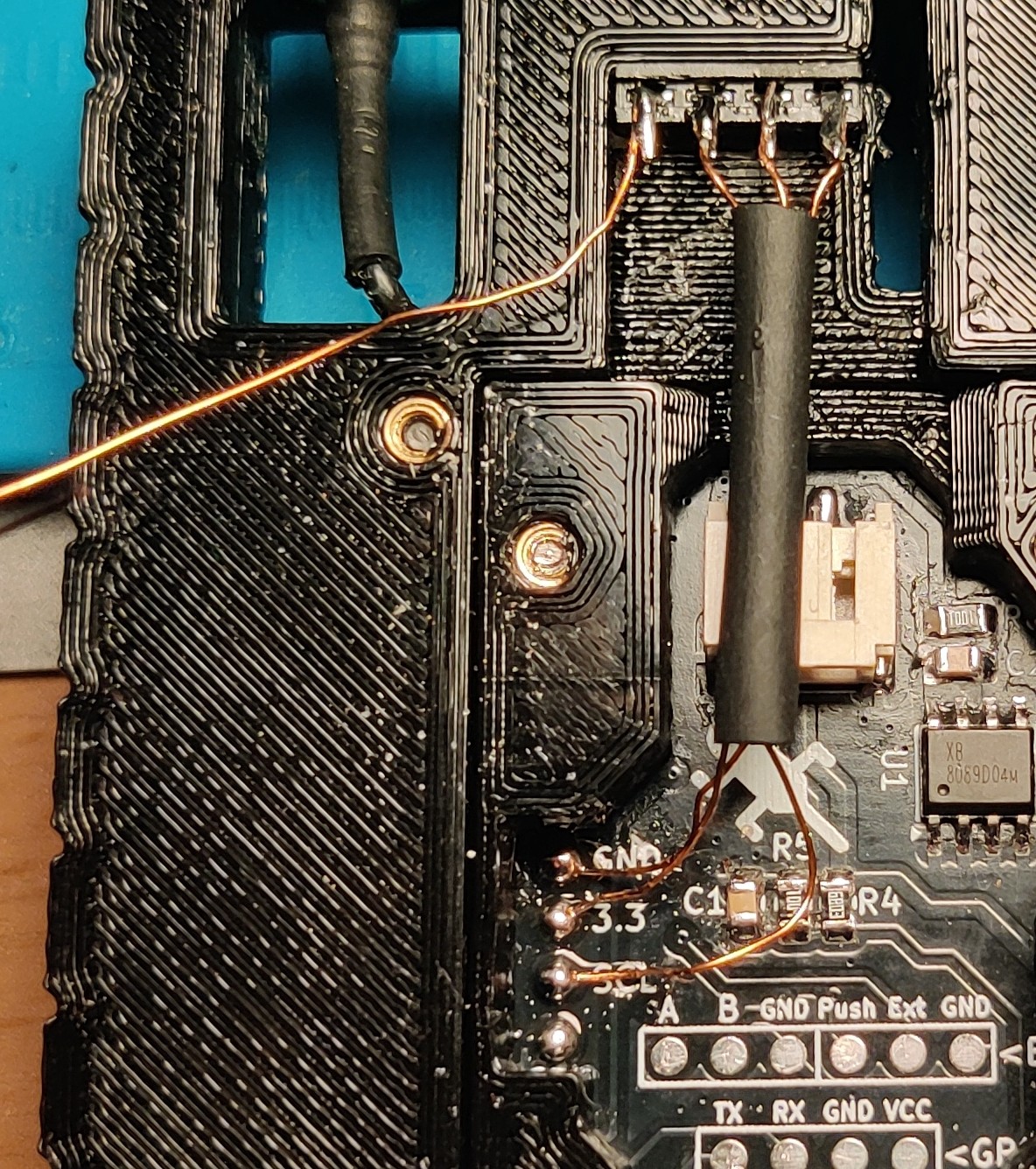
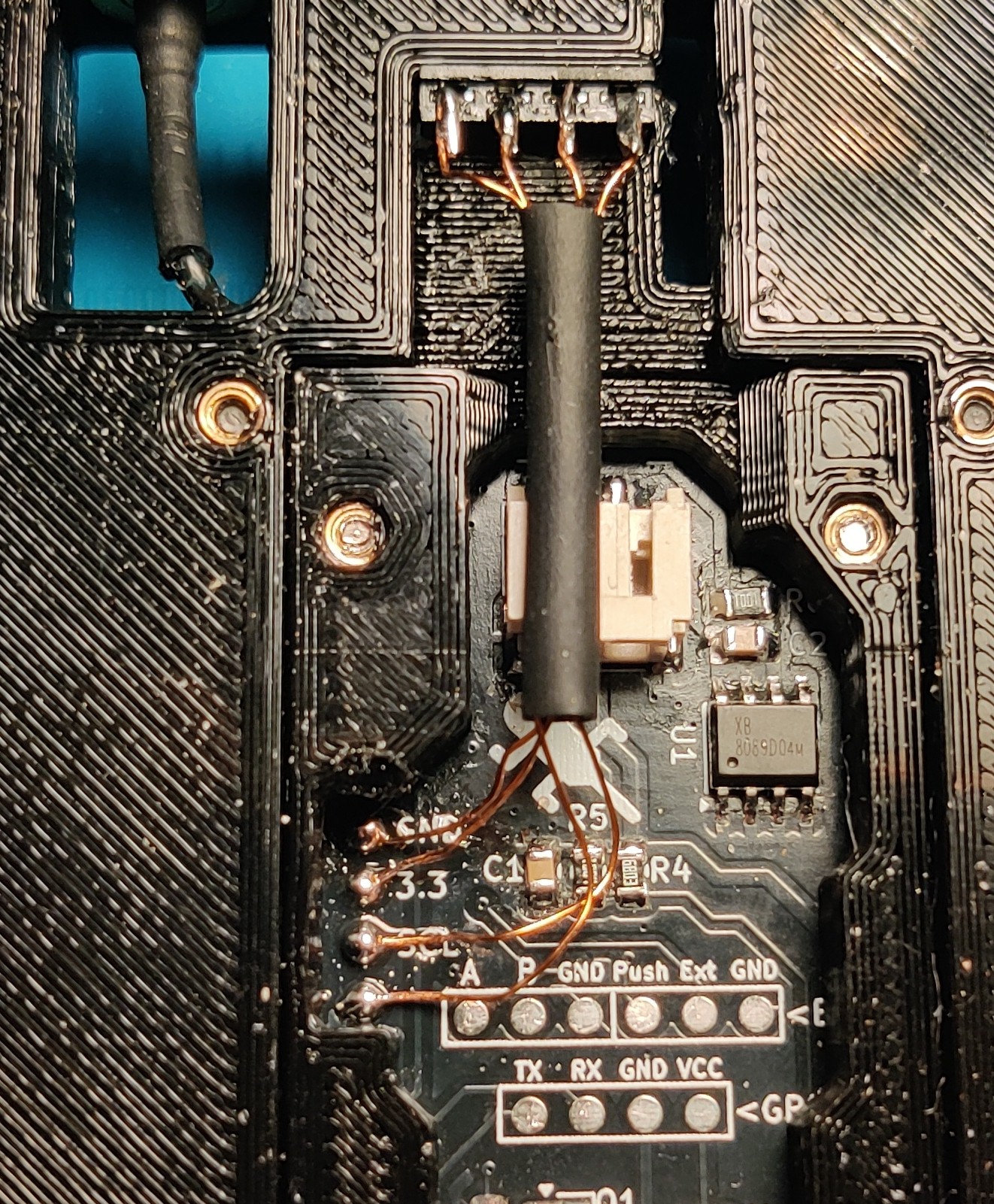
And that's the screen done.
GPS Wiring
The GPS is a little more complicated. We start with our ATGM336H GPS Module, and 4 lengths of wire approx 65mm in length.
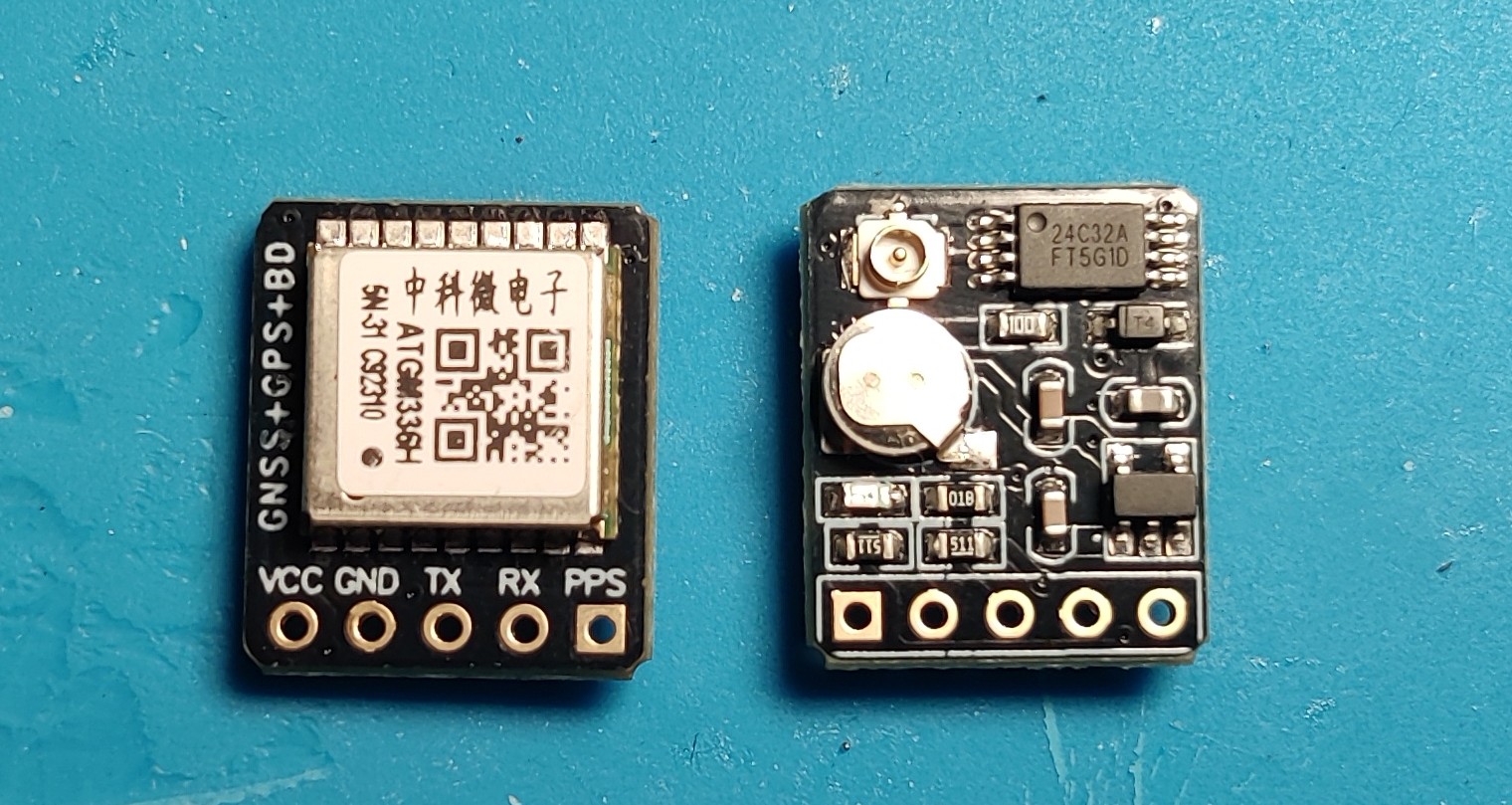
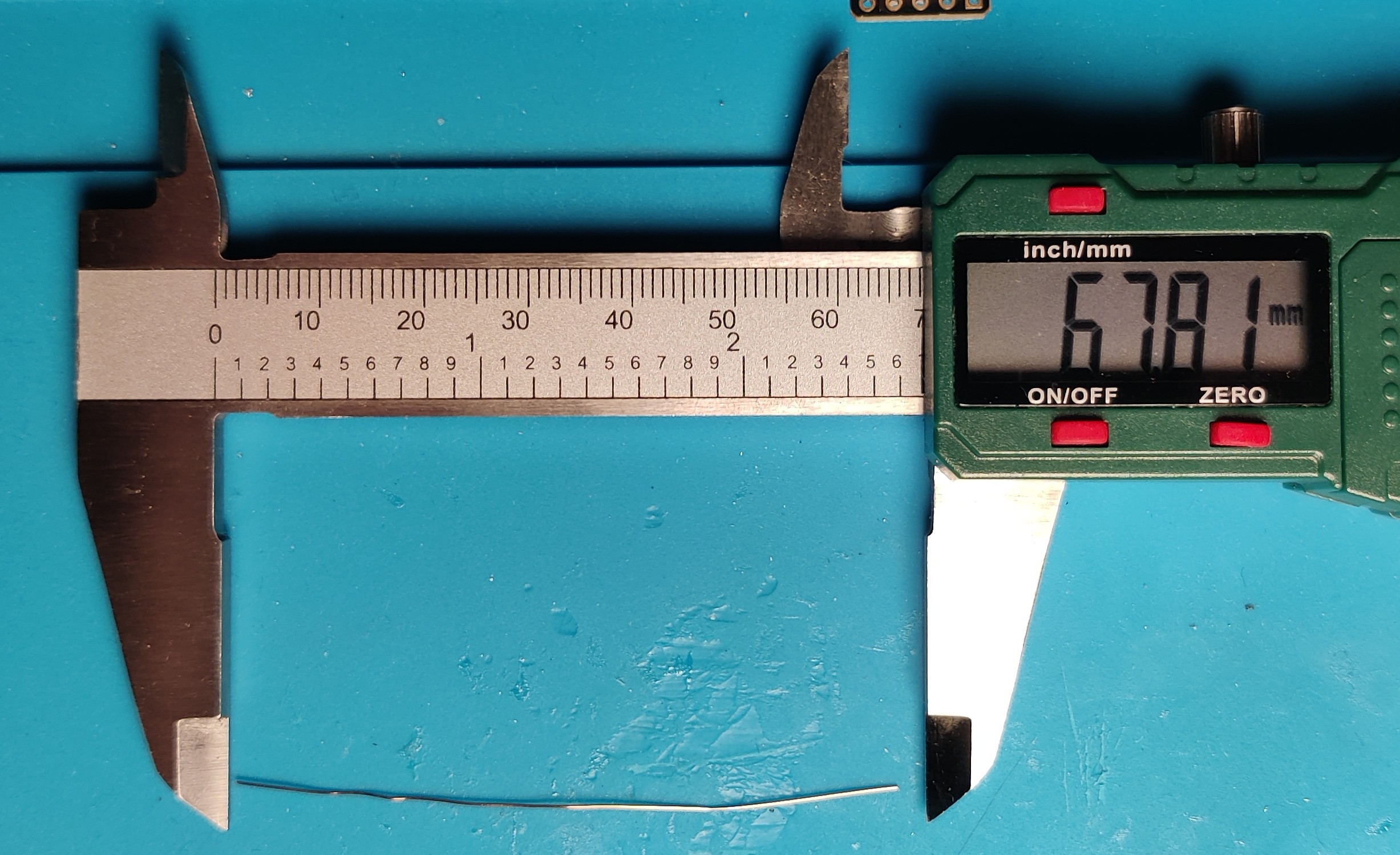
We want to start by soldering these wires to the VCC, GND, TX, and RX pins on the GPS module.
Note we ignore the PPS pin, this is used for advanced timing that we don't utilize.
Make sure you solder the connections so that they "come out" of the modules on the same side as the silkscreen (text on the GPS module) and the metal RF shield.
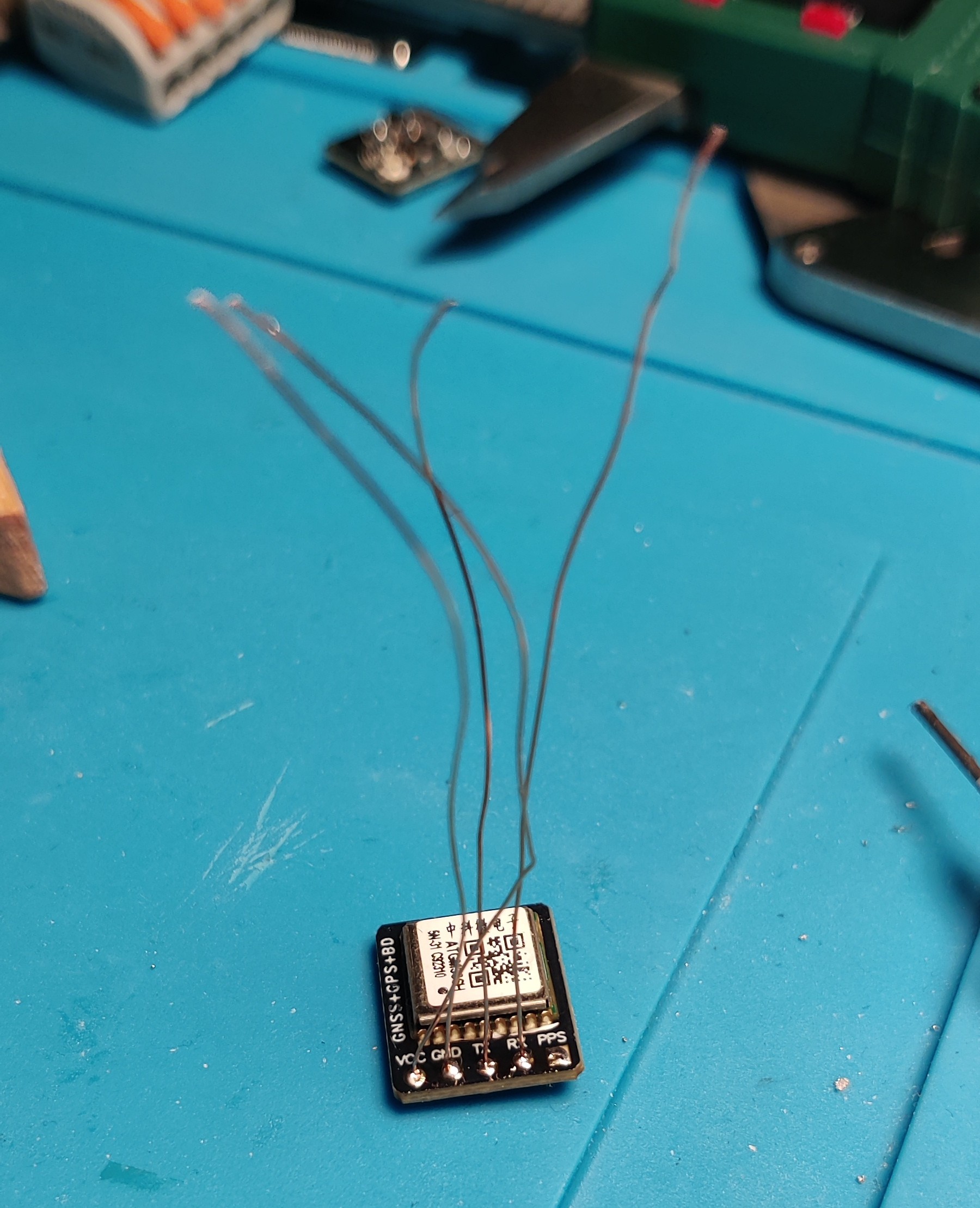
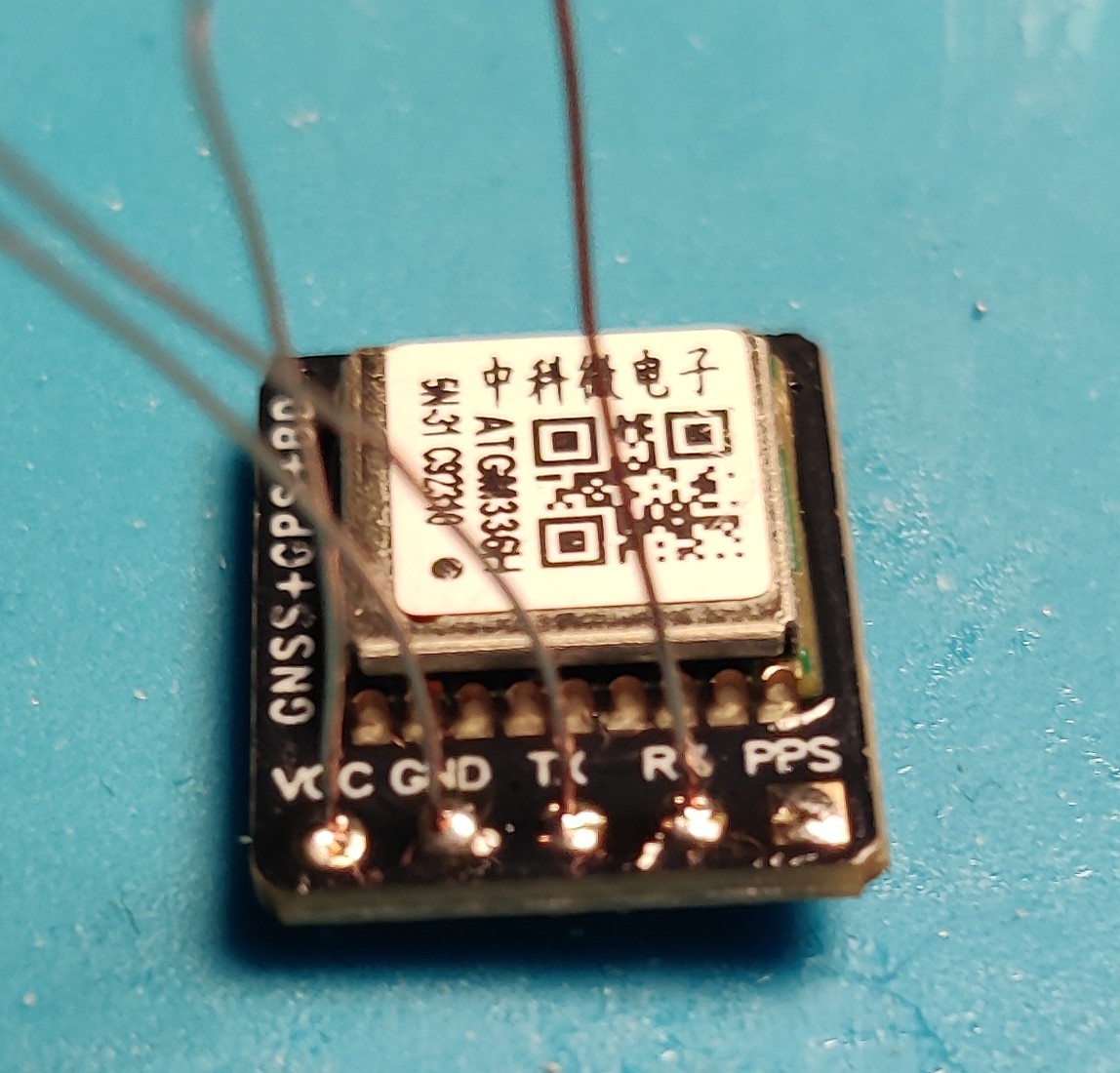
Now we can insert the GPS module into the top the middle section, RF shield facing down with the wires going through the slot. The GPS module should be pushed until it is firmly fixed in place.
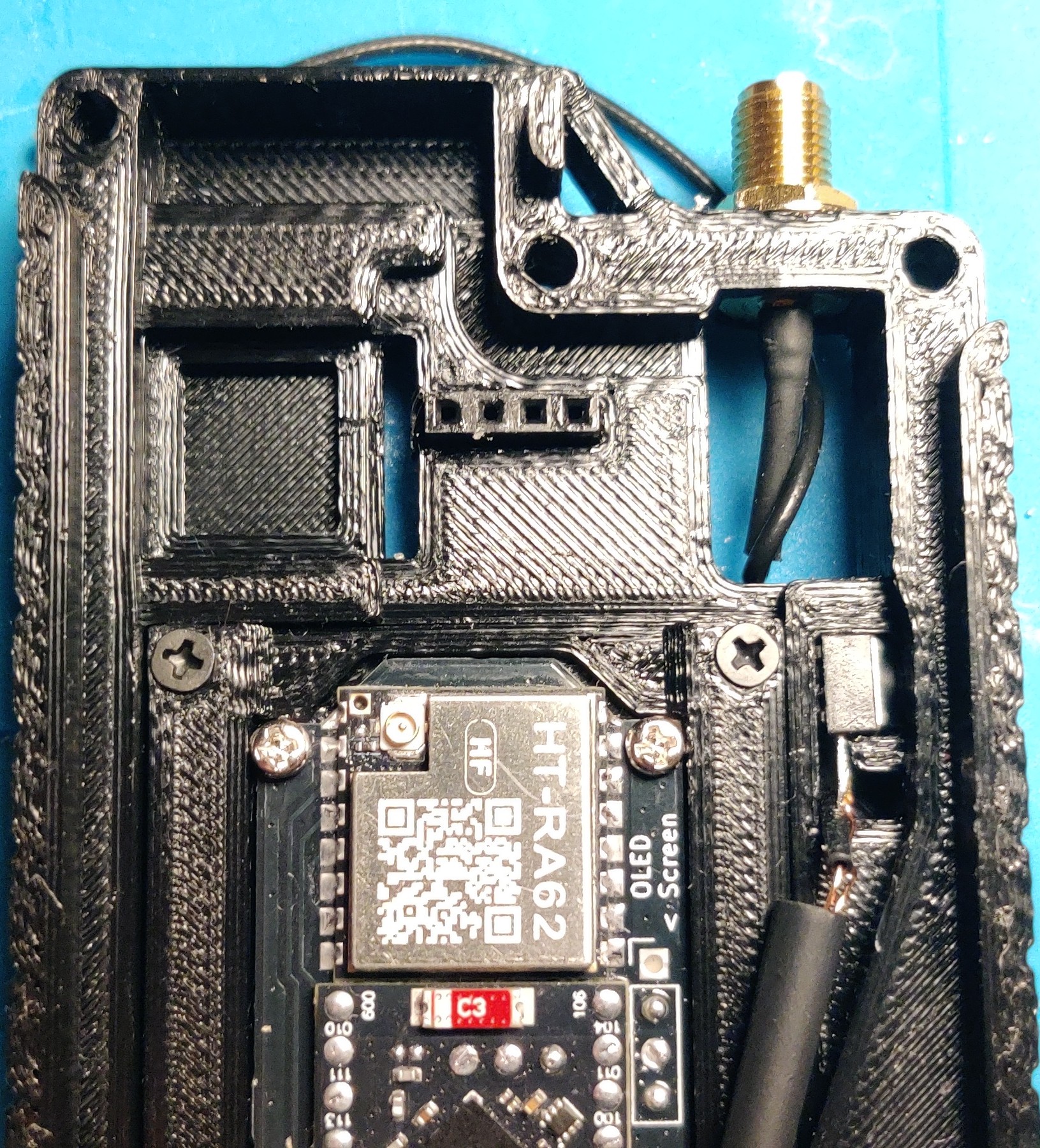
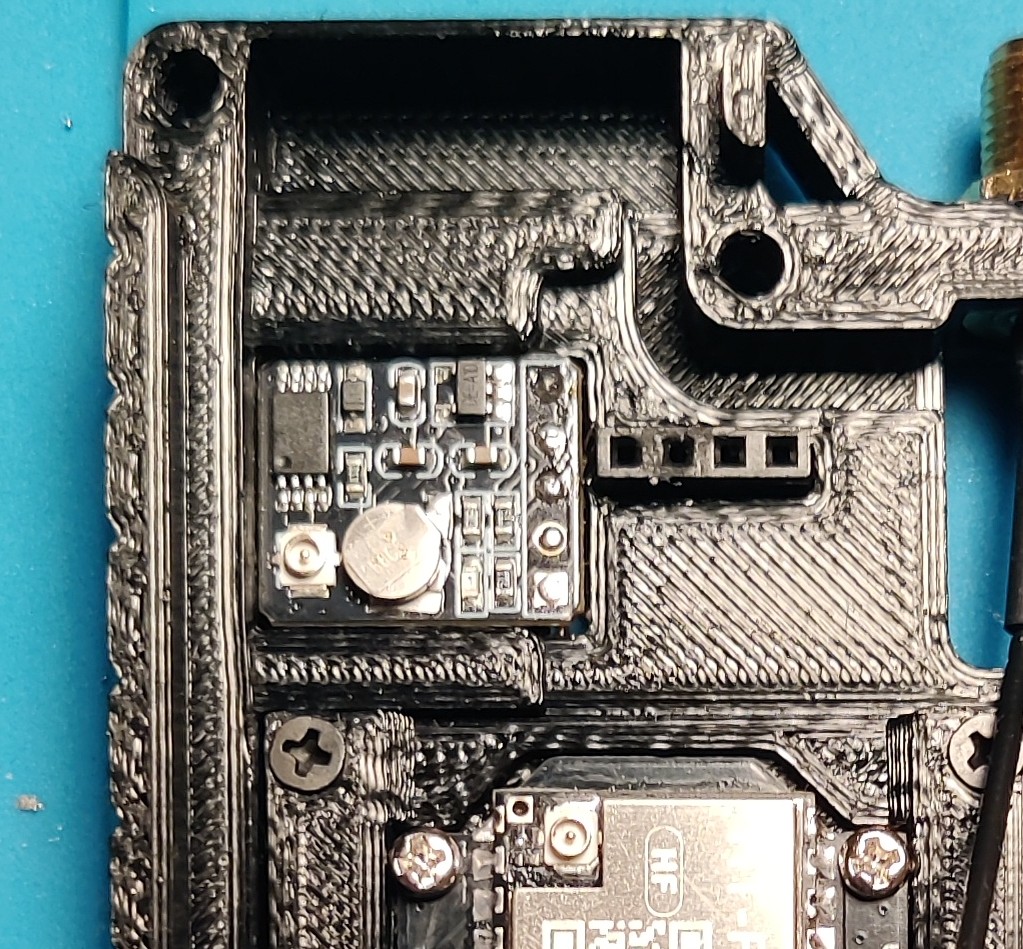
Flipping to the other side, we've now got to solder the wires.
If you straighten the wires, you end up with the top to bottom order VCC, GND, TX, and RX
These need to connect to their respective pins on your FakeTec, in my case I have them on pads labelled at the bottom.
Be careful about RX and TX, RX is the Receive pin, and TX is the transmit pin, in a typical case it should connect Board_RX -> Module_TX & Board_TX -> Module_RX, however some FakeTecs have labelled it the other way round on their silkscreen (Text on the PCB), consult your FakeTec version's documentation for which way round RX and TX should be connected.
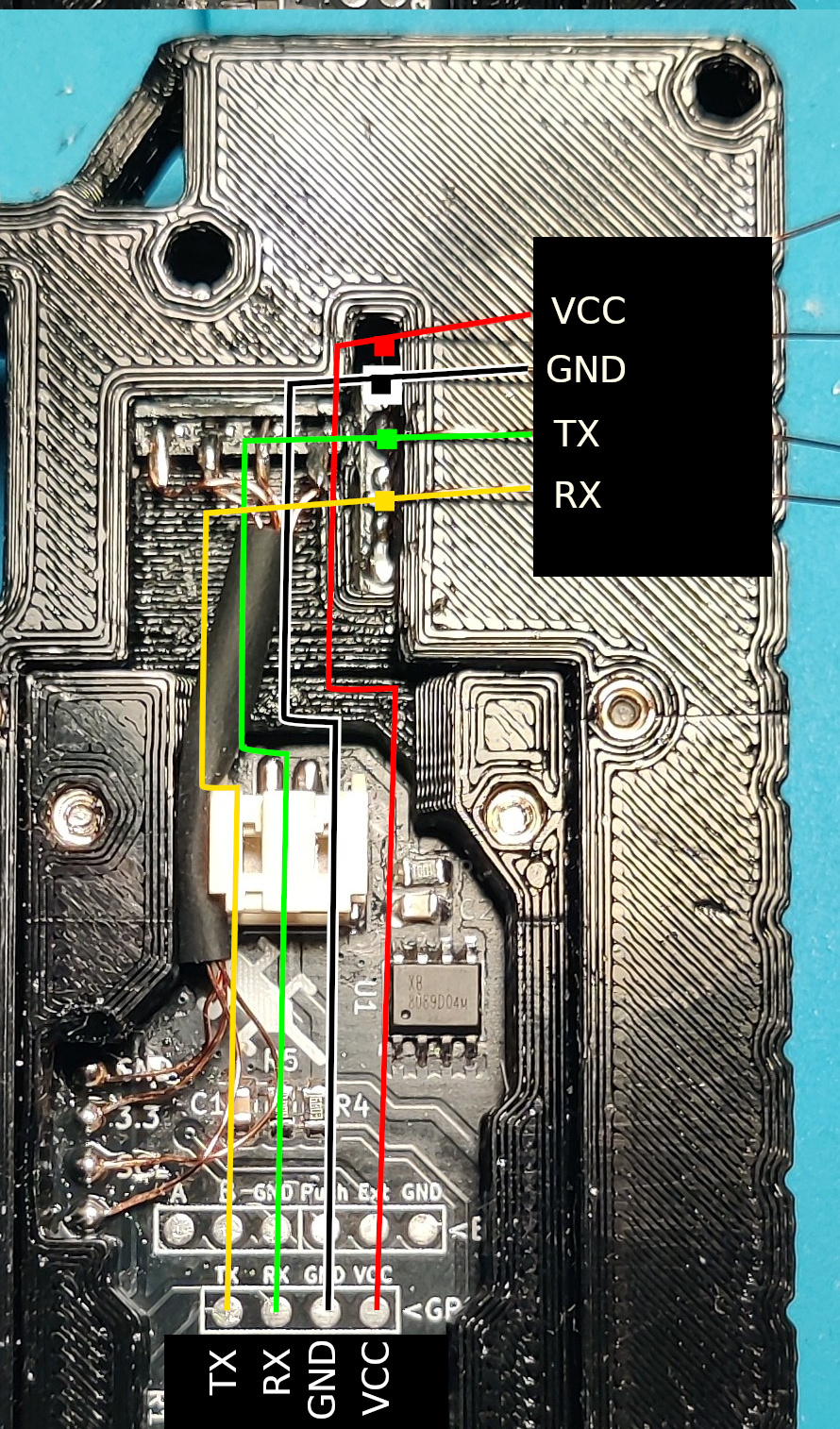
I also use heat shrink tube for ducting here, solder it exactly the same as when you soldered the screen connections.
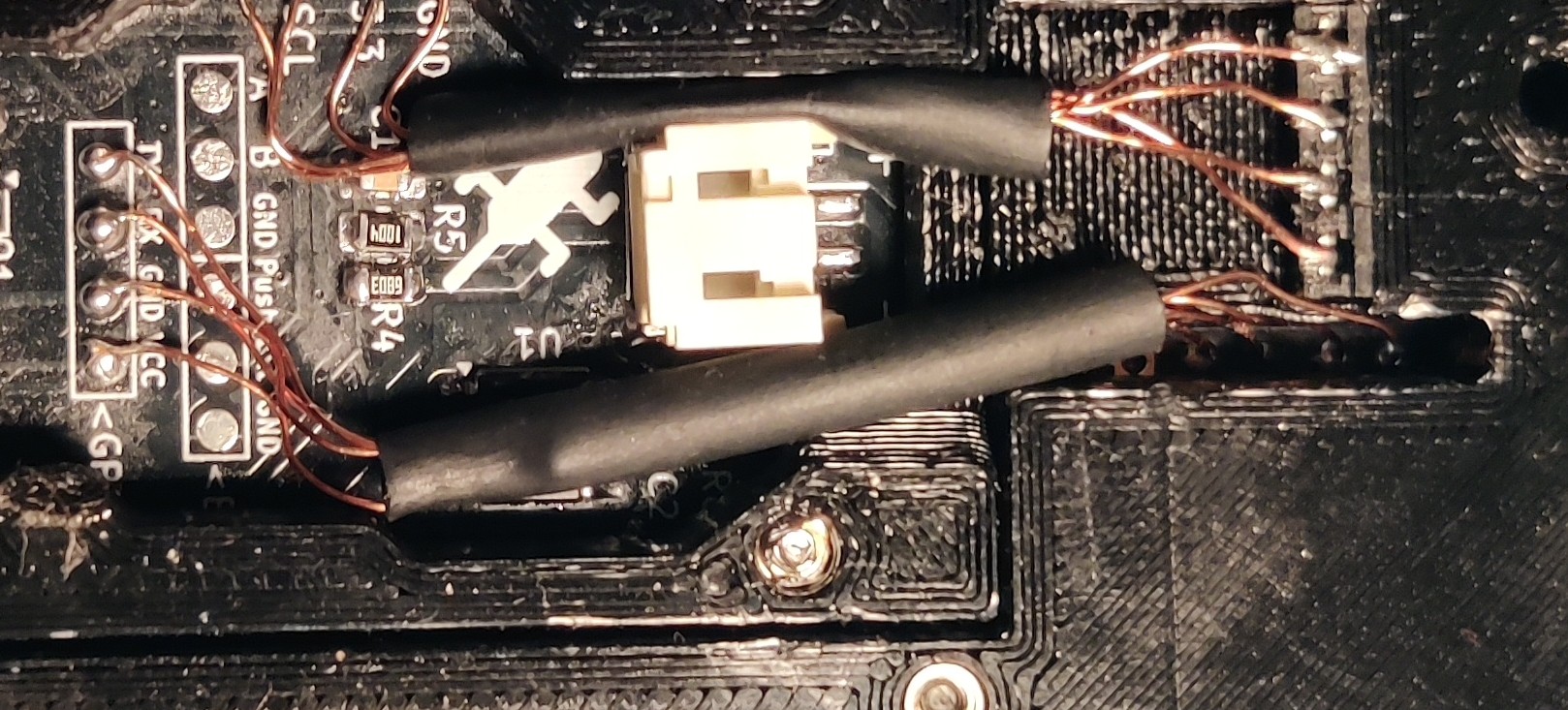
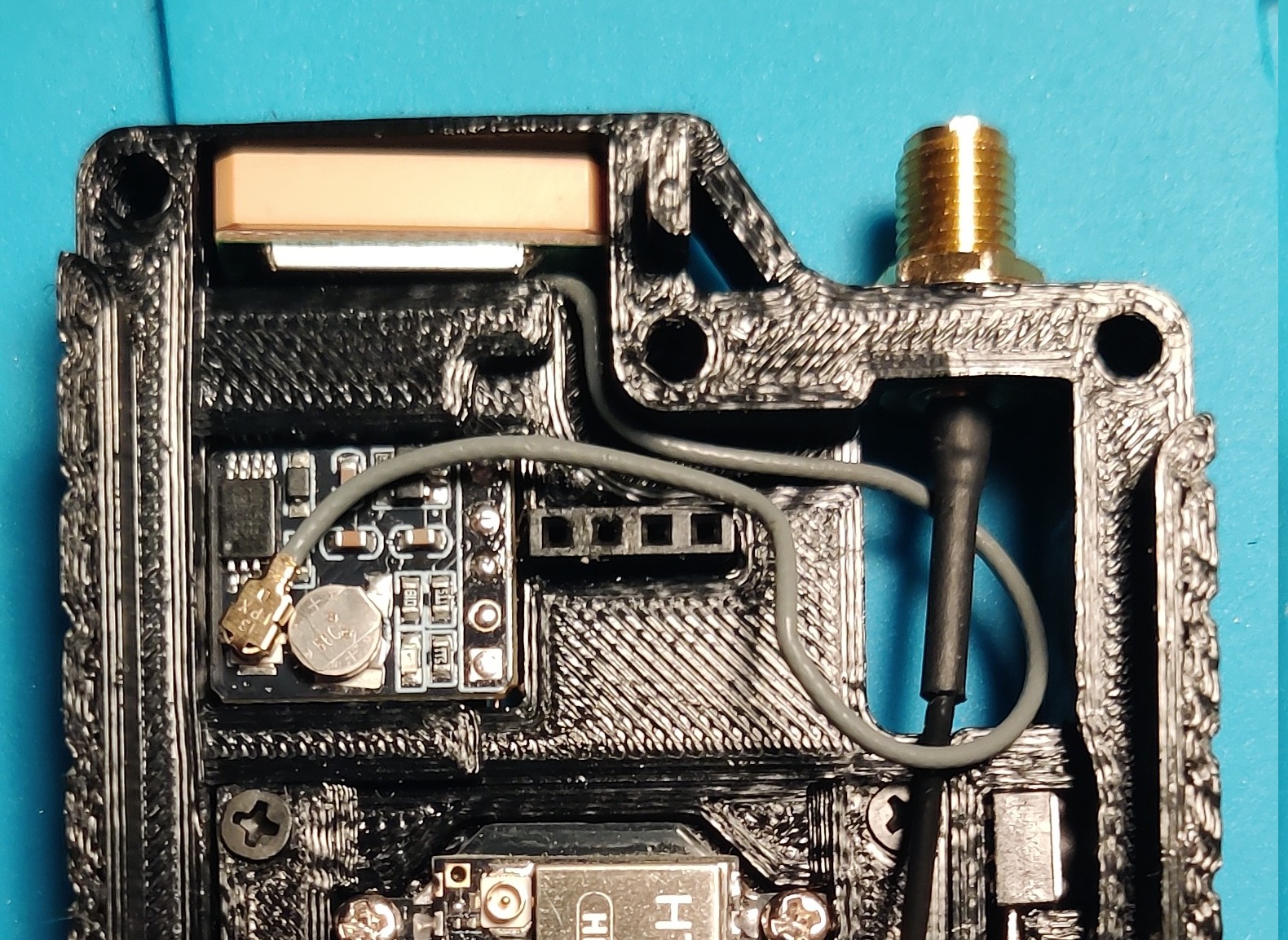
Finally, with the GPS Soldered, we can now install the antenna.
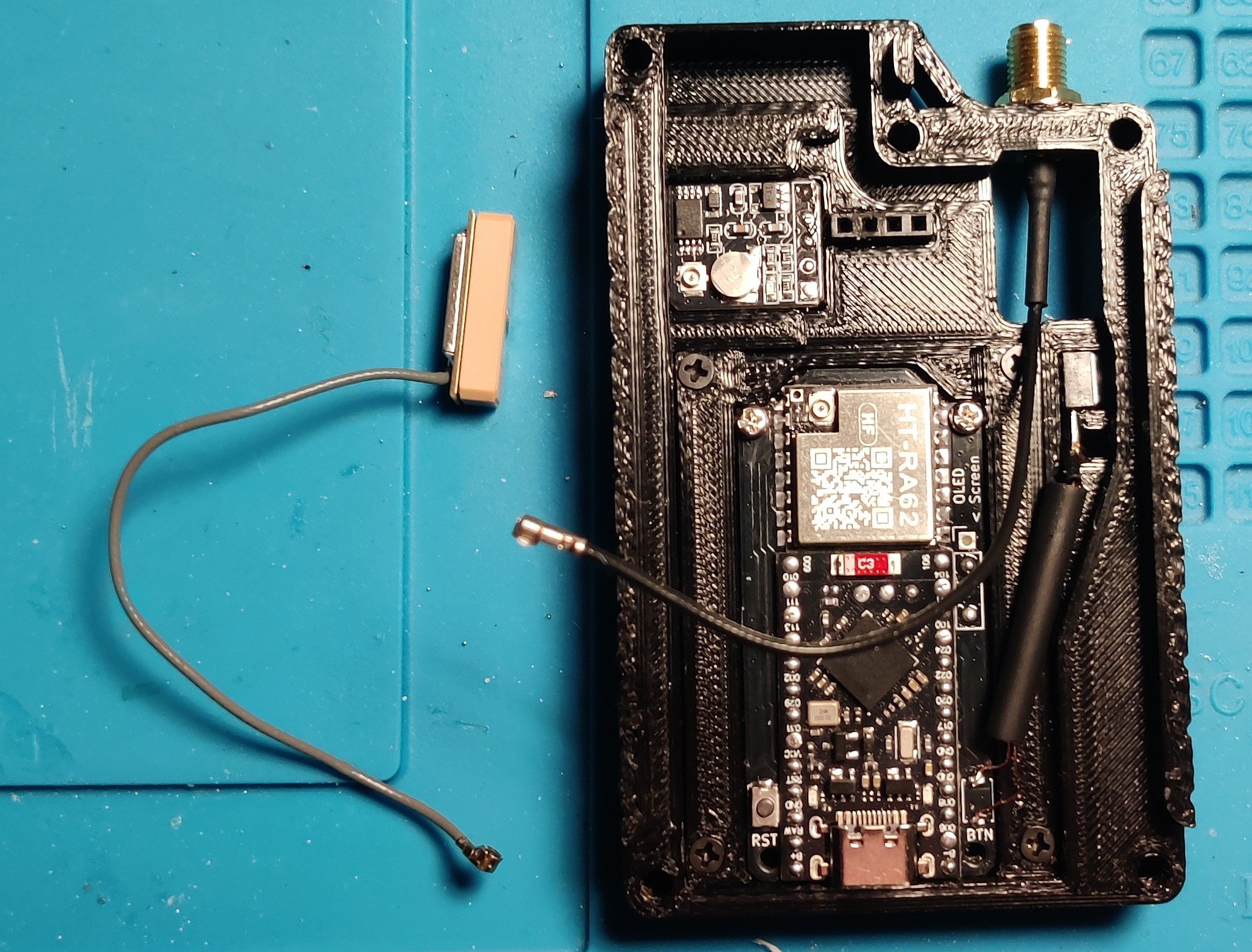
Slot it into the top gap, making sure the ceramic side faces up, and the cable comes out the right side into the channel, I had quite a long GPS cable, so to manage it I route the cable through the channel, underneath and around the main LoRa Antenna pigtail, then above the Screen Female Header where it can plug into the IPX socket on the GPS Module.
Assembly
After all that, it's time to put it all together.
Start by attaching the LoRa Antenna to the FakeTec, give it a few loops so it doesn't get in the way of closing the front panel.
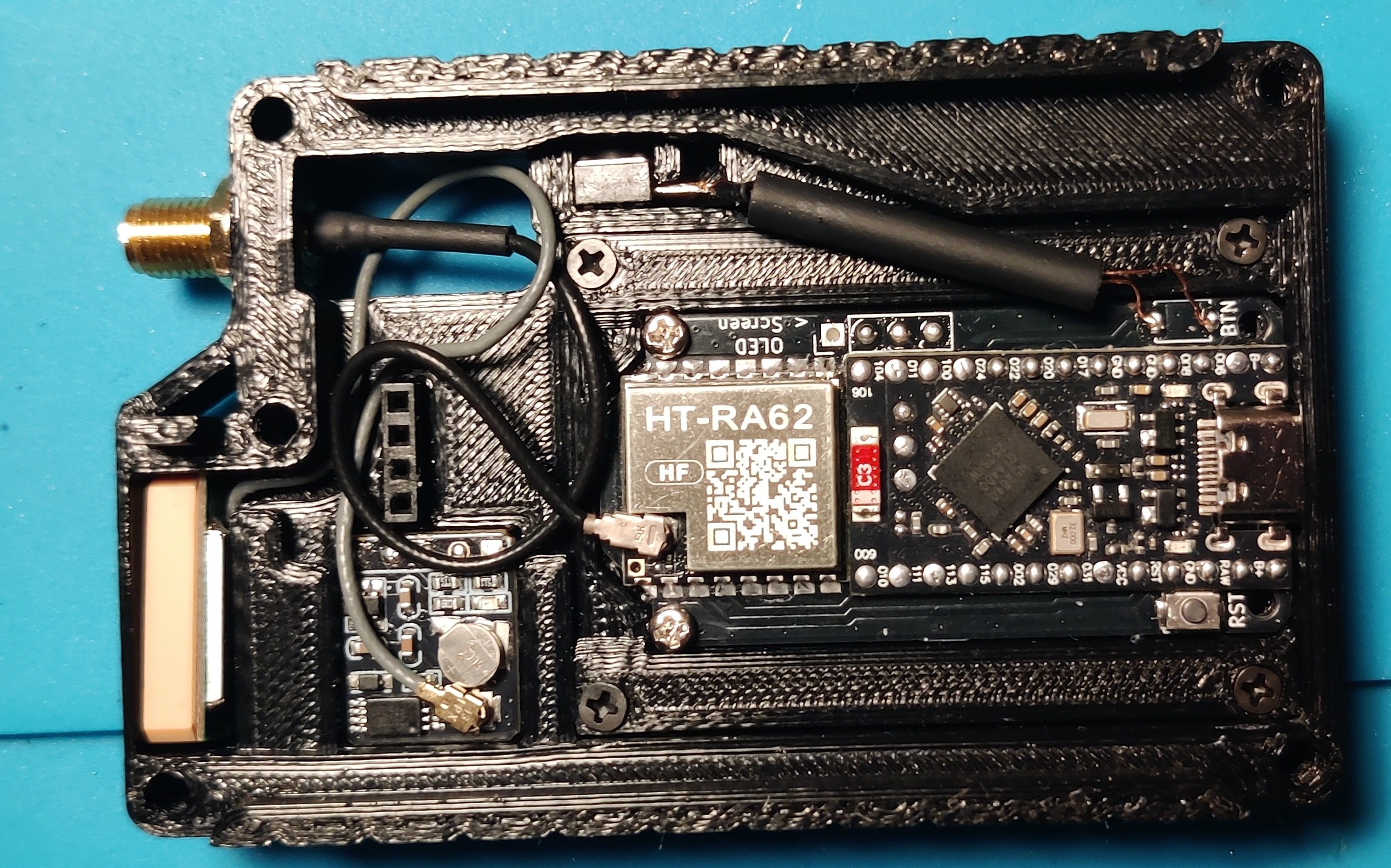
Then install the front panel, it should slot into place nicely, with the OLED's pins going into the female header without pushing it out the back.
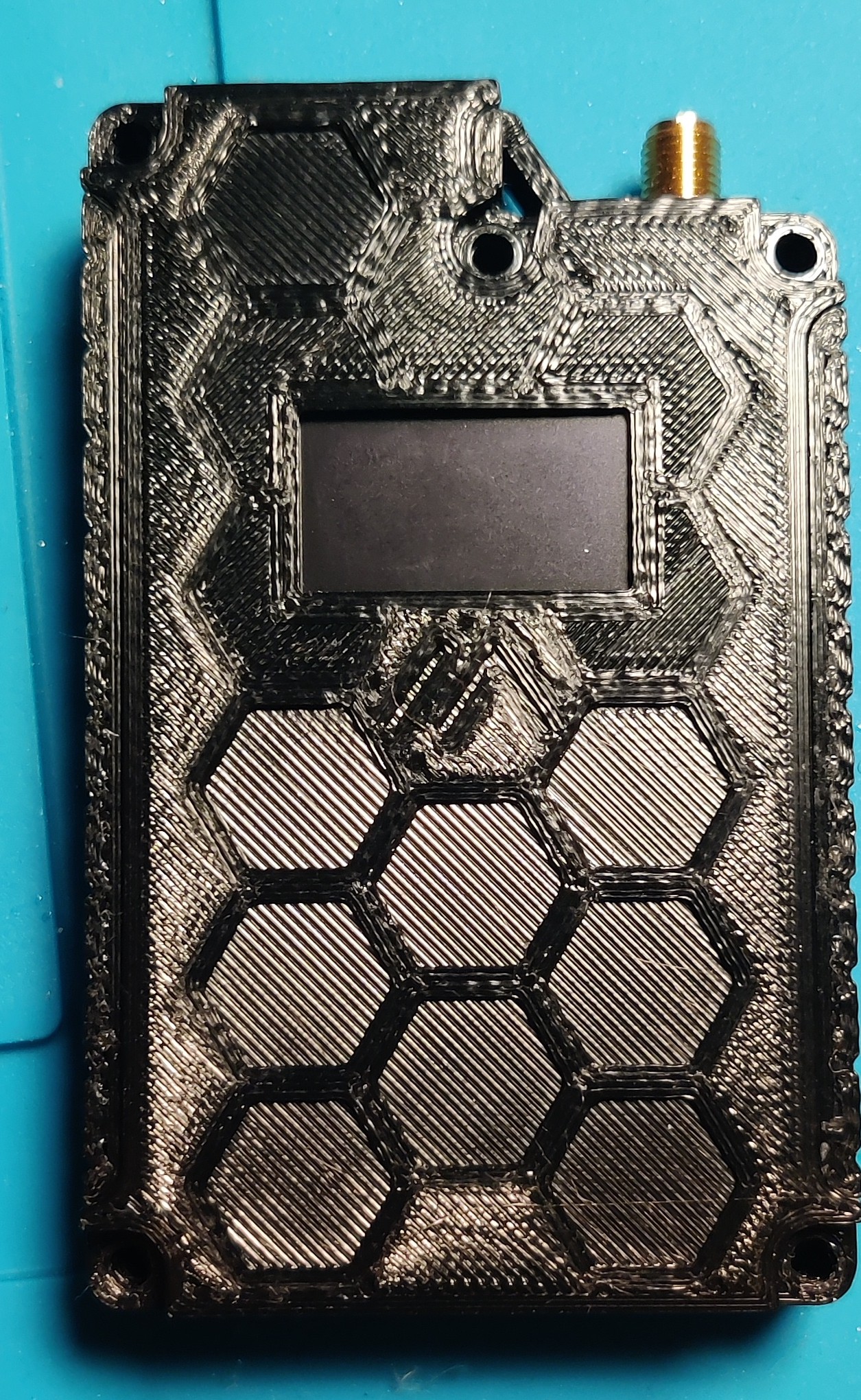
Next flip over and connect your battery. V5 and derivative FakeTecs use a JST1.25 or JST2.0 connector, other FakeTecs may use a different connection method. In my case I use a JST2.0 connector. Other FakeTec boards may require you to remove the battery connector and solder it directly.
Be careful of battery polarity, you may need to reverse the contacts in the connector.
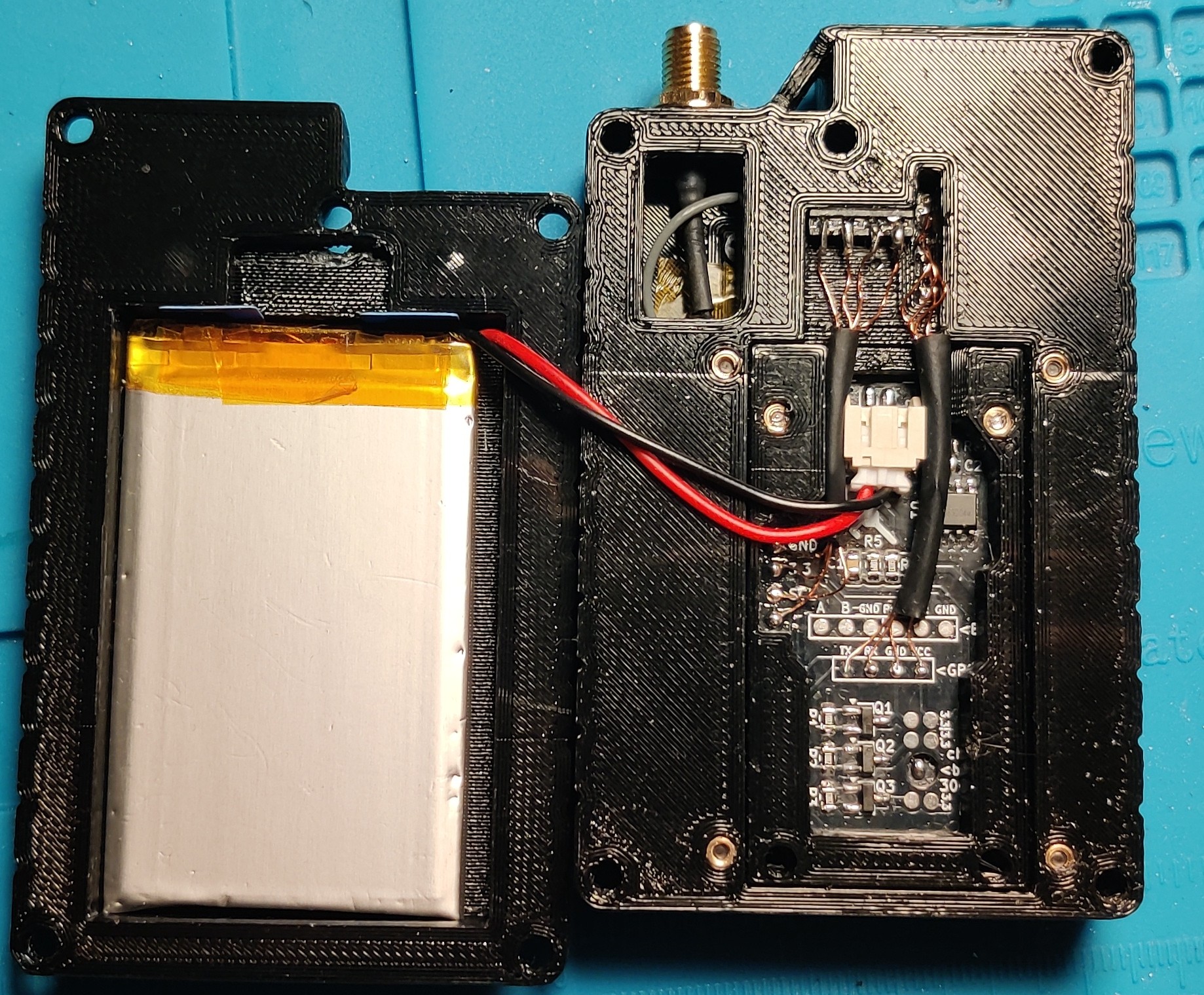
Once the battery is connected, we can close up.
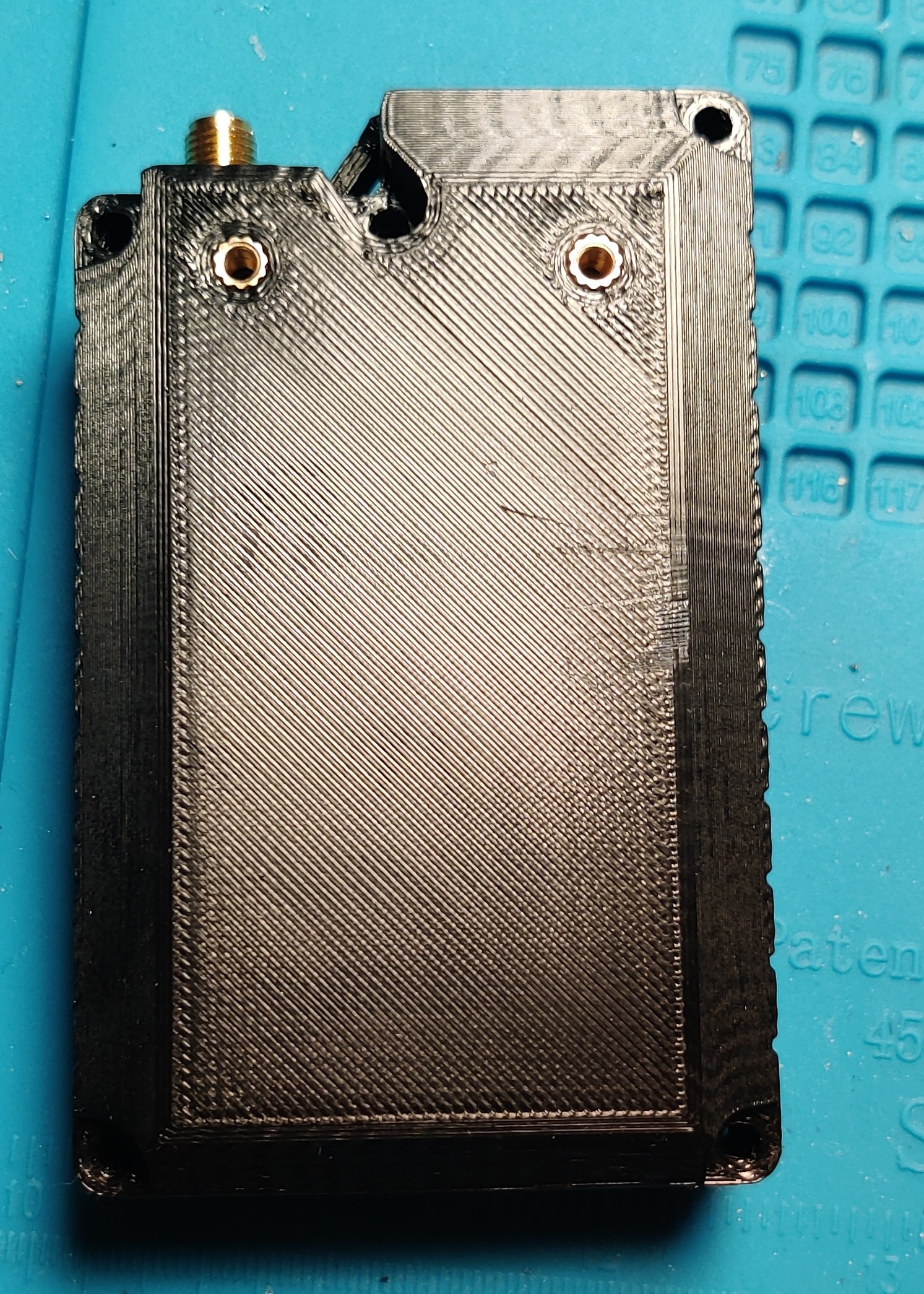
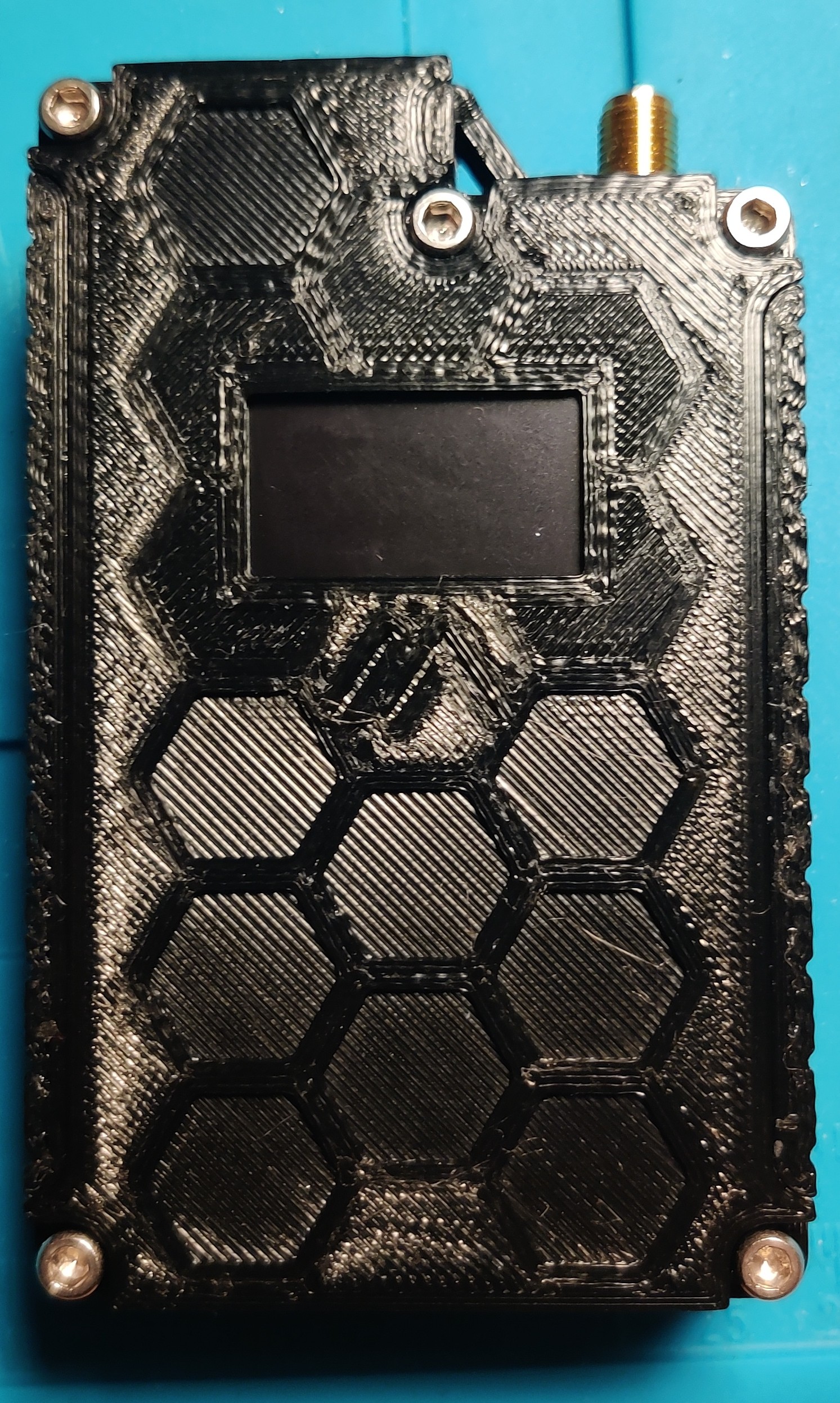
Flip back to the front and put the 5 M3x20mm Socket Head Screws through the 5 holes on the front, going through the middle section and the Back Panel.
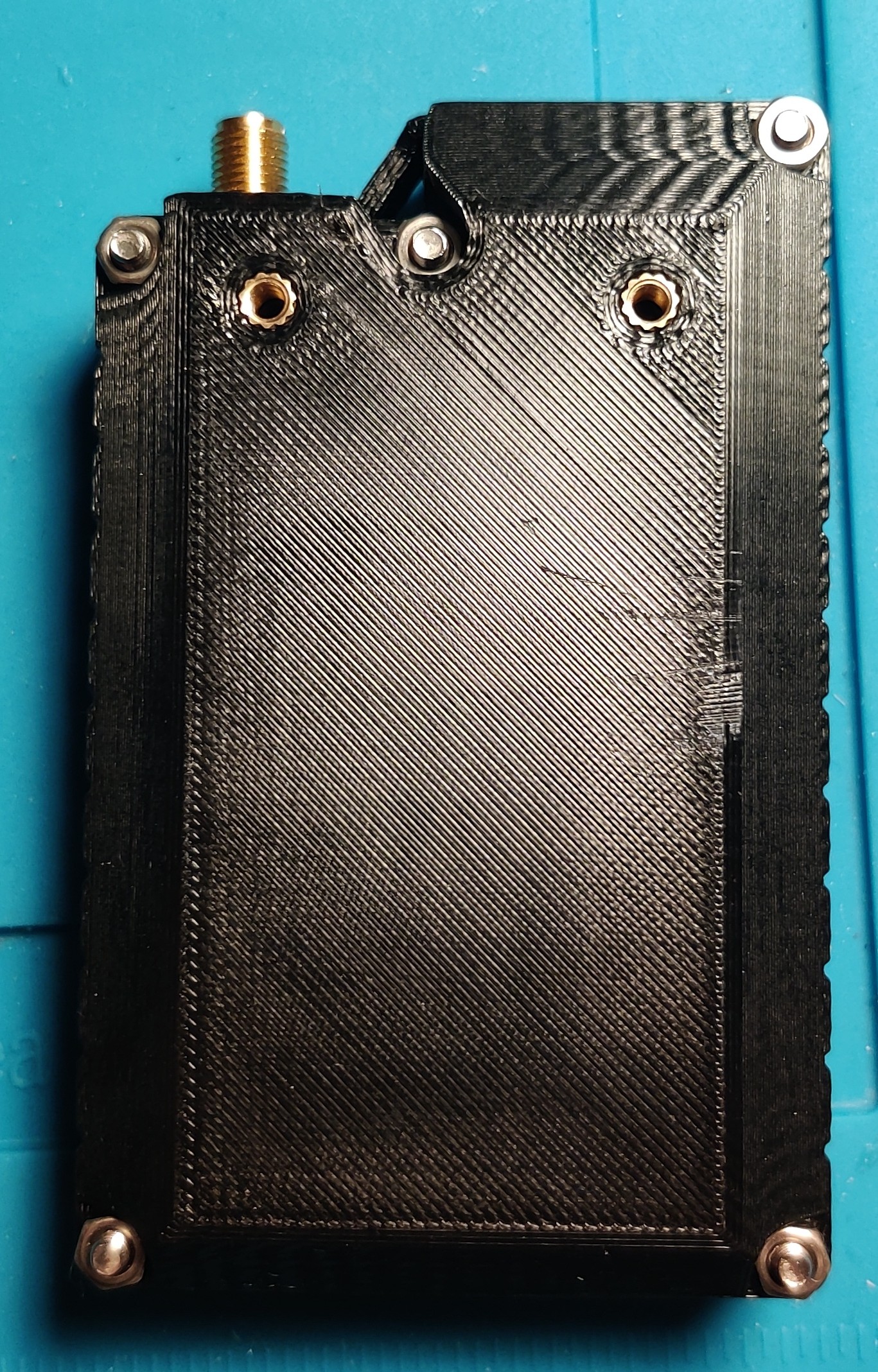
Finally, flip to the back and screw the 5x M3 Nuts onto the 5 M3x20mm screws.
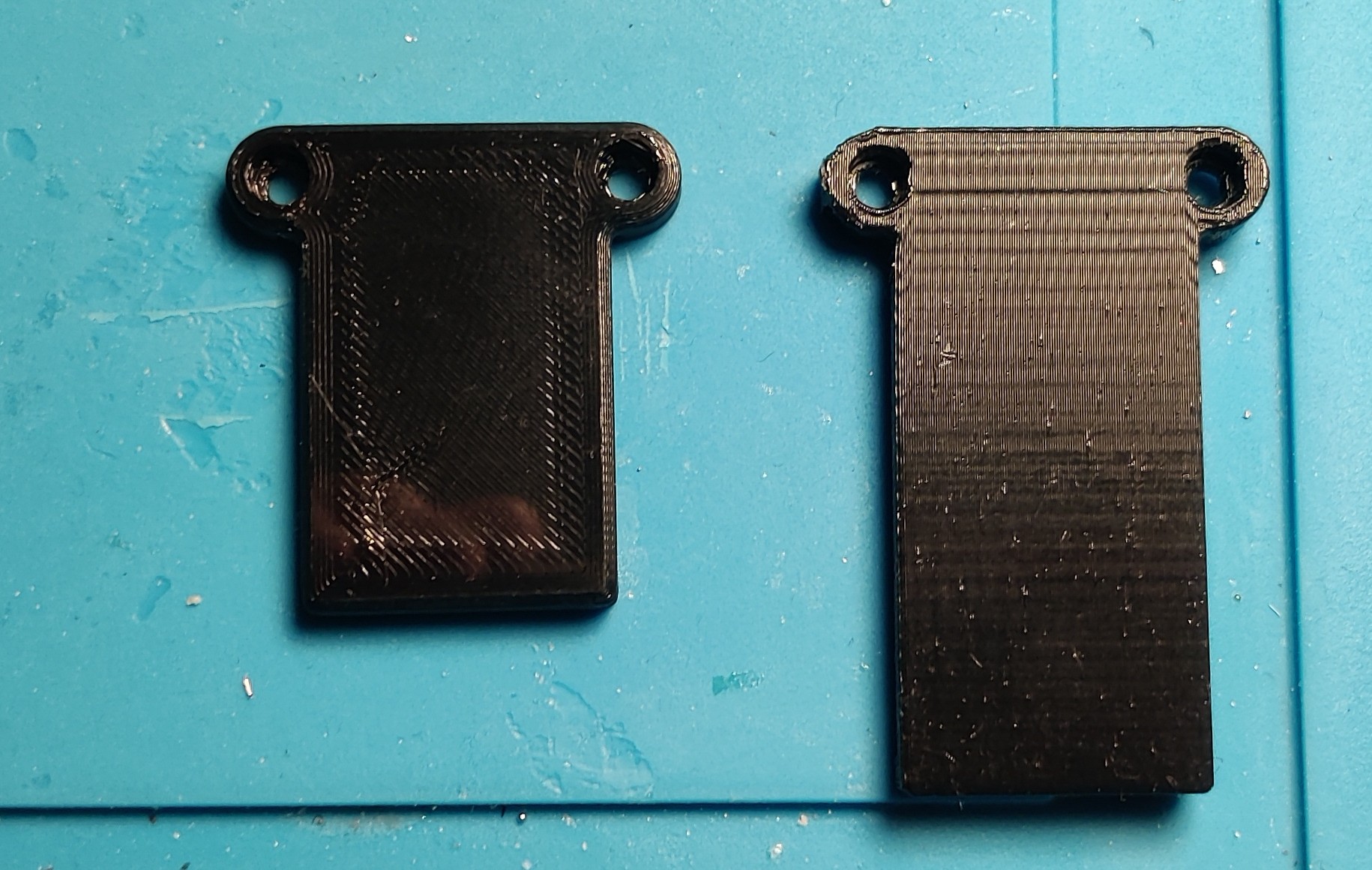
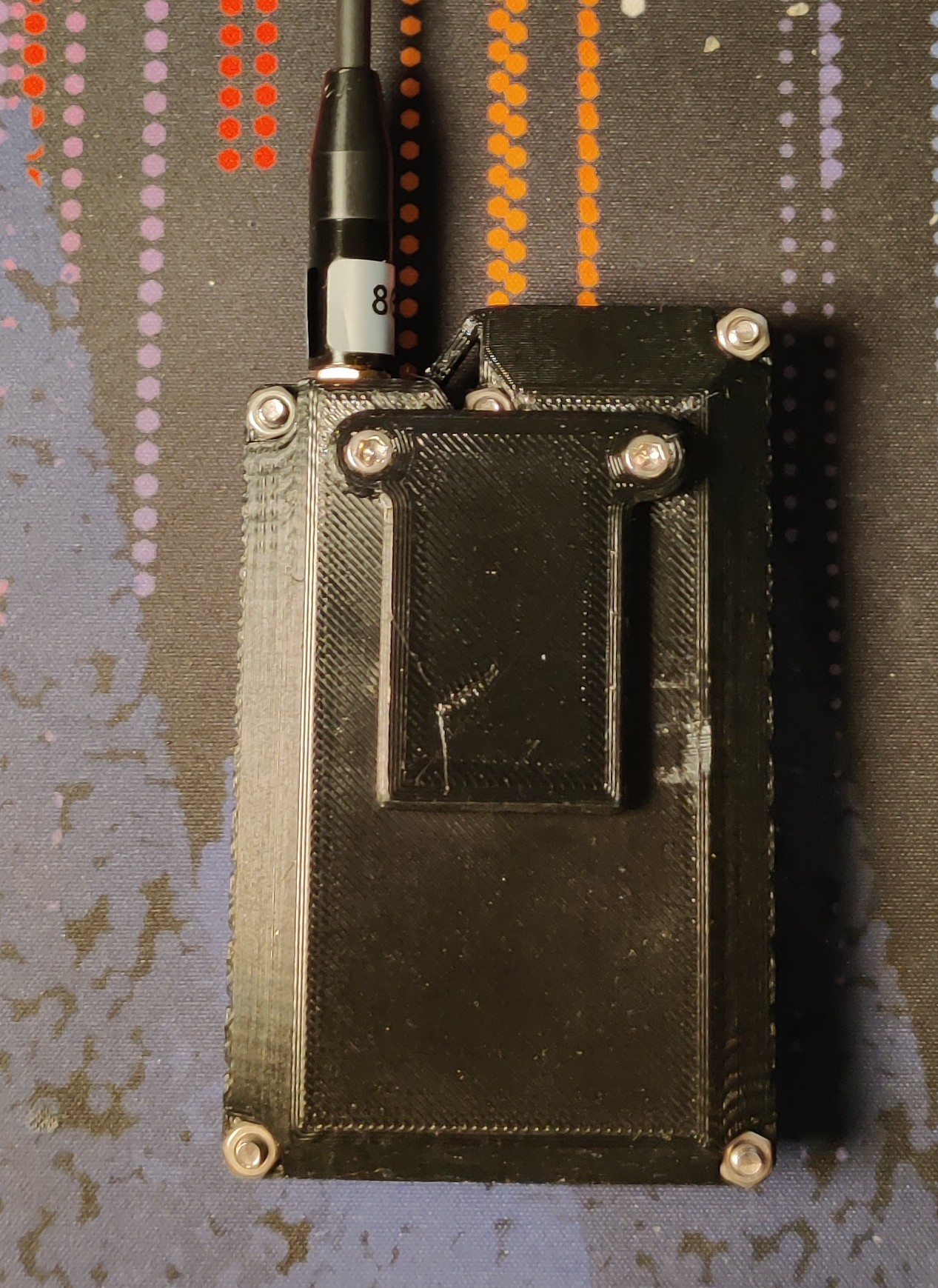
Belt Hook
For attaching to a belt or MOLLE, you can print one of the hooks and attach them to the M3 6mm Threaded Inserts on the back.
Done
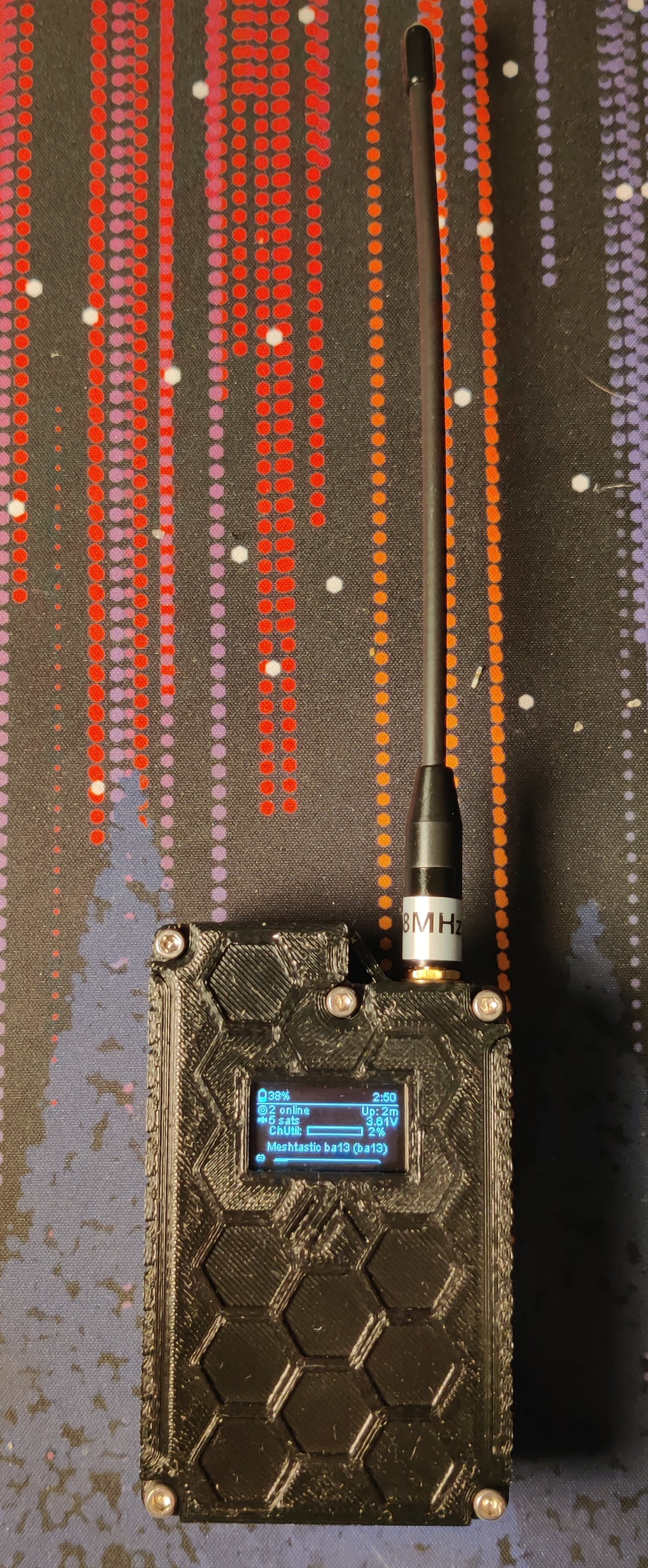
And that's it! Your FakeTec TakNode is fully assembled!
Final Steps
Your screen should boot up right away.
If you get some weird screen behavior, like overlapping, missing edges, weird snow on one side, then you may need to go into display settings on the app and force the OLED type to OLED_SSD1306.
Please note that the screen will only work if it is connected before the FakeTec is powered on, otherwise it won't display anything. Therefore, you should always put the front on before plugging in the battery
You will need to enable GPS before it will start picking up it's location. You can do this by going into Position settings on the app and setting GPS Mode (Physical Hardware) to ENABLED.
You may also need to set the GPS Recieve GPIO, GPS Transmit GPIO, and GPS EN GPIO values, but you'll have to consult your particular FakeTec's documentation for that one.
Once this is done, your GPS screen should show No GPS Lock(Which means it's not found any GPS satellites yet, it can take up to 10 minutes or so to "Cold Start"), or it should show your position.
If your GPS still shows that there's no GPS module, then you're module is likely not managing to connect to your FakeTec. The most likely cause of this is the antenna connector touching the small battery right next to it. This creates a path to ground, which makes it get really hot and not turn on. Either route the antenna wire so it doesn't touch, or cover the GPS module's battery with Kapton or electrical tape.
Finally, if that doesn't work, double check your soldering.